
Coin Payment – WorkDo Dash SaaS Add-On Guide
Learn how to configure and manage Coin integration in WorkDo Dash SaaS easily.
Supported Country : Algeria, American Samoa, Bangladesh, Belarus, Bosnia and Herzegovina, Cambodia, Cuba, Democratic Republic of the Congo, Djibouti, Eritrea, and More
Supported Currency : DZD, USD, BDT, BYN, BAM, KHR, CUP, and More
Benefits of Coin Payments Gateway
Extensive Cryptocurrency Support
Coin Payments enables businesses to accept payments in over 175 cryptocurrencies, including Bitcoin, Ethereum, Litecoin, and popular stablecoins such as USDT and USDC, providing exceptional payment flexibility for a truly global customer base.
Real-Time Transaction Monitoring
Every payment initiated through Coin Payments is tracked and updated instantly, giving merchants complete visibility from transaction initiation through to final confirmation, enabling faster order management and eliminating unnecessary delays.
Simple & Accessible Configuration
Coin Payments comes with an intuitive configuration panel that allows administrators to set up merchant credentials, manage supported currencies, and adjust gateway settings with minimal technical effort, making it accessible even without advanced development knowledge.
Established Security & Trustworthiness
As a well-established cryptocurrency payment platform, Coin Payments incorporates robust security features, including secure wallet storage and multi-signature support, giving both merchants and customers full confidence in the integrity of every transaction.
Fully Automated Payment Processing
Once integrated, Coin Payments handles the entire payment workflow automatically, from generating wallet addresses to confirming payment receipts, significantly reducing manual workload, minimizing errors, and improving overall operational efficiency.
How to Access Coin Payments Add-On?
- Visit WorkDo Website:
- Navigate to Dash SaaS Add-Ons
- Discover Coin Payment Add-On
- Activate the Add-On:
Go to www.workdo.io to access the WorkDo Dash platform.
Explore the “Dash SaaS Add-Ons” section to view all available integrations.
Browse the Add-Ons list and locate “Coin Payment Gateway.”
Click on the Activate button to enable Coin Payment for your WorkDo Dash account..
Super Admin Settings
(Plan Purchase by the Company)
The Super Admin Settings are accessible only to the highest-level administrator. These settings allow the Super Admin to manage company-level subscriptions and payment configurations.
Key Capabilities:
- Purchase or upgrade company subscription plans
- Configure Coin Payments API credentials for plan payments
- Enable or disable Coin Payments as a payment gateway
Super Admin Login → Settings → Coin Payments Settings
Company Settings
(Bookings, Beauty Spa, LMS & Other Payments)
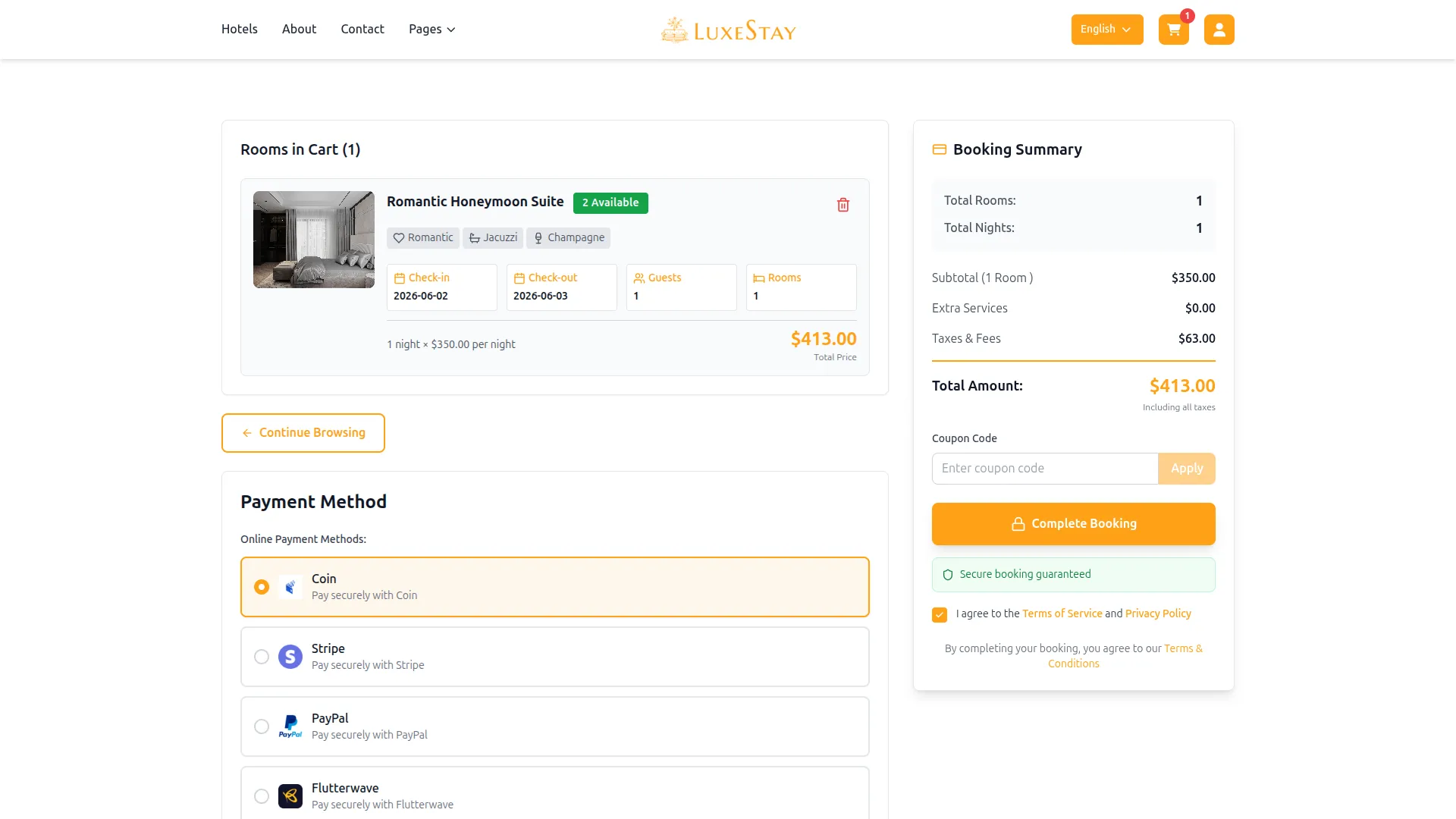
Company Settings allow organizations to configure Coin Payments for receiving payments from customers across multiple modules.
Supported Modules Include:
Configuration Path:
Company Login → Settings → Coin Payments Settings
Company-Level Capabilities:
- Configure Coin Payments API credentials
- Enable Coin Payments for selected modules
- Accept cryptocurrency payments from customers
- Manage Bookings, Beauty Spa, and service
- Handle tax, coupon, and discount calculations
How to Generate Coin Payments API Keys?
To integrate Coin Payments into your (Product Name), follow the steps below:
Generate API Key:
To integrate Coin Payments with WorkDo Dash, you need to obtain API credentials from your Coin Payments merchant dashboard. Follow these steps:
1. Register a Developer Account
- Visit the official Coin Payments site: https://www.coinpayments.net
- Sign up for a merchant account.
2. Access Your Sandbox Credentials
- After logging in, navigate to Account → API Keys.
- Copy the Public Key and Private Key provided.
Note : Coin Payments does not have a sandbox/live toggle. Transactions are handled based on your account and the provided credentials.
Configure Coin Payments Gateway:
- Log in to your account with administrator credentials.
- Navigate to the settings page.
Access Payment Settings:
- Within the settings page, locate and select the “Payment Settings” option.
Set Up Coin Payments Gateway:
- Scroll down the page until you find the Coin Payments Gateway option.
- Click on the Patnow Gateway to access its configuration settings.
Enter Required Details:
- In the settings, provide the following essential details:
- Public Key and Private Key, Currency.
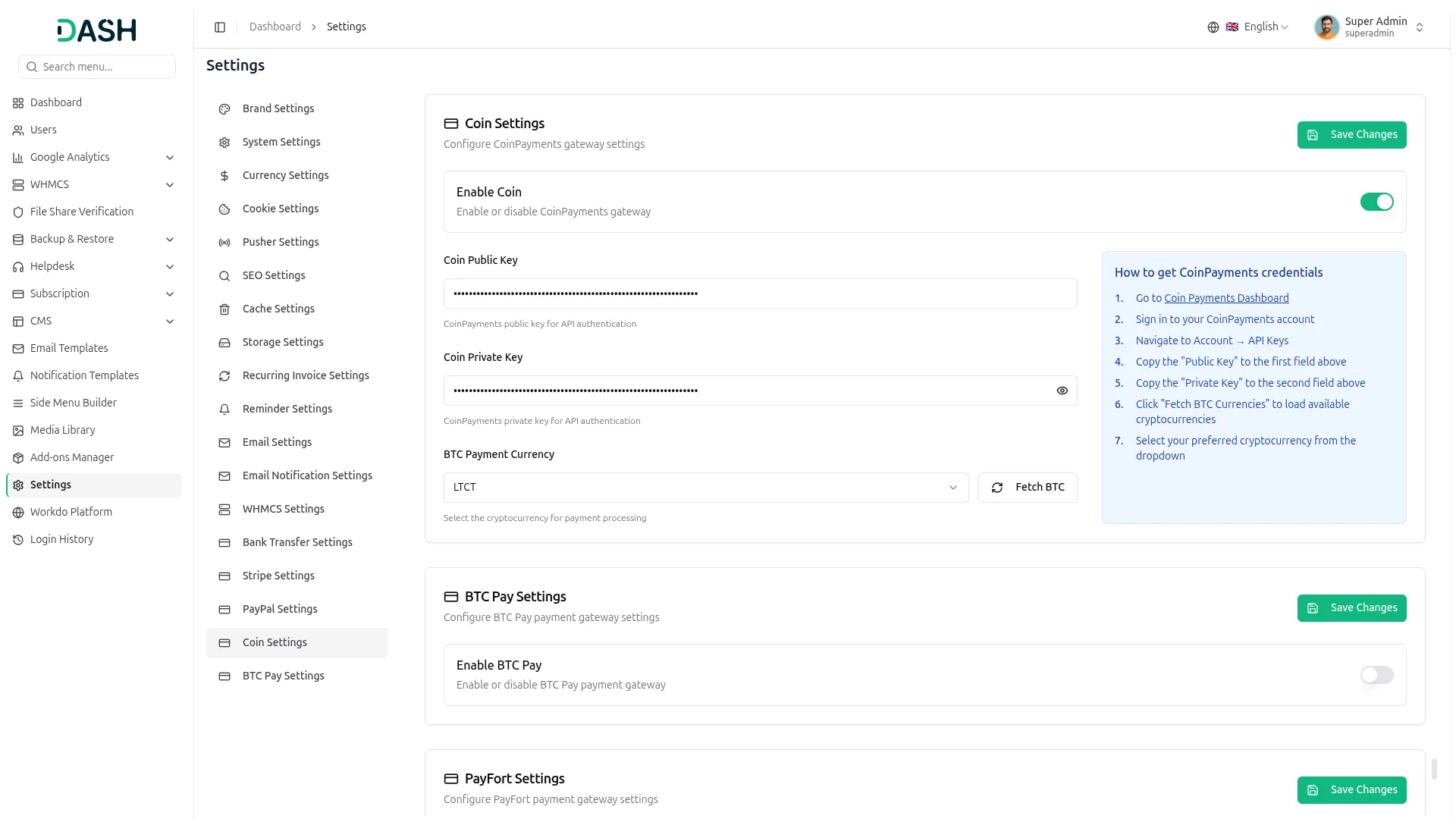
Save Your Settings:
- After entering the necessary details, save the settings to activate the Coin Payments Payment Gateway within your platform.
This process will enable you to seamlessly integrate Coin Payments as a payment gateway, allowing your users to make secure and efficient online payments in various cryptocurrencies.
Note : The Coin Payments Add-On is a paid feature and can be accessed by users who have purchased it. By integrating the Coin Payments Add-On into your Dash SaaS account, you’ll provide a reliable and user-friendly payment gateway that supports global transactions
Categories
Related articles
- Language Manager Guide
- eCommerceGo SaaS Theme Setup Guide
- Campaign – eCommerceGo SaaS Add-On Guide
- Coupon Module Guide – eCommerceGo SaaS
- Reward Club Point – eCommerceGo SaaS Add-On Guide
- Authorize.Net – WorkDo Dash SaaS Add-On Guide
- Movie & TV Studio – WorkDo Dash SaaS Add-On Guide
- App Download – vCard SaaS Add-On Guide
- Tap – WorkDo Dash SaaS Add-On Guide
- Instagram Post – WorkDo Dash SaaS Add-On Guide
- Appointment Kanban Board – BookingGo SaaS Add-On Guide
- Google Map URL – vCard SaaS Add-On Guide
We're Here to Help - Let's Talk
Have questions about our solutions, customization services, or business tools? Our team is here to help you. let's talk.