
Ticket Widget – TicketGo Add-On Guide
Learn how to configure and use the Ticket Widget Add-On in TicketGo easily.
Introduction
The Ticket Widget Add-On in TicketGo allows businesses to seamlessly integrate a support ticket submission interface directly onto their website or customer portal. This Add-On empowers users to raise queries or report issues without leaving the site, enhancing customer experience and reducing support delays. It offers customizable design options, real-time ticket tracking, and automated routing to the appropriate support teams. This documentation provides a step-by-step guide to help you configure, embed, and effectively manage the Ticket Widget for optimal support operations.
How to Install the Add-On?
Follow these steps for Installation : Setup Ticket Widget
How to use the Ticket Widget Add-On?
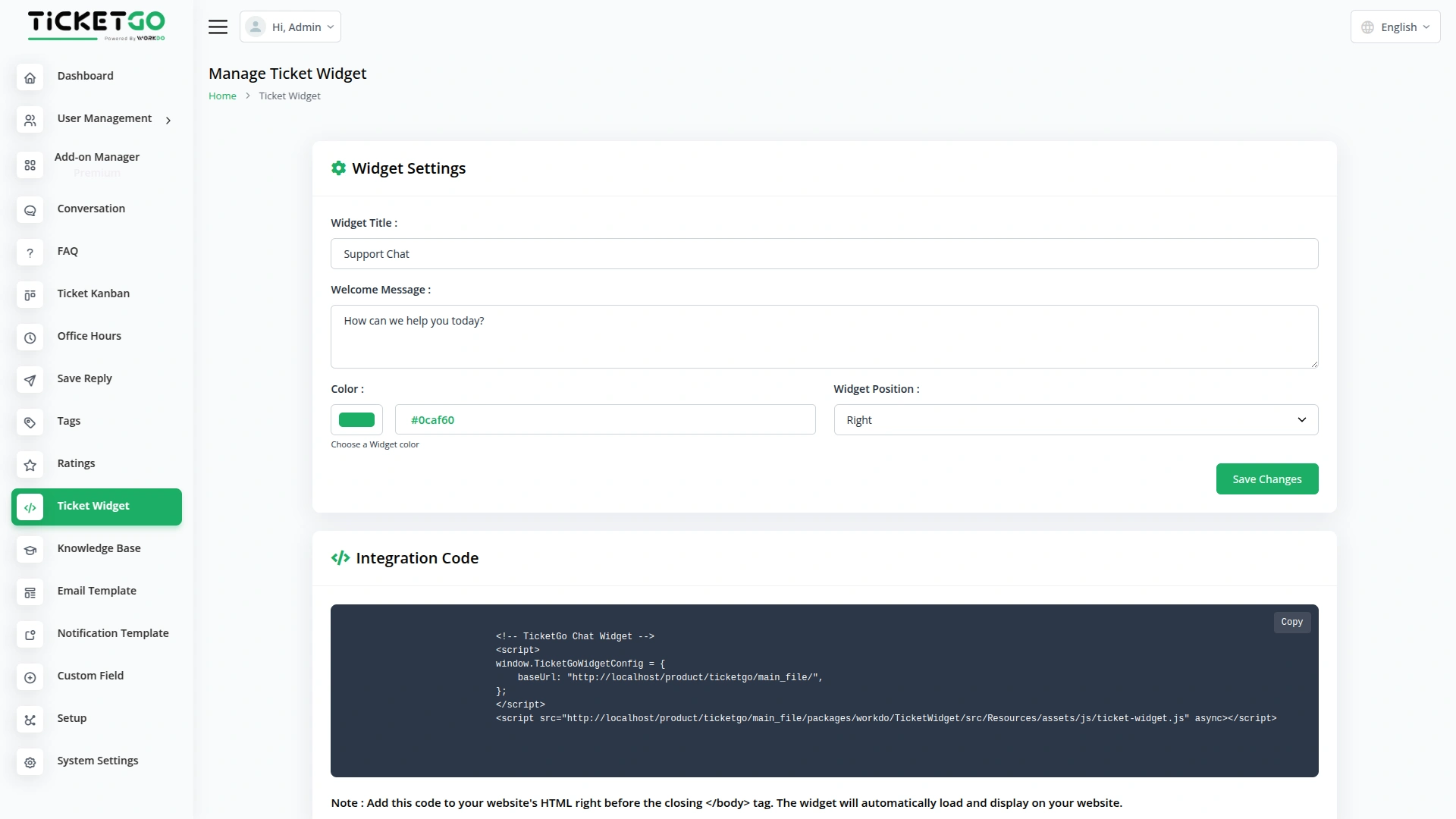
- After purchasing the Ticket Widget Add-On, go to the sidebar and find the Ticket Widget page.
- On the Ticket Widget page, you can configure widget settings by adding the widget title, entering the welcome message, selecting the color, and choosing the widget position (left or right).
- The settings you configure will be visible on the frontend. If you don’t enter details like the Widget Title or welcome message, default data will be displayed to customers.
- Below the settings section, you will find a box containing the integration code.
- Copy the integration code and paste it into your website’s HTML just before the closing
</body>tag to activate the TicketGo widget on your site. - This enables instant chat support for your visitors with no additional setup required.
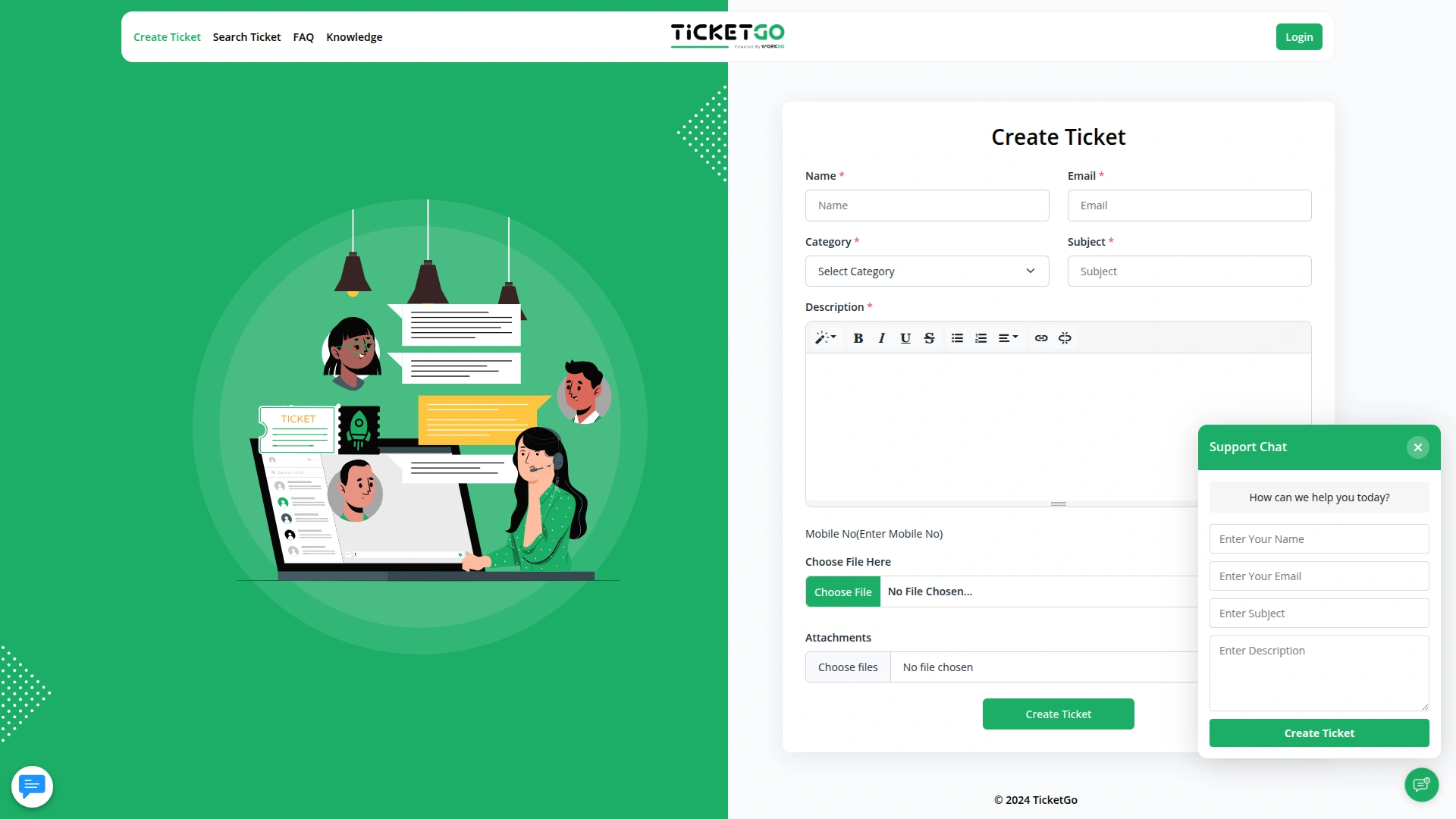
- When a user clicks on the widget icon, a Create Ticket form opens.
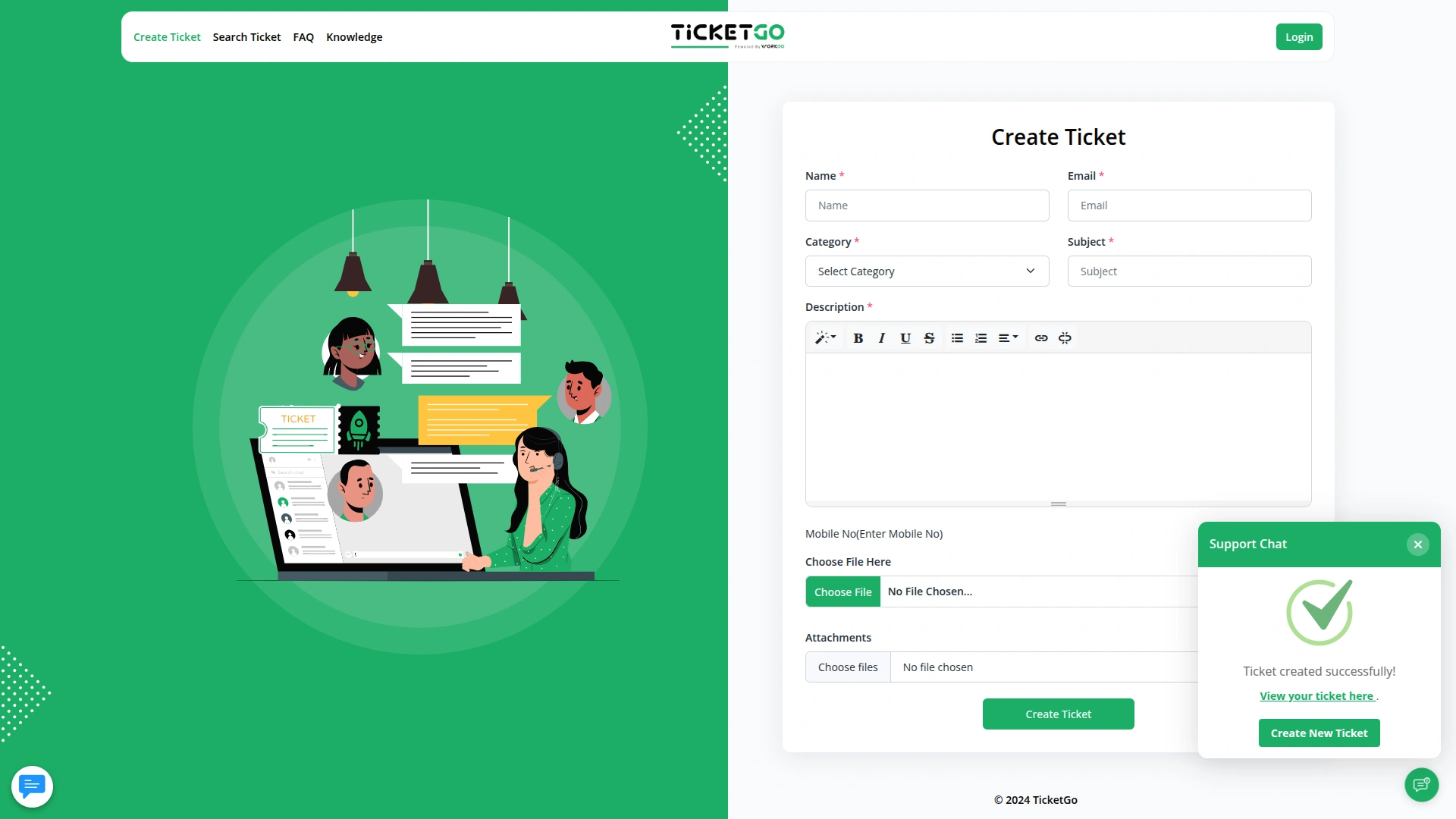
- After submitting the form, a ticket is created in the system.
- The user is provided with a link to the ticket conversation page.
- Using this link, the customer can continue the conversation with your support team.
- All tickets created via the widget appear in the Ticket Conversations area.
- This allows both your support team and customers to view ongoing discussions and respond with ease.
So, this is how you can use the Ticket Widget Add-On of TicketGo.
Categories
Related articles
- Import Export – BookingGo SaaS Add-On Guide
- BTCPay – BookingGo SaaS Add-On Guide
- Sign in with LinkedIn – eCommerceGo SaaS Add-On Guide
- Inventory – WorkDo Dash SaaS Add-On Guide
- Notice Board – WorkDo Dash SaaS Add-On Guide
- Support Ticket – WorkDo Dash SaaS Add-On Guide
- Mark as Important – TicketGo Add-On Guide
- Movie Show Booking System – WorkDo Dash SaaS Add-On Guide
- NMI – WorkDo Dash SaaS Add-On Guide
- Laundry Management – WorkDo Dash SaaS Add-On Guide
- Google Sheets – WorkDo Dash SaaS Add-On Guide
- WizzChat – eCommerceGo SaaS Add-On Guide
We're Here to Help - Let's Talk
Have questions about our solutions, customization services, or business tools? Our team is here to help you. let's talk.