
Library Management – WorkDo Dash SaaS Add-On Guide
Learn how to manage books, members, and library operations in WorkDo Dash SaaS easily.
Introduction
The Library Management Add-On is a comprehensive system that enables administrators to manage all aspects of a library’s operations, covering everything from configuring foundational settings and book categories to managing I-Cards, books, authors, and publishers. It streamlines the full borrowing lifecycle, from book requests and issue tracking to returns and fine management, with built-in tools for filtering, searching, and taking action on records at every stage.
How To Install the Add-On?
To Set Up the Library Management Add-On, you can follow this link: Setup Add-On.
How To Use the Library Management Add-On?
Library Management Dashboard
- The dashboard provides a complete overview of your library system’s performance through various visual elements and summary information.
- At the top, you’ll find a row of summary cards displaying key metrics across the system: Total I-Cards, Total Books, Book Requests, Book Issues, Total Authors, Total Publishers, Total Categories, and Total Fines.
- The dashboard includes a Book Issues & Requests Trend chart that displays the last 6 months of activity as a line graph, plotting both Book Issues and Book Requests over time. This allows you to track borrowing and request patterns, identify peak activity periods, and monitor how demand has evolved across recent months.
- The Latest Records panel at the bottom is organized into two tabs. The Latest Book Issues tab shows recent issues with their Issue ID, User, Book, Issue Date, Due Date, and Status.
- The Latest Book Requests tab shows recent requests with their Request ID, User, Book, Request Date, and Status, allowing you to quickly monitor and act on any Pending, Approved, or Rejected requests.

System Setup
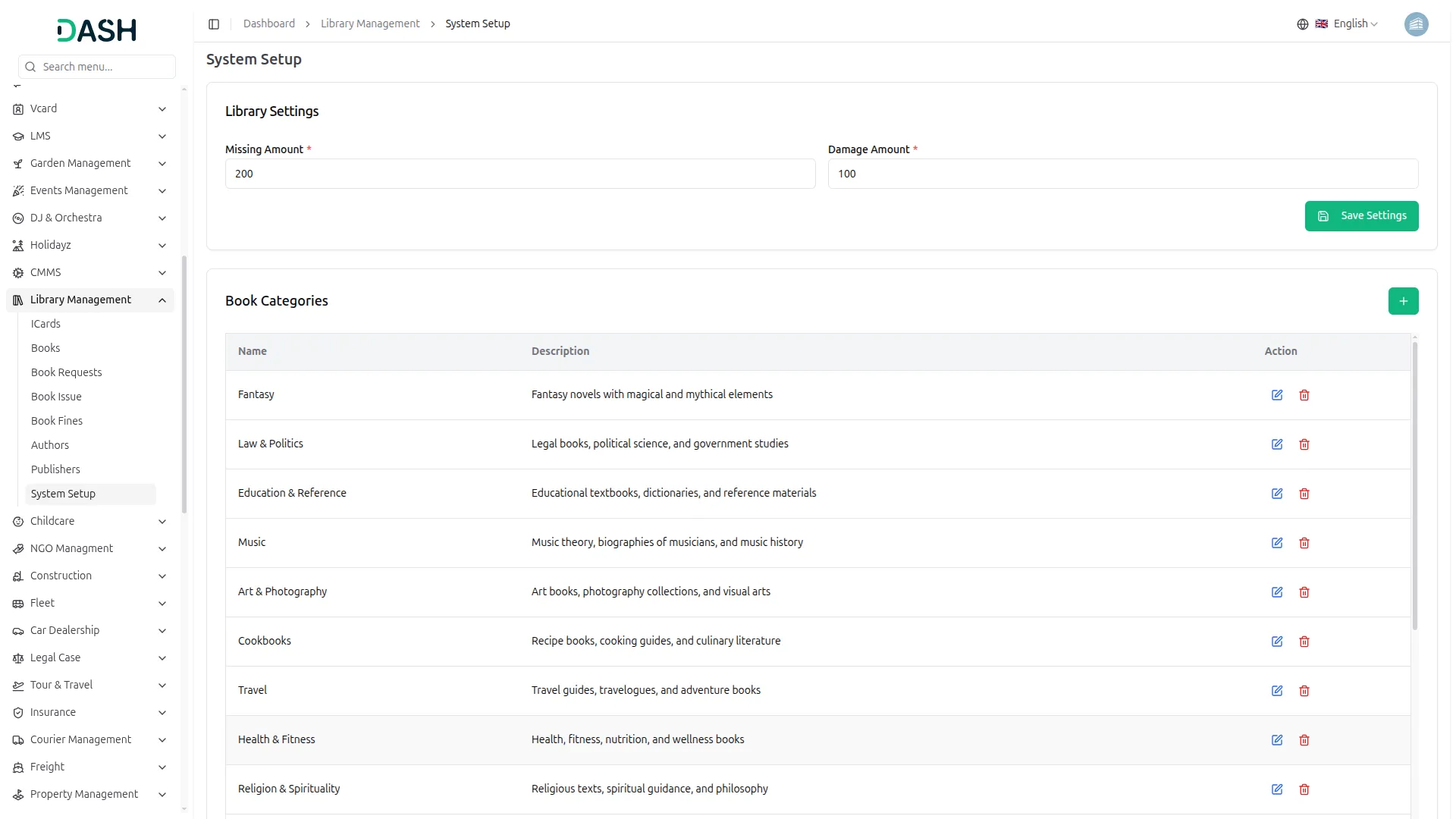
- The System Setup section allows administrators to configure foundational data used across the system. It currently includes Library Settings and Book Categories, both of which are referenced when managing books and transactions throughout the platform.
Library Settings
- The Library Settings section allows administrators to define penalty amounts applied to book-related incidents. Enter the Missing Amount to specify the fine charged when a book is reported missing, and the Damage Amount to set the fine for returned books that are damaged.
- Once the values are configured, click the Save Settings button to apply the changes across the system.
Book Categories
- To add a new book category, click the “Create” button in the Book Categories section. In the form that opens, enter the Name of the category in the provided field. Optionally, add a Description to explain the type of books that fall under the category. Click Create to save the new category, or Cancel to discard the changes.
- The Book Categories list displays all configured categories in a table with columns for Name, Description, and Action.
- You can either edit a book category to update its name or description, or delete it to permanently remove it from the system.
Manage ICards
- To add a new ICard record, click the “Create” button on the Manage ICards page. In the form that opens, select the User from the dropdown to associate the ICard with a library member.
- Set the Issue Date and Expiry Date using the date pickers to define the card’s validity period. Enter the Book Limit to specify the maximum number of books the member is allowed to borrow at one time. Optionally, add any relevant Notes about the member or card. Click Create to save the record, or Cancel to discard it.
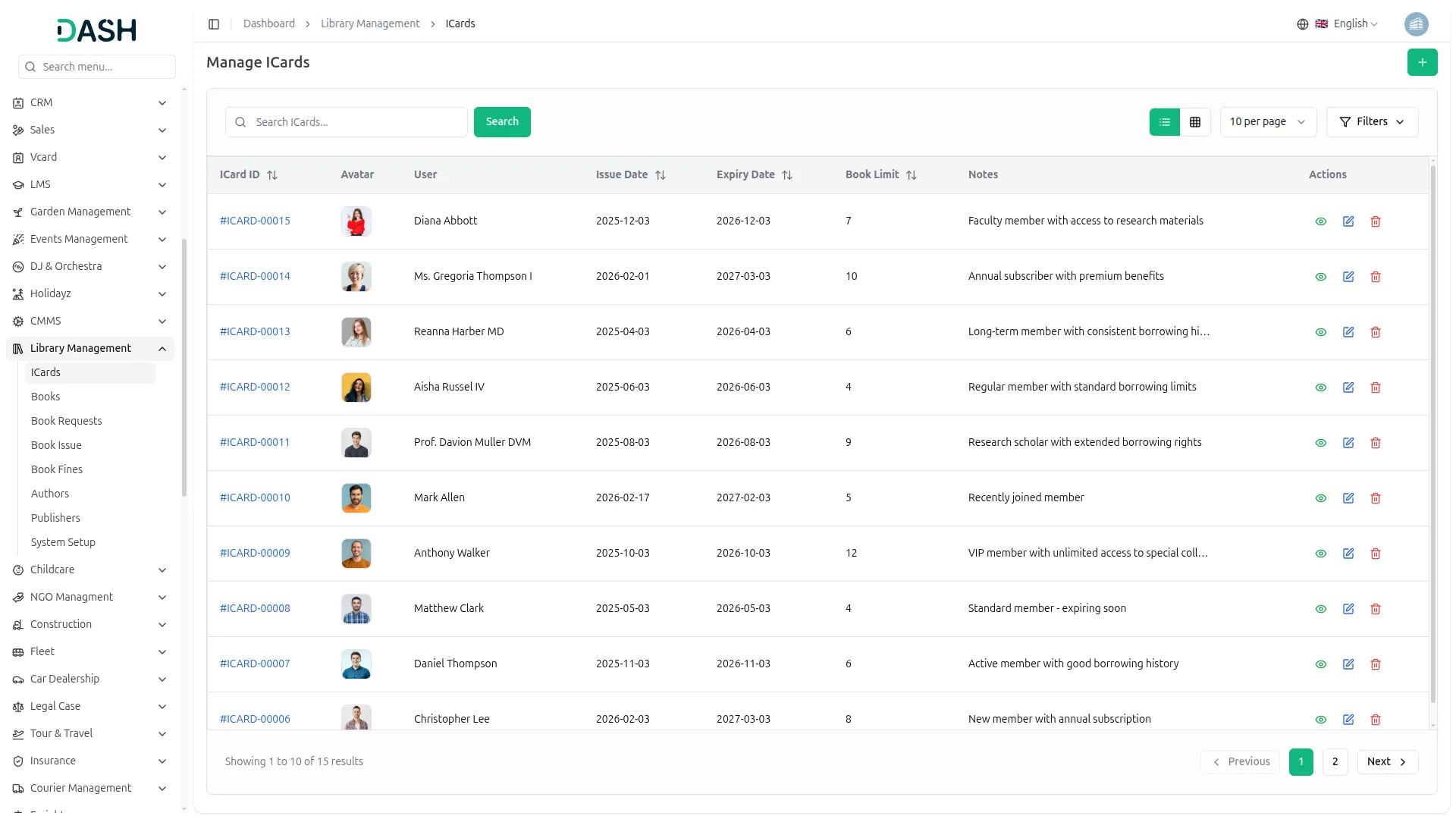
- The list page displays all ICard records in a table with columns for ICard ID, User, Issue Date, Expiry Date, Book Limit, and Notes. The list can also be toggled between list view and grid view using the layout.
- Use the Search bar to find a specific ICard by keyword. Apply filters using the Issue Date and Expiry Date date pickers to narrow down results by card validity period. Click Apply to activate the filters or Clear to remove them.
- In the Actions column, select the View to inspect the full details of an ICard record, the Edit to modify an existing record, and the Delete to permanently remove the ICard from the system.
Manage Books
- To add a new book record, click the “Create” button on the Manage Books page. Enter the Book Name and ISBN in their respective fields. Select the Author from the dropdown (populated from the Author section), choose Publisher from the dropdown (populated from the Publisher section), and select Category from the dropdowns (which comes from the System Setup → Book Category).
- Set the Published Date using the date picker and enter the Price and Total Quantity of the book. Optionally, upload a Book Image by clicking the Browse button to select an image file, and add a Description to provide additional details about the book. Click Create to save the record, or Cancel to discard it.
- The list page displays all book records in a table with columns for Image, Book Name, ISBN, Author, Category, Price, Available, and Status. The Available column reflects the current borrowing availability of the book out of its total quantity. The list can also be toggled between list view and grid view using the layout.
- Use the Search bar to find a specific book by name. Apply filters using the Category, Author, Publisher, and Status dropdowns to narrow down results. Click Apply to activate the filters or Clear to remove them.
- Using the Actions column, select the View to inspect the full details of a book record, the Edit to modify an existing record, and the Delete to permanently remove the book from the system.

Manage Book Requests
- To add a new book request, click the “Create” button on the Manage Book Requests page. In the form that opens, select the User and the Book from their respective dropdowns. Set the Start Date and End Date using the date pickers to define the intended borrowing period. Click Create to submit the request, or Cancel to discard it.
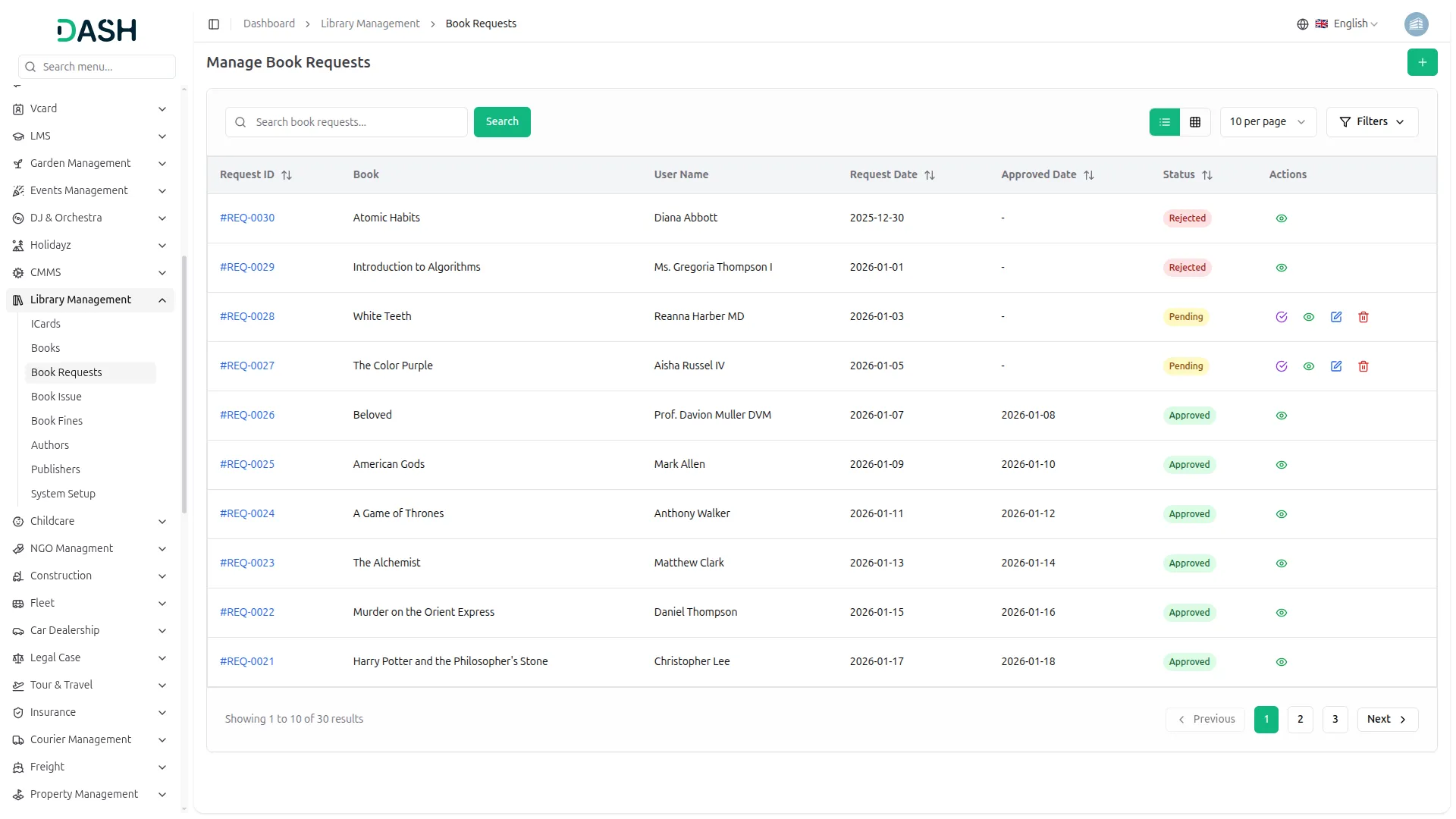
- The list page displays all book request records in a table with columns for Request ID, Book, User Name, Request Date, Approved Date, and Status. The Status column reflects the current state of each request, which can be Pending, Approved, or Rejected. The list can also be toggled between list view and grid view using the layout.
- Use the Search bar to find a specific book request by keyword. Apply filters using the Status dropdown and the Request Date and Approved Date date pickers to narrow down results. Click Apply to activate the filters or Clear to remove them.
- In the Actions column, the available options vary depending on the status of the request. For Pending requests, select Approve/Reject to review and process the request. In the approval form that opens, the Request Details panel displays the Request ID, User, Book, and Request Date for reference.
- Optionally, enter a Rejection Reason if the request is being declined. Click Approve to confirm the request or Reject to decline it. The Edit and Delete are also available for pending requests to modify or remove the record. For Approved and Rejected requests, only the View is available to inspect the full details of the record.
Manage Book Issues
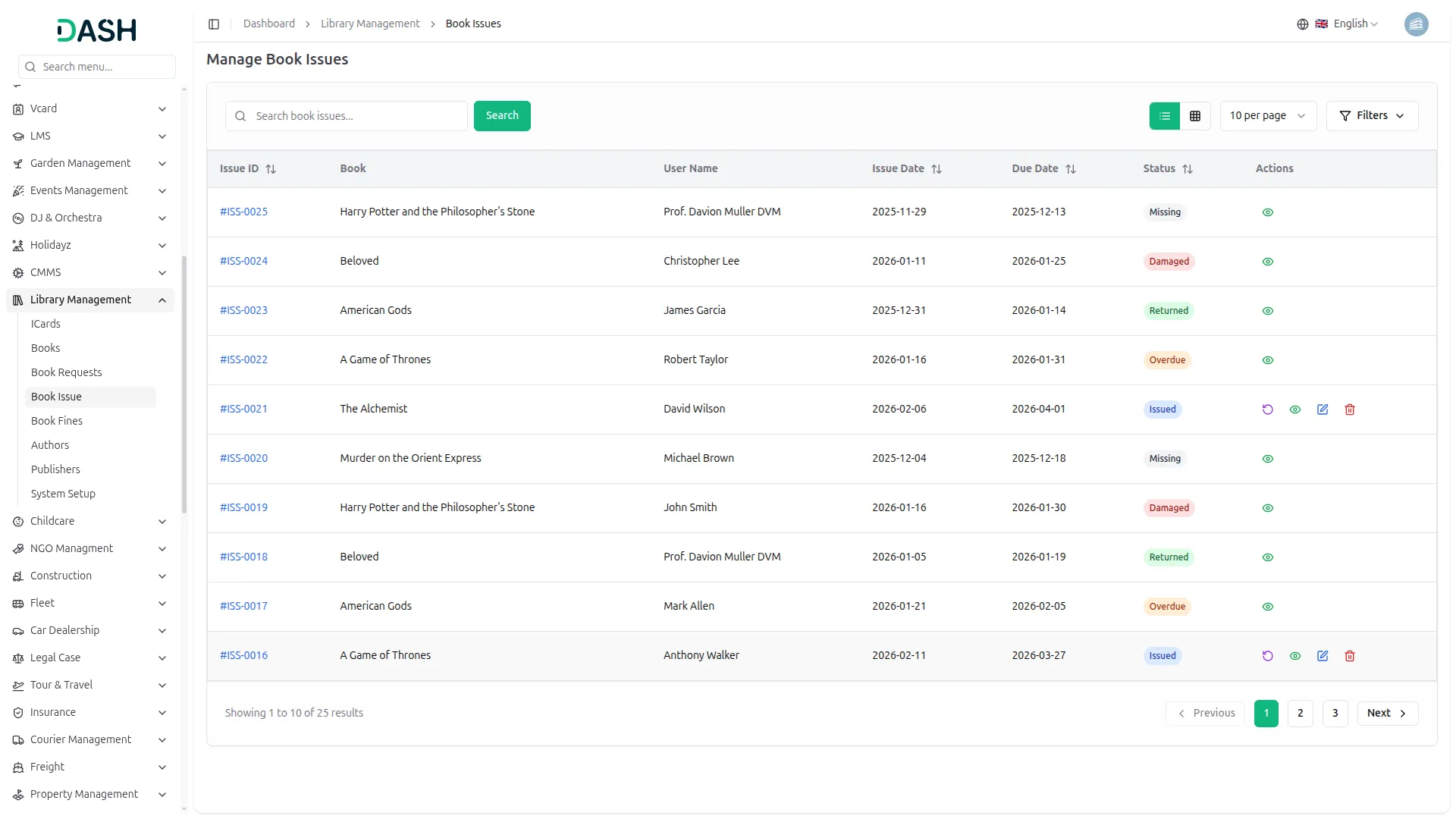
- The Manage Book Issues page tracks all book borrowing activity within the library system. The list displays all book issue records in a table with columns for Issue ID, Book, User Name, Issue Date, Due Date, and Status. The Status column reflects the current state of each issued book, which can be Issued, Returned, Overdue, Damaged, or Missing.
- Use the Search bar to find a specific book issue by keyword. Apply filters using the Status dropdown and the Issue Date date picker to narrow down results. Click Apply to activate the filters or Clear to remove them. The list can also be toggled between list view and grid view using the layout.
- In the Actions column, the available options vary depending on the status of the issue record. For Issued records, the Return is available to process a book return. Clicking it opens the Return Book form, which displays the User Name and Book Name for reference.
- Select the Return Status from the dropdown to indicate the condition of the returned book, and review the Total Fine Amount calculated based on the return status and any applicable penalties configured in the system. Click Confirm Return to finalize the return, or Cancel to discard it.
- The Edit and Delete are also available for issued records to modify or remove the entry. For records in all other statuses, Returned, Overdue, Damaged, and Missing, only the View is available to inspect the full details of the record.
Manage Book Fines
- The Manage Book Fines page tracks all fines incurred from book issues within the library system. The list displays all fine records in a table with columns for Issue ID, User Name, Book Name, Issue Date, Return Date, Fine Amount, and Payment Status. The Payment Status column reflects the current state of each fine, which can be Pending, Paid, Unpaid, or Rejected.
- Use the Search bar to find a specific fine record by keyword. Apply filters using the Payment Status dropdown and the Return Date date picker to narrow down results. Click Apply to activate the filters or Clear to remove them. The list can also be toggled between list view and grid view using the layout.
- In the Actions column, the available options vary depending on the payment status of the fine record. For Pending fines, Approve and Reject are available to process or decline the payment request. For Unpaid fines, the Payment is available to record a payment.
- Clicking it opens the Create Payment form, which displays the Issue ID, User Name, Book Name, and Amount as pre-filled reference fields. Set the Date using the date picker, select the Bank Account from the dropdown, and optionally enter a Description for the transaction. Click Create to confirm the payment, or Cancel to discard it.
- For fines in all other statuses, Paid and Rejected, only the View is available to inspect the full details of the fine record.

Manage Authors
- To add a new author record, click the “Create” button on the Manage Authors page. In the form that opens, enter the Name of the author in the provided field. Optionally, add a Description to provide background information about the author, and upload an Image by clicking the Browse button to select a photo. Click Create to save the record, or Cancel to discard it.
- The list page displays all author records in a table with columns for Image, Name, Description, and Actions. Use the Search bar to find a specific author by name.
- In the Actions column, select Edit to update or modify an existing author record, and Delete to permanently remove the author from the system.
- Note that authors actively referenced by existing book records should be managed carefully, as changes may affect those associated entries.

Manage Publishers
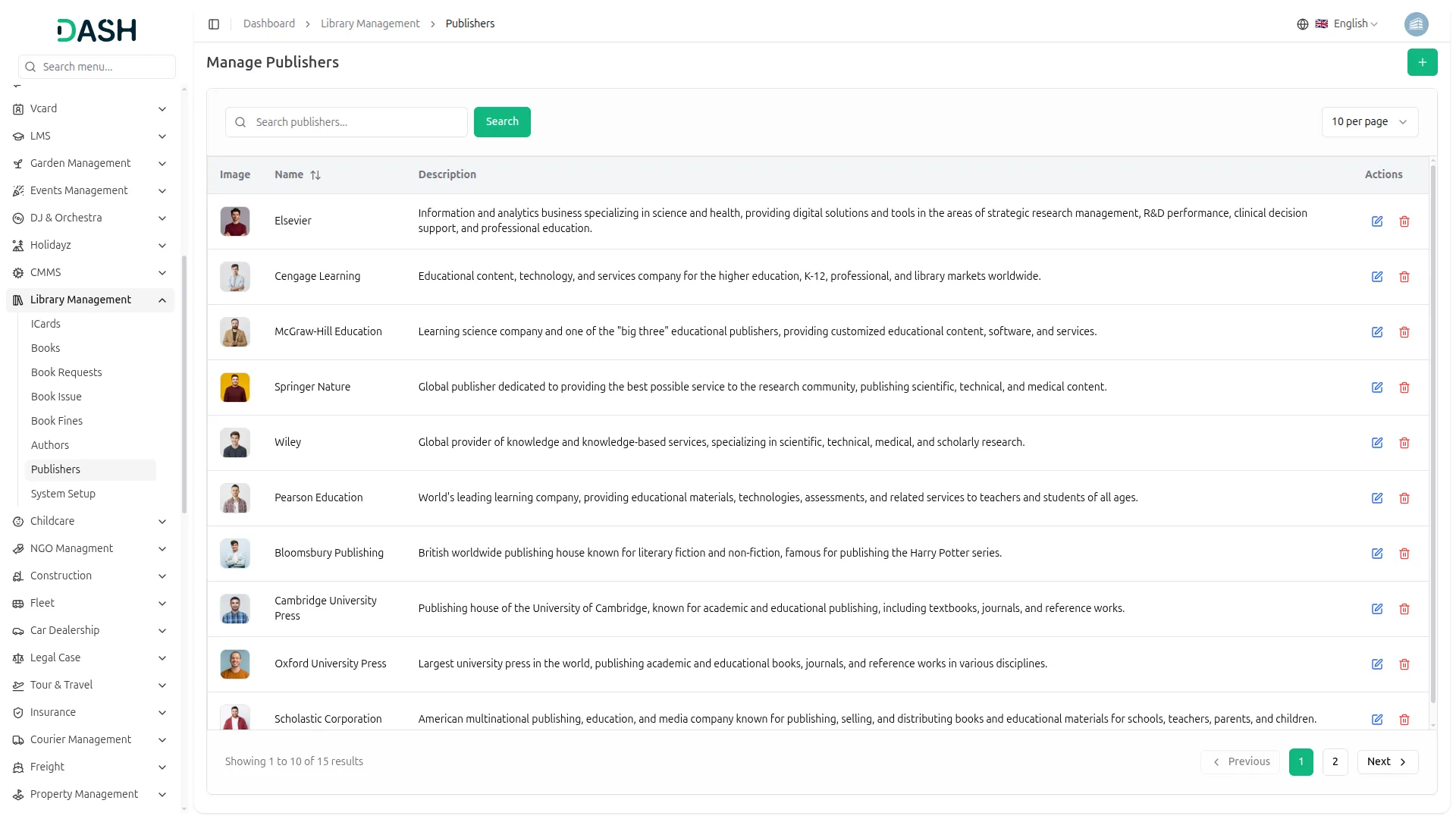
- To add a new publisher record, click the “Create” button on the Manage Publishers page. In the form that opens, enter the Name of the publisher in the provided field. Optionally, add a Description to provide background information about the publisher, and upload an Image by clicking the Browse button to select a photo. Click Create to save the record, or Cancel to discard it.
- The list page displays all publisher records in a table with columns for Image, Name, Description, and Actions. Use the Search bar to find a specific publisher by name.
- In the Actions column, select the Edit to update or modify an existing publisher record, and the Delete to permanently remove the publisher from the system.
- Note that publishers actively referenced by existing book records should be managed carefully, as changes may affect those associated entries.
Categories
Related articles
- Google Drive – WorkDo Dash SaaS Add-On Guide
- Skip Cart – eCommerceGo SaaS Add-On Guide
- ZitaSMS – WorkDo Dash SaaS Add-On Guide
- Midtrans – BookingGo SaaS Add-On Guide
- GoTo Credentials Generation Guide
- Instamojo – WorkDo Dash SaaS Add-On Guide
- Instagram Post – WorkDo Dash SaaS Add-On Guide
- Menu – vCard SaaS Add-On Guide
- Email Box – WorkDo Dash SaaS Add-On Guide
- User Manual – Taskly
- Call Hub – WorkDo Dash SaaS Add-On Guide
- Retainer – WorkDo Dash SaaS Add-On Guide
We're Here to Help - Let's Talk
Have questions about our solutions, customization services, or business tools? Our team is here to help you. let's talk.