
Diet & Nutrition Consultant – WorkDo Dash SaaS Add-On Guide
Learn how to manage nutrition plans, consultations, and client records in WorkDo Dash SaaS.
Introduction
Diet & Nutrition Consultant Add-On is a perfect solution for people who want to stay healthy and fit. It offers a variety of nutritionists and dietitians, customizable diet plans, meal and nutrition tracking, and much more. Its user-friendly interface allows users to browse the system hassle-free. It is ideal for those looking to stay fit, as it provides professional guidance from nutritionists and dietitians, which can be easily managed and tailored according to custom requirements. Its features are discussed below, and after reading which you can use the Add-On more easily and accurately.
How to Install the Add-On?
To Set Up the Diet & Nutrition Consultant Add-On, you can follow this link: Setup Add-On.
How To Use The Diet & Nutrition Consultant Add-On?
System Setup
- The System Setup section allows administrators to configure foundational data used across the system. It currently includes Dietitian Specializations, Diet Categories, and Diet Goals, all of which are referenced when managing dietitians and nutrition plans throughout the platform.
Dietitian Specializations
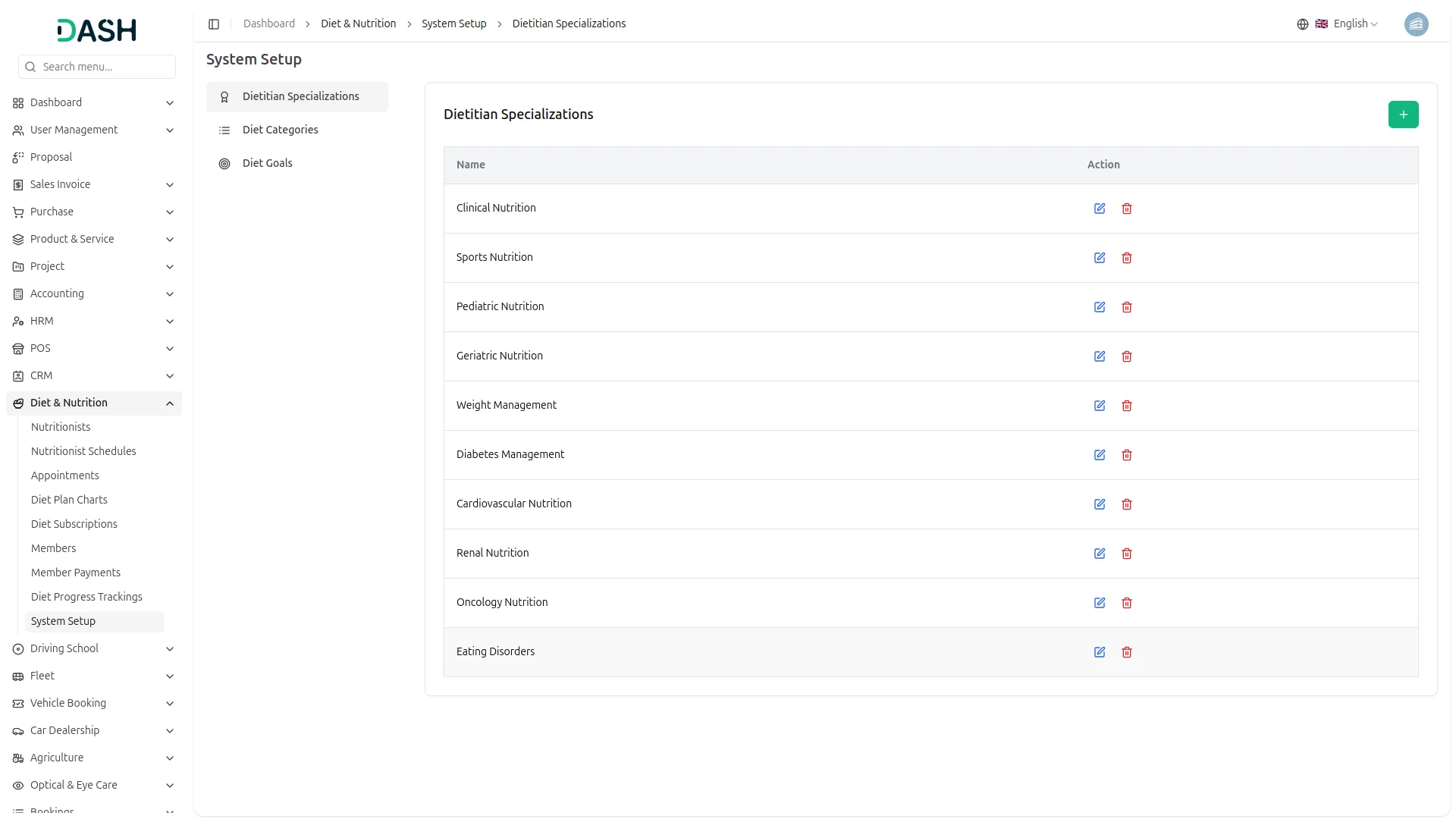
- To add a new dietitian specialization, click the “Create” button on the Dietitian Specializations page. Enter the Name of the specialization in the provided field, then click Create to save it.
- The Dietitian Specializations list displays all configured specializations in a table with a column for Name and Action.
- Available Actions: use Edit to update or modify an existing specialization, and Delete to permanently remove it from the system. Note that specializations actively assigned to dietitians should be managed carefully, as changes may affect existing records that reference them.
-
Diet Categories
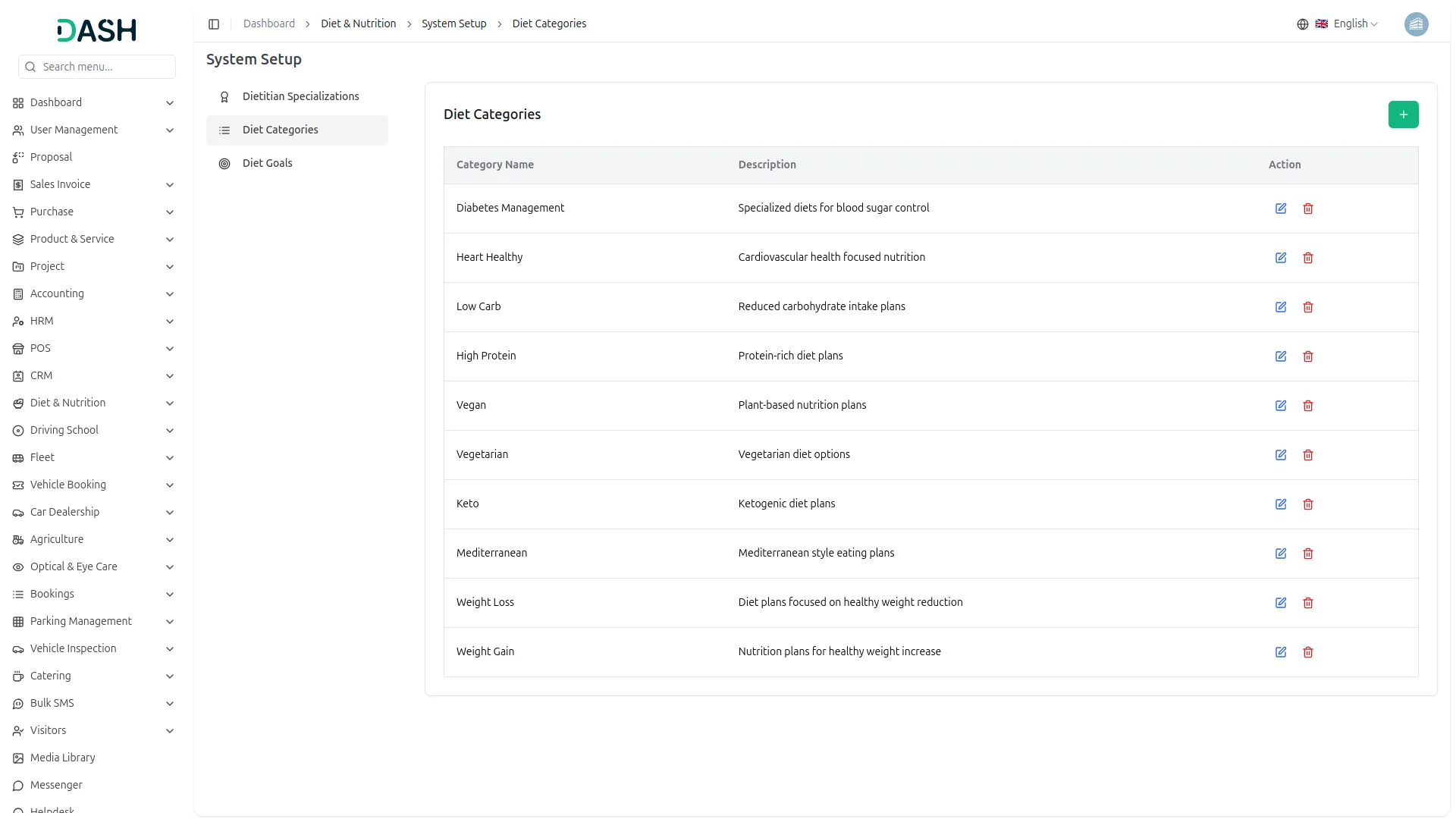
- To add a new diet category, click the “Create” button on the Diet Categories page. Enter the Category Name in the required field. Optionally, add a Description to clarify the purpose or scope of the category. Click Create to save.
- The Diet Categories list displays all configured categories in a table with columns for Category Name, Description, and Action.
- Available Actions: use Edit to update or modify an existing diet category, and Delete to permanently remove it from the system. Note that diet categories in active use should be managed carefully, as changes may affect nutrition plans and records that reference them.
-
Diet Goals
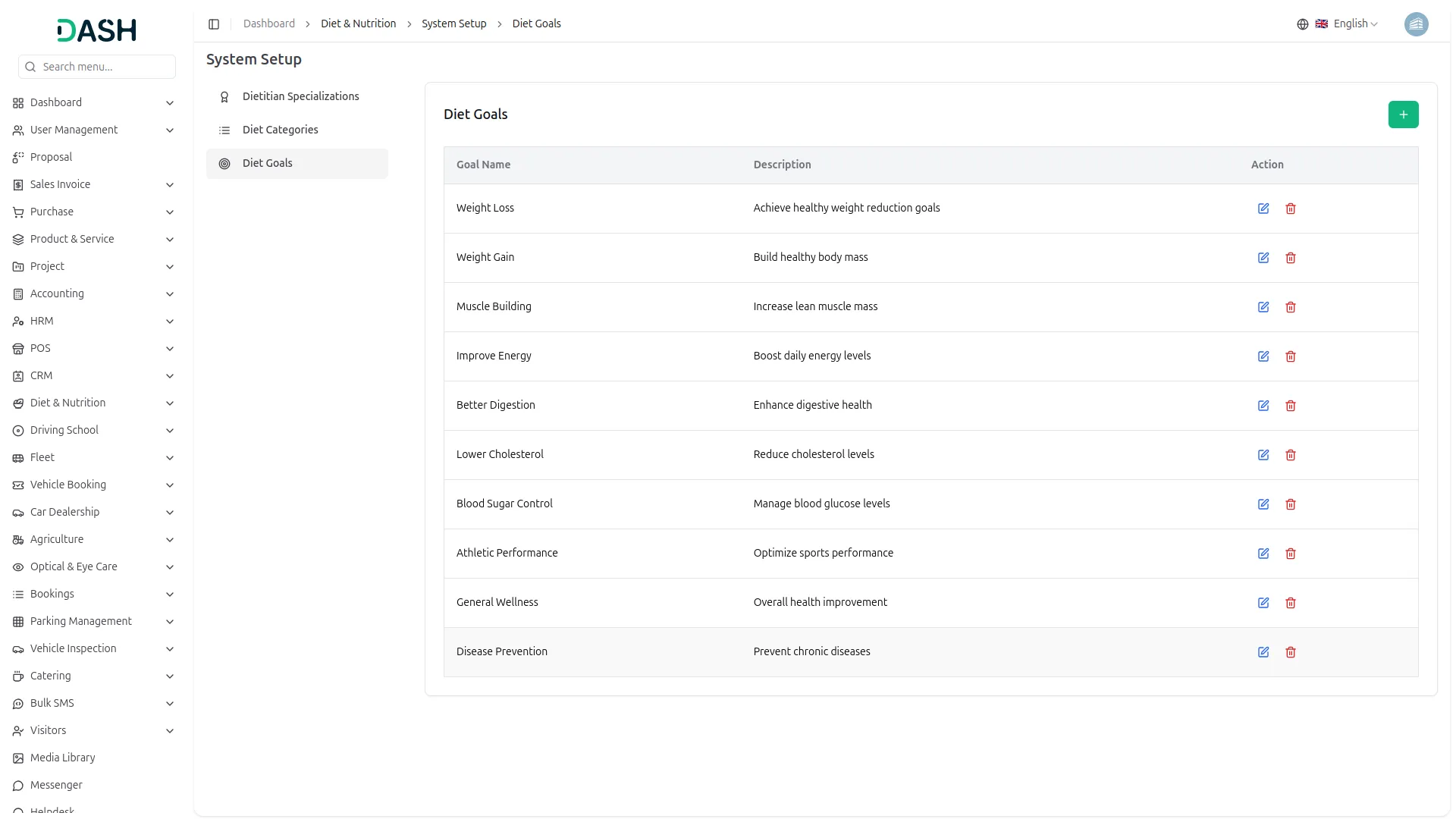
- To add a new diet goal, click the “Create” button on the Diet Goals page. Enter the Goal Name in the required field. Optionally, add a Description to outline what the goal is intended to achieve. Click Create to save.
- The Diet Goals list displays all configured goals in a table with columns for Goal Name, Description, and Action.
- Available Actions: use Edit to update or modify an existing diet goal, and Delete to permanently remove it from the system. Note that diet goals actively associated with client plans should be managed carefully, as modifications may impact existing nutrition records that reference them.
-
Manage Nutritionists
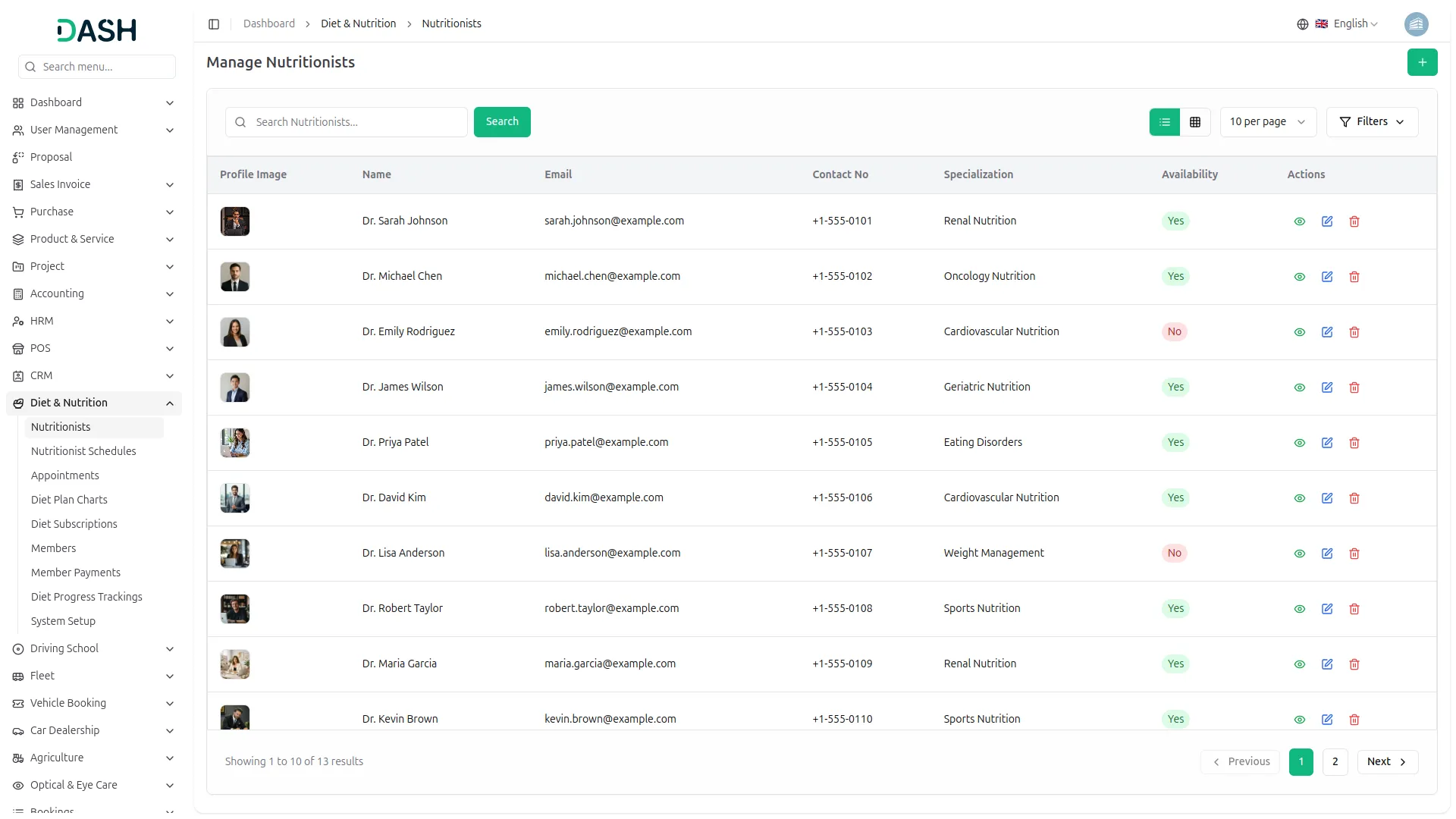
- To add a new nutritionist record, click the “Create” button on the Manage Nutritionists page. In the form that opens, enter the Nutritionist Name, Email, Contact No, and Qualification in their respective fields.
- Select the Specialization from the dropdown (populated from the specializations configured in System Setup) and set the Availability from its dropdown (Yes or No). Enter the Years of Experience and Consultation Fee, then optionally upload a Profile Image using the file chooser. Click Create to save the record, or Cancel to discard it.
- The list page displays all nutritionist records in a table with columns for Profile Image, Name, Email, Contact No, Specialization, Availability, and Actions. The list can be viewed in either list or grid layout using the toggle buttons.
- Use the Search bar to find specific nutritionists by name. Apply filters using the Specialization and Availability dropdowns to narrow down results. Click Apply to activate the filters or Clear to remove them.
- In the Actions column, select the View to inspect the full details of a nutritionist record, the Edit to modify an existing record, and the Delete to permanently remove the nutritionist from the system.
-
Manage Nutritionist Schedules
- To add a new nutritionist schedule, click the “Create” button on the Manage Nutritionist Schedules page. In the form that opens, select the Nutritionist from the dropdown. Note that only nutritionists with availability set to “Yes” who do not yet have an existing schedule will appear in this list. If the desired nutritionist has not been added yet, use the Create nutritionist link directly within the form.
- Then, select the working days by toggling the desired days from the Add Working Days options (Monday through Sunday). Click Create to save the schedule, or Cancel to discard it.
- The list page displays all nutritionist schedule records in a table with columns for Nutritionist, Working Days, Created At, and Actions. Use the Search bar to find specific schedules by nutritionist name.
- Using the Actions column, select the View to inspect the full details of a schedule record, the Edit to modify the working days or nutritionist assignment, and the Delete to permanently remove the schedule from the system.
-
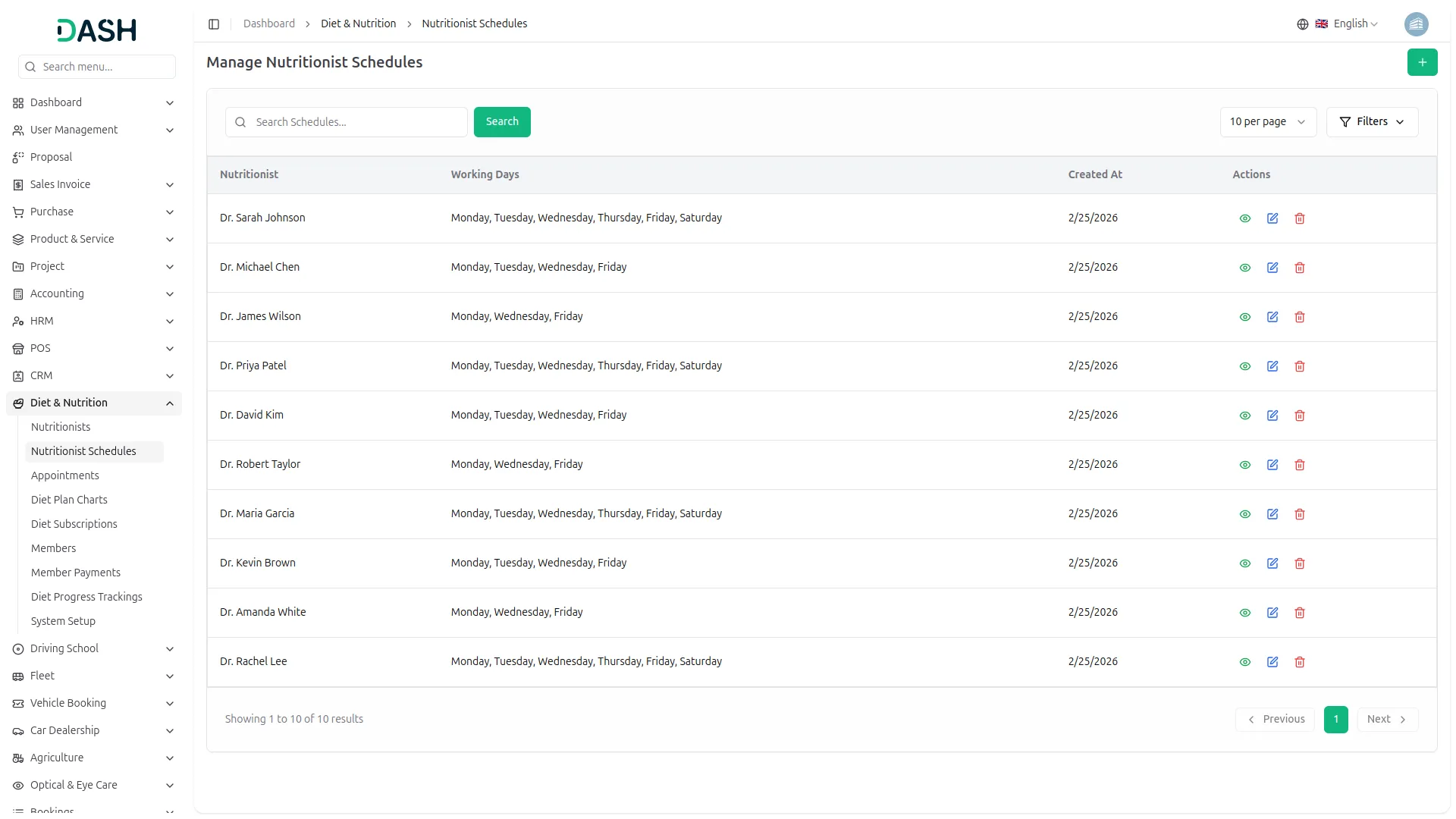
Manage Appointments
- To add a new appointment, click the “Create” button on the Manage Appointments page. In the form that opens, enter the Customer Name, Email, and Contact No in their respective fields.
- Select the Diet Nutritionist from the dropdown (comes from the manage nutritionist section), then set the Consultation Fee and select the Bank Account from the dropdown. Choose the Consultation Date using the date picker, then select an available Consultation Time slot (available times are populated once a nutritionist is selected). Optionally, enter any Consultation Notes in the provided text area. Click Create to save the record, or Cancel to discard it.
- The list page displays all appointment records in a table with columns for Name, Email, Contact No, Diet Nutritionist, Consultation Date & Time, Status, Payment Status, and Actions.
- Use the Search bar to find specific appointments by name. Apply filters using the Nutritionist, Status, and Payment Status dropdowns to narrow down results. Click Apply to activate the filters or Clear to remove them.
- In the Actions column, the following actions are available depending on the current status of the appointment: View to inspect the full details of an appointment record. Bu clicking Reschedule, to opens the Reschedule Appointment form, which displays the current appointment details and allows selection of a new Consultation Date and Time. An optional Reason for Reschedule can be provided. Click Reschedule to confirm or Cancel to discard the change.
- Cancel triggers a confirmation prompt asking whether to cancel the appointment. Click Cancel Appointment to confirm the cancellation or Cancel to go back. Post to posts the appointment to update its status accordingly. Edit to modify the details of an existing appointment record. Delete to permanently remove the appointment from the system.
- Note that the Reschedule, Cancel, Post, Edit, and Delete actions are only available for appointments that are in an eligible status, such as Scheduled. Completed or already Cancelled appointments will only display the View action.
-
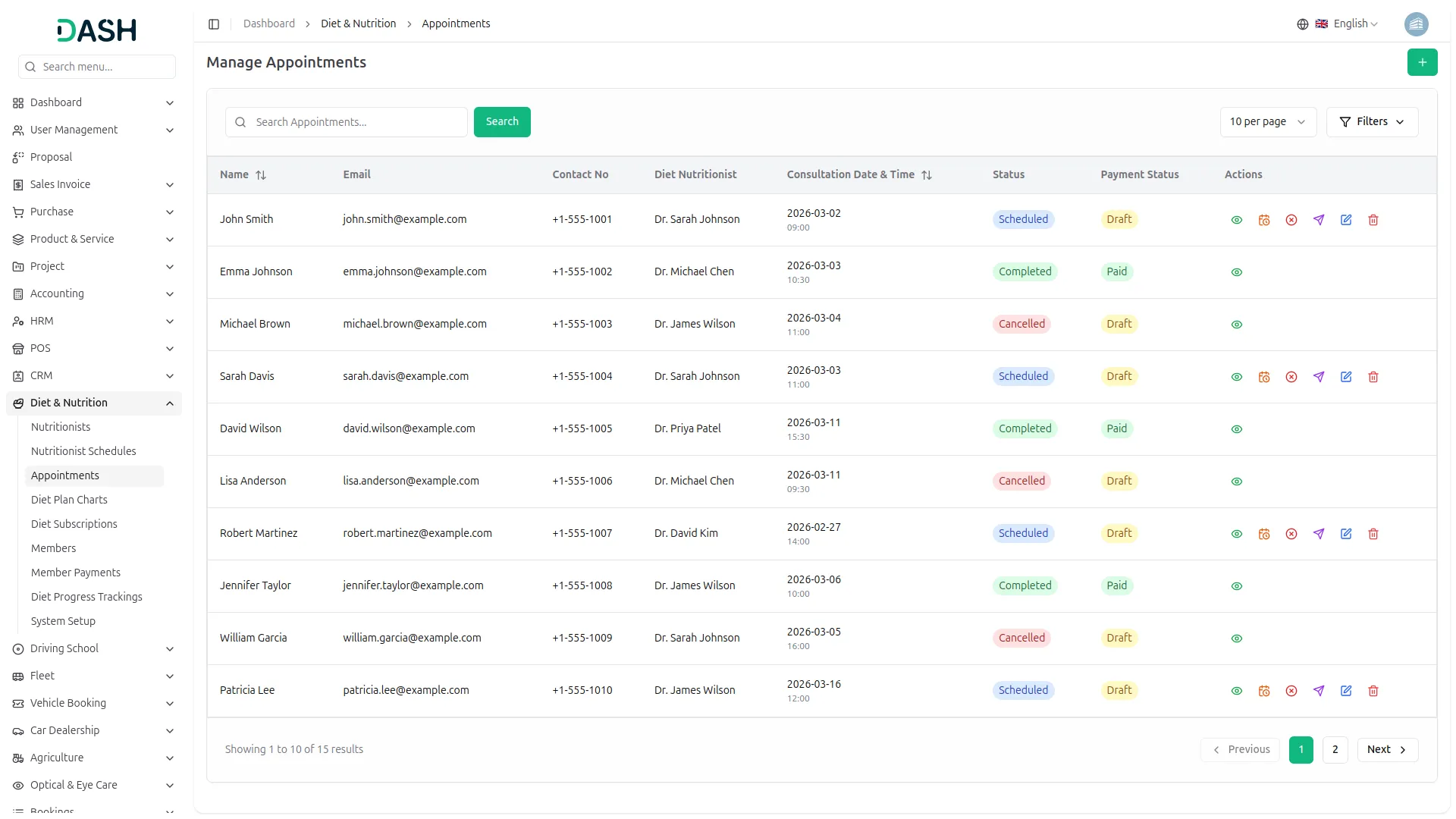
Manage Diet Plan Charts
- To add a new diet plan chart, click the “Create” button on the Manage Diet Plan Charts page. In the form that opens, enter the Chart Name, then select the Diet Category from the dropdown (comes from the diet category section configured in system setup).
- Choose Diet Goal from the dropdown (comes from the diet goal section configured in system setup), and select Nutritionist from the dropdowns (comes from the nutritionist section configured in system setup).
- Enter the Calorie Intake value, along with Special Instructions and a Description in the provided text areas. Upload a Chart Image using the Browse button.
- Under the Diet section, configure the meal items by selecting the Meal Type from the dropdown (Veg, Nonveg, or Vegan), then entering the Meal Shifts and Meals for each item.
- Note that for the Meal Shifts and Meals fields, each entry must be typed individually and confirmed by pressing Enter to add it as a tag. Click Add Meal to include additional meal items to the plan. Click Create to save the record, or Cancel to discard it.
- The list page displays all diet plan chart records in a table with columns for Image, Chart Name, Nutritionist Name, Category Name, Goal Name, Calorie Intake, and Actions. The list can be viewed in either list or grid layout using the toggle buttons.
- Use the Search bar to find specific diet plan charts by name. Apply filters using the Diet Category and Diet Goal dropdowns to narrow down results. Click Apply to activate the filters or Clear to remove them.
- In the Actions column, select the View to inspect the full details of a diet plan chart, the Edit to modify an existing record, and the Delete to permanently remove the chart from the system.
-
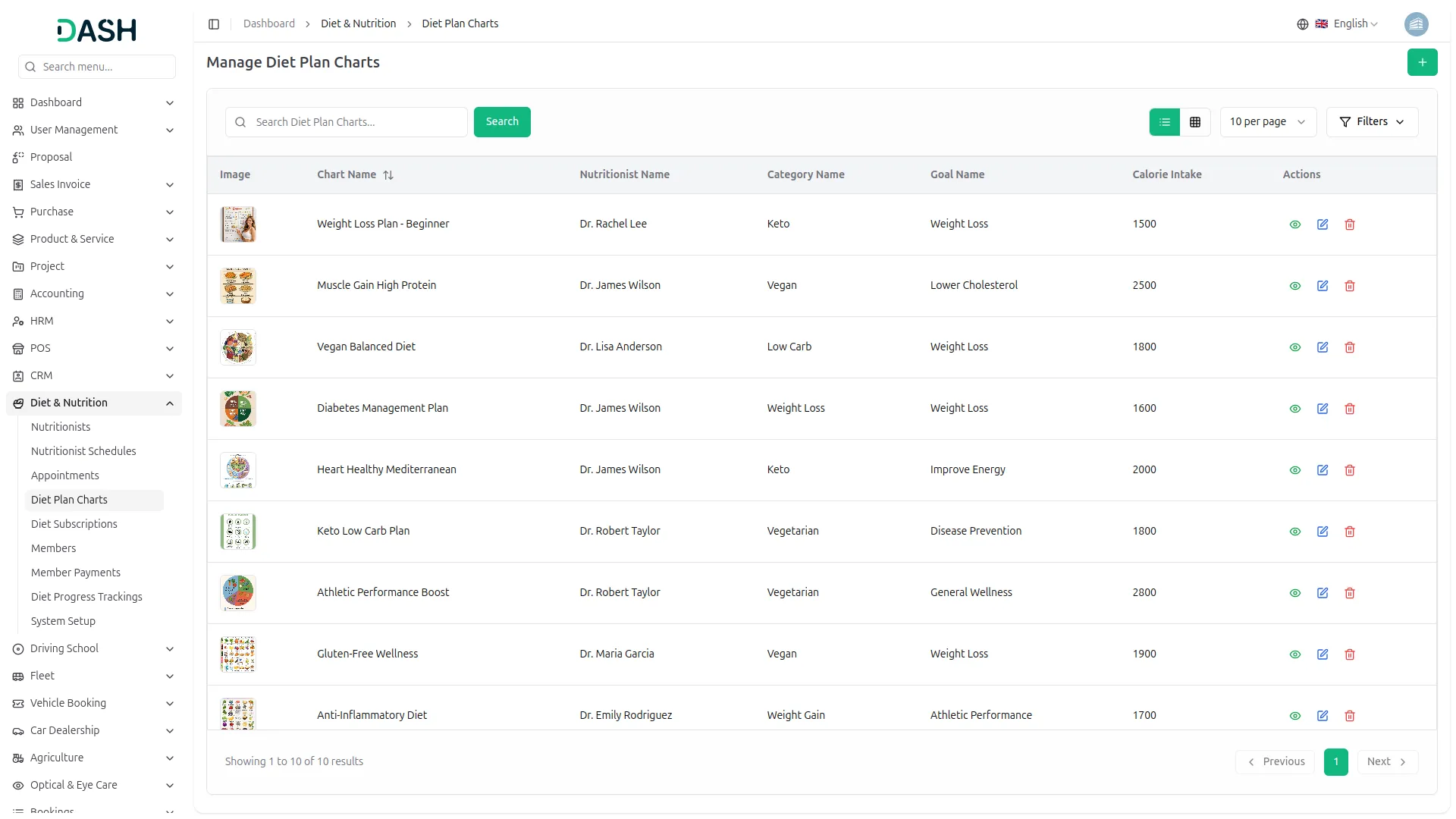
Manage Diet Subscriptions
- To add a new diet subscription, click the “Create” button on the Manage Diet Subscriptions page. In the form that opens, enter the Diet Plan Name, then select the Diet Plan Chart from the dropdown (comes from the diet plan chart section).
- Enter the Price and select the Duration using the radio buttons (Monthly, Quarterly, or Yearly). Enter the Benefits in the provided text area, noting that each benefit point should be separated by a comma for proper list display. Click Create to save the record, or Cancel to discard it.
- The list page displays all diet subscription records in a table with columns for Diet Plan Name, Diet Plan Chart, Duration, Price, and Actions.
- Use the Search bar to find specific subscriptions by name. Apply filters using the Duration and Diet Plan Chart dropdowns to narrow down results. Click Apply to activate the filters or Clear to remove them.
- In the Actions column, select the View icon to inspect the full details of a diet subscription, the Edit icon to modify an existing record, and the Delete icon to permanently remove the subscription from the system.
-
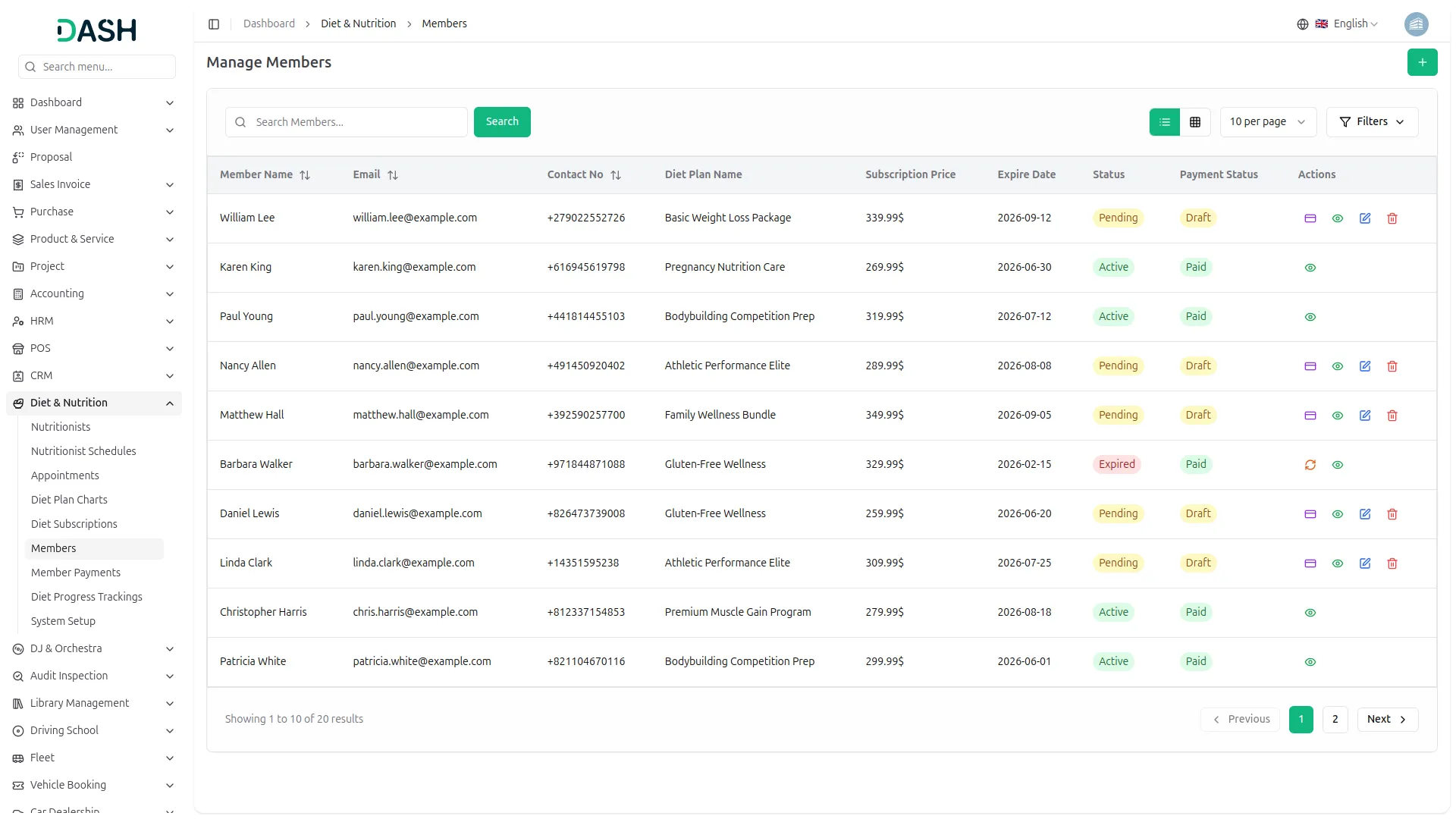
Manage Members
- To add a new member, click the “Create” button on the Manage Members page. In the form that opens, enter the Member Name, Email, Contact No, and Age in their respective fields.
- Select the Gender using the radio buttons (Male, Female, or Other), then select the Diet Goal from the dropdown (comes from the diet goal section configured in system setup). Choose the Subscription Plan from the dropdown (comes from the diet subscription section) and enter the Subscription Price.
- Enter the member’s Health Condition and Dietary Preferences in the provided text areas. Click Create to save the record, or Cancel to discard it.
- The list page displays all member records in a table with columns for Member Name, Email, Contact No, Diet Plan Name, Subscription Price, Expire Date, Status, Payment Status, and Actions. The list can be viewed in either list or grid layout using the toggle buttons.
- Use the Search bar to find specific members by name. Apply the Status, Payment Status filter from the dropdown to narrow down results. Click Apply to activate the filter or Clear to remove it.
- In the Actions column, the following actions are available depending on the member’s current payment status: Payment to create payment process opens the Create Payment form, which displays the member’s details, including their name, email, diet plan, and total amount. Select the Bank Account, confirm the Amount and Payment Date, and optionally enter a Reference No and Note. Click Create Payment to process the payment or Cancel to discard it.
- The button will be displayed only when the payment section shows an “Expired” status. When the user clicks “Renew Plan”, the system will open the payment form, allowing the user to enter or confirm payment details and complete a new transaction to reactivate the membership.
- View to inspect the full details of a member record. Edit to modify an existing member record. Delete to permanently remove the member from the system.
- Note that the Payment, Edit, and Delete actions are only available for members with a Pending payment status. Members with an Active status and Paid payment status will only display the View action.
-
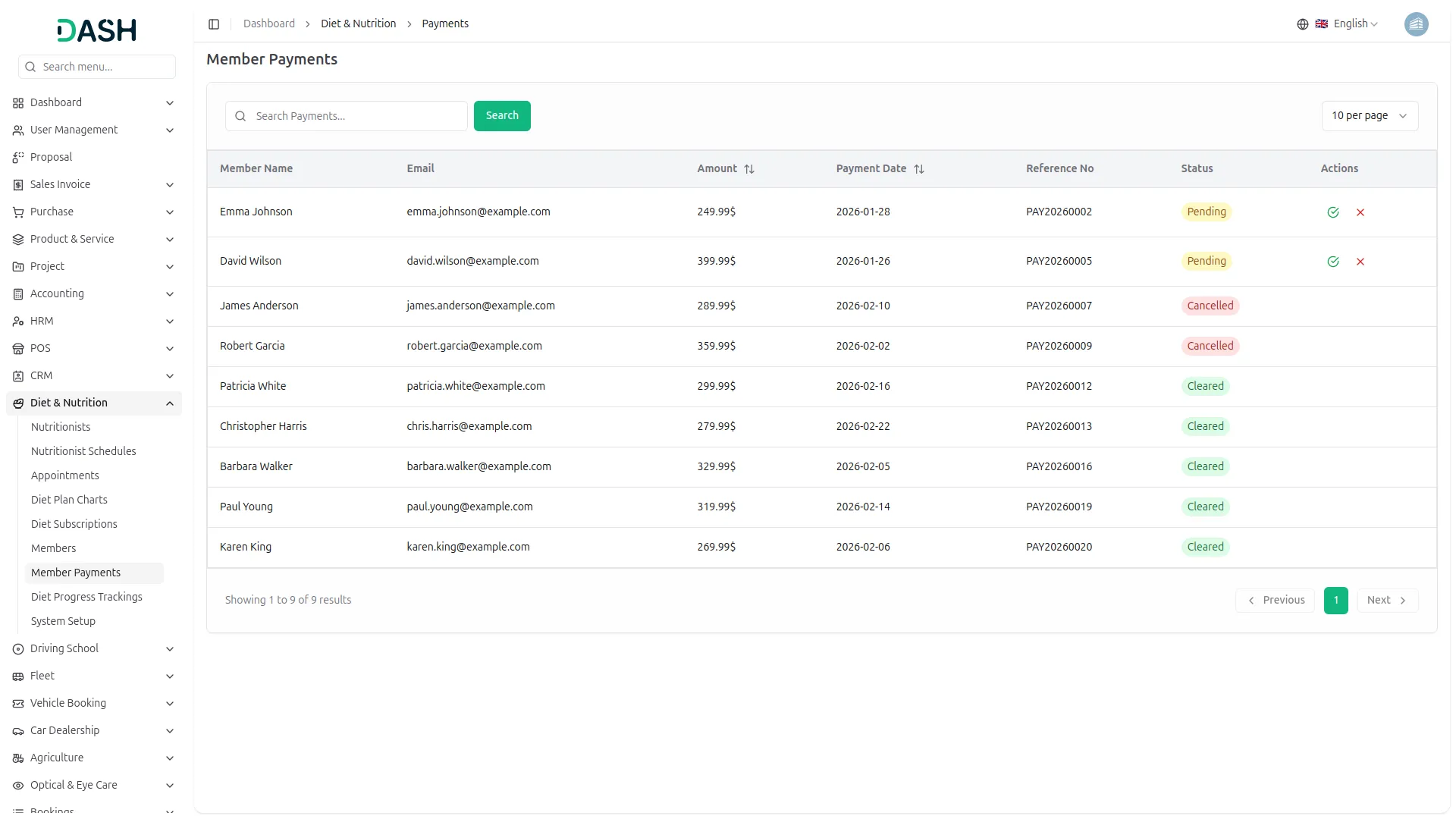
Member Payments
- The Member Payments page provides an overview of all payment transactions associated with members and their diet subscription plans.
- The list page displays all payment records in a table with columns for Member Name, Email, Amount, Payment Date, Reference No, and Status. Payment statuses include Pending, Cleared, and Cancelled. Use the Search bar to find specific payment records by member name.
- Apply filters using the members dropdowns, and set the Payment date to narrow down results. Click Apply to activate the filter or Clear to remove it.
- In the Actions column, the following actions are available for payments with a Pending status: Approve to mark the payment as cleared and activate the member’s subscription accordingly. Reject to cancel the payment record.
- The member’s status will remain “Expired” until the payment is approved. After the payment is successfully processed and confirmed, the status will be updated to reflect the new subscription status.
- Payments with a Cleared or Cancelled status will not display any action buttons, as they have already been processed.
-
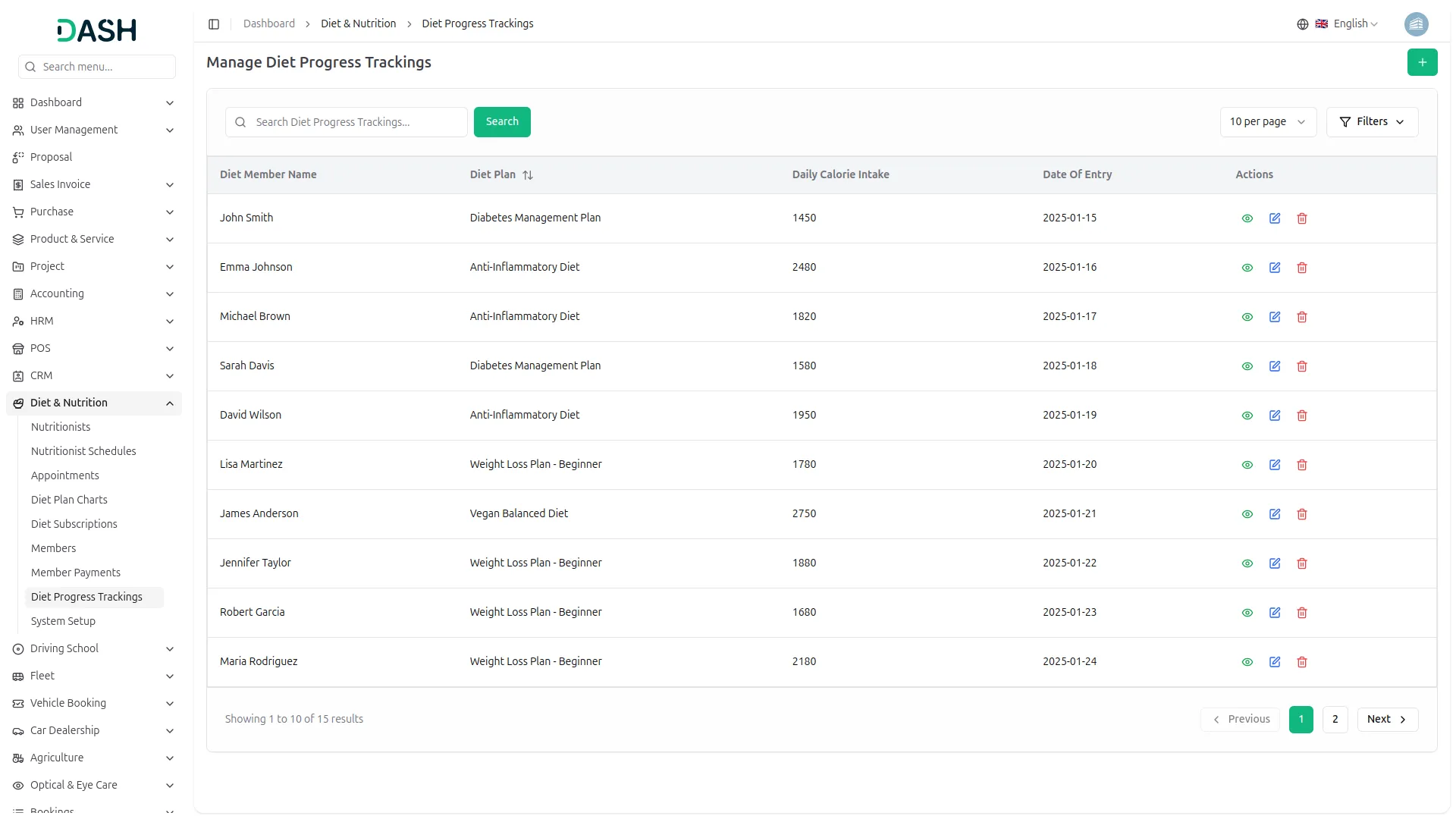
Diet Progress Trackings
- To add a new diet progress tracking entry, click the “Create” button on the Manage Diet Progress Trackings page. In the form that opens, select the Diet Member from the dropdown (comes from the member section), then autoselect the Diet Chart Plan and Daily Calorie Intake.
- Select the Date of Entry using the date picker. In the Nutrient Consumption field, type each nutrient item and press Enter to add it as a tag. Optionally, enter any Deviation Notes and Feedback in their respective text areas. Click Create to save the record, or Cancel to discard it.
- The list page displays all progress tracking records in a table with columns for Diet Member Name, Diet Chart Plan, Daily Calorie Intake, Date of Entry, and Actions.
- Use the Search bar to find specific tracking records by member name. Apply the Diet Member, Diet Chart Plan filter from the dropdown to narrow down results. Click Apply to activate the filter or Clear to remove it.
- In the Actions column, select the View to inspect the full details of a progress tracking record, the Edit to modify an existing entry, and the Delete to permanently remove the record from the system.
-
Categories
Related articles
- Custom Domain & White Label Settings Guide
- API – TicketGo Add-On Guide
- AI Content Generation in WorkDo Dash SaaS
- Plivo – TicketGo Add-On Guide
- Payfort – WorkDo Dash SaaS Add-On Guide
- Donation – eCommerceGo SaaS Add-On Guide
- Make Documentation – TicketGo Add-On Guide
- Driving School – WorkDo Dash SaaS Add-On Guide
- Slack – BookingGo SaaS Add-On Guide
- Microsoft To Do – WorkDo Dash SaaS Add-On Guide
- Discord Module – WorkDo Dash SaaS Add-On Guide
- Tawk.to Messenger – eCommerceGo SaaS Add-On Guide
We're Here to Help - Let's Talk
Have questions about our solutions, customization services, or business tools? Our team is here to help you. let's talk.