
Microsoft To Do – WorkDo Dash SaaS Add-On Guide
Learn how to manage tasks and workflows using Microsoft To Do in WorkDo Dash SaaS.
Introduction
The Microsoft To Do Integration is a productivity tool that connects your Add-On with Microsoft’s To Do service, allowing you to manage tasks, lists, and schedules directly from your platform. This integration enables you to create and organize task lists, manage individual tasks with importance levels and due dates, add subtasks, and attach files. The system works by setting up a secure OAuth 2.0 connection with Microsoft through Azure configuration, then syncing your Microsoft To Do account to access all your lists and tasks within your current system.
How to Install the Add-On?
To Set Up the Microsoft To Do Add-On, you can follow this link: Setup Add-On.
How To Use Microsoft To Do Add-On?
Manage Configuration
- To set up Microsoft To Do integration, navigate to Microsoft To Do System Setup and then go to Configuration. Enter your Client ID and Client Secret, or Tenant ID in the provided fields.
- Copy the Redirect URL from your system and add it to your Azure portal Register Application.
-
To generate the required credentials, follow these steps:
-
Register Application in Azure
- Log in to the Azure Portal
- Go to Microsoft Entra ID → App registrations
- Click + New Registration
-
Fill in:
- Name: e.g., Microsoft To Do Integration
- Under Supported account types – select: Accounts in any organisational directory (Any Microsoft Entra ID tenant – Multitenant) and personal Microsoft accounts (e.g., Skype, Xbox)
- Redirect URI: Paste the redirect URI from your system
- Click Register
-
Generate Client Secret
- Go to Certificates & Secrets
- Click + New client secret
- Set description and expiration
- Click Add
- Copy the Secret Value (you won’t see it again!), for Secret ID
- Copy the Application (client) ID from the overview page, for Client ID
-
Add Required API Permissions
- Navigate to API permissions
- Click + Add a Permission
- Select Microsoft Graph → Delegated permissions:
-
Add the following permissions:
- Tasks.Read – Read all tasks.
- Tasks.ReadWrite – Create, read, update, and delete tasks.
- offline_access – Maintain access to data when the user is not online.
- User.Read – Sign in and read the user profile.
- After adding, click “Grant admin consent” for your organization.
-
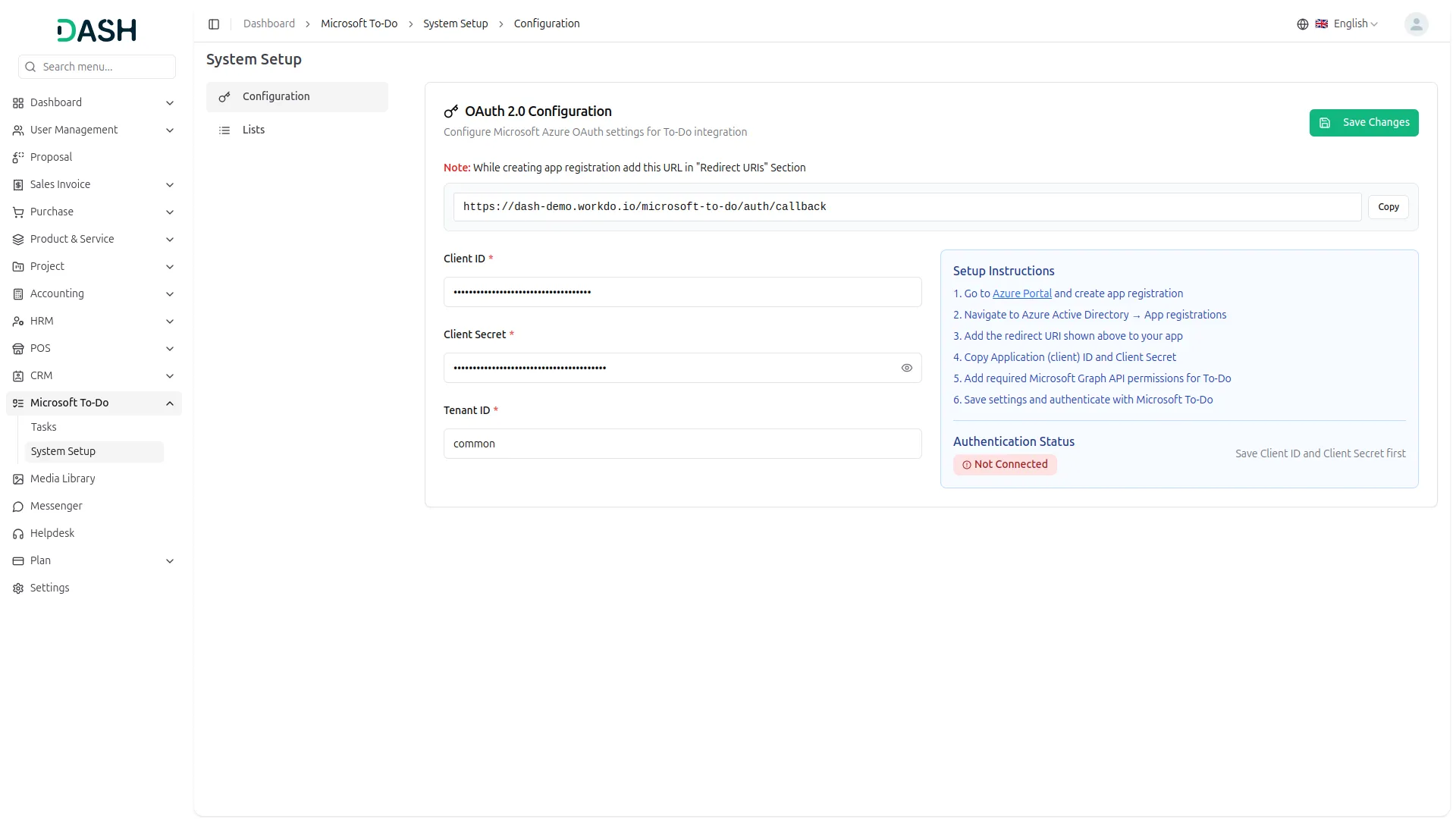
- After saving the credentials in your system, click the Generate Token button to sync with your Microsoft account. Once connected, you can access To Do Lists, Tasks, Sub Tasks, and attachments directly in your system.
Manage Lists
- To create a new list, click the “Create” button on the Lists page. Enter the List Name and click Create, or click Cancel to close the dialog.
- The list page displays all your lists with columns showing No, List Name, Type, Owner, and Action. You can edit any list to change its name or delete lists you no longer need.
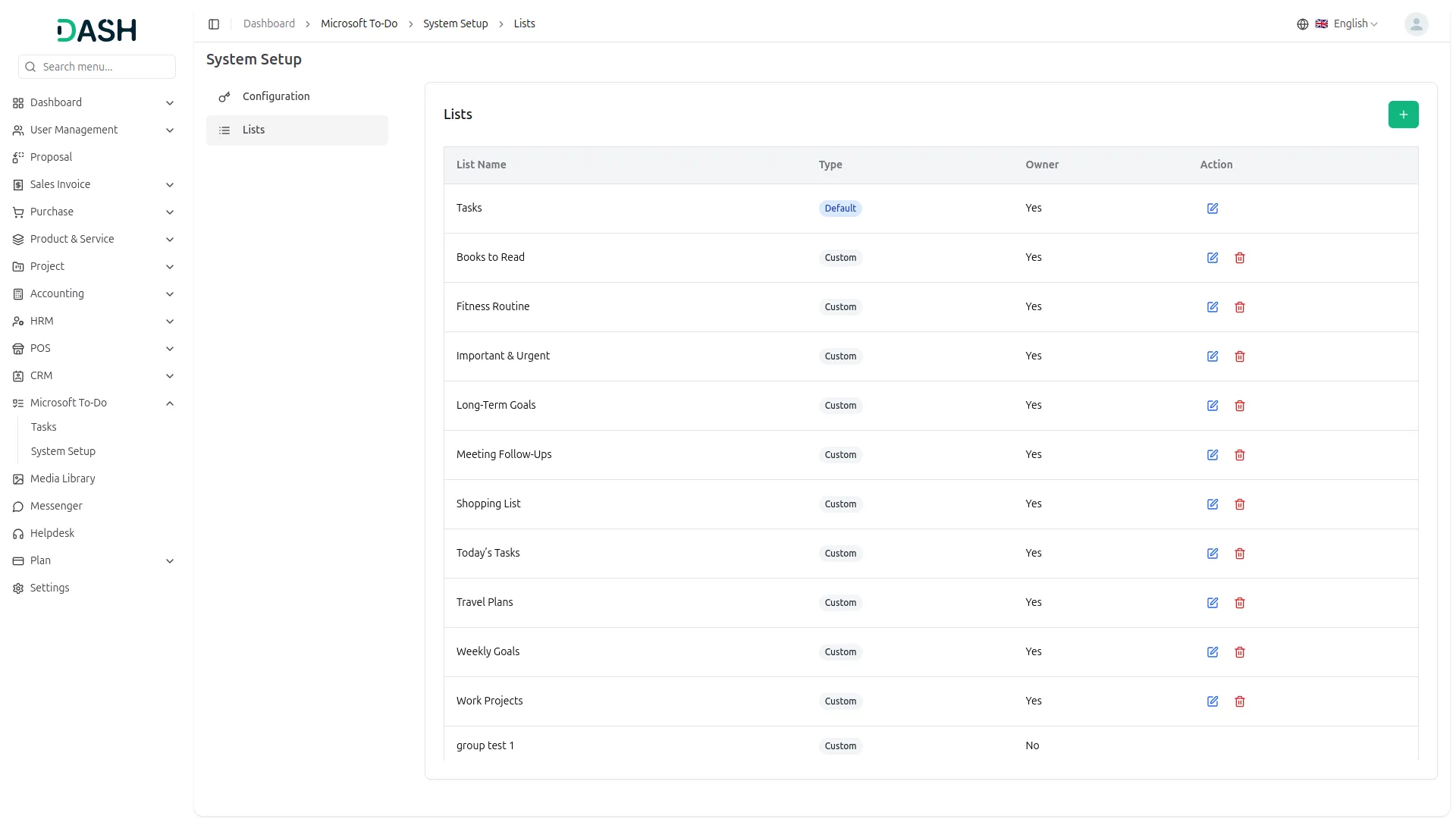
- Note: The default Tasks and flagged Email Lists cannot be edited or deleted, and shared lists cannot be edited.
To Do Task
- To create a new task, click the “Create” button on the Manage Tasks page. A Create Task dialog will appear. Enter the Title for the task. Select a List from the available lists created in the Lists section. Set the Due Date for when the task should be completed. Choose the Importance level by selecting Low, Normal, or High. Write a Description to provide more details about the task.
- Use the search bar to find the specific data from the list. Click the filter button to apply filtering data, including selecting the Status or list, then click the Apply button to filter the data or the Clear button to reset it. You can switch between List View, Grid View, Kanban View, and Calendar View using the view toggle icons at the top right of the page.
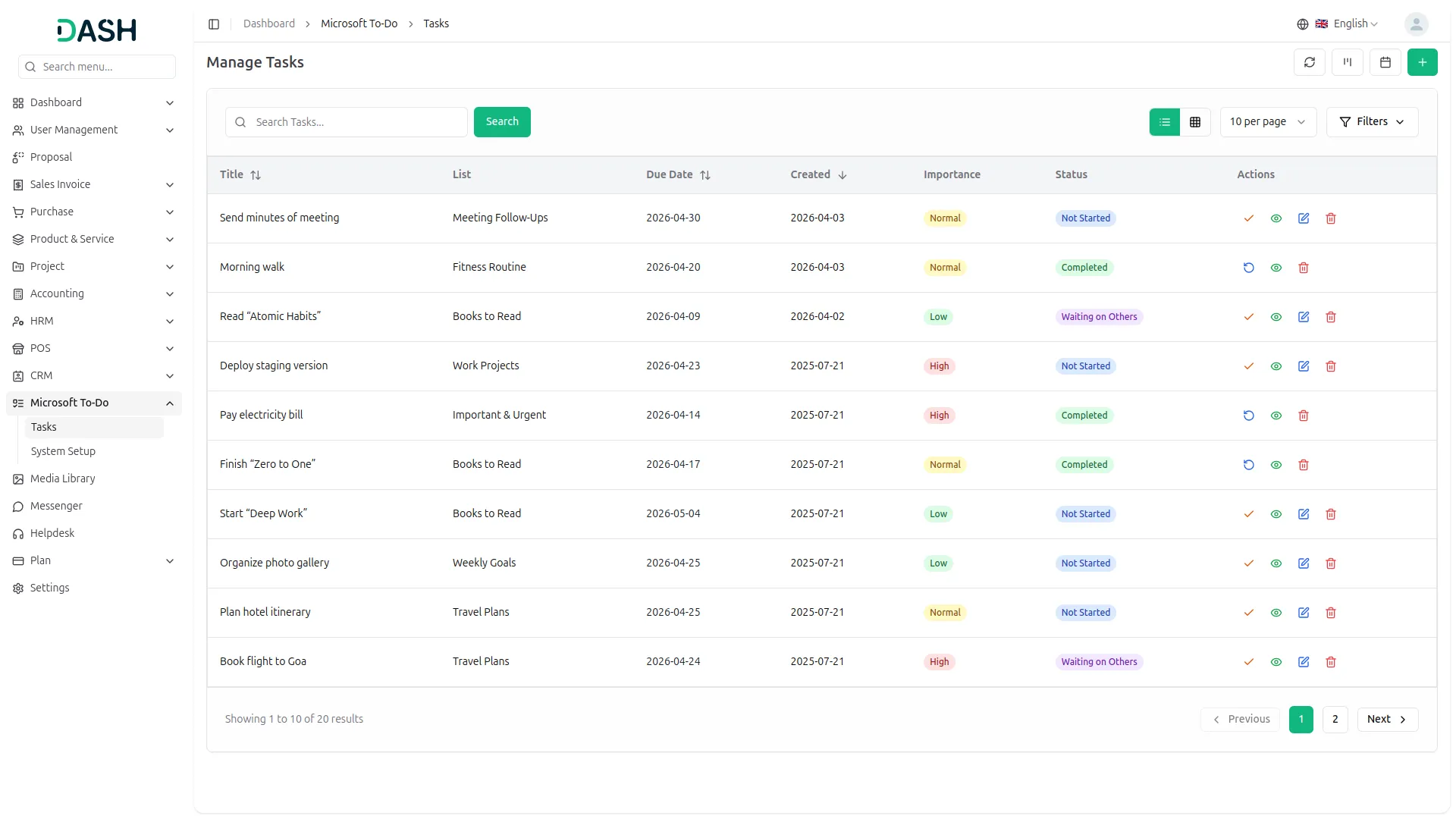
- The List View displays all tasks in a table showing the Title, List, Due Date, Created date, Importance, and Status. The Title, Due Date, and Created columns support sorting. Each task row has action icons, including Mark as Completed to finish the task, View to see full task details, Edit to modify the task, and Delete to remove it. The page displays a results count and pagination controls at the bottom.
- The Grid View displays all tasks as cards. Each card shows the task Title, List, Created Date, Due Date, Importance, and Status. Completed task titles appear with a strikethrough. Each card includes action icons for Mark as Completed, View, Edit, and Delete. Pagination and results count are shown at the bottom.
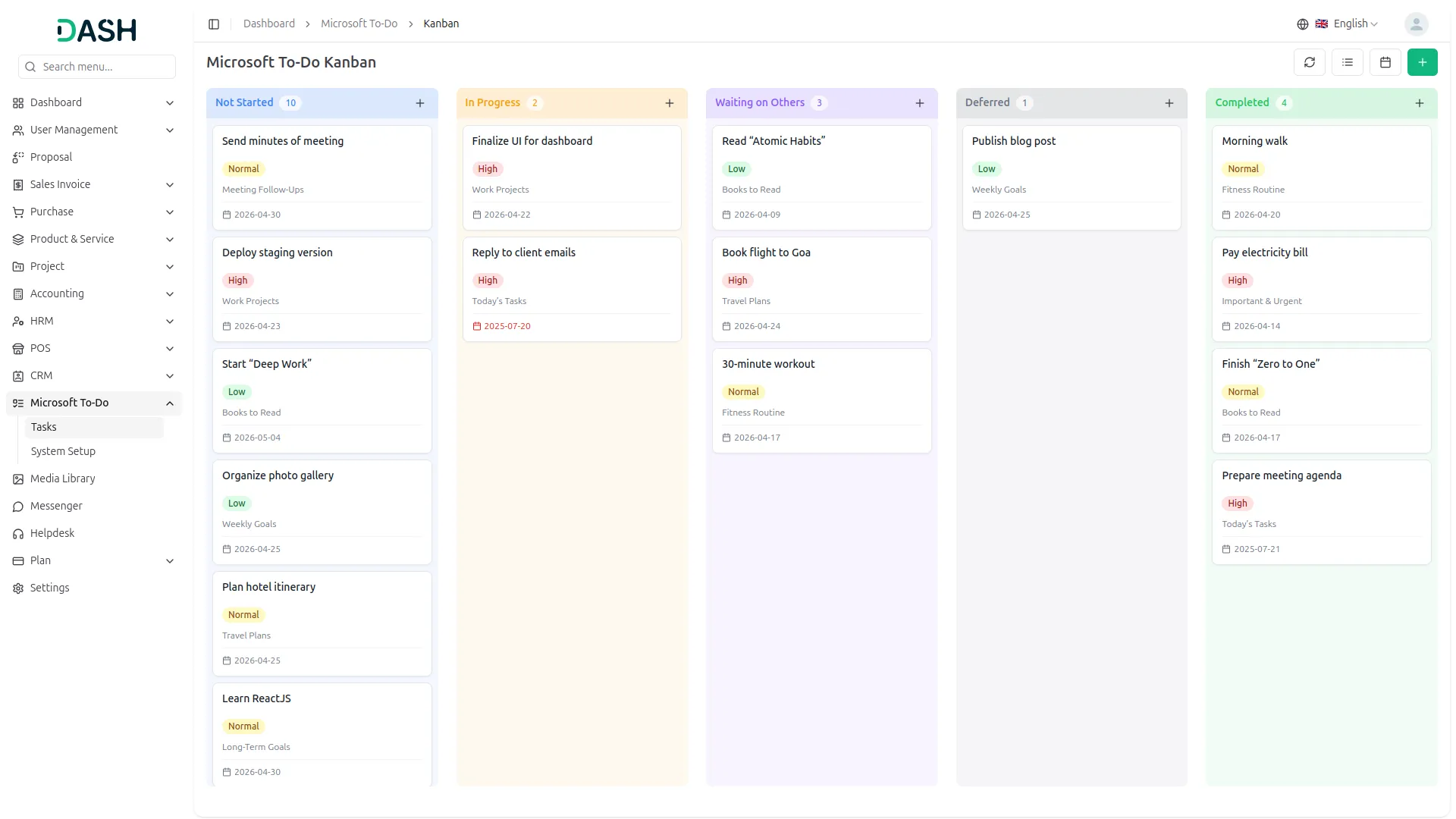
- The Kanban View organizes tasks into five status-based columns: Not Started, In Progress, Waiting on Others, Deferred, and Completed. Each column header displays the column name along with the total count of tasks in that status. You can click the “Create” button on any column header to add a new task directly to that status. Each task card displays the task title, Importance badge, List name, and Due Date.
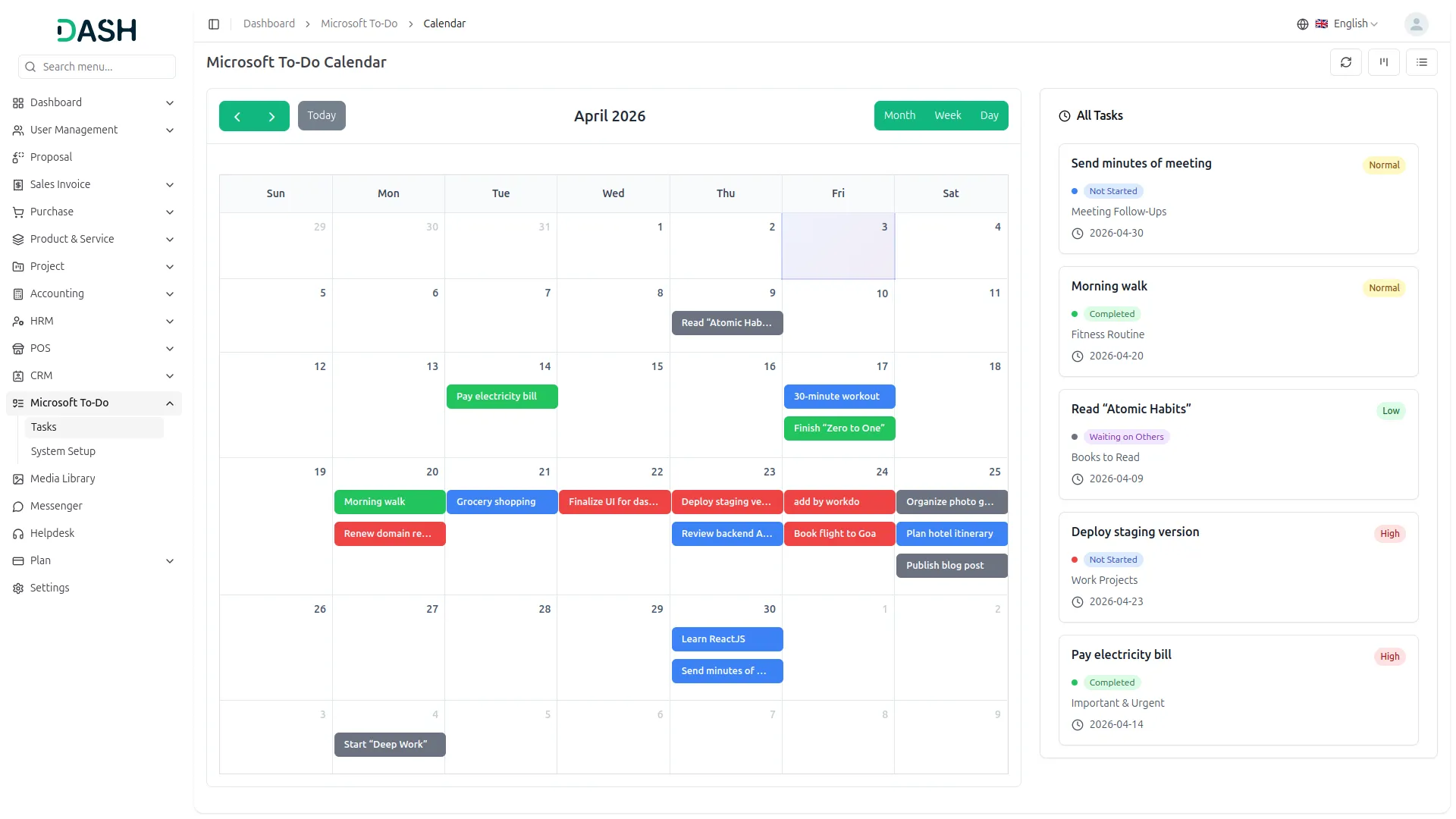
- The Calendar View displays tasks organized by their due dates across a monthly calendar. Use the left and right arrow buttons to navigate between months, or click the Today button to return to the current date. You can switch between Month, Week, and Day views using the toggle at the top right of the calendar. Tasks appear as colored pills on their respective dates in the calendar grid. An All Tasks panel on the right side of the page lists all tasks showing the title, Importance badge, Status badge, List name, and Due Date for quick reference.
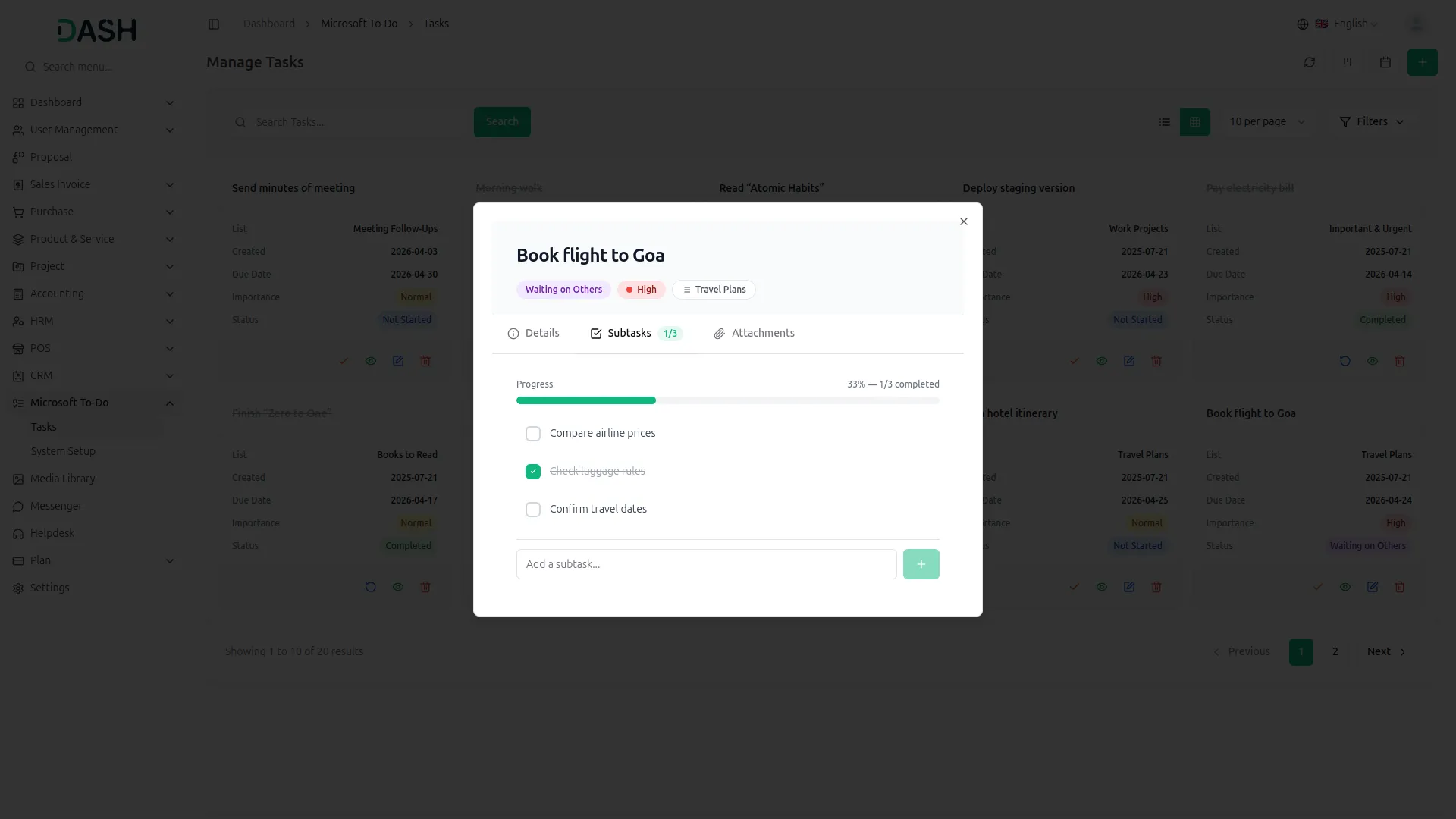
- When you click View on any task, a task detail modal opens, displaying the task title along with the Status badge, Importance badge, and List name at the top. The modal contains three tabs: Details, Subtasks, and Attachments.
- The Details tab shows the Due Date, Created date, and Description of the task. The Subtasks tab displays a Progress bar showing the percentage of subtasks completed, along with the count, and lists each subtask with a checkbox. Completed subtasks appear with a strikethrough. You can add new subtasks using the “Add a subtask…” input field at the bottom. The Attachments tab allows you to manage files attached to the task.
- The data that you create in Microsoft To-Do will be visible on our platform, and the data created on our platform will be visible on Microsoft To-Do in real-time.
Categories
Related articles
- User Manual – AccountGo SaaS
- Branding & White Label Settings Guide
- Jitsi Meet – WorkDo Dash SaaS Add-On Guide
- Google Wallet Settings – vCard SaaS Guide
- YooKassa – BookingGo SaaS Add-On Guide
- Crisp Chatbot – BookingGo SaaS Add-On Guide
- Solar Hub – WorkDo Dash SaaS Add-On Guide
- User Manual – AccountGo
- BookingGo SaaS Add-On Setup Guide
- Flutter App Setup & Installation Guide
- Tailoring & Fashion Design – WorkDo Dash SaaS Add-On Guide
- Add Variants Guide – eCommerceGo SaaS
We're Here to Help - Let's Talk
Have questions about our solutions, customization services, or business tools? Our team is here to help you. let's talk.