
Xero – WorkDo Dash SaaS Add-On Guide
Learn how to configure and manage Xero integration in WorkDo Dash SaaS.
Introduction
The Xero Add-On allows you to seamlessly connect your system with Xero, a powerful cloud-based accounting platform. This integration helps automate the transfer of financial data, including invoices, payments, and other essential records, directly to your Xero account. By setting up the Xero Add-On, businesses can reduce manual data entry, ensure real-time financial updates, and maintain accurate bookkeeping across all operations. Whether you’re managing sales, tracking expenses, or generating reports, this integration provides a more efficient way to handle your accounting tasks within a single, connected workflow.
How to Install the Add-On?
To Set Up the Xero Add-On, you can follow this link: Setup Add-On.
Setting Up the Xero Add-On
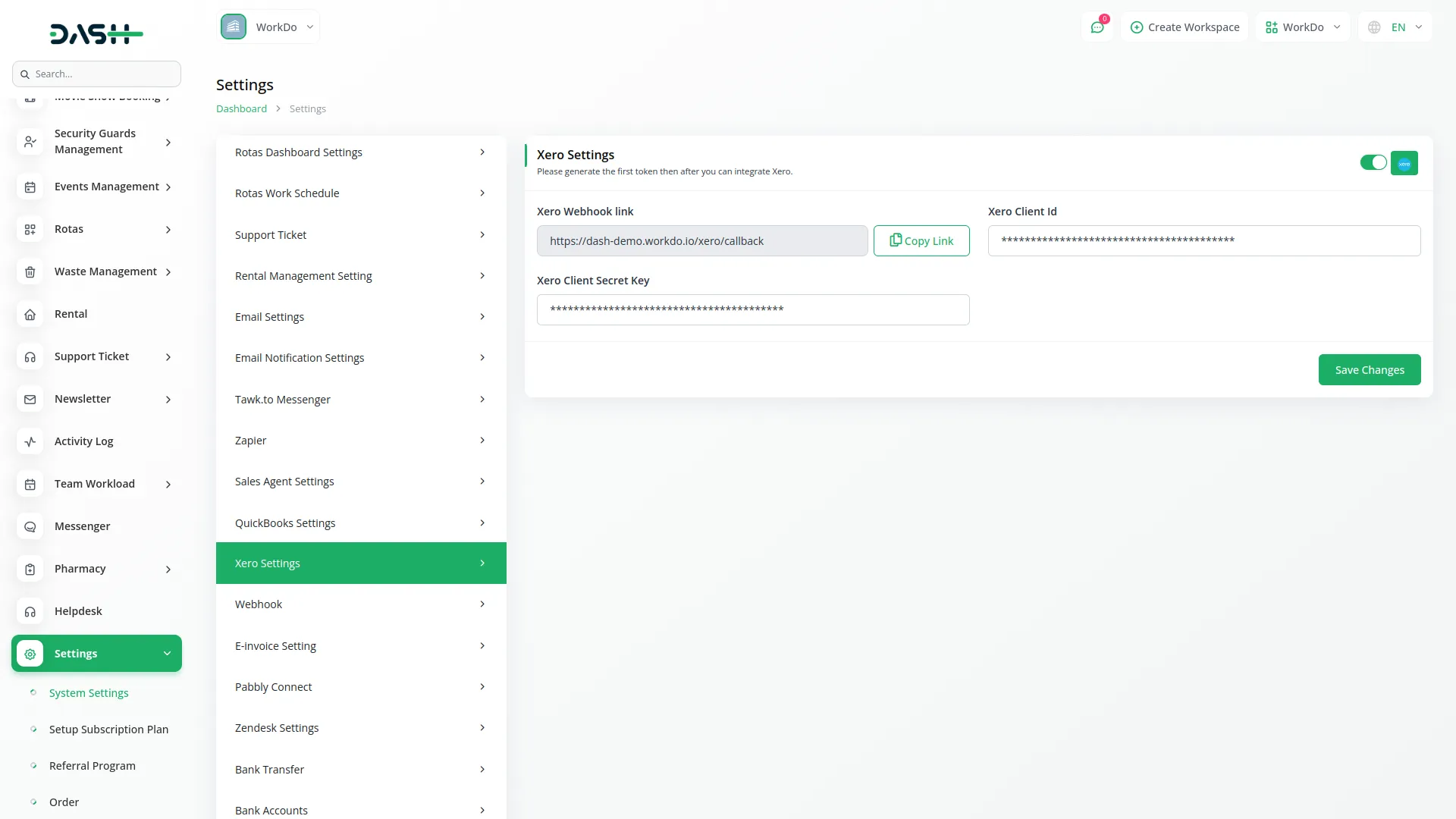
To configure the Xero Add-On in your system:
- 1.Navigate to the Settings page on company login
- 2.Find and click on Xero Add-On from the available integrations
- 3.In the configuration panel, configure the following settings:
-
4.Required Configuration Fields:
- Enable Xero Integration – Toggle to activate/deactivate the integration
- Environment – Choose between Sandbox or Live
- Client ID – Your Xero application’s Client ID
- Client Secret – Your Xero application’s Client Secret Key
- Default Sales Account – Select the default Xero account for sales transactions
- Default Purchase Account – Select the default Xero account for purchase transactions
- 5.Click Save to store your configuration settings
-
6.Connecting to Xero:
- Click the Connect to Xero button in the settings panel
- You’ll be redirected to Xero’s authorization page
- Log in with your Xero account credentials
- Select the Xero organization you want to connect
- Authorize the application to access your Xero data
Managing Xero Accounts
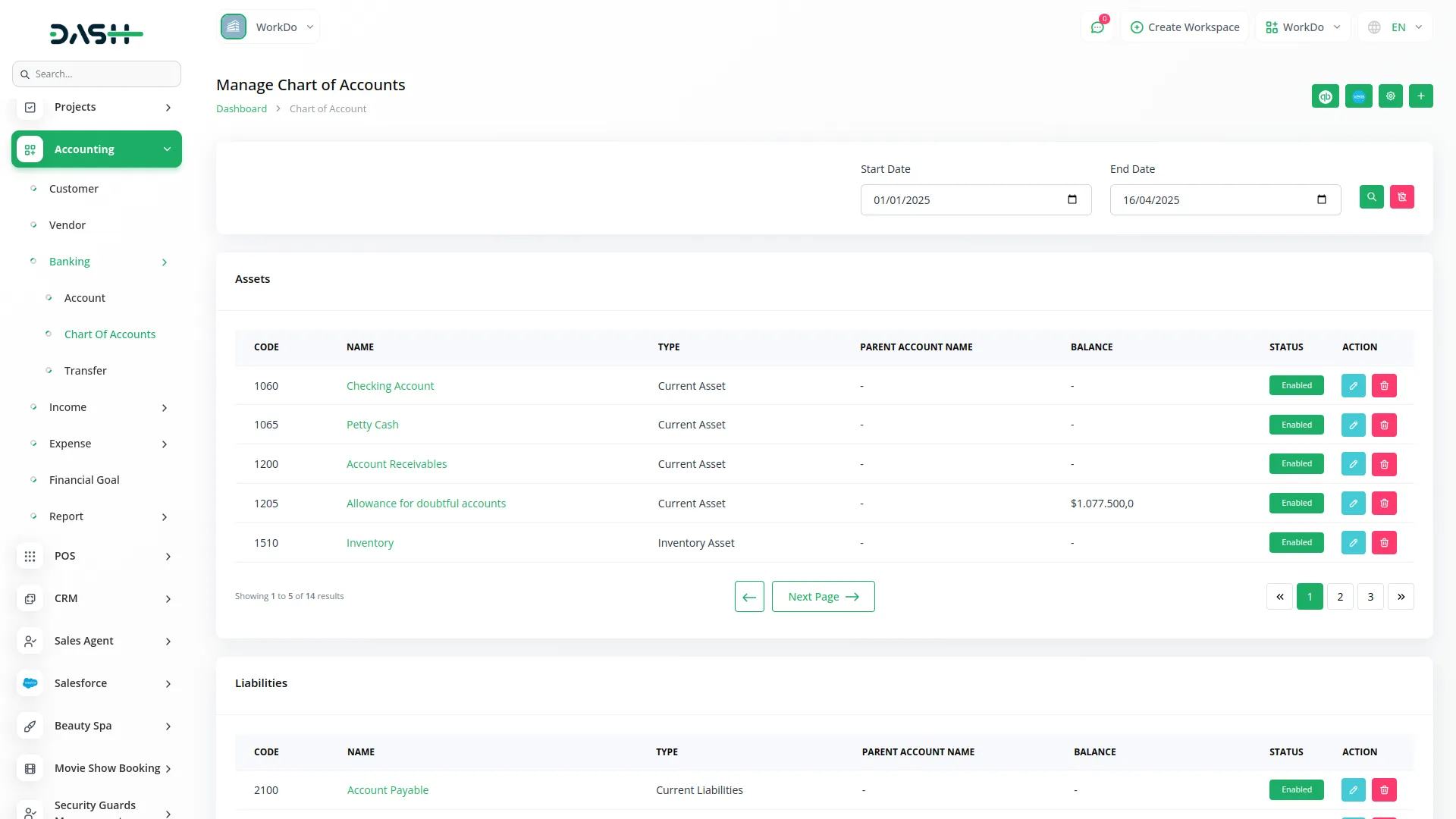
- The list page shows all Xero Accounts with columns for Code, Name, Type, Status, Reporting Code, Tax Type, Payments Enabled and Actions
- Available actions include synced button using this button you can one by one field can with Accounting Chart Of Accounts
Access the account management interface through:
- Navigate to Accounting → Chart Of Accounts from the main menu, then click the Xero button
- View all accounts synced from your Xero organization
Account Management Features:
- Sync All Accounts – Synchronize all Xero accounts to your local chart of accounts
- Individual Account Sync – Sync specific accounts using the sync button
- Account Mapping – Automatically maps Xero account types to local account categories
- Account Status Tracking – Monitor sync status and account details
The system automatically creates corresponding entries in your local chart of accounts with proper account type mapping based on Xero’s account classifications.
Automated Data Synchronization
Sales Invoice Synchronization
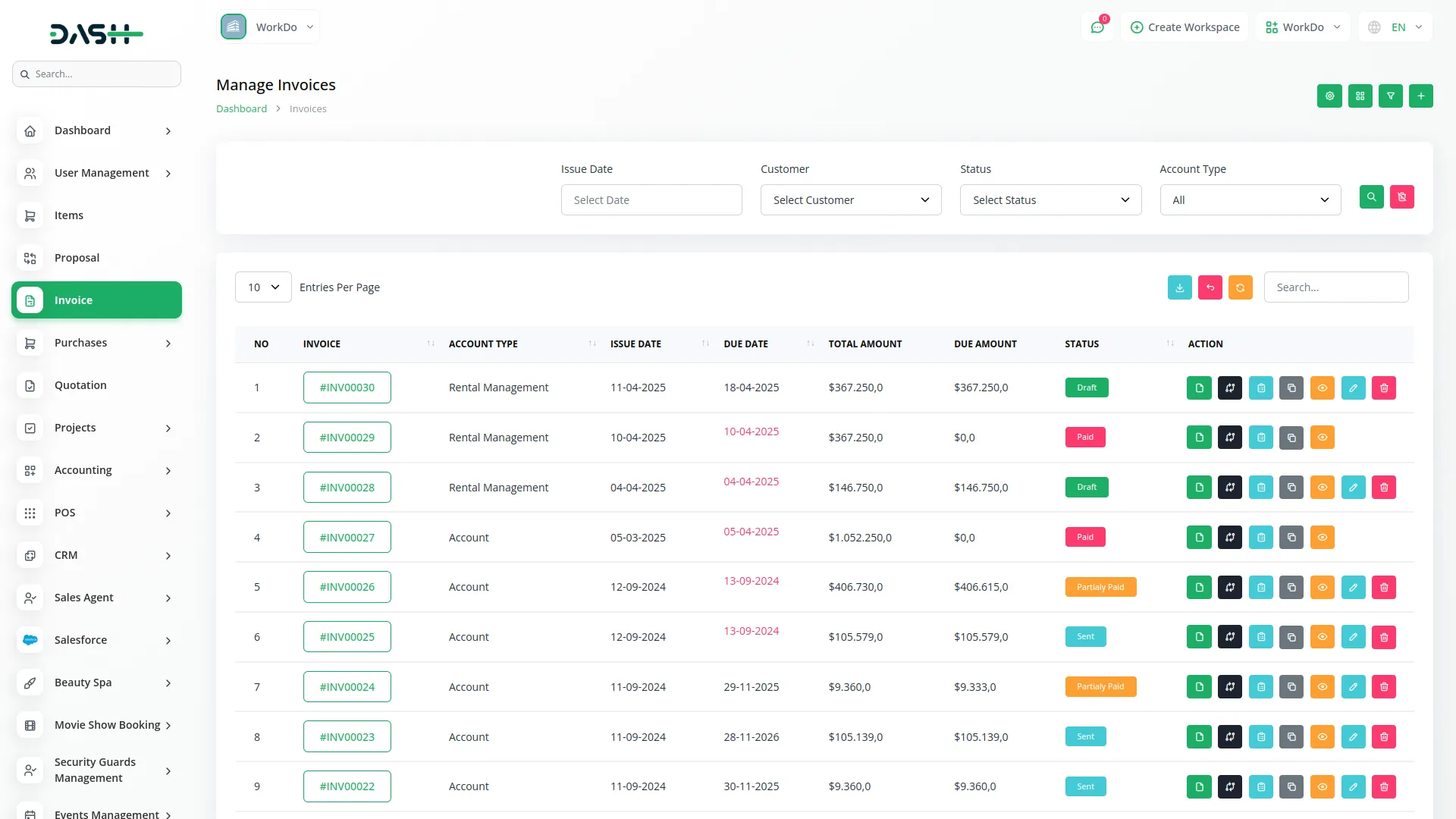
- Sales invoices are automatically synced to Xero when created or updated
- Customer contacts are automatically created/updated in Xero
- Product items are synchronized with Xero inventory
- Tax calculations are mapped to appropriate Xero tax types
Purchase Invoice Synchronization
- Purchase invoices sync automatically to Xero as bills
- Vendor contacts are created/updated in Xero
- Expense accounts are properly mapped
Payment Synchronization
- Customer payments automatically mark Xero invoices as paid
- Vendor payments are recorded against Xero bills
- Bank account mapping ensures proper payment allocation
Credit & Debit Notes
- Credit notes are automatically created in Xero
- Debit notes sync as appropriate Xero transactions
- Proper account allocation and tax handling
Manual / Retry Synchronization
This manual option is available for all syncable entities: Sales Invoices, Purchase Bills, Payments, CreditNotes, and Debit Notes
If a record fails to sync automatically (e.g., an invoice status remains “Not Synced” or shows an error):
- 1.Open the Record: Navigate to the detailed view of the specific Invoice, Bill, Payment, or Credit/Debit Note.
- 2.Locate the Button: Look for the “Sync to Xero” (or similar icon) button, typically found in the action bar or next to the status label.
- 3.Click to Retry: Pressing this button will manually trigger the synchronization process immediately.
- 4.Verify: Wait for the success message or check the status column to ensure it now reads “Synced”.
Categories
Related articles
- Marketing Plan – WorkDo Dash SaaS Add-On Guide
- Coupon Module Guide – eCommerceGo SaaS
- WorkDo Products Installation Guide
- Skip Cart – eCommerceGo SaaS Add-On Guide
- Ozow – WorkDo Dash SaaS Add-On Guide
- Project Template – WorkDo Dash SaaS Add-On Guide
- Activity Log – WorkDo Dash SaaS Add-On Guide
- BTCPay – WorkDo Dash SaaS Add-On Guide
- Chat Pin – TicketGo Add-On Guide
- Checkout – WorkDo Dash SaaS Add-On Guide
- Additional Field in Checkout – eCommerceGo SaaS Add-On Guide
- WhatsApp API – TicketGo Add-On Guide
We're Here to Help - Let's Talk
Have questions about our solutions, customization services, or business tools? Our team is here to help you. let's talk.