
Sendinblue – WorkDo Dash SaaS Add-On Guide
Learn how to configure and manage Sendinblue integration in WorkDo Dash SaaS easily.
Introduction
The Sendinblue Add-On integrates your platform with Brevo (formerly Sendinblue), allowing users to compose and send emails, track delivery status, manage templates, and organize contacts, all in one place. Any emails sent or received are fully synchronized between your platform and Brevo for a seamless experience.
How to Install the Add-On?
To Set Up the SendInBlue Add-On you can follow this link: Setup Add-On.
How to use the SendInBlue Add-On?
Setting Up
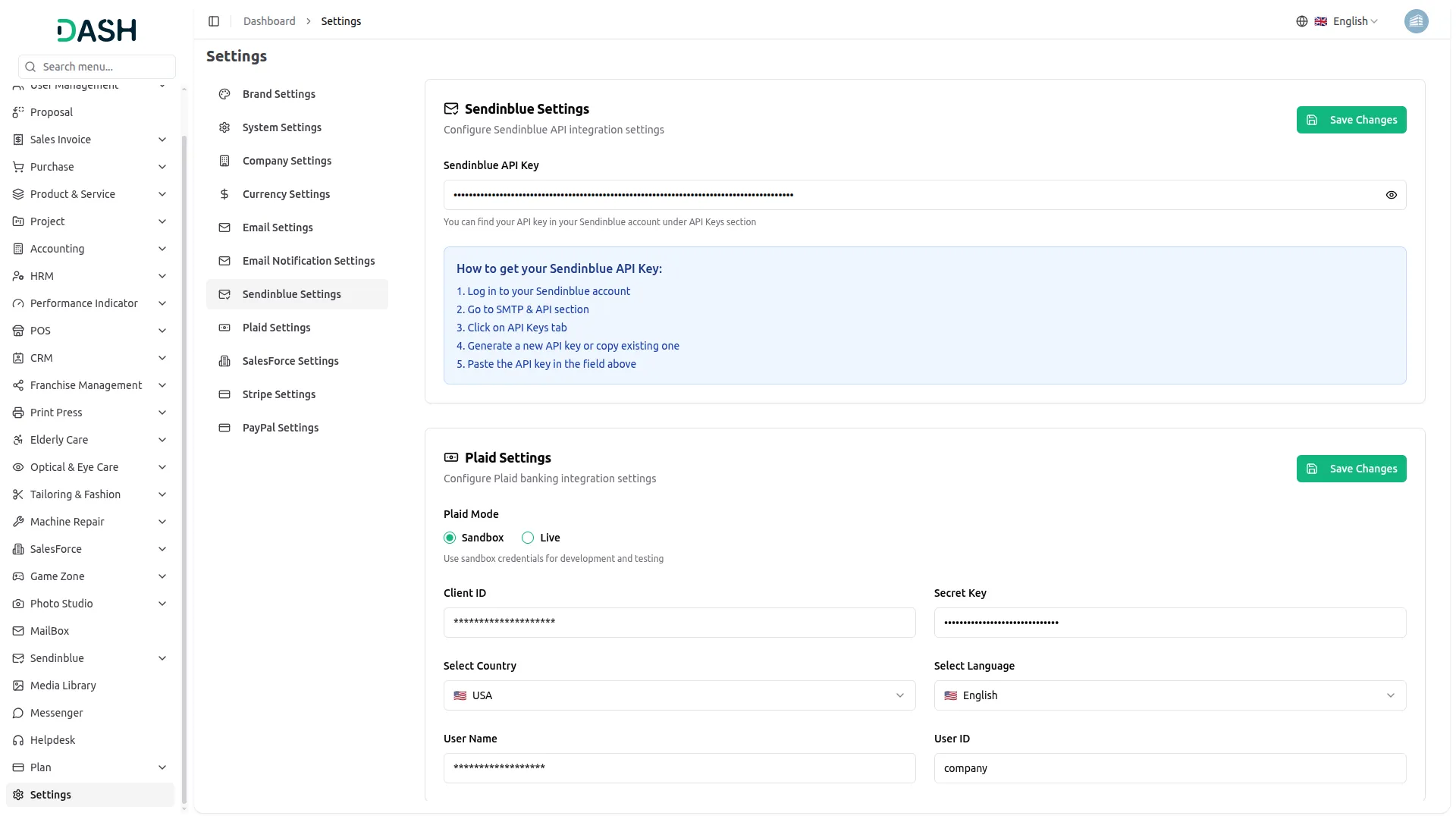
- To use the Sendinblue Add-On, go to the System Settings page and find Sendinblue Settings. Enter the API Key generated from your Sendinblue/Brevo account.
- To generate the API Key, log in to your Brevo account at https://www.brevo.com/, navigate to the SMTP & API section, click on the API Keys tab, and generate a new key or copy an existing one. Paste it into the field provided.
Configuration Process
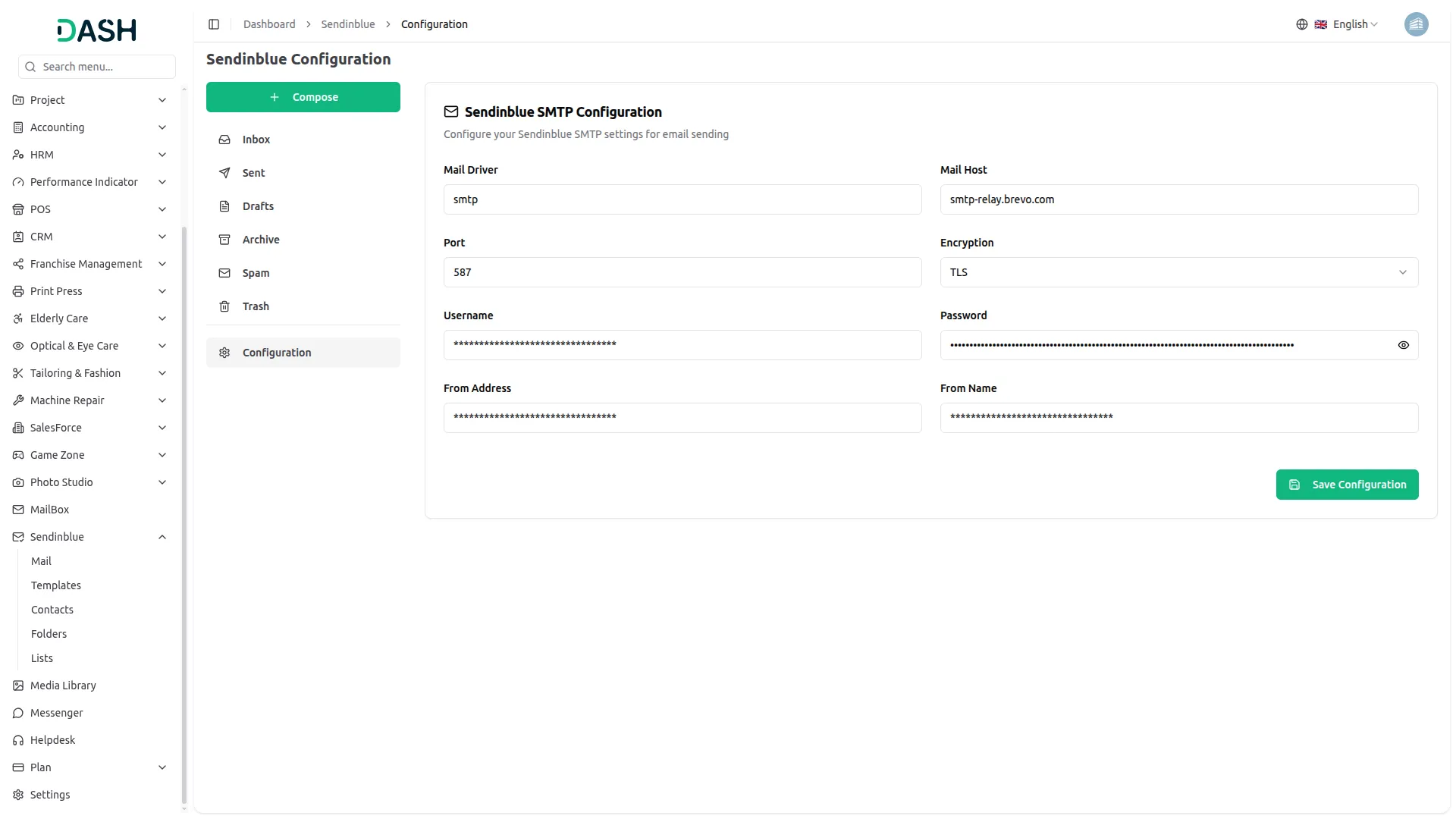
- After entering the API Key, find the Sendinblue Add-On in the sidebar. Inside, you will see multiple sections to manage your emails and contacts. Before anything else, you will need to complete the configuration process.
- Click on the Configuration button and add the necessary details: Mail Driver, Mail Host, Mail Port, Mail Username, Mail Password, Mail Encryption, Mail From Address, and Mail From Name. Once all details are filled in, save the configuration to activate the Add-On.
Composing and Sending Emails
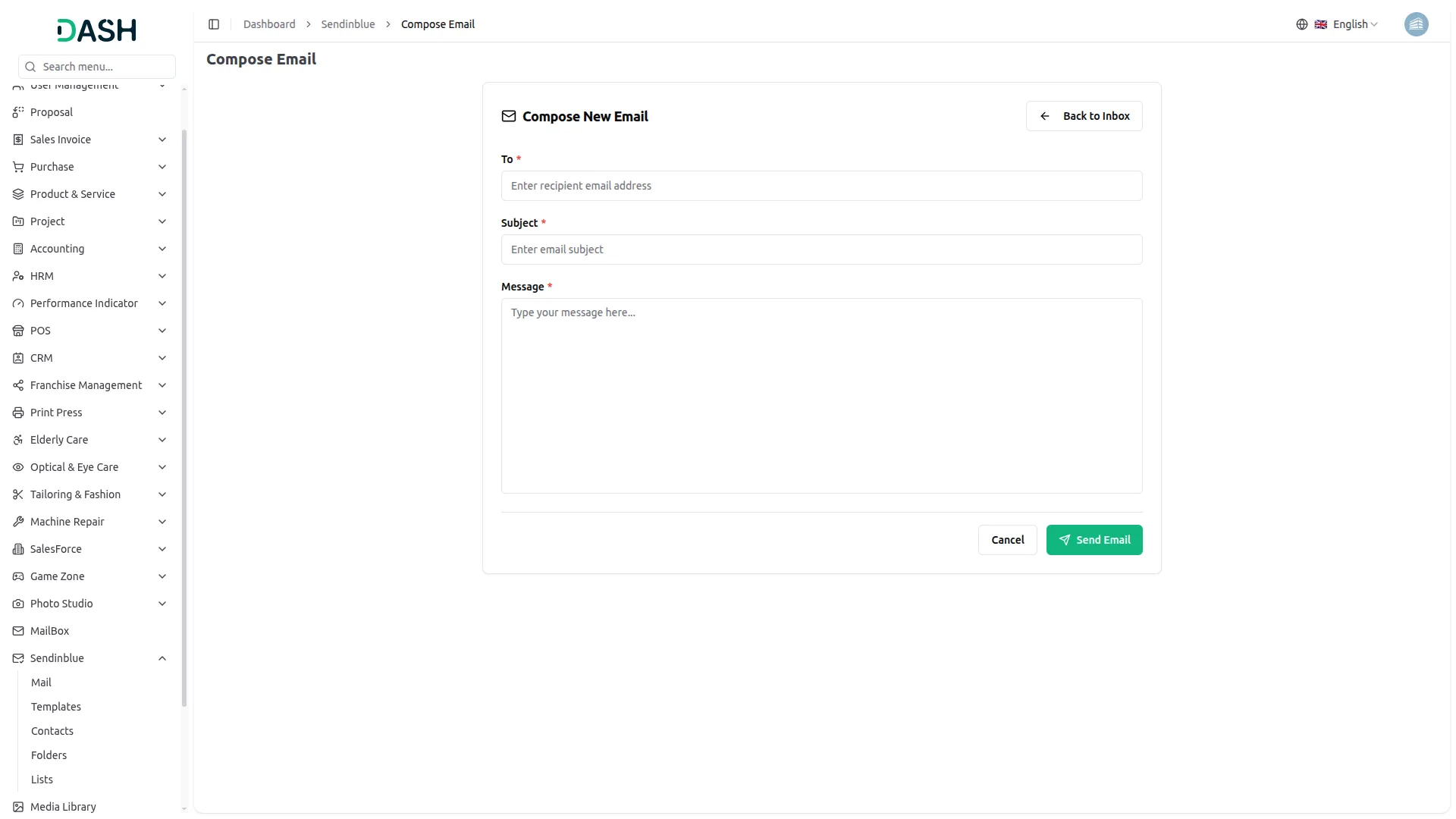
- Once the configuration is complete, users can start sending emails directly from the platform.
- Click the Compose button at the top to draft a new email. Fill in the recipient’s email address in the To field, add a Subject, and type your message in the Message field. Once done, click Send Email to deliver it.
Managing the Inbox or Tracking Email Status
- Users can view and track all emails directly from the platform across five sections; Inbox, Sent, Block, Spam, and Trash. Each section displays key details, including Sender, Subject, Event Status, and Date/Time.
- The Events column helps track the status of each email:
- Delivered – Email was successfully sent and received.
- Requests – Email send request was initiated.
- Hard Bounces – Email could not be delivered and is automatically moved to Trash.
- Blocked – Email was blocked and will appear in the Block section.
- Spam – Email was marked as spam and will appear in the Spam section.
Email Template
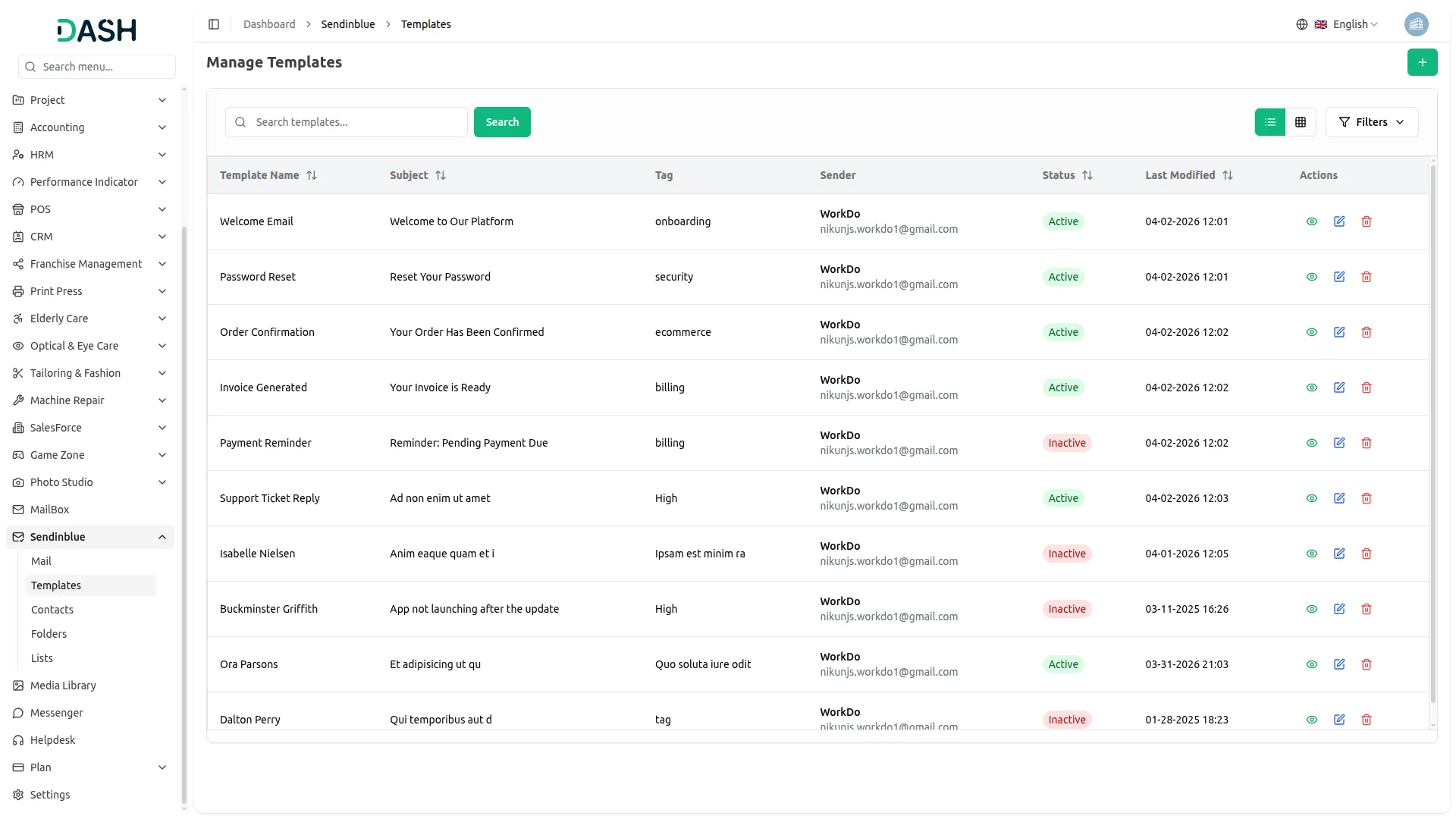
- To create a new template, click the “Create” button on the email templates page. Enter Template Name, Subject, Tag, select Sender from a dropdown, and Description. The description field comes with a rich text editor.
- The Manage Templates page displays all created templates in a table with columns for Template Name, Subject, Tag, Sender, Status, and Last Modified date. The Status column indicates whether a template is Active or Inactive at a glance. Templates can be filtered by status using the Filter option at the top.
- You can search for specific templates using the search bar. The page also allows you to toggle between list view and grid view.
- Available Actions: Use the View to preview a template, the Edit to update or modify an existing template, and the Delete to permanently remove it from the system.
Manage Contacts
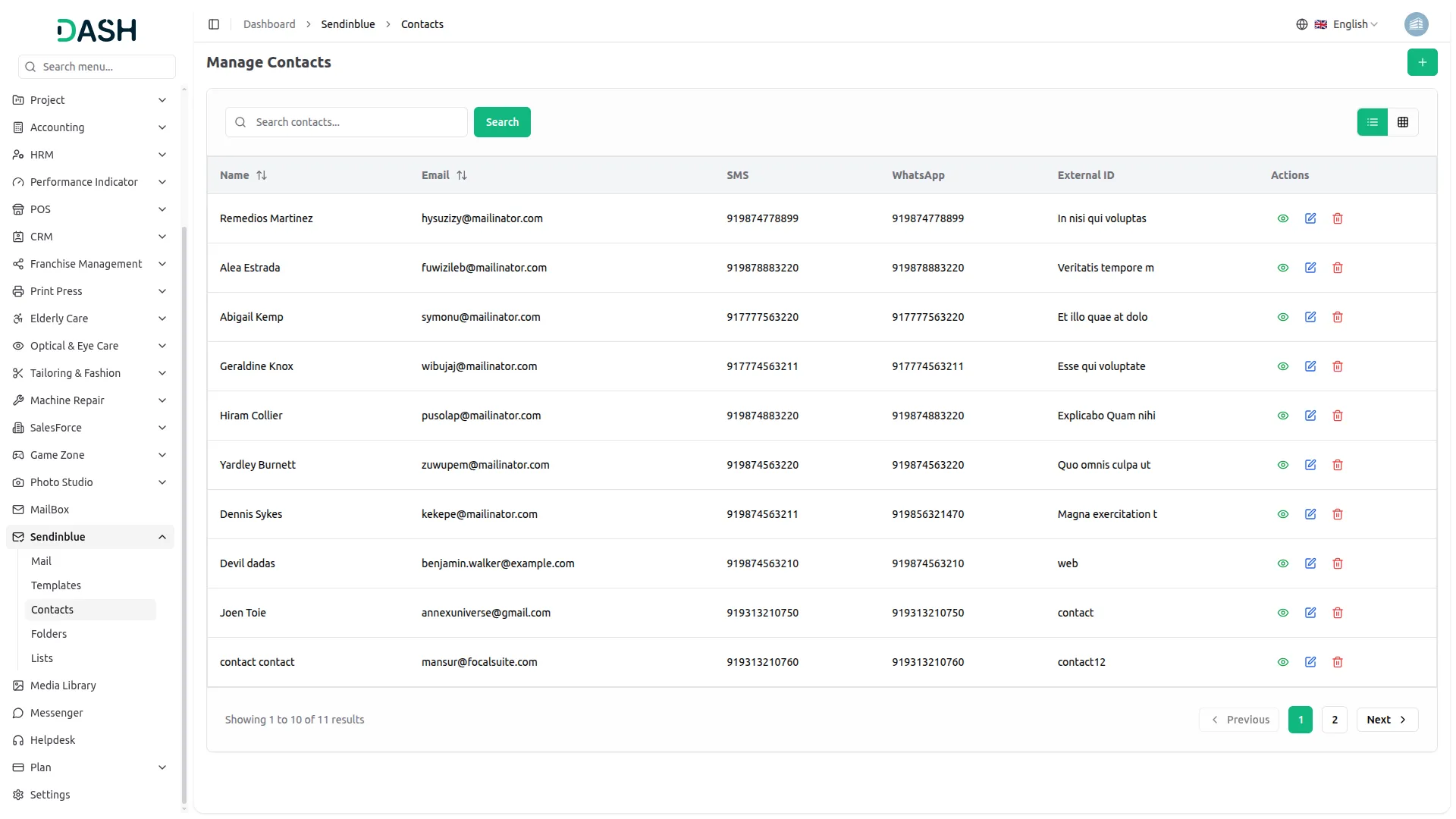
- To create a new contact, click the “Create” button on the Manage Contacts page. Fill in the First Name, Last Name, Email, Job Title, External ID, select Contact Lists from a dropdown, enter SMS and WhatsApp numbers, and LinkedIn profile URL. Click Create to save.
- The Manage Contacts page displays all contacts in a table with columns for Name, Email, SMS, WhatsApp, and External ID. You can search for specific contacts using the search bar. The page also allows you to toggle between list view and grid view.
- Available Actions: Use the View to preview contact details, the Edit to update or modify an existing contact, and the Delete to permanently remove a contact from the system.
Manage Folders
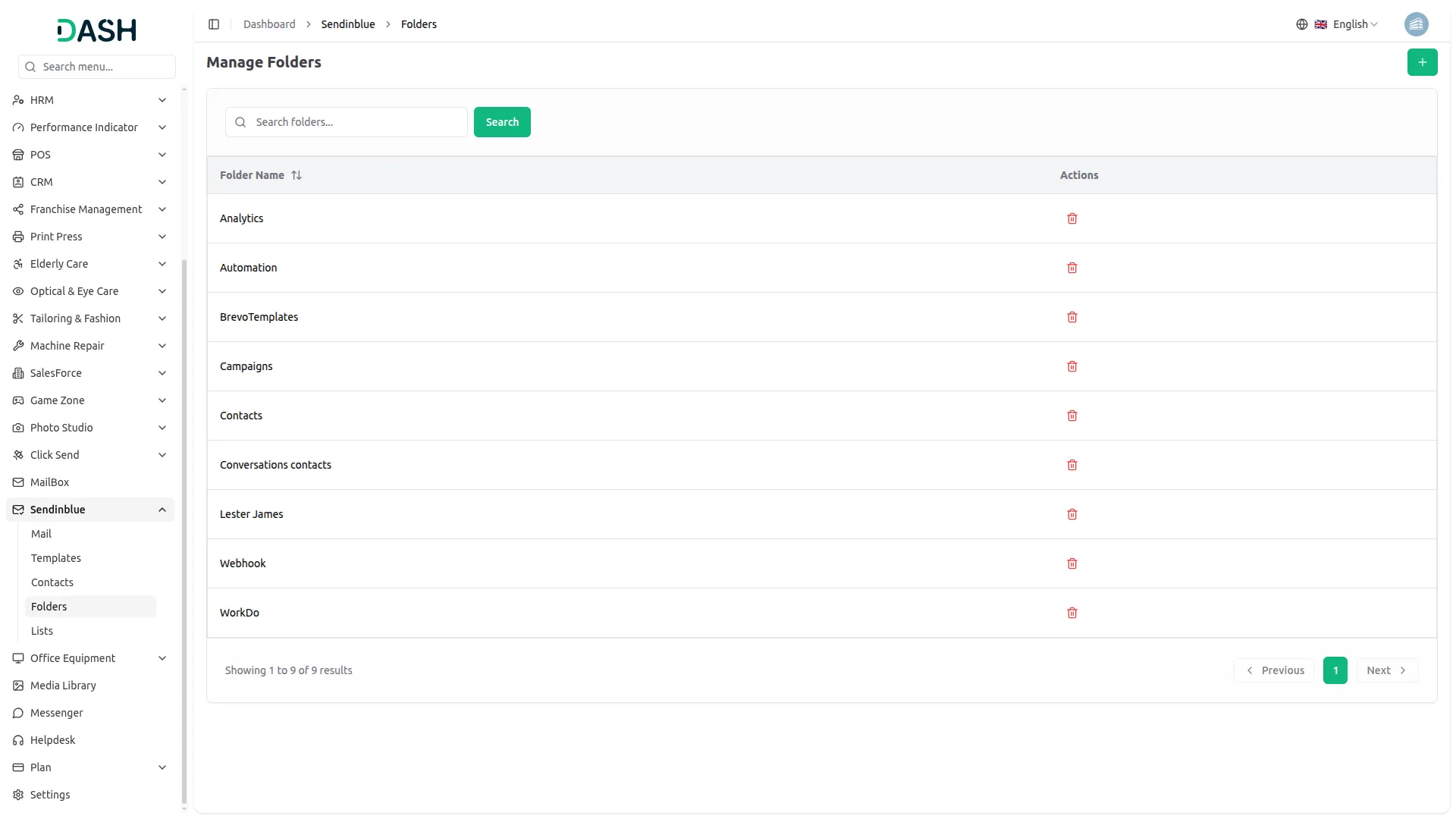
- To create a new folder, click the “Create” button on the Manage Folders page. Enter the Folder Name and click Create to save.
- The Manage Folders page displays all created folders in a table with the Folder Name column. You can search for specific folders using the search bar at the top.
- In the action column, you can use the Delete to permanently remove a folder from the system.
Manage Lists
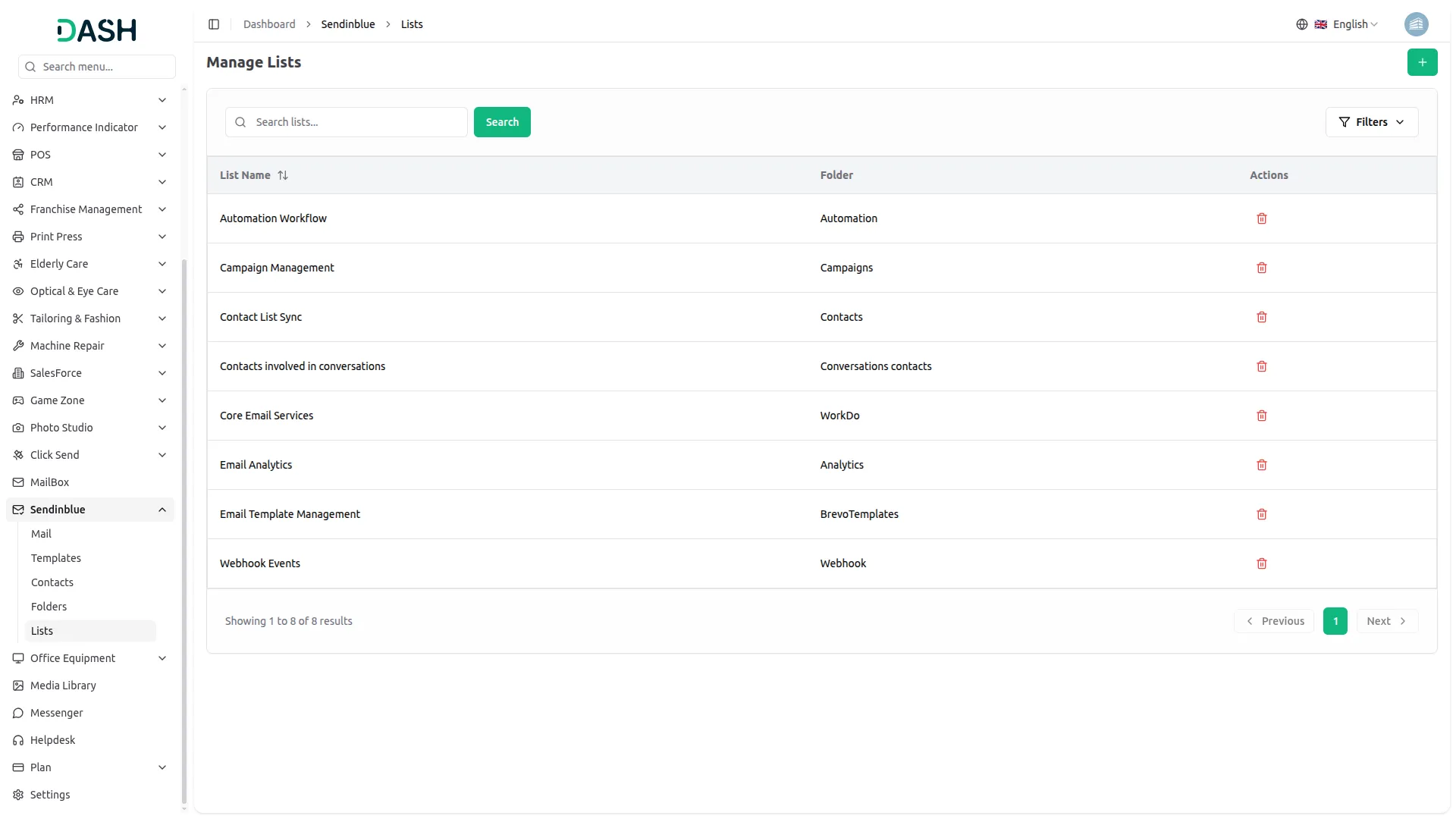
- To create a new list, click the “Create” button on the Manage Lists page. Enter the List Name and select a Folder from the dropdown. Click Create to save.
- The Manage Lists page displays all created lists in a table with columns for List Name and Folder. Lists can be filtered by folder using the Filter option at the top. You can search for specific lists using the search bar at the top.
- In the action column, you can use the Delete icon to permanently remove a list from the system.
Categories
Related articles
- Product Compare – eCommerceGo SaaS Add-On Guide
- Find Google Leads – WorkDo Dash SaaS Add-On Guide
- Planning Module – WorkDo Dash SaaS Add-On Guide
- Auto Reply – TicketGo Add-On Guide
- Easy Deposit Payments – BookingGo SaaS Add-On Guide
- Xendit – BookingGo SaaS Add-On Guide
- BlueSnap – BookingGo SaaS Add-On Guide
- Helpdesk – eCommerceGo SaaS Add-On Guide
- Waiting List – BookingGo SaaS Add-On Guide
- Dropbox – WorkDo Dash SaaS Add-On Guide
- Google Sheets – WorkDo Dash SaaS Add-On Guide
- Store Locator – eCommerceGo SaaS Add-On Guide
Get in Touch
We're Here to Help - Let's Talk
Have questions about our solutions, customization services, or business tools? Our team is here to help you. let's talk.