
PrintPress Management – WorkDo Dash SaaS Add-On Guide
Learn how to manage print press operations and workflows in WorkDo Dash SaaS.
Introduction
The PrintPress Management Add-On is a comprehensive print production solution that helps administrators manage every aspect of their operation from a single platform. It covers the full workflow, from materials, machines, and maintenance to press orders, prepress checks, print jobs, deliveries, and expense tracking. With an intuitive dashboard and powerful filtering tools across each module, PrintPress keeps production efficient, costs controlled, and orders on track.
How to Install the Add-On?
To Set Up the PrintPress Management Add-On, you can follow this link: Setup Add-On.
How to use the PrintPress Management Add-On?
PrintPress Dashboard
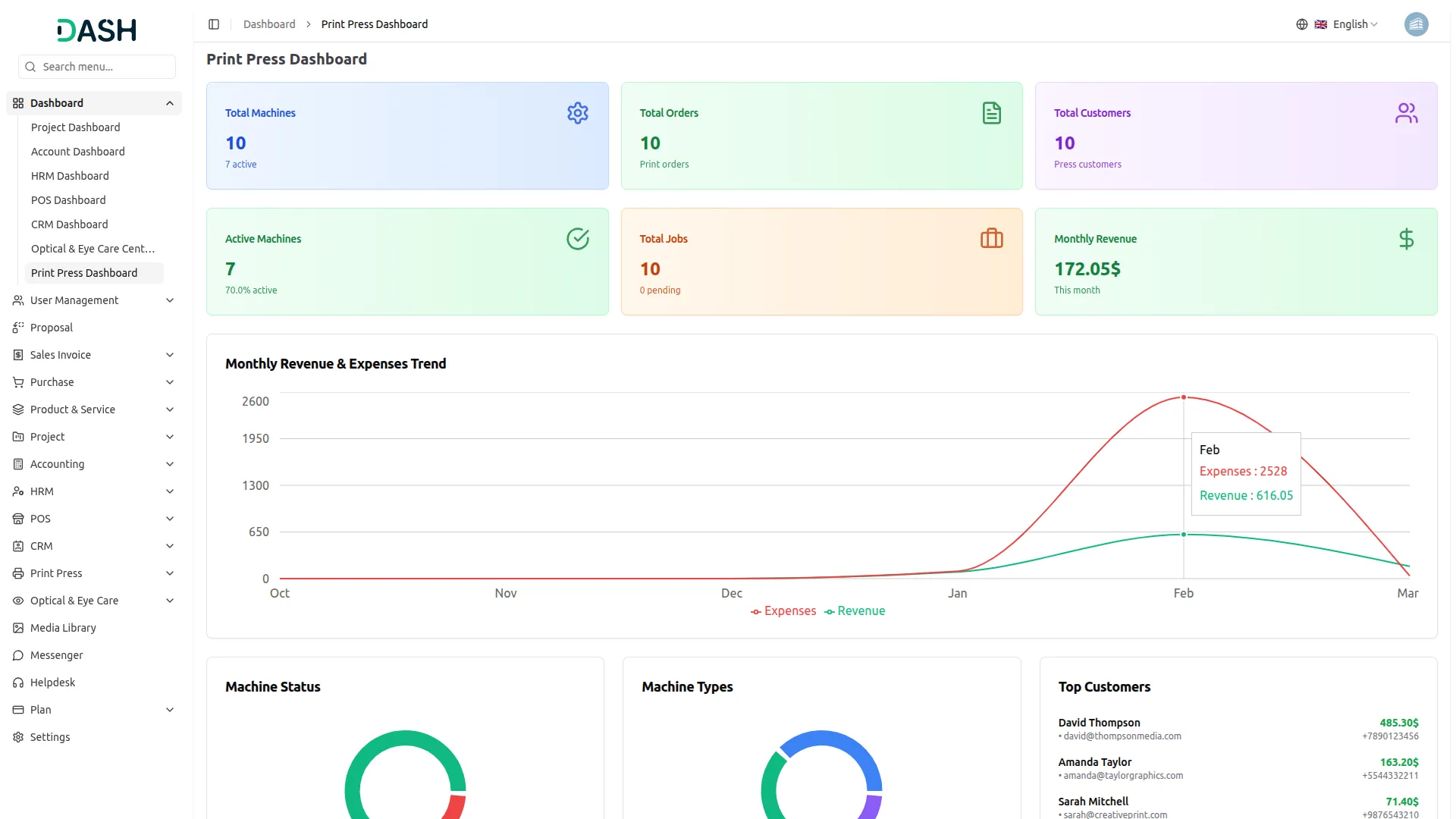
- The dashboard displays six summary cards at the top, each showing a key operational metric such as Total Machines, Total Orders, Total Customers, Active Machines, Total Jobs, and Monthly Revenue, along with a supporting sub-label and current count or value.
- The Monthly Revenue & Expenses Trend chart plots both revenue and expenses as separate line graphs across a rolling monthly timeline, allowing the admin to identify growth patterns, cost spikes, and the overall financial trajectory of the print operation at a glance.
- The Machine Status donut chart visualizes the current condition of all registered machines split across active and inactive states, giving the admin an instant read on operational capacity and equipment availability.
- The Machine Types donut chart breaks down the fleet by category of machine, helping the admin understand the composition of their equipment inventory and identify any imbalances in machine type distribution across the facility.
- The Top Customers panel ranks the five highest-spending clients by their total revenue contribution. It helps the admin quickly identify the most valuable accounts and those that may warrant priority service or follow-up attention.
- The Recent Orders panel lists the latest print order entries with their order ID, associated customer, total amount, payment status, and due date, along with a current status label such as Completed, Processing, or Pending, so the admin can monitor new activity and upcoming deadlines as they come in.
Manage Categories
- To create a new category, click the “Create” button at the top right of the Manage Categories page. Enter the Category Name and provide a brief Description.
- Upload a representative image by selecting an image file from your device. Set the status to Active or Inactive depending on whether the category should be immediately visible and available for use.
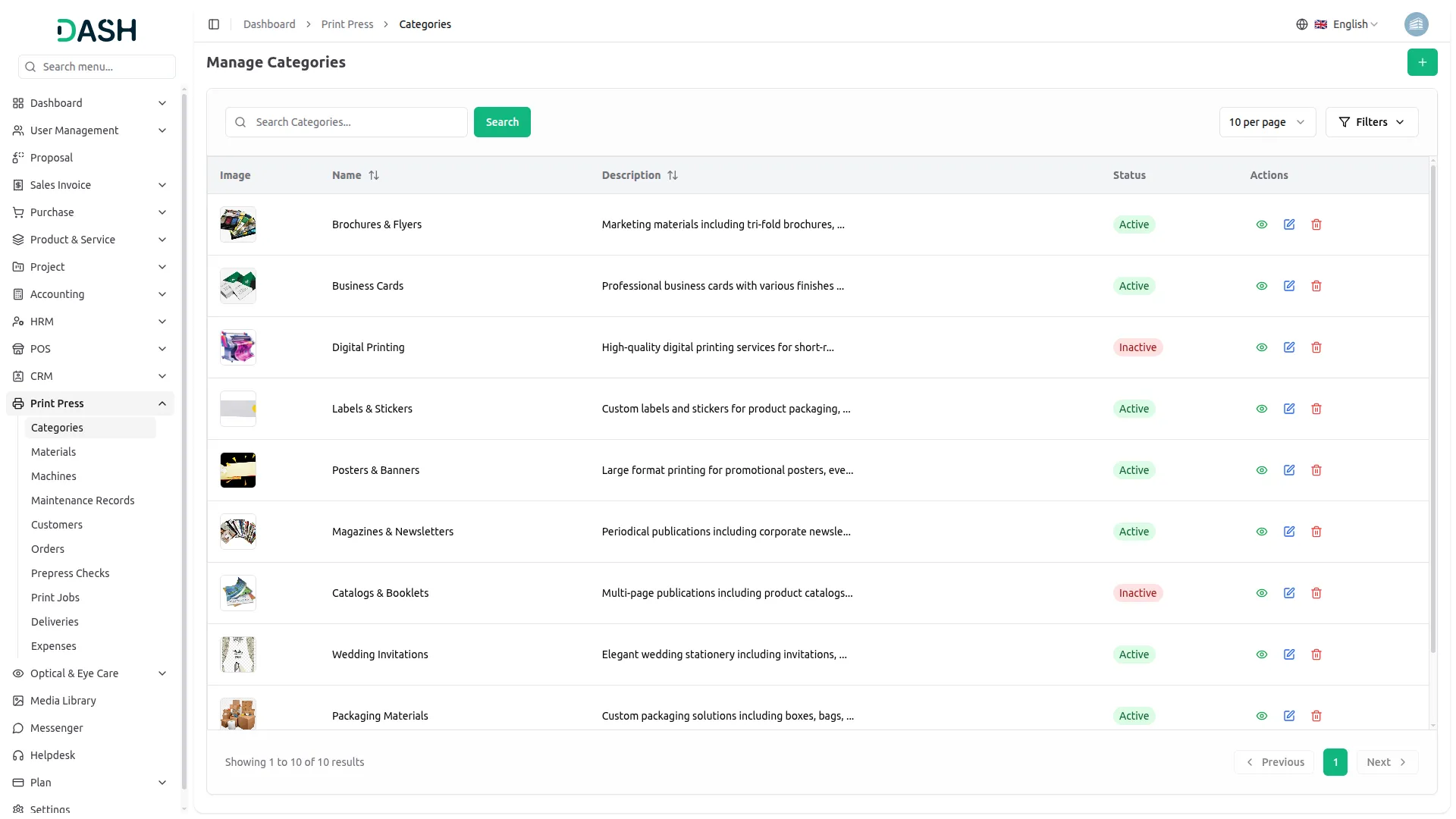
- The list page displays all categories in a table with columns for Image, Name, Description, Status, and Actions. Use the search bar at the top to quickly locate a specific category by name and click Search to retrieve matching results.
- To narrow down the list, expand the Filters panel and use the Filter by Status dropdown to display only Active or Inactive categories. Click Apply to load the filtered results or Clear to reset the filter and return to the full list.
- In the Actions column, use the View option to see the full details of a category. Use the Edit option to update the data, and the Delete option to permanently remove the category from the system.
Manage Materials
- To create a new material, click the “Create” button at the top right of the Manage Materials page. In the Create Material form, enter the material Name and specify the Unit of measurement, such as Sheet, Roll, or Square Meter.
- Enter the Price per unit and set the initial Quantity in stock. Select the appropriate Category from the dropdown to link the material to its corresponding print category, then click Create to save it.
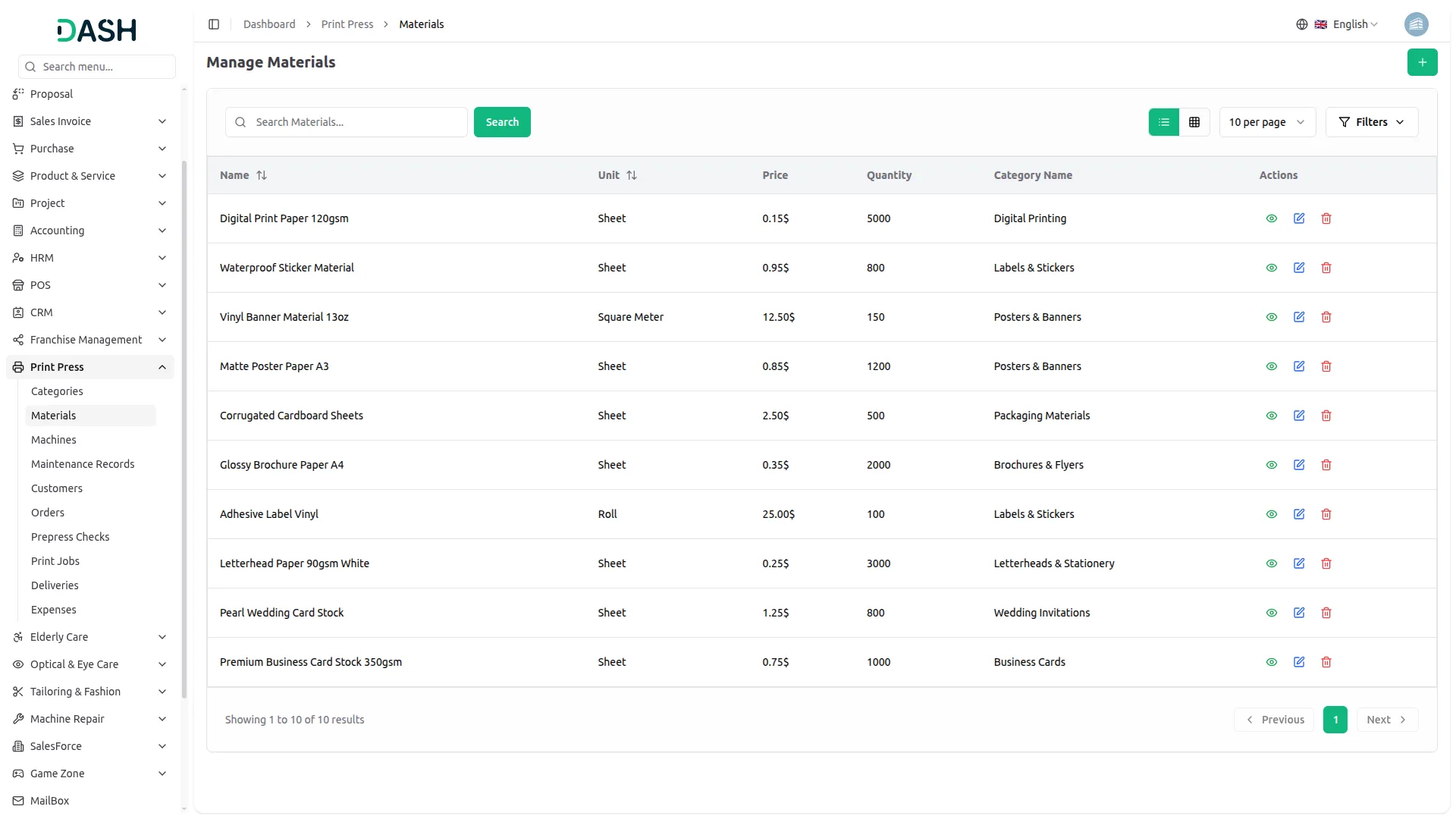
- The list page displays all materials in a table with columns for Name, Unit, Price, Quantity, Category Name, and Actions. Use the search bar at the top to quickly locate a specific material by name and click Search to retrieve matching results.
- To narrow down the list, expand the Filters panel and use the Filter by Category dropdown to display only materials belonging to a specific print category. Click Apply to load the filtered results or Clear to reset the filter and return to the full list. Toggle between list view and grid view using the view buttons.
- In the Actions column, use the View option to see the complete details of a material. Use the Edit option to update any information, such as the name, unit, price, quantity, or category.
- Use the Delete option to permanently remove the material from the system. Ensure a material is no longer referenced in active jobs or orders before deleting it to avoid any disruption to ongoing operations.
Manage Machines
- To create a new machine, click the “Create” button at the top right of the Manage Machines page. In the Create Machine form, enter the machine Name and its unique Serial Number. Specify the machine Type.
- Set the Status using the dropdown (Active, Inactive). Select the Purchase Date and optionally enter the Last Service Date. Enter the Location to indicate which floor or department the machine is stationed in.
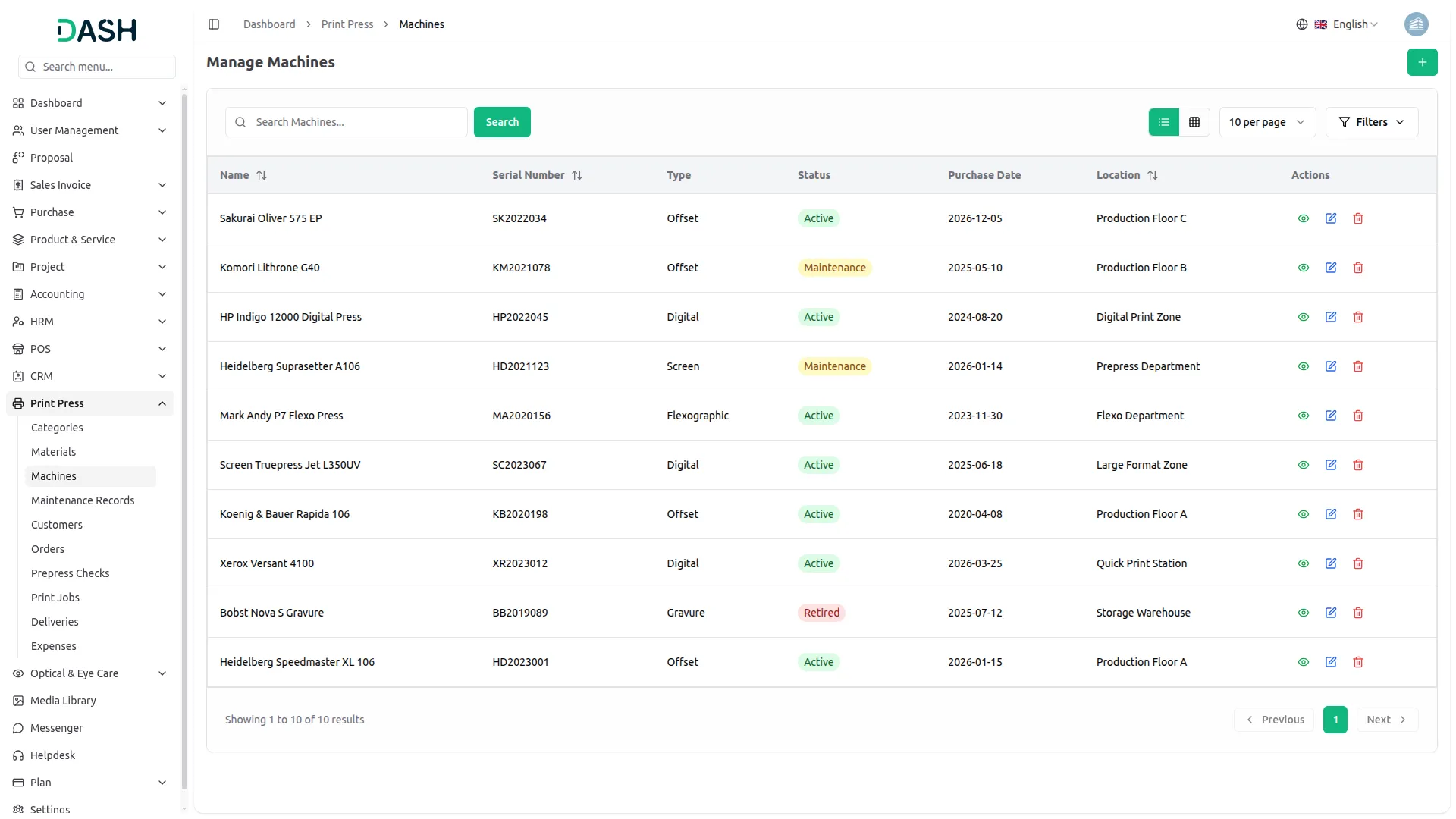
- The list page displays all machines in a table with columns for Name, Serial Number, Type, Status, Purchase Date, Location, and Actions. Use the search bar at the top to quickly locate a specific machine by name and click Search to retrieve matching results.
- To narrow down the list, expand the Filters panel and use the Filter by Status dropdown to display machines by their current condition, or use the Filter by Purchase Date picker to retrieve machines acquired within a specific timeframe. Click Apply to load the filtered results or Clear to reset all filters and return to the full list. Toggle between list view and grid view using the view buttons.
- In the Actions column, use the View option to see the complete profile of a machine. Use the Edit option to update any detail, and the Delete option to permanently remove the machine from the system.
Maintenance Records
- To create a new maintenance record, click the “Create” button at the top right of the Manage Maintenance Records page. In the Create Maintenance Record form, select the Machine from the dropdown (comes from the Machine section) and choose the Service Date.
- Enter the Technician Name, select the Bank Account to associate the payment with. Optionally, set the Next Service Due date to schedule the following maintenance cycle. Enter any Parts Replaced during the service and add Remarks for additional notes or observations.
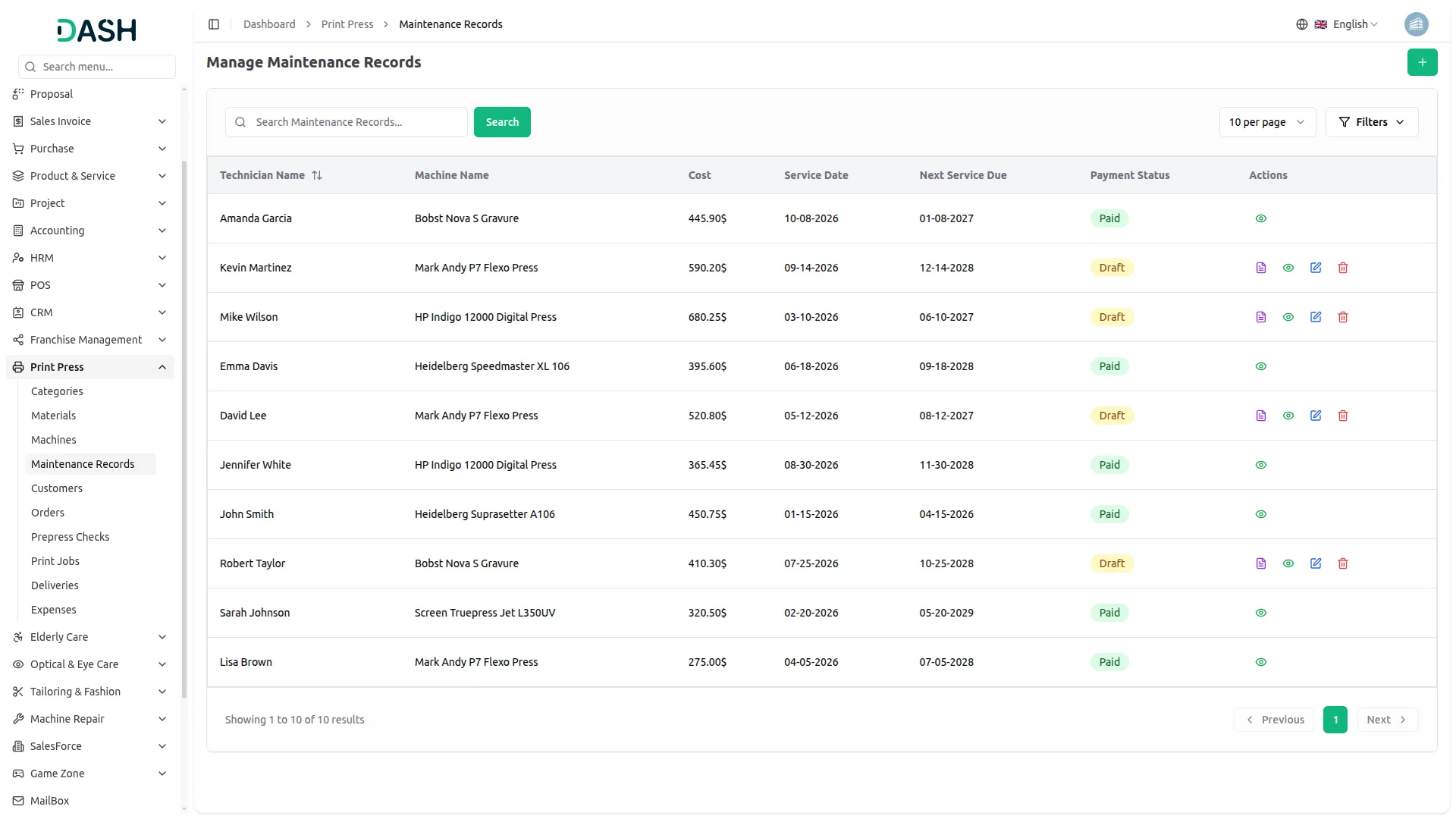
- The list page displays all maintenance records in a table with columns for Technician Name, Machine Name, Cost, Service Date, Next Service Due, Payment Status, and Actions. Use the search bar at the top to quickly locate a specific record and click Search to retrieve matching results.
- To narrow down the list, expand the Filters panel and use the Filter by Machine dropdown to view records for a specific machine, the Filter by Service Date picker to retrieve records within a particular timeframe, or the Filter by Payment Status dropdown to isolate Draft or Paid entries. Click Apply to load the filtered results or Clear to reset all filters and return to the full list.
- In the Actions column, use the View option to see the complete details of a maintenance record. Use the Edit option to update any information. For records with a Draft payment status, use the Mark As Paid option to confirm that the maintenance payment has been settled.
- Use the Delete option to permanently remove a record from the system. Records that are already marked as Paid will not display edit or delete options to preserve the integrity of completed entries.
Manage Customers
- To create a new customer, click the “Create” button at the top right of the Manage Customers page. In the Create Customer form, enter the customer’s Name and, optionally, their Company Name.
- Enter the Phone number, including the country code, and the email address. Fill in the Address for the customer’s billing or business location. Optionally, enter the GST Number if the customer is a registered business entity.
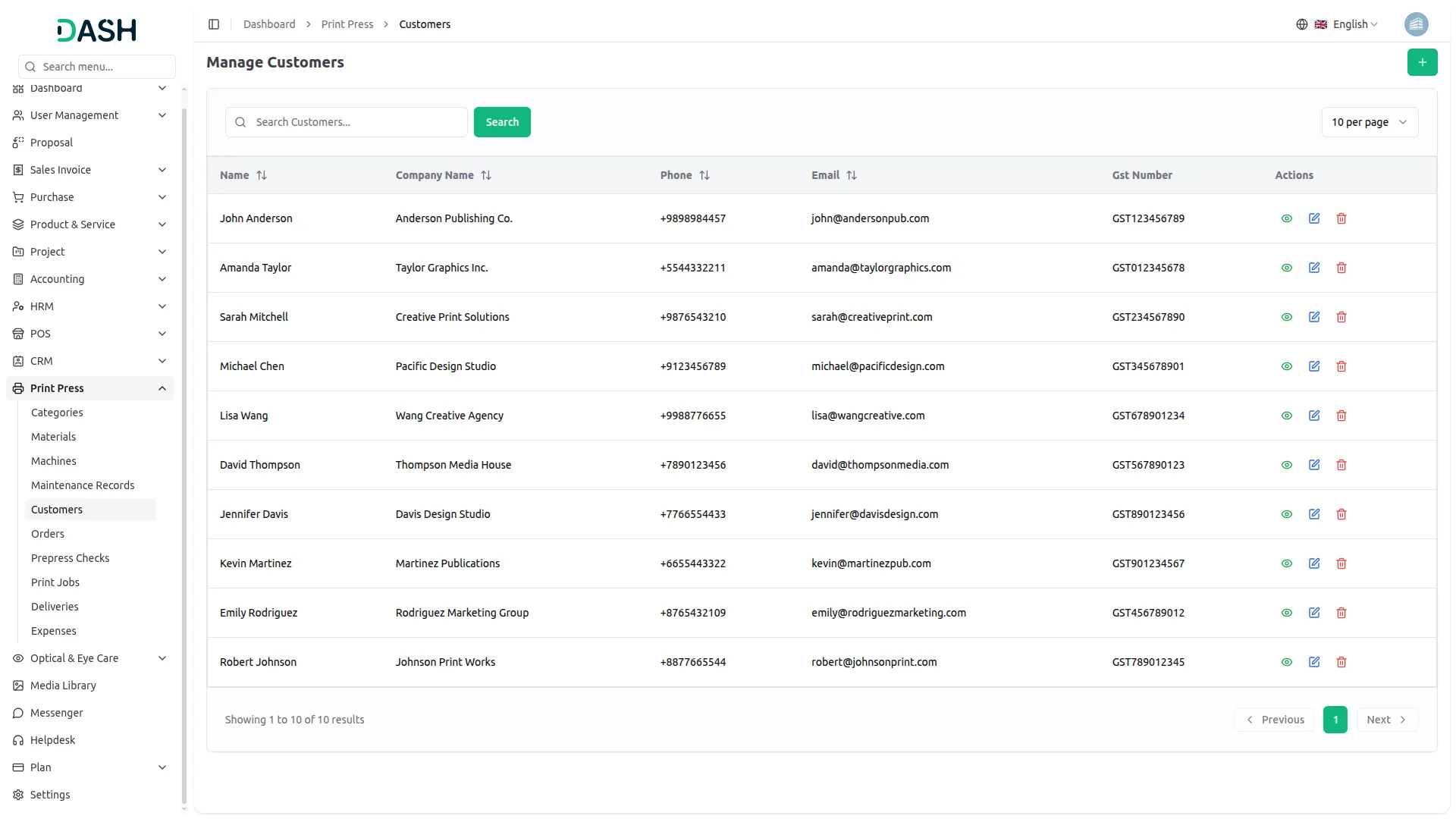
- The list page displays all customers in a table with columns for Name, Company Name, Phone, Email, GST Number, and Actions. Use the search bar at the top to quickly locate a specific customer by name and click Search to retrieve matching results.
- In the Actions column, use the View option to see the complete profile of a customer, including their full contact and company details. Use the Edit option to update or modify data. Use the Delete option to permanently remove the customer from the system. Ensure the customer has no active or pending orders before deleting to avoid any impact on ongoing print jobs or billing records.
Press Orders
- To create a new press order, click the “Create” button at the top right of the Manage Press Orders page. On the Create Press Order form, confirm or adjust the Order Date, then select the Customer from the dropdown (populated from the Customer section).
- Set the Due Date, choose the Bank Account to associate with the order, and optionally enter any Additional Information or notes for the job.
- In the Order Materials section, select the required Material from the dropdown for each line item. The Unit will populate automatically based on the selected material. Enter the Qty and Price per unit, and the line total will calculate automatically. Use the “Add Material” button to include additional material lines as needed. The Order Summary at the bottom reflects the running total across all added materials. Once all details are complete.
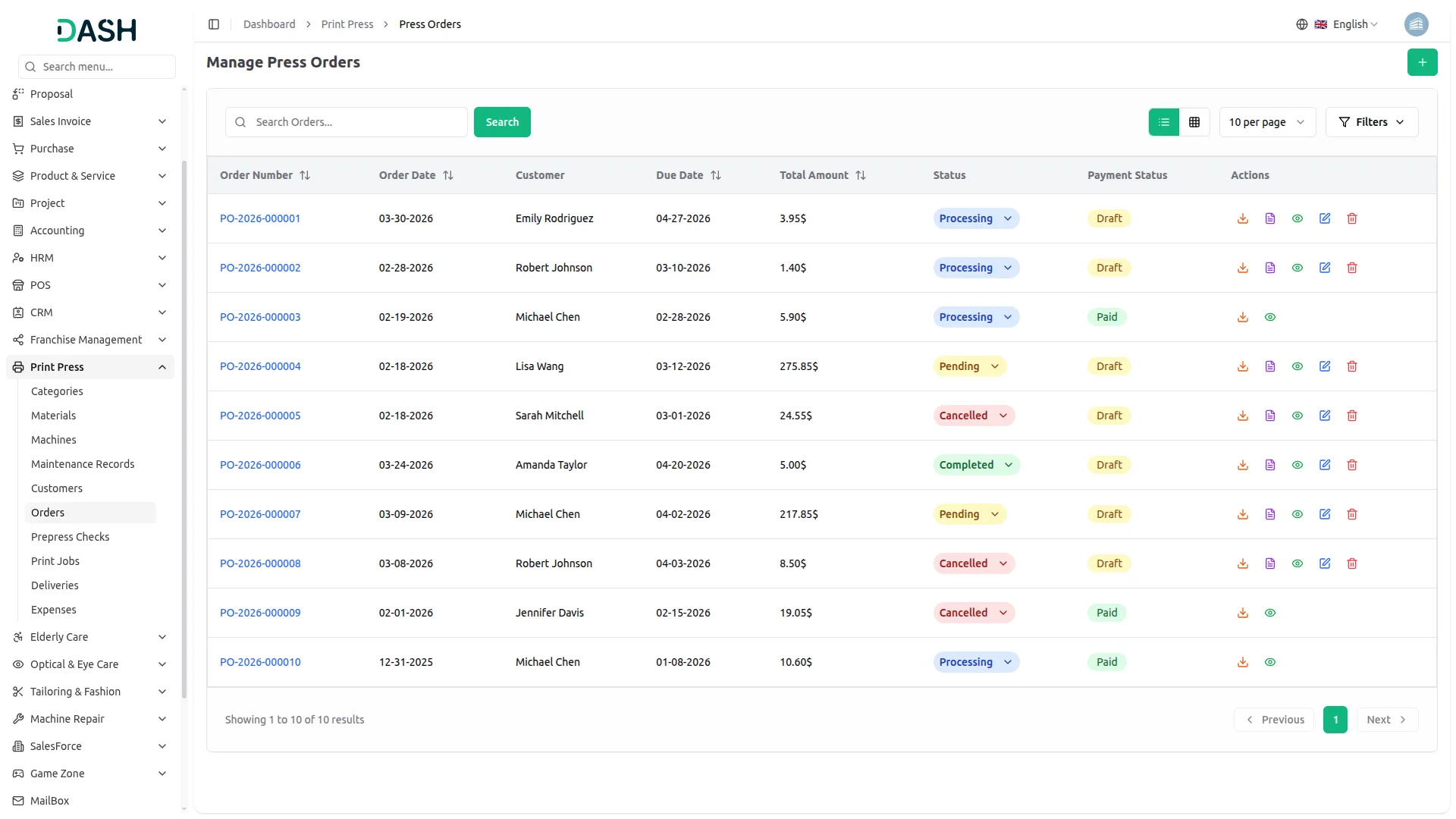
- The list page displays all press orders in a table with columns for Order Number, Order Date, Customer, Due Date, Total Amount, Status, Payment Status, and Actions. Use the search bar at the top to locate a specific order and click Search to retrieve results. Toggle between list view and grid view using the view buttons.
- To narrow down the list, expand the Filters panel and use the Filter by Customer dropdown to view orders belonging to a specific client, the Filter by Status dropdown to isolate orders by their workflow stage, or the Filter by Payment dropdown to display orders based on their payment standing. Click Apply to load the filtered results or Clear to reset all filters and return to the full list.
- The Status column includes an inline dropdown on each row, allowing the admin to update an order’s progress directly from the list without opening the full record. Available statuses are Pending, Processing, Completed, and Cancelled.
- In the Actions column, use the Download option to export the order, the Mark As Paid option to confirm payment settlement for Draft orders, the View option to review the complete order details, the Edit option to modify the order, and the Delete option to permanently remove it. Orders that have already been marked as Paid will display only the download and view options to protect finalized records.
Prepress Checks
- To create a new prepress check, click the “Create” button at the top right of the Manage Prepress Checks page. In the Create Prepress Check form, select the Order from the dropdown (comes from the Press Order section). Choose Designer from the dropdown, set the Check Status using the dropdown (Pending, Retry, or Ready).
- Use the checkboxes to indicate whether CMYK Verification, Resolution Check, and Bleed Check have been completed for the file. Optionally, enter a File Link to reference the associated design file and add any Notes, then click Create to save the record.
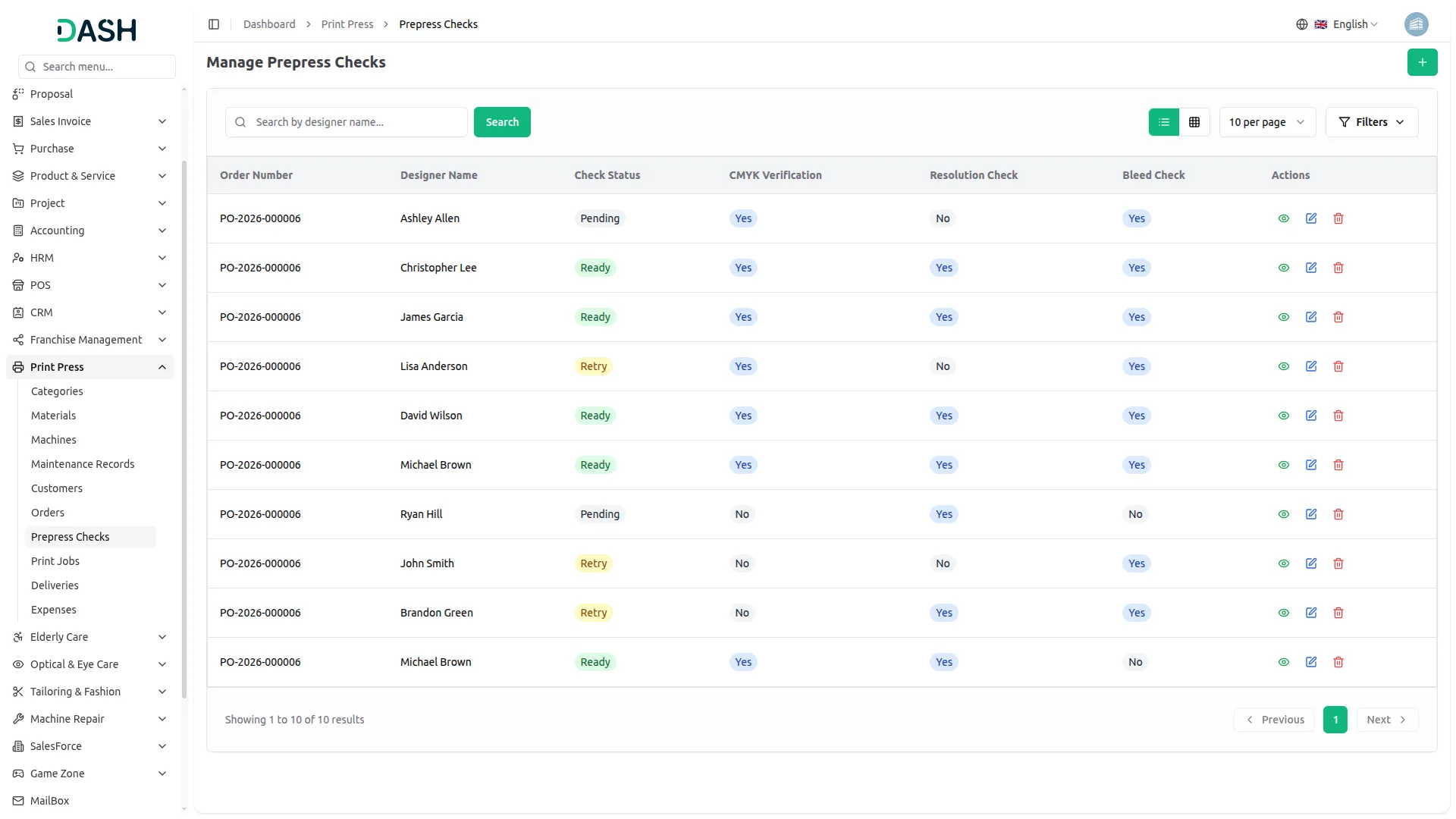
- The list page displays all prepress checks in a table with columns for Order Number, Designer Name, Check Status, CMYK Verification, Resolution Check, Bleed Check, and Actions. Use the search bar at the top to locate a specific check by designer name and click Search to retrieve matching results. Toggle between list view and grid view using the view buttons.
- To narrow down the list, expand the Filters panel and use the Filter by Check Status dropdown to display checks by their current stage, or the Filter by Designer Name dropdown to view records assigned to a specific designer. Click Apply to load the filtered results or Clear to reset all filters and return to the full list.
- In the Actions column, use the View option to see the complete details of a prepress check record. Use the Edit option to update the details, and the Delete option to permanently remove the record from the system. Keeping prepress check records up to date ensures print jobs are only advanced to production once all technical requirements have been verified and confirmed.
Print Jobs
- To create a new print job, click the “Create” button at the top right of the Manage Print Jobs page. In the Create Print Job form, select the Start Date and End Date.
- Set the Status using the dropdown(Queued, Finished, Printing, Cancelled), select the associated Order from the dropdown (comes from the Press Order section), then choose the Machine to be used for the job and assign the responsible User by selecting the dropdown. Optionally, enter any Notes, then click Create to save them.
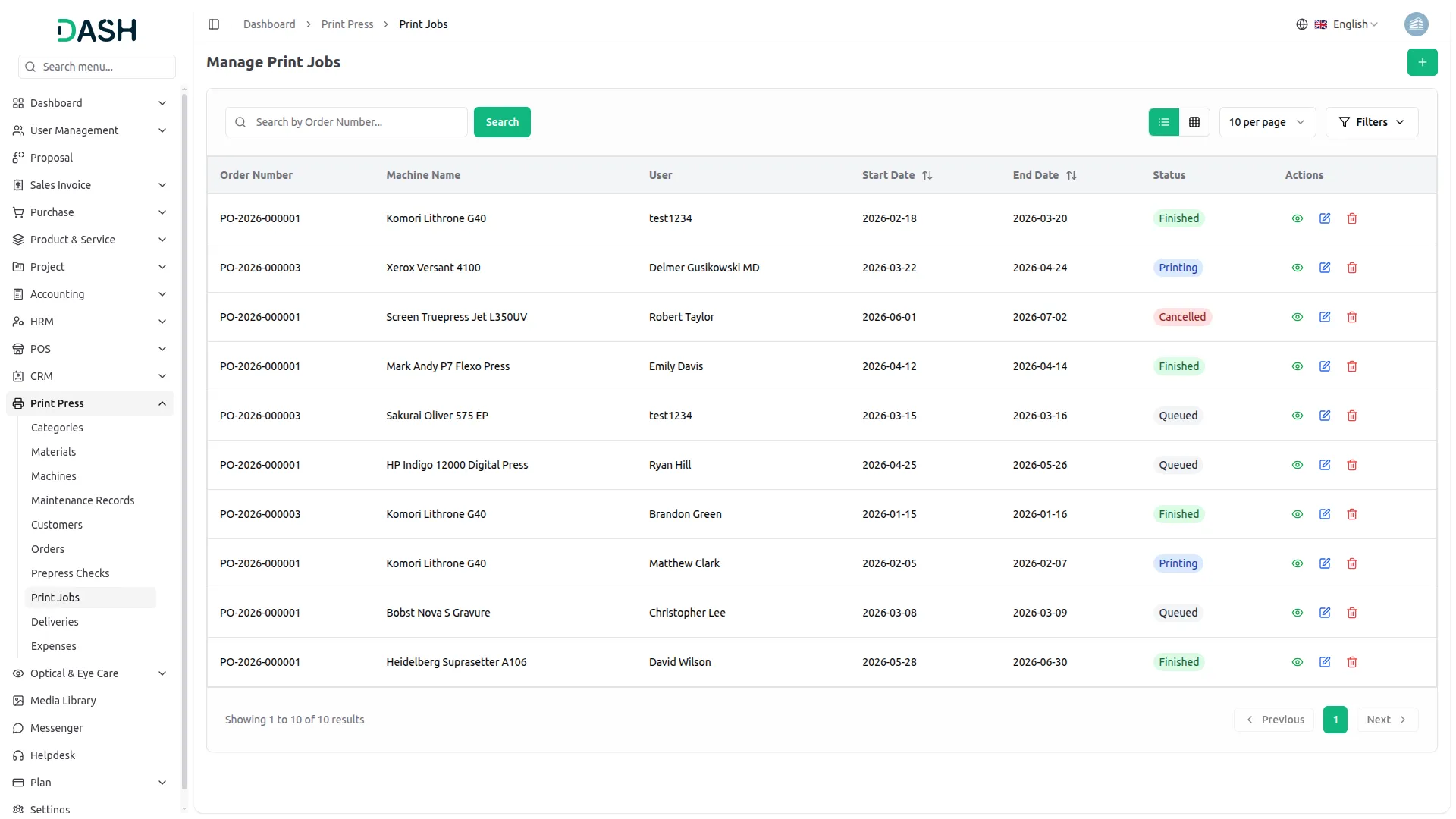
- The list page displays all print jobs in a table with columns for Order Number, Machine Name, User, Start Date, End Date, Status, and Actions. Use the search bar at the top to locate a specific job by order number and click Search to retrieve matching results. Toggle between list view and grid view using the view buttons.
- To narrow down the list, expand the Filters panel and use the Filter by Status dropdown to display jobs by their current stage, the Filter by Machine dropdown to view jobs scheduled on a specific machine, or the Filter by User dropdown to retrieve jobs assigned to a particular operator. Click Apply to load the filtered results or Clear to reset all filters and return to the full list.
- In the Actions column, use the View option to see the complete details of a print job. Use the Edit option to update the data, and the Delete option to permanently remove the job from the system. Job statuses progress through Queued, Printing, Finished, and Cancelled, giving the admin a clear picture of where each job stands across the entire production floor at any given time.
Manage Deliveries
- To create a new delivery, click the “Create” button at the top right of the Manage Deliveries page. In the Create Delivery form, select the Delivery Date and set the Status using the dropdown (Pending, Failed, Out for Delivery, Delivered).
- Select the associated Order from the dropdown (comes from the Press Order section) and assign the responsible User who will handle the delivery by selecting the dropdown. Enter the full Address. Optionally, enter the Vehicle Number and add any Notes, then click Create to save the record.
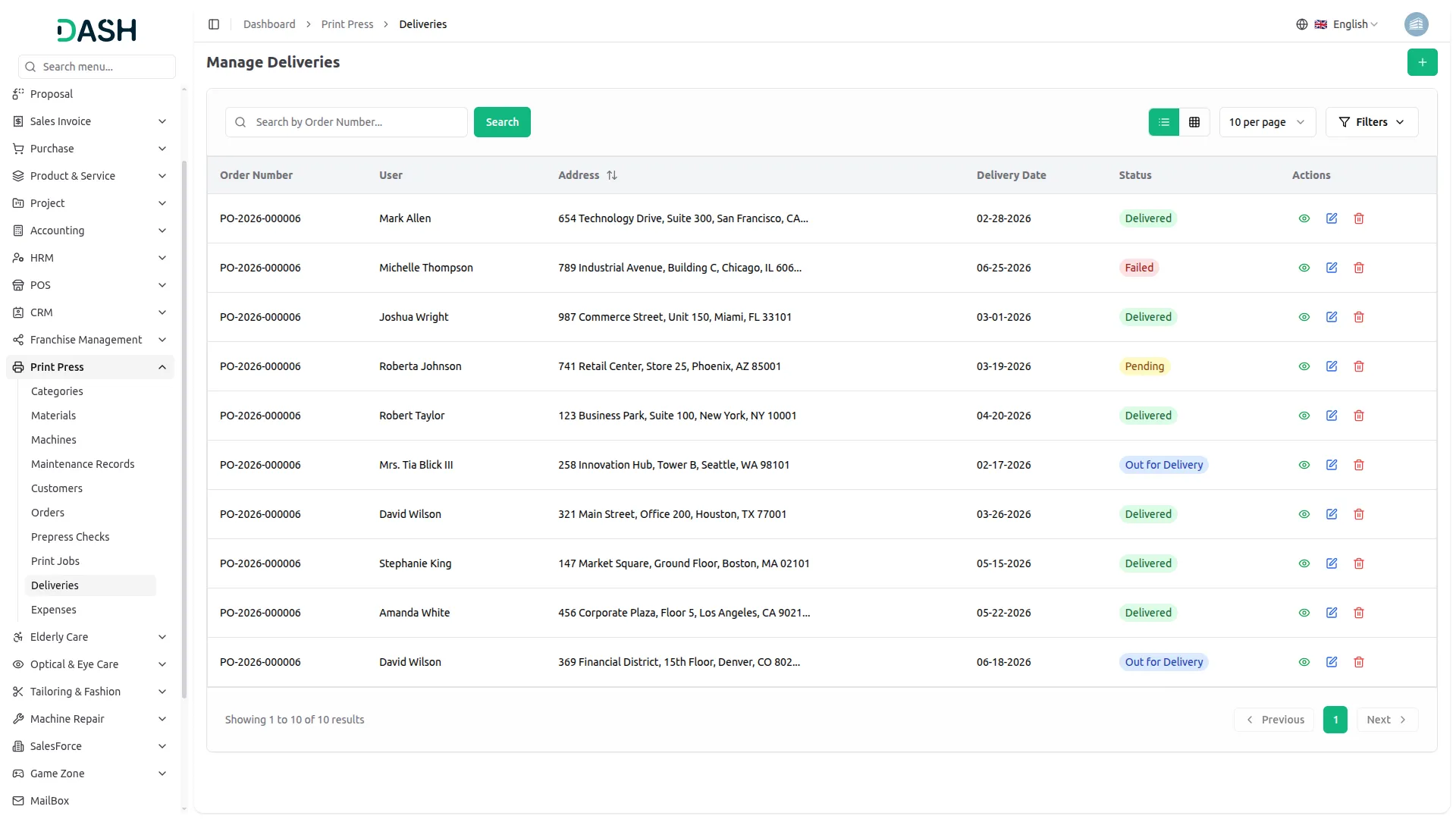
- The list page displays all deliveries in a table with columns for Order Number, User, Address, Delivery Date, Status, and Actions. Use the search bar at the top to locate a specific delivery by order number and click Search to retrieve matching results. Toggle between list view and grid view using the view buttons.
- To narrow down the list, expand the Filters panel and use the Filter by Status dropdown to display deliveries by their current stage, the Filter by User dropdown to view deliveries assigned to a specific personnel, or the Filter by Delivery Date picker to retrieve records within a particular timeframe. Click Apply to load the filtered results or Clear to reset all filters and return to the full list.
- In the Actions column, use the View option to see the complete details of a delivery record. Use the Edit option to update information and the Delete option to permanently remove the delivery record from the system. Delivery statuses include Pending, Out for Delivery, Delivered, and Failed, allowing the admin to monitor the progress of every shipment and quickly identify any deliveries that require follow-up action.
Manage Expenses
- To create a new expense, click the “Create” button at the top right of the Manage Expenses page. In the Create Expense form, enter the expense Name and specify the Type.
- Select the Material from the dropdown (comes from the Material section), enter the total Cost, and select the Bank Account to associate the payment with. Optionally, add any Notes for additional context, then click Create to save the record.
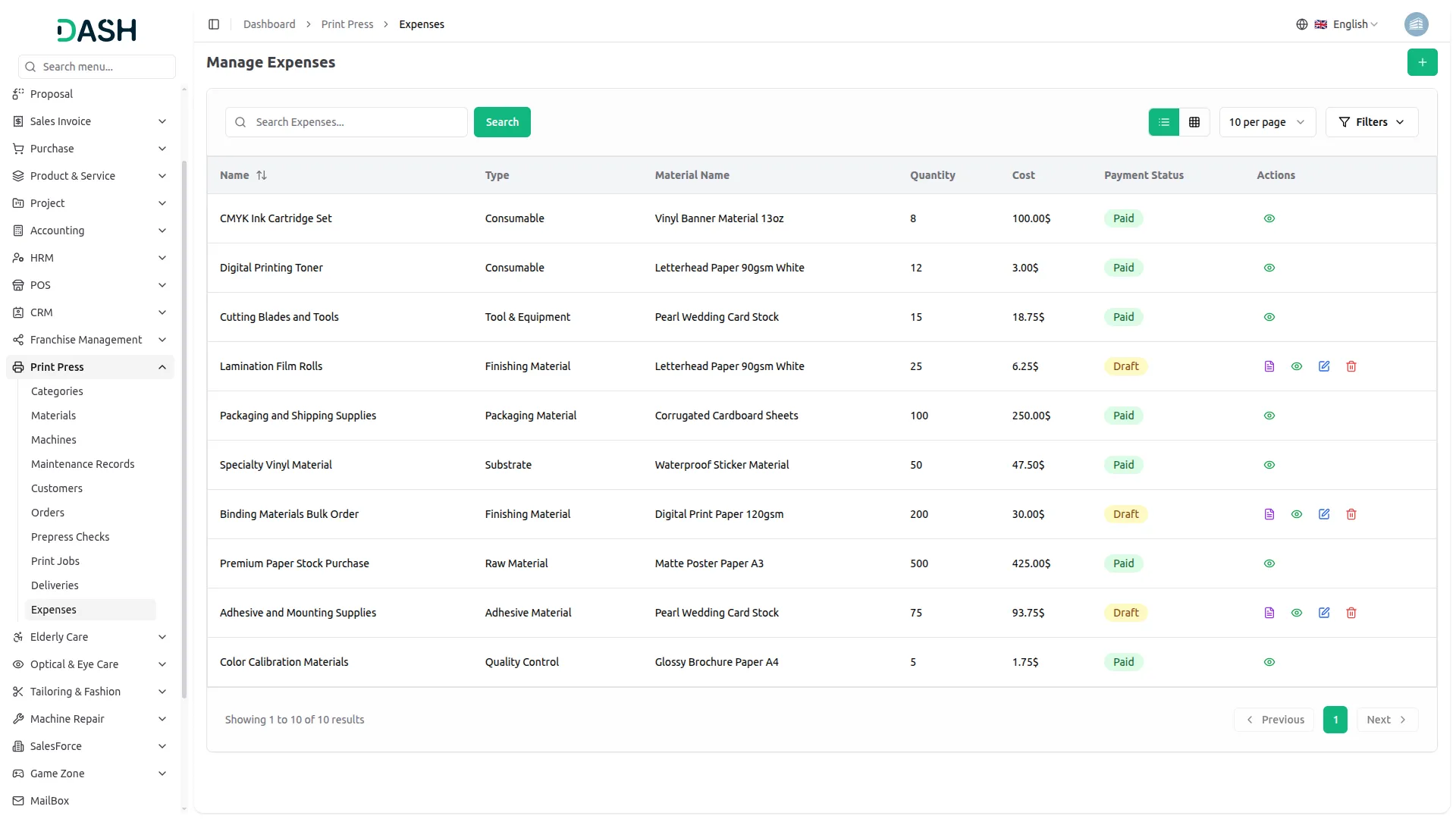
- The list page displays all expenses in a table with columns for Name, Type, Material Name, Quantity, Cost, Payment Status, and Actions.
- Use the search bar at the top to quickly locate a specific expense by name and click Search to retrieve matching results. Toggle between list view and grid view using the view buttons.
- To narrow down the list, expand the Filters panel and use the Filter by Material dropdown to view expenses linked to a specific material, or the Filter by Payment Status dropdown to isolate Draft or Paid entries. Click Apply to load the filtered results or Clear to reset all filters and return to the full list.
- In the Actions column, use the View option to see the complete details of an expense record. For entries with a Draft payment status, use the Mark As Paid option to confirm that the expense has been settled, along with the Generate PDF option to export the expense record, the Edit option to update any details, and the Delete option to permanently remove it. Expenses already marked as Paid will display only the view option to preserve the integrity of finalized financial records.
Categories
Related articles
- Discount – BookingGo SaaS Add-On Guide
- Catering Management – WorkDo Dash SaaS Add-On Guide
- WhatsApp Messenger – WorkDo Dash SaaS Add-On Guide
- Project – WorkDo Dash SaaS Add-On Guide
- Twilio – TicketGo Add-On Guide
- POS – WorkDo Dash SaaS Add-On Guide
- User Manual – POS SaaS
- WizzChat Messenger – WorkDo Dash SaaS Add-On Guide
- Sign in with Facebook – eCommerceGo SaaS Add-On Guide
- Radiology Management – WorkDo Dash SaaS Add-On Guide
- Google – vCard SaaS Add-On Guide
- PayTabs – WorkDo Dash SaaS Add-On Guide
We're Here to Help - Let's Talk
Have questions about our solutions, customization services, or business tools? Our team is here to help you. let's talk.