
Equipment Rental – WorkDo Dash SaaS Add-On Guide
Learn how to manage equipment rentals, bookings, and inventory in WorkDo Dash SaaS easily.
Introduction
The Equipment Rental Add-On is a comprehensive solution designed to manage the full lifecycle of equipment rental operations. It covers everything from foundational configuration in System Setup to tracking equipment records, inventory levels across warehouses, and end-to-end booking management, including approvals, payments, and returns. Additional modules for Repairs and Lost Items ensure that post-rental activities are also tracked and resolved efficiently, giving administrators complete visibility and control over their rental operations in one centralized platform.
How To Install Add-On?
To Set Up the Equipment Rental Add-On, you can follow this link: Setup Add-On.
How to Use the Equipment Rental Add-On?
System Setup
- The System Setup section allows administrators to configure foundational data used across the system. It currently includes Equipment Categories and Equipment Units, both of which are referenced when managing equipment throughout the platform.
Equipment Categories
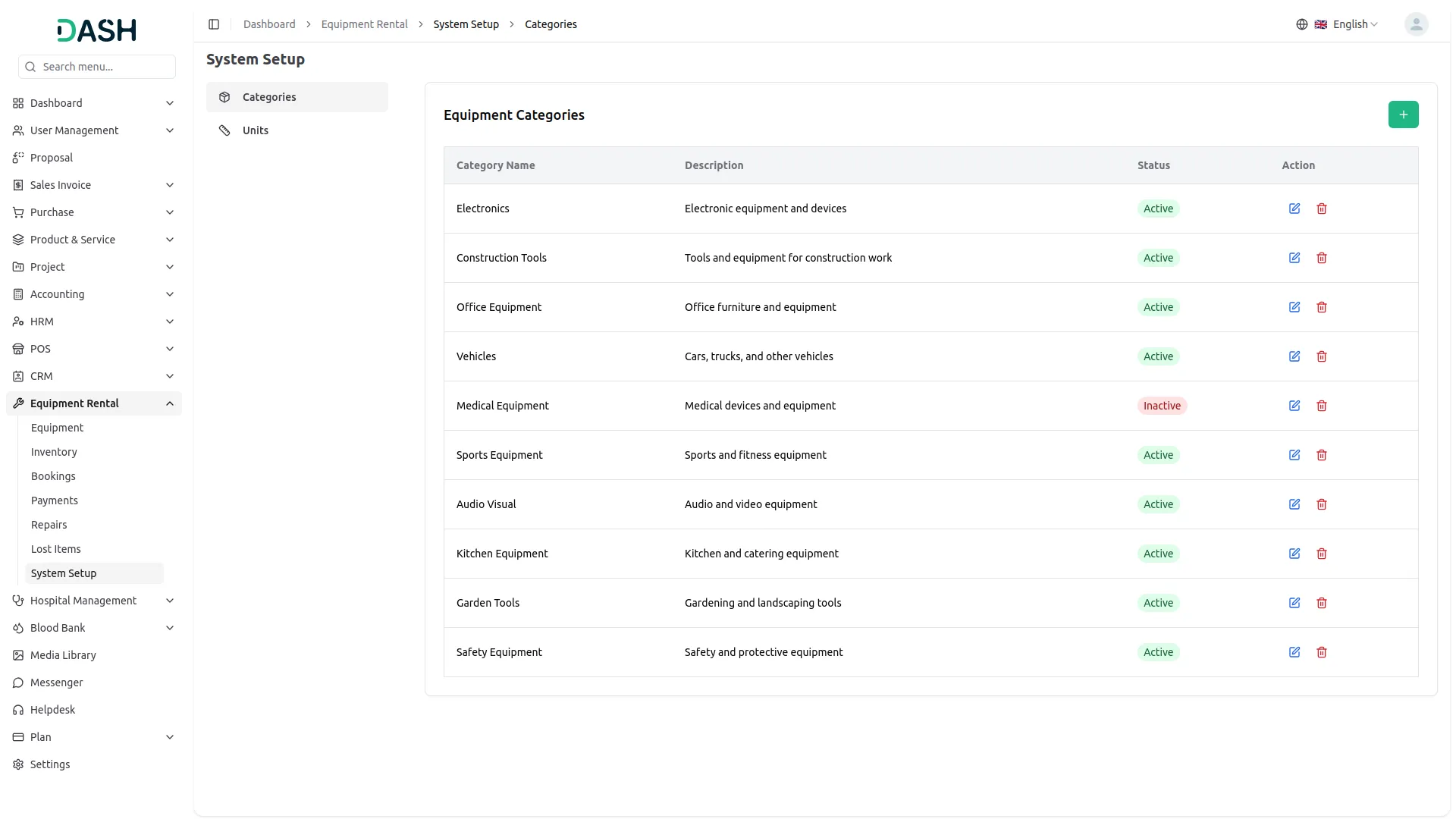
- To add a new category, click the “Create” button on the Equipment Categories page. In the form that opens, enter the Name of the category in the provided field. Optionally, add a Description to explain the type of equipment the category covers. Toggle the Active switch to enable or disable the category upon creation.
- The Equipment Categories list displays all configured categories in a table with columns for Category Name, Description, Status, and Action.
- Available Actions: use Edit to update or modify an existing category’s details, and Delete to permanently remove the category from the system. Note that categories actively in use should be managed carefully, as changes may affect existing equipment records that reference them.
Equipment Units
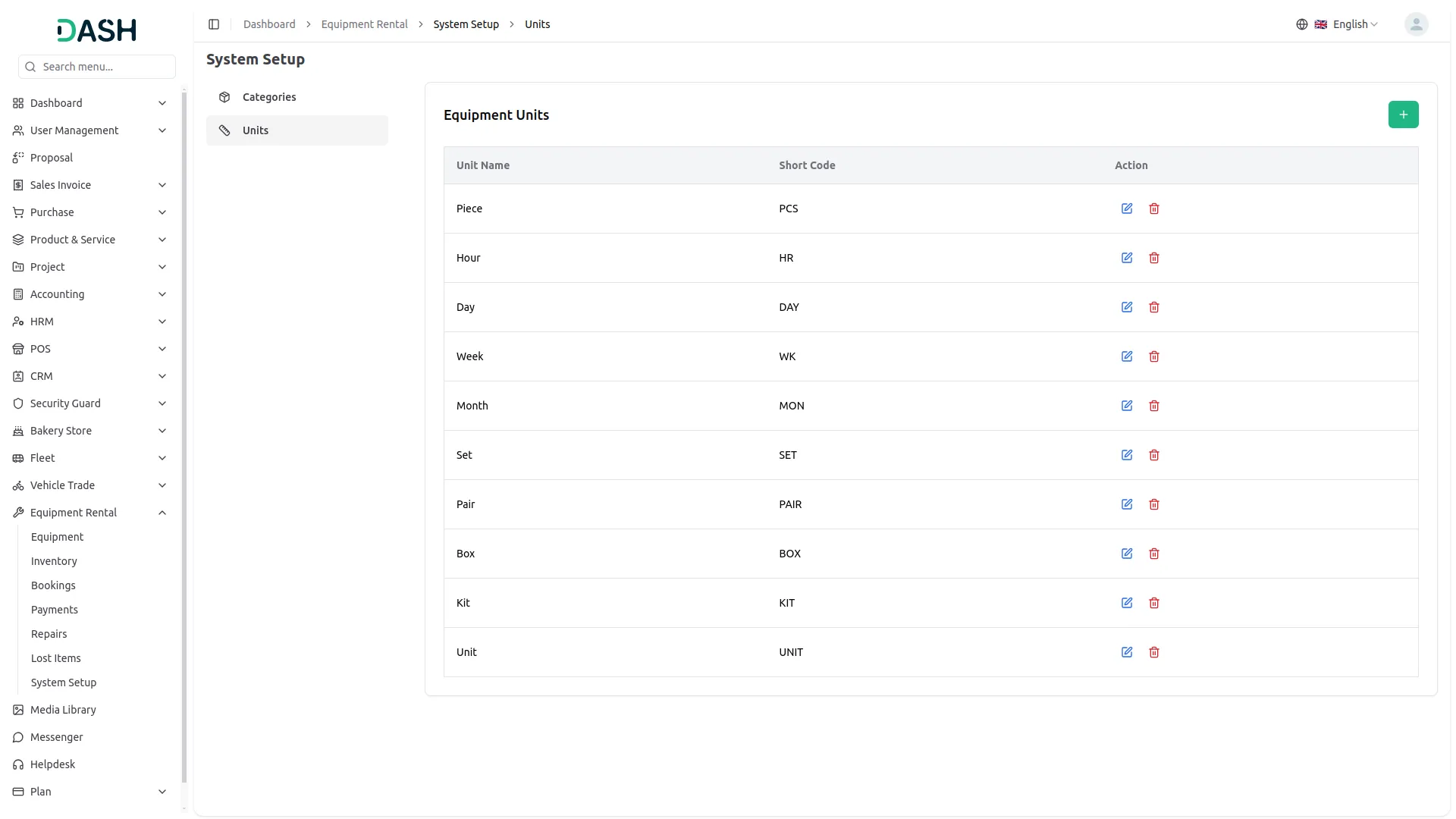
- To add a new unit, click the “Create” button on the Equipment Units page. In the form that opens, enter the Name of the unit in the provided field, along with a Short Code (for example, PCS for Piece or HR for Hour).
- The Equipment Units list displays all configured units in a table with columns for Unit Name, Short Code, and Action.
- Available Actions: use Edit to update or modify an existing unit’s name or short code, and Delete to permanently remove the unit from the system. Note that units actively associated with equipment records should be managed with care, as modifications may impact existing data that references them.
Manage Equipments
- To create a new equipment record, click the “Create” button on the Manage Equipment page. Fill in the Equipment Name, then select Category from the dropdown (comes from the equipment category > System setup), and choose Unit from the dropdowns (comes from the equipment units > System setup).
- Enter the Rental Price and the Equipment Price, and select Duration Type from the dropdown (Day, Hour). Use the Status dropdown to mark the equipment as Available or Unavailable. Optionally, add a Description to provide additional details about the equipment.
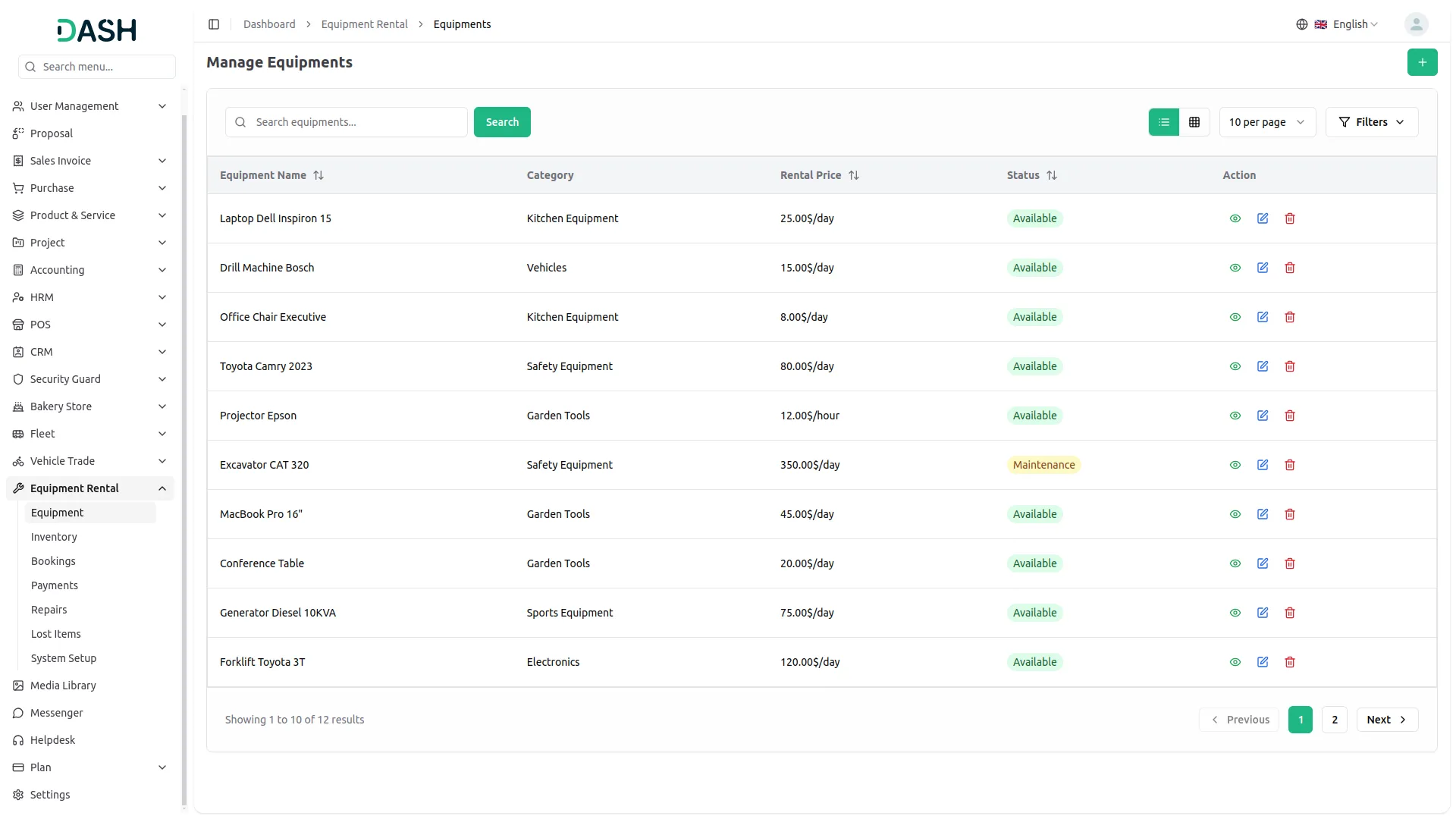
- The list page displays all equipment records in a table with columns for Equipment Name, Category, Rental Price, Status, and Actions. Use the search bar to quickly locate a specific piece of equipment by name.
- Apply filters using the Category dropdown and the Status dropdown to narrow down results. Click Apply to activate the filters or Clear to reset them. Toggle between list view and grid view using the view buttons.
- In the Actions column, use View to see the full details of an equipment record, Edit to update or modify existing equipment information, and Delete to permanently remove the equipment from the system.
Manage Inventories
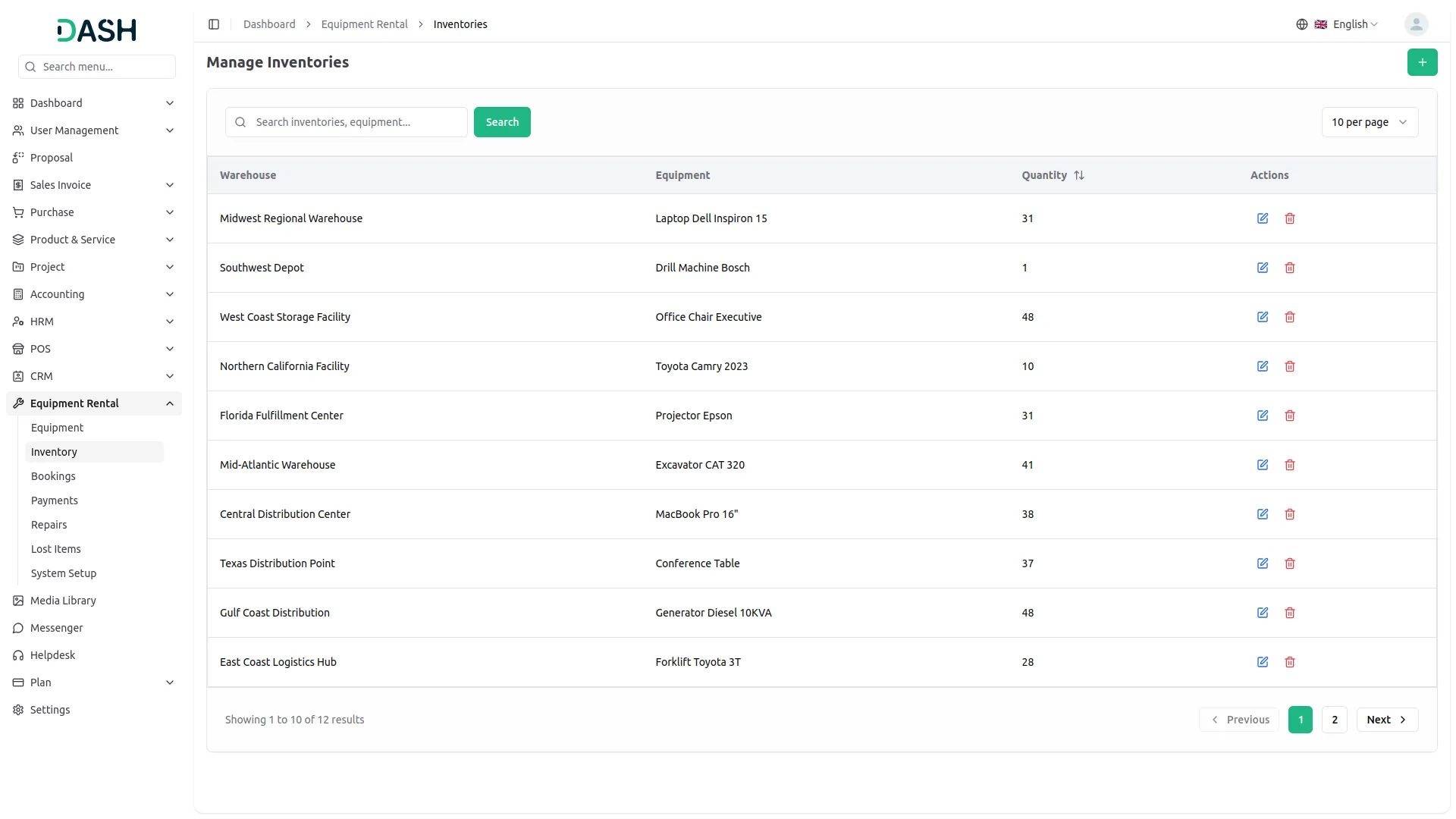
- To create a new inventory record, click the “Create” button on the Manage Inventories page. Select the Warehouse from the dropdown to specify where the equipment is being stocked. Choose Equipment from the dropdown (come from the equipment section), then enter the Quantity to indicate how many units are available at that location.
- The list page displays all inventory records in a table with columns for Warehouse, Equipment, Quantity, and Actions. Use the search bar to quickly locate a specific inventory record by warehouse name or equipment.
- In the Actions column, use Edit to update or modify an existing inventory record, such as adjusting the quantity or reassigning the equipment to a different warehouse, and Delete to permanently remove the inventory record from the system.
Manage Bookings
- To create a new booking, click the “Create” button on the Manage Bookings page. Under Booking Details, select the Customer from the dropdown to assign the booking to the appropriate customer, and choose the Warehouse from which the equipment will be sourced. Optionally, add a Note for any additional context related to the booking.
- In the Equipment Items section, at least one item is required. Note that the Equipment dropdown will only become available after selecting a Warehouse first, as the system uses this value to determine which equipment is stocked at that location.
- For each item, set the Start Date and End Date using the date pickers, the Duration and Price/Unit fields will auto-calculate based on the selected equipment and dates. Enter the Qty to specify how many units are being booked.
- Click “Add Item” to include additional equipment lines to the same booking. The Booking Summary at the bottom right displays the running Total Amount as items are added.
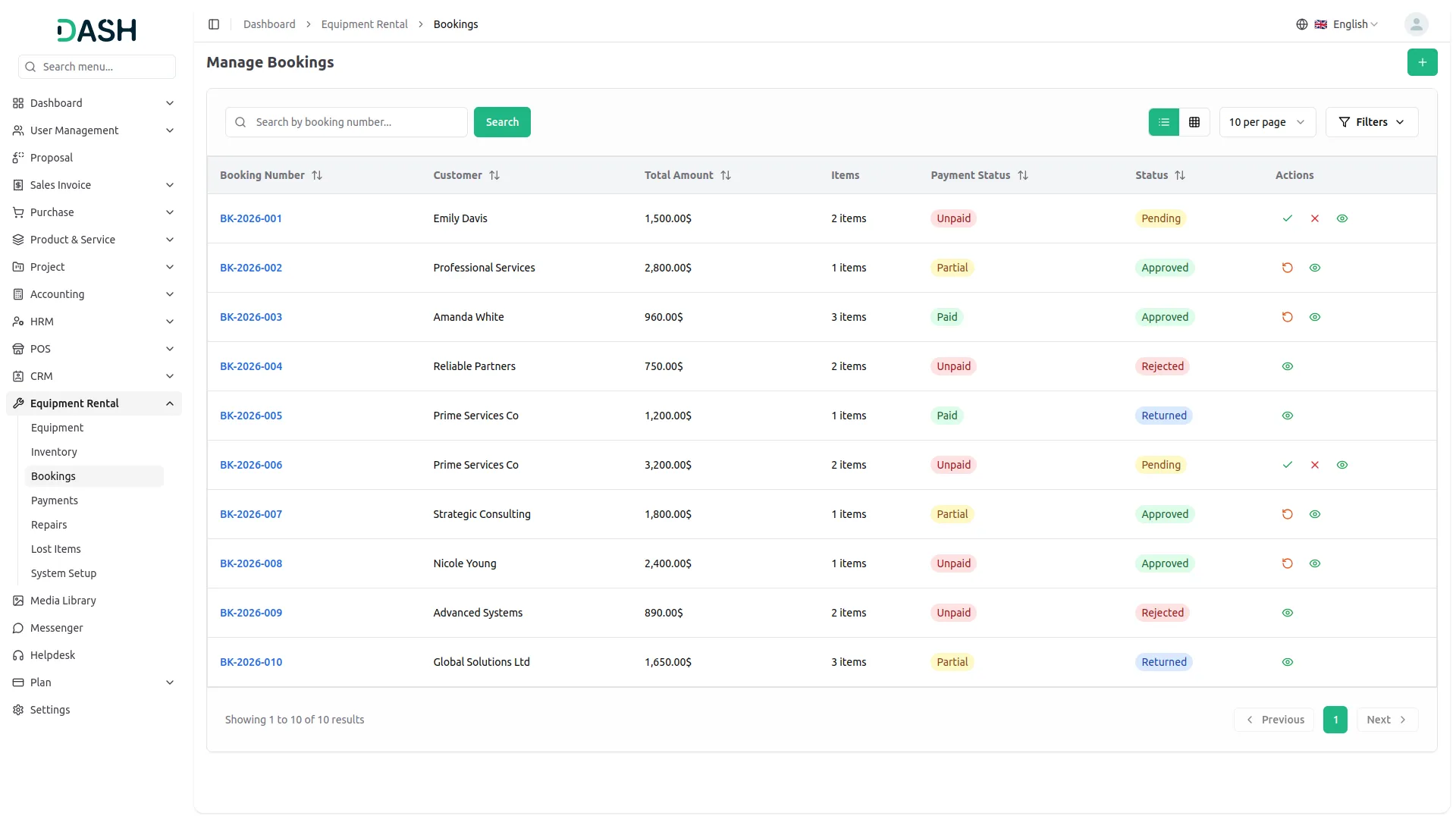
- The list page displays all bookings in a table with columns for Booking Number, Customer, Total Amount, Items, Payment Status, Status, and Actions. Payment Status will show as either Paid or Unpaid, while booking Status will reflect one of the following states: Pending, Approved, Rejected, or Returned.
- Use the search bar to quickly locate a specific booking by booking number. Apply filters using the Customer dropdown, Status dropdown, Payment Status dropdown, and Date Range picker to narrow down results. Click Apply to activate the filters or Clear to reset them. Toggle between list view and grid view using the view buttons.
- Available actions: For Pending bookings, use Approve to confirm and approve the booking, or Reject to decline it. Use View to see the full booking details.
- For Approved bookings, use Payment to record a payment against the booking. The payment form will auto-fill the Payment Amount, Booking ID, and Customer Name. Select the Payment Method, confirm the Payment Date, optionally enter a Reference Number, choose a Bank Account from the dropdown, and add a Description if needed before submitting. Use Return to initiate the equipment return process, and View to see full booking details.
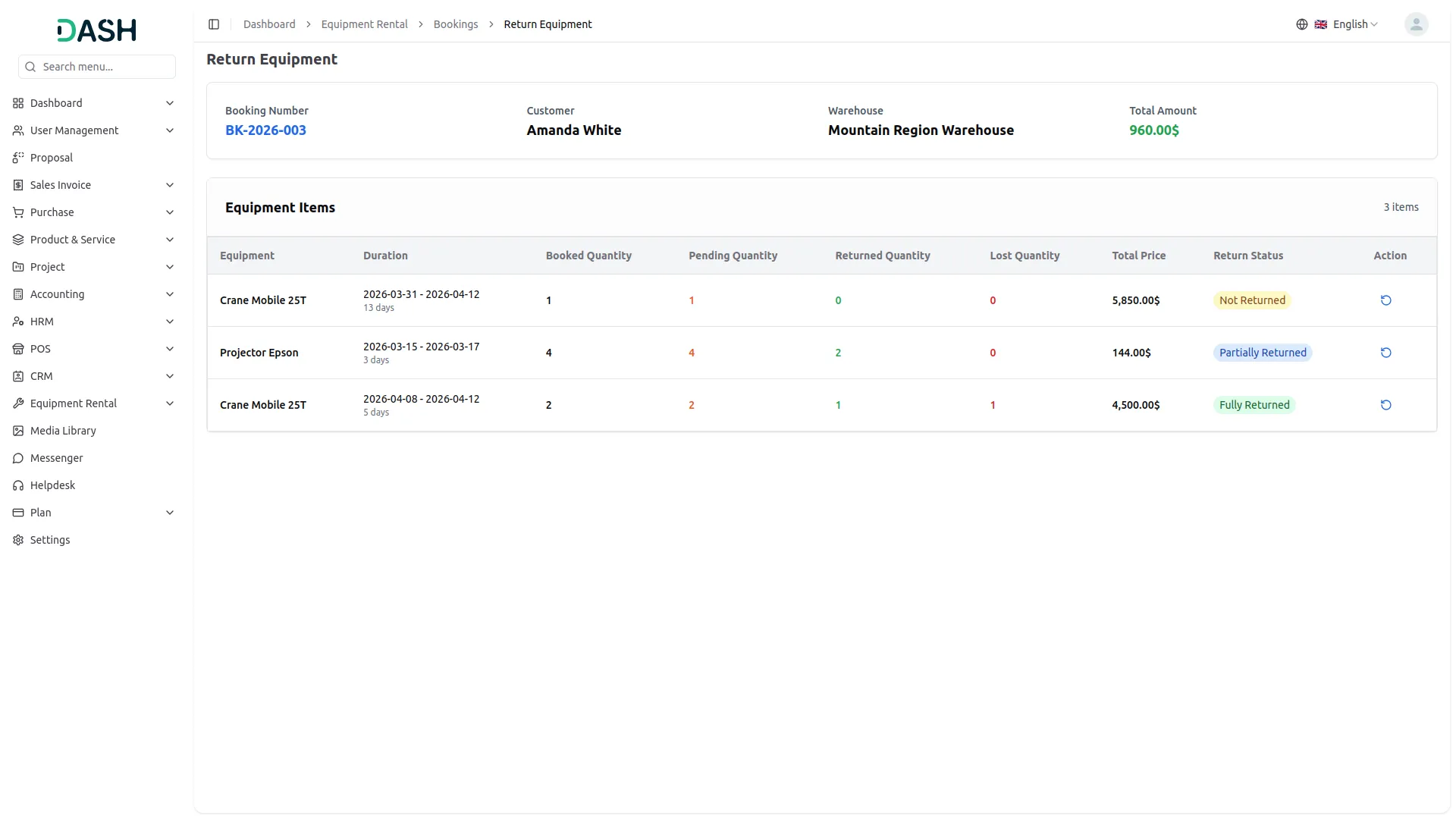
- For Approved bookings with payment recorded, use Return to process equipment returns. The Return Equipment page displays the booking summary, including Booking Number, Customer, Warehouse, and Total Amount, along with an Equipment Items table showing each item’s Duration, Booked Quantity, Pending Quantity, Returned Quantity, Lost Quantity, Total Price, and Return Status (e.g., Not Returned, Fully Returned).
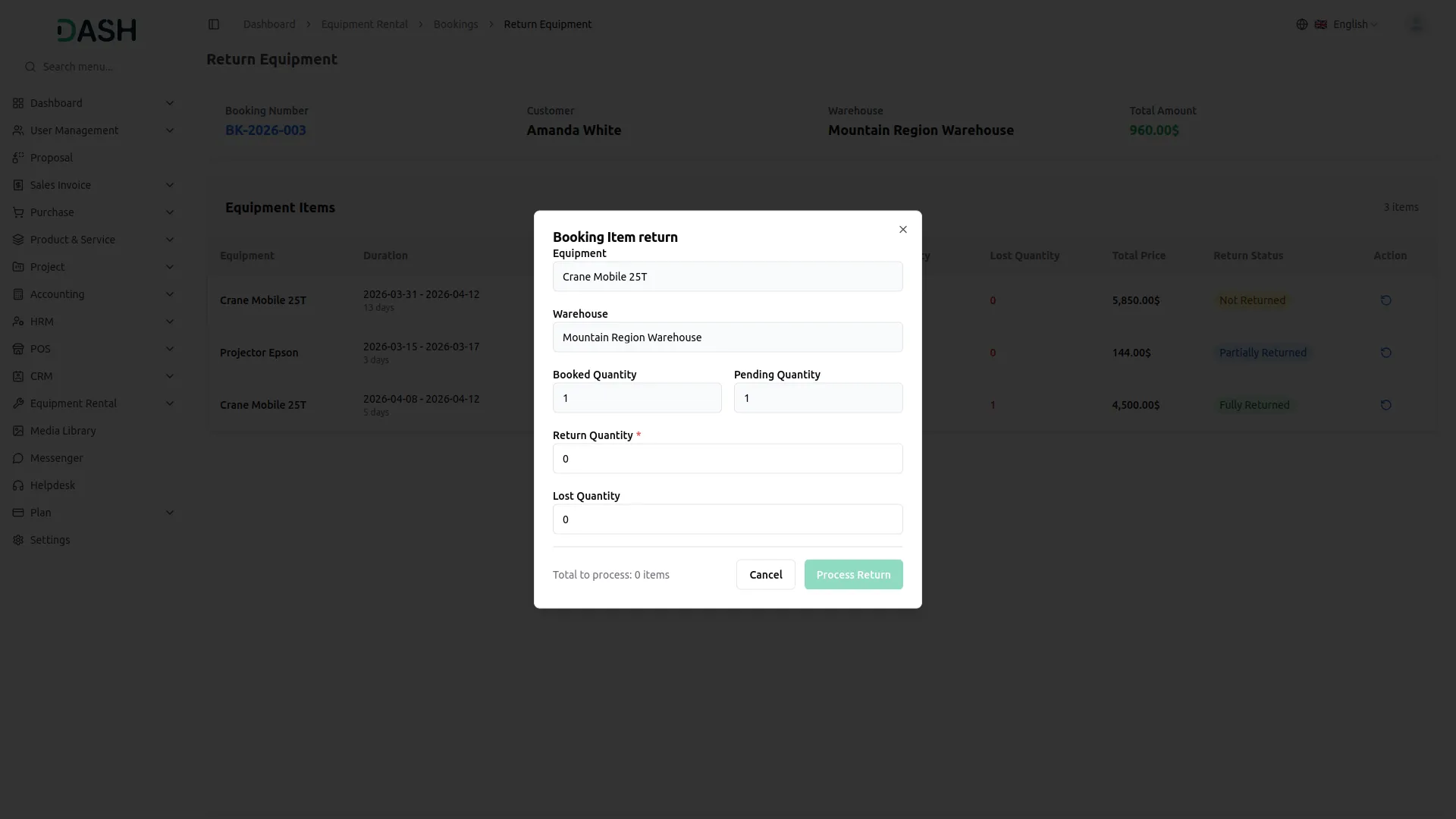
- Click the Return icon on an individual item to open the Booking Item Return form, where the Equipment and Warehouse are pre-filled. Enter the Return Quantity and Lost Quantity as applicable, and click Process Return to complete the return for that item.
- For Rejected or Returned bookings, only View is available to review the booking record.
Booking Payments
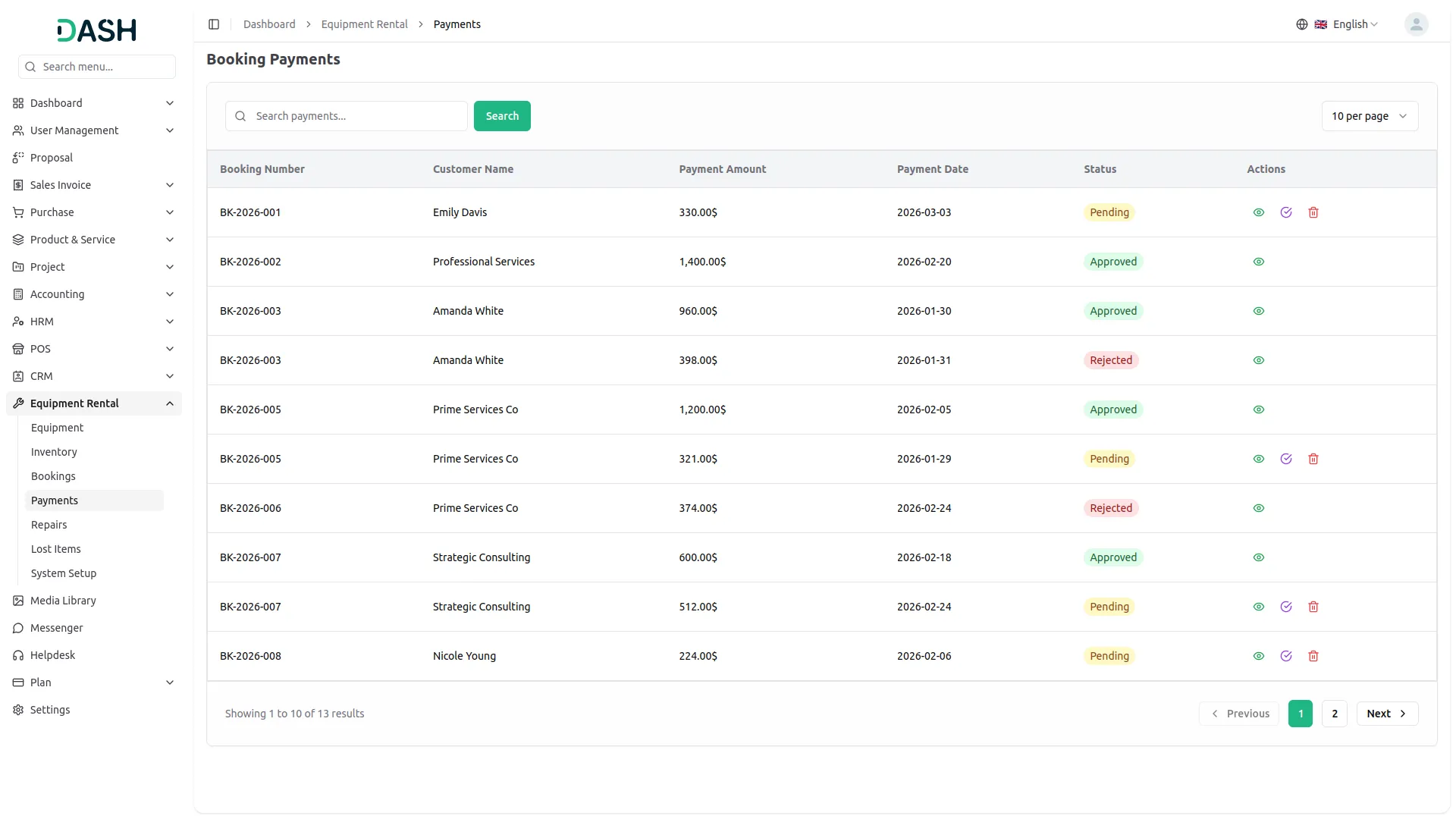
- Payments listed here are automatically populated whenever a payment is added through the Manage Bookings section, no entries are created directly from this page.
- The list displays all payment records in a table with columns for Booking Number, Customer Name, Payment Amount, Payment Date, Status, and Actions. In the Actions column, use View to see the full details of a payment record.
- Status will show as either Approved or Rejected, reflecting whether the associated booking payment has been accepted or declined. Use the search bar to quickly locate a specific payment record.
Manage Repairs
- To create a new repair record, click the “Create” button on the Manage Repairs page. Select the Equipment from the dropdown (comes from the equipment section). Note that the Warehouse dropdown will only become available after selecting the Equipment first, as the system uses this value to determine where the equipment is located.
- Enter the Issue description to detail the nature of the repair needed, and select the Repair Date using the date picker. Enter the Quantity of units being sent for repair and the Amount representing the repair cost. Select the Bank Account to associate the repair expense with the appropriate account. Optionally, add a Description for any further context about the repair.
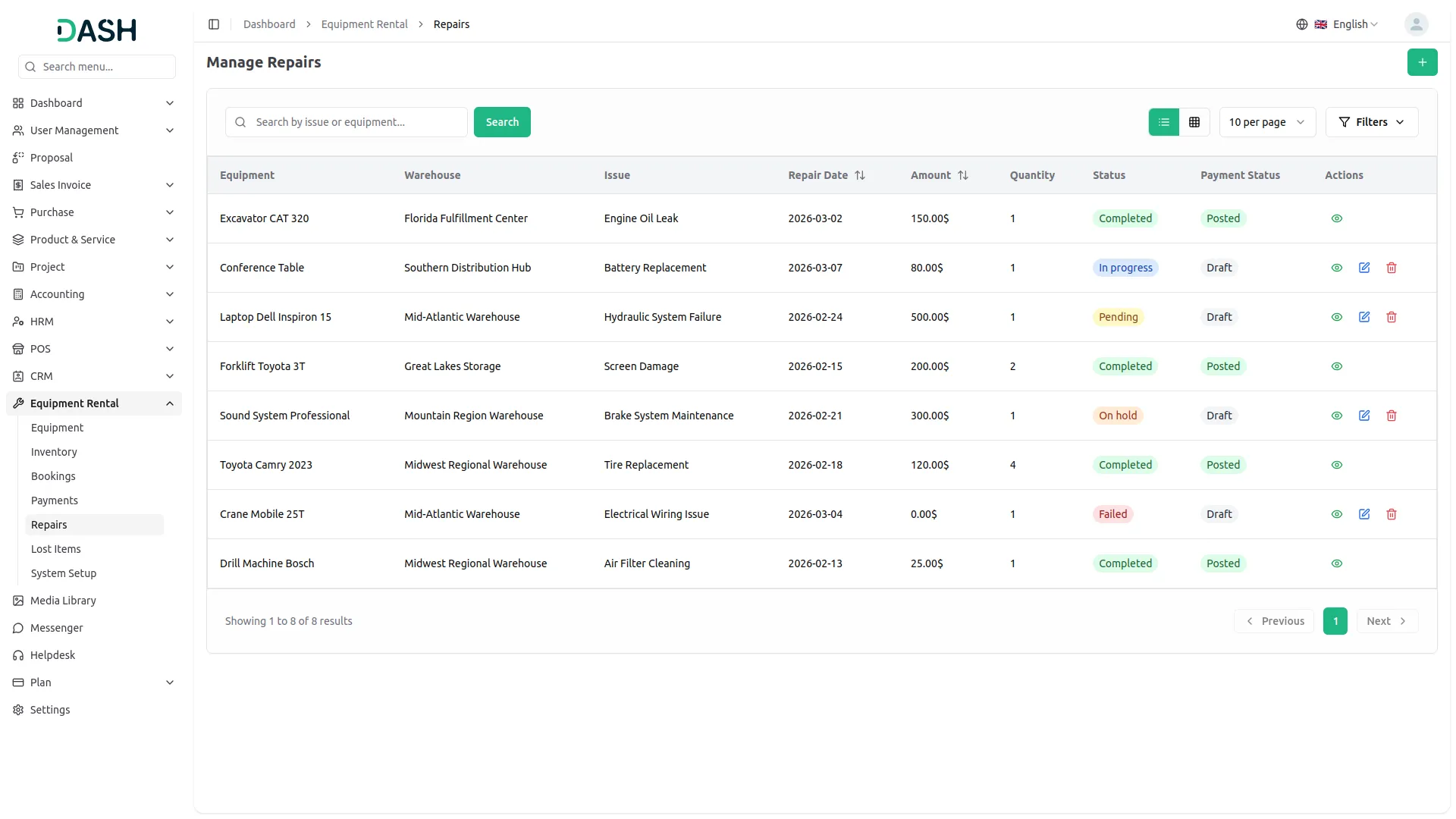
- The list page displays all repair records in a table with columns for Equipment, Warehouse, Issue, Repair Date, Amount, Quantity, Status, Payment Status, and Actions. The Status reflects the current stage of the repair and can be one of the following: Pending, In Progress, On Hold, Completed, Failed, or Cancelled. The Payment Status indicates whether the repair record is in Draft or has been Posted.
- Use the search bar to quickly locate a specific repair record by issue or equipment name. Apply filters using the Warehouse dropdown, Repair Status dropdown, and Payment Status dropdown to narrow down results. Click Apply to activate the filters or Clear to reset them. Toggle between list view and grid view using the view buttons.
- The available Actions vary depending on the current status of the repair record. For records in Draft payment status, use Edit to update or modify the repair details, and Delete to permanently remove the record from the system.
- For records with a Posted payment status, only View is available, as posted records are locked from further modification. Use View at any stage to see the full details of a repair record.
Lost Items
- To create a new lost item record, click the “Create” button on the Manage Lost Items page. Select Equipment from the dropdown (comes from the equipment section). Note that the Warehouse dropdown will only become available after selecting the Equipment first, as the system uses this value to determine the equipment’s assigned location.
- Set the Reported Date to indicate when the loss was officially reported, and the Lost Date to record when the item was actually lost. Enter the Quantity of units that have gone missing. Optionally, add a Description to provide additional context about the circumstances of the loss.
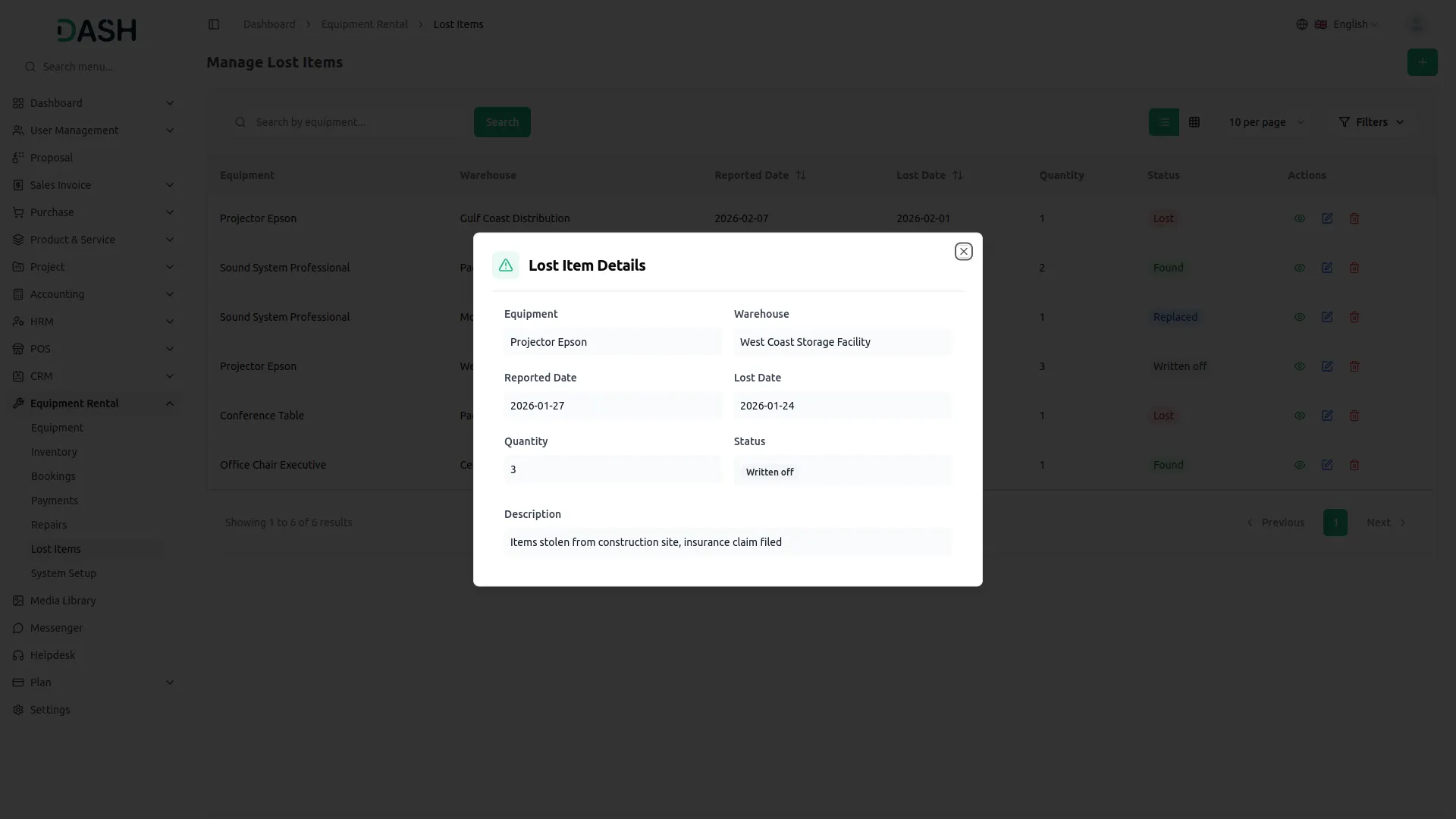
- The list page displays all lost item records in a table with columns for Equipment, Warehouse, Reported Date, Lost Date, Quantity, Status, and Actions. The Status reflects the current resolution state of the lost item and can be one of the following: Lost, Found, Replaced, or Written Off.
- Use the search bar to quickly locate a specific record by equipment name. Apply filters using the Warehouse dropdown, Status dropdown, and Lost Date Range picker to narrow down results. Click Apply to activate the filters or Clear to reset them. Toggle between list view and grid view using the view buttons at the top right.
- In the Actions column, use View to see the full details of a lost item record, Edit to update or modify the record, such as changing the status as the situation is resolved, and Delete to permanently remove the record from the system.
Categories
Related articles
- Jitsi Meet – WorkDo Dash SaaS Add-On Guide
- Slack Integration – TicketGo Add-On Guide
- Ticket Widget – TicketGo Add-On Guide
- Zoom Meeting – WorkDo Dash SaaS Add-On Guide
- Adyen – WorkDo Dash SaaS Add-On Guide
- Cybersource – WorkDo Dash SaaS Add-On Guide
- Flutterwave – WorkDo Dash SaaS Add-On Guide
- PhonePe – WorkDo Dash SaaS Add-On Guide
- Google Map URL – vCard SaaS Add-On Guide
- SinchSMS – WorkDo Dash SaaS Add-On Guide
- Send and Close – TicketGo Add-On Guide
- Make – BookingGo SaaS Add-On Guide
We're Here to Help - Let's Talk
Have questions about our solutions, customization services, or business tools? Our team is here to help you. let's talk.