Google Wallet Settings – vCard SaaS Guide
Learn how to configure and manage Google Wallet settings in vCard SaaS easily.
Introduction
To integrate with Google Wallet, you first need to generate API credentials. This involves setting up a project in the Google Cloud Console, creating a service account, and retrieving your Issuer ID. Follow the steps below to complete the setup and enable secure access to the Google Wallet API.
Google Wallet Settings:
1. Enable API & Create a new project
- Go to Google Cloud Console
- Create a new project
- Navigate to APIs & Services > Library
- Enable Google Wallet API
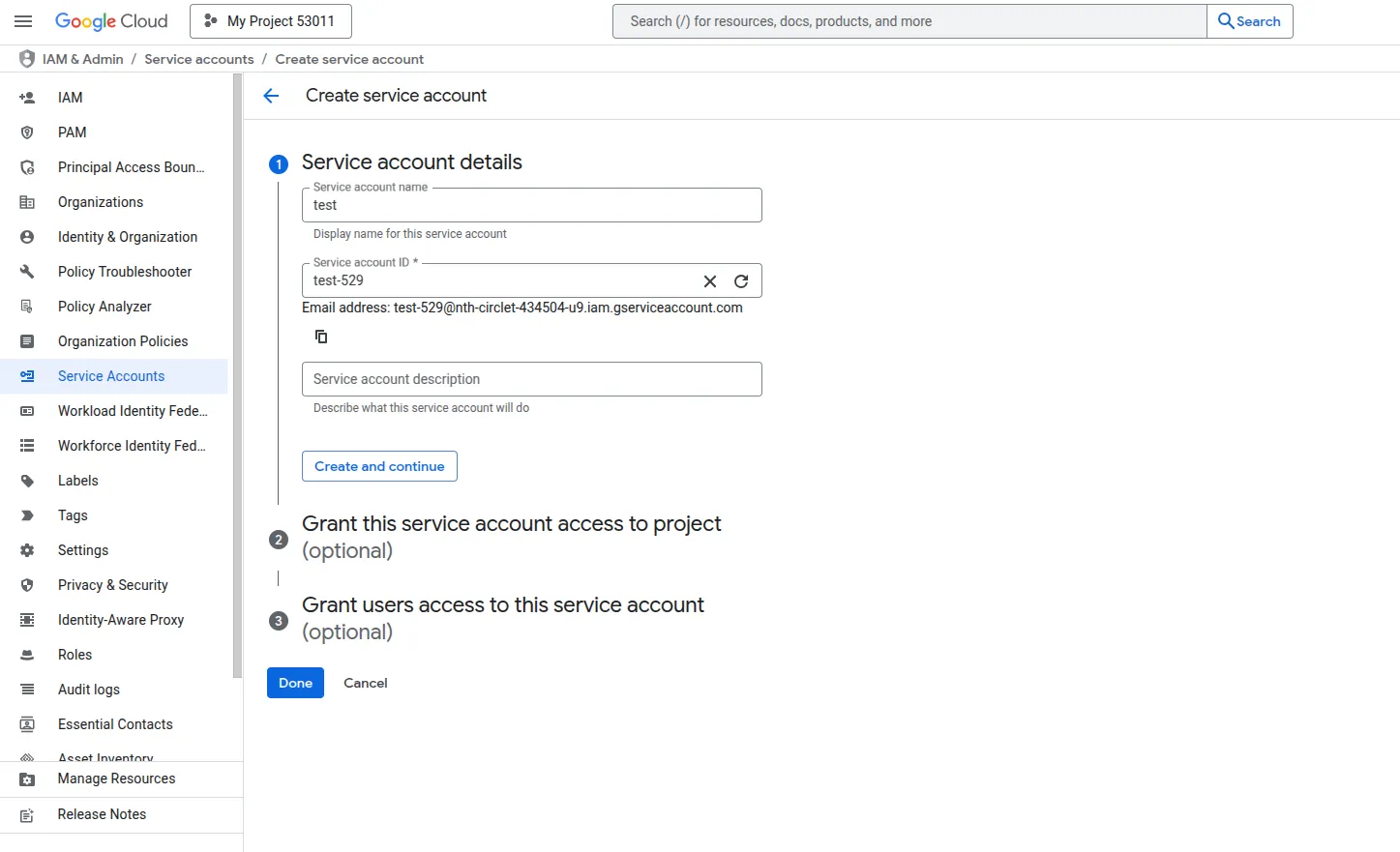
2. Create a Service Account
- Go to IAM & Admin > Service Accounts
- Click Create Service Account
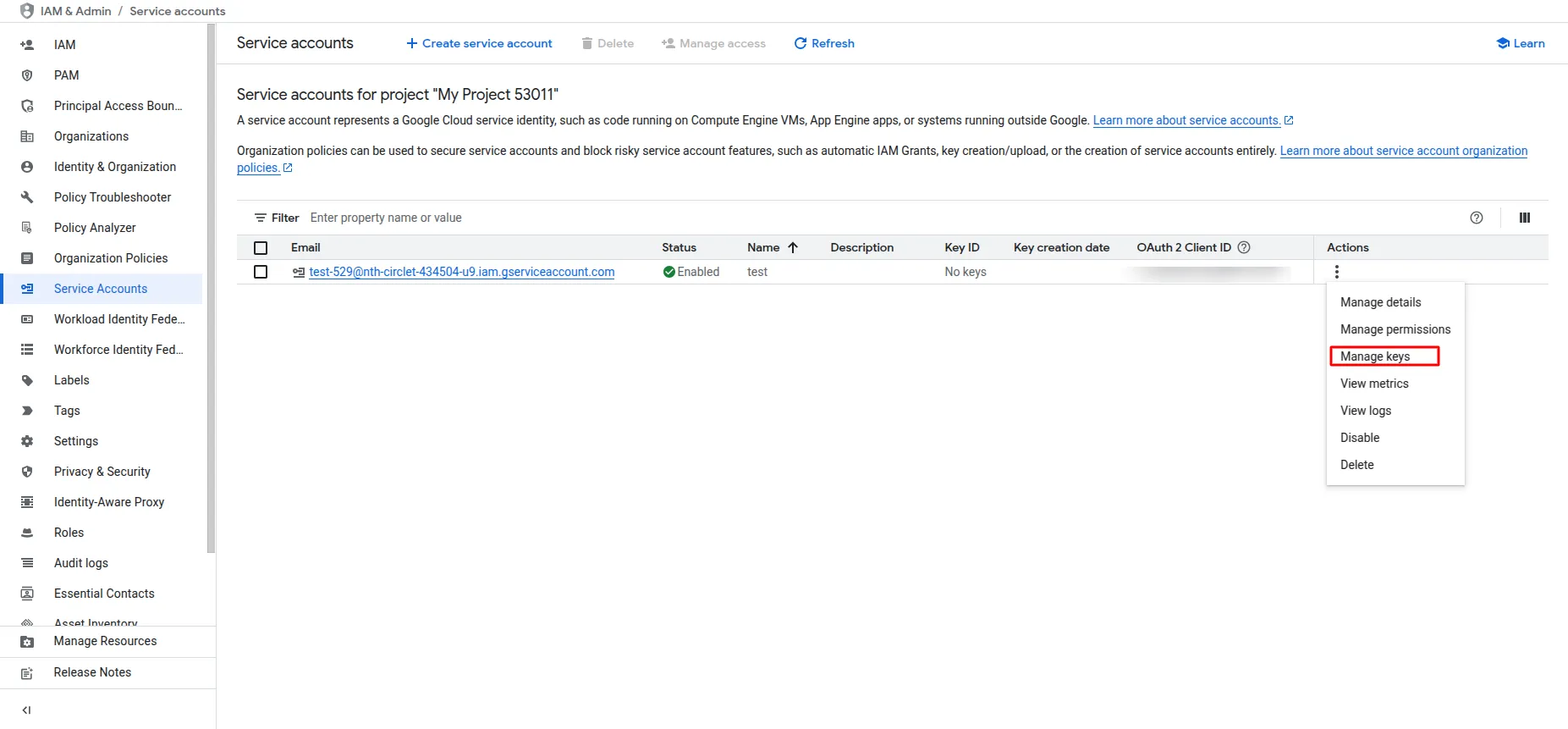
- After creation, click Manage Key
- Click Add Key > Key Type JSON and download the key file.
-
-
3. Get Issuer ID
- Visit Google Wallet Console
- Complete the business information form.
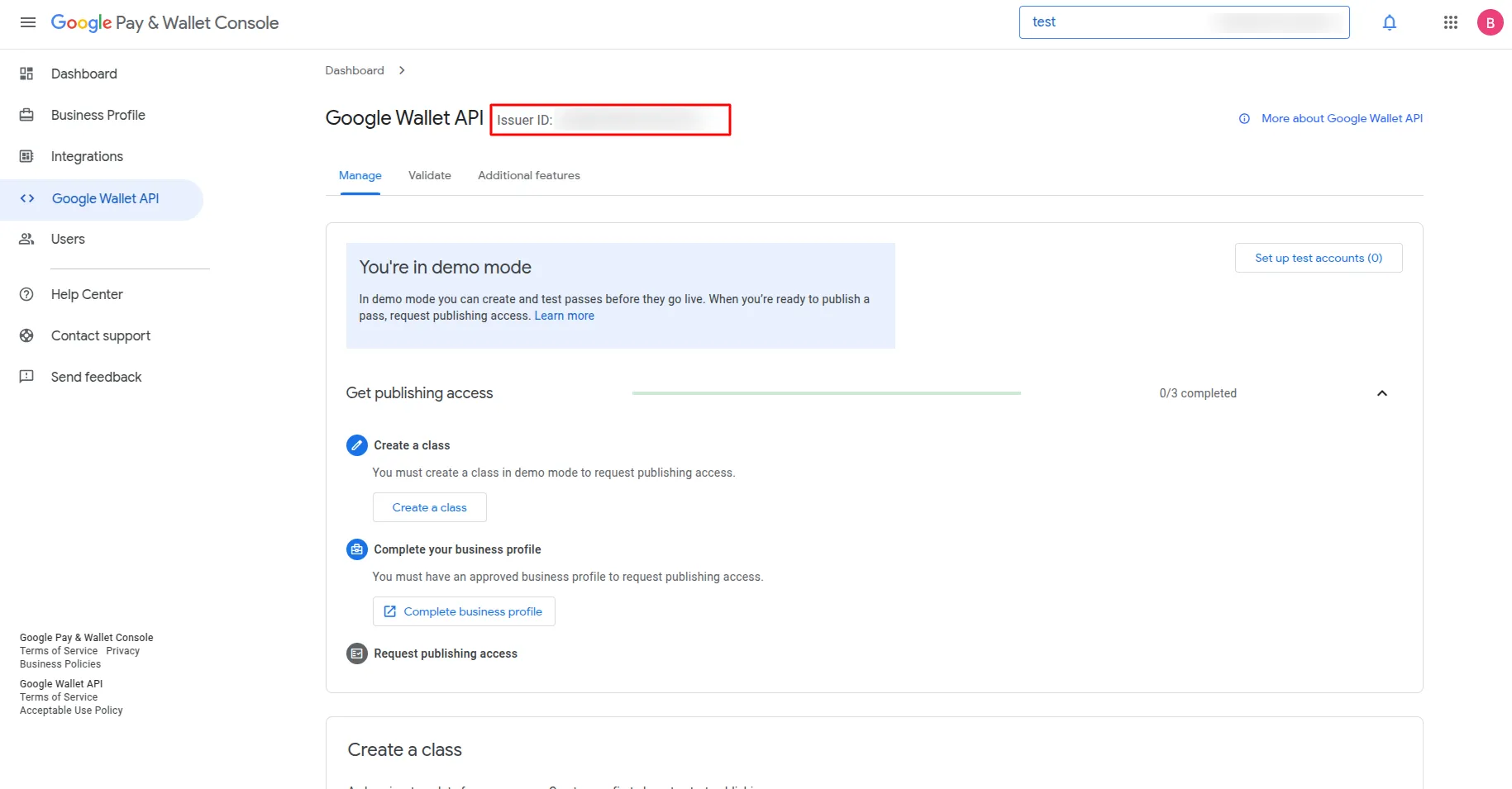
- Click on Google Wallet API > Build your first pass
- Copy your Issuer ID
-
4. Grant Access
- In the Wallet Console, go to Users
- Click Invite User
- Add your Service Account Email
Categories
Related articles
- Products PDF – eCommerceGo SaaS Add-On Guide
- Art Showcase – WorkDo Dash SaaS Add-On Guide
- Coupon Module Guide – eCommerceGo SaaS
- Outlook Mail – WorkDo Dash SaaS Add-On Guide
- School & Institute Management – WorkDo Dash SaaS Add-On Guide
- Spam Prevent – eCommerceGo SaaS Add-On Guide
- Zendesk – TicketGo Add-On Guide
- CoinGate – BookingGo SaaS Add-On Guide
- Restaurant Menu – WorkDo Dash SaaS Add-On Guide
- WizzChat – eCommerceGo SaaS Add-On Guide
- Zendesk – BookingGo SaaS Add-On Guide
- Google – vCard SaaS Add-On Guide
Take your business to the next level with great website!
Feel Free To Reach Out to Discuss Your Next Web Development Project.