
Water Park Management – WorkDo Dash SaaS Add-On Guide
Learn how to manage water park operations, bookings, and activities in WorkDo Dash SaaS.
Introduction
The Water Park Management Add-On is a complete system that helps manage water park operations from a single platform. It provides an admin dashboard to track bookings, revenue, rides, and sales, while also allowing administrators to customize the website with branding, banners, features, FAQs, and contact details. The Add-On includes tools to manage bookings, payments, rides, maintenance, promotions, clothing inventory, and sales. Visitors can book tickets online and make payments, with all data automatically updated in the admin panel for easy and efficient management.
How To Install The Add-On?
To Set Up the water park management Add-On, you can follow this link : Setup Add-On.
How To Use The Water Park Management Add-On?
Water Park Dashboard
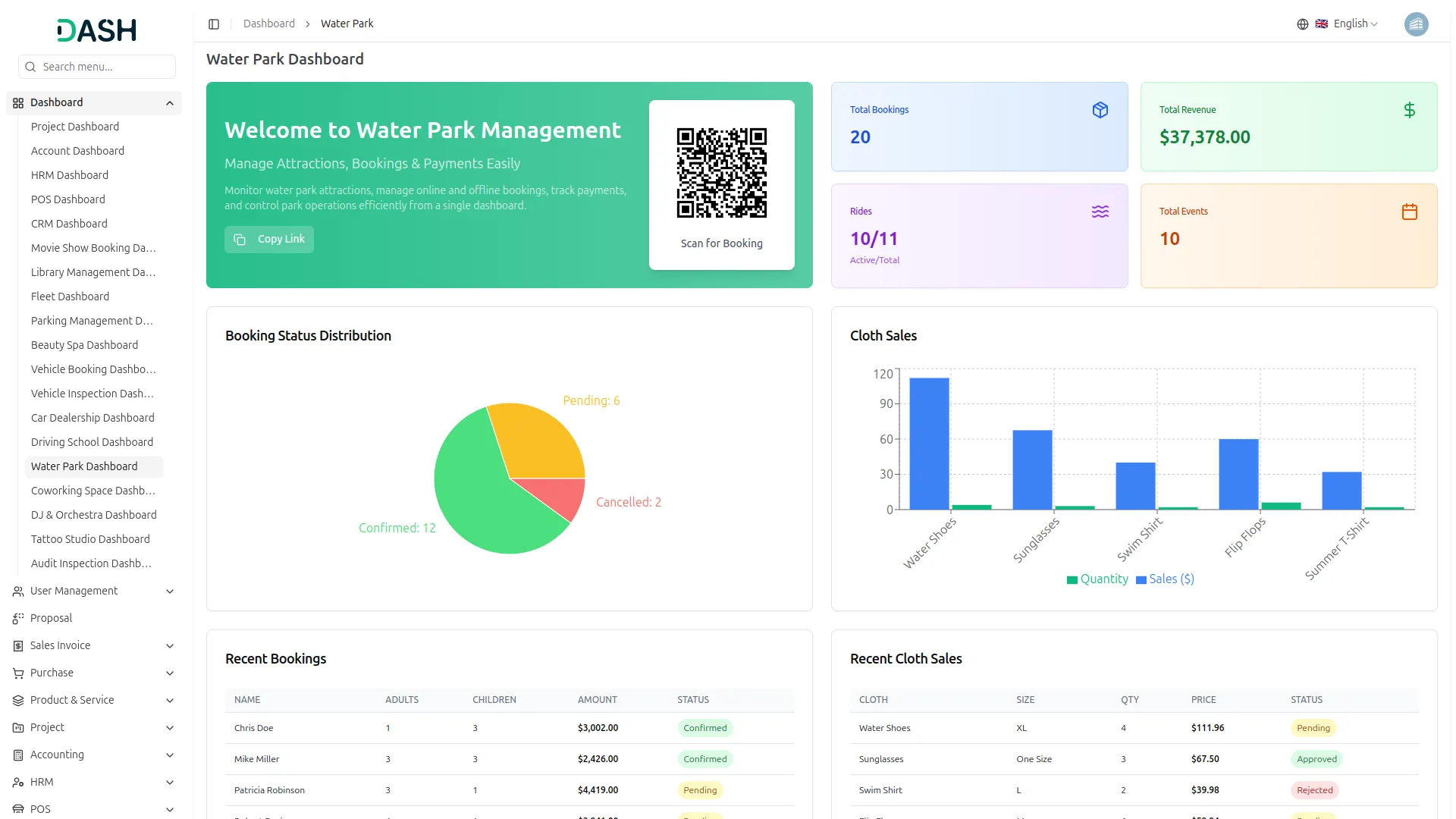
- The Water Park Dashboard provides a complete overview of your water park’s operations, bookings, revenue, and sales performance through summary cards, visual charts, and quick access features.
- At the top, you’ll find a Welcome Card displaying your dashboard title and description, along with a QR Code that visitors can scan to directly access your booking page, and a Copy Link button to quickly share your booking website link.
- The dashboard displays four important summary cards showing Total Bookings, Total Revenue, Rides (Active/Total), and Total Events, giving you instant insights into your park’s performance and operational status at a glance.
- The Booking Status Distribution pie chart visually represents the breakdown of all bookings by their current status (Confirmed, Pending, and Cancelled), allowing you to quickly monitor your booking pipeline and identify any bottlenecks at a glance.
- The Cloth Sales bar chart displays sales performance for all merchandise items, including Water Shoes, Sunglasses, Swim Shirt, Flip Flops, and Summer T-Shirt, with side-by-side bars for Quantity and Sales ($), helping you track your best-selling products instantly.
- The Recent Bookings table displays the latest visitor bookings with columns for Name, Adults, Children, Amount, and Status, allowing you to quickly review and monitor incoming reservations and their current approval state.
- At the bottom, the Recent Cloth Sales table shows the latest merchandise transactions with columns for Cloth, Size, QTY, Price, and Status, giving you a real-time view of your park’s retail activity and order fulfillment progress at a glance.
System Setup
Brand Settings
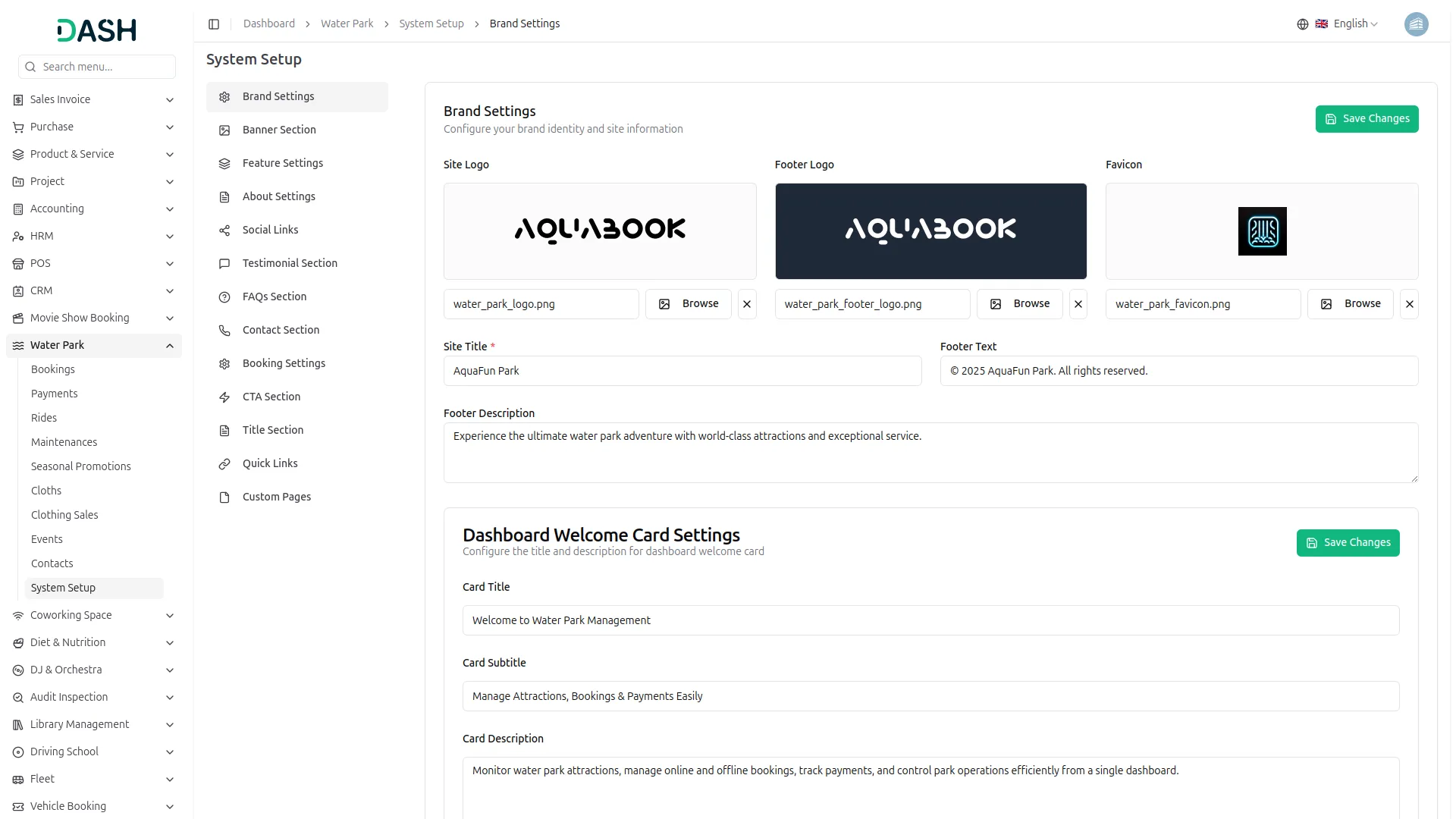
- In the Brand Settings section, click the Browse button to upload your Site Logo, which appears in the top navigation bar. Click the second Browse button to upload your Footer Logo, displayed in the footer area at the bottom of every page. Click the third Browse button to upload your Favicon, which appears on the browser tab.
- Enter your Site Title, your water park’s name, or brand name. Enter your Footer Text, the copyright line displayed at the very bottom of every page. Enter your Footer Description, a brief tagline describing your water park, shown in the footer section.
- In the Dashboard Welcome Card Settings section, enter the Card Title and Card Subtitle as the main heading and supporting line shown inside the admin dashboard welcome card. Enter the Card Description, a short overview of what the dashboard helps you manage. Click Save Changes.
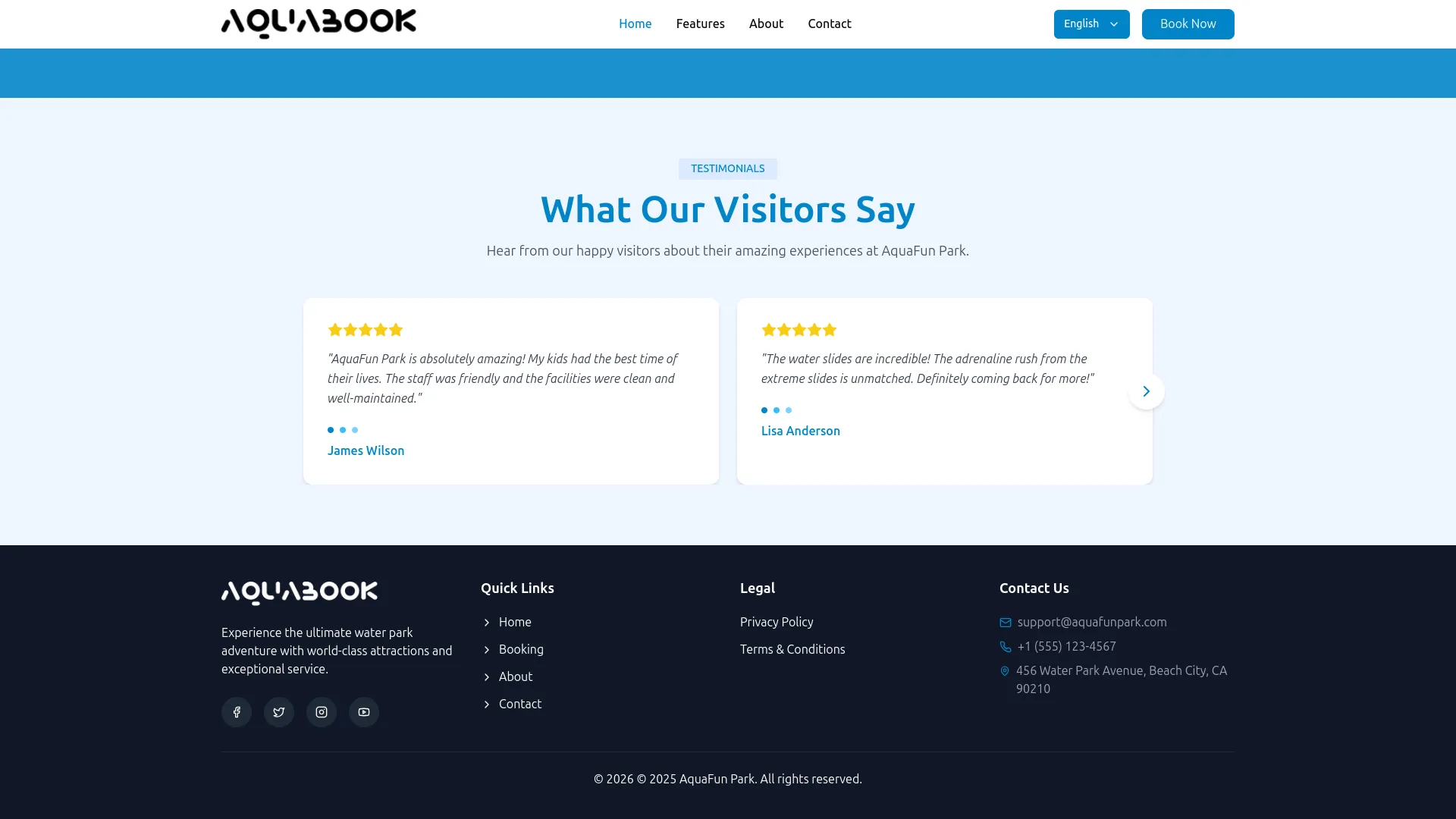
- The website displays the Site Logo in the top navigation bar on every page. It also displays the Footer Logo in the bottom-left corner of the footer section on every page, with the Footer Description shown as a short tagline beneath the footer logo.
- The Footer Text appears as the copyright line at the very bottom of the footer across all pages. The Favicon is displayed on the browser tab whenever a visitor has the website open. Inside the admin panel, the Card Title, Card Subtitle, and Card Description are displayed in the green Welcome Card at the top of the dashboard.
Banner Section
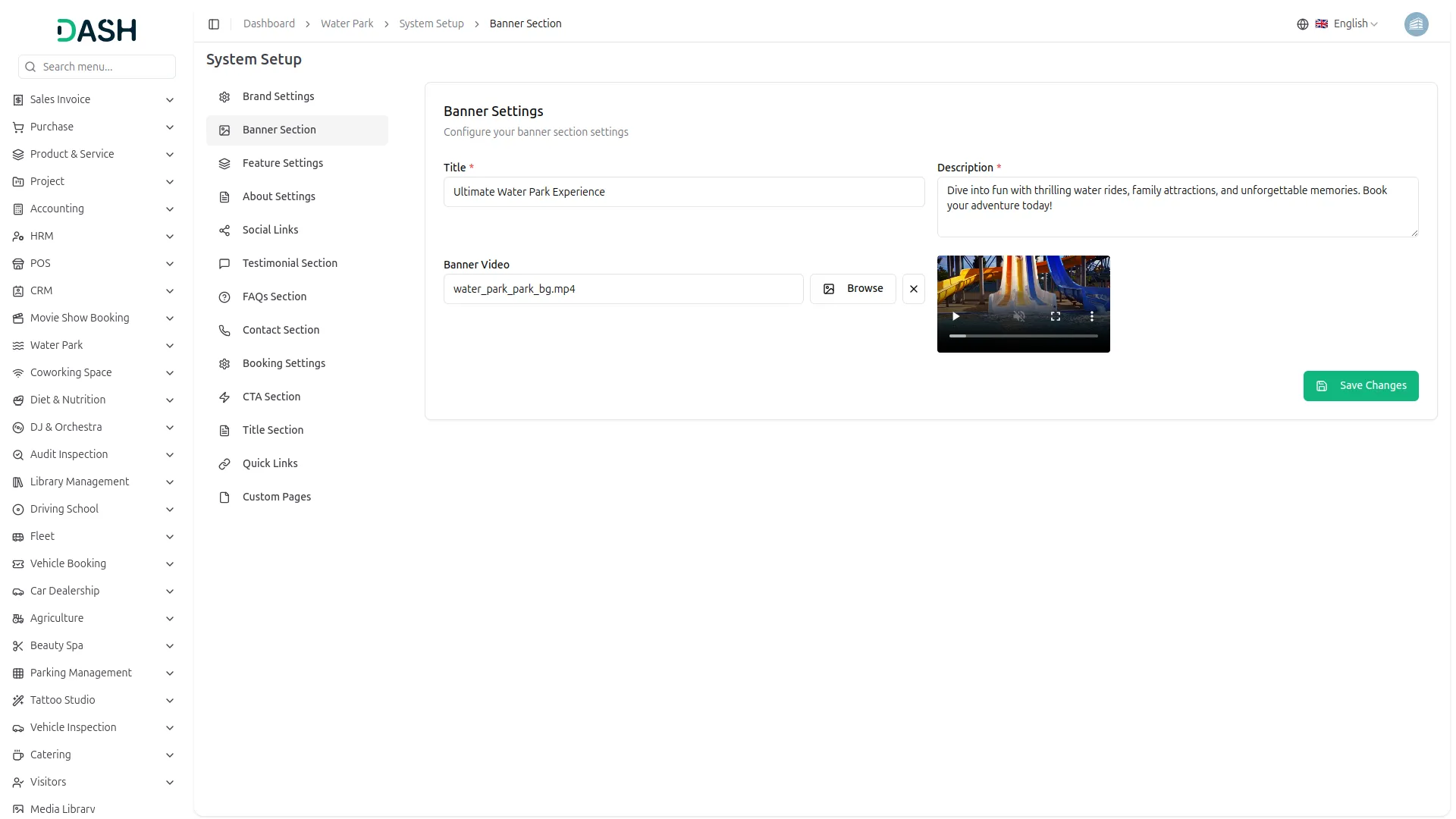
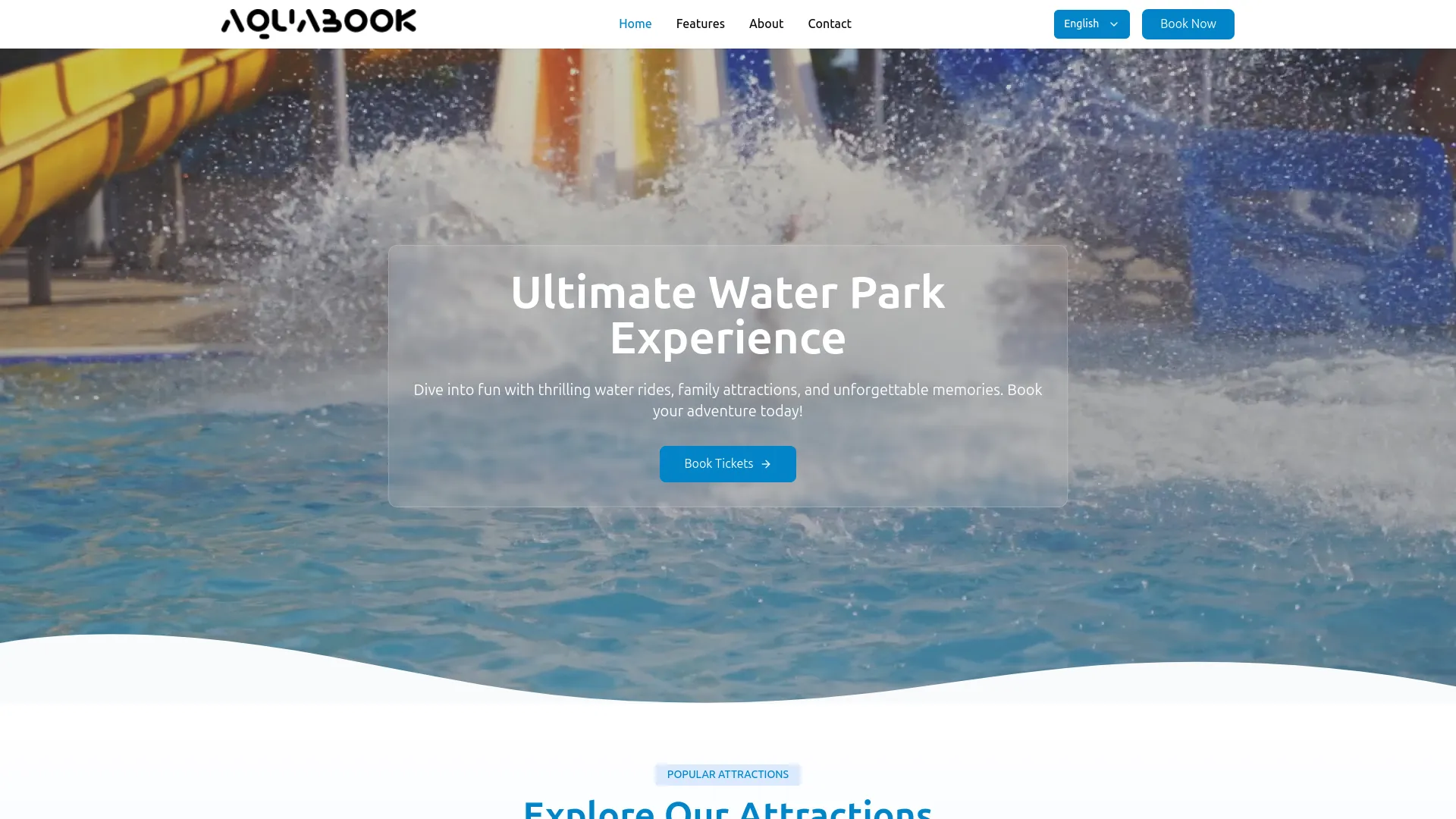
- In the Banner Section, enter the Title, the main headline displayed prominently in the hero section of your homepage. Enter the Description, a short supporting text shown below the title, encouraging visitors to book their adventure.
- Click the Browse button to upload your Banner Video, the background video that plays behind the hero section on the homepage. Click Save Changes.
- The website displays the Title as a large, bold headline and the Description as the supporting subtext within the full-width hero banner at the top of the homepage. The uploaded Banner Video appears as the animated background of the hero section, creating a dynamic and immersive first impression for visitors when they land on the website.
- Below the title and description, the website displays a “Book Tickets →” button that directs visitors to the Booking page to complete their reservation.
Feature Settings
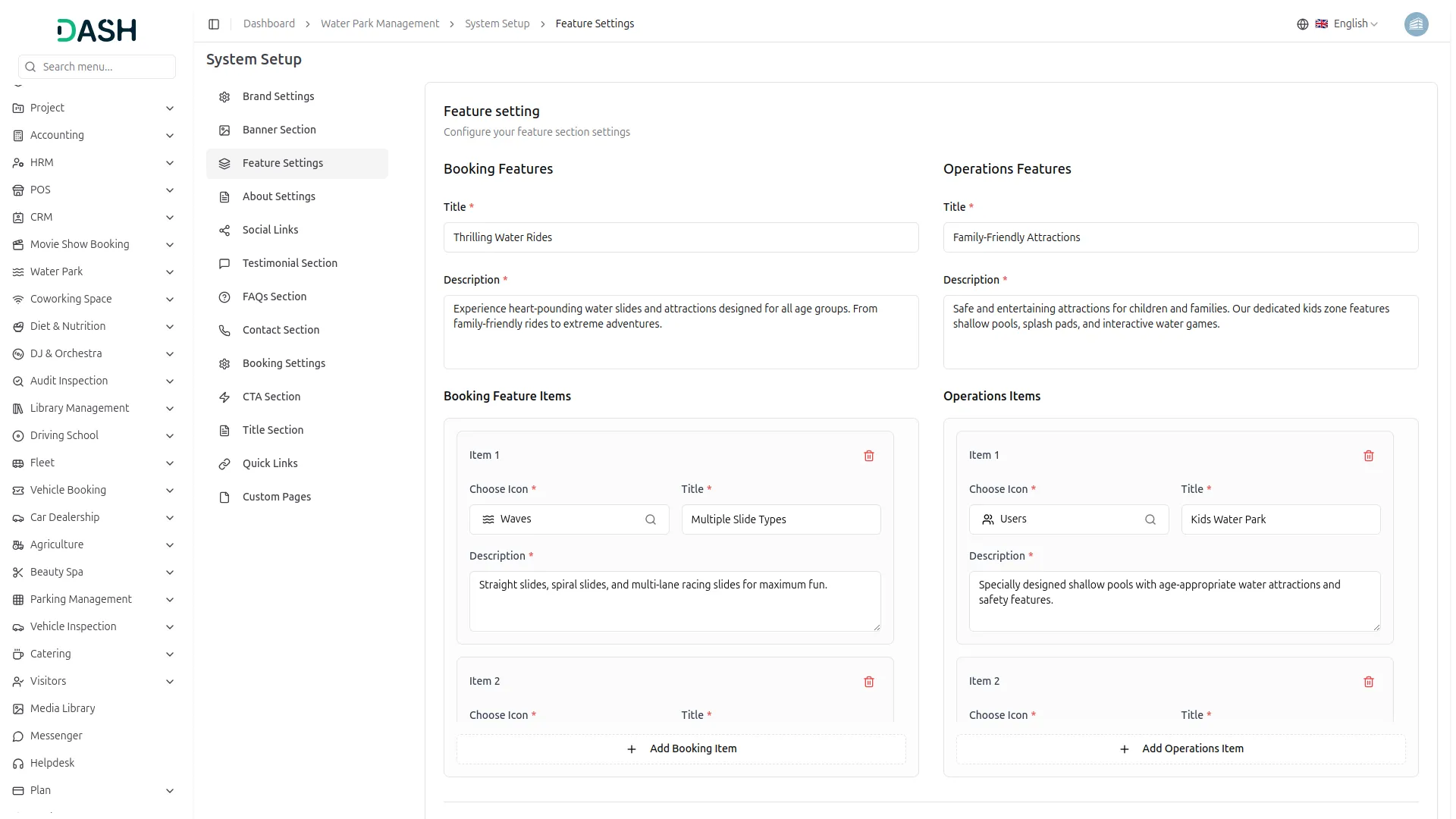
- In the Feature Settings section, you can configure two feature groups side by side, Booking Features and Operations Features.
- For Booking Features, enter the Title (e.g., Thrilling Water Rides) and Description to introduce this feature group. Under Booking Feature Items, click Add Booking Item to add individual features.
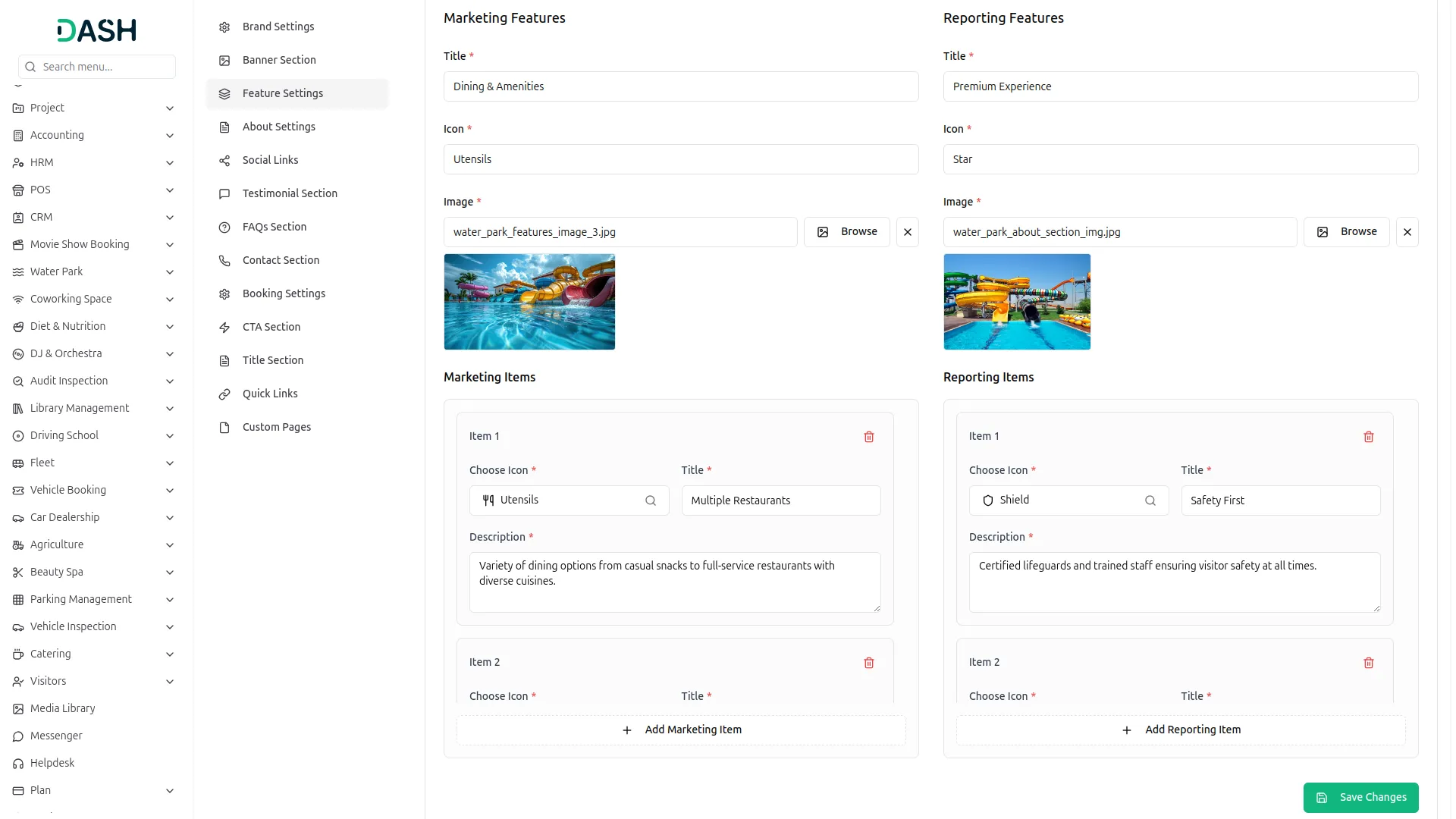
- For each item, choose an Icon, enter a Title, and write a Description explaining the feature. Repeat the same steps for Operations Features, Marketing Features, and Reporting Features, adding items using their respective Add Item buttons. Click Save Changes.
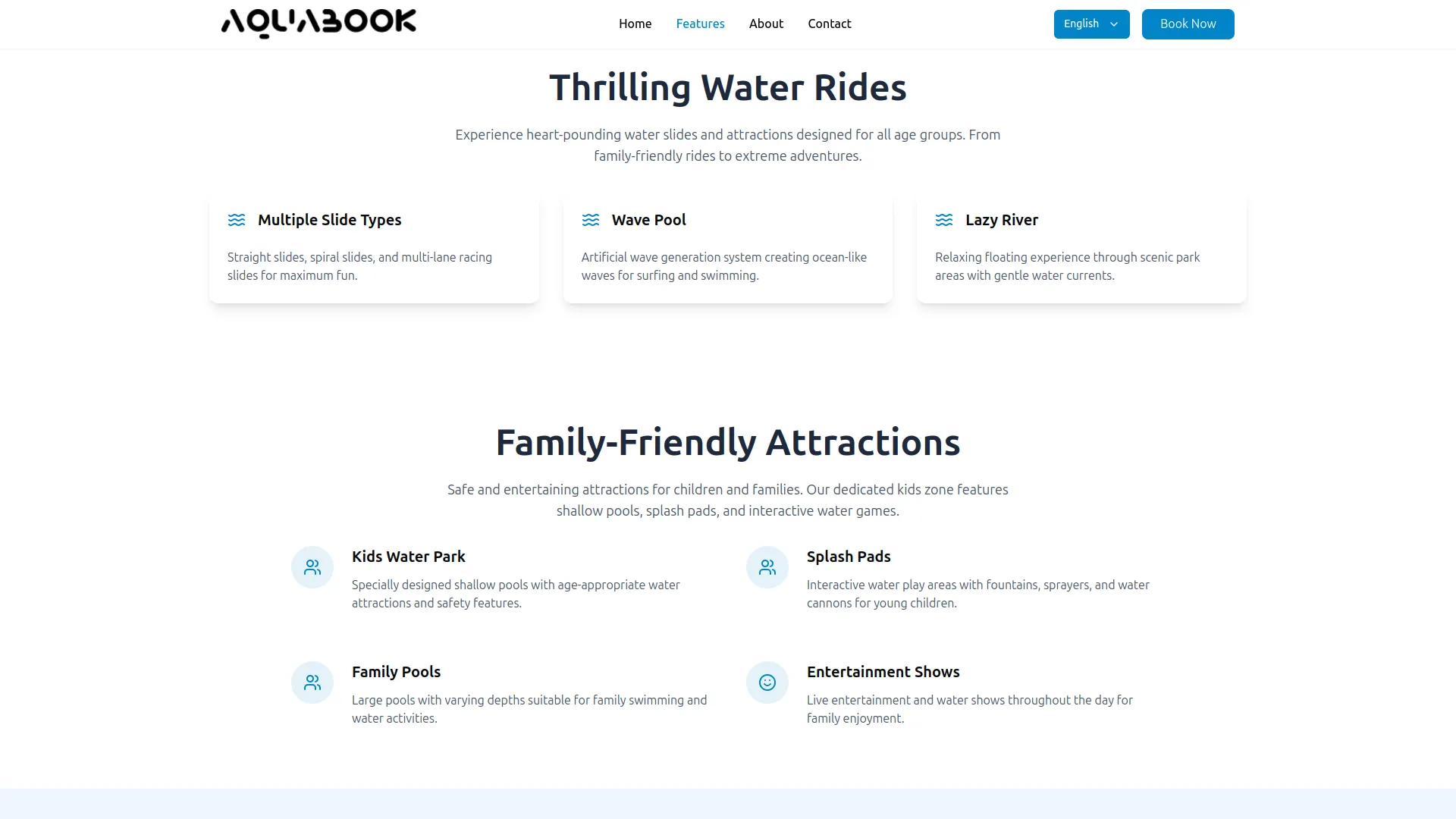
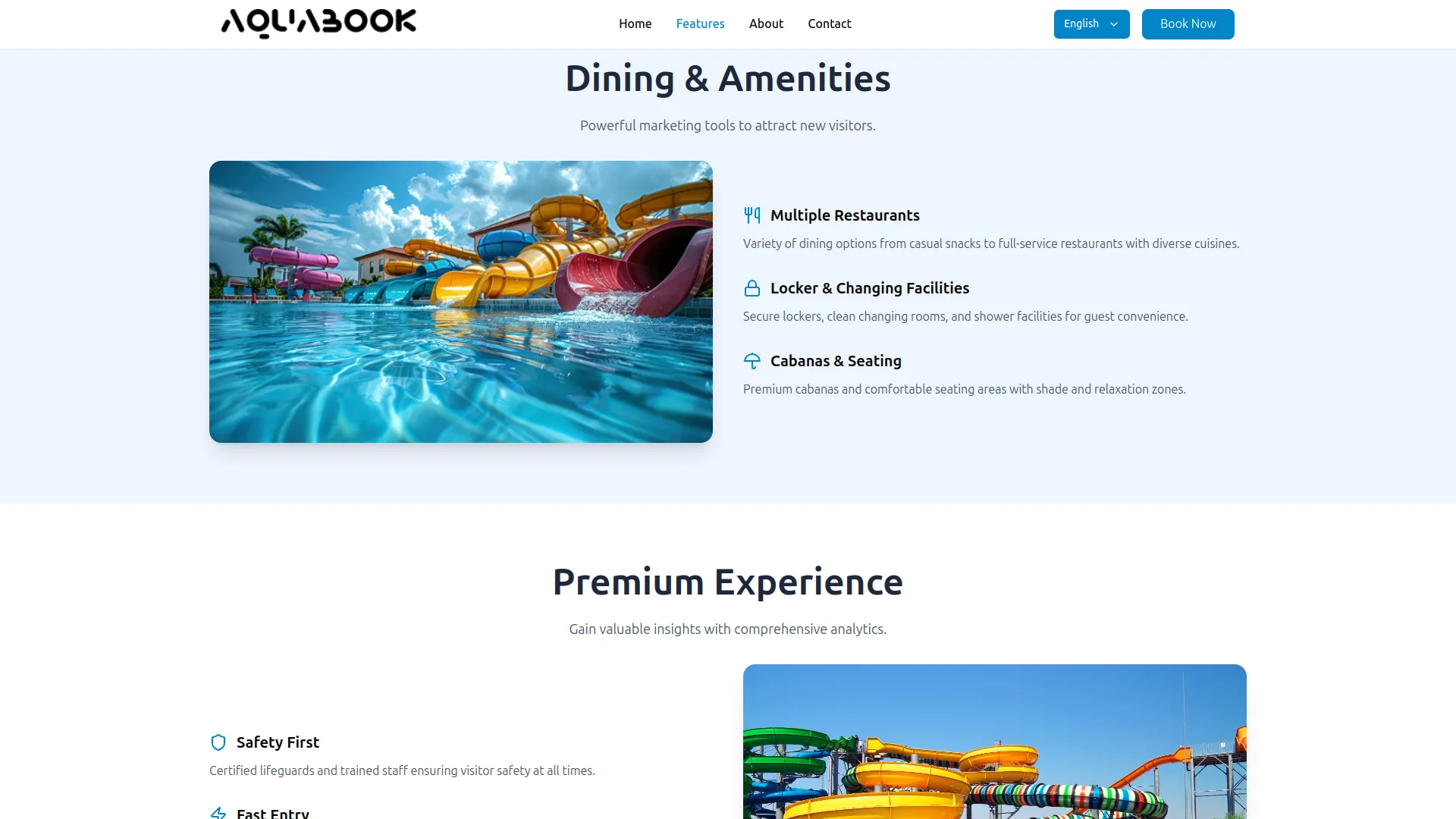
- The website automatically displays these details on the frontend in a clean, attractive layout. For example, the Thrilling Water Rides section shows exciting water slides like racing slides and a wave pool, while the Family-Friendly Attractions section highlights kid-safe pools, splash pads, and family entertainment.
- This way, you control what visitors see without needing any coding skills. You just fill in the information, and the website presents it beautifully, helping your customers easily understand the fun and safety features your park offers.
About Settings
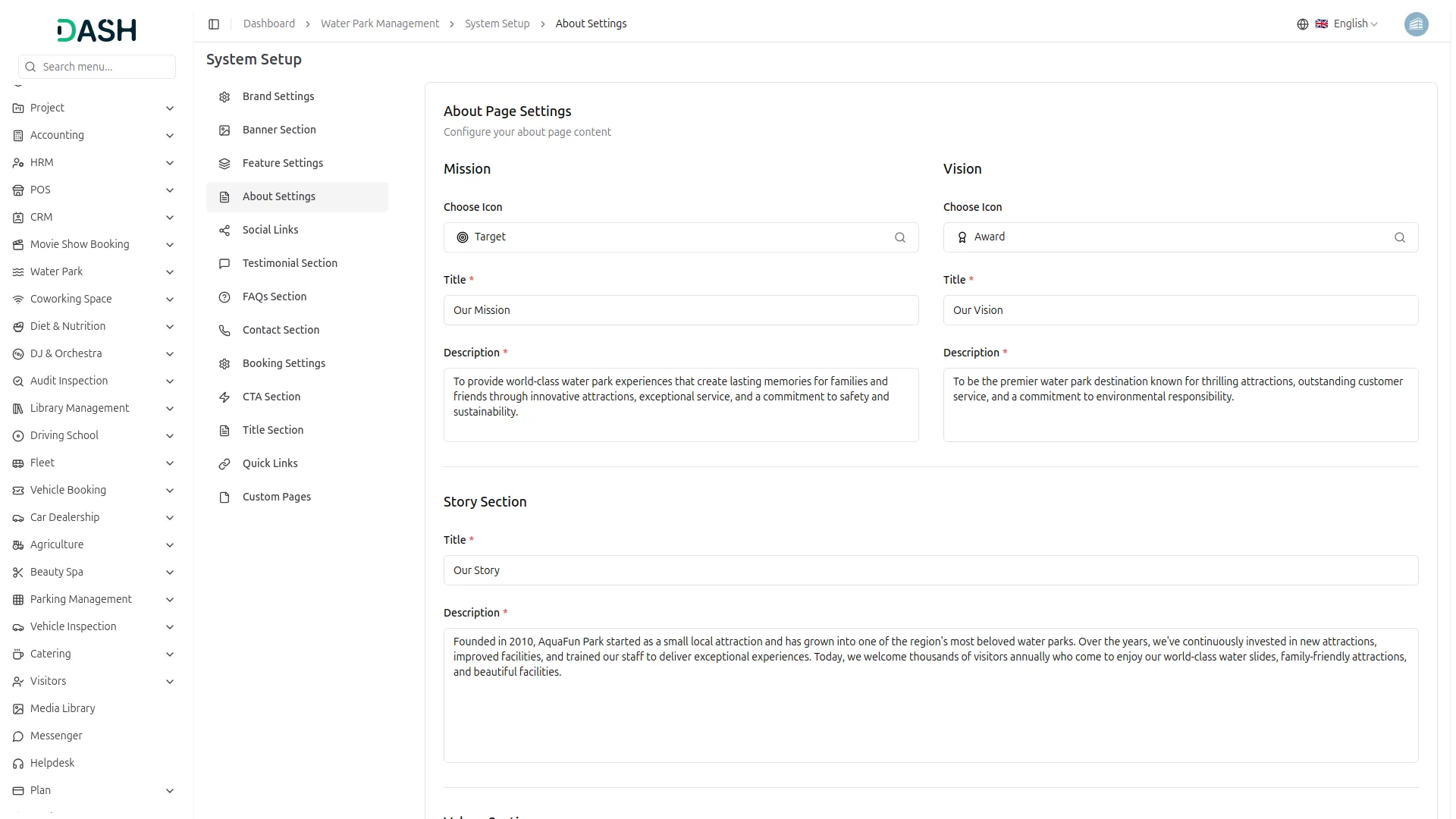
- In the About Page Settings, configure the Mission section by selecting an Icon, entering the Title (e.g., Our Mission), and writing a Description that communicates your park’s core purpose. Similarly, configure the Vision section by selecting an Icon, entering the Title (e.g., Our Vision), and writing a Description that describes your park’s future goals.
- In the Story Section, enter the Title (e.g., Our Story) and write the full Description, a narrative about the history and growth of your water park.
- In the Values Section, enter the Section Title (e.g., Our Core Values). Under Values Items, click Add Value to add each core value. For every item, choose an Icon, enter a Title, and write a Description. Click Save Changes.
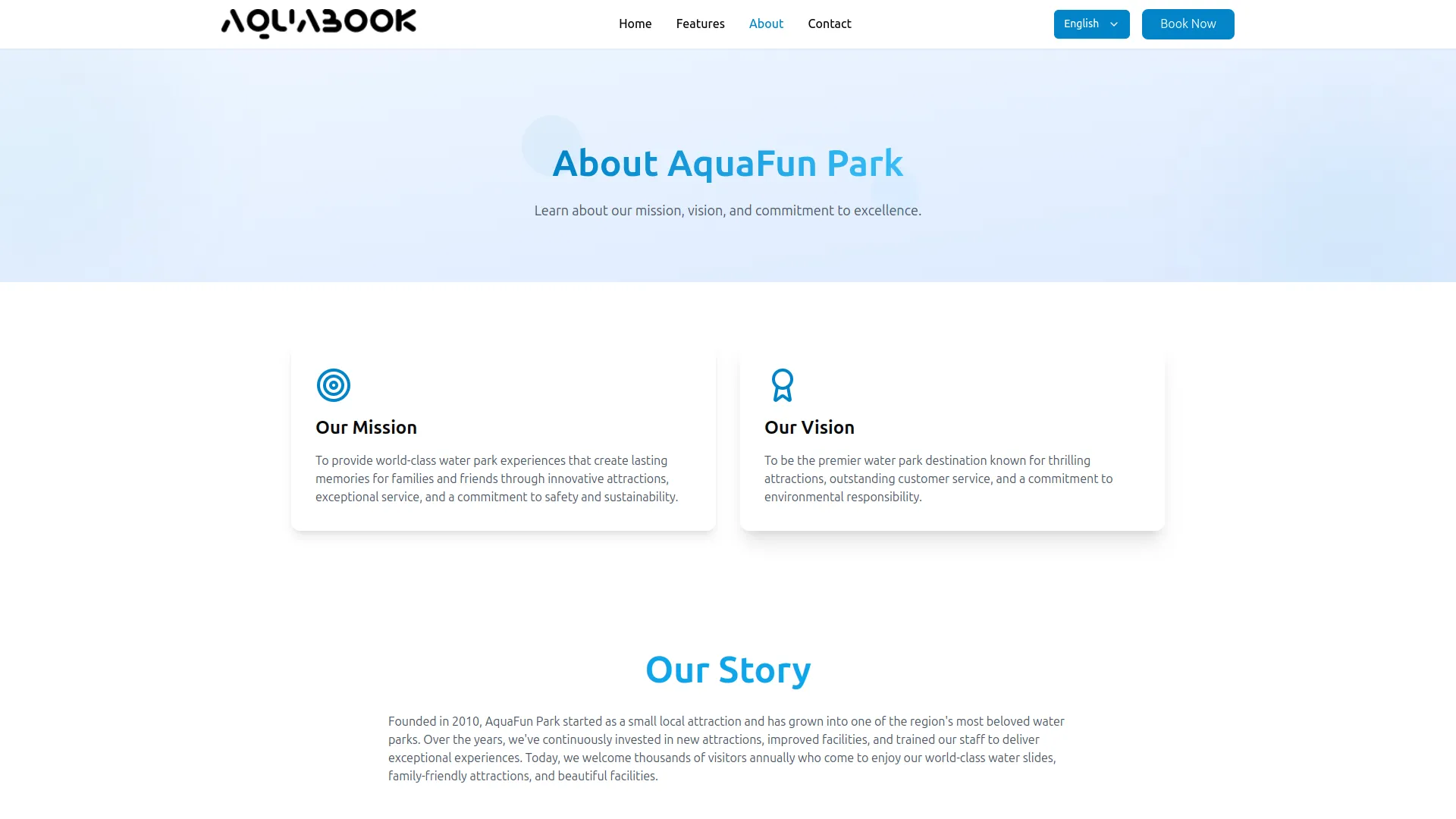
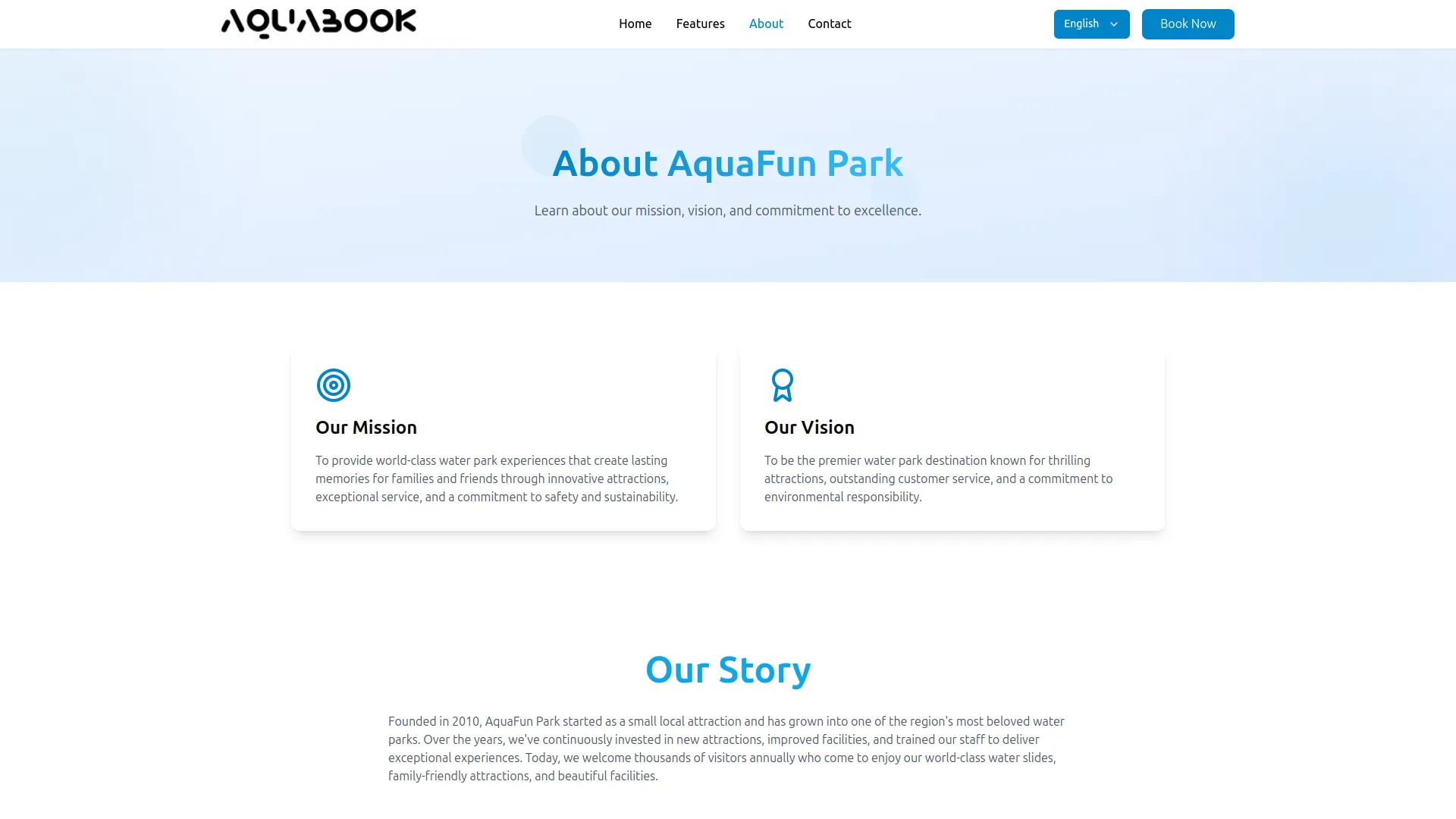
- The website displays the Mission and Vision sections as two side-by-side cards at the top of the About page, each featuring its respective icon, title, and description. The Story Section appears as a full-width text block in the middle of the About page, providing additional background and context.
- The website also displays the Core Values as a grid of individual value cards, each containing its icon, title, and description, giving visitors a clear understanding of what the park stands for.
Social Links
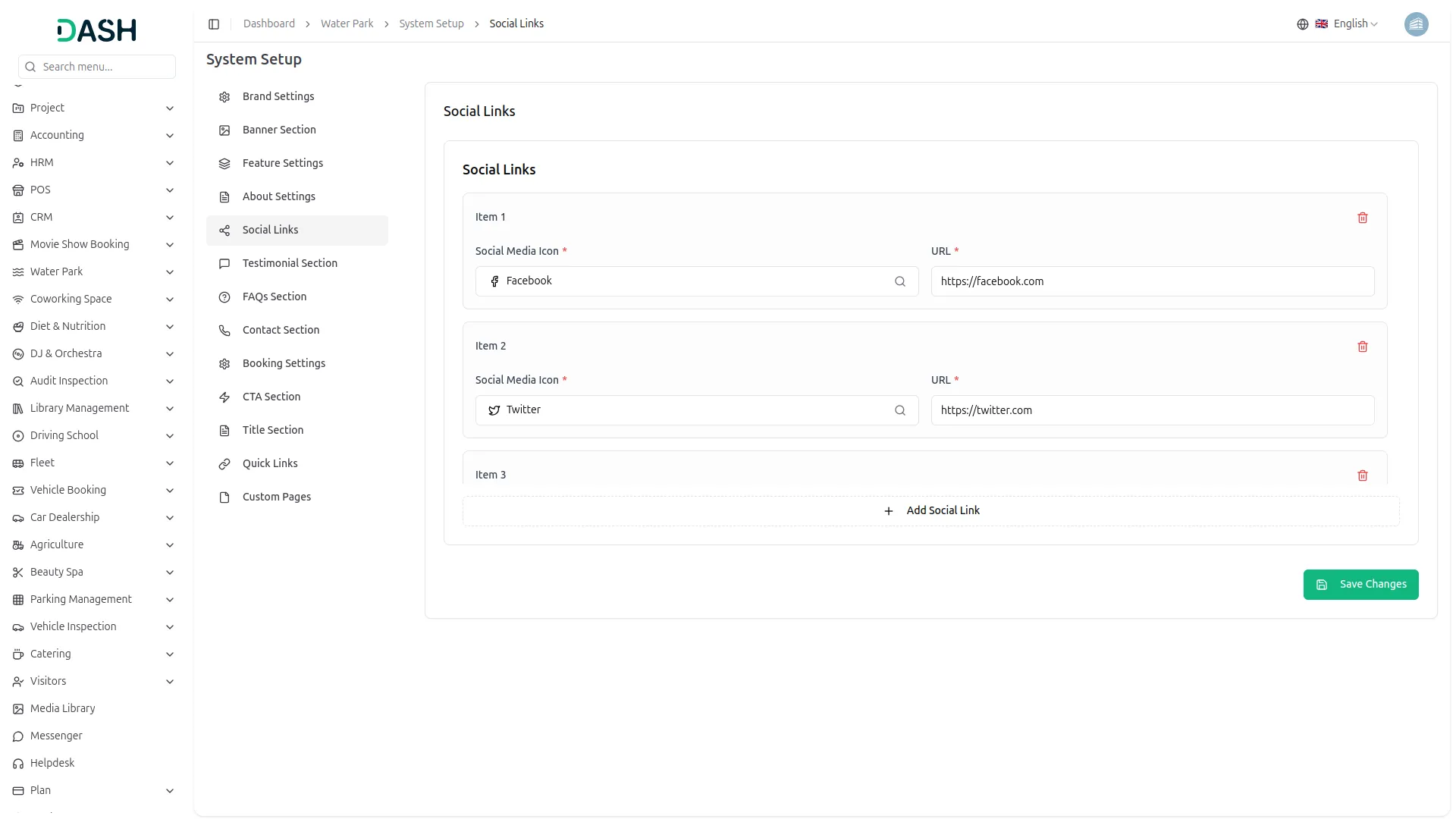
- In the Social Links section, each item requires a Social Media Icon, select the platform (e.g., Facebook, Twitter, Instagram, YouTube) from the icon dropdown, and a URL, paste the full link to your social media profile. Click Add Social Link to add more platforms as needed. Click Save Changes.
- The website displays all configured social media icons in the footer section at the bottom of every page. It also displays the same social media icons on the Contact page within the Connect With Us section, allowing visitors to access your water park’s social media profiles with a single click.
Testimonial Section
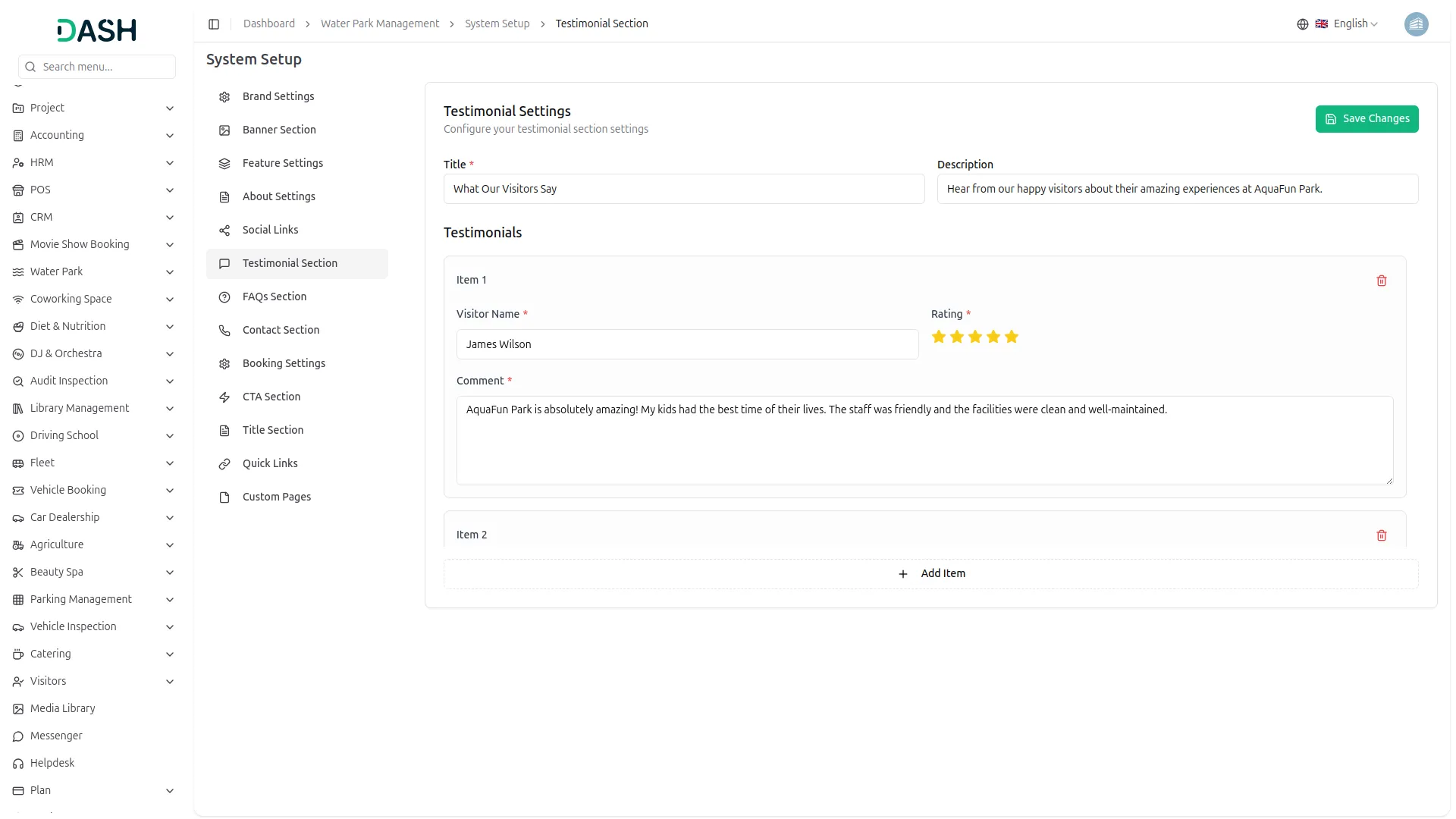
- In the Testimonial Settings, enter the Title (e.g., What Our Visitors Say) and Description, a short introductory line for the testimonials section. Under Testimonials, click Add Item to add a visitor review. For each item, enter the Visitor Name, select a Rating (1 to 5 stars), and write the visitor’s Comment. Add as many testimonials as needed. Click Save Changes.
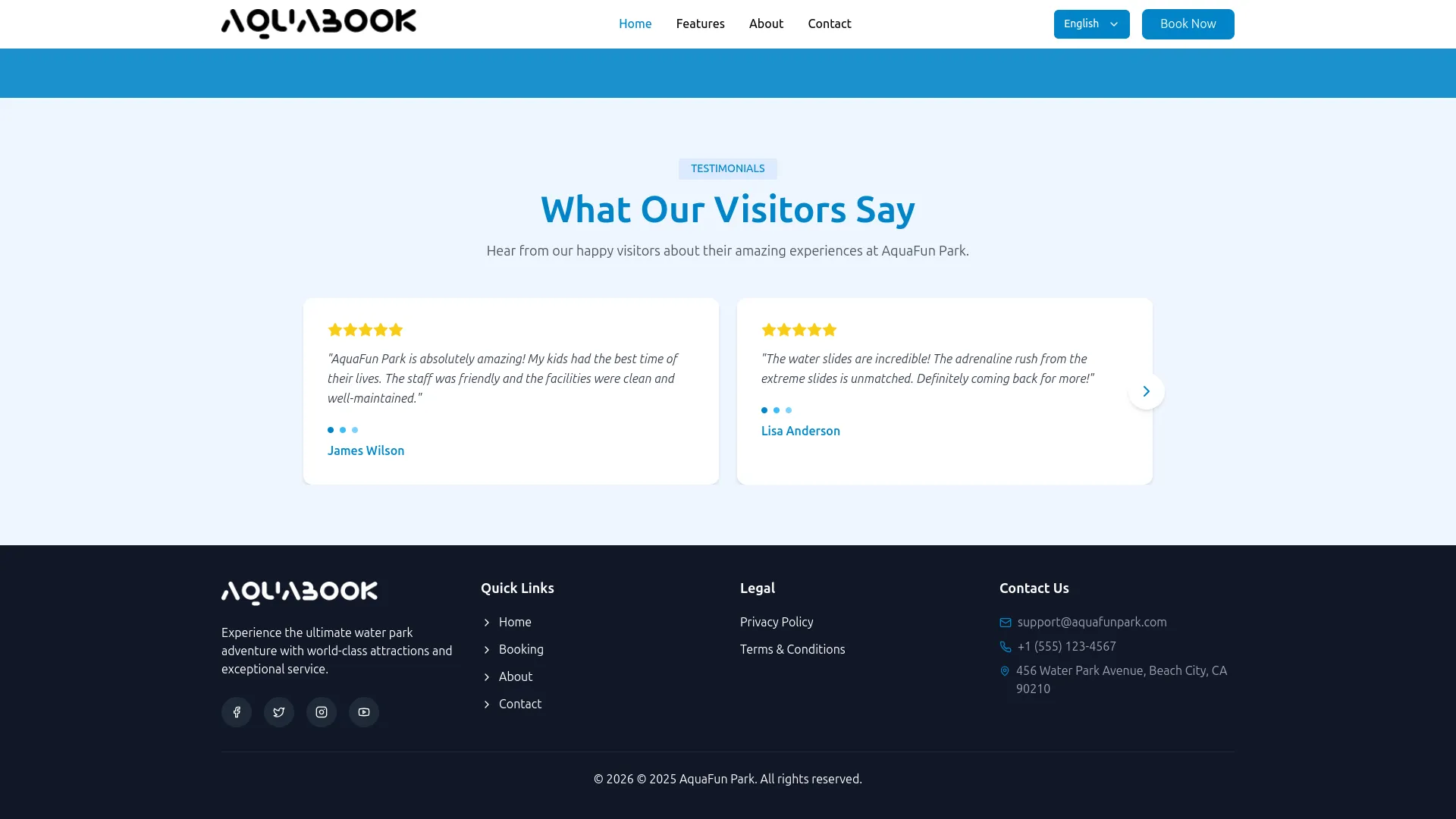
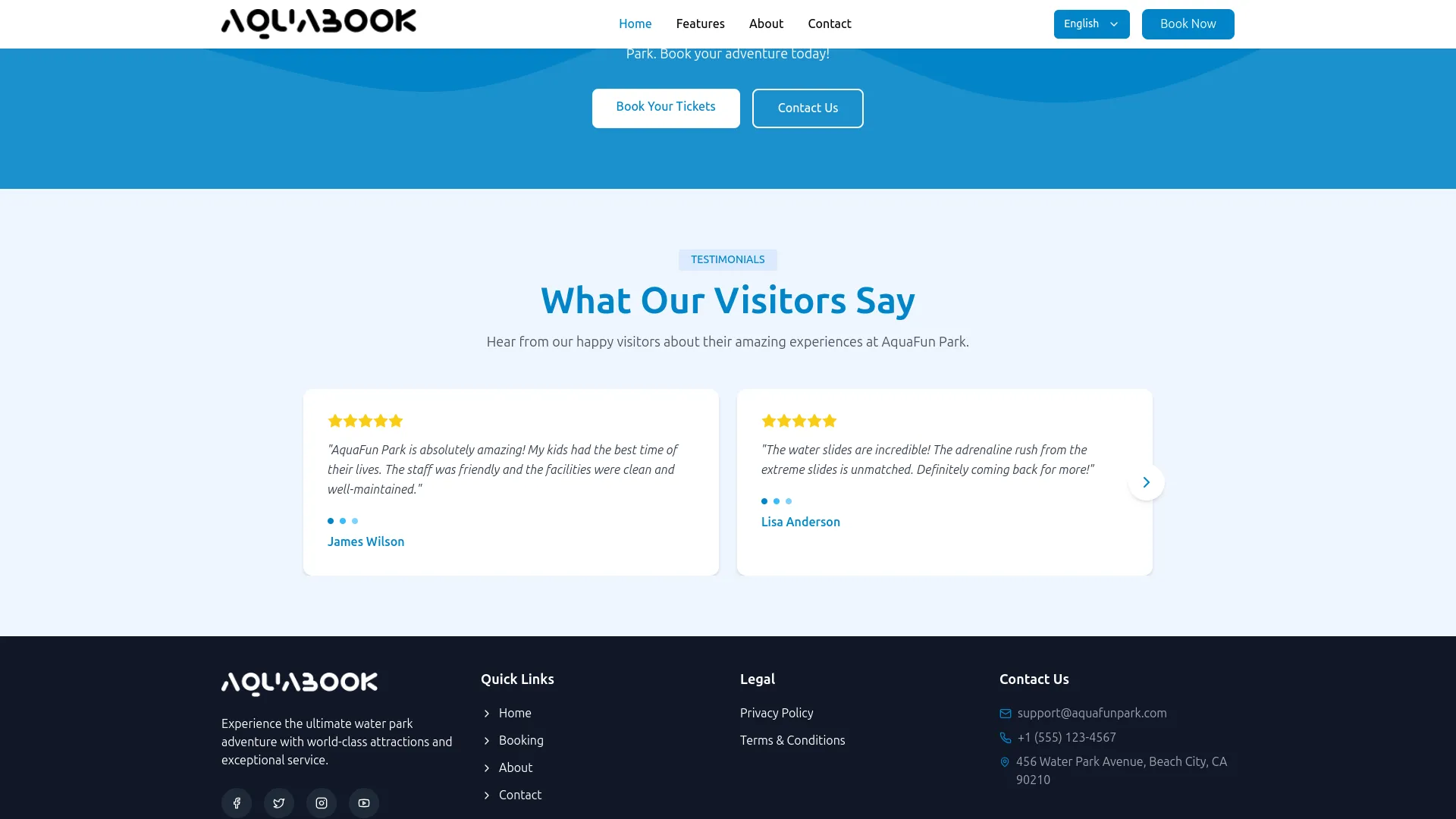
- The website displays the Title and Description as the section heading for the “What Our Visitors Say” section on the homepage. Each testimonial is presented as an individual review card, featuring the visitor’s name, star rating, and comment, helping build trust and credibility with potential visitors at the bottom of the homepage.
FAQs Section
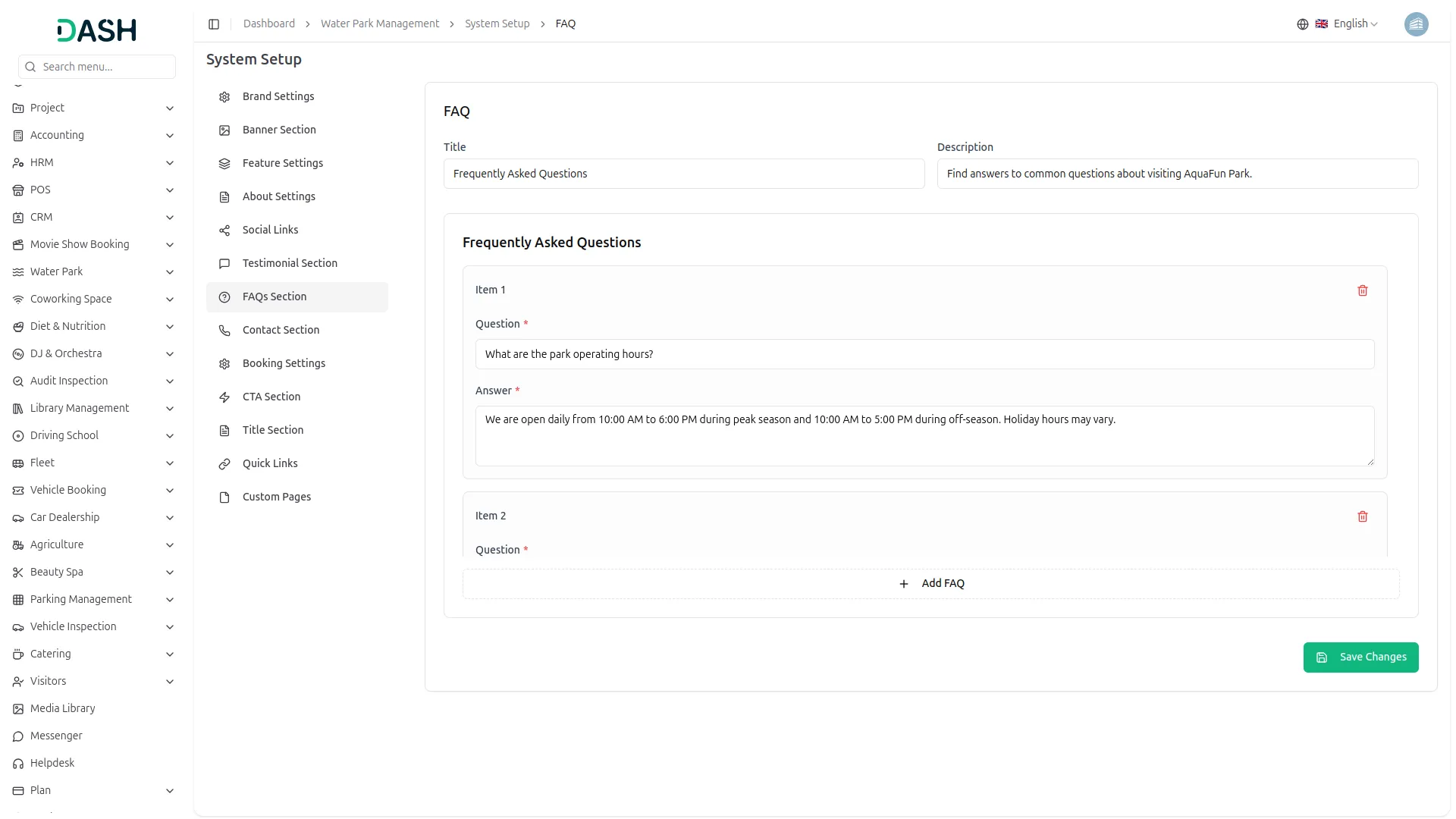
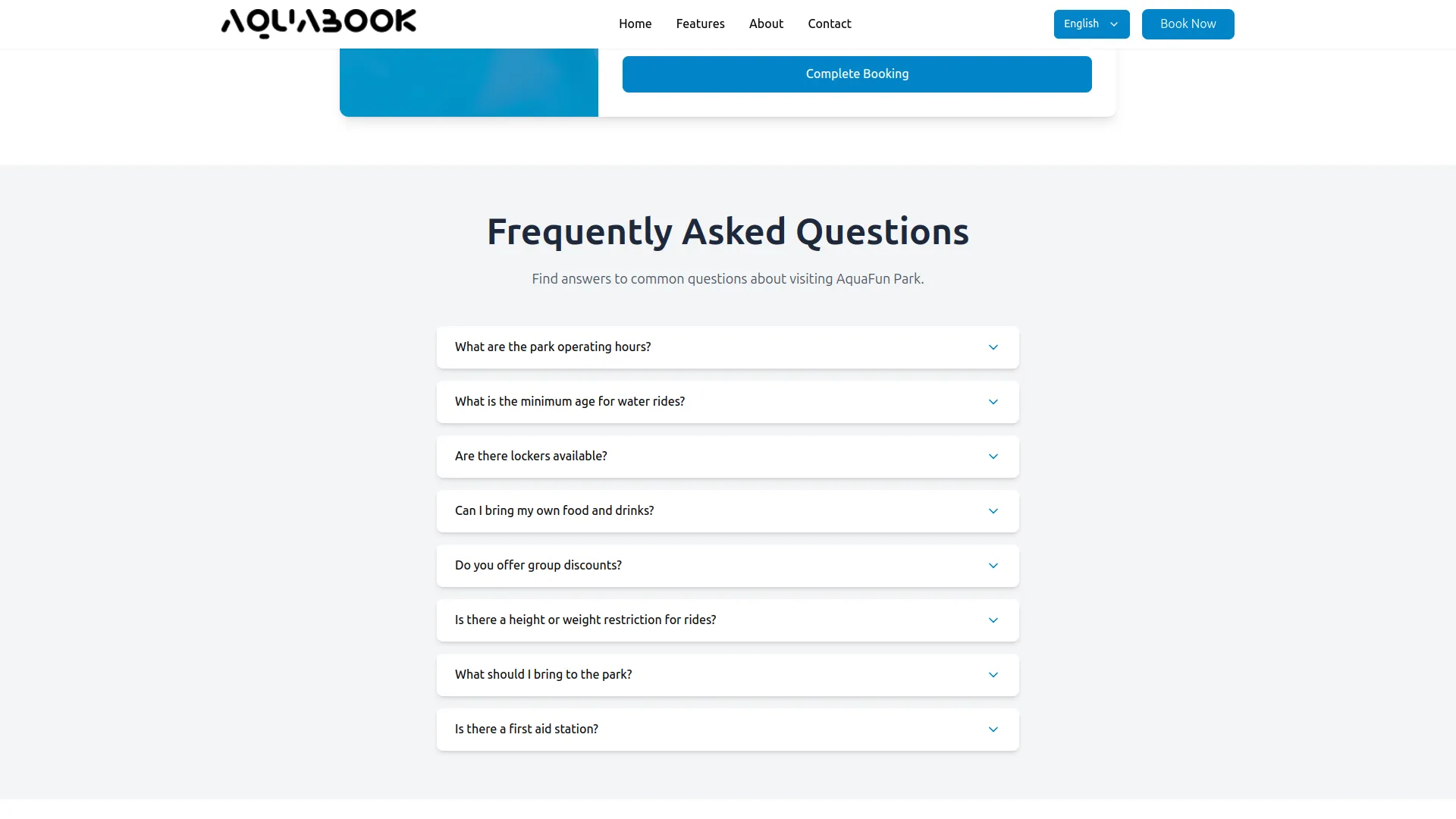
- In the FAQ section, enter the Title (e.g., Frequently Asked Questions) and Description, and a short subtitle introducing the FAQ section. Under Frequently Asked Questions, click Add FAQ to add a new question. For each item, enter the Question and write the full Answer. Add as many FAQs as required. Click Save Changes.
- The website displays the Title and Description as the section heading on the Booking page. Each FAQ is presented as a collapsible accordion item, allowing visitors to click on a question to expand and read the full answer.
- All FAQ items are displayed in sequence, enabling visitors to quickly find answers to common queries about park timings, age restrictions, lockers, food policies, and more.
Contact Section
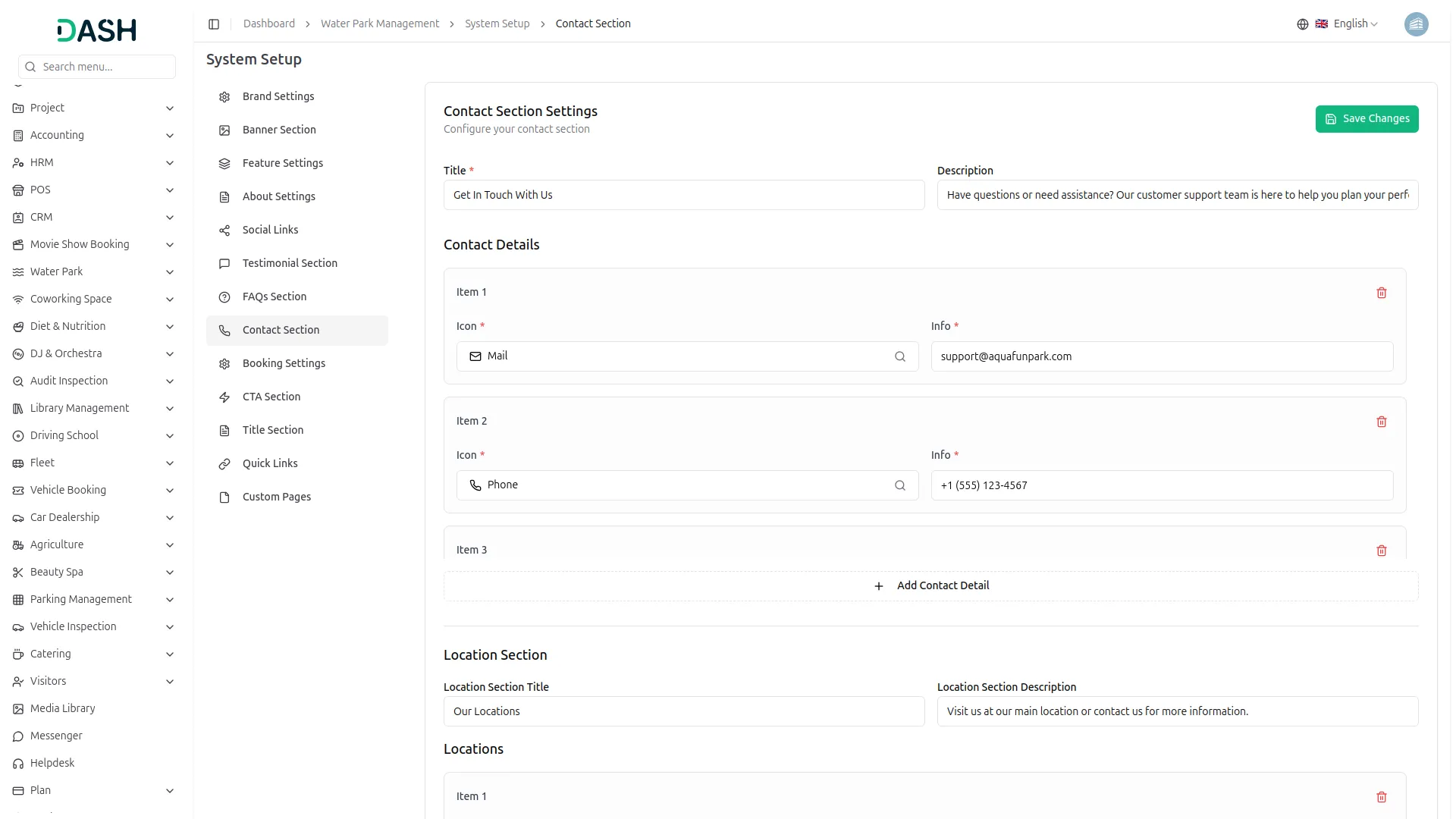
- In the Contact Section Settings, enter the Title (e.g., Get In Touch With Us) and Description, an introductory message for the contact page. Under Contact Details, configure each item by selecting an Icon (Mail, Phone, or MapPin) and entering the corresponding Info, your email address, phone number, and physical address.
- In the Location Section, enter the Location Section Title and Location Section Description. Under Locations, click Add Location to add each branch. For every location, enter the Title, Subtitle, Phone, Email, paste the Google Map Iframe embed code, and enter the Address. Click Save Changes.
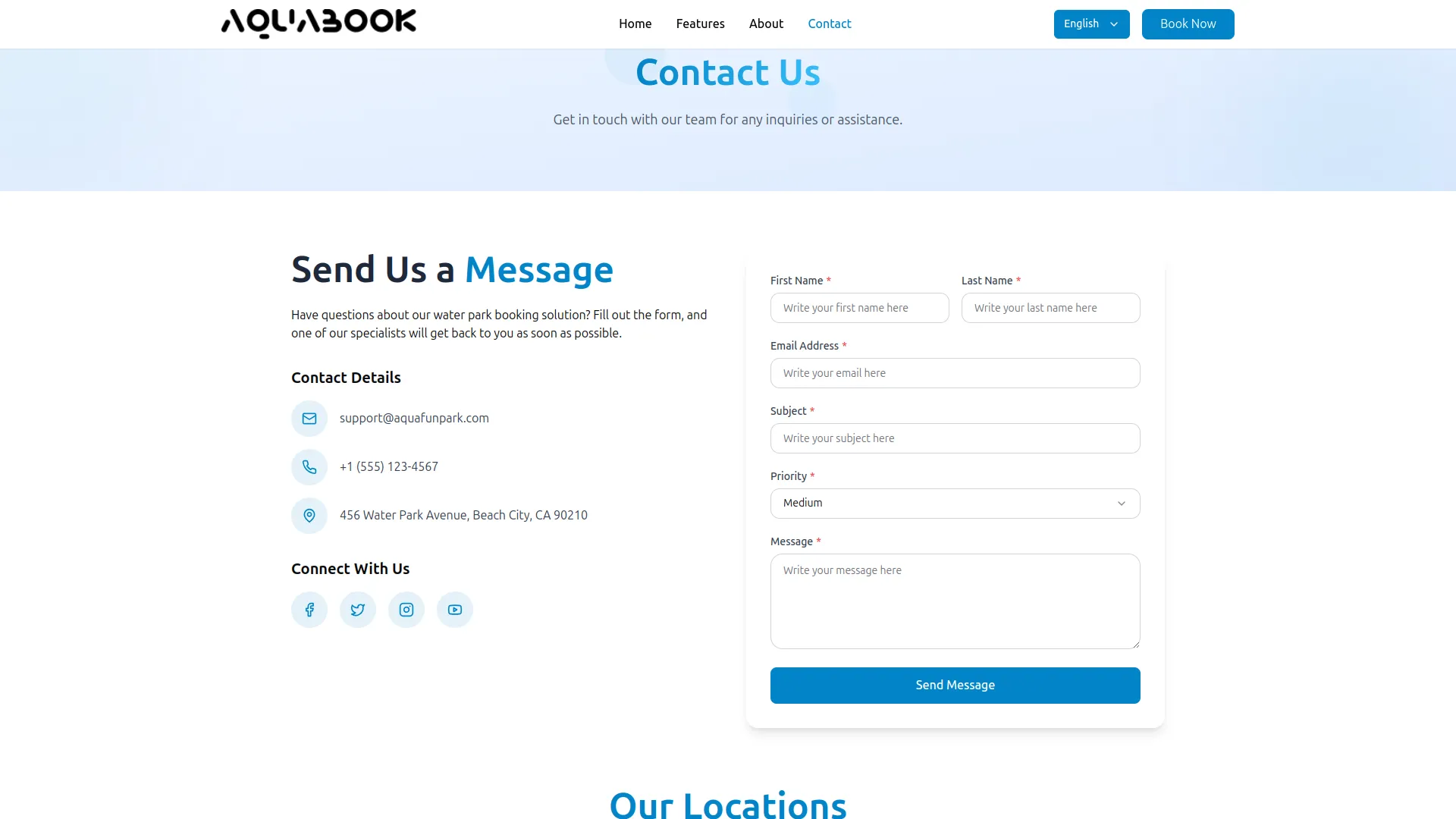
- The website displays the Title and Description as the header of the Contact page. The Contact Details, including email, phone, and address, are shown in the left-side contact information panel.
- Each configured location is displayed as an individual location card in the “Our Locations” section, featuring the map, title, address, phone, and email, allowing visitors to easily find and reach the park.
Booking Settings
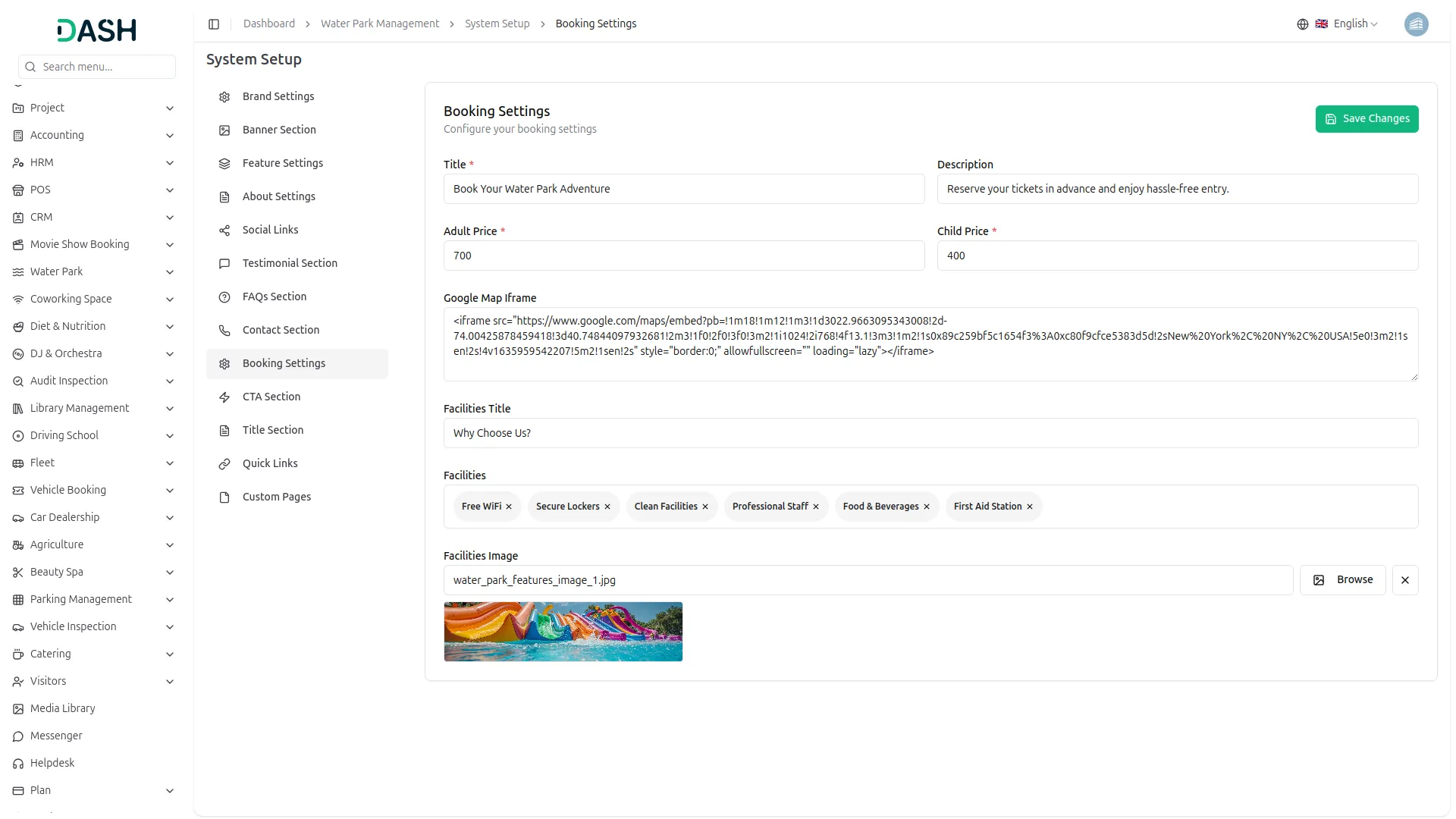
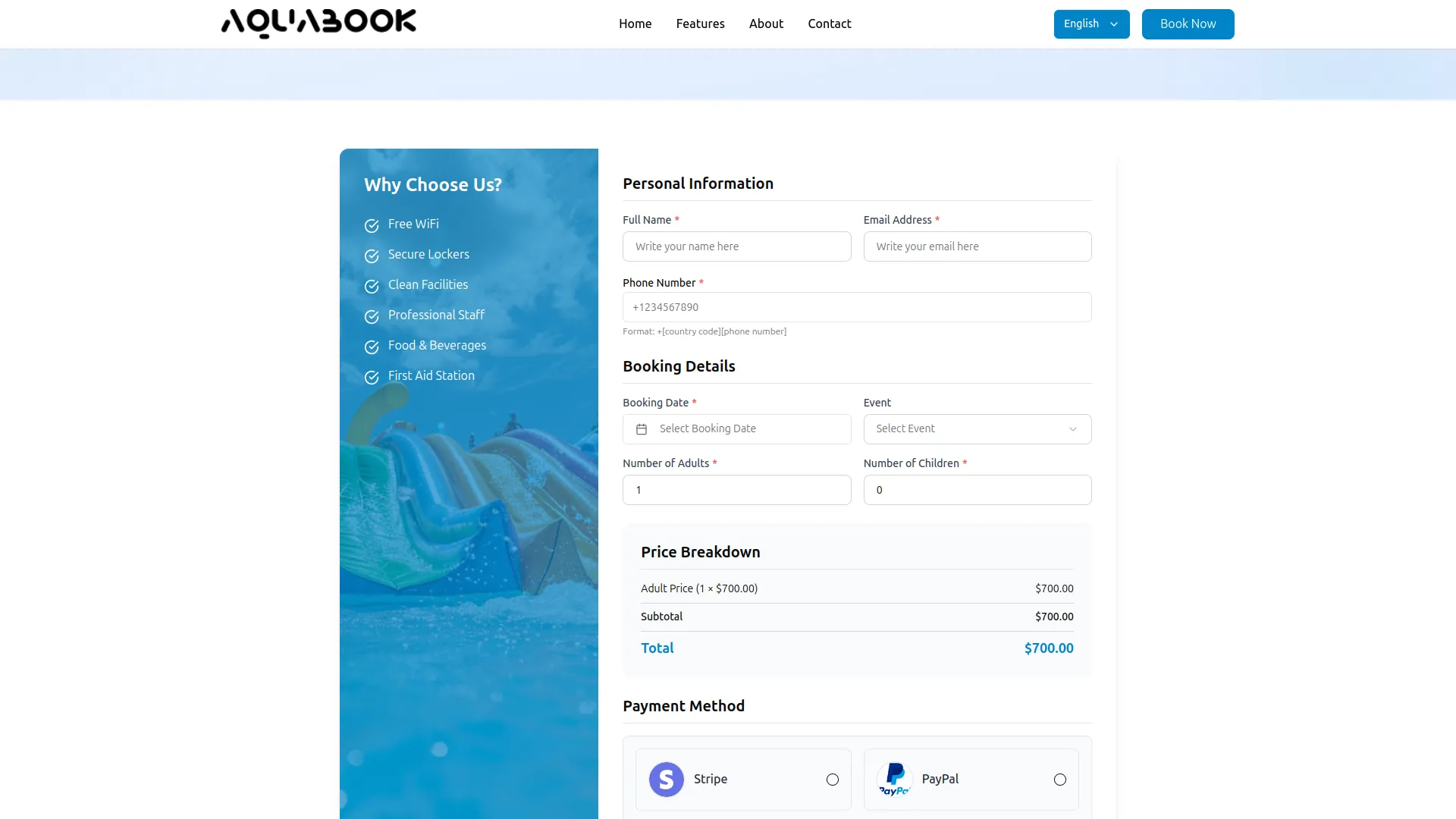
- In the Booking Settings, enter the Title (e.g., Book Your Water Park Adventure) and Description, an introductory line shown at the top of the booking page. Enter the Adult Price and Child Price; these are the base ticket prices used to calculate the total amount in the booking form.
- Paste the Google Map Iframe embed code to display the park’s location map on the booking page. Enter the Facilities Title (e.g., Why Choose Us?) and add individual facility tags under Facilities, such as Free WiFi, Secure Lockers, Clean Facilities, Professional Staff, Food & Beverages, and First Aid Station. Click Browse to upload the Facilities Image. Click Save Changes.
- The website displays the Title and Description at the top of the Booking page. In the Price Breakdown section of the booking form, the Adult Price and Child Price are shown, with the subtotal and total automatically calculated and updated in real time as visitors select the number of adults and children.
- The “Why Choose Us?” panel on the left side of the booking form displays the Facilities Title along with all configured facility tags, with the Facilities Image used as the panel’s background. Below the booking form, the website displays the Google Map in the location section.
- In the Price Breakdown section, the Adult Price, Subtotal, and Total Amount are automatically calculated and updated in real time as visitors fill in their details.
- Visitors can select from two payment methods, Stripe or PayPal, before clicking Complete Booking to finalize their reservation. Once submitted, the booking is automatically created on the admin side and instantly appears in the Manage Bookings table, displaying Customer Name, Email, Phone, Booking Date, Adults, Children, Amount, Status, and Payment Status, with no manual input required.
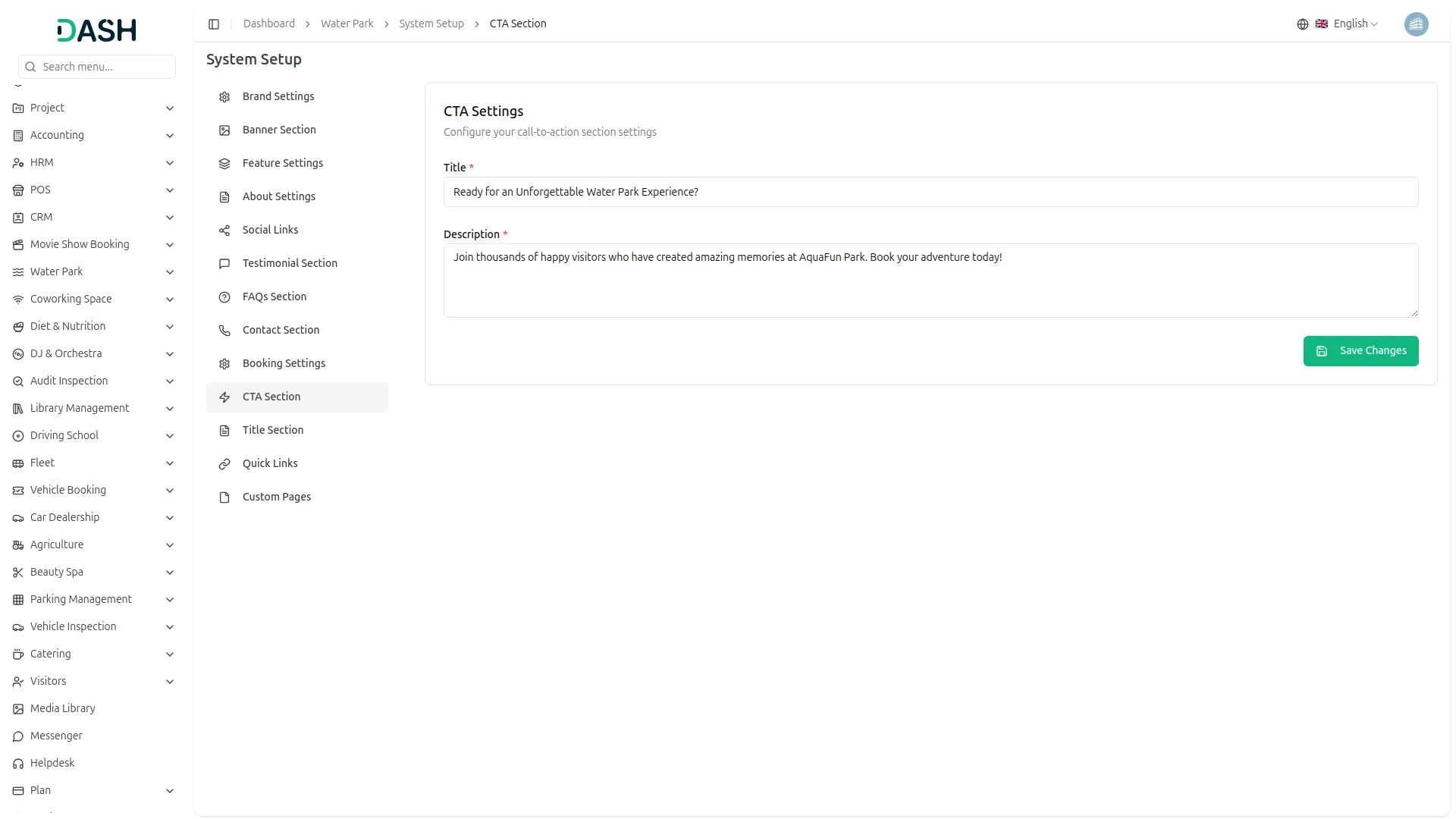
CTA Section
- In the CTA Settings, enter the Title, the bold call-to-action headline. Enter the Description, a supporting message encouraging visitors to take action and book their tickets. Click Save Changes.
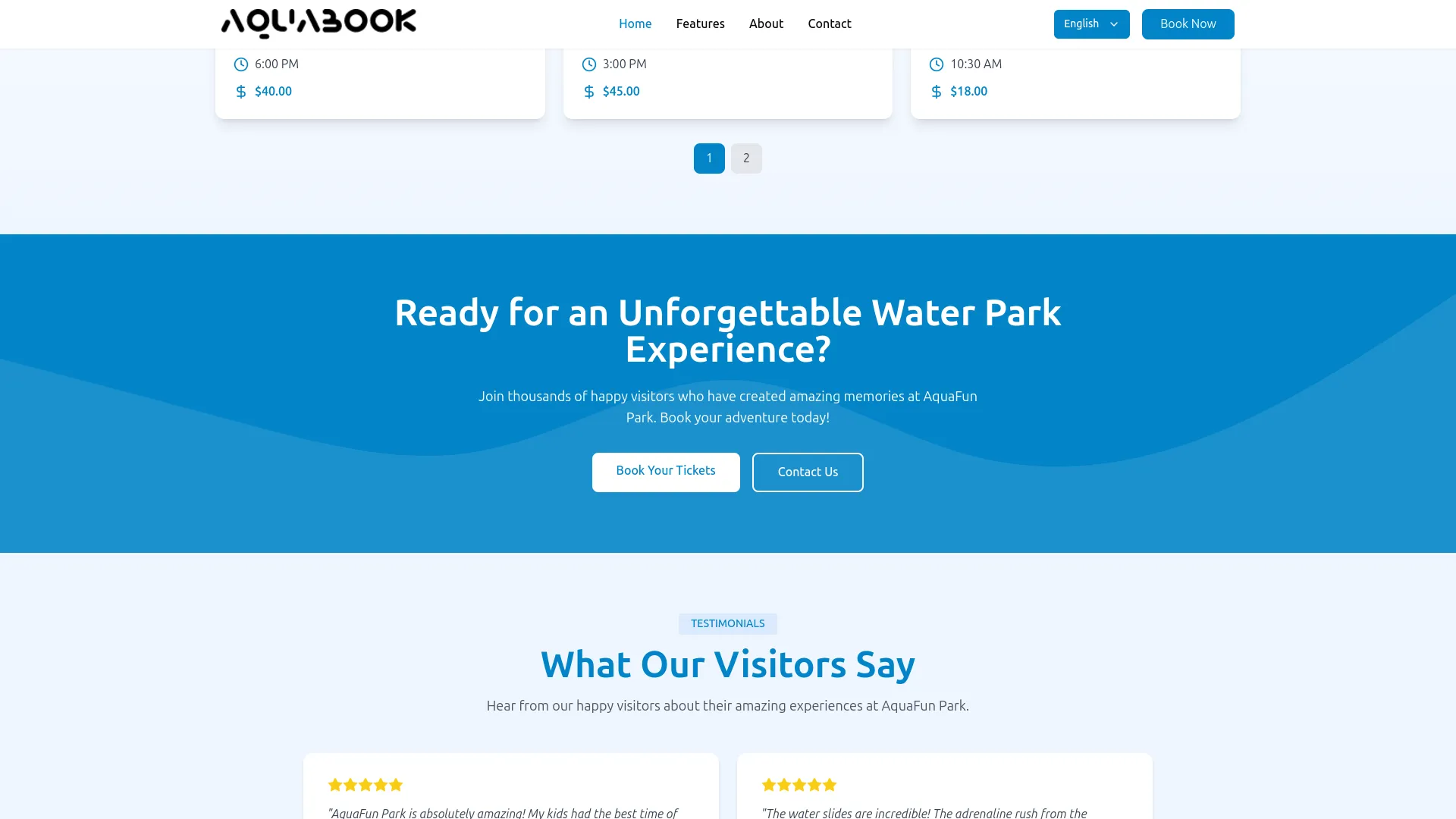
- The website displays the Title and Description in the full-width Call-to-Action banner, which appears on the Homepage, Features page, and About page. The CTA section features a bold blue background and includes two action buttons, Book Your Tickets and Contact Us, encouraging visitors to make a booking or get in touch directly.
Title Section
- In the Page Titles & Descriptions section, you can set the title and description for each page and section of your website. Add the Title and Description for the Attractions Section (the heading and subtext for the attractions listing on the homepage), and the Events Section (the heading and subtext for the special events on the homepage).
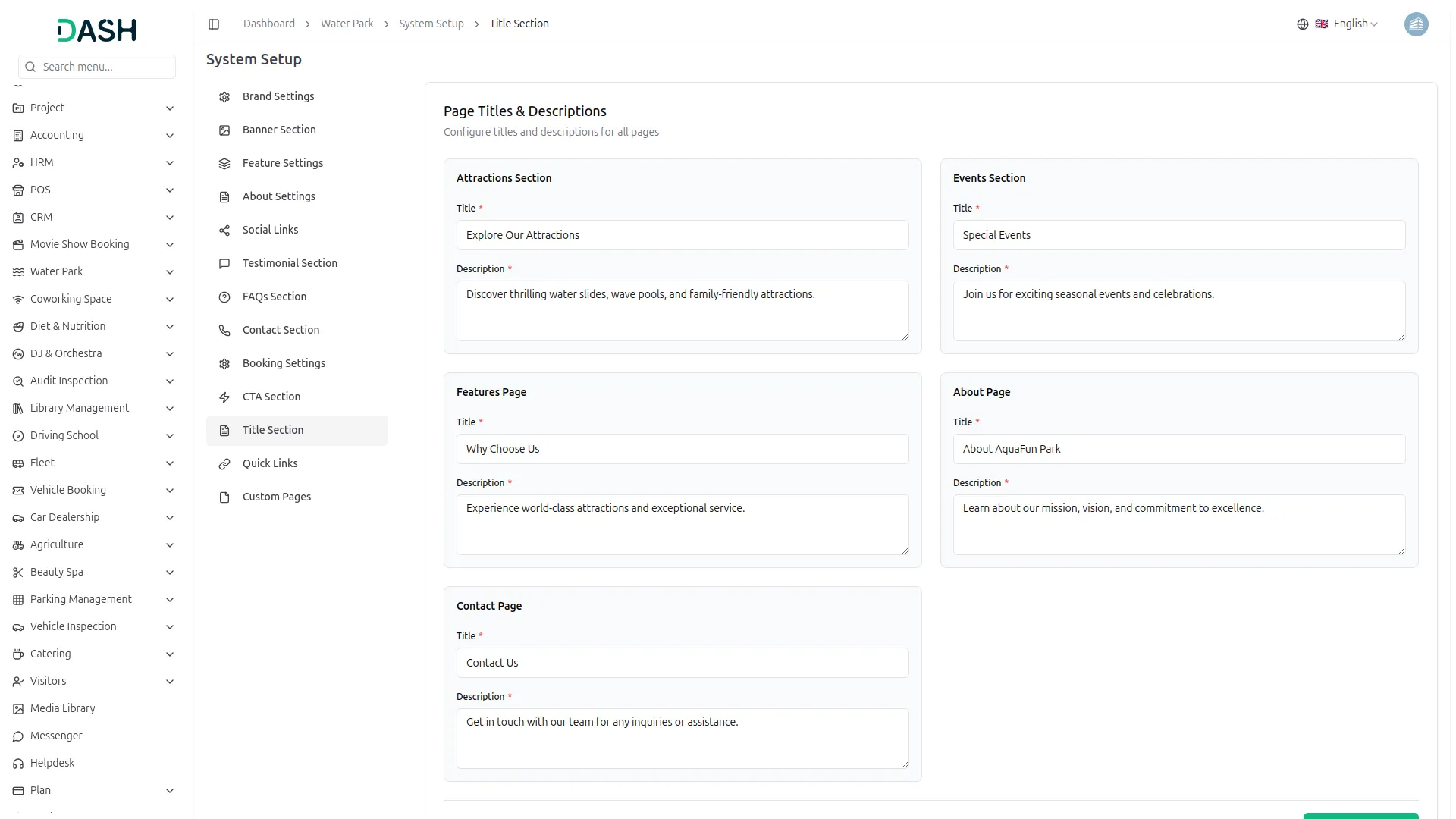
- The Features Page (the main title and description displayed at the top of the Features page), the About Page (the title and description shown at the top of the About page), and the Contact Page (the title and description displayed at the top of the Contact page). Once all fields are completed, click Save Changes.
- The website displays the configured Title and Description as the header for each section or page in its respective location across the site. On the Homepage, the Attractions Section title and description appear above the rides listing, while the Events Section title and description are shown above the special events listing.
- For the Features, About, and Contact pages, the page titles and descriptions are displayed as the banner heading and subtext at the top of each page, providing a clear, admin-controlled heading that visitors see when navigating to each section.
Quick Links
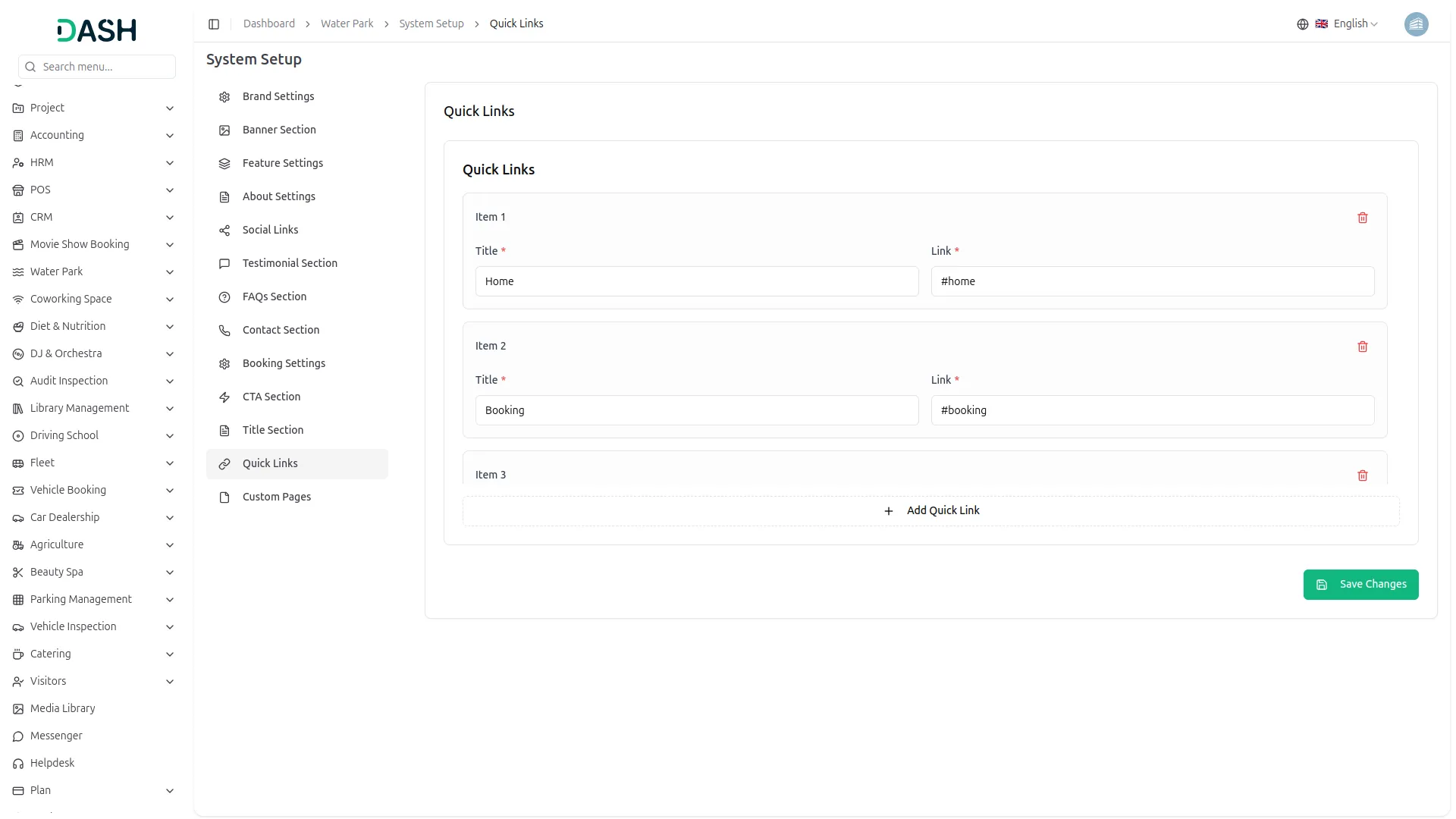
- In the Quick Links section, each item requires a Title, the link label displayed in the footer (e.g., Home, Booking, About, Contact), and a Link, the corresponding URL or anchor . Click Add Quick Link to add more links as needed. Click Save Changes.
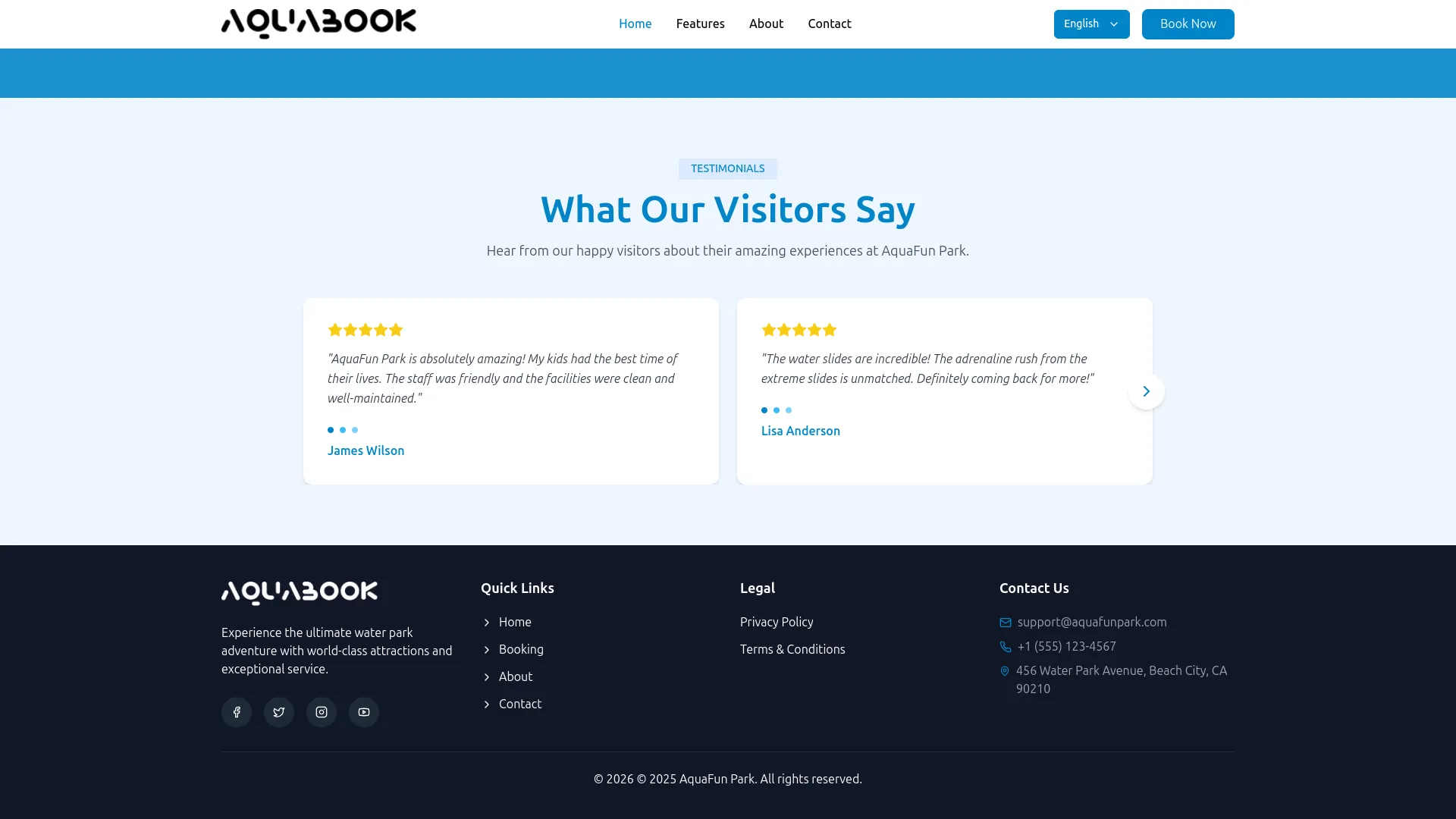
- The website displays all configured Quick Links in the Quick Links column in the footer section at the bottom of every page on the website, allowing visitors to quickly navigate to key sections of the site directly from the footer.
Custom Pages
- To create a new custom page, click the “Create” button on the Custom Pages screen. In the Create Custom Page form, enter the Title and URL Slug. Optionally, enter the Description for the page.
- In the Contents editor, write and format the full page content using the rich text toolbar. Toggle Enable Page Footer to show or hide the footer on this page. Click Create to publish the page.
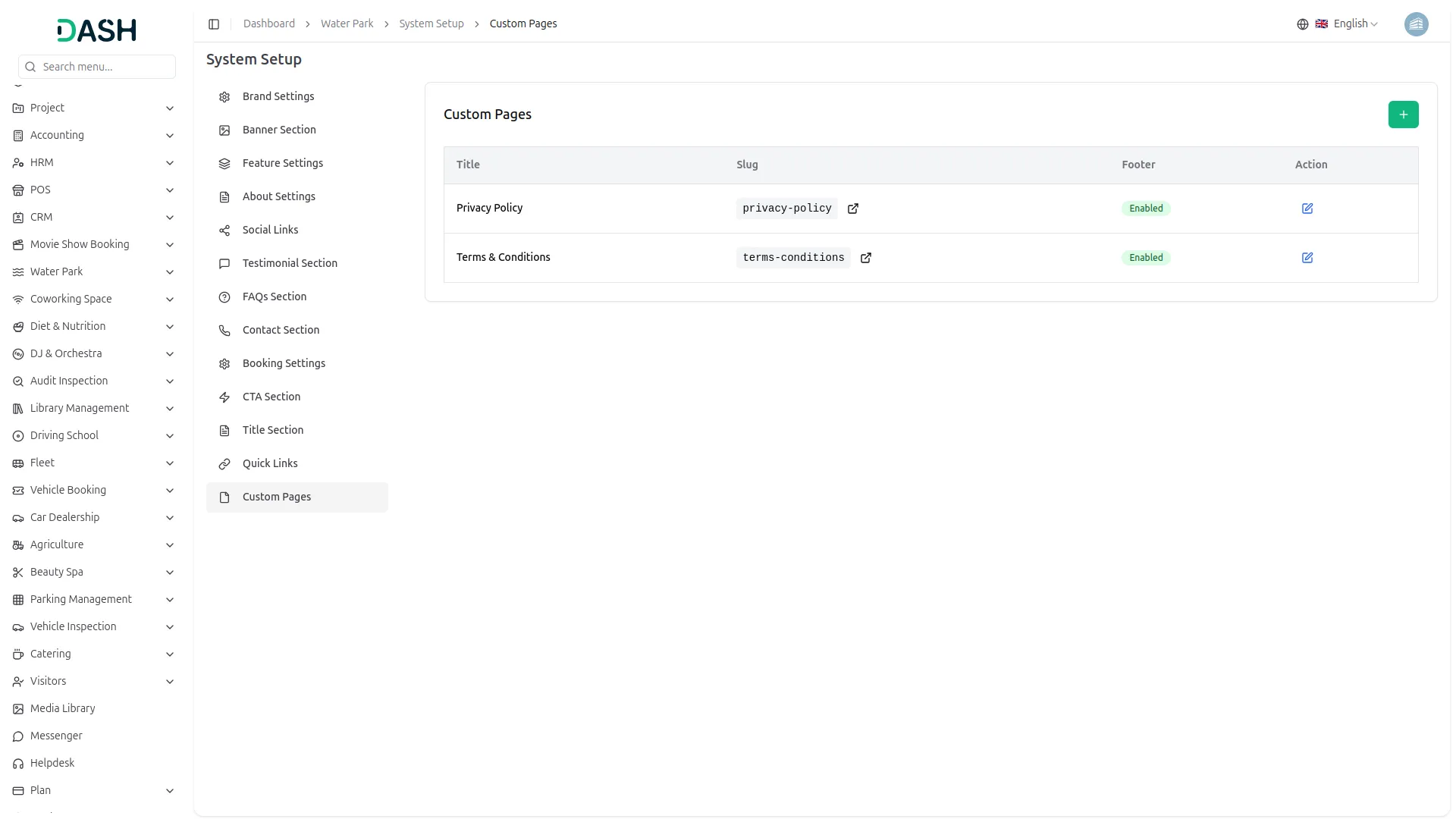
- The Custom Pages section lists all custom standalone pages created for the website. Each page is displayed in a table with columns for Title, Slug (the URL-friendly page address), Footer (whether the page is shown in the footer, Enabled or Disabled), and Action.
- Use the Edit action to update an existing page’s content, or the external link icon next to the slug to preview the live page.
- The website displays each newly created custom page at its configured URL Slug. If Enable Page Footer is toggled on, the page footer appears at the bottom of that page.
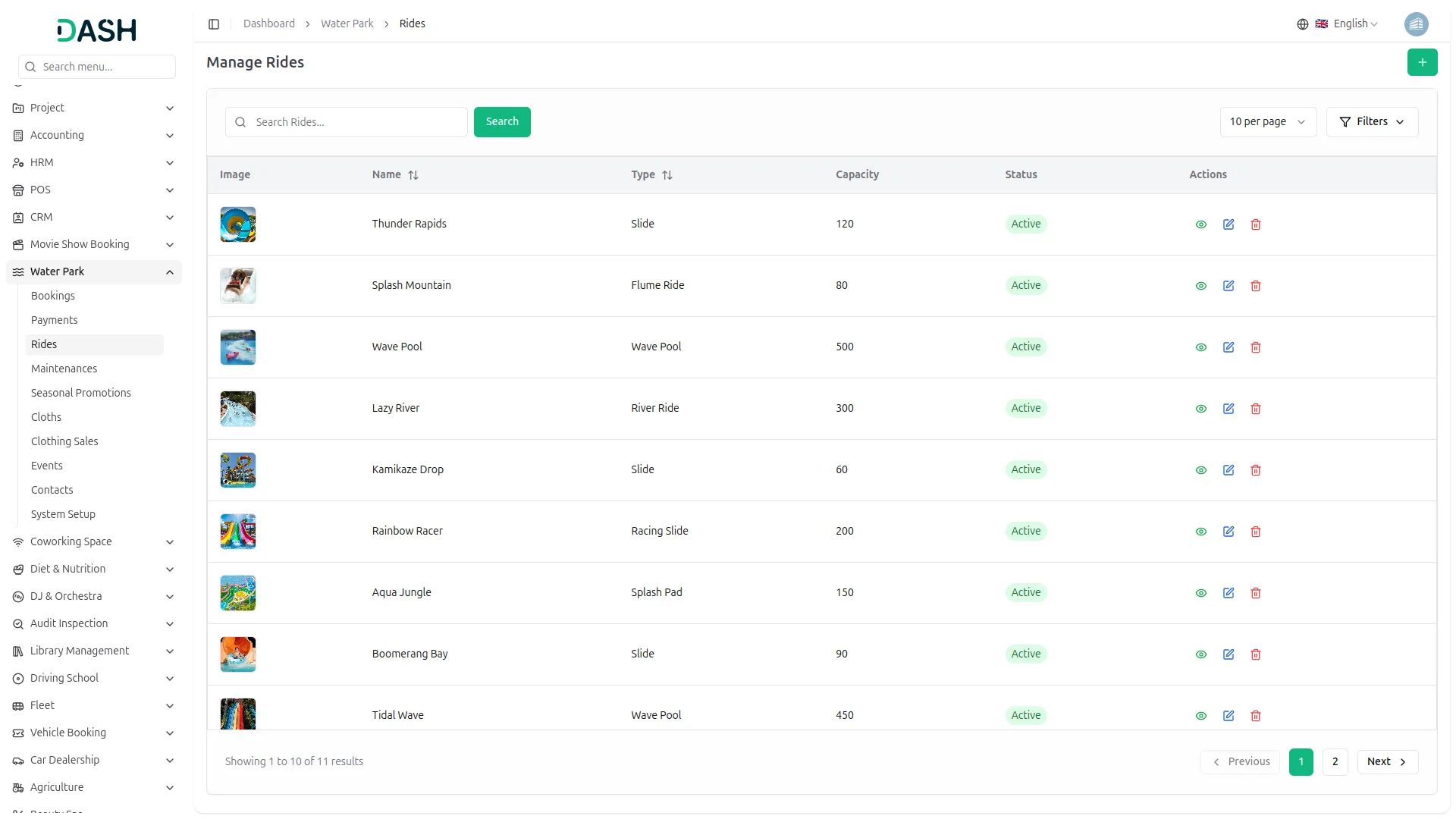
- All custom pages with footer visibility enabled, such as Privacy Policy and Terms & Conditions, are displayed as clickable links in the Legal section of the website footer, making them accessible to visitors from every page. Clicking these links takes visitors to the full content of the respective page on a dedicated standalone page.
Manage Bookings
- To add a new booking manually, click the “Create” button on the manage bookings page. Under Personal Information, enter the customer’s Full Name, Email, and Phone number. Under Booking Details, select the Booking Date, choose an Event from the dropdown (comes from the event section), and enter the number of Adults and Children.
- The Price Breakdown automatically calculates the subtotal and total based on the adult and child prices configured in Booking Settings. The discount will automatically appear when your booking date matches a Seasonal Promotions event. No extra steps are needed; both you and the visitor will see the discounted price right away. Click Create Booking to save.
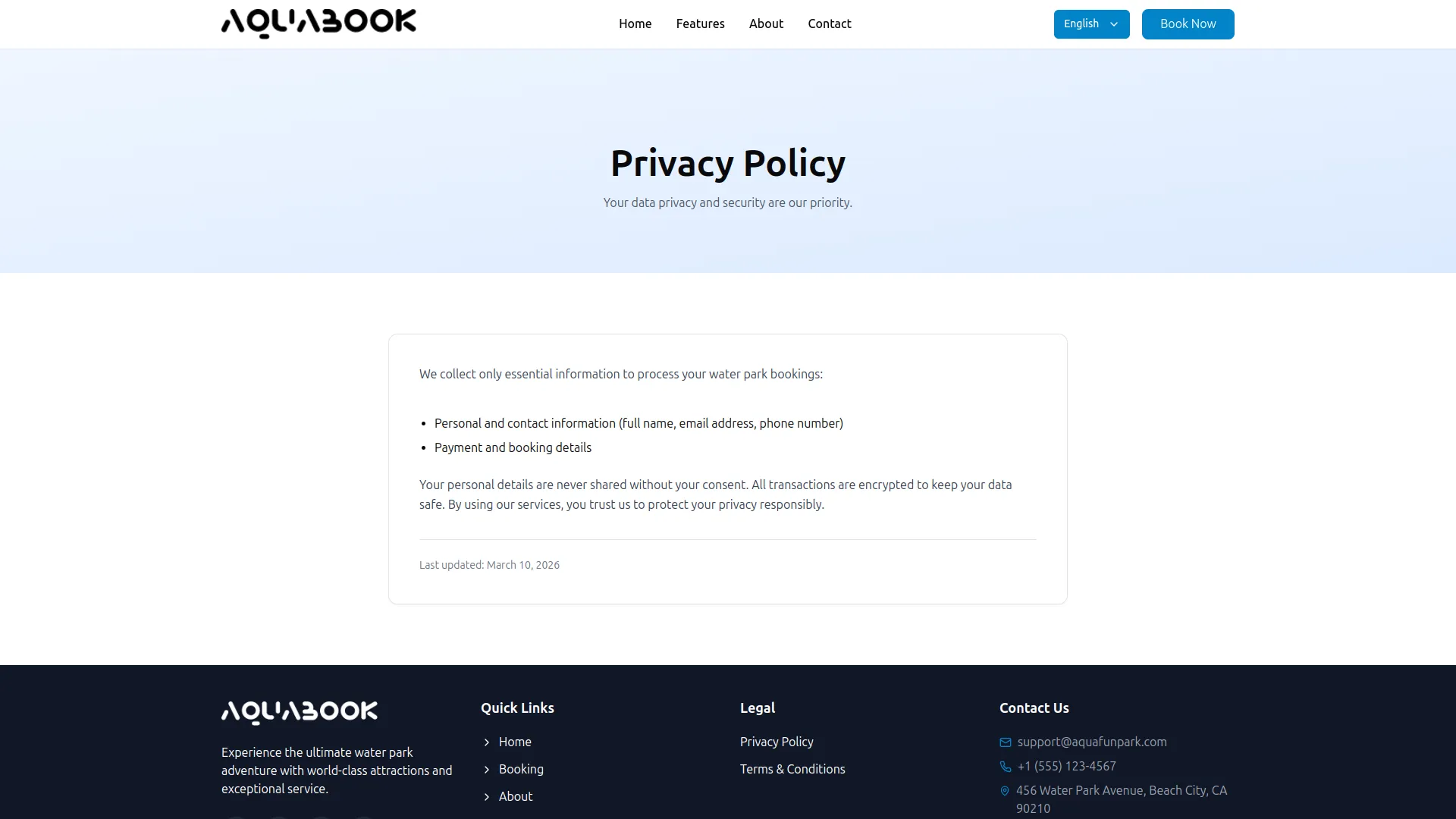
- The Manage Bookings list displays all bookings in a table with columns for Customer Name, Email, Phone, Booking Date, Adults, Children, Amount, Status, Payment Status, and Actions. Use the Search bar to find a specific booking record quickly.
- Click the Filters button to apply filtering on the bookings list. Select a Status (All, Confirmed, Pending, or Cancelled) and a Payment Status (All, Paid, or Pending) from their respective dropdowns, then click Apply to filter the data or Clear to reset the filters.
- In the Actions column, you can use the View to see the full booking details, the Process Payment to record an offline payment for a pending booking, or the Delete to permanently remove the booking from the system.
- To process a payment for a booking, click the Process Payment in the Actions column. The Create Payment modal will open, displaying the full Booking Details, including the customer’s name, email, phone, booking date, number of adults and children, and total amount.
- Select the Bank Account from the dropdown, set the Payment Date, confirm the Amount, review the auto-generated Reference Number, and optionally add any Notes. The Total Amount is displayed at the bottom of the form for final confirmation. After filling in the required details, click Add Payment, and the entry will automatically appear in the Payment section for further processing.
- The page features a booking form where visitors enter their Full Name, Email Address, Phone Number, select a Booking Date, choose an Event from the dropdown, and specify the number of Adults and Children.
Manage Payments
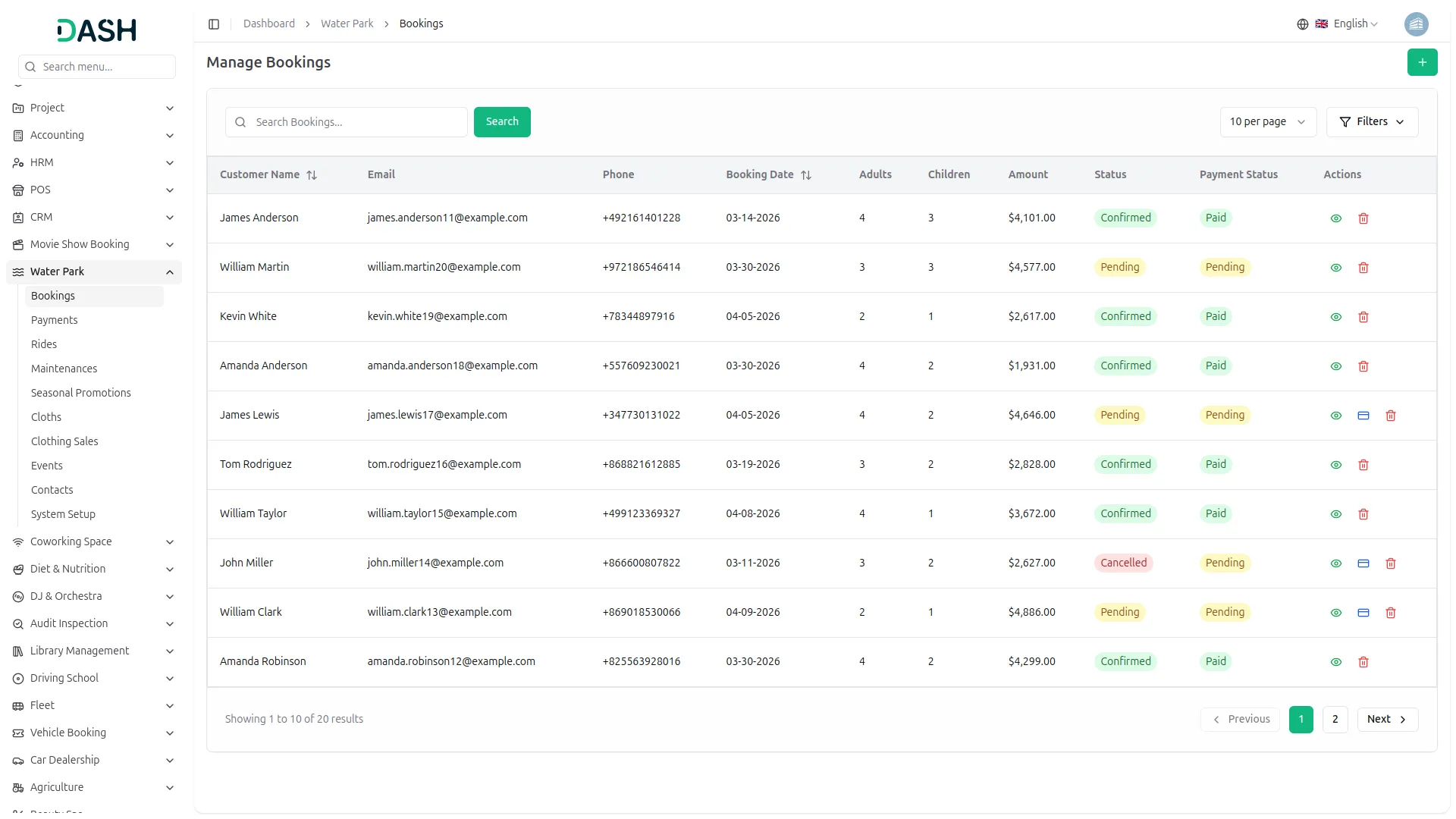
- The Manage Payments list displays all payment transactions in a table with columns for Reference Number, Customer Name, Payment Date, Amount, Status, and Actions. Use the Search bar to find a specific payment or customer record quickly.
- Each payment record displays its current status. Cleared payments are highlighted in green, indicating the payment has been successfully processed and settled, while Pending payments are highlighted in yellow, indicating they are awaiting approval or confirmation from the admin.
- In the Actions column, the available actions depend on the current payment status. For Pending payments, you can use the Approve icon to confirm and clear the payment, the Reject icon to decline and cancel the payment, or the View icon to see the full payment details. For Cleared payments, only the View icon is available, allowing you to review the complete payment record without making any further changes.
- When the admin clicks the Approve icon, the payment status is updated to Cleared, which simultaneously updates the corresponding booking’s Payment Status to Paid in the Manage Bookings list.
Manage Rides
- To add a new ride, click the “Create” button on the manage rides page. Enter the Name of the ride, enter the Type and click Browse to upload a ride Image.
- Enter the Capacity, the maximum number of visitors the ride can accommodate at a time, and select the Status (Active or Inactive) from the dropdown. Optionally, write a Description to provide additional details about the ride. Click Create to save.
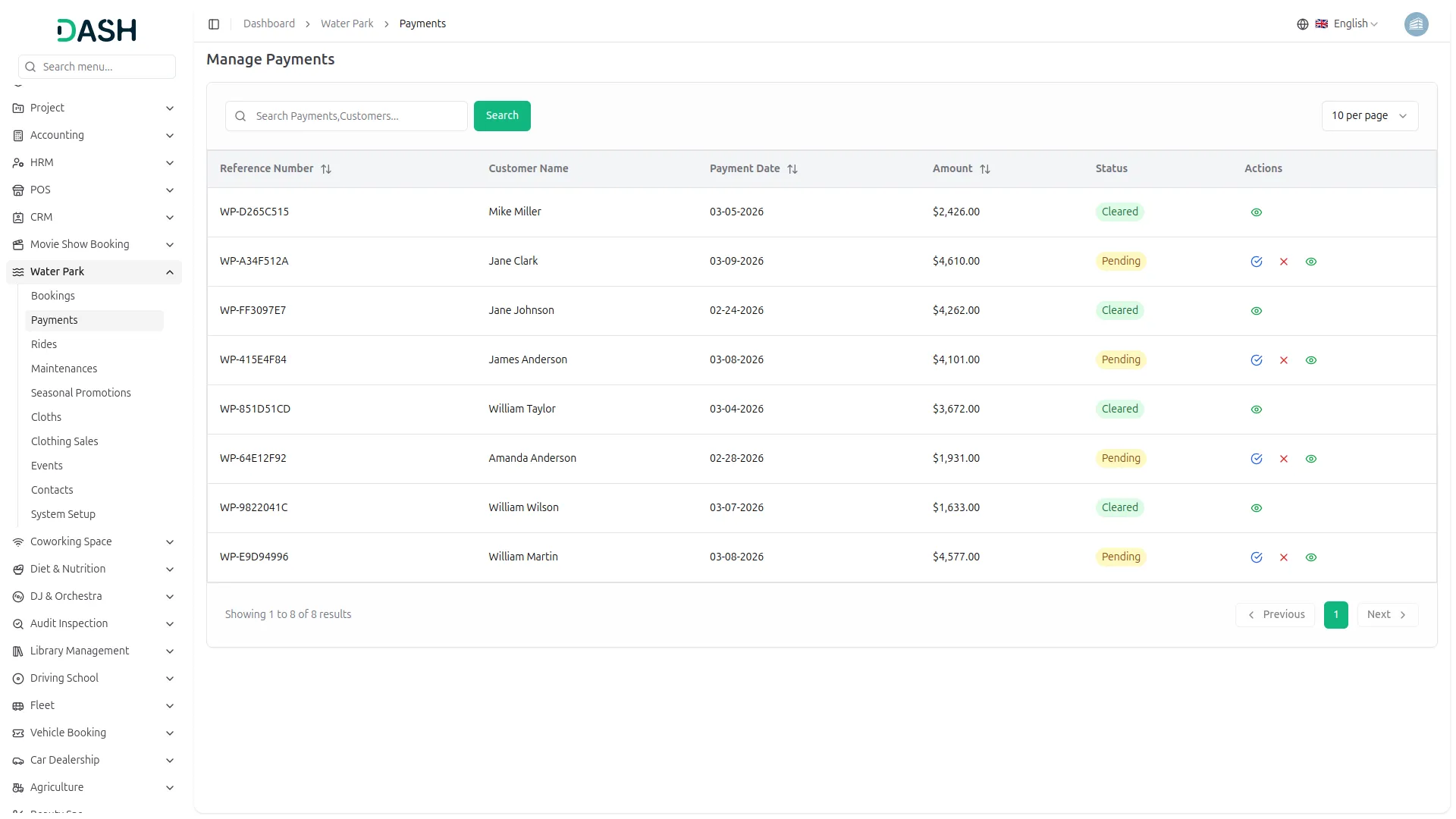
- The Manage Rides list displays all rides in a table with columns for Image, Name, Type, Capacity, Status, and Actions. Use the Search bar to find a specific ride record quickly.
- Click the Filters button to apply filtering on the rides list. Select a Status from the dropdown to filter rides by Active or Inactive, then click Apply to filter the data or Clear to reset the filters.
- In the Actions column, you can use the View to see the full ride details, the Edit to update the ride’s information, or the Delete to permanently remove the ride from the system.
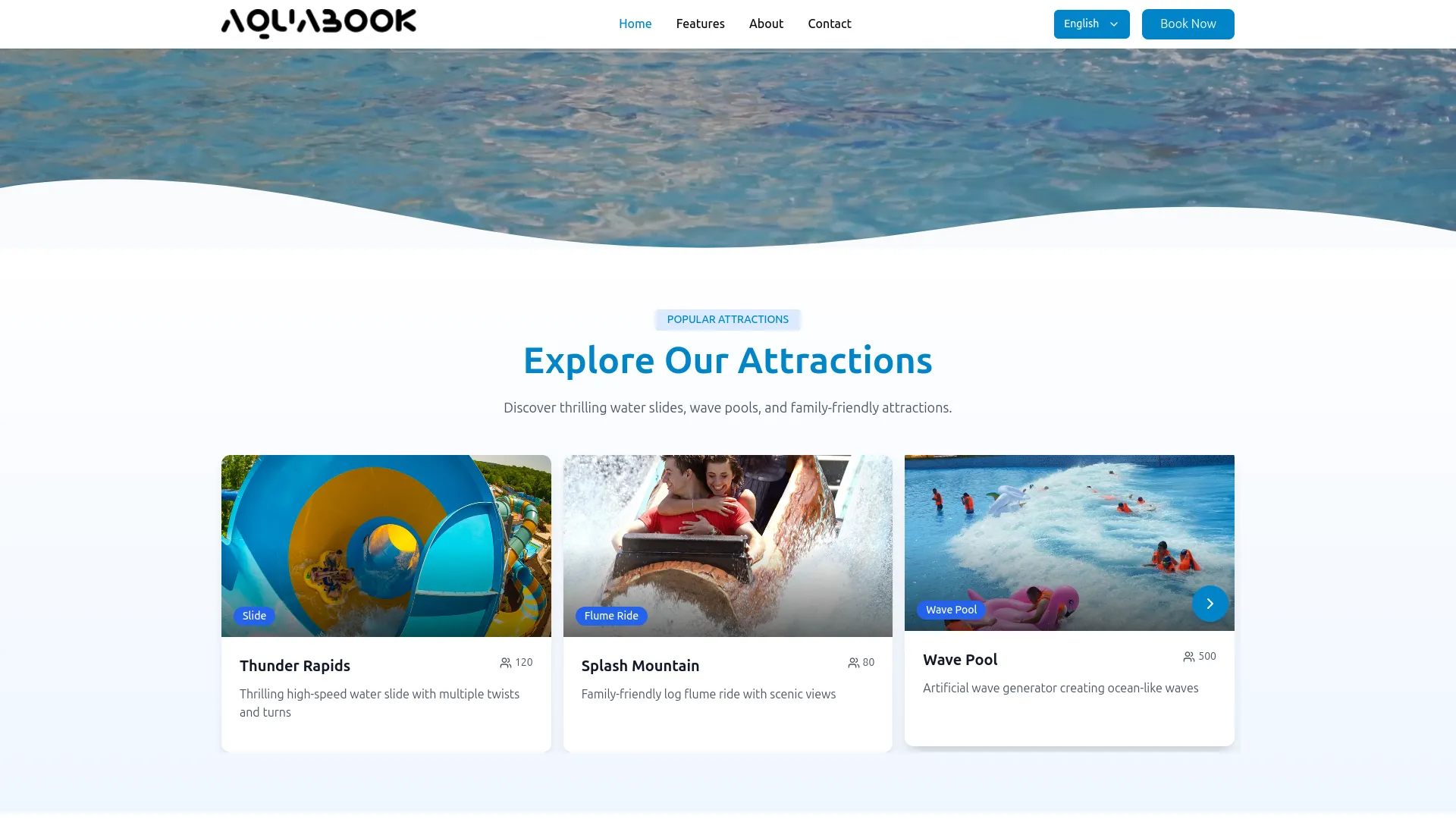
- The website displays all Active rides on the Homepage under the “Popular Attractions” section, with the heading “Explore Our Attractions” and the supporting subtext “Discover thrilling water slides, wave pools, and family-friendly attractions.”
- Each active ride is presented as an individual attraction card featuring the ride image, the ride type as a colored badge overlaid in the bottom-left corner of the image, the ride name in bold below the image, and the ride description as supporting text beneath the name.
- A carousel arrow on the right side of the section allows visitors to navigate through all available ride cards. Rides marked as Inactive are not displayed and remain completely hidden from the frontend.
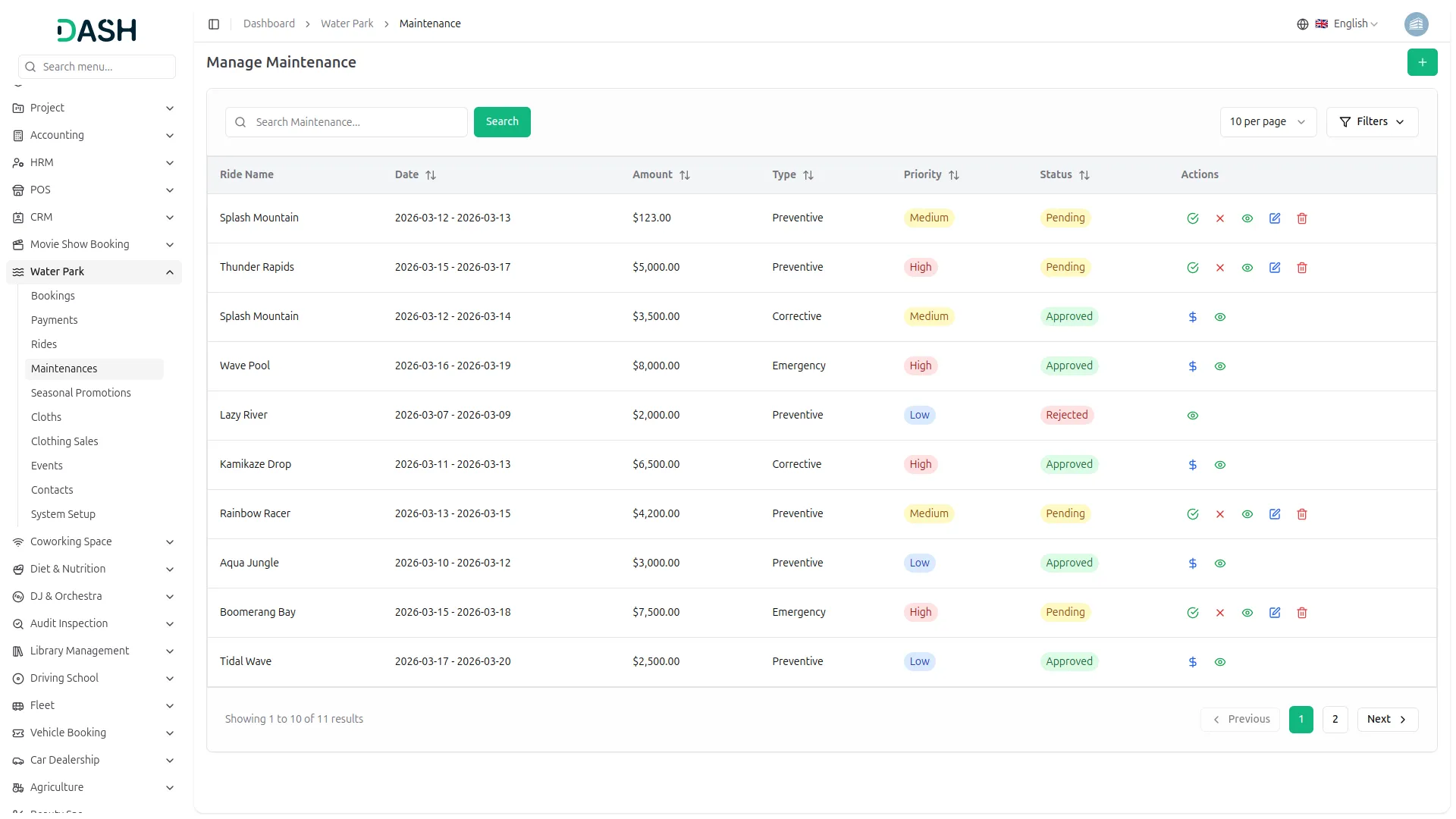
Manage Maintenance
- To add a new maintenance record, click the “Create” button on the manage maintenance page. Select the Ride Name from the dropdown to choose which ride requires maintenance. Enter the Amount, the cost of the maintenance work. Select the Maintenance Date Range to specify the start and end dates of the maintenance period.
- Select the Priority (High, Medium, or Low) from the dropdown. Select the Maintenance Type (Preventive, Corrective, or Emergency) from the dropdown. Select the Bank Account from the dropdown to link the maintenance expense. Optionally, write a Description to provide additional details about the maintenance work. Click Create to save.
- The Manage Maintenance list displays all maintenance records in a table with columns for Ride Name, Date, Amount, Type, Priority, Status, and Actions. Use the Search bar to find a specific maintenance record quickly. You can adjust how many records are displayed per page using the per page dropdown in the top right corner.
- Click the Filters button to apply filtering on the maintenance list. Select a Ride from the dropdown to filter by a specific ride, select a Priority to filter by High, Medium, or Low, and select a Status to filter by the current maintenance status. Click Apply to filter the data or Clear to reset the filters.
- Each maintenance record displays its current status (Approved, Pending, and Rejected).
- In the Actions column, the available actions depend on the current maintenance status. For Pending records, you can use the Approve option to confirm the maintenance request, the Reject option to decline it, the View option to see the full maintenance details.
- The Edit icon to update the maintenance information, or the Delete option to permanently remove the record from the system. For Approved records, you can use the Mark as Paid icon to record the payment for the maintenance expense or the View option to review the full maintenance details. For Rejected records, only the View icon is available.
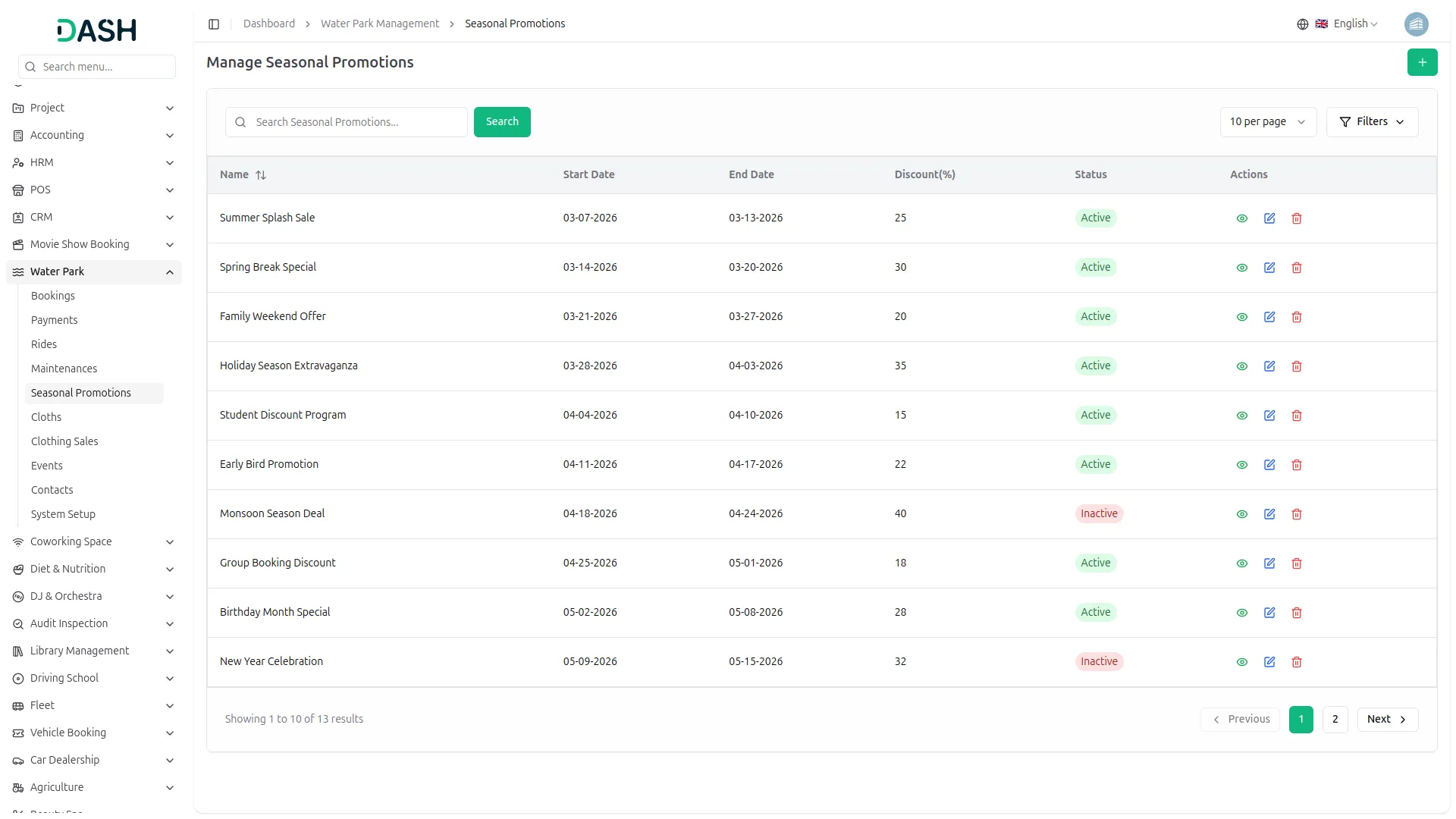
Seasonal Promotions
- To add a new seasonal promotion, click the “Create” button in the top right corner and fill in the form. Enter the Name of the promotion. Select the Start Date and End Date to define the promotion period.
- Enter the Discount (%), the percentage discount applied during the promotion period. Select the Status (Active or Inactive) from the dropdown. Optionally, write a Description to provide additional details about the promotion. Click Create to save.
- The Manage Seasonal Promotions list displays all promotions in a table with columns for Name, Start Date, End Date, Discount (%), Status, and Actions. Use the Search bar to find a specific promotion record quickly. You can adjust how many records are displayed per page using the per page dropdown in the top right corner.
- Click the Filters button to apply filtering on the promotions list. Select a Status from the dropdown to filter promotions by Active or Inactive, then click Apply to filter the data or Clear to reset the filters.
- In the Actions column, you can use the View icon to see the full promotion details, the Edit icon to update the promotion information, or the Delete icon to permanently remove the promotion from the system.
- Note: In the Seasonal Promotions section, you set a fixed start and end date for each discount offer. When a booking is made, if the booking date falls within the promotion period, the system automatically applies the discounted price.
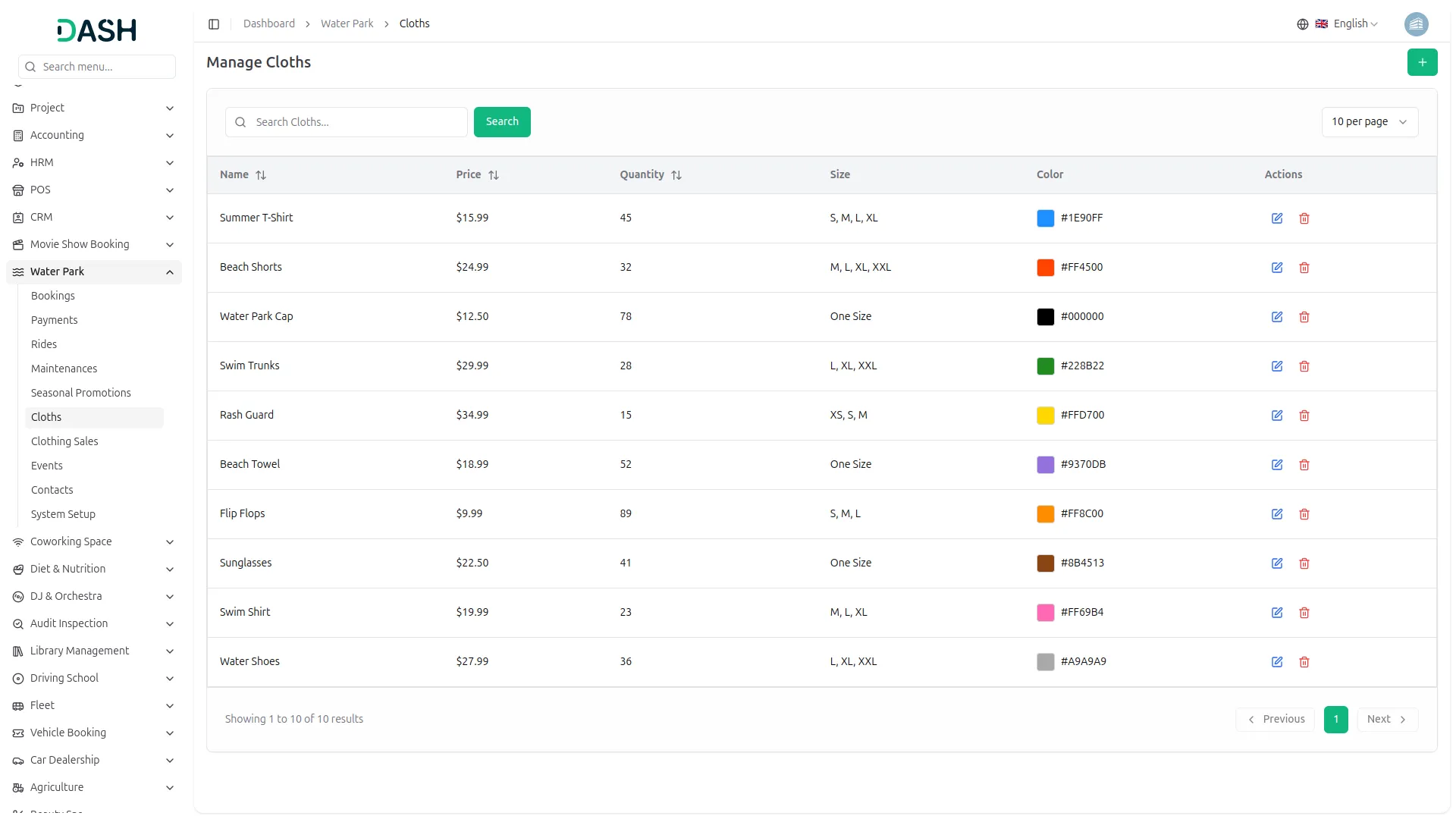
Manage Cloths
- To add a new cloth item, click the “Create” button in the top right corner and fill in the form. Enter the Cloth Name, enter the Price, enter the Quantity, the total stock available, select the Color using the color picker, and enter the Size, type the size, and press Enter to add multiple sizes. Click Create to save.
- The list displays all clothing items in a table with columns for Name, Price, Quantity, Size, Color, and Actions. Use the Search bar to find a specific cloth record quickly. You can adjust how many records are displayed per page using the per page dropdown in the top right corner.
- In the Actions column, you can use the Edit to update the cloth item’s information, or the Delete to permanently remove the cloth item from the system.
Clothing Sales
- To add a new clothing sale record manually, click the “Create” button in the top right corner and fill in the form. Select the Cloth from the dropdown, which comes from the cloth items configured in Manage Cloths.
- Enter the Customer Name, Customer Email, and Customer Phone number. Enter the Quantity Sold, select the Sale Date, and the Total Price is automatically calculated based on the quantity and cloth price. Select the Bank Account from the dropdown. Click Create to save.
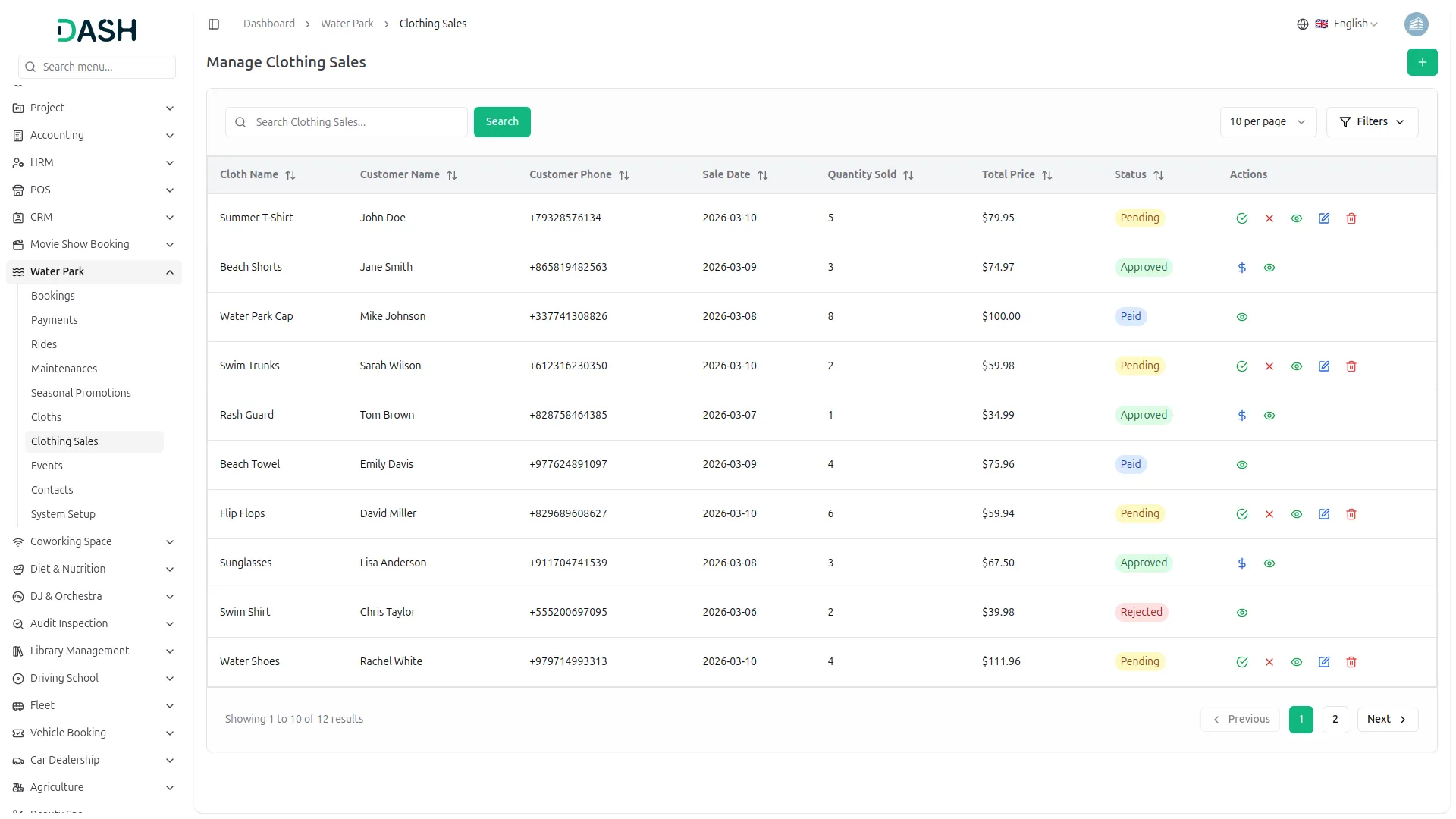
- The Manage Clothing Sales list displays all clothing sale transactions in a table with columns for Cloth Name, Customer Name, Customer Phone, Sale Date, Quantity Sold, Total Price, Status, and Actions. Use the Search bar to find a specific clothing sale record quickly.
- Click the Filters button to apply filtering on the clothing sales list. Select a Cloth from the dropdown to filter by a specific cloth item, and select a Status to filter by the current sale status. Click Apply to filter the data or Clear to reset the filters.
- Each clothing sale record displays its current status (Approved, Paid, Pending, and Rejected).
- In the Actions column, the available actions depend on the current sale status. For Pending records, you can use Approve to confirm the sale (When you click the button, the quantity sold for that particular item will automatically be updated in the system).
- Reject to decline it, View to see the full sale details, Edit to update the sale information, or Delete to permanently remove the record from the system.
- For Approved records, you can use the Mark as Paid to record the payment for the sale or the View to review the full sale details. For Paid and Rejected records, only the View icon is available.
Manage Events
- To add a new event, click the “Create” button in the top right corner and fill in the form. Enter the Name of the event, select the Event Date and Event Time, enter the Location, enter the Price for the event ticket, and select the Status (Active or Inactive) from the dropdown. Optionally, write a Description to provide additional details about the event. Click Create to save.
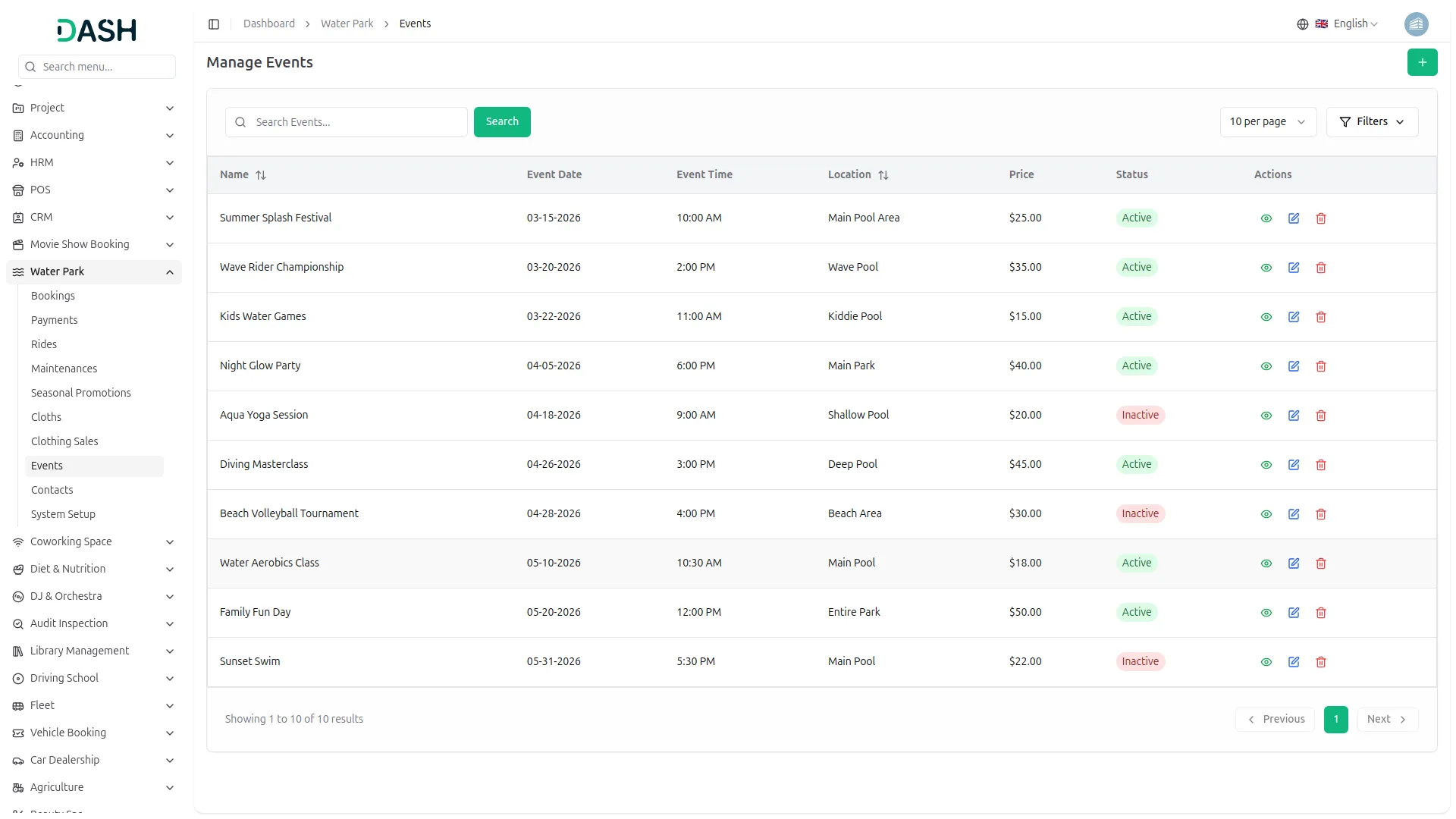
- The Manage Events list displays all events in a table with columns for Name, Event Date, Event Time, Location, Price, Status, and Actions. Use the Search bar to find a specific event record quickly. You can adjust how many records are displayed per page using the per page dropdown in the top right corner.
- Click the Filters button to apply filtering to the events list. Select an Event Date using the date picker and select a Status to filter by Active or Inactive. Click Apply to filter the data or Clear to reset the filters.
- In the Actions column, you can use the View icon to see the full event details, the Edit icon to update the event information, or the Delete icon to permanently remove the event from the system.
- The website displays all Active events on the homepage within the “Special Events” section, along with the heading “Special Events” and the supporting subtext “Join us for exciting seasonal events and celebrations.” Each active event is presented as an individual event card that includes the event name, event date with a calendar icon, event time with a clock icon, and event price with a dollar icon.
- Pagination is displayed at the bottom of the section, allowing visitors to navigate through all available event cards. Events marked as Inactive are not shown to visitors and remain completely hidden from the frontend.
- On the Booking page, all Active events are displayed as selectable options in the Event dropdown, enabling visitors to choose a specific event while completing their reservation. Additionally, on the Admin Dashboard, the Total Events summary card is updated to reflect the current total number of events configured in the system.
Contact Messages
- When a visitor visits the Contact Us page, they enter their First Name, Last Name, Email Address, Subject, select a Priority (High, Medium, Low), write their Message, and then click the Send Message button.
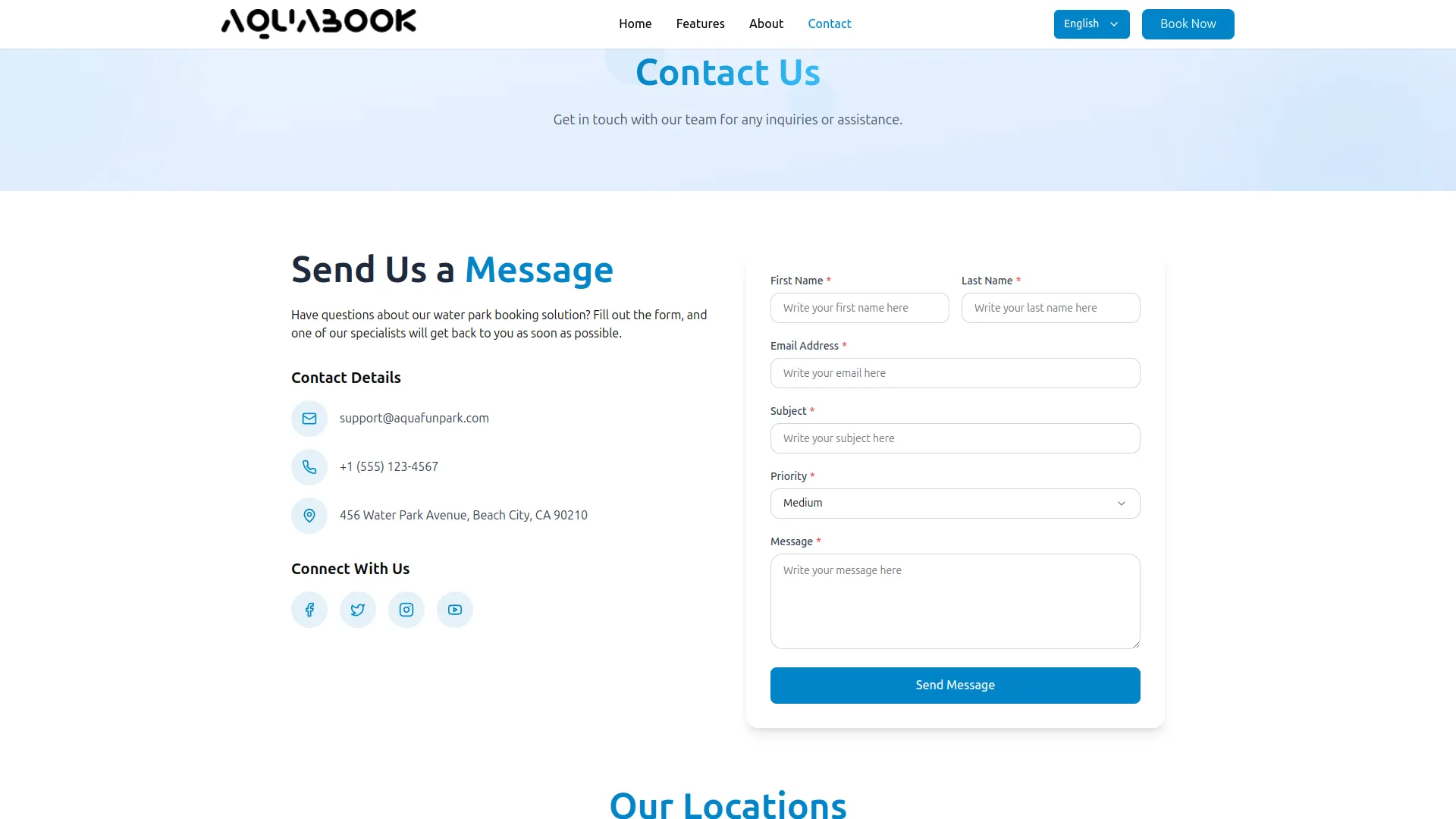
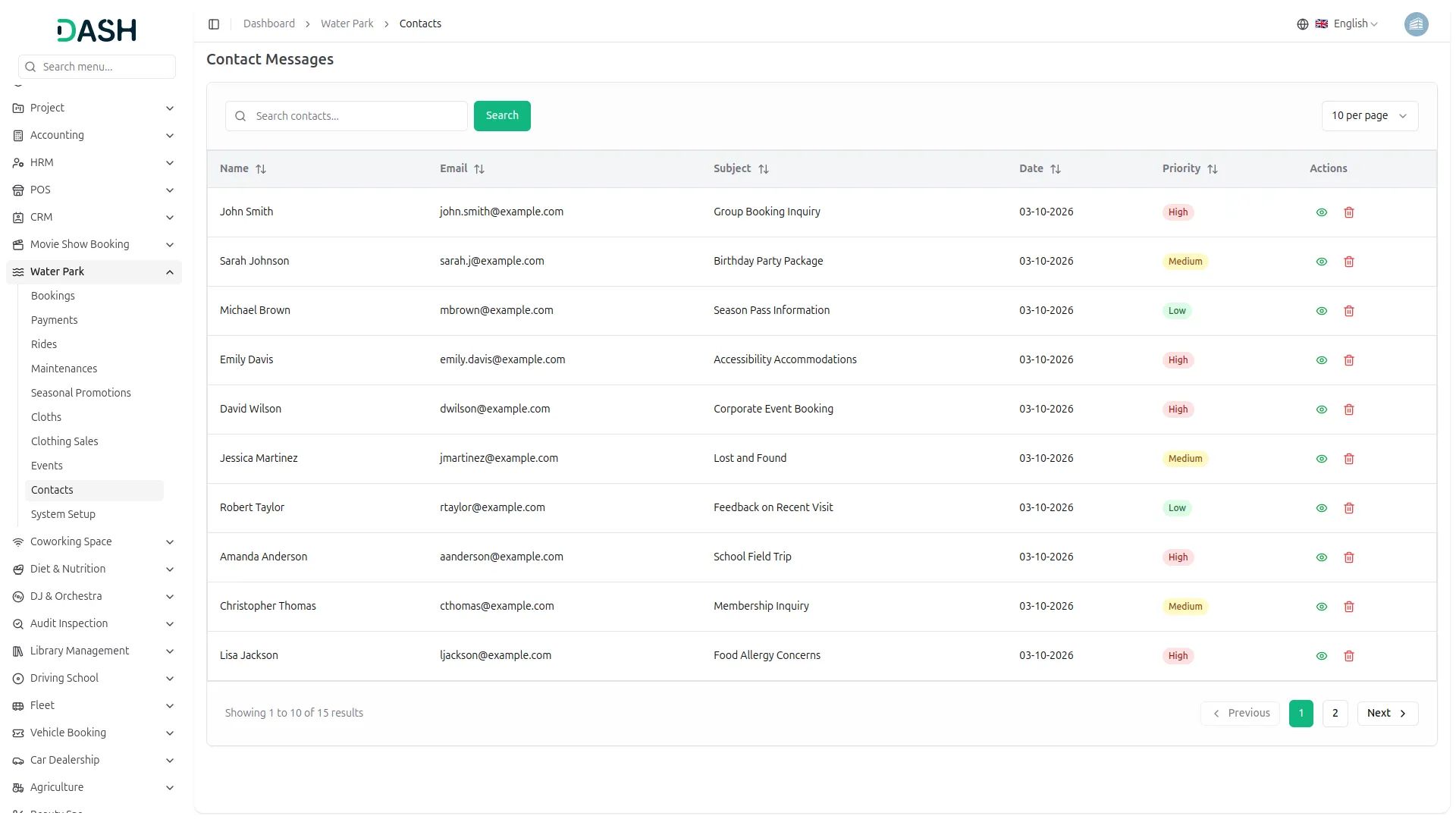
- The message is automatically created on the admin side and instantly appears in the Contact Messages table, displaying the Name, Email, Subject, Date, and Priority without any manual input required.
- The Contact Messages list displays all messages submitted by visitors through the contact form on the website in a table with columns for Name, Email, Subject, Date, Priority, and Actions. Use the Search bar to find a specific contact message quickly.
- In the Actions column, you can use the View to read the full message details, or the Delete to permanently remove the message from the system
Categories
Related articles
- Procurement – WorkDo Dash SaaS Add-On Guide
- Google Captcha – WorkDo Dash SaaS Add-On Guide
- ChatGPT API Key Generation Guide
- NMI – BookingGo SaaS Add-On Guide
- Zendesk – BookingGo SaaS Add-On Guide
- Razorpay – WorkDo Dash SaaS Add-On Guide
- Marketplace List – eCommerceGo SaaS Add-On Guide
- PayFast – BookingGo SaaS Add-On Guide
- Product Pricing – eCommerceGo SaaS Add-On Guide
- Skrill – WorkDo Dash SaaS Add-On Guide
- Budget Planner – WorkDo Dash SaaS Add-On Guide
- Recent Orders – eCommerceGo SaaS Add-On Guide
We're Here to Help - Let's Talk
Have questions about our solutions, customization services, or business tools? Our team is here to help you. let's talk.