
Notes – WorkDo Dash SaaS Add-On Guide
Learn how to create, organize, and manage notes in WorkDo Dash SaaS.
Introduction
The Notes software is a comprehensive note-taking and sharing platform designed to help individuals and teams organize their thoughts, ideas, and information efficiently. This system allows users to create, manage, and share notes with customizable colors and types. The software supports both personal note-taking for individual use and shared notes for team collaboration. Users can organize their notes visually through a card-based interface, making it easy to quickly scan and access important information. Whether you’re taking personal notes for daily tasks or sharing important information with team members, this software provides the tools needed to keep your notes organized and accessible.
How to Install the Add-On?
To Set Up the Notes Add-On, you can follow this link: Setup Add-On.
How to use the Notes Add-On?
Notes Management
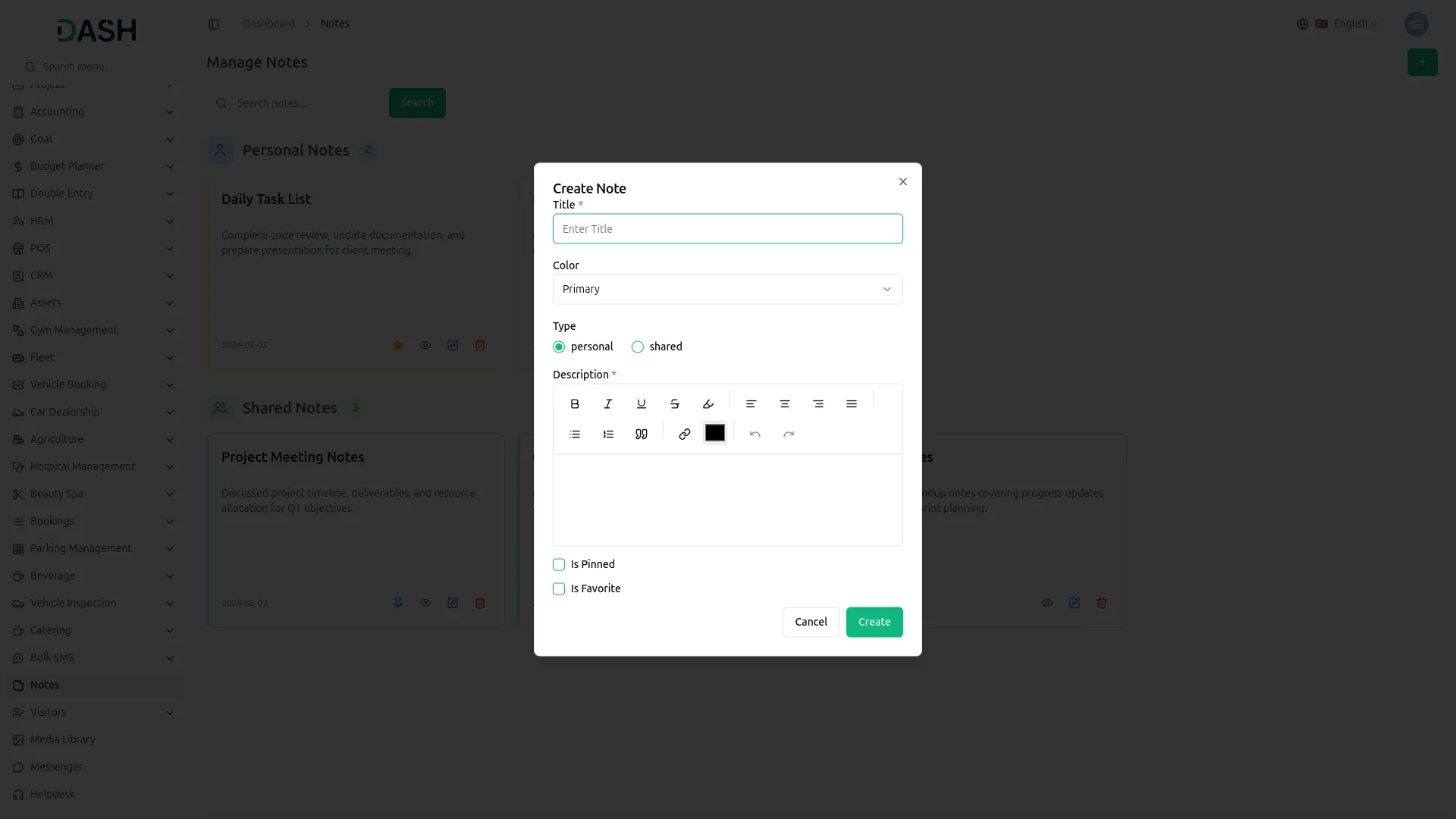
- To create a new note, click the “Create” button located on the notes page. This will open the note creation form where you need to fill in several important details.
- Start by entering the Title for your note, which should clearly describe the content or purpose of the note. Next, select a Color to help visually organize and categorize your notes – this makes it easier to quickly identify different types of notes at a glance.
- Choose the Type of note you want to create from the available options: Personal or Shared. If you select Personal, the note will only be visible to you.
- You can mark your note as Is Pinned to keep it at the top of your notes list. Pinned notes remain fixed in position regardless of when they were created or modified, ensuring that your most important or frequently accessed notes are always visible and easy to find.
- Use the Is Favorite option to mark notes that are particularly important or that you reference often. Favorited notes can be filtered and viewed separately, allowing you to quickly access your most valued content without searching through all your notes.
- However, if you select Shared, an additional field called “Assign to” will appear, where you need to select users from the dropdown menu who should have access to this shared note. This dropdown connects to your user management system.
- Finally, add a Description that contains the actual content of your note – this is where you write the detailed information, ideas, or instructions you want to capture.
- The notes are displayed in a grid format with two distinct sections: Personal Notes and Shared Notes. Each section shows your notes as cards displaying the Title and Description, making it easy to quickly scan through your notes and find what you need. If a note is marked as Is Pinned, a pin icon will be displayed on the note card, indicating that it’s pinned to the top of the list. Similarly, if a note is marked as Is Favorite, a star icon will appear on the card, helping you quickly identify your favorite notes at a glance.
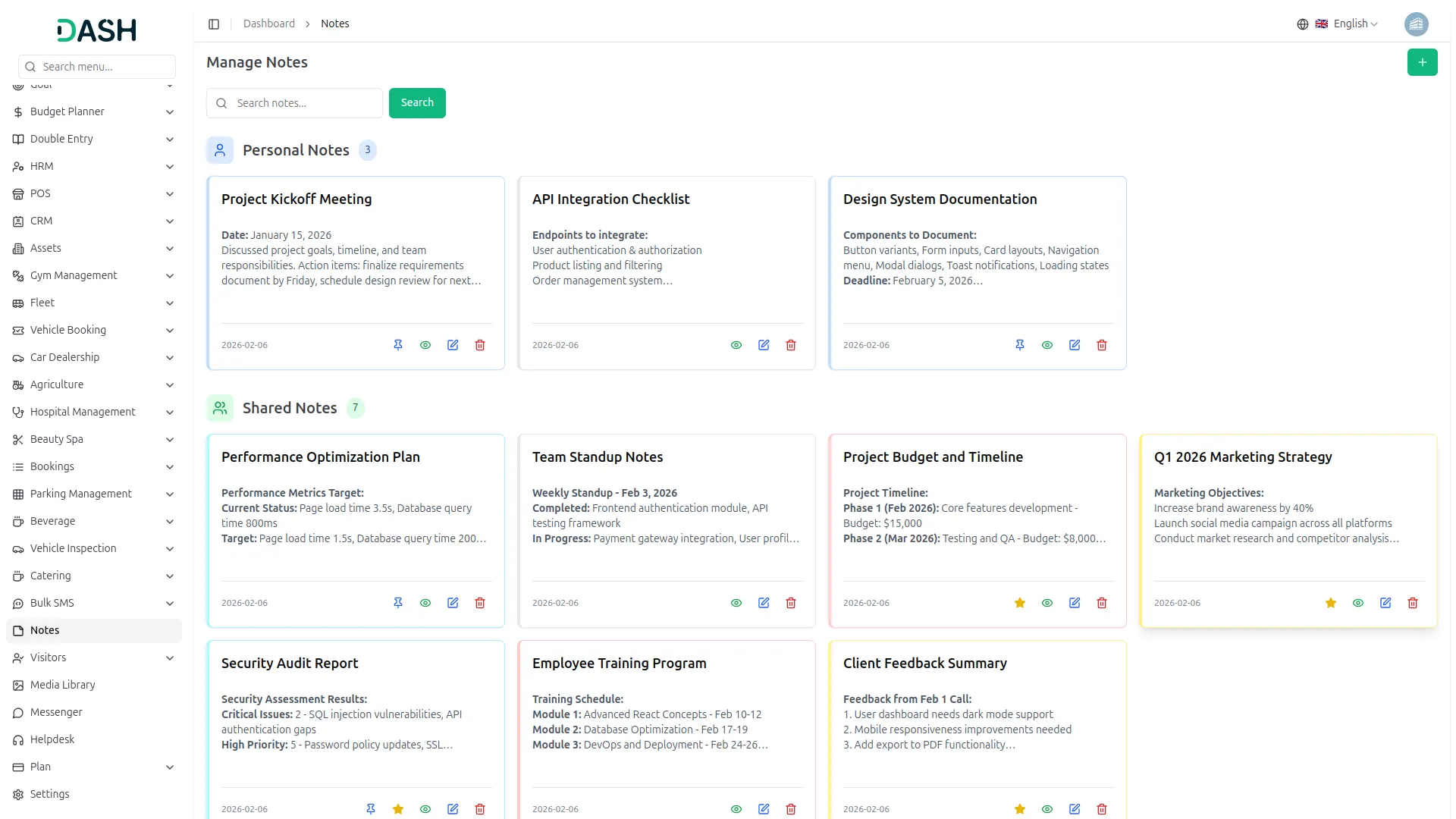
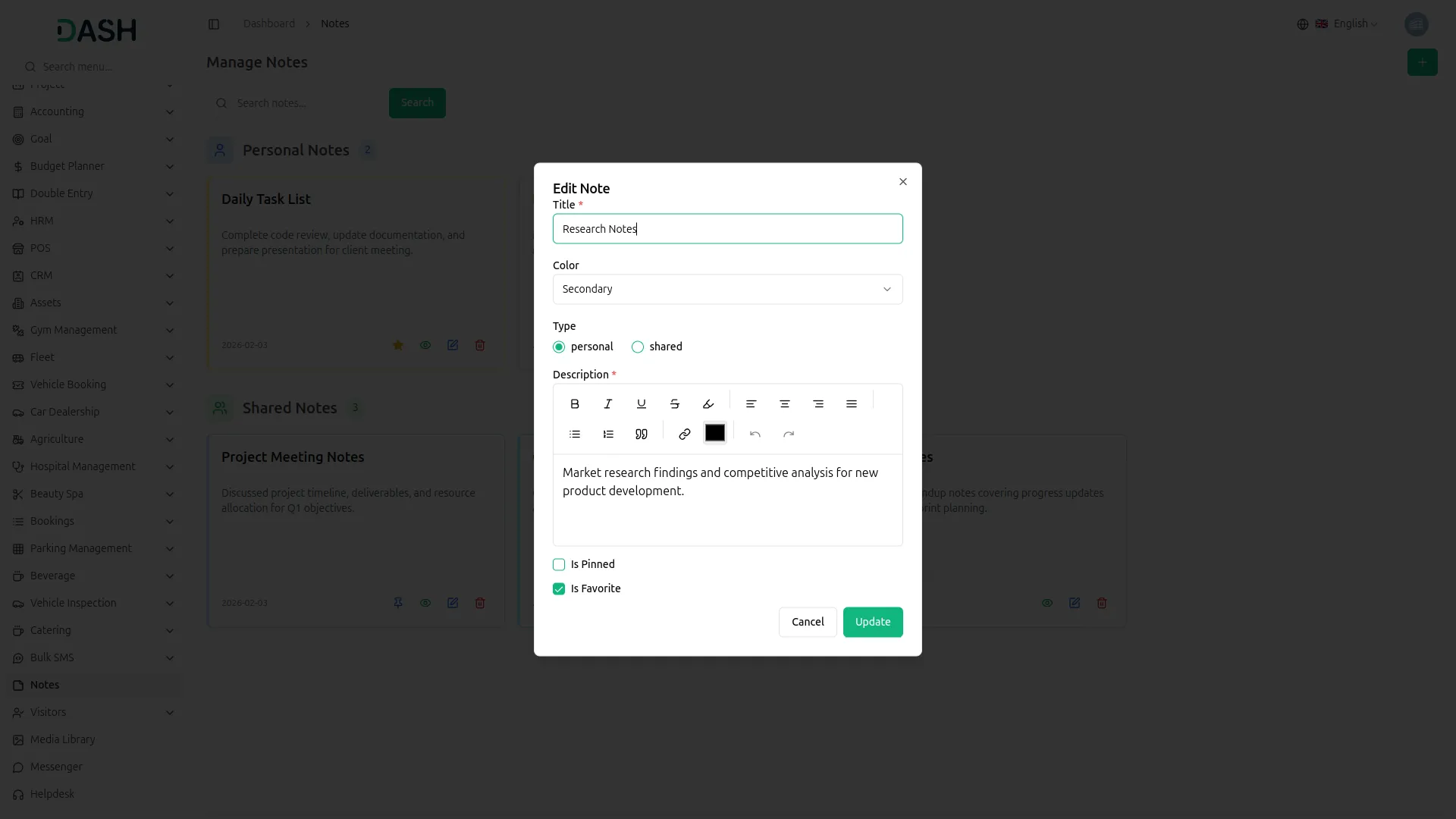
- Available actions for each note include Edit to modify the note’s title, color, type, assigned users, or description, and Delete to permanently remove notes you no longer need. The card-based layout provides a clean and organized way to view all your notes while keeping personal and shared notes clearly separated for better organization.
User Login
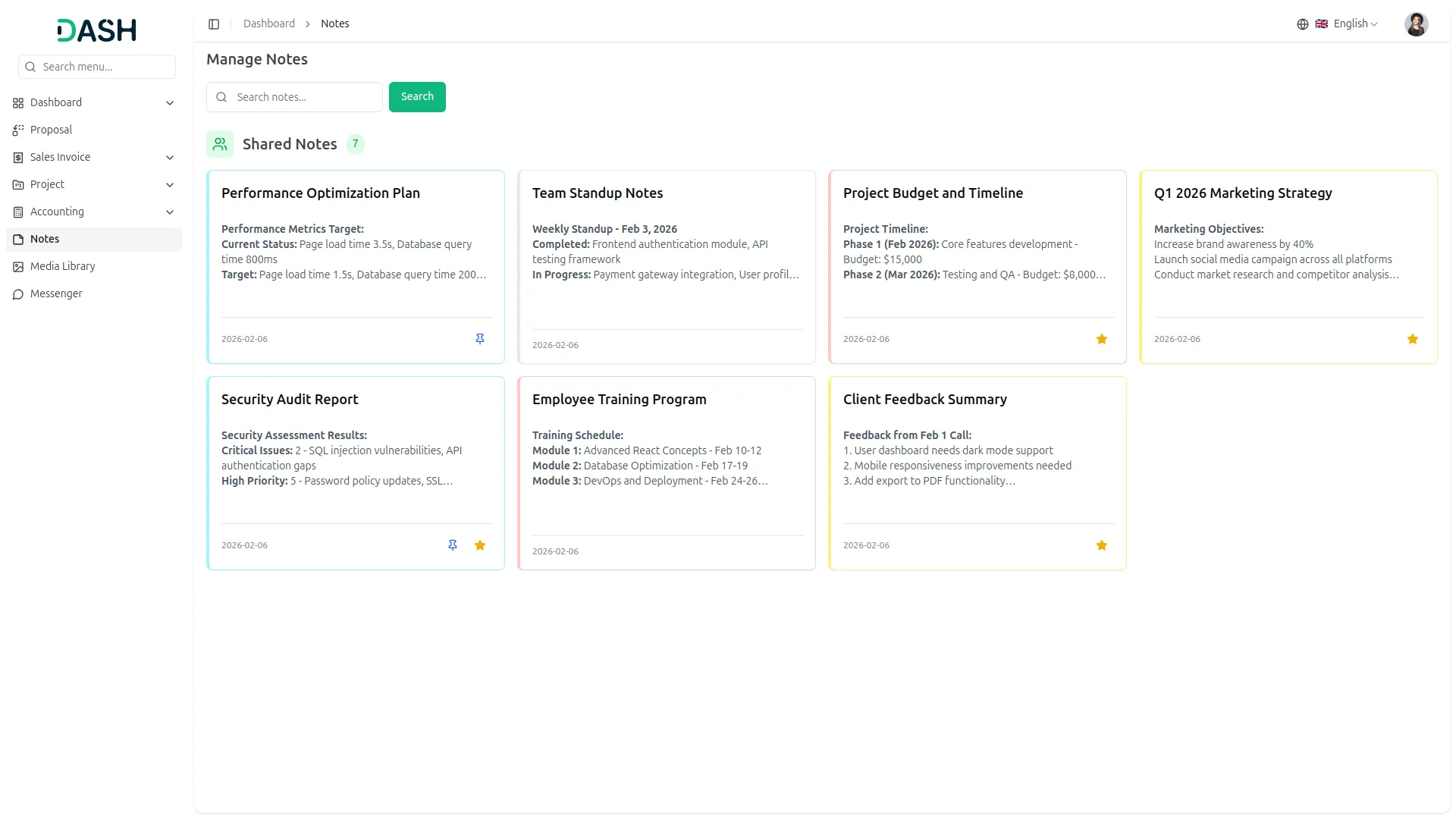
- Users have dedicated login access that allows them to interact with the Notes Add-On based on their assigned roles and permissions.
- Users can create and manage notes by entering a Title, selecting a Color, choosing a Type (Personal or Shared), and entering a Description. If a note is marked as Shared, users must also assign it to specific individuals using the Assign To dropdown, which pulls from the user list.
- Within the Notes section, the interface is divided into two parts: Personal Notes and Shared Notes. Notes are displayed in a clear card view, showing the Title and Description for easy browsing. Users can quickly perform actions such as Edit to update note content or Delete to remove unnecessary notes.
Categories
Related articles
- User Manual – ERPGo SaaS
- Custom Alert – WorkDo Dash SaaS Add-On Guide
- Solar Hub – WorkDo Dash SaaS Add-On Guide
- Storage Settings Guide
- Subdomain & Custom Domain Settings Guide
- LMS – WorkDo Dash SaaS Add-On Guide
- Bulk SMS – TicketGo Add-On Guide
- Menu – vCard SaaS Add-On Guide
- Visitor Management – WorkDo Dash SaaS Add-On Guide
- Fatora – WorkDo Dash SaaS Add-On Guide
- Vehicle Trade – WorkDo Dash SaaS Add-On Guide
- Free Shipping Pop-Up – eCommerceGo SaaS Add-On Guide
We're Here to Help - Let's Talk
Have questions about our solutions, customization services, or business tools? Our team is here to help you. let's talk.