

AI Business Advisor – WorkDo Dash SaaS Add-On Guide
AI-powered business insights, recommendations, and real-time performance monitoring.
Introduction
The AI Business Advisor Add-On gives every business a daily, AI-written checkup of how their company is performing. It automatically reviews real data from Accounting, HRM, CRM, Projects, POS, and Inventory, scores the overall health of the business out of 100, and uses your connected AI provider (OpenAI, Anthropic, or Google) to generate plain-language Insights, Recommendations, and Alerts. Instead of manually checking reports across many modules, you open one dashboard each morning and immediately know what is going well, what needs attention, and what to do next.
Note : AI Business Advisor requires a connected AI provider (OpenAI, Anthropic, or Google) with a valid API key configured in AI Agent Settings before any analysis can be generated. For complete and accurate business analysis, the Accounting, HRM, Projects, POS Add-Ons should be enabled, as AI Business Advisor analyzes data from these add-on to generate the Business Health Score, Insights, Recommendations, and Alerts.
How To Install The Add-On?
To Set Up the AI Business Advisor Add-On, you can follow this link: Setup Add-On.
How to Use The AI Business Advisor Add-On?
Settings Configuration
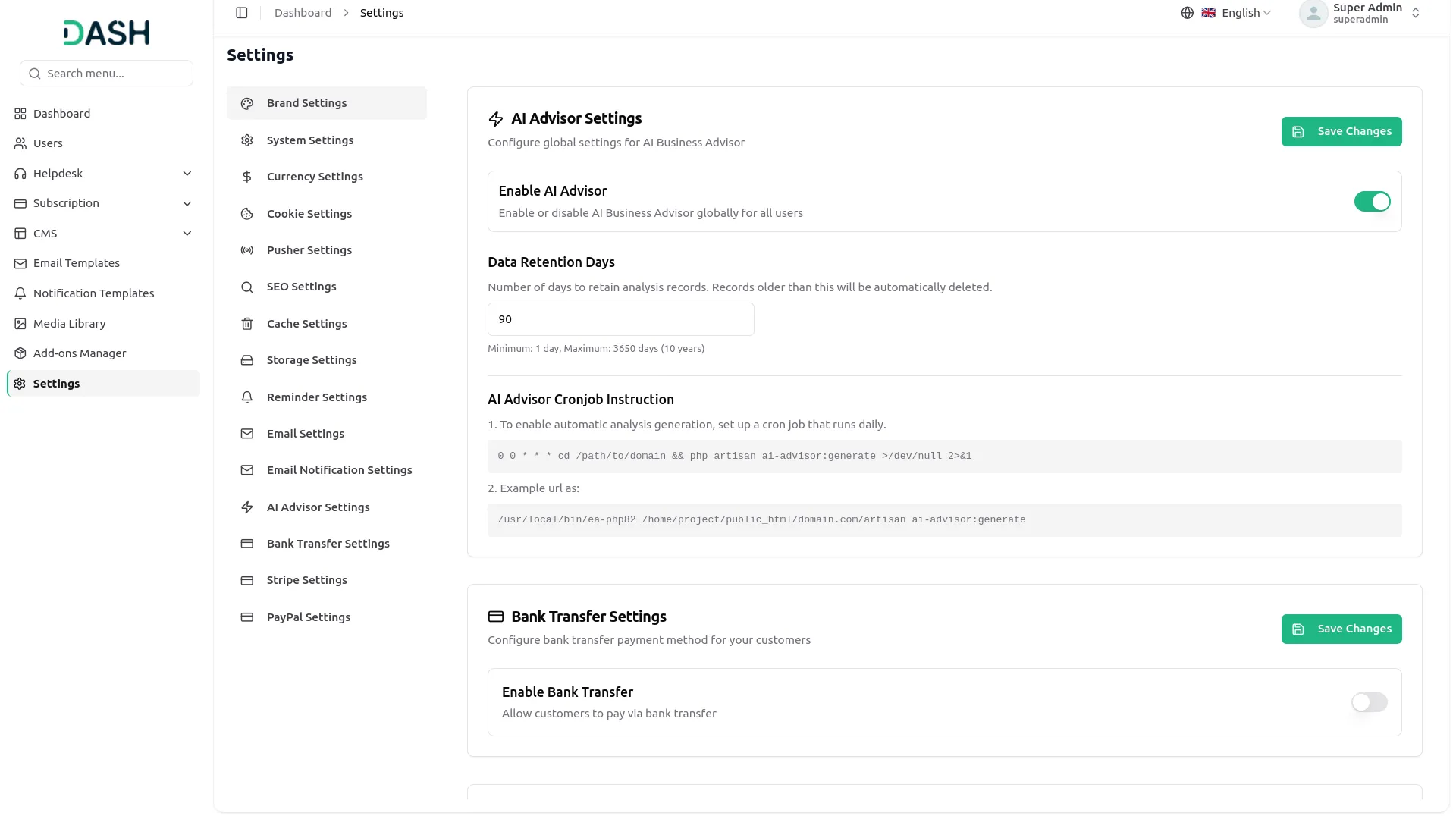
- Superadmin can turn the entire AI Business Advisor Add-On On or Off for the whole platform from Superadmin Settings → AI Business Advisor.
- When the Add-On is switched Off at the superadmin level, no company will receive new analysis, even if their own AI Agent is configured correctly.
- The Data Retention (Days) field controls how long analysis history is kept before being automatically deleted, from 1 up to 365 days (default is 90 days).
Company Settings
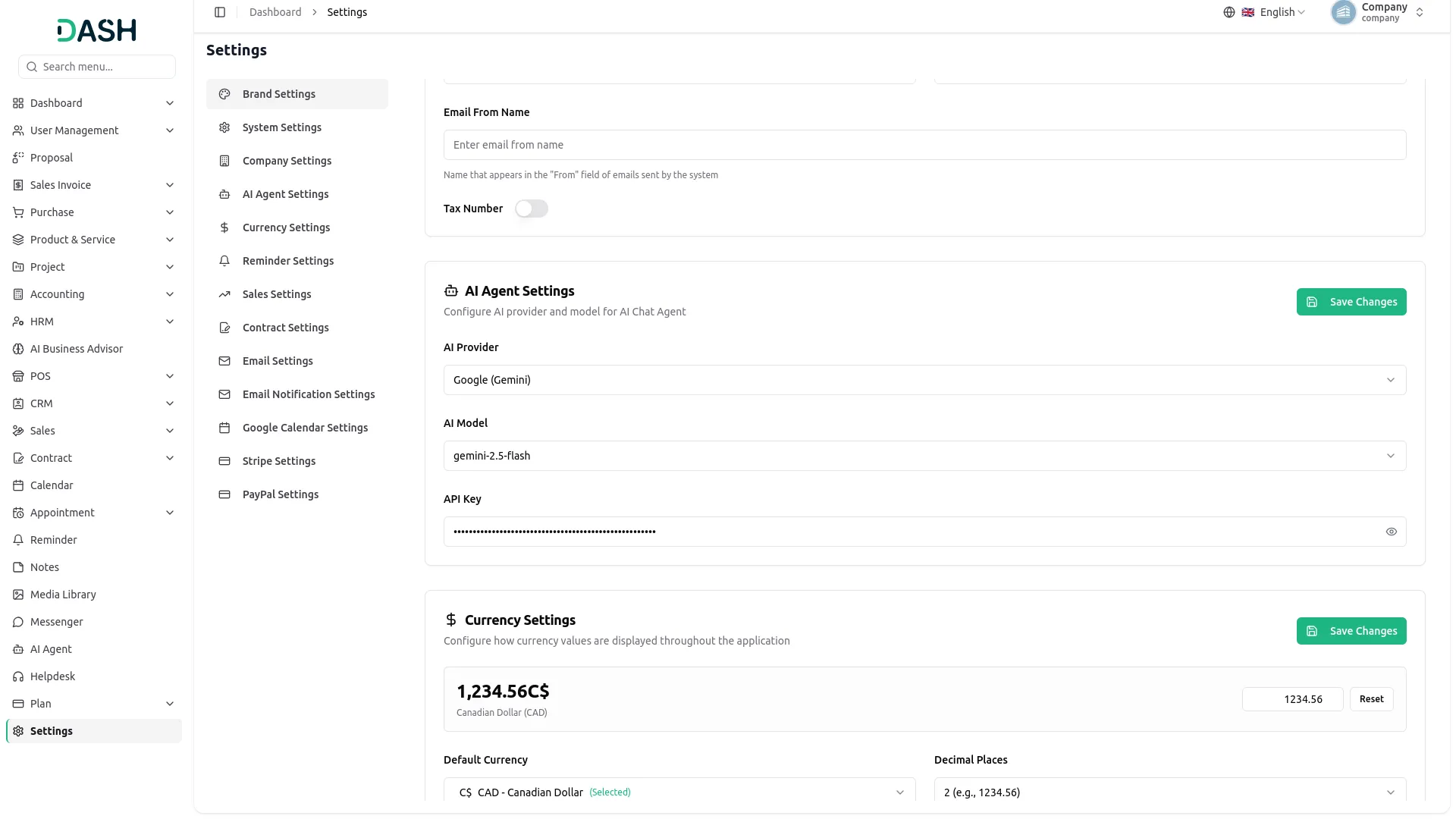
- Before any analysis can run, go to Settings → AI Agent and select your AI Provider: OpenAI, Anthropic, or Google.
- Enter the Model name (for example, a GPT, Claude, or Gemini model identifier) and your API Key for the selected provider, then save.
- If the provider, model, or API key is missing, the daily analysis will be skipped automatically for that company, and Generate Now will not be able to run.
- All monetary figures written by the AI use the Currency Symbol and Default Currency configured in Settings, so the analysis always matches your business’s currency.
Daily Automated Analysis
- Every day at 06:00, the system automatically collects each company’s business metrics from Accounting, HRM, Sales, Projects, POS, and Inventory.
- It calculates the Health Scores, sends the metrics and scores to the company’s configured AI provider, and saves the returned Insights, Recommendations, and Alerts against that day.
- It then compares today’s Overall Score with yesterday’s to set the Trend as Improving, Stable, or Declining.
- Once a week, the system automatically removes analysis history older than the configured retention period to keep the database size under control.
- A company will only be processed once per day if analysis for today already exists, that company is skipped on the next run.
AI Business Advisor Dashboard
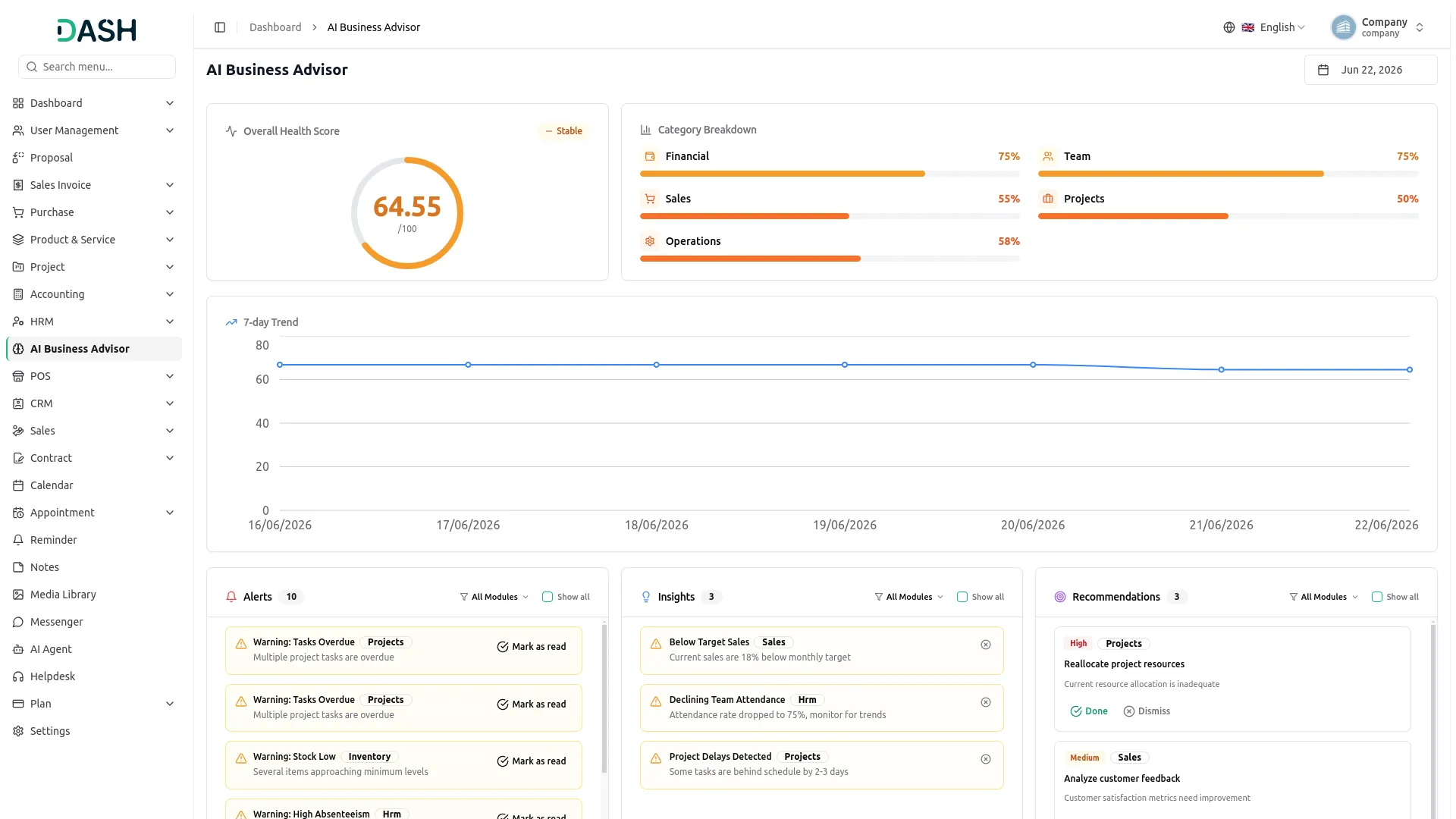
- AI Business Advisor Dashboard gives a company-wide overview of business health through a score card, a trend chart, and three result lists Insights, Recommendations, and Alerts.
- The Health Score card shows the Overall Score out of 100, along with five sub-scores: Financial, Team, Sales, Projects, and Operations. A Trend badge shows whether the business is Improving, Stable, or Declining compared to the previous day.
- The Score History chart plots the last 7 days of Overall Scores, so you can see at a glance whether the business is moving in the right direction over the week.
- Use the Date Picker at the top of the dashboard to view the health score, insights, and alerts for any previous analysis date, not only today.
- Click the Generate Now button to run a fresh analysis immediately instead of waiting for the next scheduled run. This is only available once per day; if today’s analysis already exists, the button will show a message instead of running again.
Insights
- The Insights list shows observations the AI has made about the business, written in plain language and backed by real numbers from your data — for example, a revenue increase, a drop in attendance, or a stalled sales pipeline.
- Each insight shows a Title, a Description with specific figures, a Severity (Positive, Info, Warning, or Critical), and the related Add-on (Account, HRM, Sales, Projects, POS, or Inventory).
- Insights are sorted automatically with Critical and Warning items shown before Info and Positive ones, so the most important items always appear first.
- Use the Dismiss action on an insight once you have read it and no longer need it on the dashboard. Dismissed insights are moved out of the active list.
Recommendations
- The Recommendations list shows specific actions the AI suggests you take, such as following up on overdue invoices or reviewing a stock shortage.
- Each recommendation shows the Recommendation text, the Reason it matters, a Priority (High, Medium, or Low), the related Module.
- Recommendations are sorted with Pending items first, then ranked by priority from High to Low.
- Use the Mark Done action once you have completed the suggested action, or Dismiss to clear a recommendation you do not plan to act on. Both actions record the date and time the recommendation was actioned.
Alerts
- Alerts The Alerts list highlights urgent issues that need immediate attention, such as a large number of overdue invoices or a sharp decline in sales conversion.
- Each alert shows a Title, a Message explaining the risk, a Severity (Warning or Critical), and the related Module.
- Alerts are sorted with Critical items shown before Warning items, and unresolved alerts are shown before resolved ones.
- Use the Resolve action once the underlying issue has been fixed. The alert is then marked Resolved with a timestamp and moved out of the active list.
Health Score Breakdown
The Overall Score is calculated from five weighted sub-scores. Each sub-score reflects a different part of the business, as shown below.
| Sub-Score | Weight | What It Measures |
|---|---|---|
| Financial | 30% | Profit margin, revenue growth, and overdue invoices |
| Sales | 25% | Lead conversion rate, pipeline value, and inactive leads |
| Team | 20% | Attendance rate, pending leave requests, and new hires |
| Projects | 15% | Task completion rate and number of delayed projects |
| Operations | 10% | POS revenue growth, out-of-stock items, and low stock items |
Categories
Related articles
- Product Compare – eCommerceGo SaaS Add-On Guide
- Bakery Store – WorkDo Dash SaaS Add-On Guide
- Recurring Invoice & Bills – WorkDo Dash SaaS Add-On Guide
- Authorize.Net – BookingGo SaaS Add-On Guide
- TicketGo Add-On Setup Guide
- Budget Planner – WorkDo Dash SaaS Add-On Guide
- Office Hours – TicketGo Add-On Guide
- Music Institute – WorkDo Dash SaaS Add-On Guide
- Discount – BookingGo SaaS Add-On Guide
- Backup & Restore – WorkDo Dash SaaS Add-On Guide
- Coworking Space Management – WorkDo Dash SaaS Add-On Guide
- Store Locator – eCommerceGo SaaS Add-On Guide
We're Here to Help - Let's Talk
Have questions about our solutions, customization services, or business tools? Our team is here to help you. let's talk.