
YouTube Content Management – WorkDo Dash SaaS Add-On Guide
Learn how to manage YouTube content and channel workflows in WorkDo Dash SaaS.
Introduction
The YouTube Content Management Add-On allows you to integrate and manage your YouTube content directly from the system. It enables secure connection through Google authentication and provides tools to upload, edit, and organize videos. Users can create and manage playlists, control video visibility, and update channel information easily. The add-on also displays channel statistics such as subscribers, views, and total videos. With activity tracking and direct links to YouTube, it offers a complete and efficient content management experience.
How To Install The Add-On?
To Set Up the YouTube Content Management Add-On, you can follow this link: Setup Add-On.
How to use the YouTube Content Management Add-On?
System Settings
YouTube Configuration
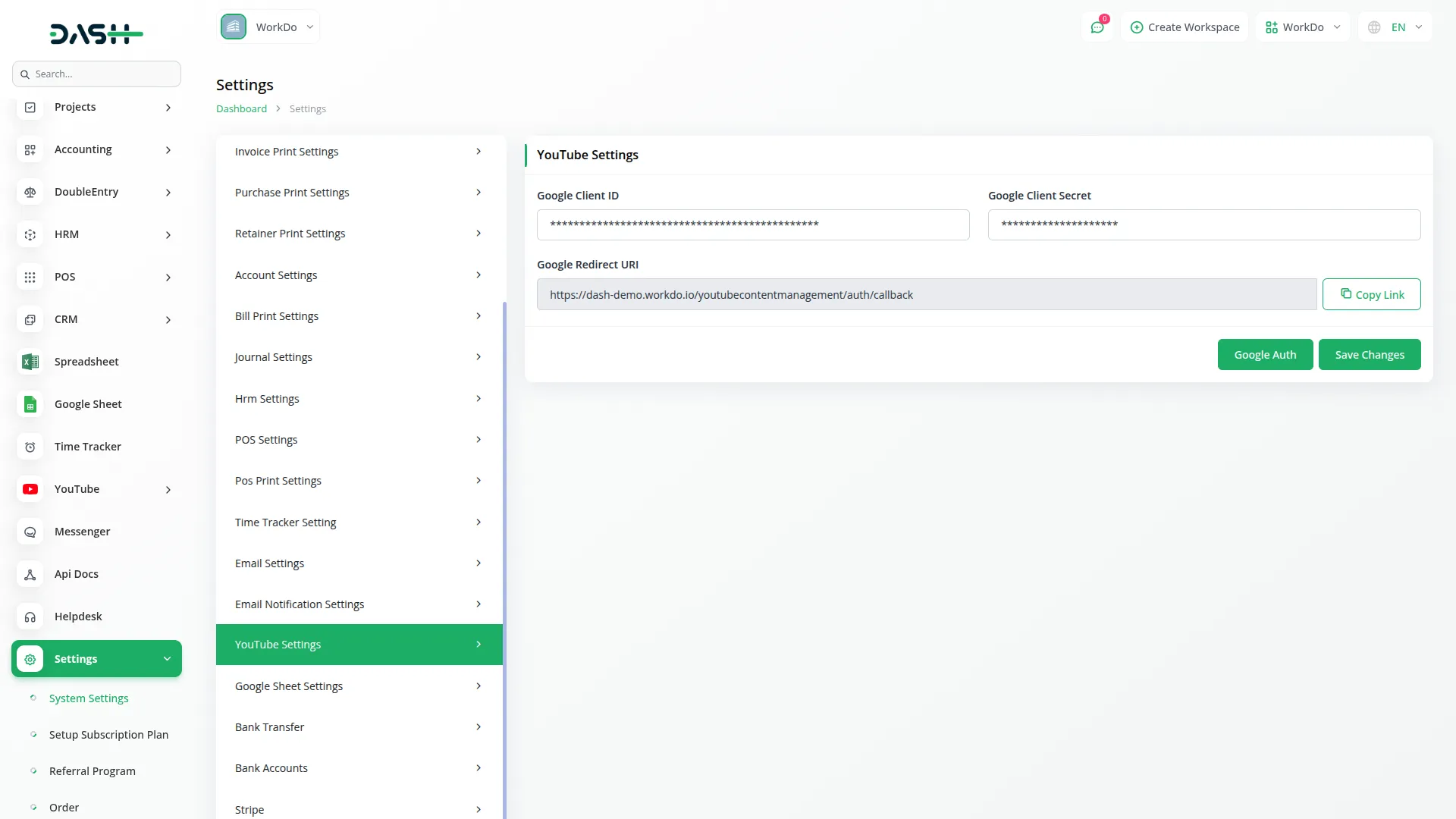
- After installing the YouTube Add-On, go to the system settings page and find YouTube Settings. To set up YouTube integration, enable YouTube Integration by toggling the switch on. This allows you to manage and display YouTube content directly within your system.
- The system provides detailed Setup Instructions to guide you through the configuration process. Follow these five steps: Go to Google Cloud Console, create a new project or select an existing one, Enable YouTube Data API v3, create OAuth 2.0 credentials, and Add authorized redirect URI. Click the “Open Google Cloud Console” button to access Google Cloud Console directly and complete these setup steps.
- Enter your Google Client ID, which is the unique identifier for your application provided by Google Cloud Console. This Client ID is required for authentication and establishes the connection between your application and YouTube.
- Enter your Google Client Secret, which is the secure authentication key paired with your Client ID for API access. This secret key ensures secure communication between your system and YouTube services.
- The system automatically displays a Redirect URI field. Copy this URL and add it to the https://console.cloud.google.com/ section in your Google Cloud Console OAuth 2.0 credentials configuration. This redirect URI is essential for the authorization process and must be configured correctly in your Google account for the integration to function properly.
YouTube Videos
- Once all credentials are entered correctly, the YouTube Authentication section will display “Connected to YouTube,” indicating a successful connection. Click the “Save Changes” button in the top right corner to save your configuration and activate the YouTube integration.
- To upload a new video, click the plus “Create” button in the top right corner of the Manage YouTube Videos page. This will open the Upload New Video form. Enter the Title, Description, select category from the dropdown (Categories are loaded dynamically from the YouTube API), upload the video using the “Choose File” button, and add a thumbnail image.
- Enter Tags separated by commas, and select the Visibility option from the dropdown menu. (Public, Private, or Unlisted.)
- Click the “Upload Video” button to complete the upload. Click the “Cancel” button to close the form without uploading.
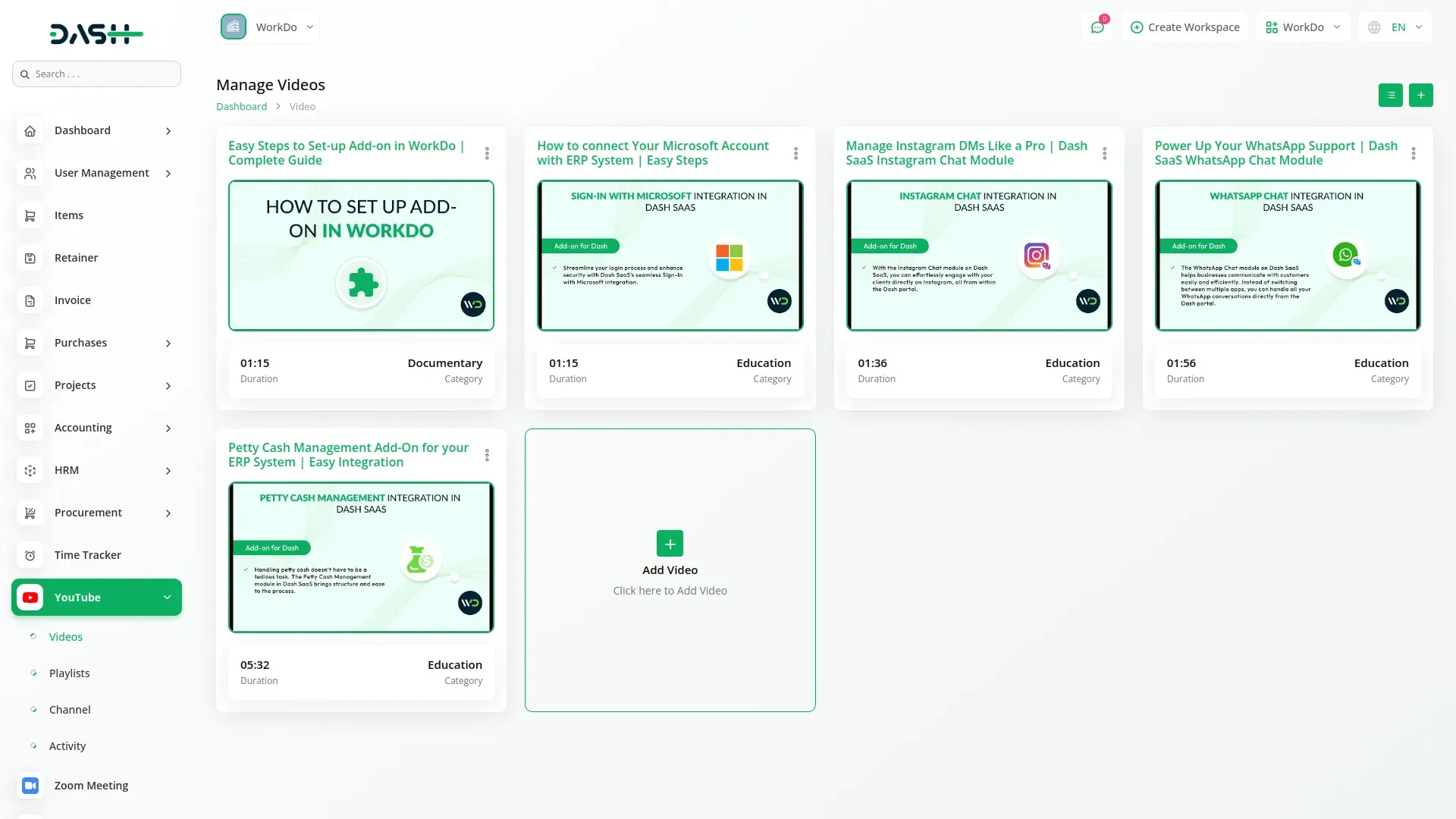
- Navigate to the Manage YouTube Videos page to view all your uploaded videos. The page displays videos in a card layout. Use the Search bar to find videos.
- Each video card shows the video thumbnail with a visibility badge, video title, description text, Views count, published date, and Category.
- Available action options include View to see the video details, Edit to modify the video, Delete to remove the video, and Open on YouTube, which allows you to open and watch the video directly on YouTube.
YouTube Playlists
- To create a new playlist, click the “Create” button on the Manage YouTube Playlists page. This will open the Create New Playlist form. Enter the Title, Description, and select the Visibility option from the dropdown menu(Public, private, unlisted).
- Click the “Create Playlist” button to save and create the playlist. Click the “Cancel” button to close the form without creating a playlist.
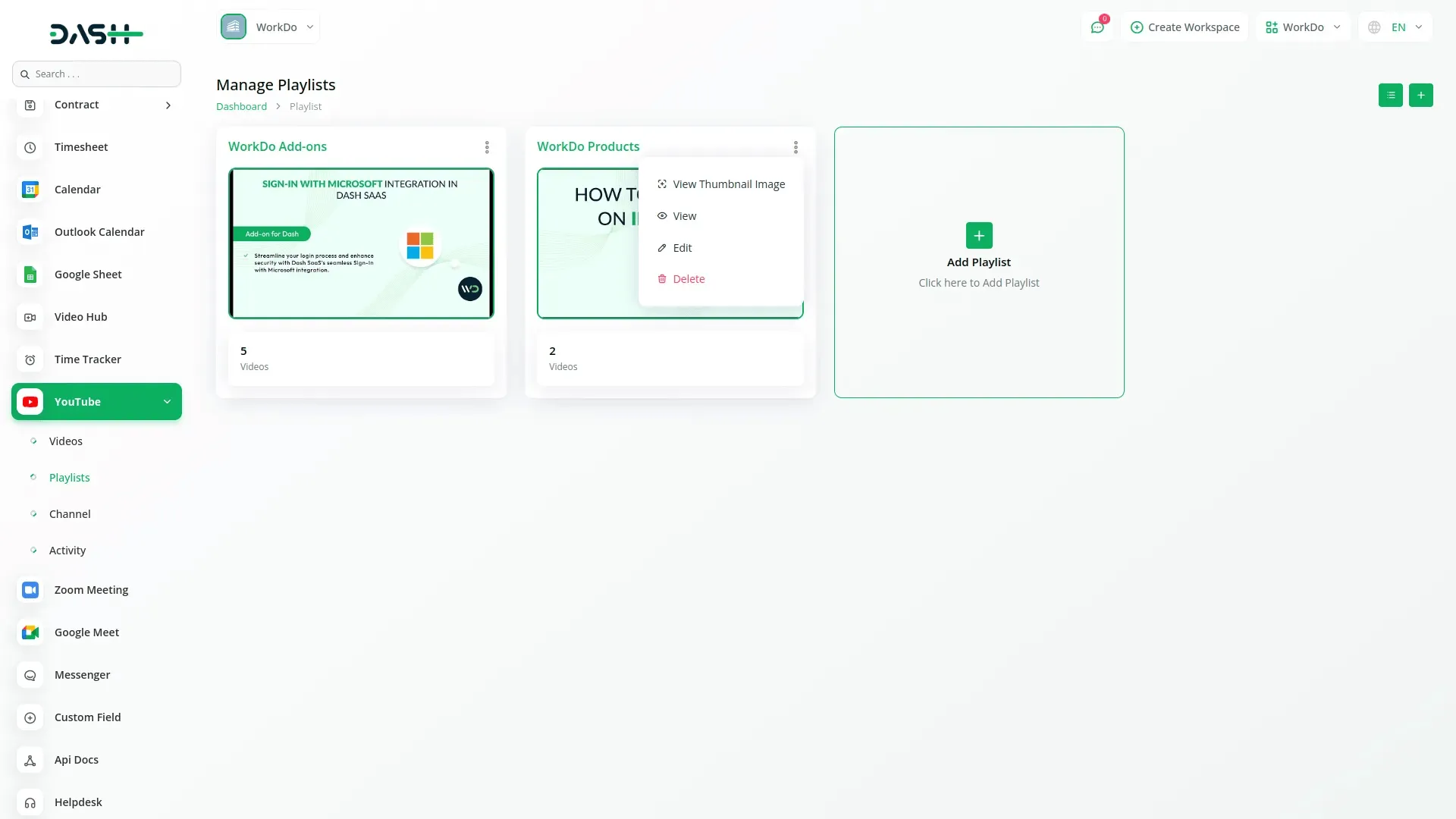
- Navigate to the Manage YouTube Playlists page to view and manage all your YouTube playlists. The page displays playlists in a card layout. Use the Search bar to find playlists.
- Each playlist card shows the playlist thumbnail with a visibility badge, playlist title, description text, video count, and created date.
- At the bottom of each playlist card, the “Playlist” label is displayed along with action options. Click the view to see playlist details, click the external link option to open on YouTube, click the edit to modify the playlist, or click the delete to remove the playlist.
YouTube Channel
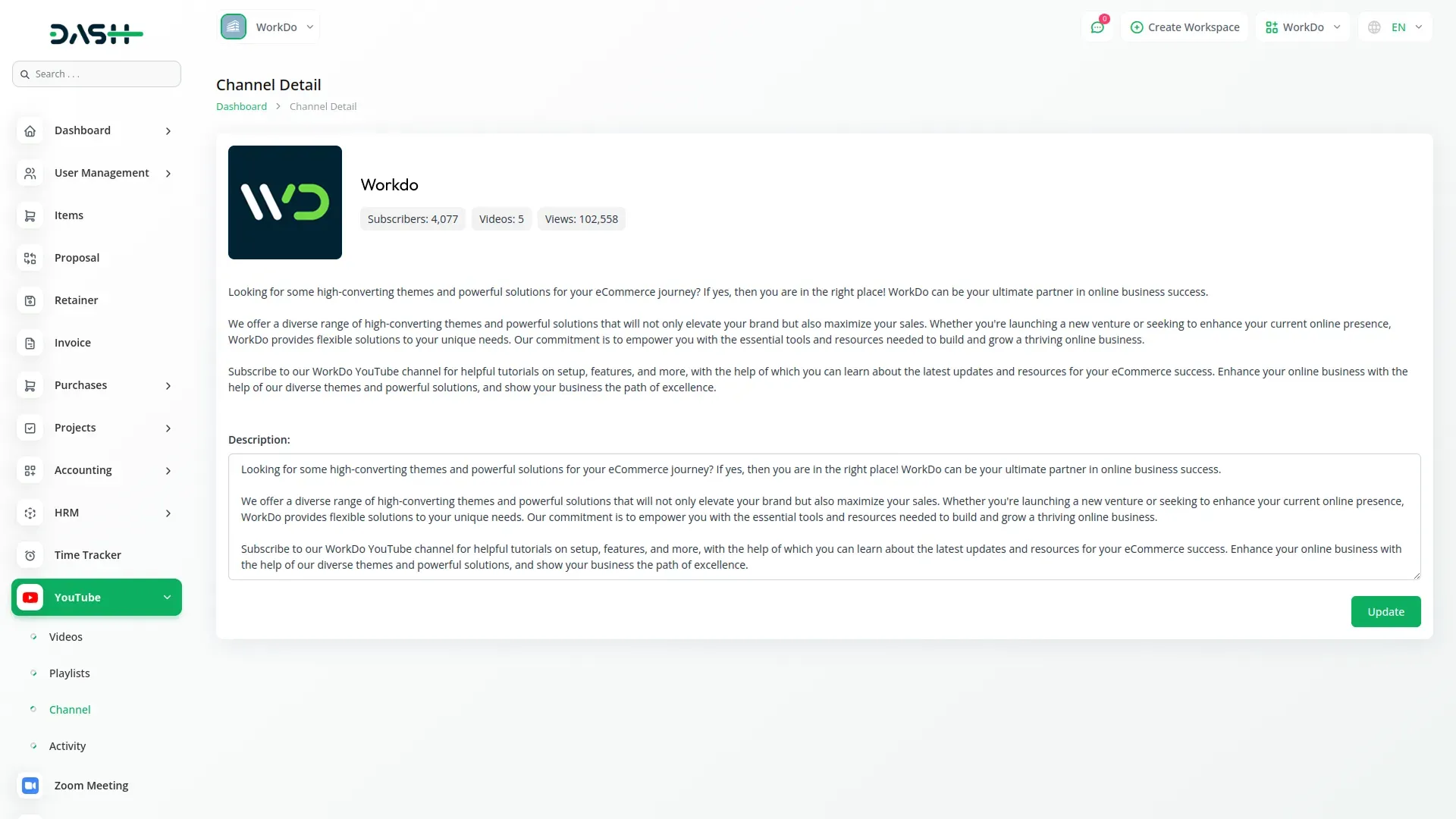
- The page displays three statistics cards at the top showing your channel’s Subscribers count, Videos count, and Total Views count.
- Click the “View Channel on YouTube” link in the top right corner to open your channel directly on YouTube.
- The Channel Information section displays your channel avatar, channel name, channel handle, and created date.
- Click the edit option in the top right corner of the Channel Information section to modify your channel details. The Description section shows your channel description text.
YouTube Activity
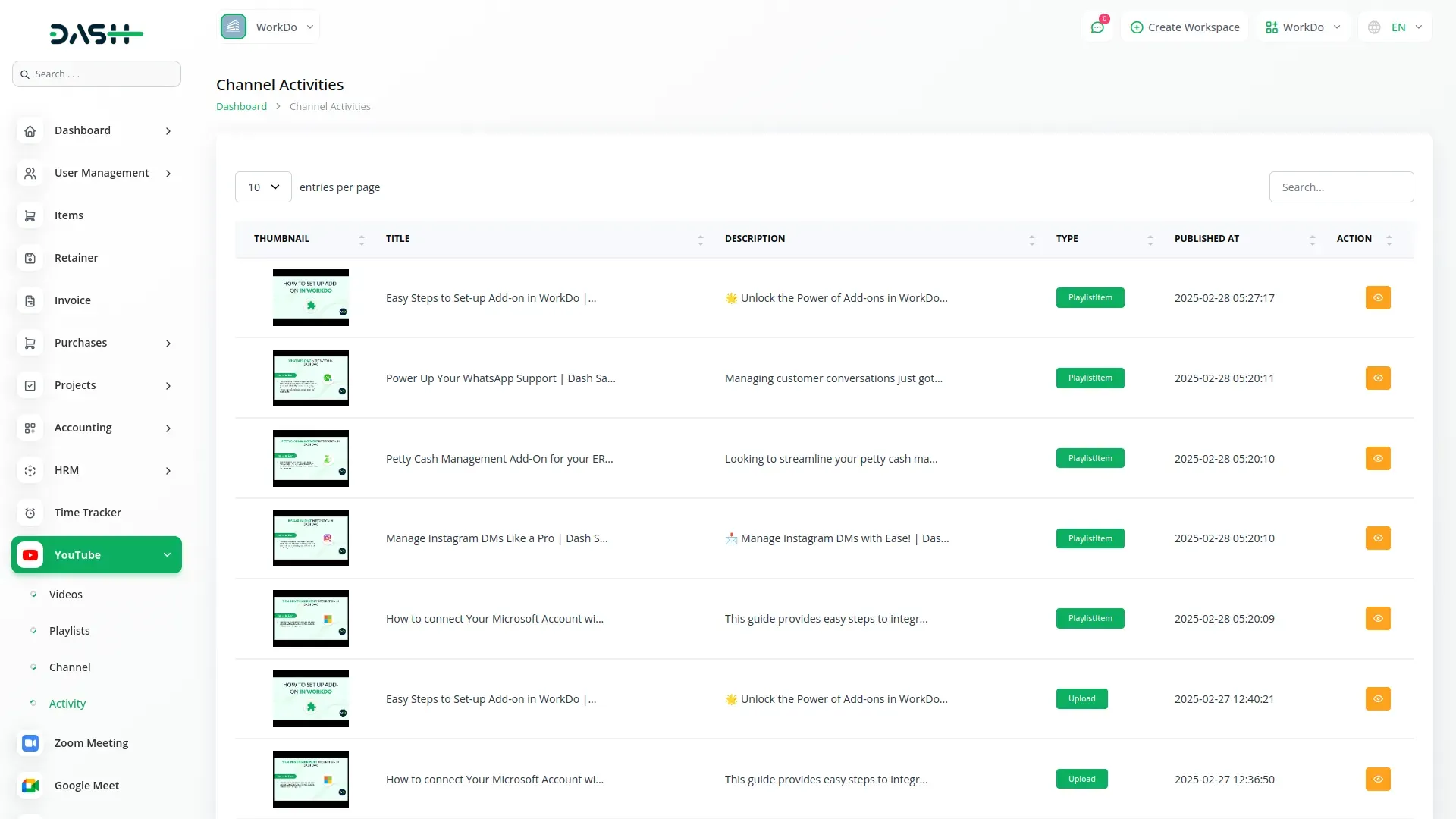
- The activity table list page displays columns for Activity, Description, Channel, Date, and Actions.
- Each activity row shows an activity icon, video thumbnail, activity type badge, activity title, activity subtitle, description text, channel name, date with timestamp, and an external link icon in the Actions column.
- Use the Search bar to find specific activities. Activities are displayed with different types, including “playlistItem” for videos added to playlists and “upload” for newly uploaded videos.
- Click the external link option in the Actions column to view the activity details on YouTube.
Categories
Related articles
- Chat Pin – TicketGo Add-On Guide
- eSewa – BookingGo SaaS Add-On Guide
- Iyzipay – WorkDo Dash SaaS Add-On Guide
- WhatsApp Messenger – WorkDo Dash SaaS Add-On Guide
- WorkDo Dash SaaS Setup Guide
- Facebook Post – WorkDo Dash SaaS Add-On Guide
- eCommerceGo SaaS Add-On Setup Guide
- Paystack – BookingGo SaaS Add-On Guide
- Braintree – WorkDo Dash SaaS Add-On Guide
- Cashfree – BookingGo SaaS Add-On Guide
- Service Tax – BookingGo SaaS Add-On Guide
- Dance Academy – WorkDo Dash SaaS Add-On Guide
We're Here to Help - Let's Talk
Have questions about our solutions, customization services, or business tools? Our team is here to help you. let's talk.