
Jitsi Meet – WorkDo Dash SaaS Add-On Guide
Learn how to configure and manage Jitsi Meet integration in WorkDo Dash SaaS easily.
Introduction
Jitsi Meet is a comprehensive video conferencing software that allows you to create, manage, and host online meetings. The software provides flexible meeting solutions through different hosting options, including JaaS (Jitsi as a Service) and self-hosted configurations. You can schedule meetings, invite participants, track meeting status, and view meetings in both list and calendar formats. The system requires proper configuration through System Settings before you can create and manage meetings.
How To Install the Add-On?
To Set Up the Jitsi Meet Add-On you can follow this link: Setup Add-On.
How to use the Jitsi Meet Add-On?
System Settings
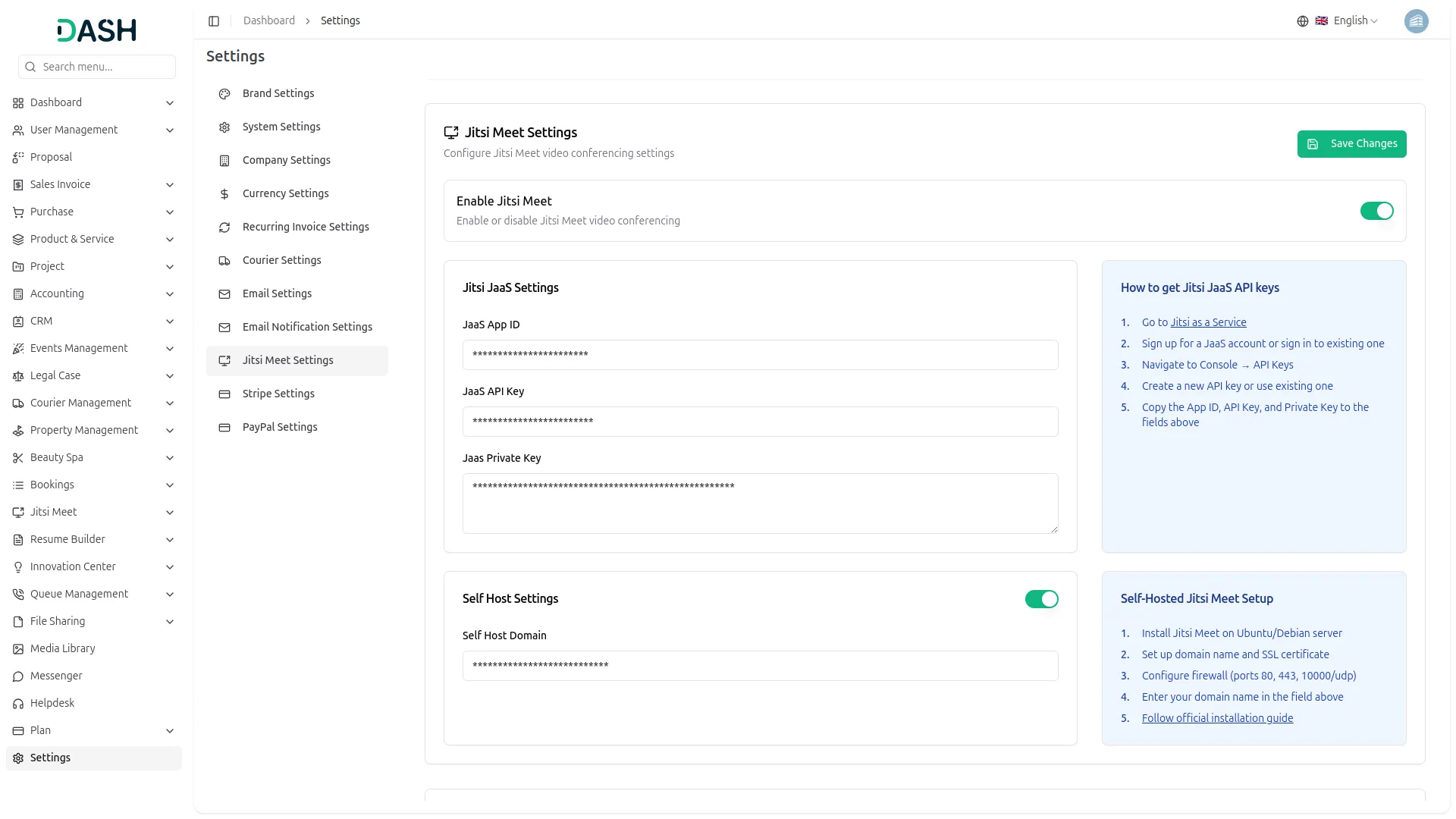
- Before using the Jitsi Meet functionality, you need to configure your meeting settings. The System Settings Section provides two configuration options for your meeting setup.
- To configure Jitsi Meet, navigate to System Settings and select Jitsi Meet Settings. You will see two configuration forms: Jitsi JaaS and Self-Host.
- For Jitsi JaaS configuration, fill in the JaaS App ID, JaaS API Key, and JaaS Private Key fields. These credentials connect your system to Jitsi’s cloud service.
- To generate your JaaS credentials, you can follow this link https://jaas.8×8.vc/
- For Self Host configuration, enable the Self Host toggle and complete the Self Host field that appears when the mode is activated. This option allows you to use your own Jitsi server.
- To learn how to configure and set up a self-hosted Jitsi server, refer to this guide and follow the steps provided: https://jitsi.github.io/handbook/docs/devops-guide/devops-guide-quickstart/
Jitsi Meet Management
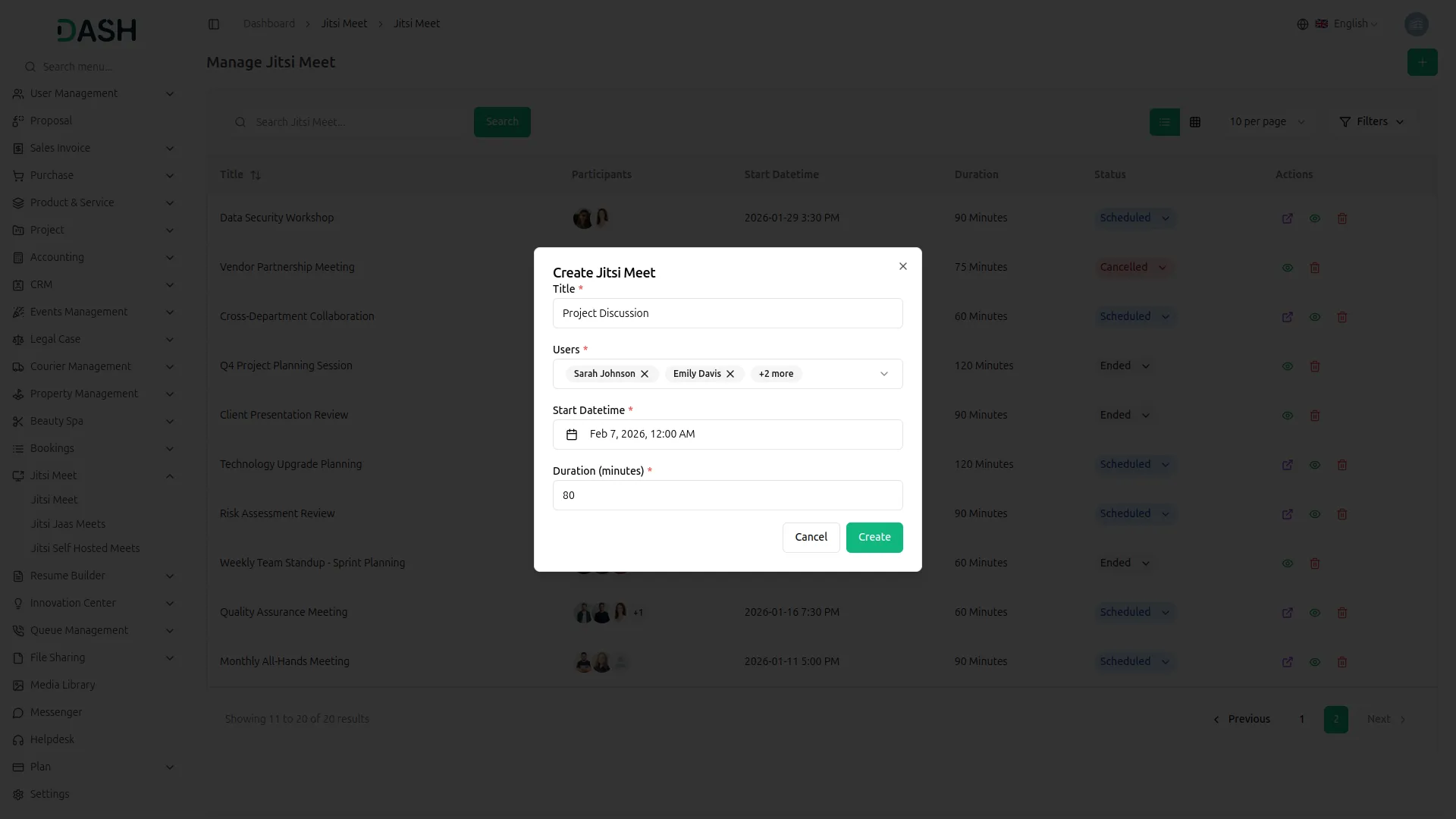
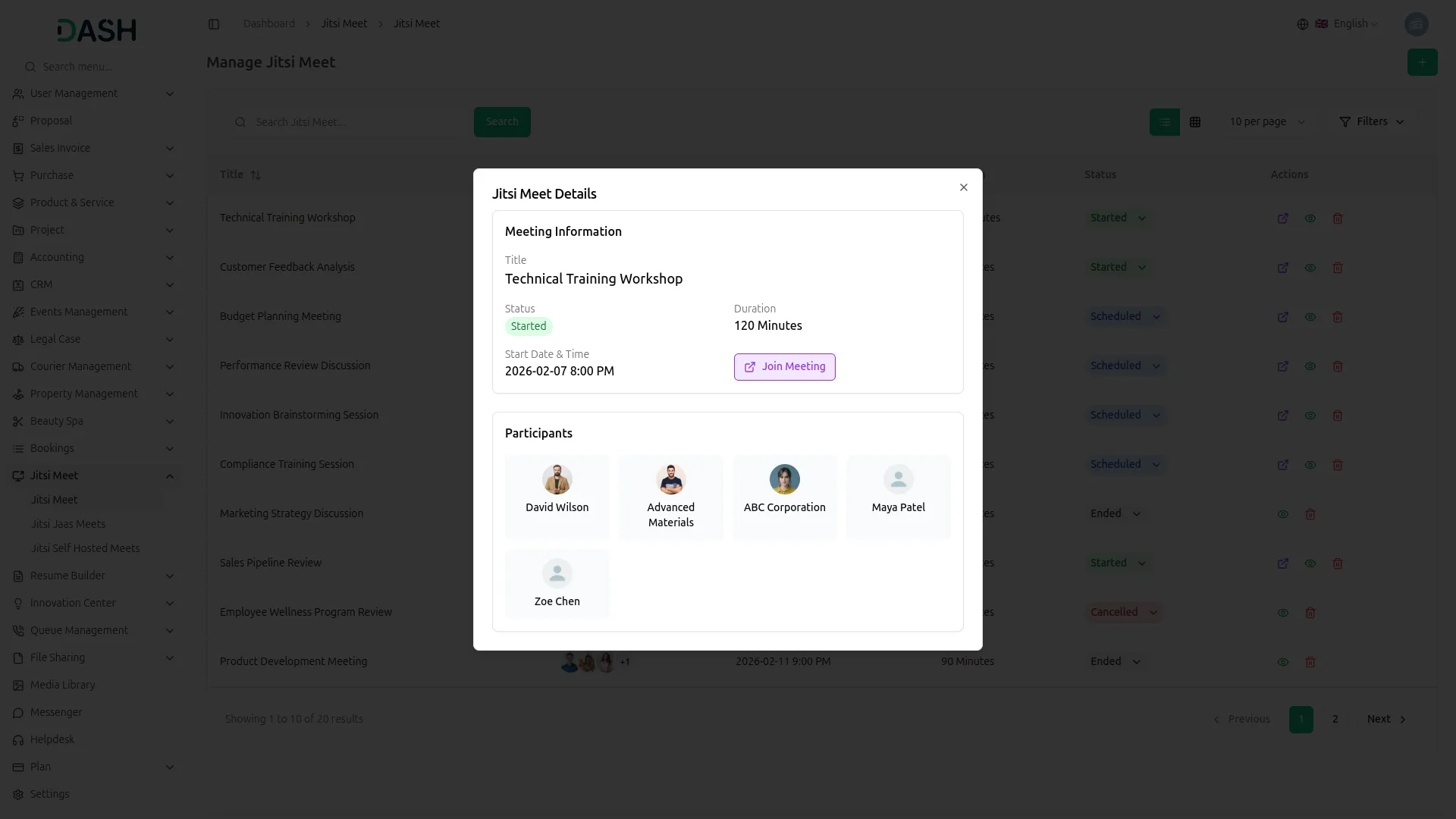
- To create a new meeting, click the “Create” button at the top of the page. Enter the meeting title, select users from the multi-select dropdown for Participants, set the start date and time, and specify the duration in minutes. After saving the meeting, the system automatically generates a Start URL action for the host and a Join meeting action for all Participants.
-
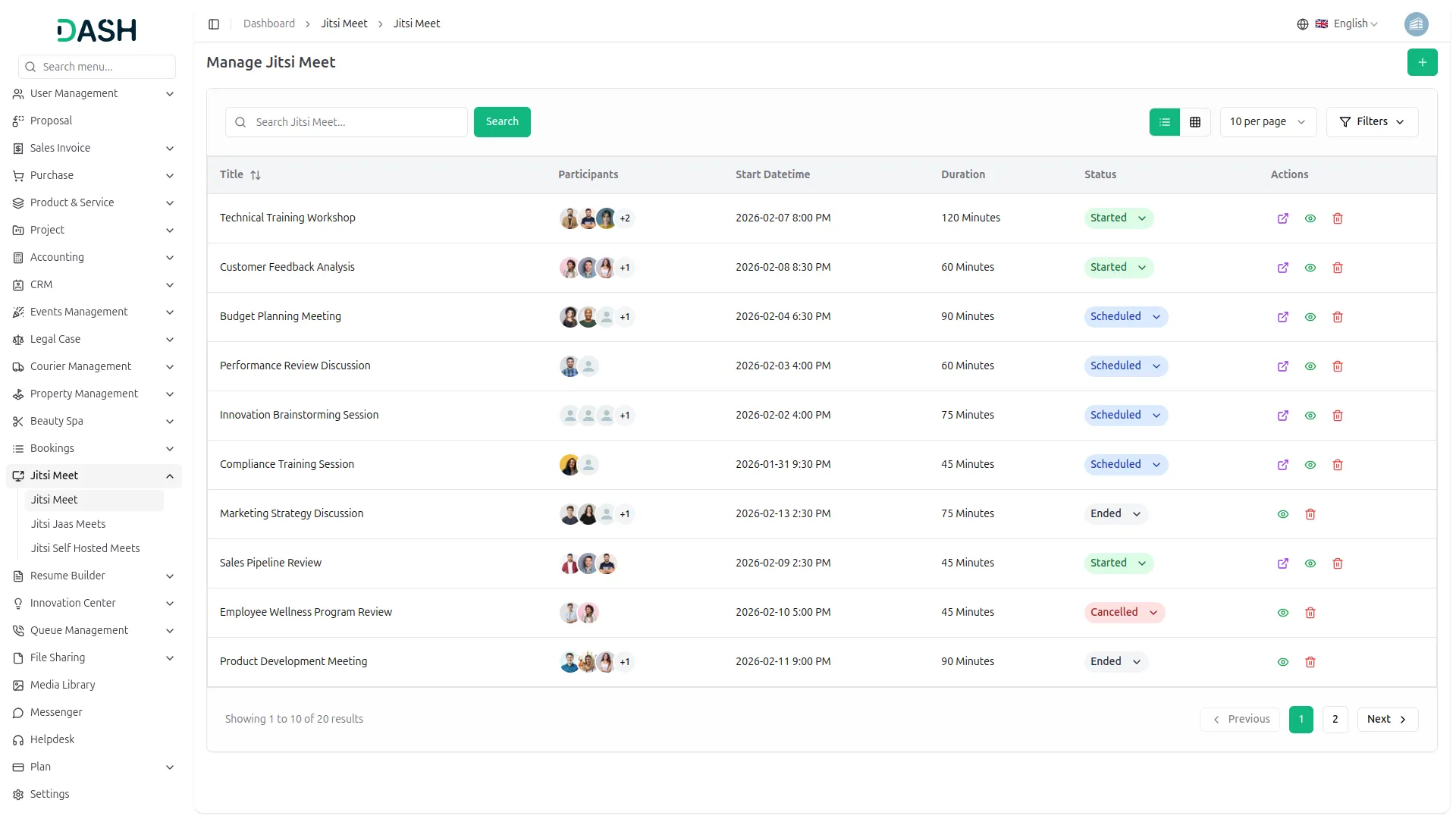
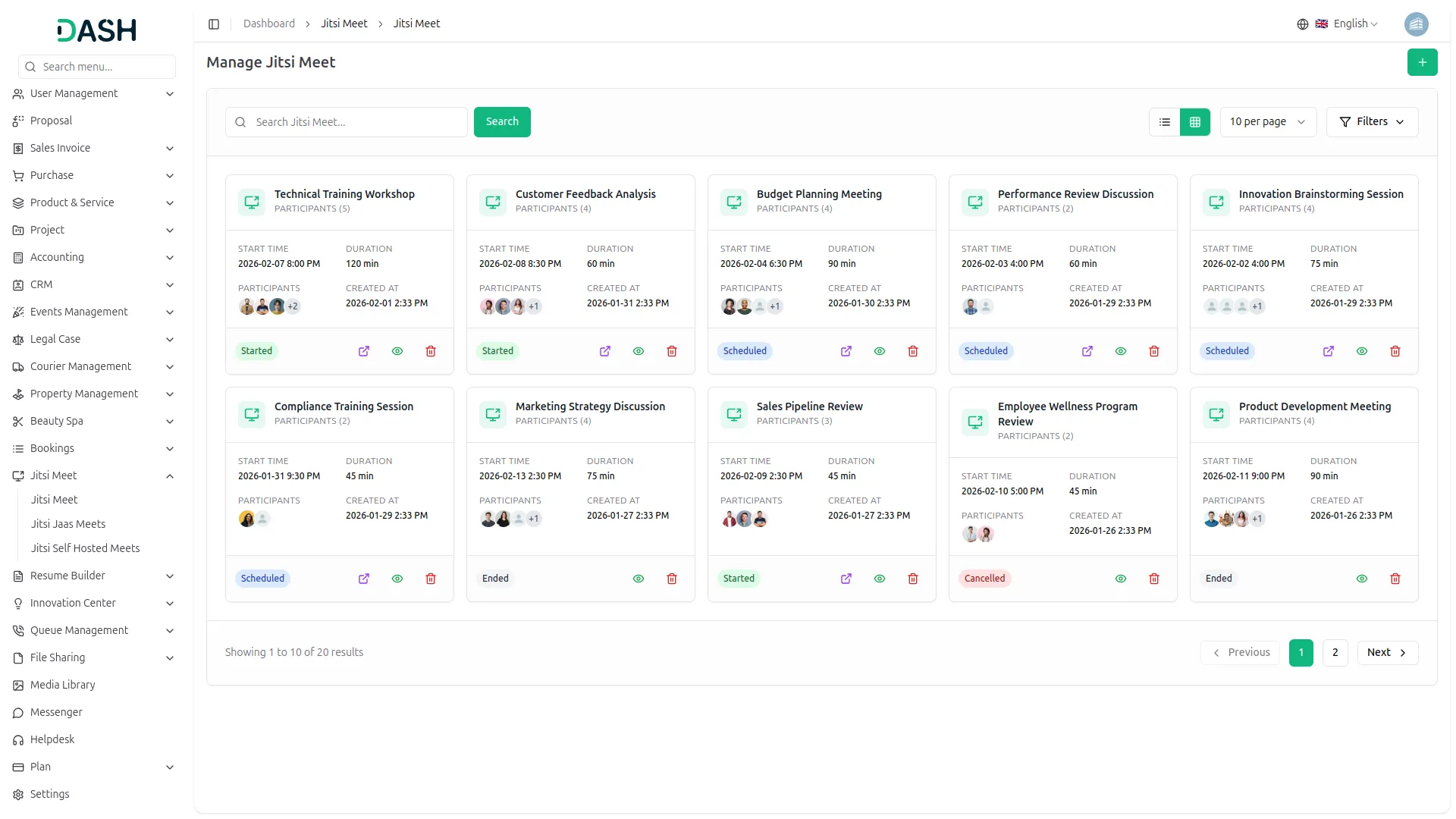
- The list page displays all meetings in a table format with columns for Title, Participants, Meeting Date/Time, Duration, Status, and Action. Use the toggle between list view and grid view.
- The Status column displays a dropdown menu with status options including Scheduled, Started, Ended, and Cancelled.
-
- In the Action column of the table, you can view detailed information about a meeting or delete a meeting. Join meeting (by clicking this action, you navigate to the meeting)
- To filter your meetings, click the “Filters” button to expand the available options. You can use the Status dropdown (Scheduled, Started, Ended, and Cancelled) or the Participants dropdown (comes from the user section). Choose a date range. Click the “Apply” button to activate the filters, or choose “Clear” to reset all filters and start over.
- When you select a specific user, the system displays all meetings that include that user as an invitee. For each of these meetings, the Join URL is shown, allowing the user to quickly access their meeting link. This view also shows the status and details of each meeting the user is associated with.
-
- The Start URL is intended for the meeting host to start the session, while the Join URL is provided to all invited participants. Both URLs are generated automatically when the meeting is created and can be copied or shared as needed.
Creating Jitsi JaaS Meet
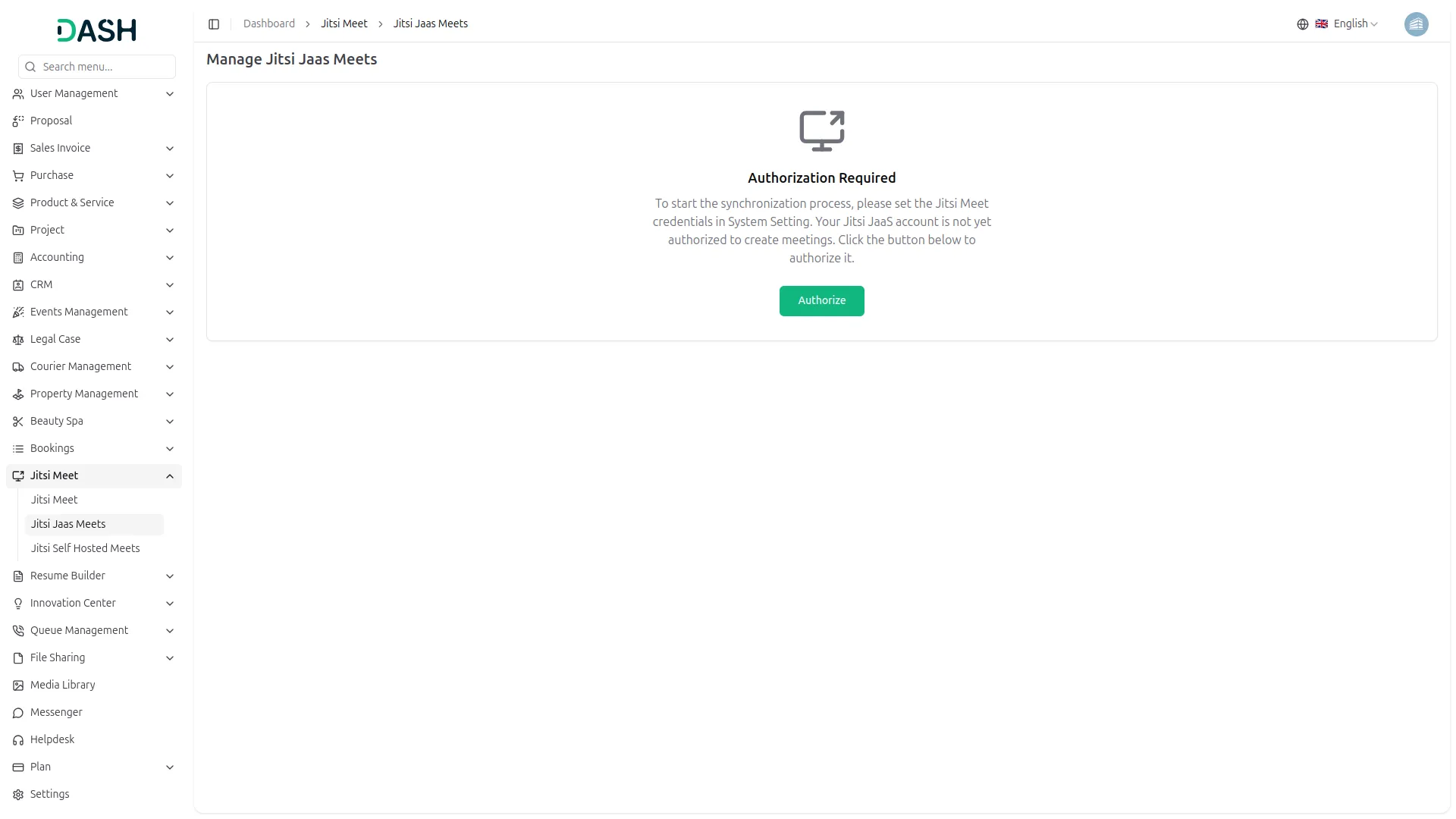
- Before using Jitsi JaaS Meet, you need to authorize your Jitsi JaaS account. If you haven’t authorized your account, you will see an instruction message: “You haven’t authorized your Jitsi JaaS account to create a Jitsi Meeting. Click the button below to authorize.” Complete the authorization process first.
- Once authorized, click the “Create” button to schedule a new meeting. Fill in the meeting title, select users from the multi-select dropdown, set the start date and time, and enter the duration in minutes.
-
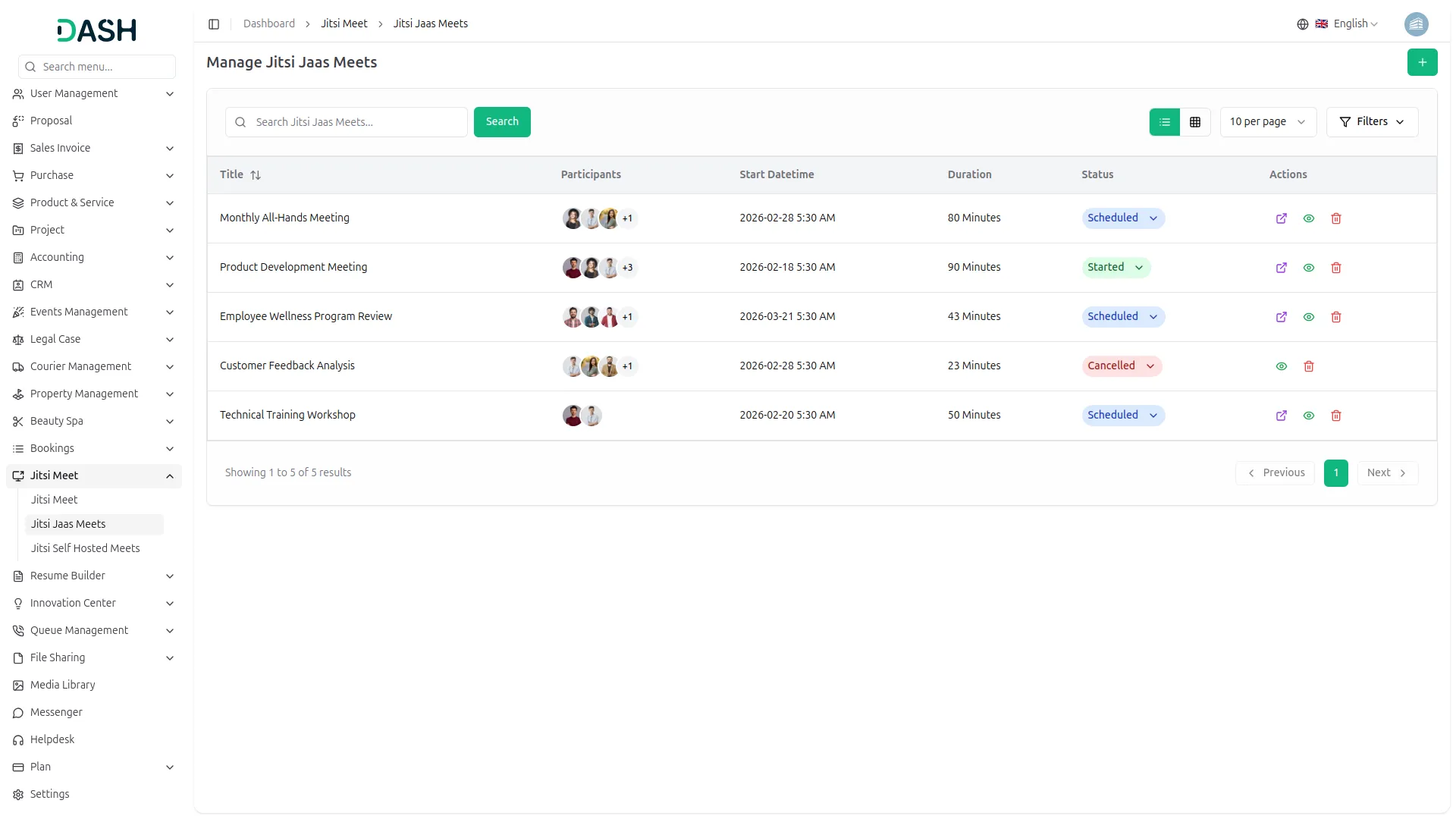
- The list page shows all JaaS meetings with columns for Title, Participants, Meeting Date/Time, Duration, Status (Waiting, Active, Complete), and Action. Use Search to find specific data.
- Available actions include View to see meeting details, Delete to remove meetings, and Join meeting (by clicking this action, you navigate to the meeting).
- When you select a specific user in the system, you can view a list of all meetings that include that user as an invitee. For each of these meetings, the Join URL is displayed, allowing you to quickly access and share the link that the user can use to join the meeting. This makes it easy to track and manage meeting participation for individual users.
Managing Jitsi Self-Hosted
- To use self-hosted Jitsi meetings, you must first configure your Jitsi server. If it isn’t set up, you’ll see the message: “You haven’t set up your Jitsi self-hosted configuration to create a meeting.” Complete the server setup in System Settings to enable meeting creation.
- After setup, click “Create” to schedule a meeting. Enter the title, select users from the multi-select field, choose start date and time, and set duration in minutes.
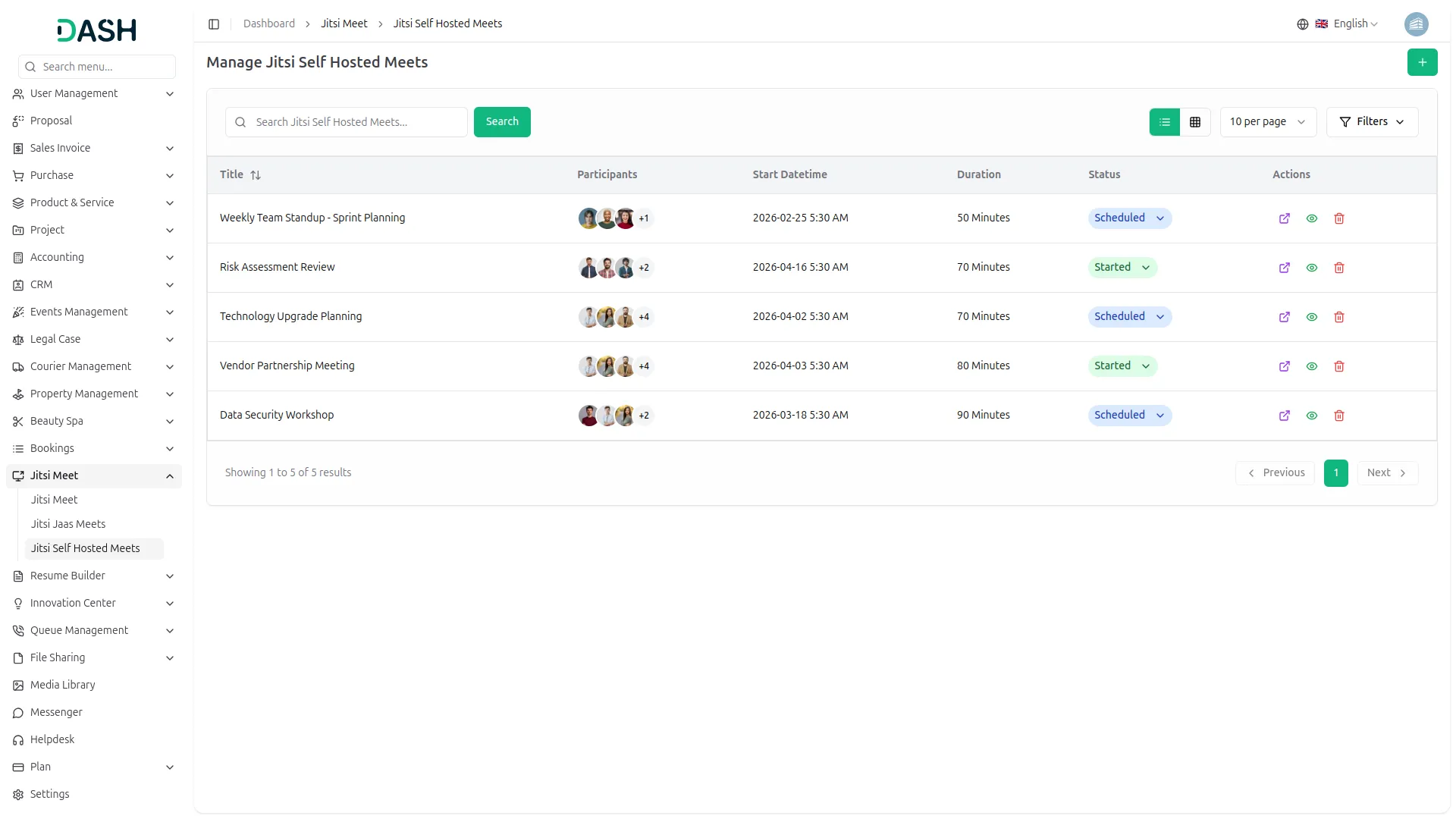
- The list page displays meetings with Title, Participants, Meeting Date/Time, Duration, Status (Scheduled, Started, Ended, and Cancelled), and Action columns. The search bar helps you find and download meeting information.
- Action options include View for meeting details, Delete to remove meetings, or join a meeting. By clicking this action, you navigate to the meeting.
- When you select a specific user in the system, you will see a list of all meetings that include that user as an invitee. For each of these meetings, the Join URL is displayed so you can easily access and share the link that the user can use to join the meeting.
Categories
Related articles
- Paystack – BookingGo SaaS Add-On Guide
- Midtrans – WorkDo Dash SaaS Add-On Guide
- Ticket Kanban – TicketGo Add-On Guide
- User Manual – vCard SaaS
- Cart Quantity Control – eCommerceGo SaaS Add-On Guide
- Flash Sale Guide – eCommerceGo SaaS
- Vonage SMS – WorkDo Dash SaaS Add-On Guide
- Shipping Module Guide – eCommerceGo SaaS
- Microsoft To Do – WorkDo Dash SaaS Add-On Guide
- Attendance Management in WorkDo HRM
- Assets – WorkDo Dash SaaS Add-On Guide
- Plaid – WorkDo Dash SaaS Add-On Guide
We're Here to Help - Let's Talk
Have questions about our solutions, customization services, or business tools? Our team is here to help you. let's talk.