
TicketGo Add-On Setup Guide
Complete guide to install and configure Add-Ons in TicketGo easily.
To use an Add-On in TicketGo, you first need to purchase it from WorkDo. Once you have completed the purchase, follow the steps below to install and activate the Add-On:
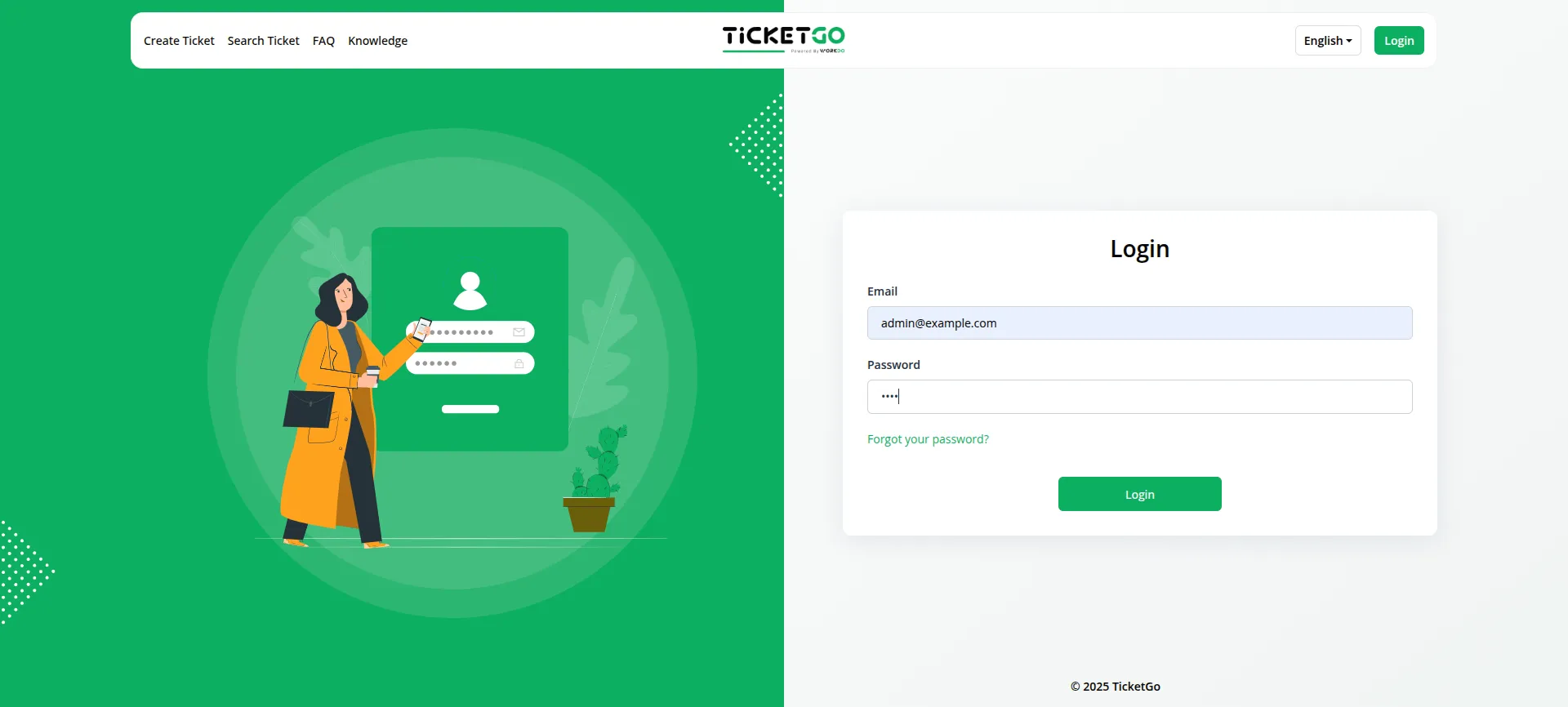
1. Log in to your TicketGo account as an Admin.
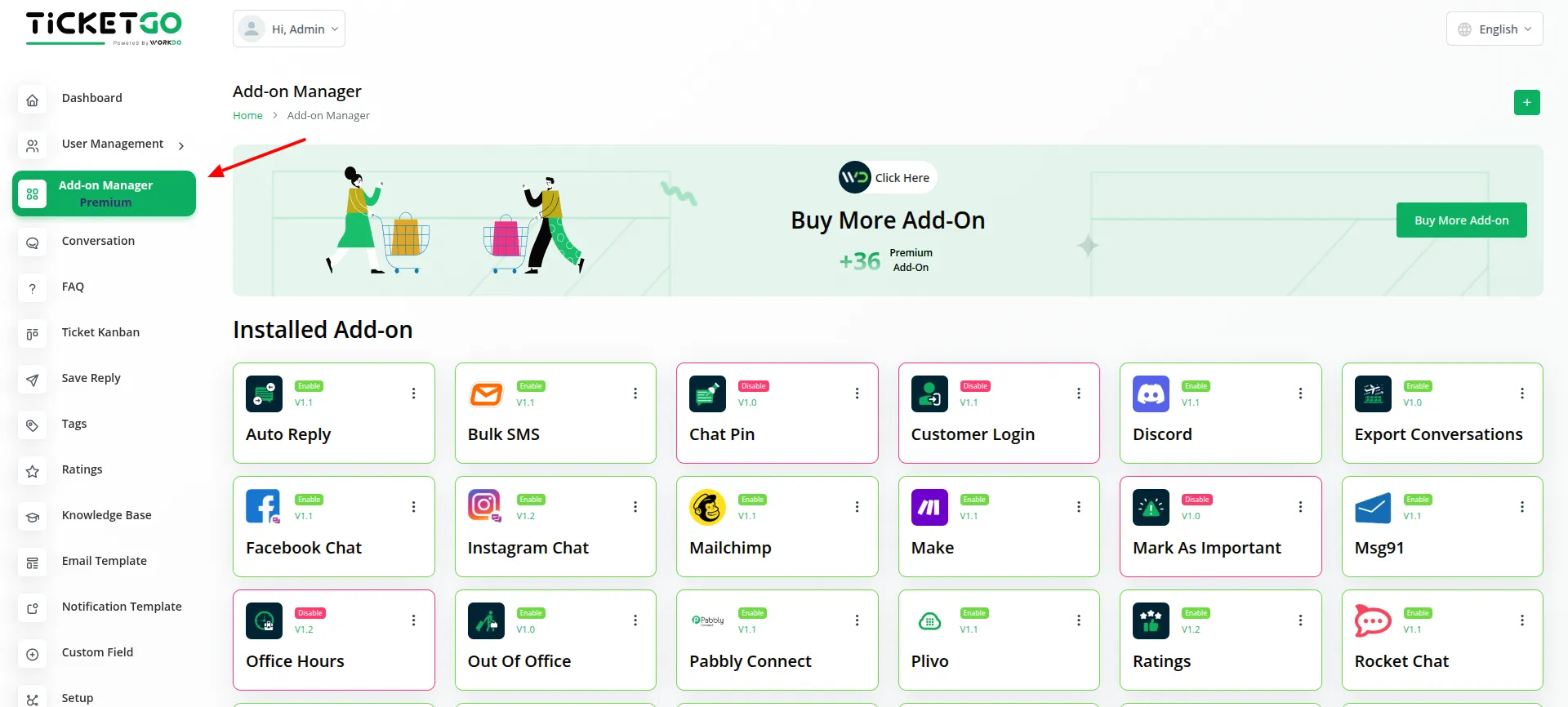
2. Navigate to the Add-On Manager section from the dashboard.
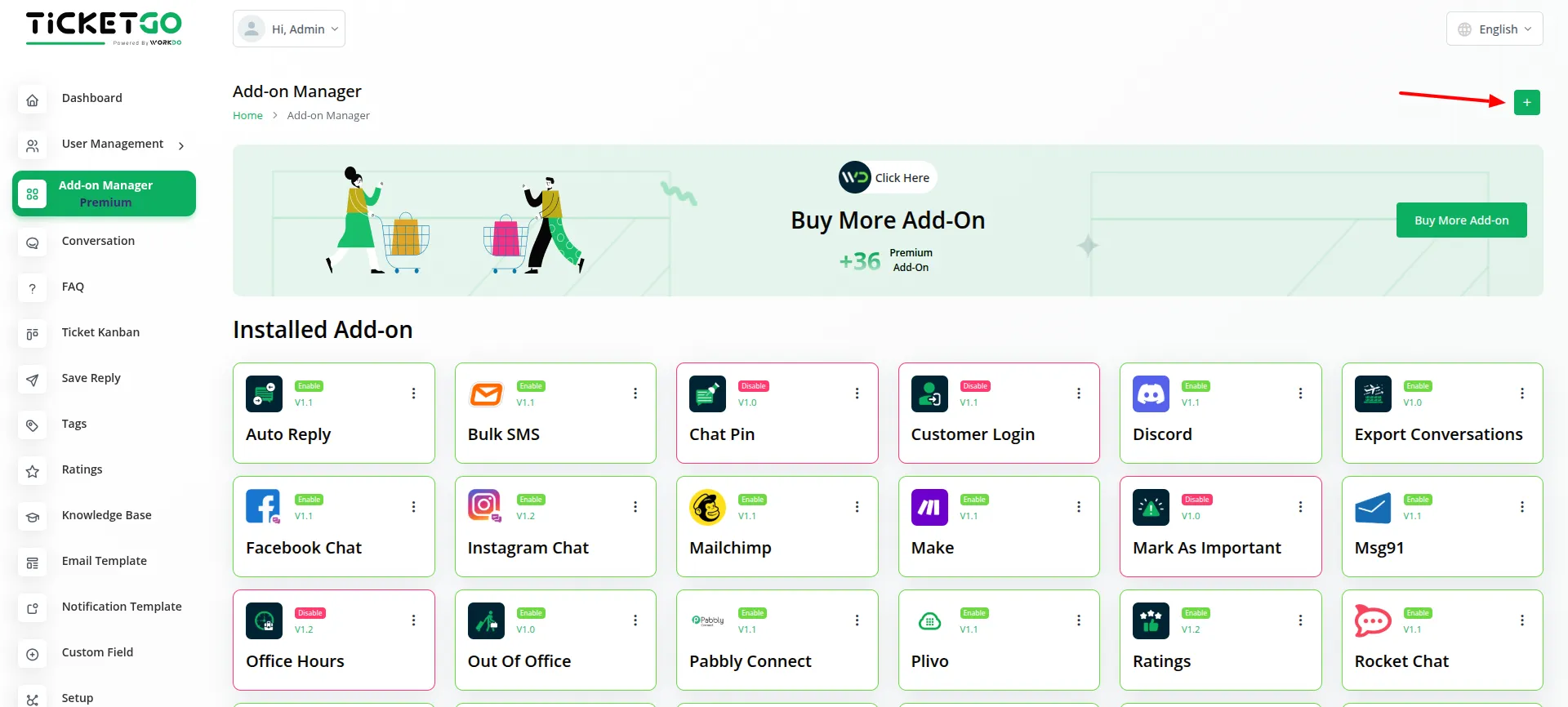
3. Click on the “+” button to upload the Add-On file.
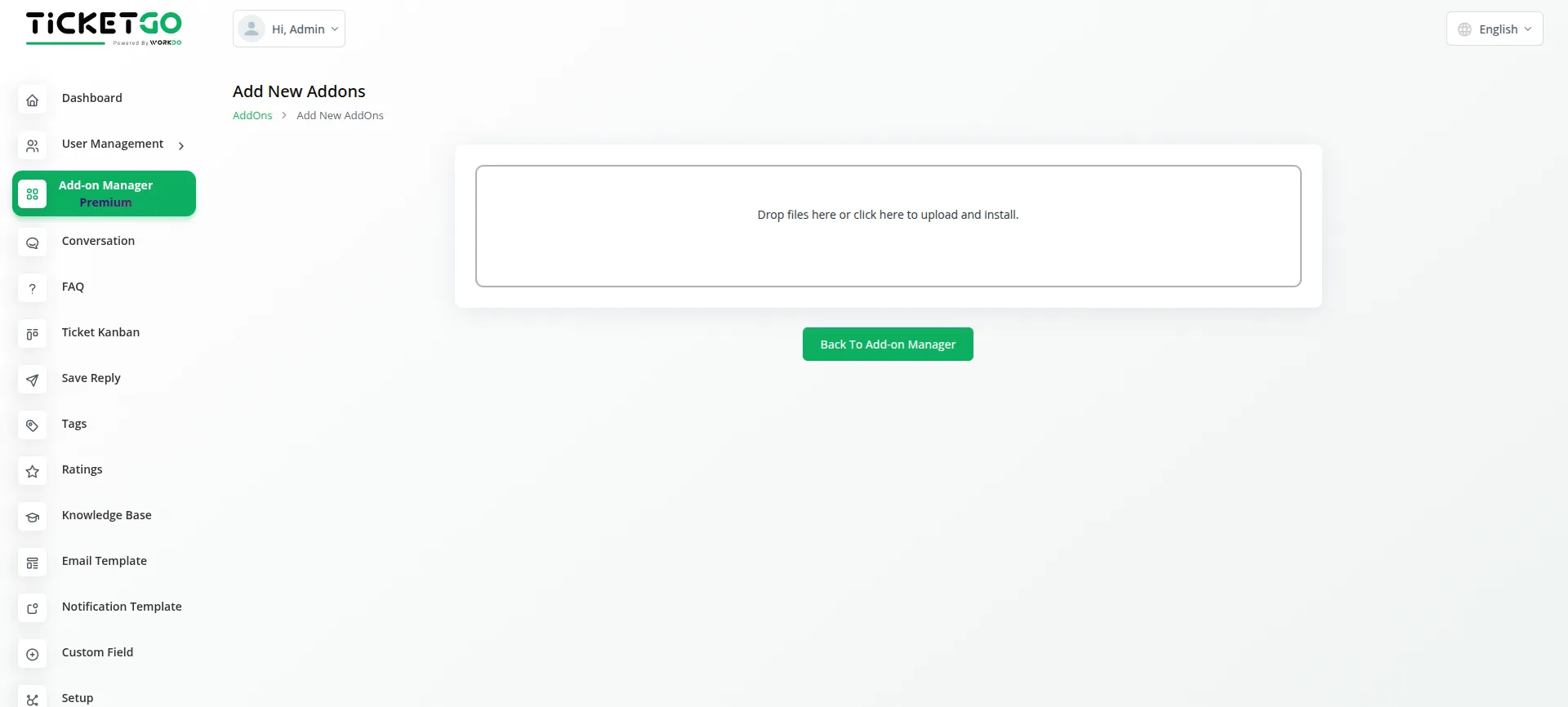
4. Select the ZIP file of the Add-On that you downloaded after purchase and upload it.
5. Once the upload is complete, go back to the Add-On Manager page.
6. Locate the newly uploaded Add-On in the list and enable it by toggling the activation switch.
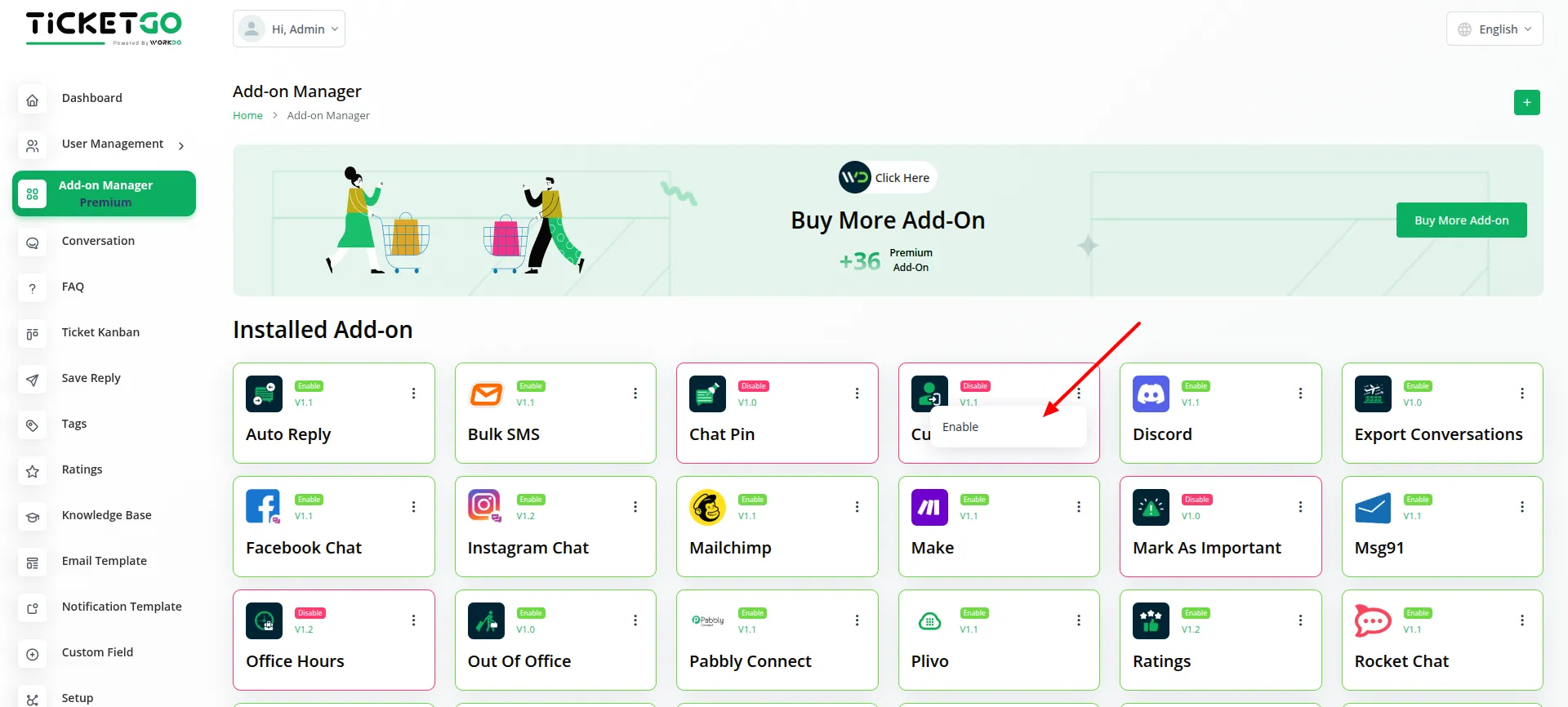
7. After enabling the Add-On, it will be successfully integrated with TicketGo and ready for use.
By following these steps, you can easily install and activate any Add-On in TicketGo, expanding its features and functionality as needed.
Categories
Related articles
- Sign in with Bitbucket – WorkDo Dash SaaS Add-On Guide
- PayPay – WorkDo Dash SaaS Add-On Guide
- Payroll Management in WorkDo HRM
- API – BookingGo SaaS Add-On Guide
- WhatsApp Chat Bot – TicketGo Add-On Guide
- Paystack – WorkDo Dash SaaS Add-On Guide
- Zapier – TicketGo Add-On Guide
- SinchSMS – WorkDo Dash SaaS Add-On Guide
- Google Analytics – WorkDo Dash SaaS Add-On Guide
- Sports Club & Academy Management – WorkDo Dash SaaS Add-On Guide
- PetCare – WorkDo Dash SaaS Add-On Guide
- Nepalste Integration in Dash SaaS
We're Here to Help - Let's Talk
Have questions about our solutions, customization services, or business tools? Our team is here to help you. let's talk.