

Rental Management – WorkDo Dash SaaS Add-On Guide
Learn how to manage rental properties, bookings, and tenant records in Dash SaaS.
Introduction
The Rental Management Add-On is designed to simplify and automate rental operations across various sectors—whether it’s property, equipment, or service-based rentals. It enables users to create and manage rental orders with customizable durations, pricing, and product details. The system supports flexible rental types, recurring rentals, and seamless tracking of rental periods. With built-in invoicing, inventory tracking, and real-time updates, this module eliminates manual handling and ensures accuracy. Stay in control with detailed rental records, streamlined workflows, and efficient customer management all in one centralized solution.
How to Install the Add-On?
To install the Rental Management Add-On, you can follow this link: Setup Add-On.
How To Use the Rental Management Add-On?
Once you purchase and install the Add-On, go to the sidebar and search for the Rental management Add-On. You will get to see many pages over there. To start creating rentals, you must first add items with the type “Rent.” After that, you can easily create and manage rental orders for those items.
Manage Items
- To add a new item, click the Create button at the top of the Manage Items page. Enter the item details, including Name, SKU, Tax, Category, and Description. Next, fill in the pricing information by entering the Sale Price, Purchase Price, Unit, and Quantity. In the Media section, upload the product images. Then, select the appropriate Warehouse from the dropdown in the Warehouse Details section.
- After filling in all required fields, click Save to create the item.
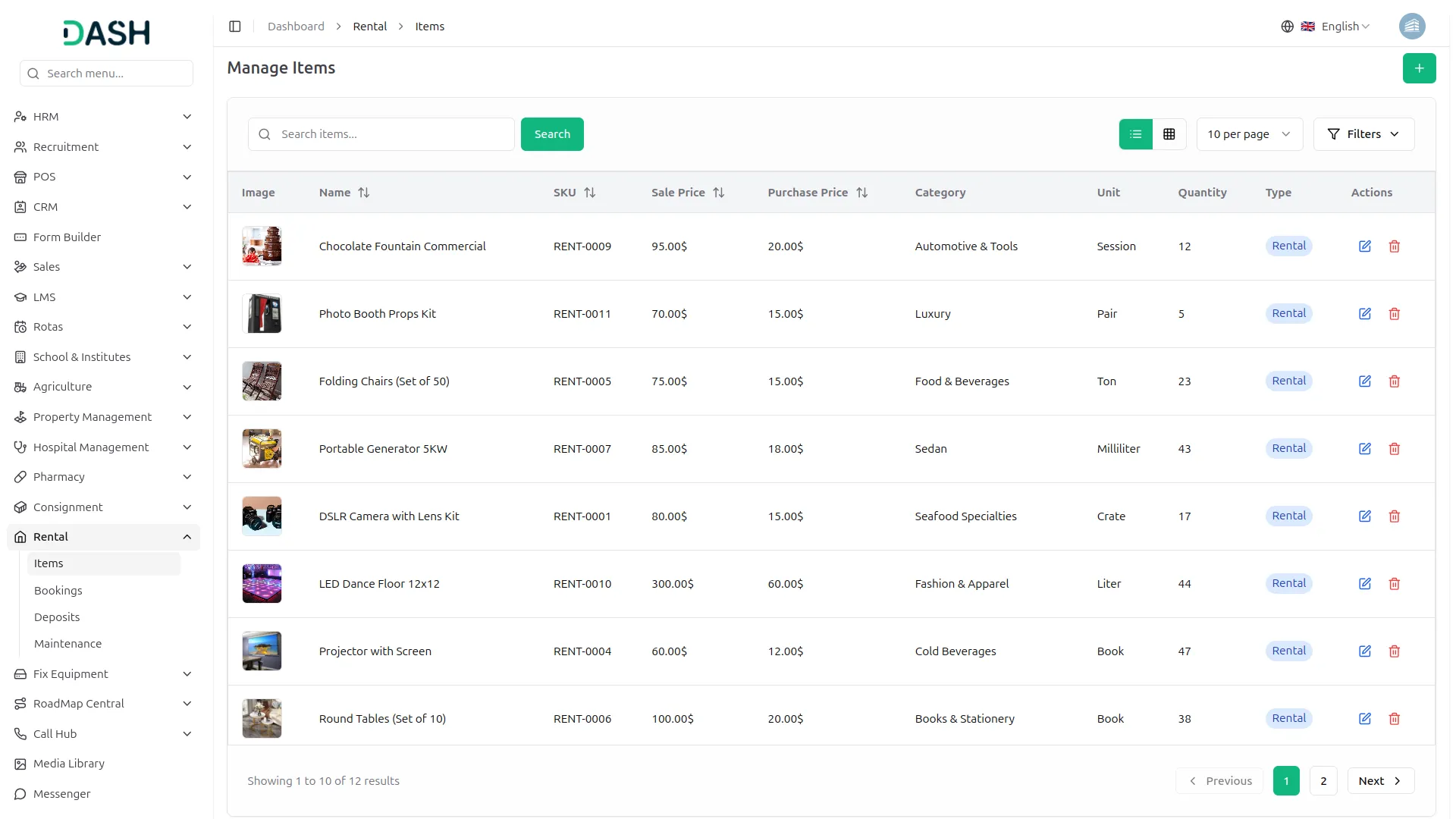
- The list page displays all items with columns for Image, Name, SKU, Sale Price, Purchase Price, Category, Unit, Quantity, and Type, which is always set to Rental.
- You can use the Search and Filter options to quickly find specific items. In the Actions column, you can Edit item information or Delete the item record.
-
Manage Bookings
- To create a new booking, click the Create button at the top of the Manage Bookings page. Select the Rental Type from the dropdown (Daily, Weekly, Monthly, Yearly). Enter the Start Date; the End Date is automatically calculated based on the selected rental type. Choose a Customer from the dropdown list, which is fetched from the customer records in the Accounting module. Select the Warehouse from the dropdown, which is loaded from the Warehouse module, and enter any additional notes if required.
- In the Rental Items section, you can add multiple products by selecting them from the Manage Items list. Once an item is selected, its Quantity, Price, and Tax (%) are automatically populated and remain editable. The system automatically calculates the Amount, Subtotal, Discount, Tax, and Total Amount.
- Click Save to create the booking.
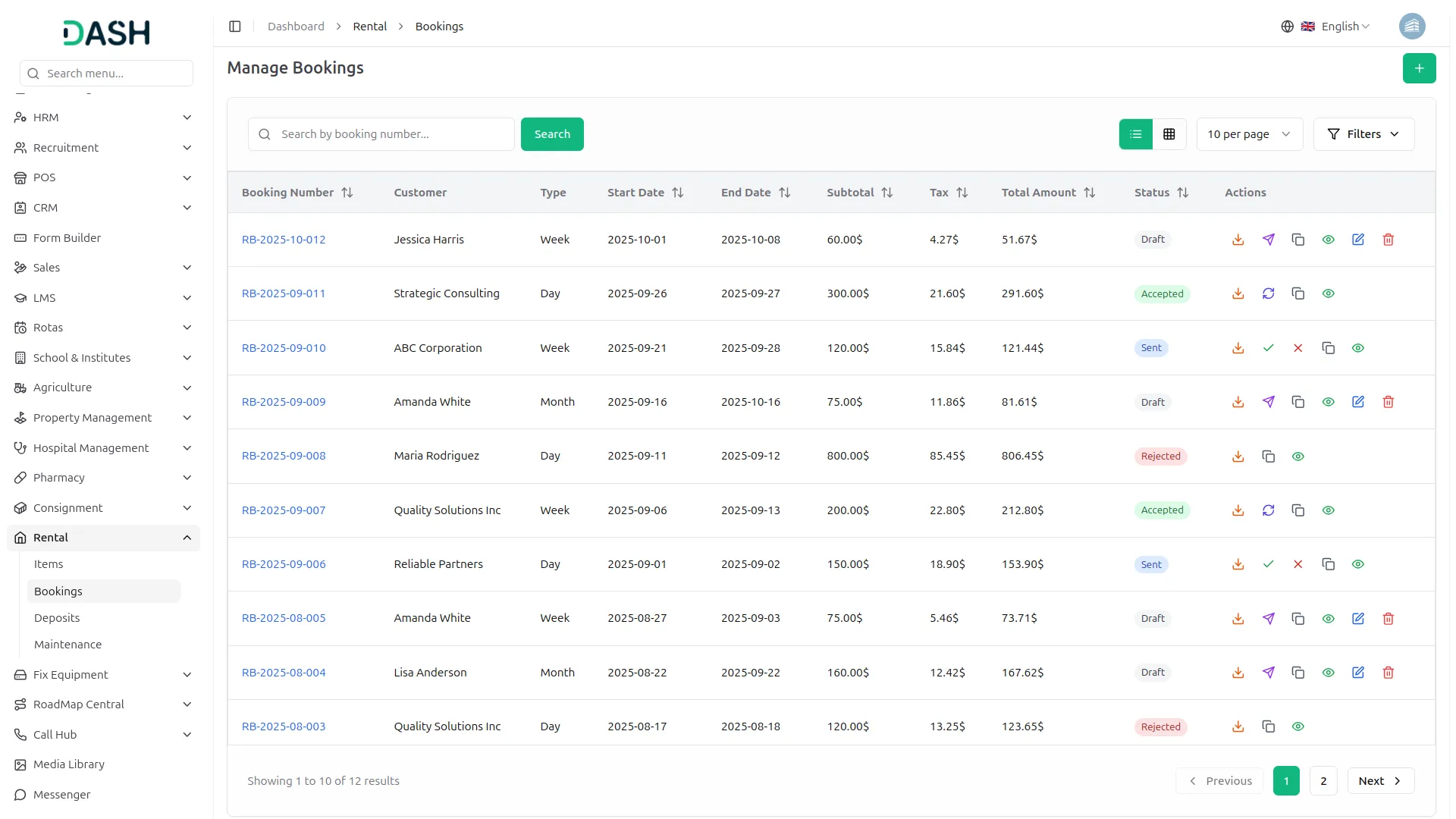
- The list page displays all bookings with columns for Booking Number, Customer, Rental Type, Start Date, End Date, Subtotal, Tax, Total Amount, and Status.
- In the Actions column, you can:
- You can click the “Download PDF” button to download the booking details in pdf format. Click the “Duplicate” button, and a duplicate booking is created. You can view booking details, edit the booking details, or delete the booking.
- When you click the Send Booking button, the booking details are sent to the customer, and the booking status updates from Draft → Sent. After sending, the Approve and Reject buttons appear in the Actions column.
- Clicking Approve updates the status from Sent → Accepted, and the Edit and Delete buttons are hidden. A Convert to Invoice button is then added in the Actions column.
- When you click Convert to Invoice, a sales invoice is created for the booking under the Sales Invoices module, and a View Sales Invoice button appears.
- Clicking View Sales Invoice redirects you to the detailed sales invoice page for the booking.
-
Manage Deposits
- To add a new deposit, click the Create button at the top of the Manage Deposits page. Select the Booking ID from the dropdown list, which is fetched from the Manage Bookings module. Enter the Security Deposit amount, and then click the Create button to save the deposit.
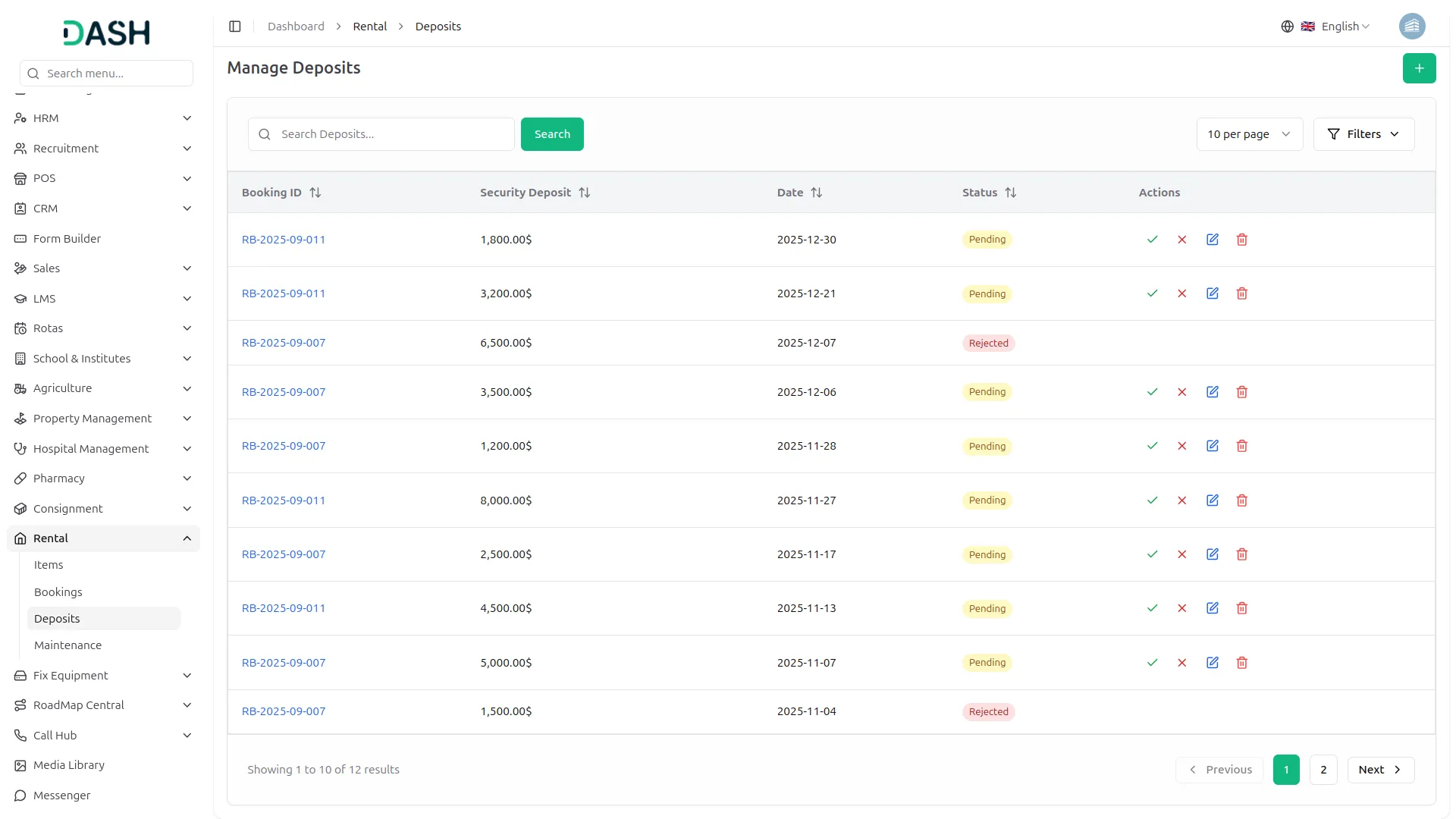
- The list page displays all deposit records, showing columns such as Booking ID, Security Deposit, Status (Pending, Approved, Rejected), and Date. The Actions column allows you to edit or delete a deposit record when the status is pending.
- When you click the Approve button, the deposit status changes to Approved. At this stage, the Edit and Delete buttons are hidden, and a Return Deposit button is added to the Actions column.
- Clicking on the Return Deposit button opens a form where you can view the Return Amount, enter the Return Date, and add Notes. After submitting the form, the deposit status changes to Returned, and a View button appears in the Actions column. Clicking this View button allows you to see the full deposit details.
- If you click the Reject button, the deposit status becomes Rejected, and all action buttons for that record are hidden.
-
Manage Maintenance
- To add a new maintenance record, click the Create button at the top of the Manage Maintenance page. Select the Warehouse from the dropdown list, which is loaded from the Warehouse module. Then choose the Item from the dropdown, which is fetched from the Manage Items module. Next, select the Status (Scheduled, In Progress, Completed, Cancelled) and Priority (Low, Medium, High, Critical) from their respective dropdown menus. Choose the Scheduled Date, enter the Technician Name, and provide the Estimated Hours, Cost, and a brief Description.
- After filling in all the required fields, click Save to create the maintenance record.
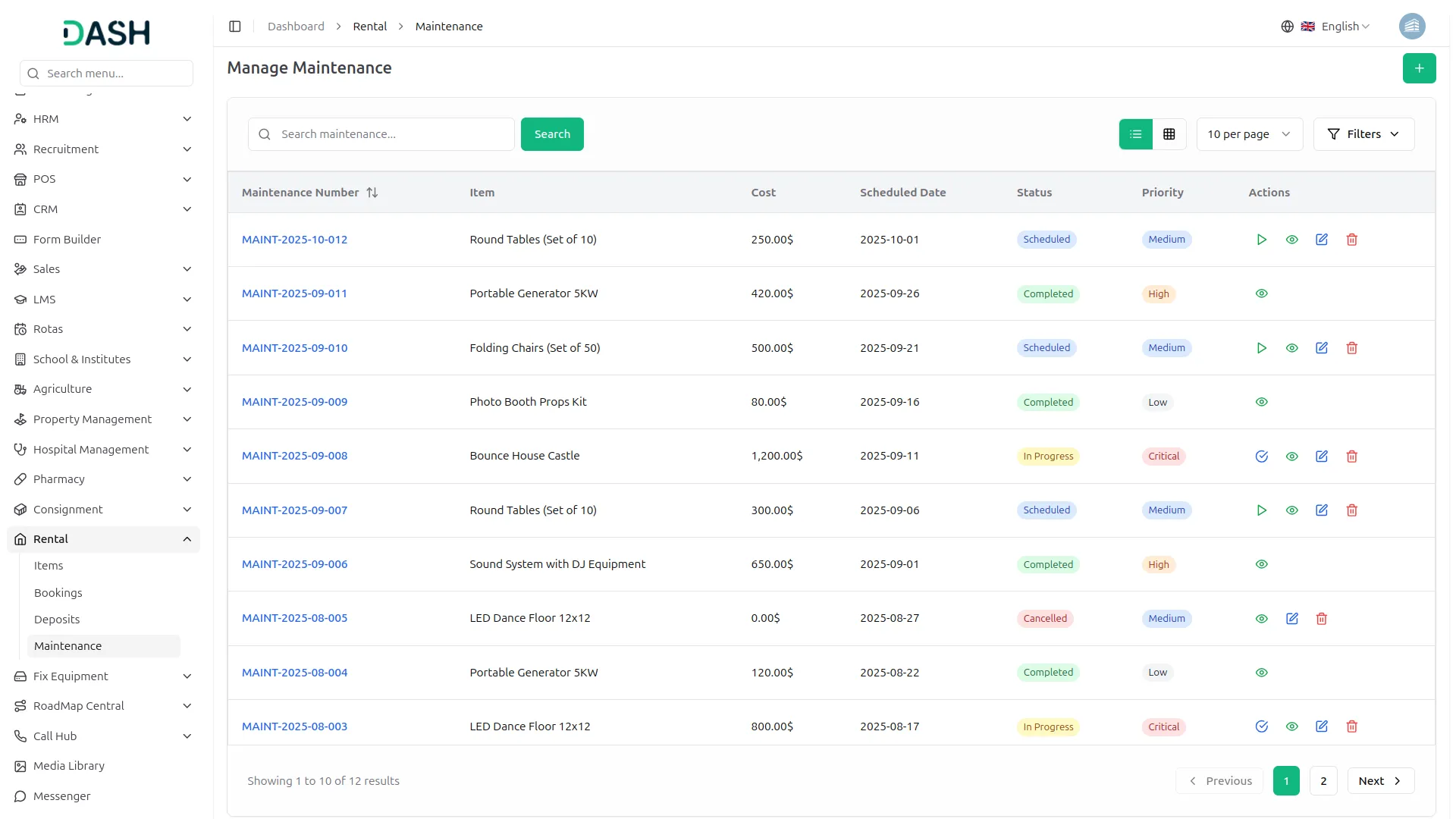
- The list page displays all maintenance entries with columns including Maintenance Number, Item Name, Scheduled Date, Status, Priority, and Cost.
- You can use the Search and Filter options to quickly find specific Maintenance. In the Actions column, you can View Maintenance details, Edit Maintenance information, or Delete the Maintenance.
- When you click the Start button, the maintenance status automatically updates from Scheduled to In Progress, and a Complete button appears in the Actions column. Clicking the Complete button updates the maintenance status to Completed.
-
Categories
Related articles
- PayTR – WorkDo Dash SaaS Add-On Guide
- Roadmap Central – WorkDo Dash SaaS Add-On Guide
- Moneris – WorkDo Dash SaaS Add-On Guide
- User Manual – AccountGo
- Jira – WorkDo Dash SaaS Add-On Guide
- Midtrans – BookingGo SaaS Add-On Guide
- eSewa – BookingGo SaaS Add-On Guide
- Waiting List – BookingGo SaaS Add-On Guide
- SMS Integration – WorkDo Dash SaaS Add-On Guide
- WhatsApp API – WorkDo Dash SaaS Add-On Guide
- Fleet – WorkDo Dash SaaS Add-On Guide
- Rotas – WorkDo Dash SaaS Add-On Guide
We're Here to Help - Let's Talk
Have questions about our solutions, customization services, or business tools? Our team is here to help you. let's talk.