
Vehicle Inspection Management – WorkDo Dash SaaS Add-On Guide
Learn how to manage vehicle inspections, reports, and compliance records in WorkDo Dash SaaS.
Introduction
The Vehicle Inspection Management software is a comprehensive system designed to streamline and manage all aspects of vehicle inspection processes. This software helps organizations track vehicles, schedule inspections, manage inspection requests, maintain compliance with regulations, and generate invoices for inspection services. The system provides a centralized dashboard for monitoring inspection activities, managing vehicle records, scheduling inspections, tracking compliance requirements, and maintaining detailed inspection histories.
How to Install the Add-On?
To Set Up the Vehicle Inspection Management Add-On, you can follow this link: Setup Add-On.
How to Use the Vehicle Inspection Management Add-On?
Vehicle Inspection Dashboard
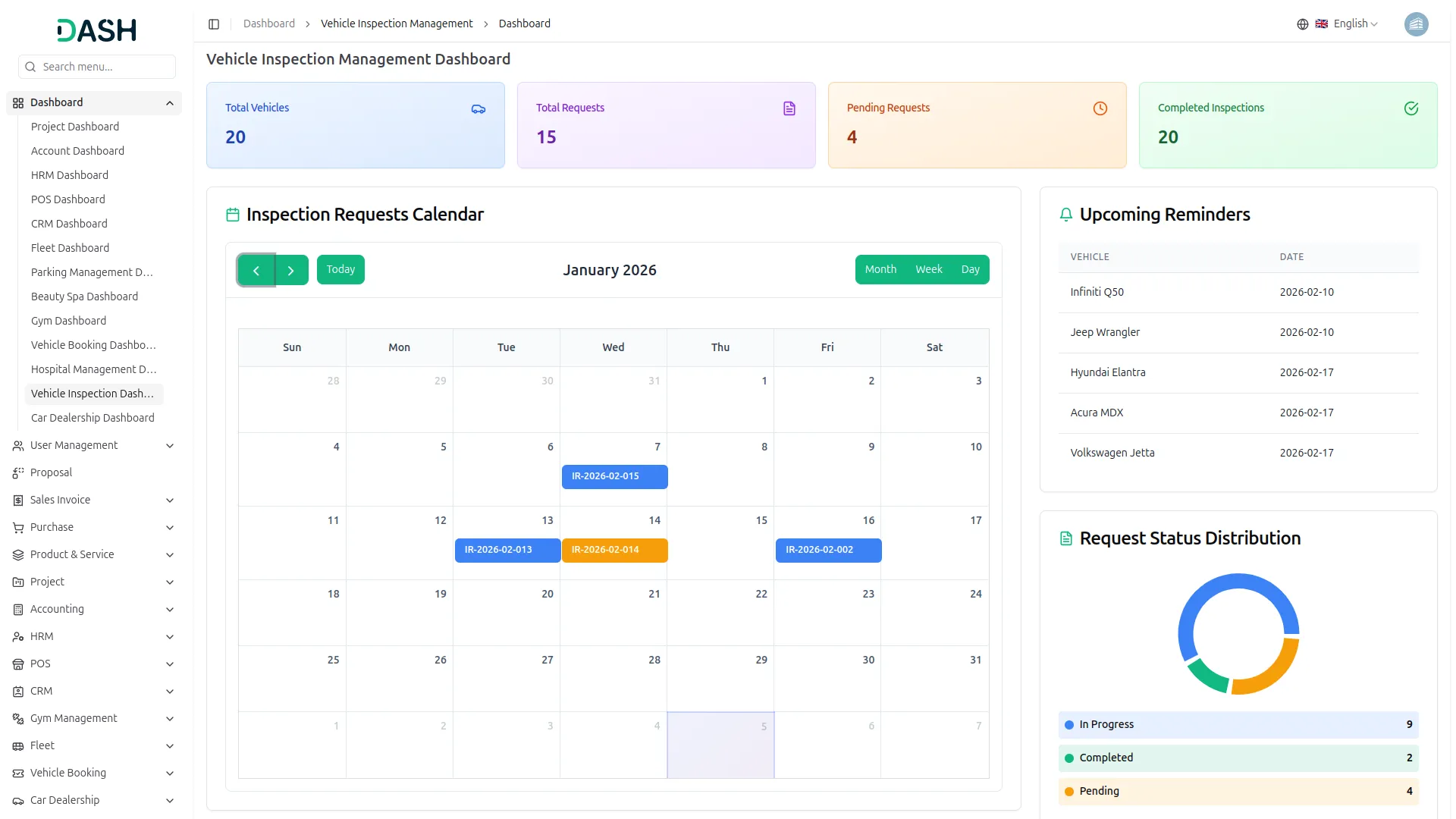
- The Vehicle Inspection Dashboard acts as the central hub for tracking and managing all vehicle inspection activities. It provides clear visibility into inspection performance, schedules, and status management through key metric cards and visual reports.
- The dashboard features four key metric cards that provide a quick overview of inspection activity: Total Vehicles, showing the number of vehicles registered in the system; Total Requests, displaying the total number of inspection requests generated; Pending Requests, highlighting inspection requests awaiting action; and Completed Inspections, tracking the number of successfully completed inspections.
- The Inspection Requests Calendar presents all scheduled inspection requests in a calendar format for the current month. Users can navigate between months using arrow buttons or jump to today’s date with the “Today” button. The calendar supports three viewing modes—Month, Week, and Day—allowing flexible schedule management. Inspection appointments are visually marked on their scheduled dates, making it easy to track upcoming inspections and plan resources efficiently.
- The Upcoming Reminders section lists vehicles with upcoming inspection deadlines. It includes key details such as Vehicle Name and Reminder Date, ensuring timely notifications and preventing missed inspections.
- At the bottom of the dashboard, the Request Status Distribution is displayed as a donut chart that visualizes the breakdown of inspection request statuses. The chart shows three categories: Completed inspections, Pending requests awaiting action, and In Progress inspections currently underway. This visualization enables quick assessment of workflow status and helps identify bottlenecks in the inspection process.
Manage Vehicle
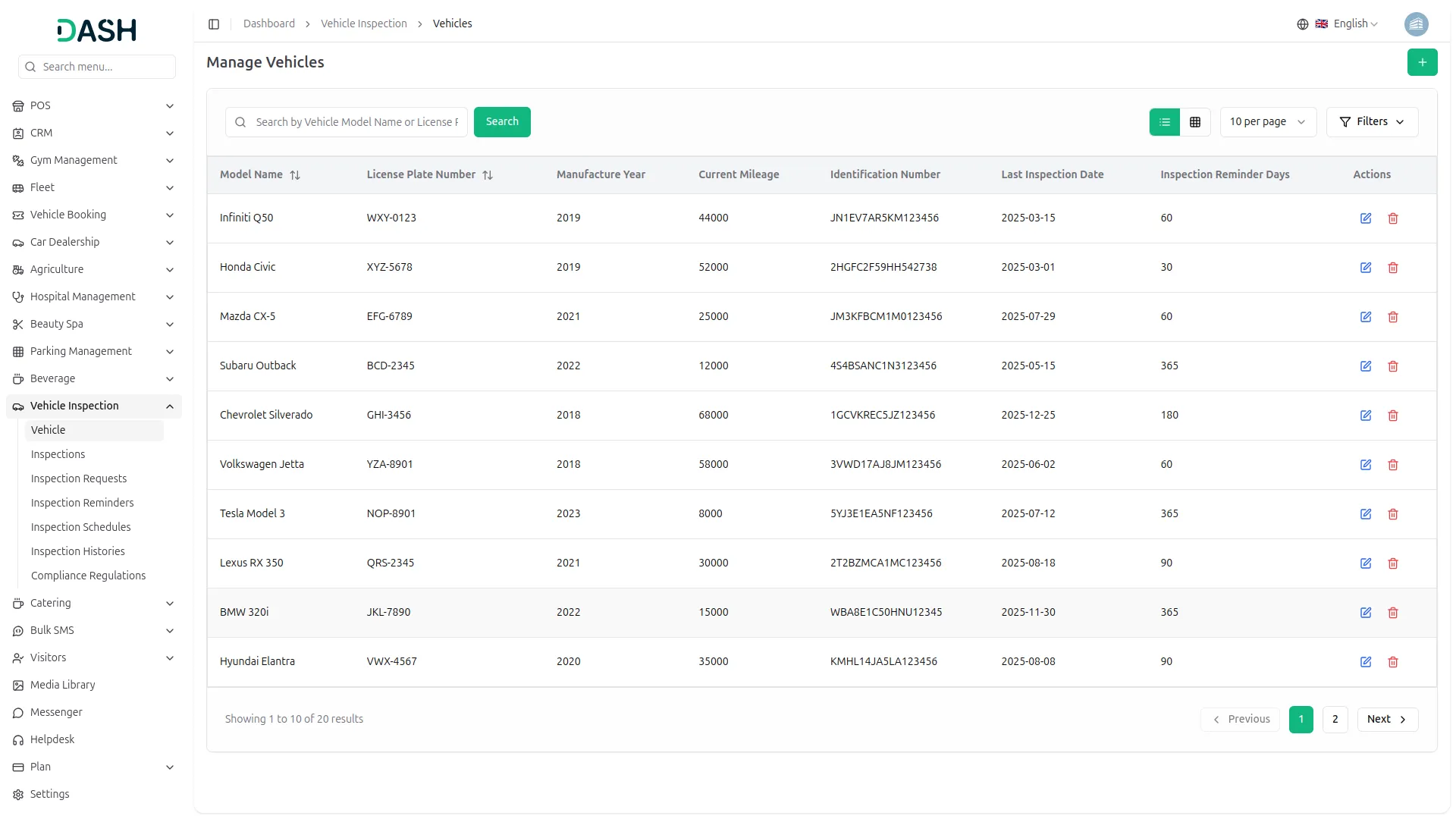
- To create a new Vehicle record, click the “Create” button at the top of the vehicle page. Enter the Vehicle Model Name, License Plate Number, Vehicle Manufacture Year, and Vehicle Current Mileage.
- Then add the Vehicle Identification Number, Last Inspection Date, and set the Inspection Reminder Days to automatically track when the next inspection is due. After filling in all required information, click “Submit” to save the vehicle record.
- The list page shows all vehicles in a table with columns for Vehicle Model Name, License Plate Number, Vehicle Manufacture Year, Vehicle Current Mileage, Vehicle Identification Number, Last Inspection Date, and Inspection Reminder Days.
- You can perform actions like Edit to modify vehicle information, or Delete to remove a vehicle record. You can also search and filter the list whenever you want.
Inspection
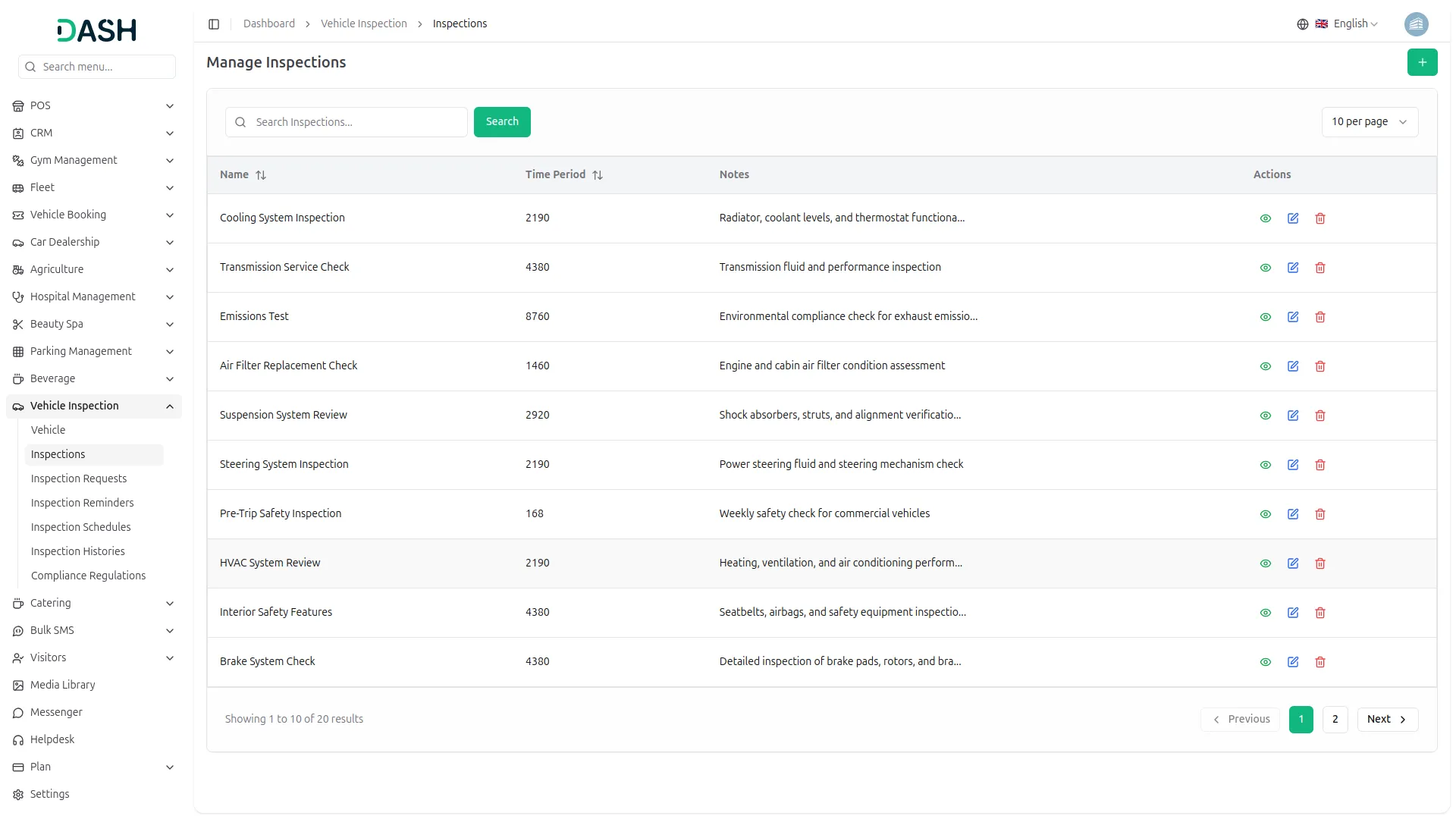
- To add a new Inspection, click the “Create” button on the inspection list page. Enter the inspection Name, specify the Period required for the inspection, and add any relevant Notes about the inspection procedure or requirements.
- The list page shows all available inspections with columns for Name, Time Period, and Notes.
- Available actions include Edit to modify inspection details or Delete to remove an inspection type from the system.You can also Search, and Filter the list whenever you want.
Inspection Request
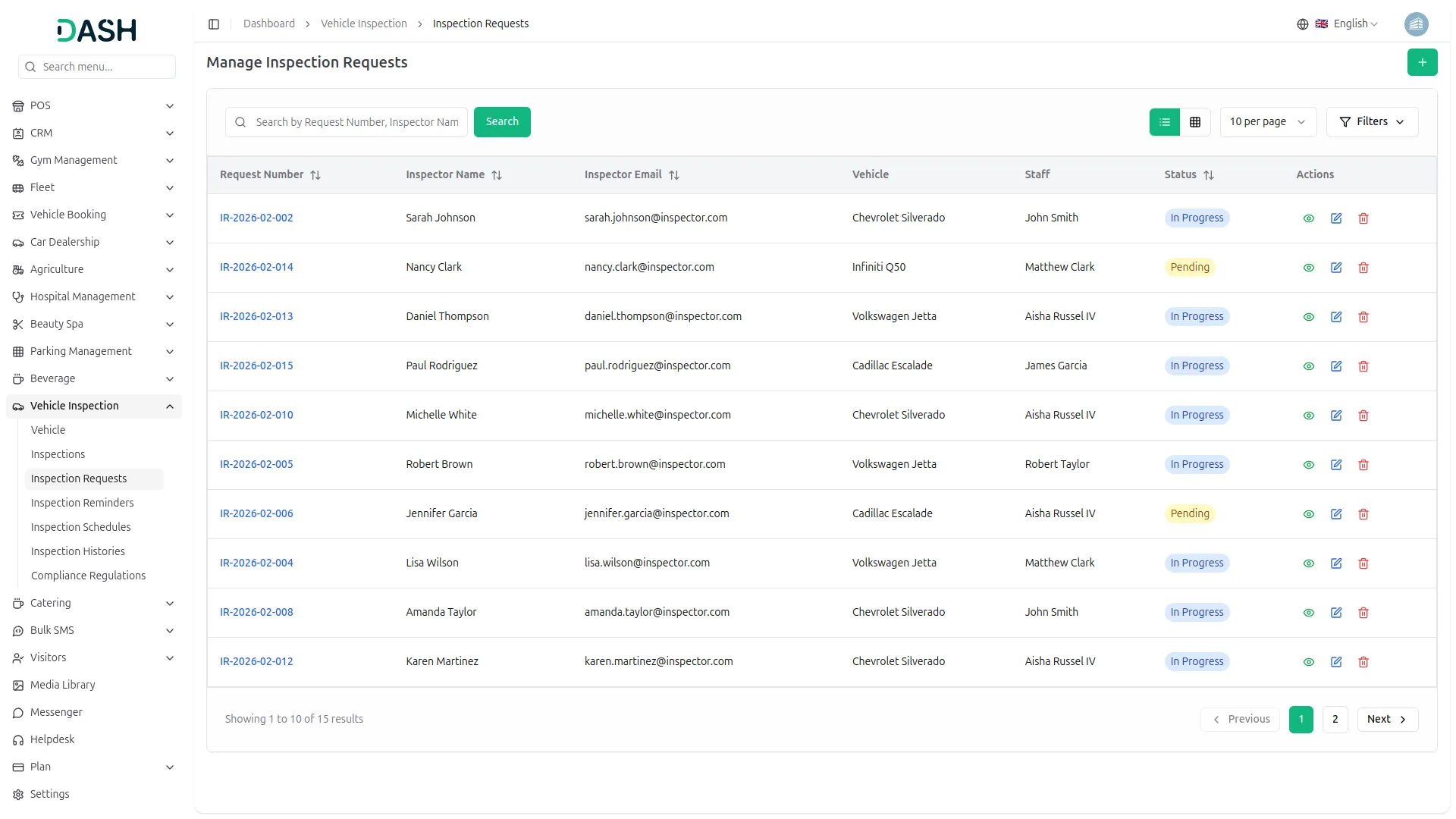
- To create a new Inspection Request, click the “Create” button on the inspection request page. Enter the Inspector Name and Inspector Email for the person who will conduct the inspection. Select the Vehicle from the dropdown menu to choose which vehicle needs inspection, then use the Inspections dropdown to select multiple inspections that need to be performed.
- The list page displays all requests in a table showing Request Number, Inspector Name, Inspector Email, Vehicle, Status and Assign Staff, columns.
- You can view request details, edit to update the status and assign staff members to the request, or delete to remove the request.You can also Search, and Filter the list whenever you want.
Inspection Reminder
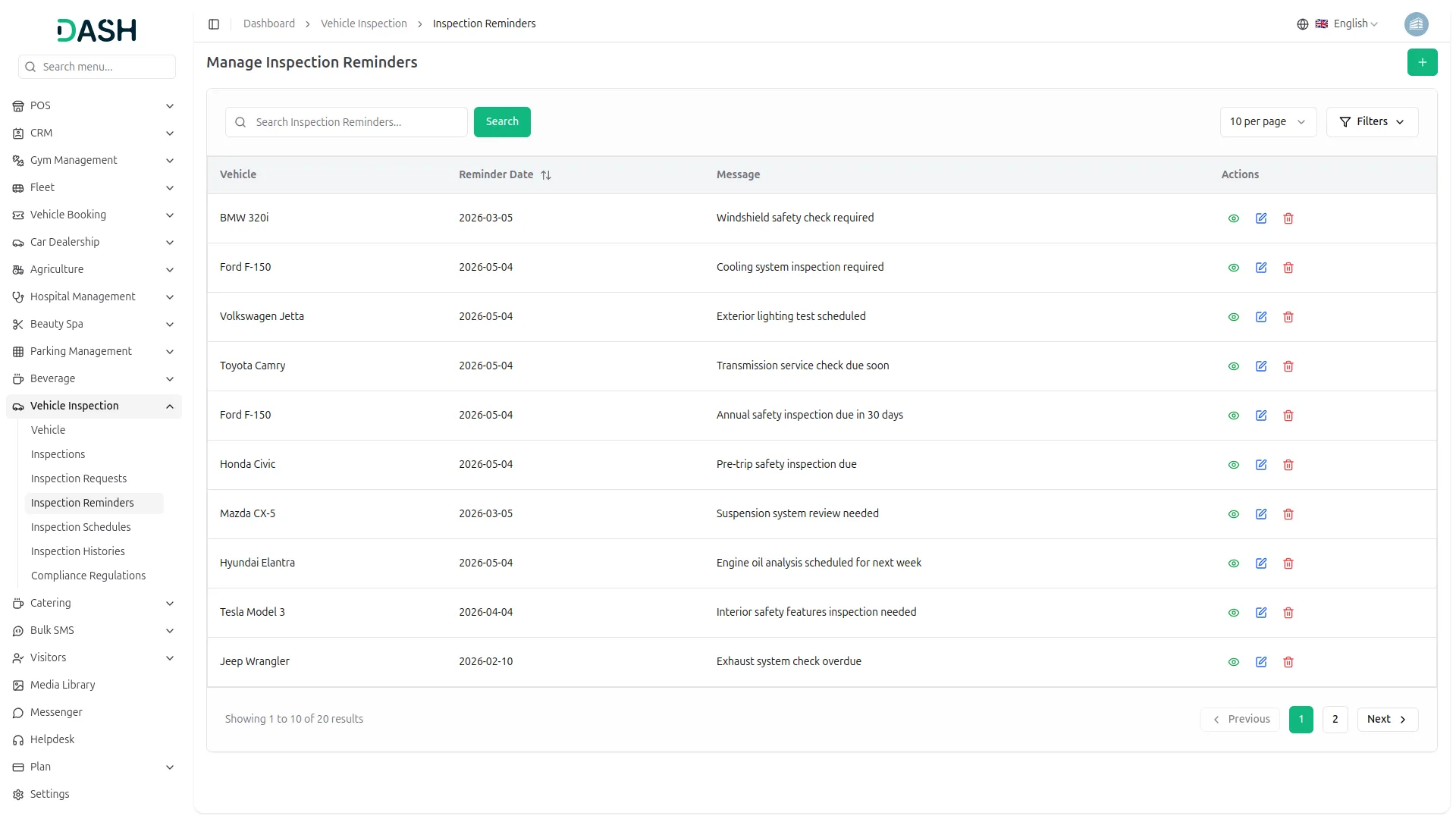
- To create a new Inspection Reminder, click the “Create” button on the inspection reminder page. Select the Vehicle Name from the dropdown menu to choose which vehicle needs a reminder.
- Set the Reminder Date for when the inspection should be performed and enter a custom Message for the reminder notification.
- The list page displays all reminders with columns for No, Vehicle, Reminder Date, and Message.
- You can edit reminder details or delete reminders that are no longer needed. You can also Search, and Filter the list whenever you want.
Inspection Schedule
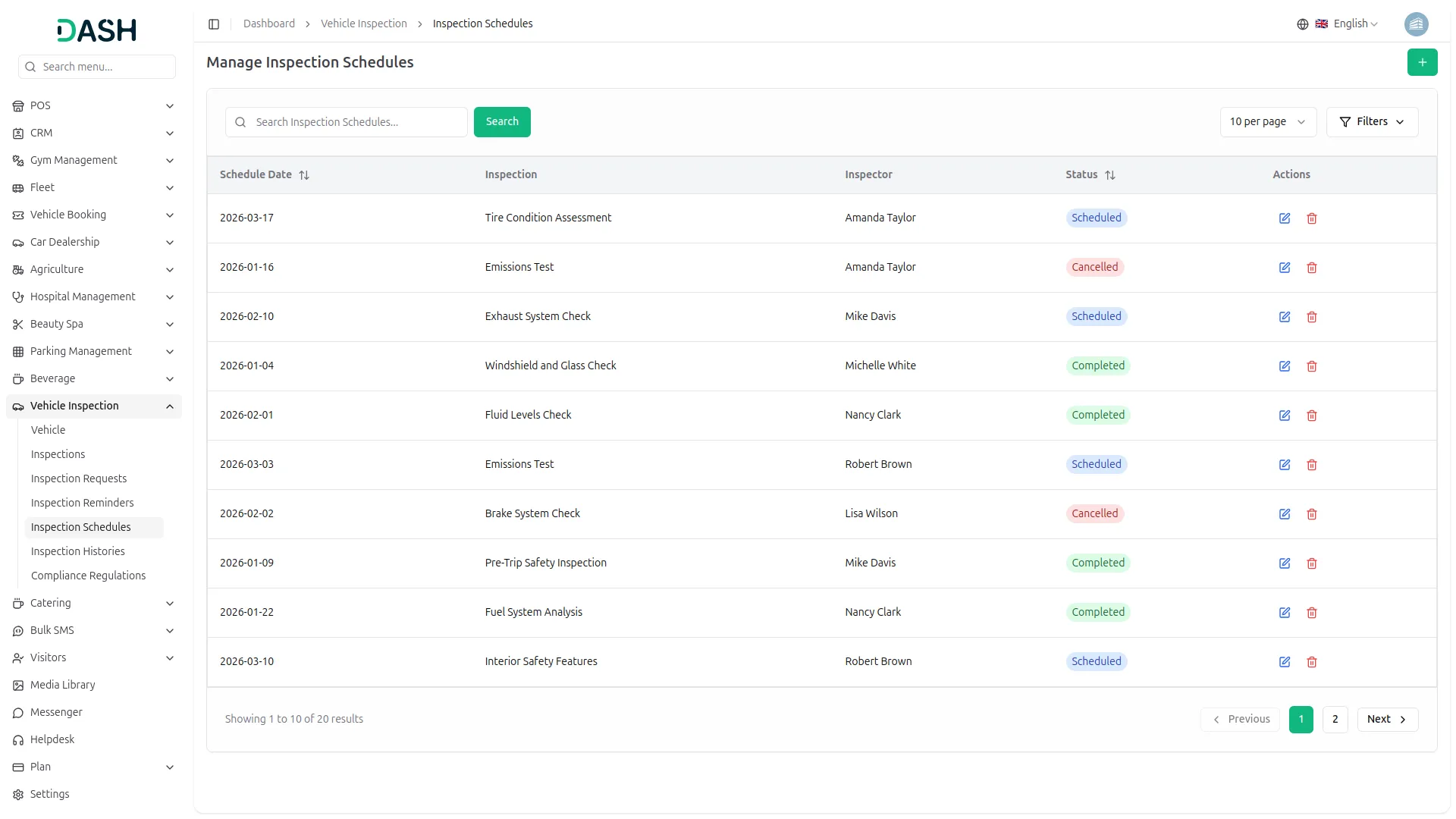
- To create a new Inspection Schedule, click the “Create” button on the inspection schedule page. Set the Schedule Date for when the inspection should take place and select the Status from the dropdown with options like scheduled, completed, or cancelled. /li>
- And then Select the Inspection Name from the dropdown menu to choose which inspection needs to be scheduled. Choose the Inspector Name from the dropdown, which displays inspector names from existing inspection requests.
- The list page shows all scheduled inspections with columns for No, Schedule Date, Inspection, Inspector, and Status.
- Available actions include Edit to modify schedule details or Delete to remove a scheduled inspection. You can also Search, and Filter the list whenever you want.
Inspection History
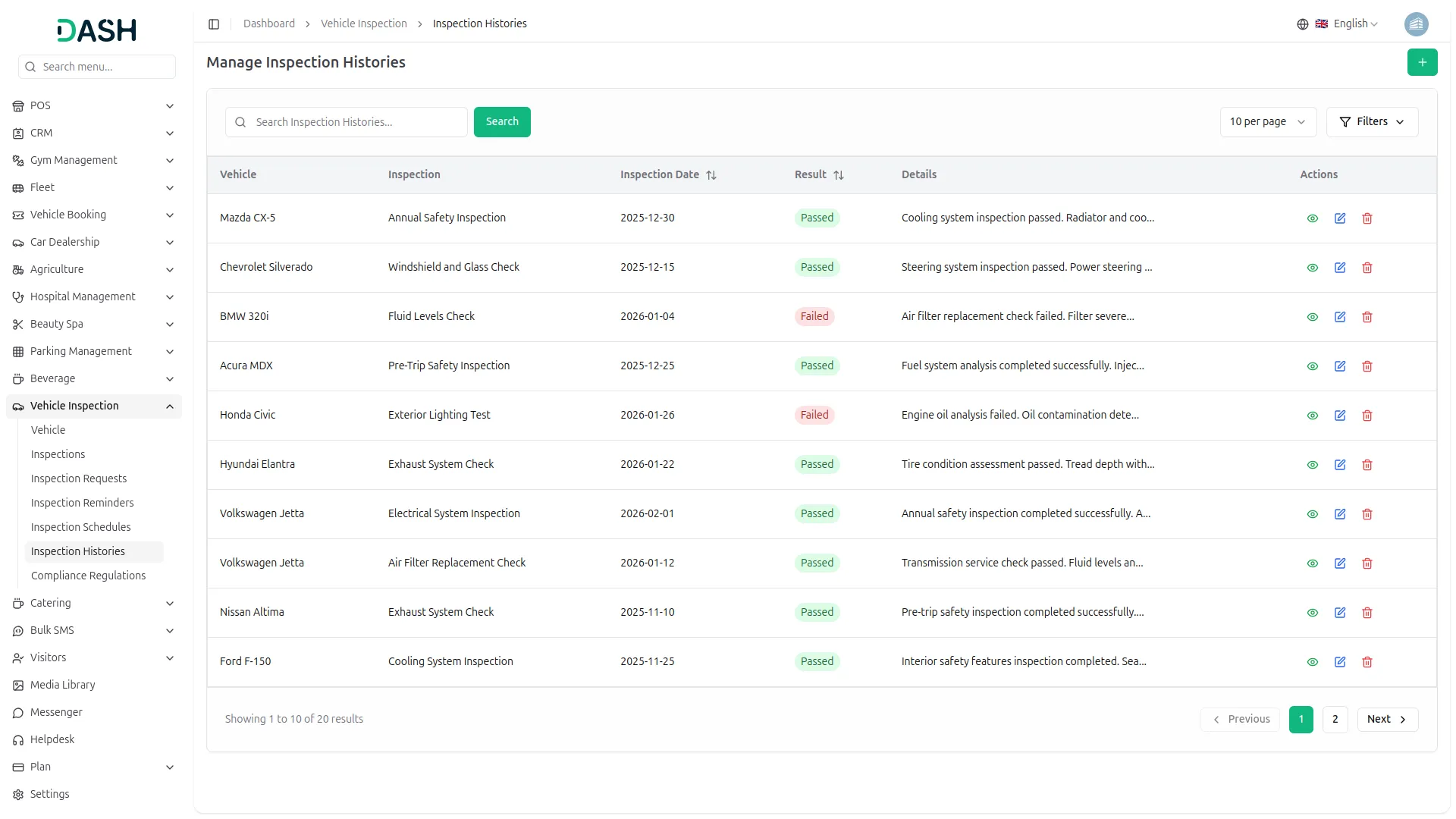
- To create a new Inspection History record, click the “Create” button on the inspection history page. Enter the Inspection Date when the inspection took place and choose the Result from the dropdown with options like passed or failed. Add any relevant Details about the inspection findings or observations.
- Select the Vehicle Name from the dropdown to choose which vehicle was inspected, then select the Inspection Name from the dropdown to specify which type of inspection was performed.
- The list page displays all inspection records with columns for No, Vehicle, Inspection Name, Inspection Date, Result, and Details.
- You can edit existing history records or delete records that are no longer needed. You can also Search, and Filter the list whenever you want.
Compliance Regulations
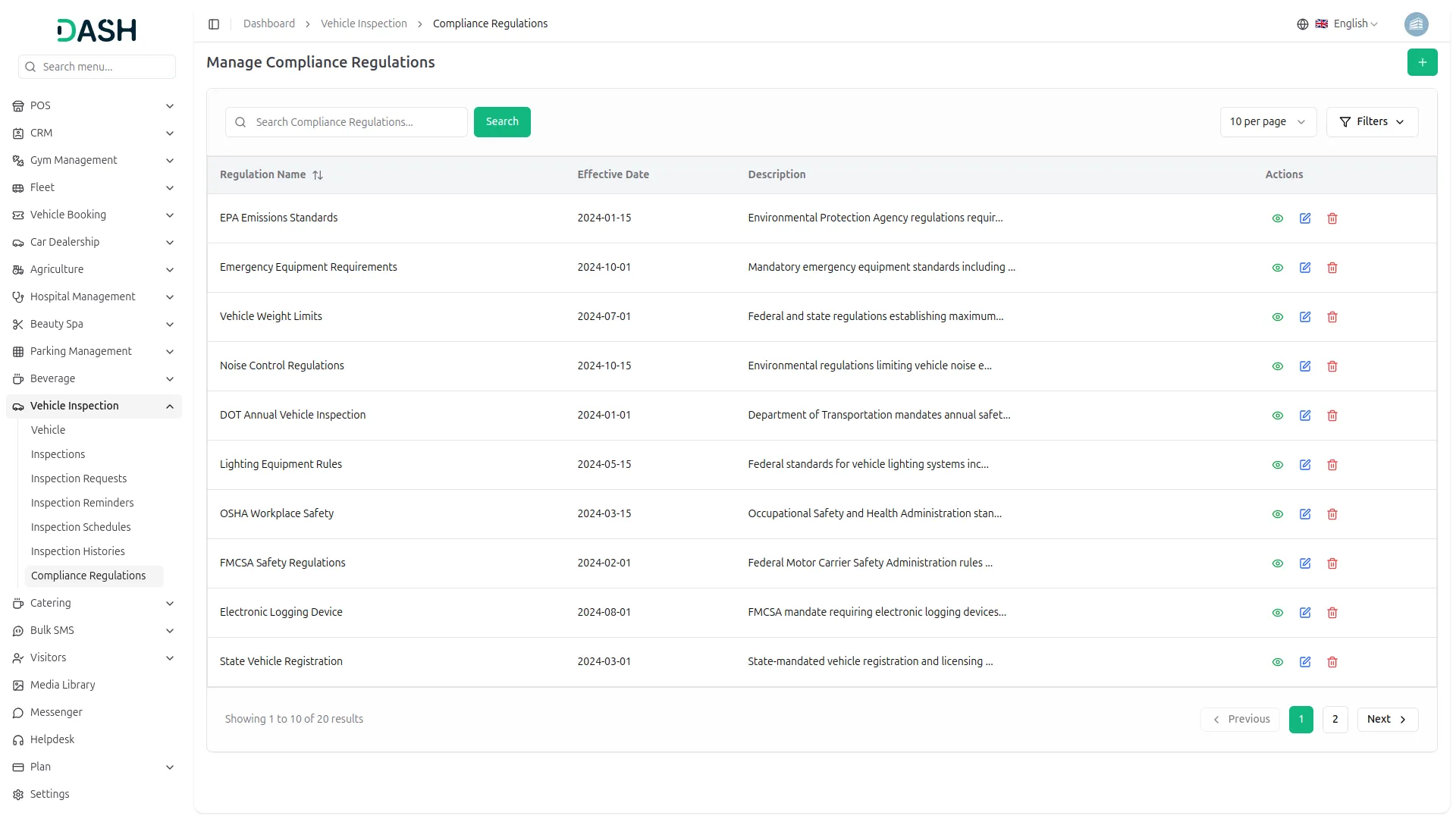
- To add a new Compliance Regulation, click the “Create” button on the compliance regulations page.
- Enter the Regulation Name to identify the specific compliance requirement, set the Effective Date when the regulation becomes active, and provide a detailed Description explaining the regulation requirements and procedures.
- The list page shows all regulations with columns for Regulation Name, Effective Date, and Description.
- Available actions include Edit to modify regulation details or Delete to remove outdated regulations. You can also reset, reload, and export the list whenever you want.
Categories
Related articles
- Ozow – BookingGo SaaS Add-On Guide
- Pesapal – WorkDo Dash SaaS Add-On Guide
- Reports – BookingGo SaaS Add-On Guide
- Water Park Management – WorkDo Dash SaaS Add-On Guide
- Queue Management – WorkDo Dash SaaS Add-On Guide
- Rotas – WorkDo Dash SaaS Add-On Guide
- Google Calendar – WorkDo Dash SaaS Add-On Guide
- Tap – BookingGo SaaS Add-On Guide
- SMS Integration – WorkDo Dash SaaS Add-On Guide
- Digital Certificate – WorkDo Dash SaaS Add-On Guide
- Campaign – eCommerceGo SaaS Add-On Guide
- Zendesk – BookingGo SaaS Add-On Guide
We're Here to Help - Let's Talk
Have questions about our solutions, customization services, or business tools? Our team is here to help you. let's talk.