
Laundry Management – WorkDo Dash SaaS Add-On Guide
Learn how to manage laundry orders, services, and customer records in WorkDo Dash SaaS.
Introduction
The Laundry Management software is a comprehensive platform designed to help laundry businesses and service providers manage their entire laundry operations efficiently. This system provides complete control over laundry services from initial customer requests to final delivery and payment processing. The software supports service configuration, location management, request processing, invoice generation, expense tracking, machine maintenance, and customer-facing web forms. Users can manage laundry services with customizable pricing, track requests through various status stages, process payments, monitor operational expenses, maintain equipment records, and provide customers with an easy-to-use online request form. Whether you’re running a small laundry shop or a large commercial laundry service, this software provides all the tools needed to streamline operations, track customer requests, manage resources, monitor financial performance, and ensure efficient service delivery while maintaining detailed records of all laundry activities.
How to Install the Add-On?
To Set Up the Laundry Management Add-On, you can follow this link: Setup Add-On.
How to Use The Laundry Management Add-On?
Laundry Management Dashboard
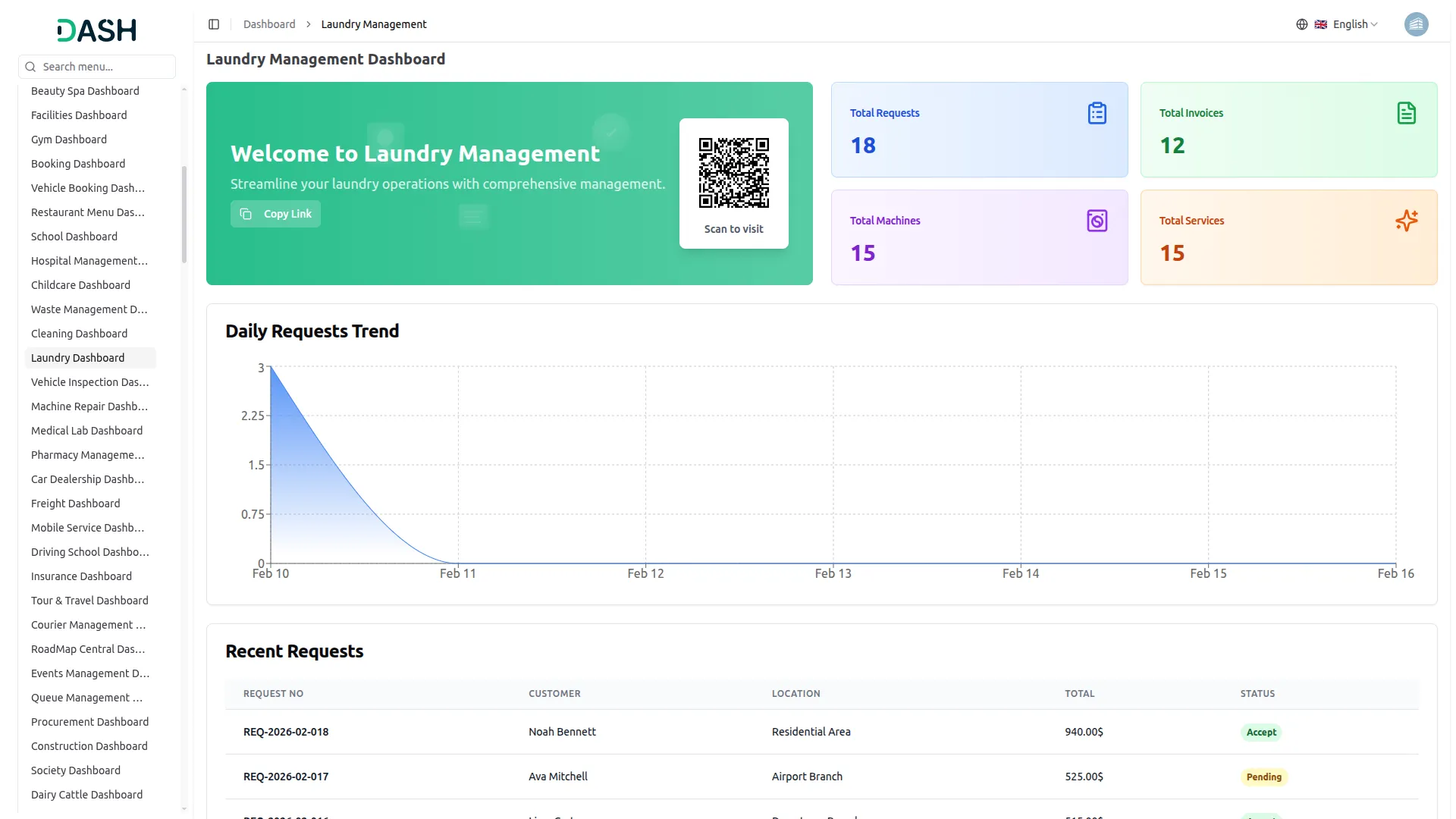
- The dashboard is your main control center that provides a quick overview of your laundry business’s performance and current status.
- When you access the dashboard, you will see a booking link button at the top that allows you to copy the website URL and generate QR codes for frontend booking access. Beside this, you’ll find cards displaying important statistics, including Total Requests, Total Invoices,Total Machines, and Total Services.
- The dashboard also includes a requested trend chart that shows booking data from the last week, giving you a visual representation of your recent business activity.
- At the bottom of the page, the Recent Requests table provides a summary of recently submitted laundry service requests, including their current status. Below it, the Recent Payments table presents the most recent payment records associated with completed services.
System Setup
Brand Settings
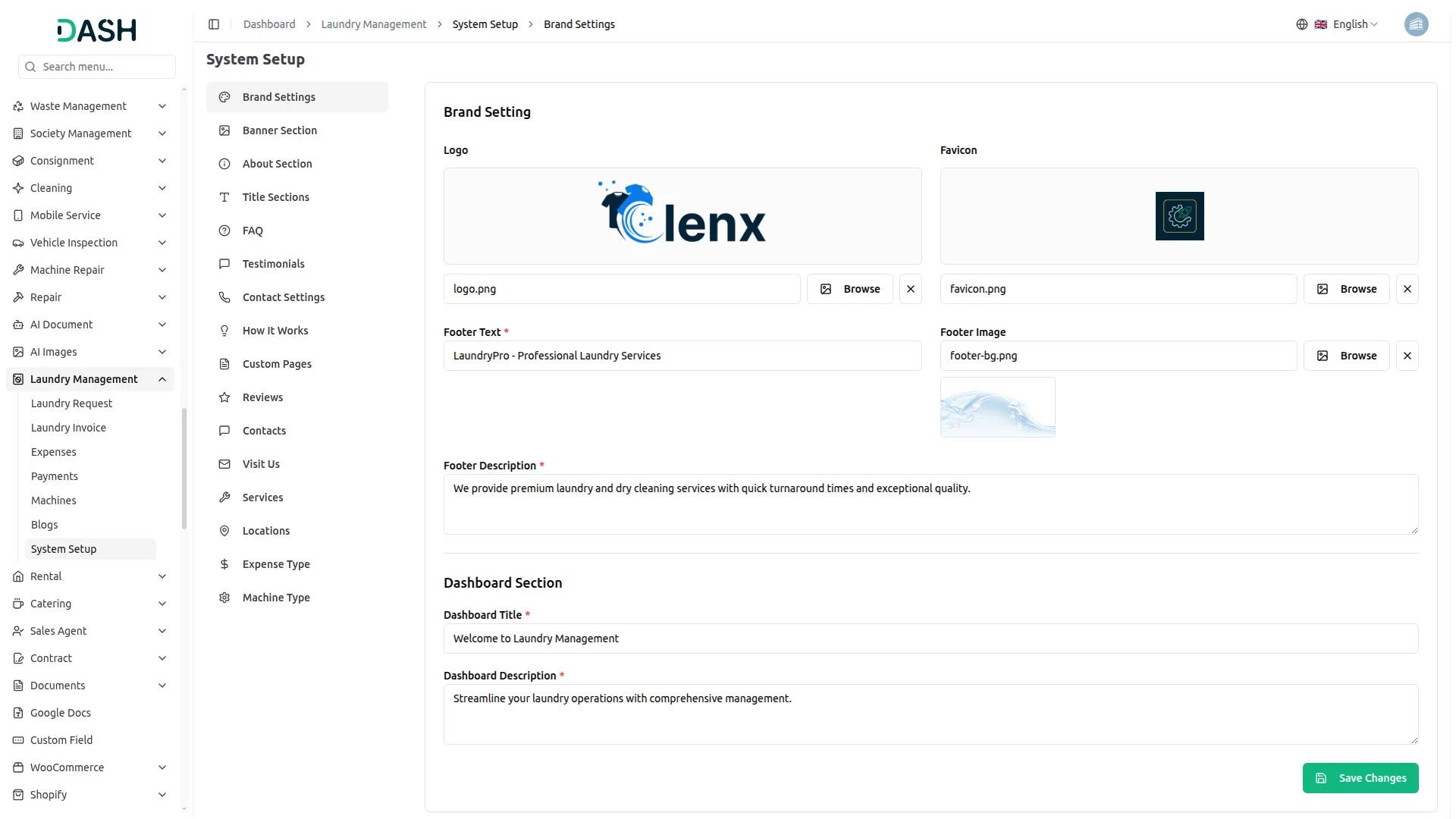
- In the Brand Setting section, you can add and update important details such as logo, favicon, footer text, footer imager, footer description. From the backend, you can easily manage these settings as per your brand identity.
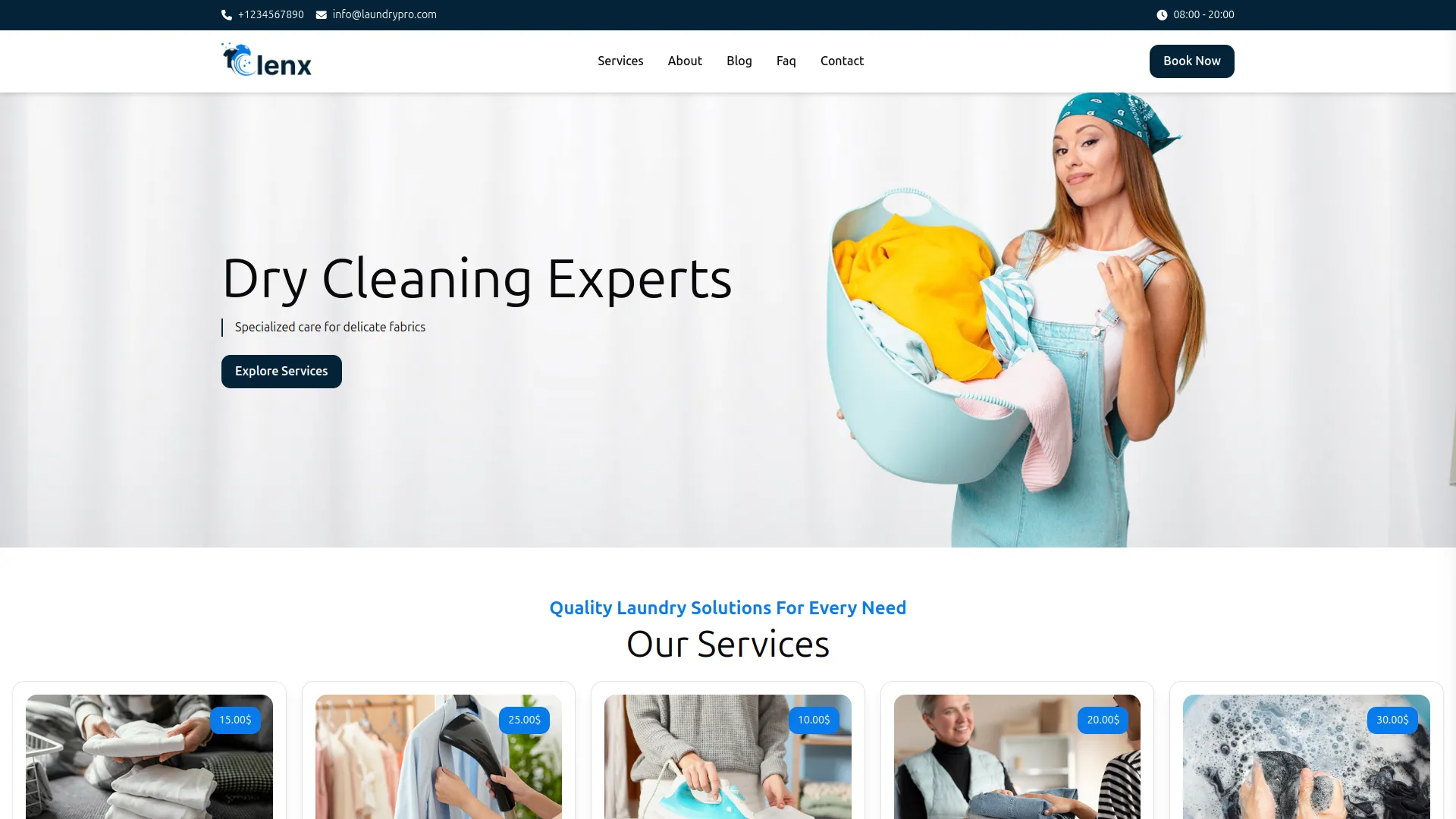
- Once the details are added from the backend, they will automatically display on the frontend across all pages — the logo in the header and footer, along with the footer text and description at the bottom of the site.
- Below you can manage the Dashboard Welcome Card Settings section allows you to customize the welcome card displayed on the dashboard. In this section, you can enter the Card Title and Card Description to control how the welcome message appears to users. After filling in all the required details, click the Save Changes button to store the settings.
- Once saved, these details will automatically appear on the Dashboard page, ensuring the welcome card reflects the updated content and provides users with clear guidance and quick access to the frontend website or key actions.
Banner Section
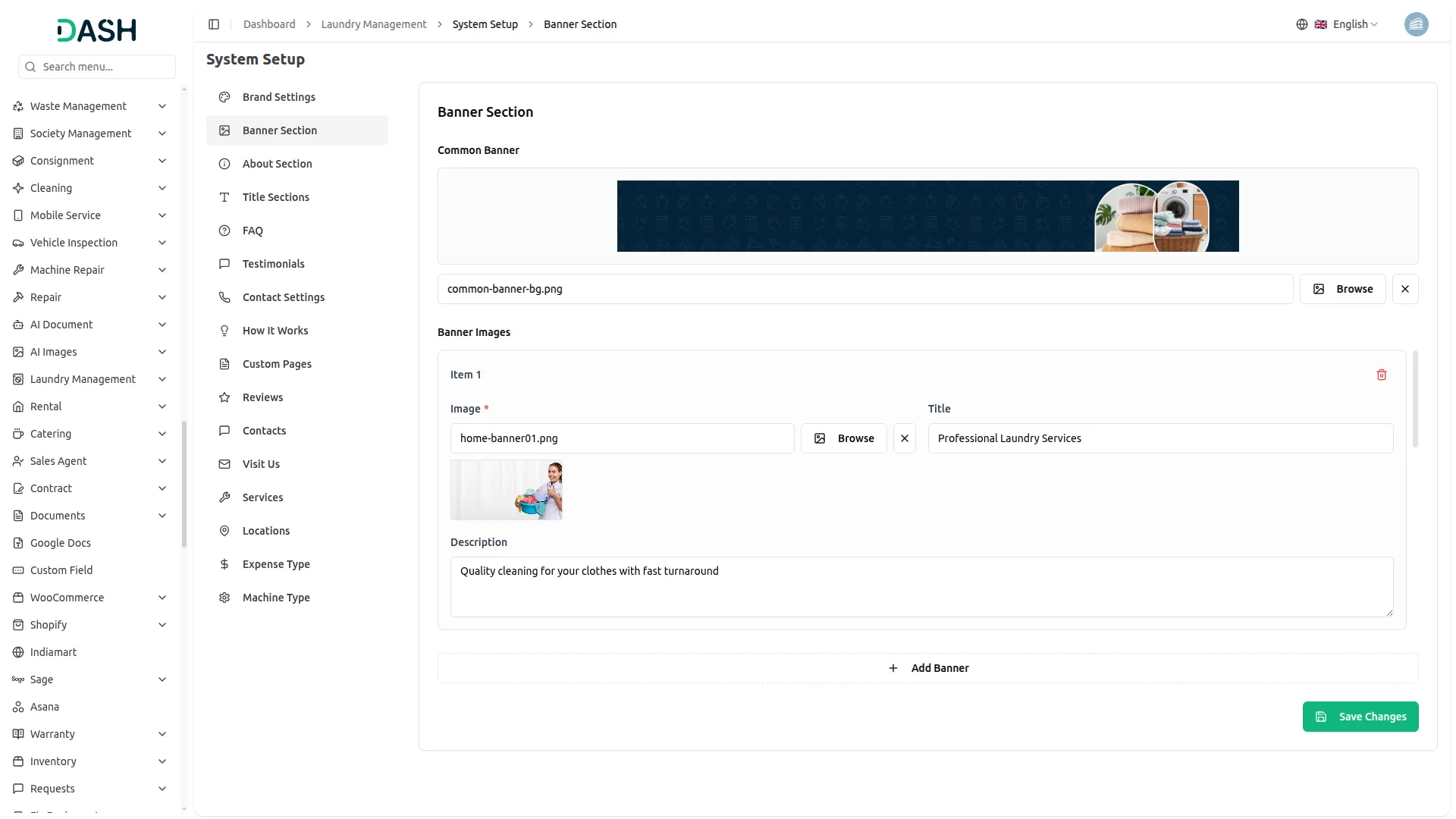
- In the Banner Section, you can create and manage promotional banners that appear on your website’s homepage. This section helps you highlight services, promotions, or important messages and create a strong first impression for visitors.
- From the backend, you can upload a Common Banner image that will be prominently displayed on the homepage. You can also add multiple Banner Images to showcase different services or offers. For each banner item, you can upload an image, enter a title, and add a short description to explain the featured service or promotion. Additional banners can be added using the Add Banner option.
- Once the banner details are saved, they will automatically appear on the frontend homepage, creating an engaging and visually appealing experience for customers.
About Us
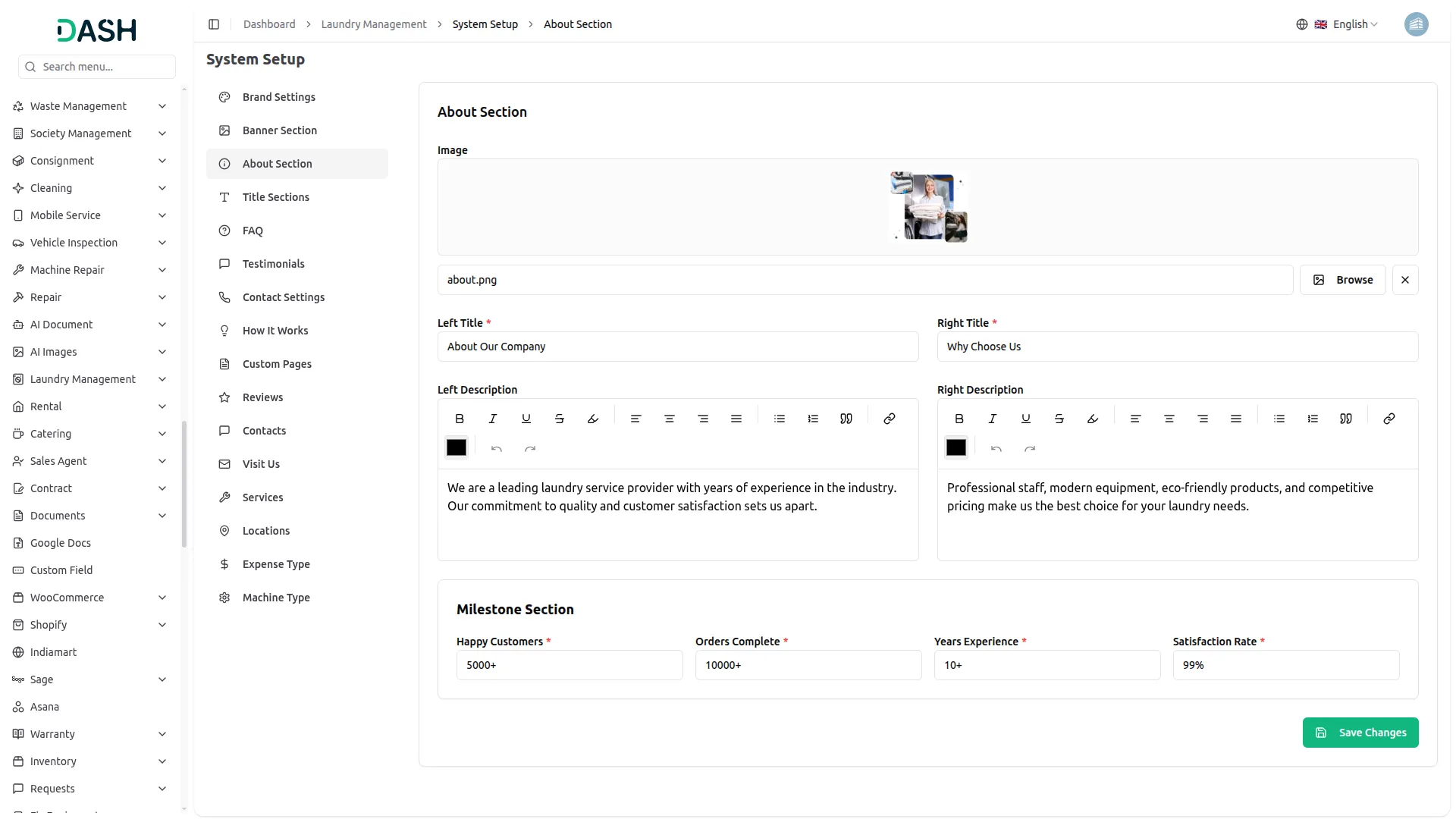
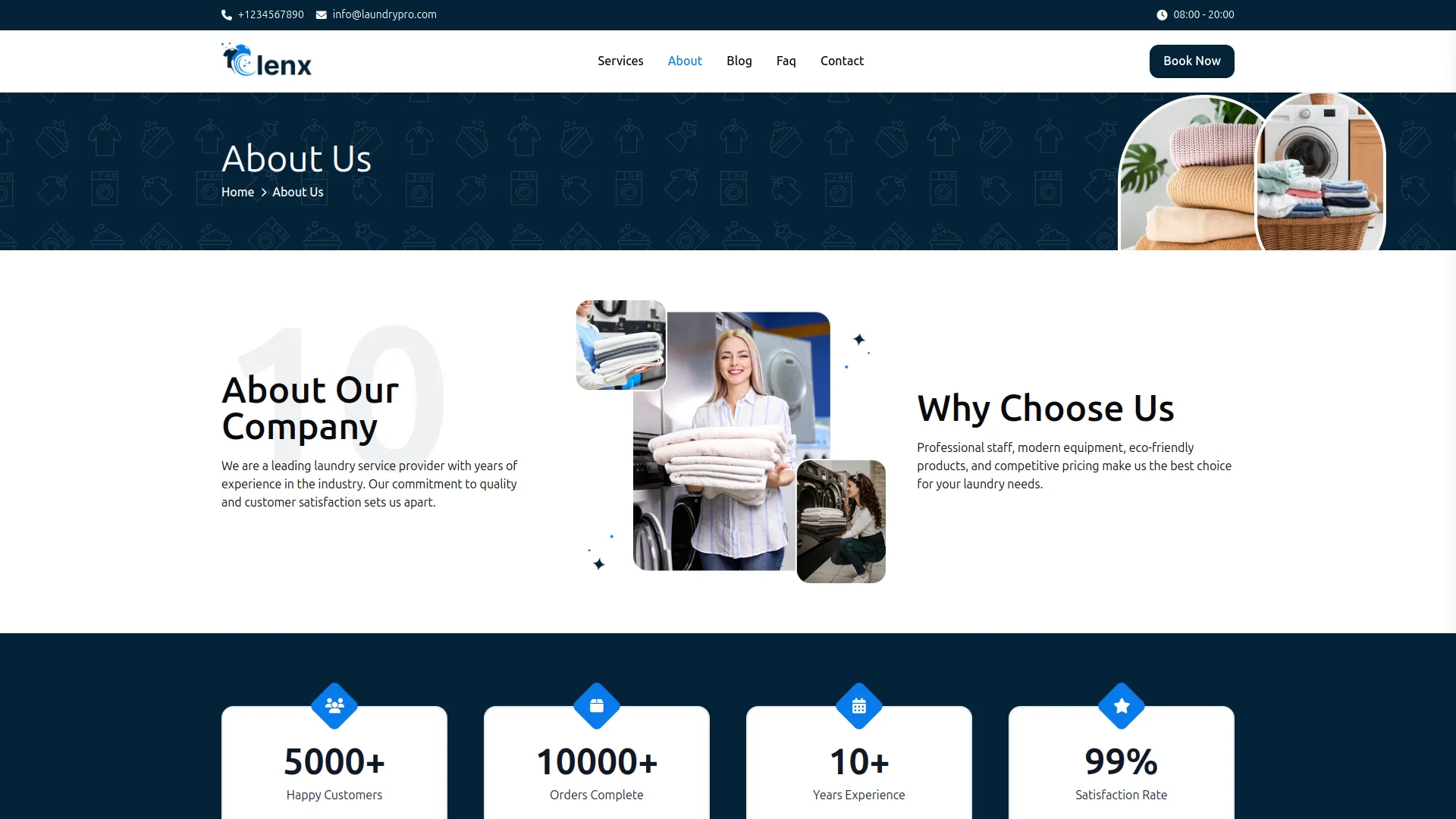
- In the About Us section, you can manage and display key information about your laundry business on the frontend. From this section, you can upload an About Image and add titles and descriptions to introduce your brand, explain your business background or mission, and highlight why customers should choose your services.
- You can also showcase your business achievements through the Milestone Section, including happy customers, completed orders, years of experience, and satisfaction rate. Once all details are added or updated from the backend, they will automatically appear on the frontend About Us page, helping visitors understand your business values, expertise, and credibility.
Title Sections
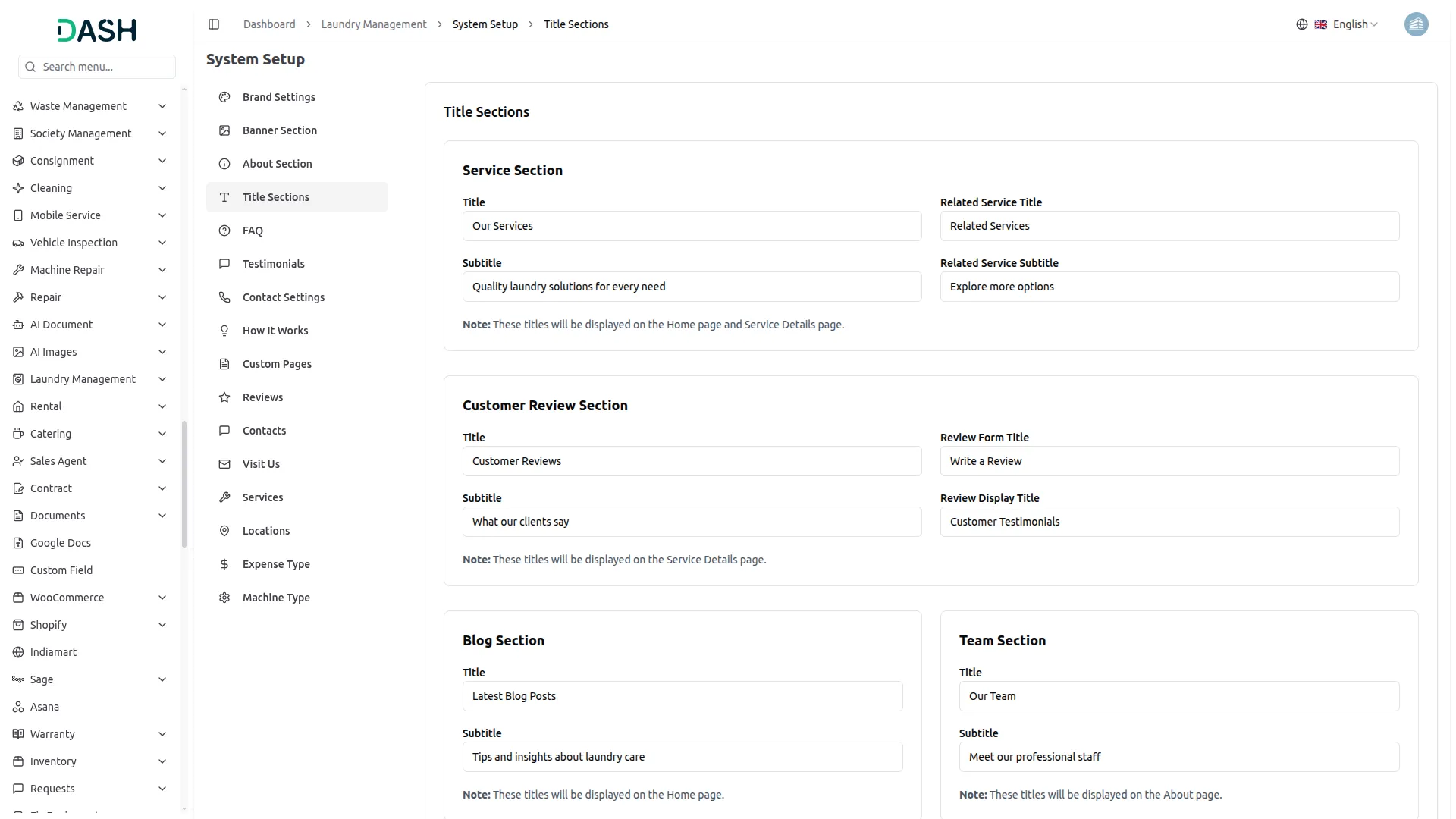
- The Title Sections module allows you to manage headings and subtitles for key sections of your website from a single place. This helps maintain consistent content across the homepage, service pages, and other frontend sections without editing the code.
- From the backend, you can update titles and subtitles for multiple sections such as Services, Customer Reviews, Blogs, Team, and Testimonials. Each section has clearly defined fields to control how the text appears on different pages of the website.
Service Section
- In the Service Section, you can define the main title and subtitle displayed on the homepage and service details section. You can also configure the Related Service Title and Related Service Subtitle, which are shown when related services are displayed. This helps guide users to explore more service options.
Customer Review Section
- The Customer Review Section allows you to customize the title and subtitle shown on the service details page for customer feedback. You can also set a Review Form Title and Review Display Title, which control how the review submission form and testimonials heading appear on the frontend.
Blog Section
- In the Blog Section, you can manage the title and subtitle that appear on the homepage blog area. This section is useful for highlighting recent articles, tips, and updates related to laundry care or services.
Team Section
- The Team Section lets you update the title and subtitle displayed on the About page. This section helps introduce your professional staff and build trust with customers by presenting your team clearly.
Testimonial Section
- The Testimonial Section is used to manage the title and subtitle for customer testimonials shown on the homepage. This allows you to highlight customer satisfaction and positive experiences effectively.
- Once all title and subtitle details are updated and saved, the changes are automatically reflected on the corresponding frontend pages, ensuring consistent and up-to-date content across your website.
FAQ
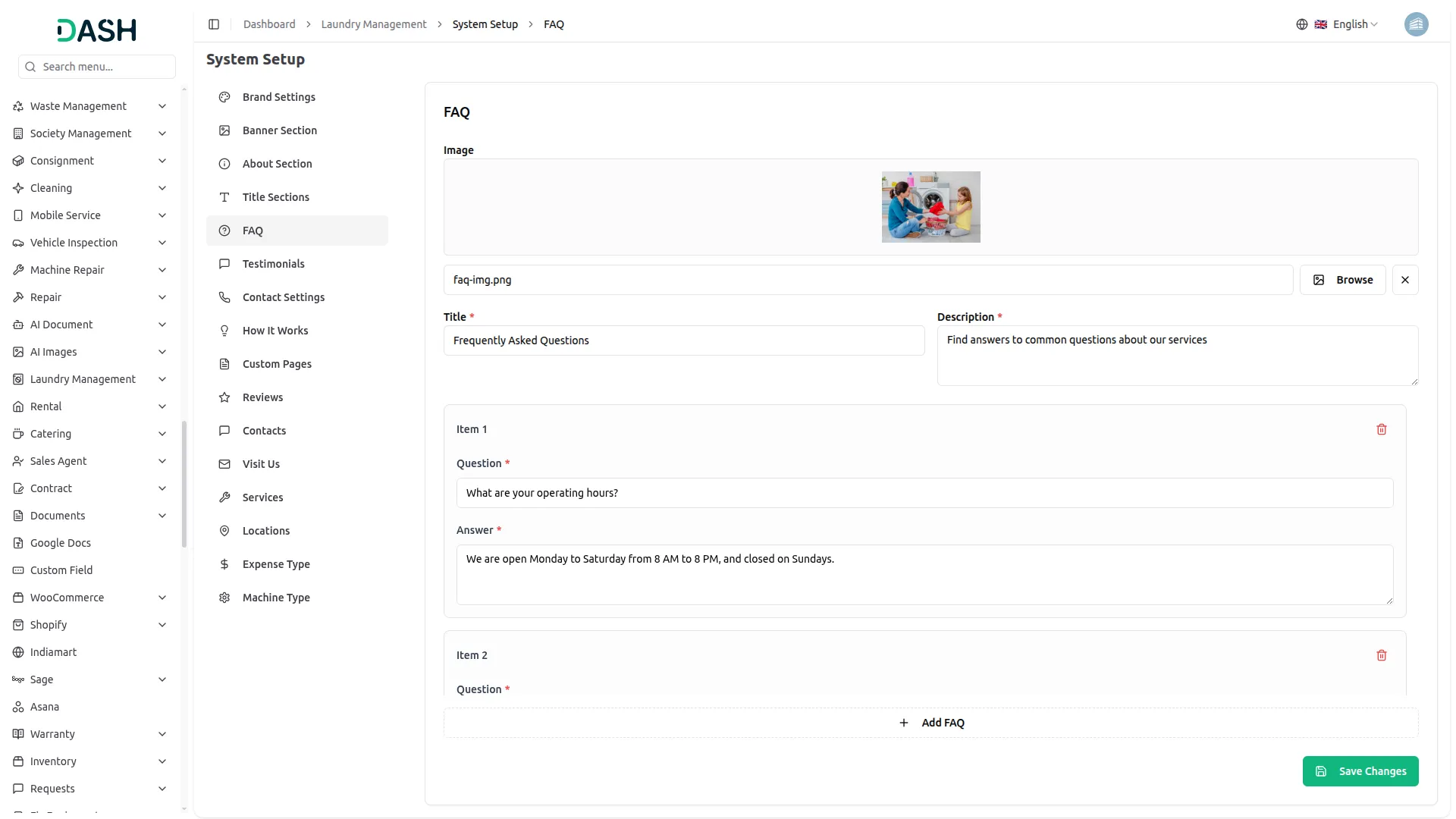
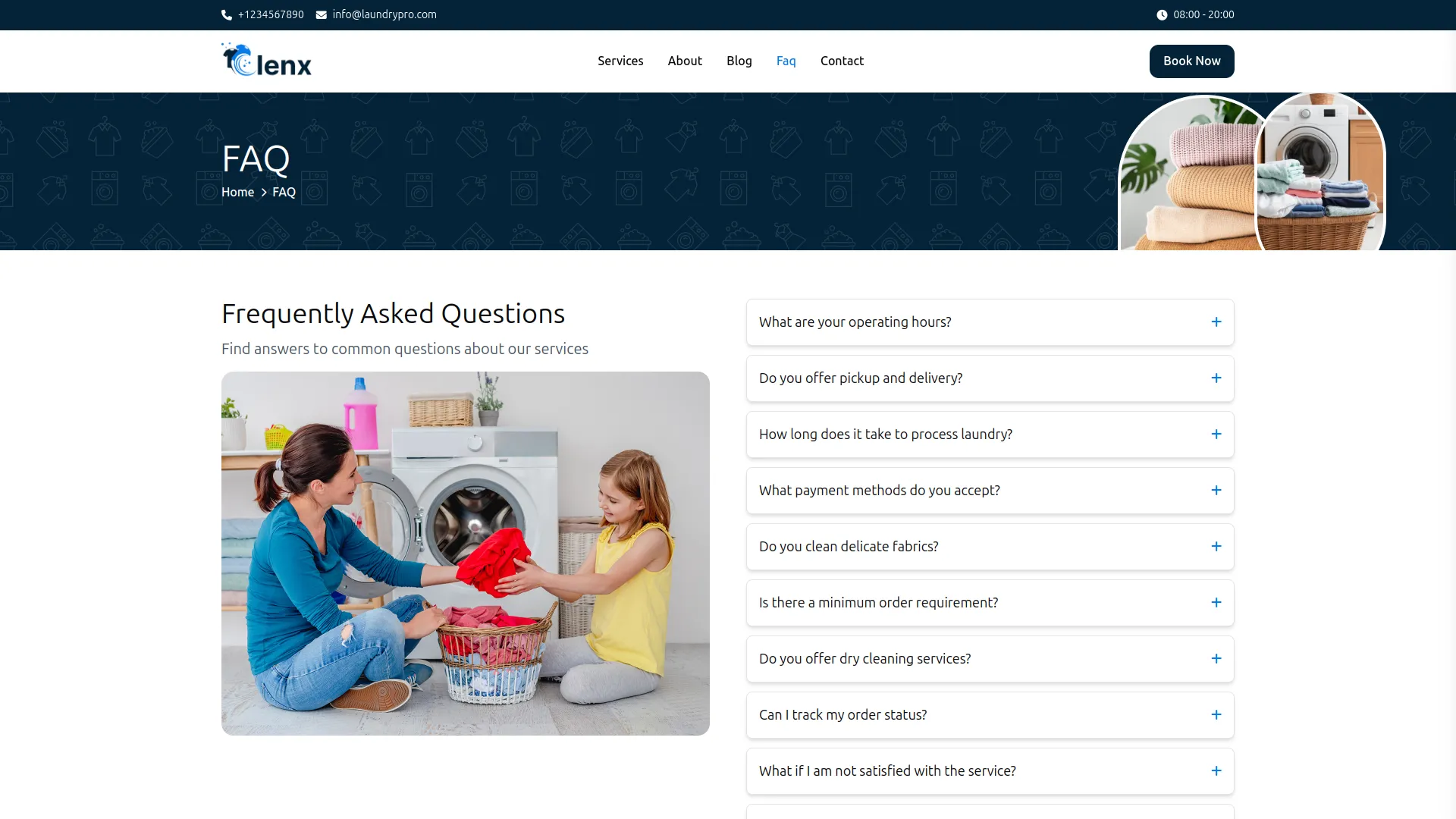
- The FAQ section allows you to manage and display frequently asked questions on your website, helping customers quickly find answers and better understand your laundry services. This section improves customer experience by reducing confusion and support inquiries.
- From the backend, you can upload an FAQ Image, add a title, and provide a short description that introduces the FAQ section. You can then create multiple FAQ items by entering a question and its corresponding answer. Common topics may include pricing, pickup and delivery timings, service turnaround time, special garment care, and accepted payment methods. Additional FAQ items can be added using the Add FAQ option.
- Once all details are saved, the FAQs will automatically appear on the frontend FAQ page in a clean, accordion-style layout. This allows visitors to easily expand and collapse questions to view answers, making the information clear, organized, and easy to navigate.
Testimonials
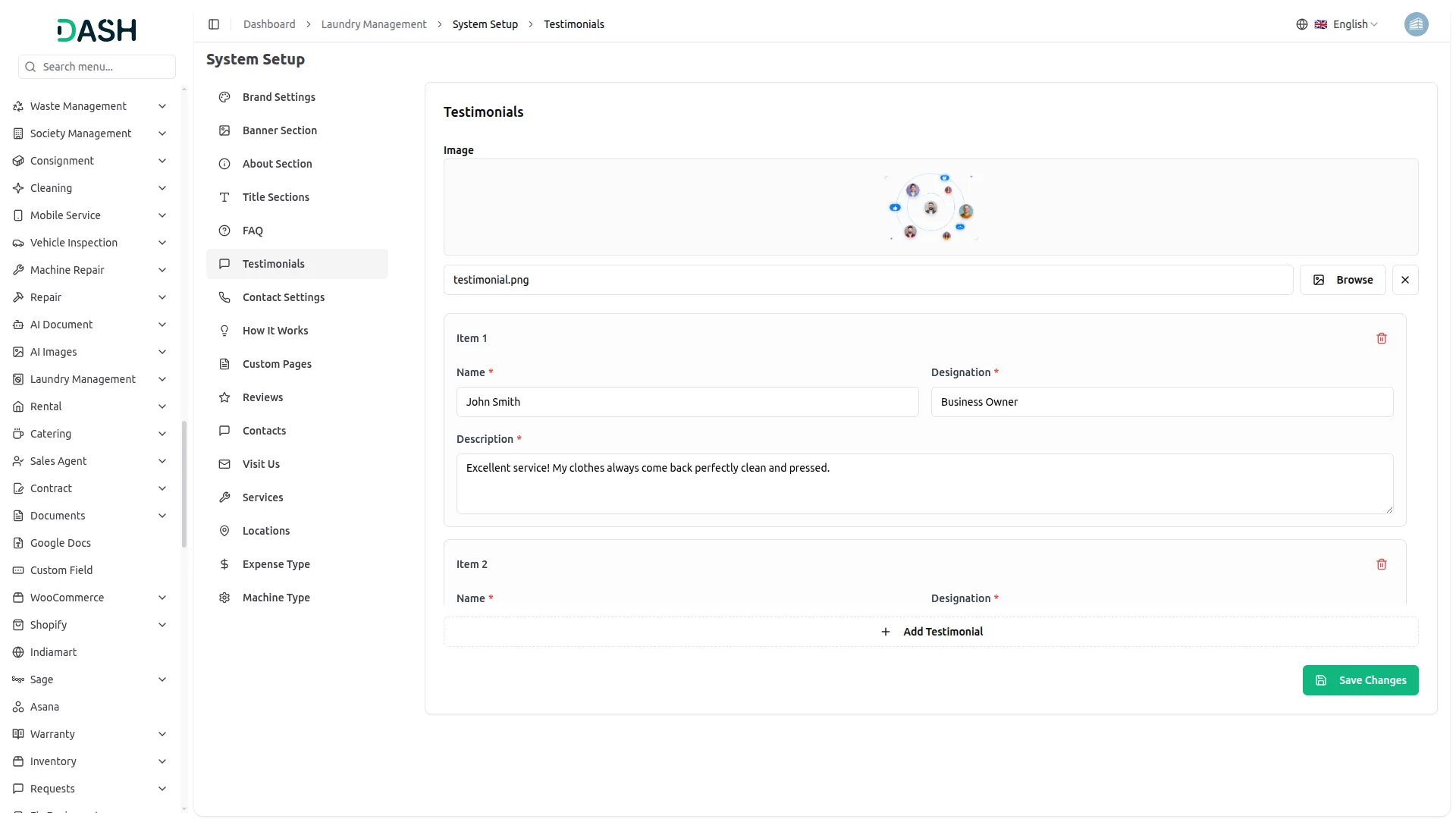
- The Testimonials section allows you to manage and display customer feedback on your website, helping build trust and credibility with potential customers. This section highlights real experiences and reviews from satisfied clients.
- From the backend, you can upload a testimonial image and add multiple testimonial entries. For each testimonial, you can enter the customer’s name, designation, and a short review description sharing their experience with your laundry service. Additional testimonials can be added using the Add Testimonial option, allowing you to showcase multiple customer reviews.
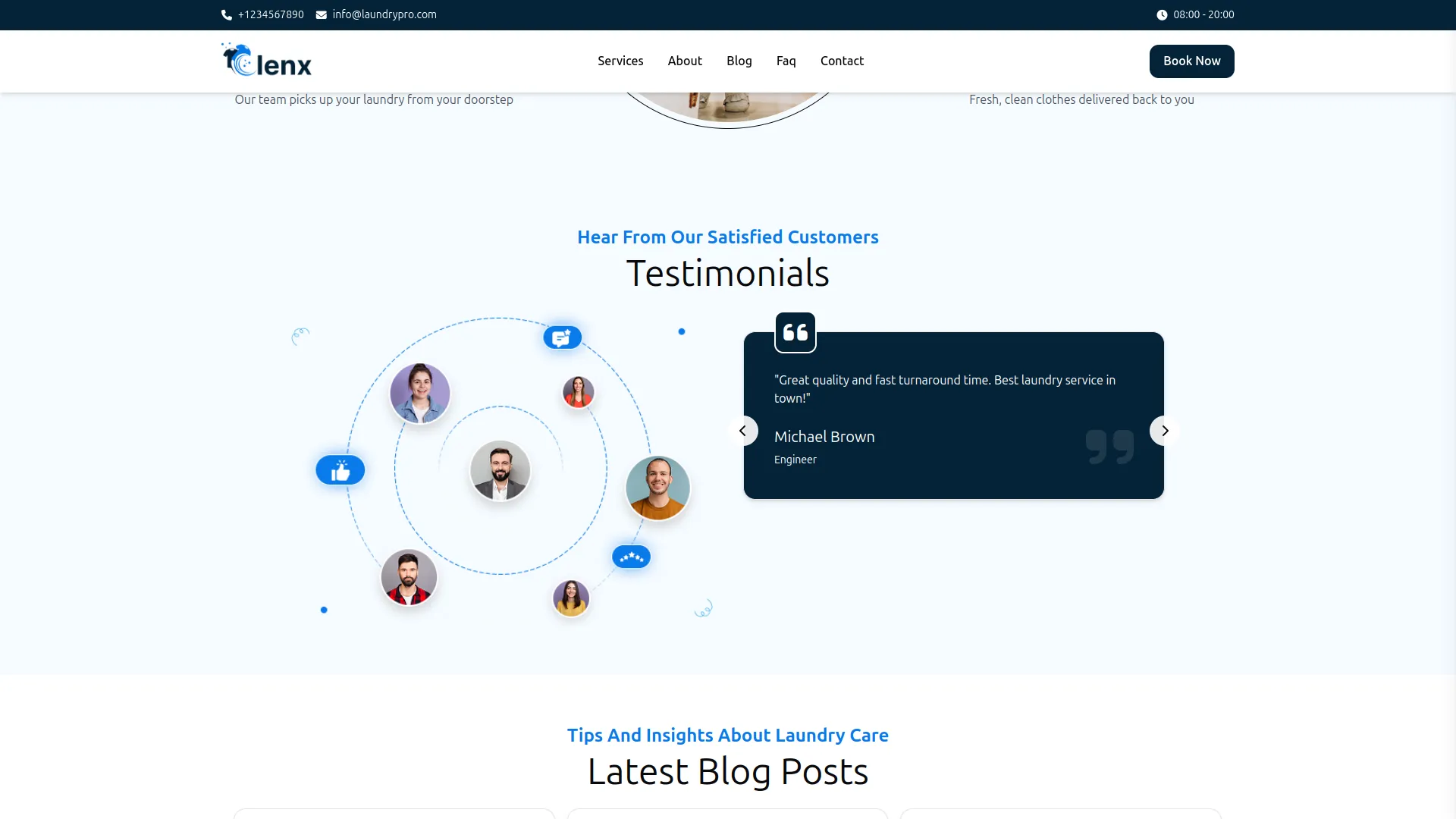
- Once the testimonials are saved, they will automatically appear on the frontend in the Testimonials section of the homepage. The reviews are displayed in an interactive slider or carousel format, showing the customer’s feedback along with their name and designation, creating a visually engaging and trustworthy presentation for visitors.
Contact Settings
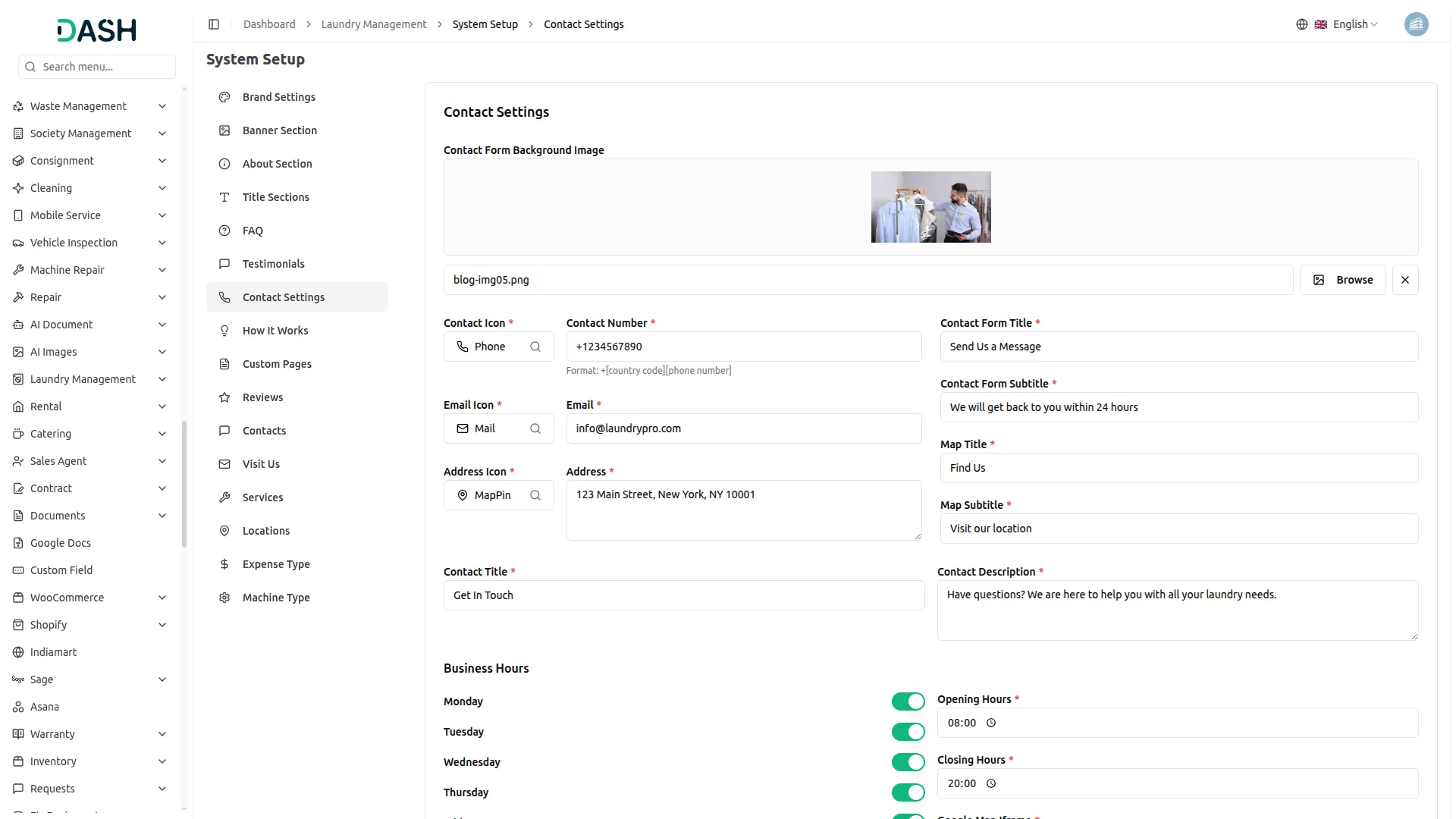
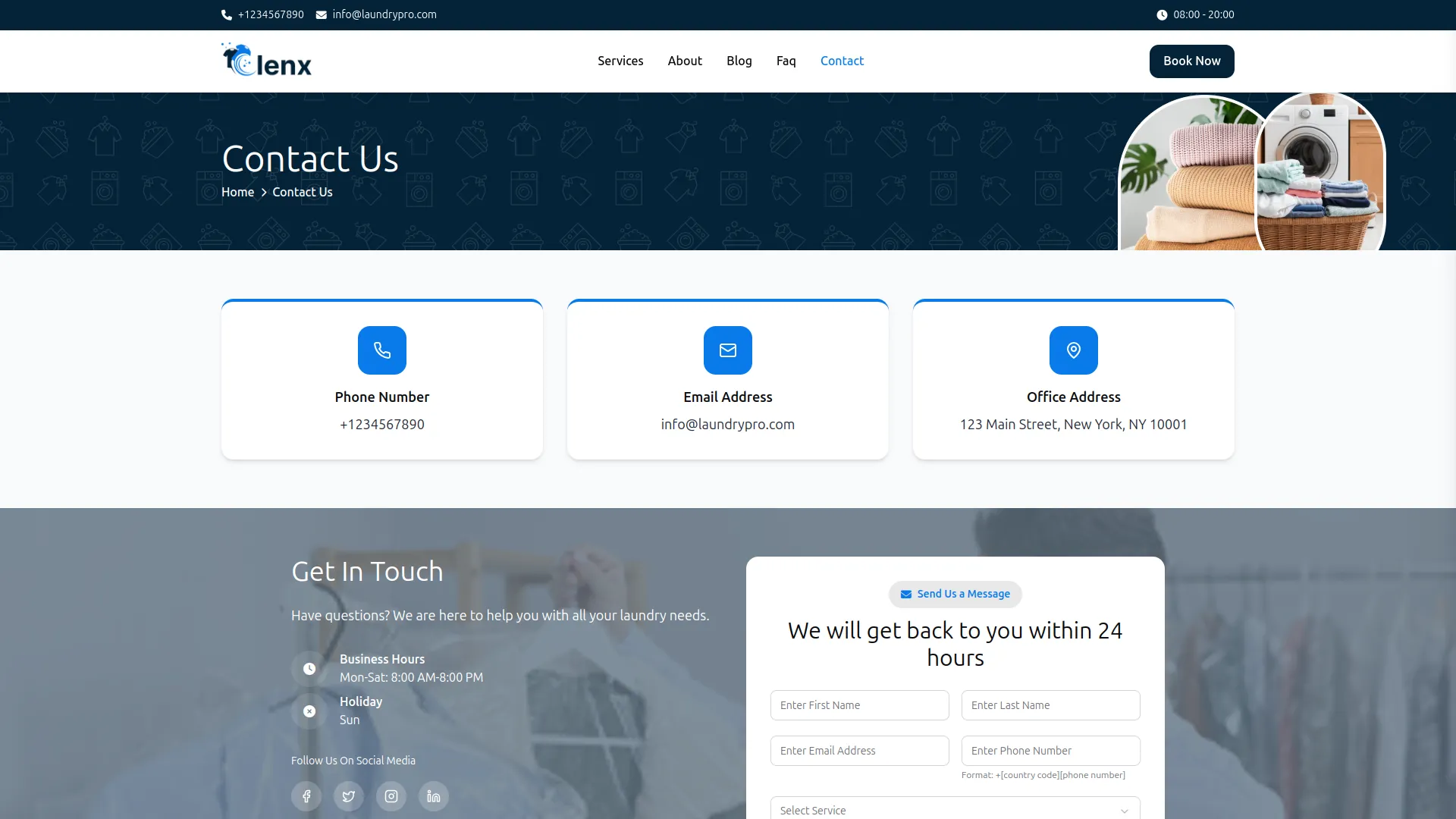
- The Contact Settings section allows you to manage and display all essential contact information for your laundry business on the frontend Contact Us page. From this section, you can upload a Contact Form Background Image that enhances the visual appearance of the contact section and creates a welcoming experience for visitors.
- You can configure key contact details such as phone number, email address, and office address, along with their respective icons. These details are displayed prominently on the frontend, making it easy for customers to reach your business. You can also set the Contact Title and Contact Description, which appear above the contact form to guide users and encourage them to get in touch.
- You can configure key contact details such as phone number, email address, and office address, along with their respective icons. These details are displayed prominently on the frontend, making it easy for customers to reach your business. You can also set the Contact Title and Contact Description, which appear above the contact form to guide users and encourage them to get in touch.
- Additionally, the Business Hours section lets you define opening and closing times for each day of the week, ensuring customers know when your services are available. The Social Links section allows you to add multiple social media profiles with icons and links, enabling customers to connect with your business across different platforms.
- Once all details are updated, click Save Changes to apply the settings. All saved information will automatically reflect on the frontend Contact Us page, providing customers with accurate contact details, location information, and an easy way to communicate with your business.
How It Works Section
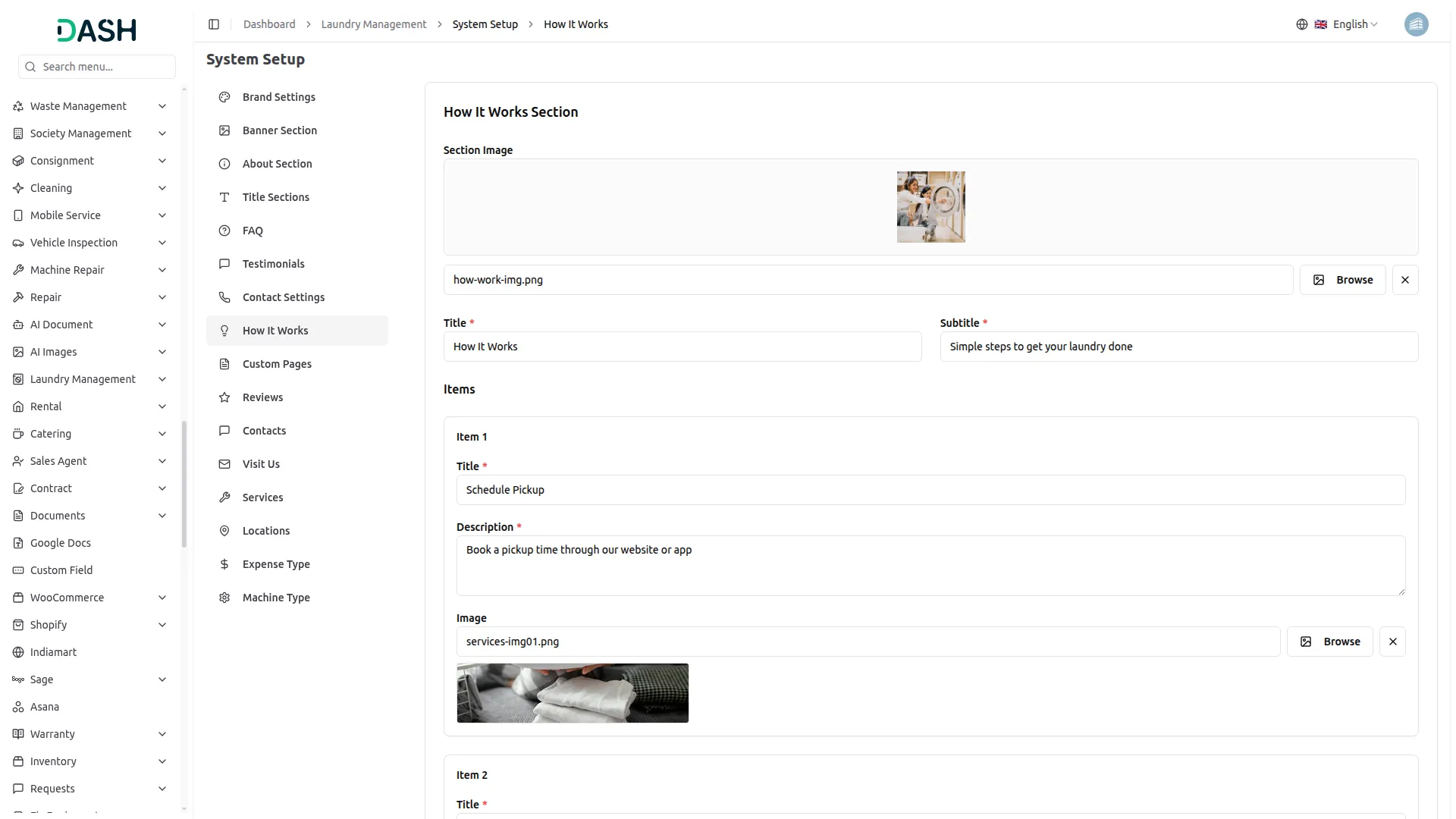
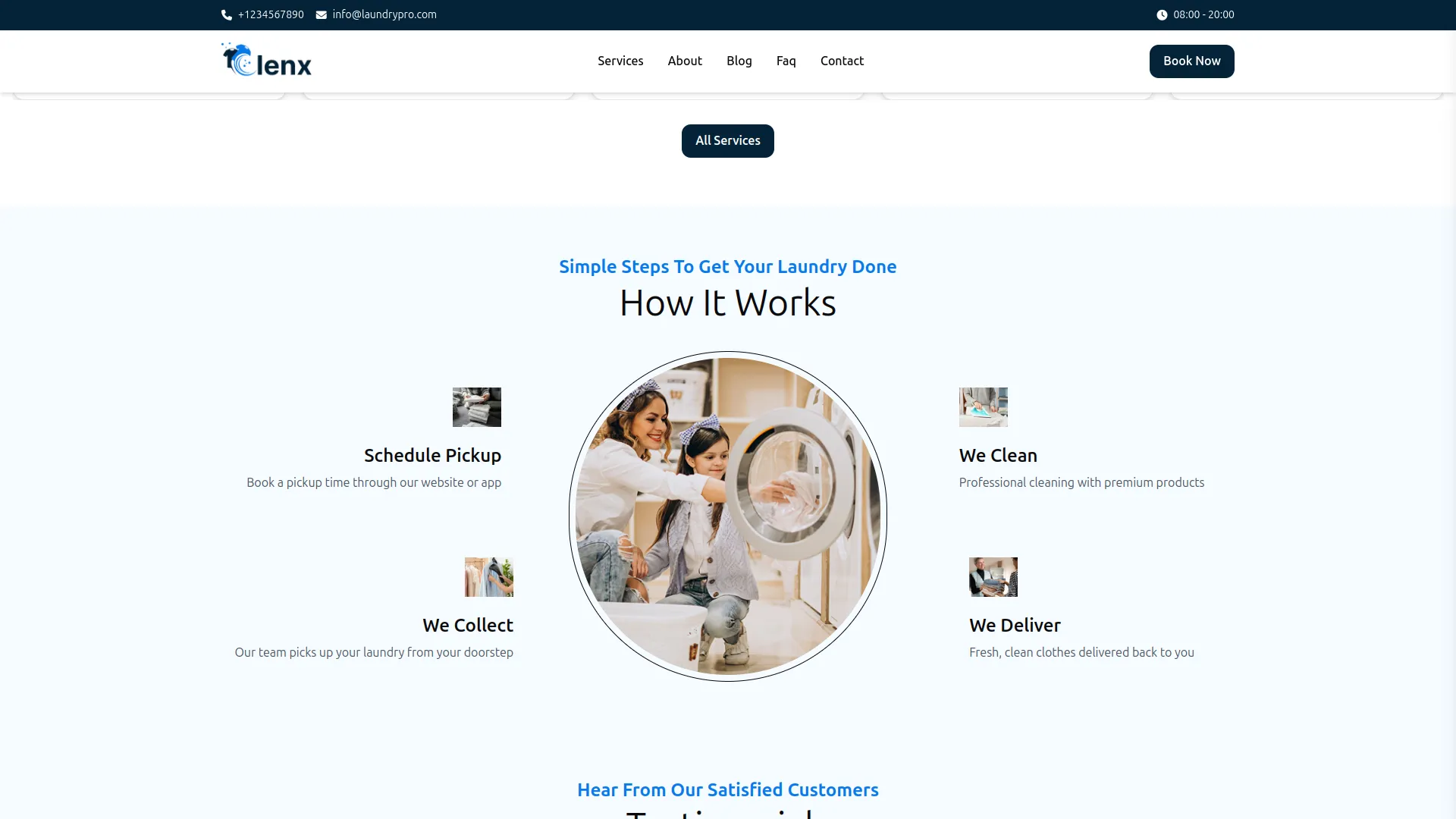
- The How It Works section helps you clearly explain the step-by-step process customers follow when using your laundry service. From the backend, you can add a main heading and short description, then create multiple steps with a title, brief description, and image for each stage of the service.
- These steps typically include scheduling a pickup, collecting laundry, professional cleaning, and doorstep delivery. Once saved, the section automatically appears on the frontend homepage in a clean and structured layout, making it easy for customers to understand the service flow and confidently place an order.
Custom Pages
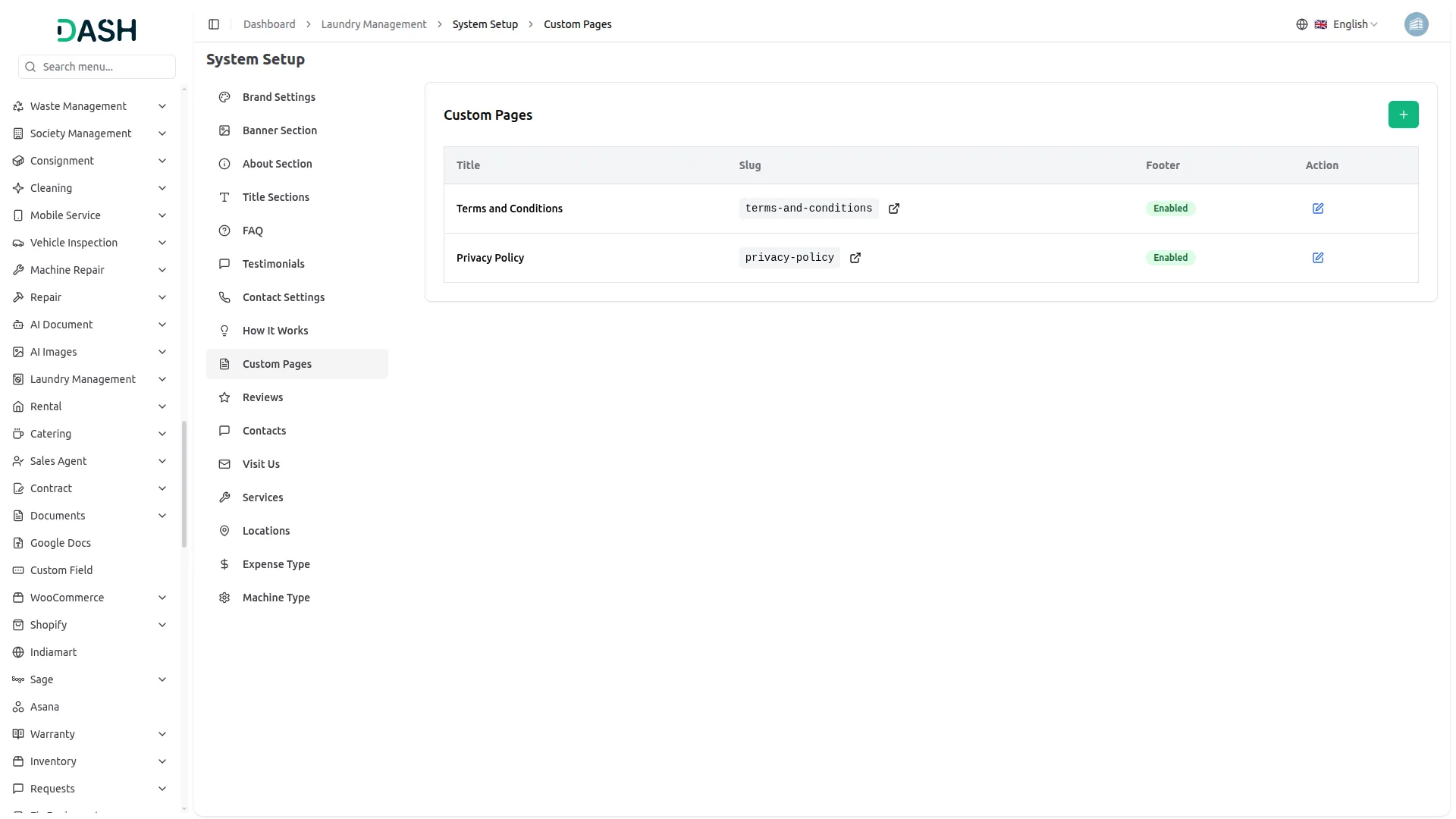
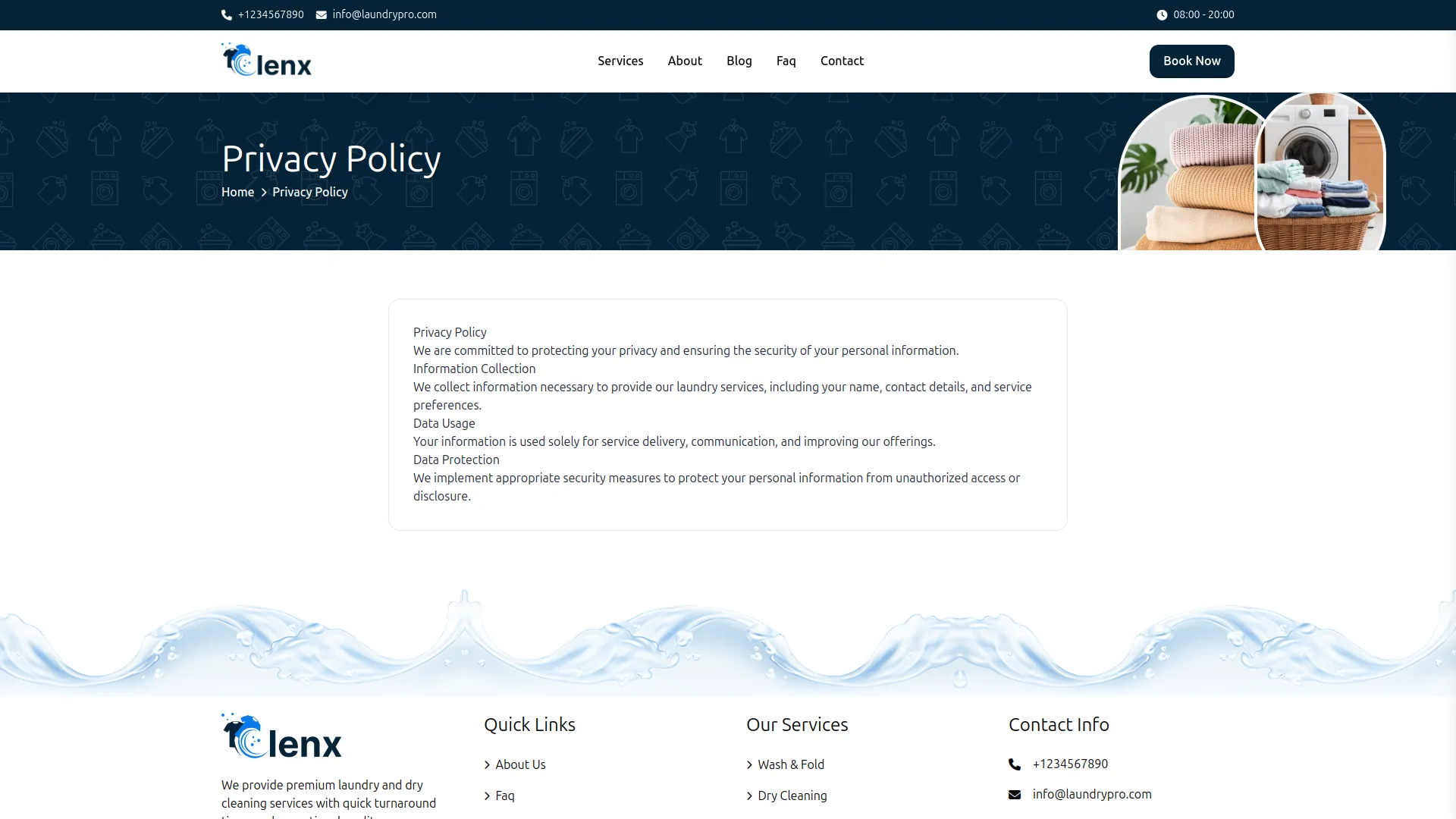
- To create a new custom page, click the “Create” button at the top of the custom page section. Enter the Page Title, Description ,URL Slug, write the Content for the custom page you want to display on your website (e.g., “Privacy Policy”, “Terms of Service”, “Refund Policy”) and use the toggle button to manage the Enable Page Footer.
- The list page displays all custom pages in a table with columns for Title, Slug, and Footer. You can Edit or Delete custom pages using the action buttons. These custom pages will be displayed in the footer section of your website and accessible via their unique URLs.
Review
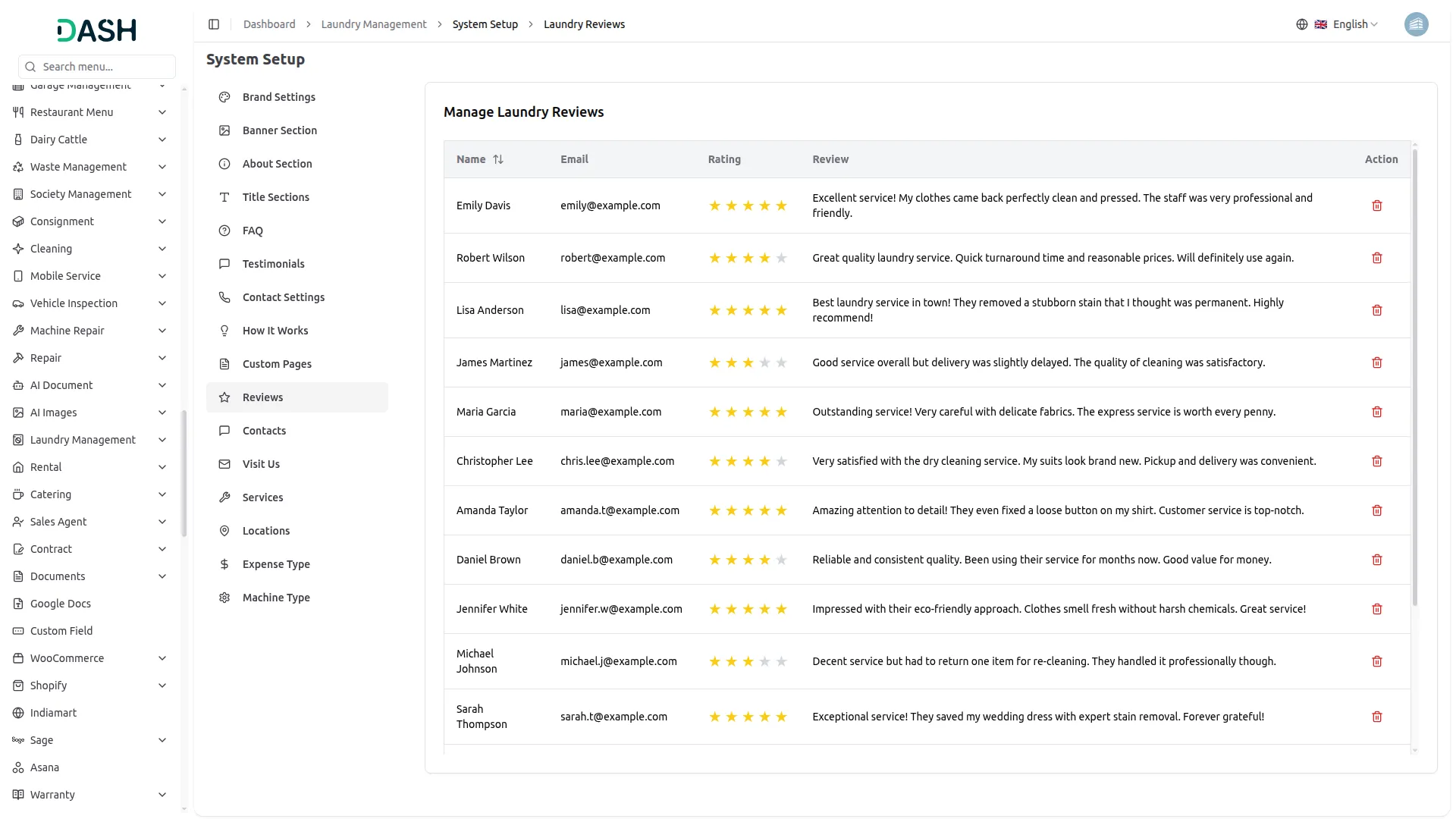
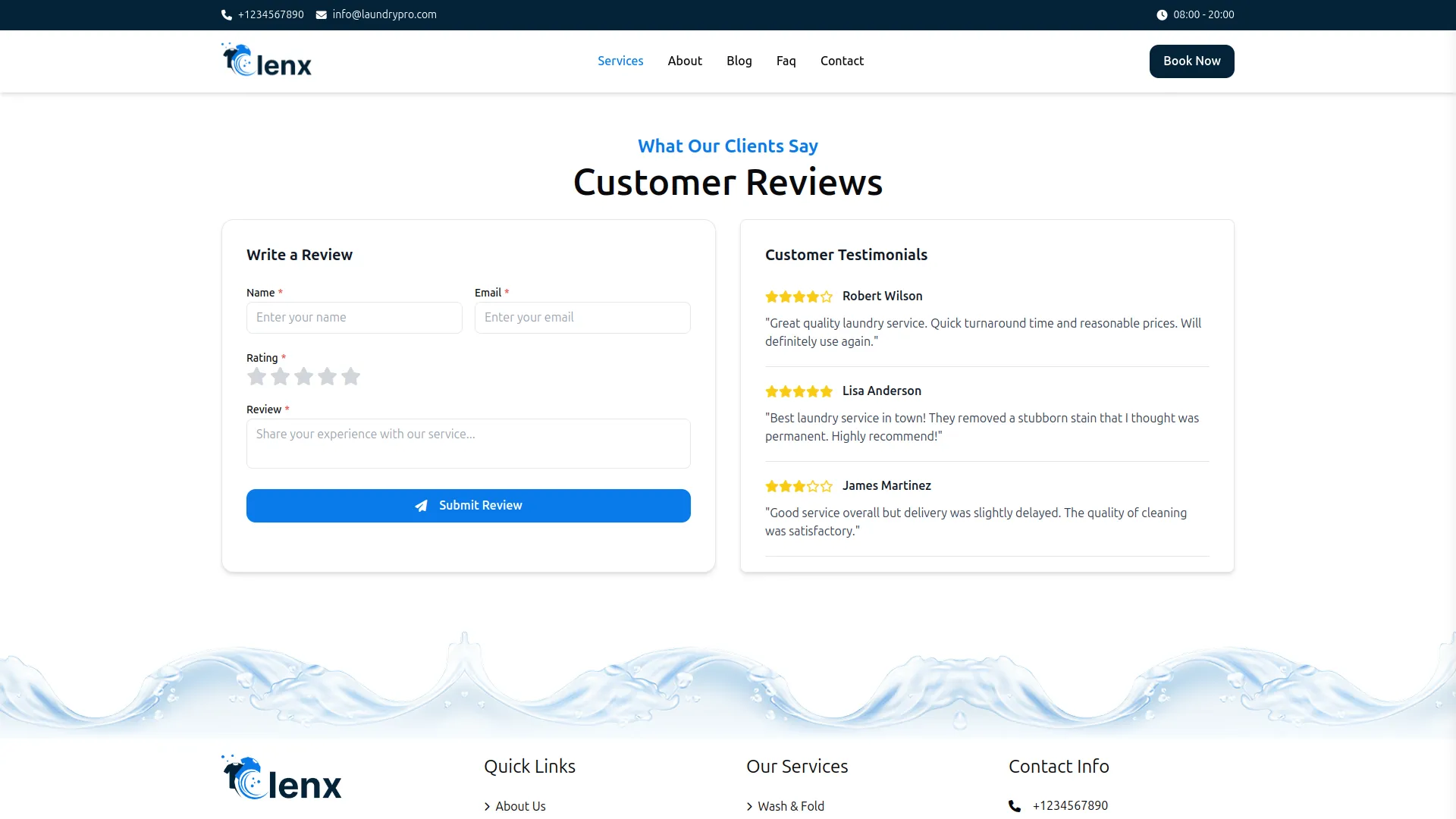
- All reviews submitted by customers from the frontend side of the website for any service will automatically appear here in the Review section for easy tracking and management.
- The list page displays all customer reviews. The table shows Reviewer Name, Email, Star Rating, Review and Action columns.
- You can see detailed customer feedback, including the reviewer’s name and email, which service they reviewed, their star rating (1-5 stars), and their written review comments. Customer reviews are displayed on service detail pages to help build trust with potential customers.
- Use the Delete action to remove inappropriate, spam, or outdated reviews from the system. Positive reviews can be featured in the testimonials section to showcase customer satisfaction.
Contacts
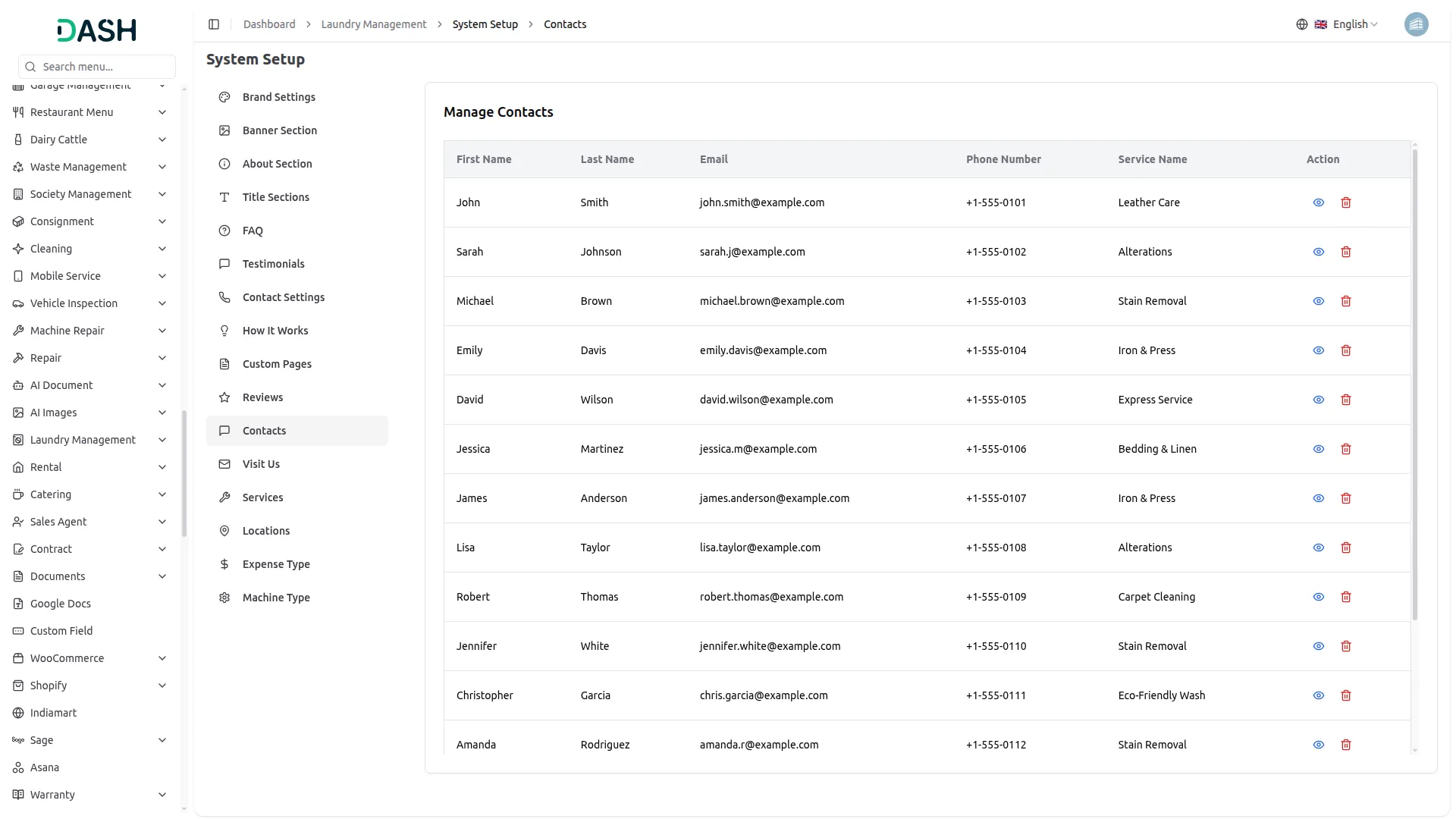
- Customers can reach out from the frontend side of the website by submitting the contact form on the Contact Us page, and all such submissions will automatically appear here in the Contacts section for easy management.
- The list page shows all customer contact submissions for message management. The table displays First Name, Last Name, Email, Phone Number, Service Name, and Action columns.
- You can view complete customer messages, including their contact information, inquiry subject, and detailed message content. This helps you respond to customer questions, handle complaints, process special requests, and provide excellent customer service.
- Use the Delete action to remove old or resolved contact inquiries from the system. Make sure to respond to all customer inquiries promptly to maintain good customer relationships and satisfaction.
Visit Us Settings
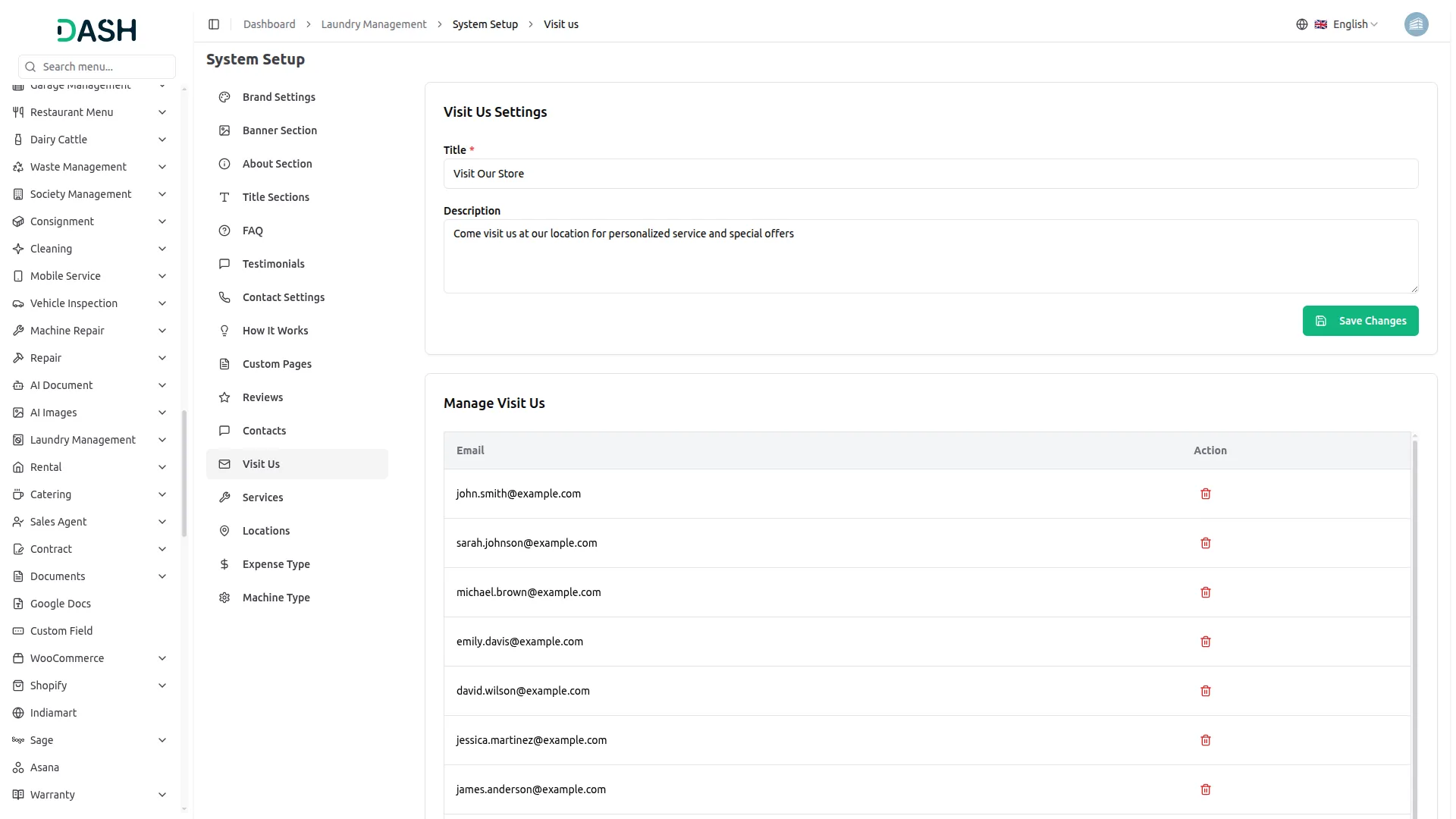
- The Visit Us section allows you to manage the content and visitor requests submitted from the frontend Visit Us page. This section helps customers express their interest in visiting your store or location for personalized service, inquiries, or special offers.
- From the backend, you can configure the Visit Us Settings by adding a title and description that will be displayed on the frontend Visit Us page. This content guides customers and encourages them to submit their visit request.
- The Manage Visit Us list displays all visitor email submissions received from the website. The table shows the Email and Action columns, making it easy to track and manage customer visit requests. Use the Delete action to remove old or processed visit requests from the system.
Service
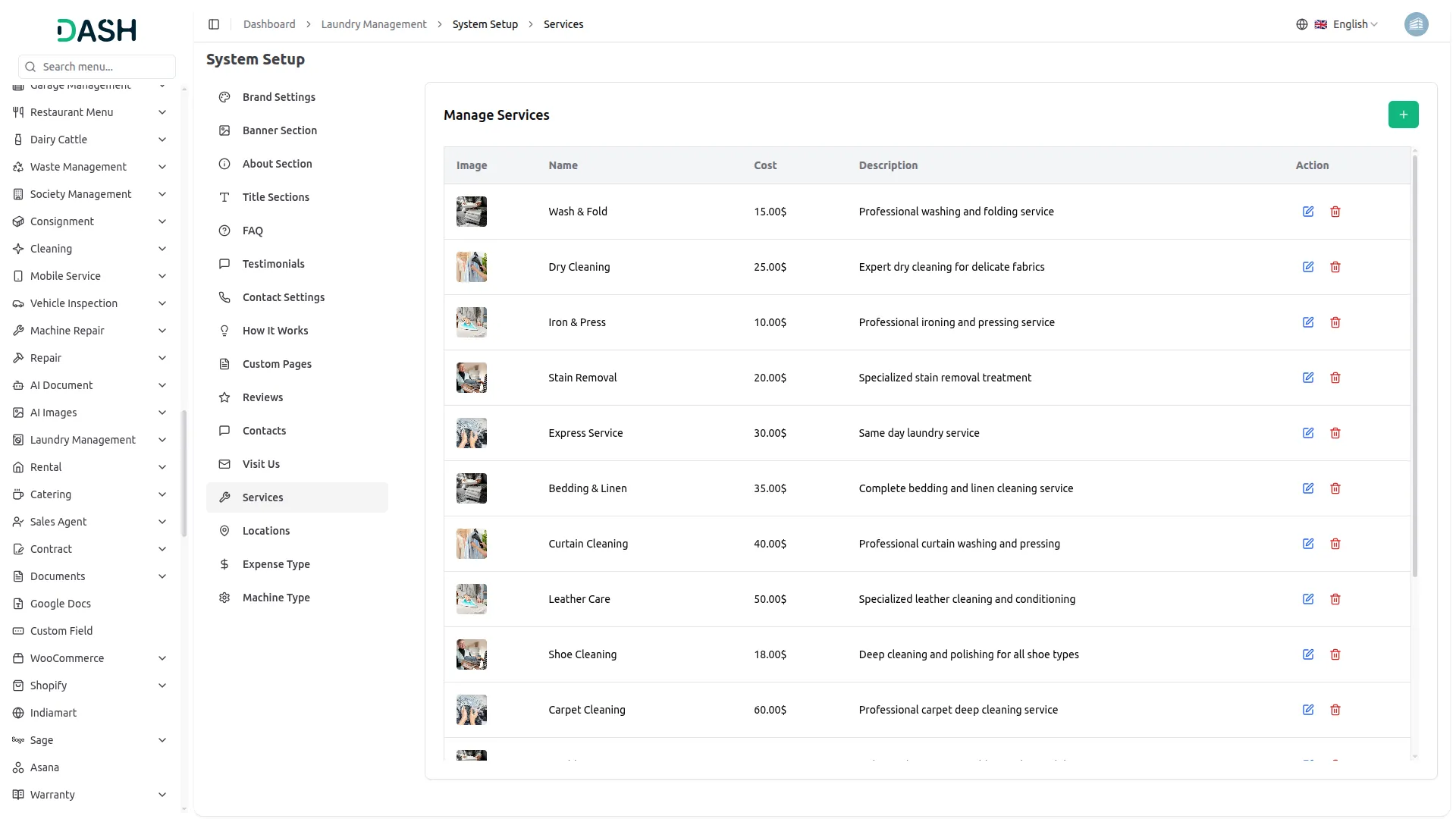
- To create a new Service, click the “Create” button at the top of the service page. Enter the service Name, and write a detailed Description of the service. Upload a Service Image that represents your laundry service.
- Set the Cost per service, which will be used to calculate the total when customers book multiple items. You can also specify any special requirements or processing time for the service.
- The list page shows all services with columns for Image, Name, Description, Cost, and Action.Actions available include Edit and Delete for each service entry.
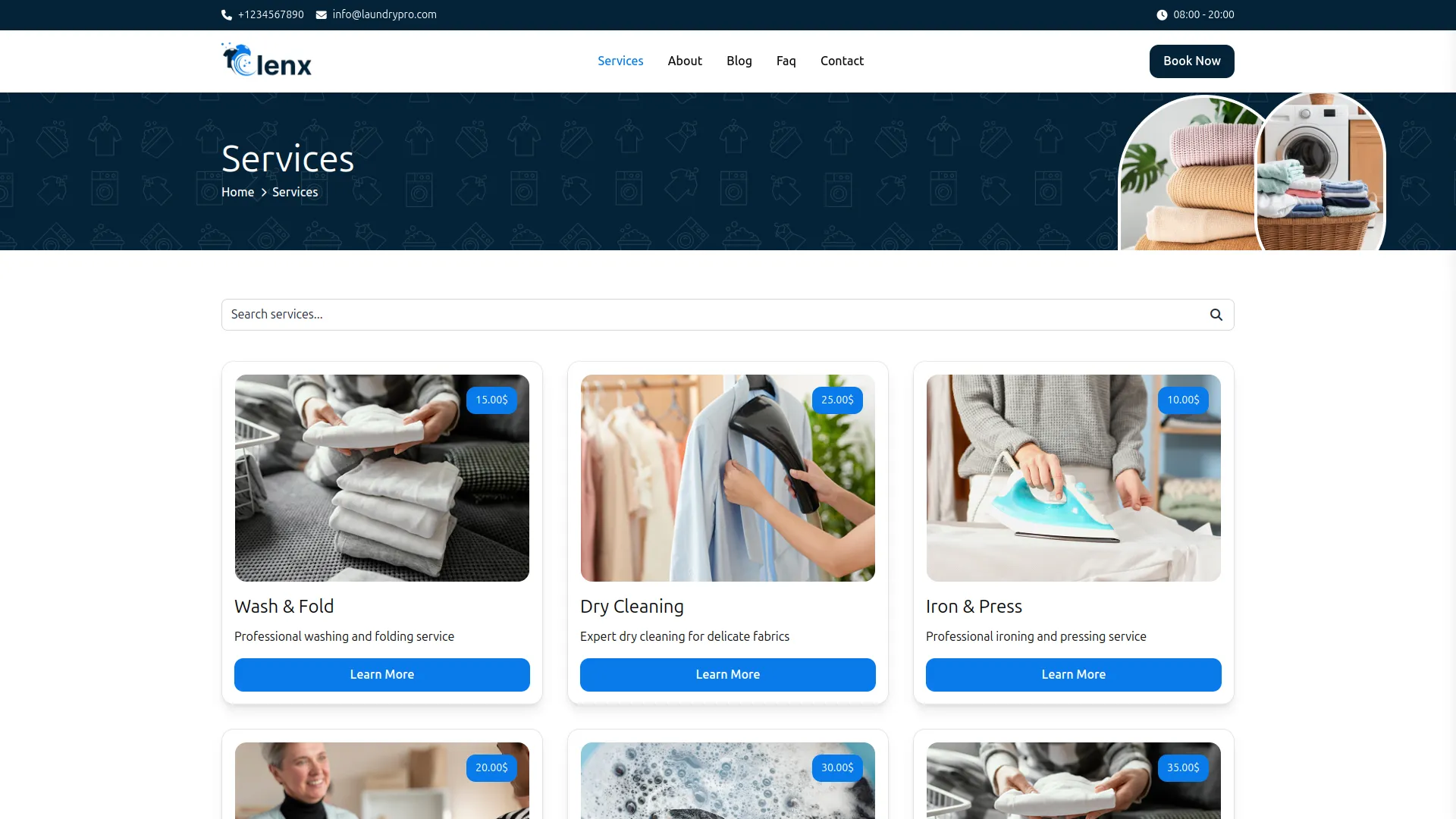
- All the services you add from the backend will automatically be displayed on the frontend side of the website for customers to select during booking.
Location
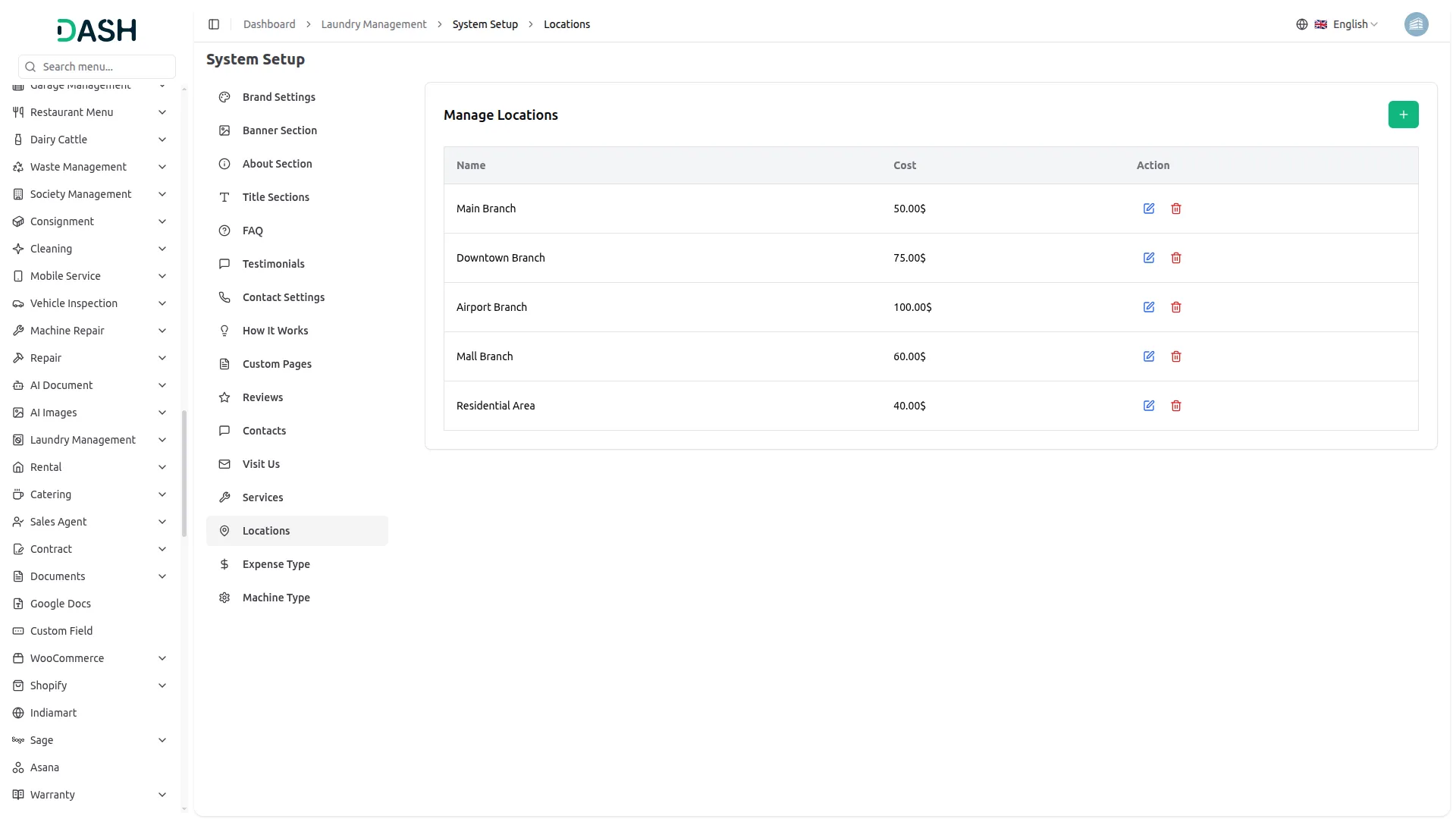
- To create a new Location, click the “Create” button at the top of the location page. Enter the Location Name (e.g., “Downtown Branch”, “City Center”) and specify the Additional Cost for pickup/delivery from this location.
- The additional location cost will be automatically added to the total booking amount when customers select this location during booking.
- The list page displays all locations in a table with columns for Name, Cost, and Action. You can Edit or Delete locations using the action buttons to modify pickup zones or adjust location-based pricing.
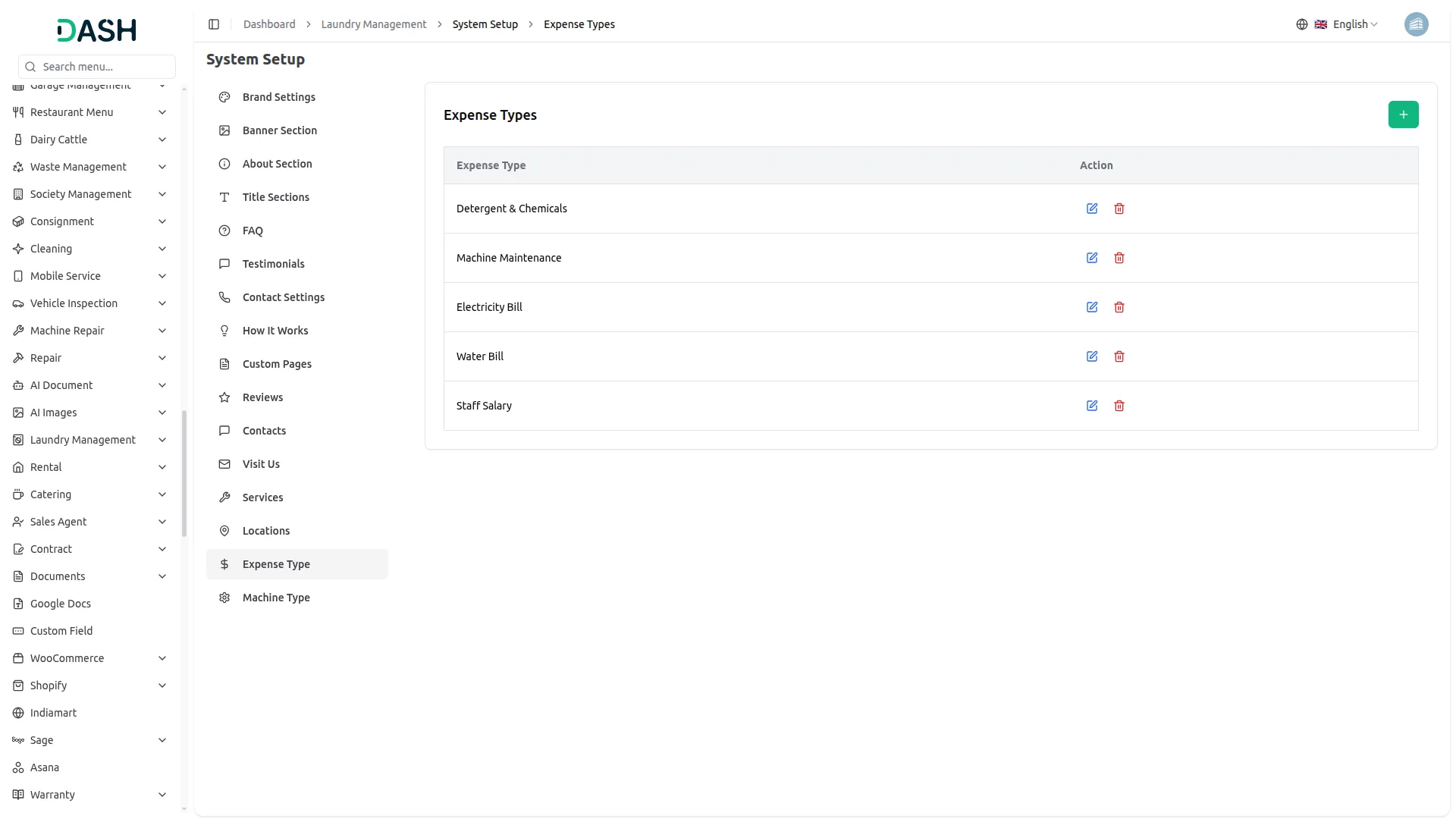
Expense Type
- To create a new Expense Type, click the “Create” button at the top of the expense type page. Enter the Expense Type Name (e.g., “Utilities”, “Supplies”, “Maintenance”, “Salaries”, “Rent”).
- The list page displays all expense types in a table with the Expense Type Name column. You can Edit or Delete expense types using the action buttons. These expense types will be used for categorizing and tracking your business expenses.
Machine Type
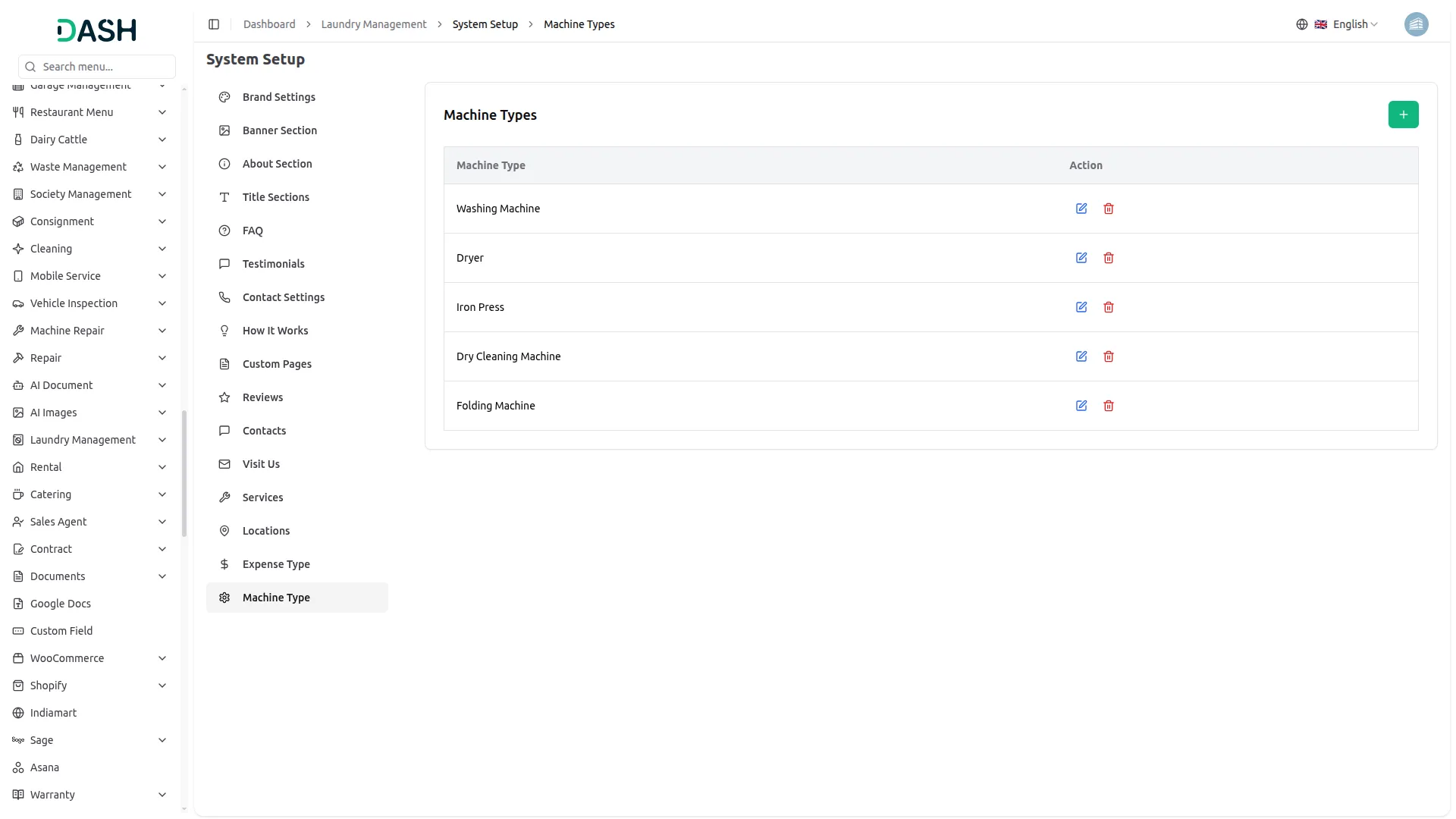
- To create a new Machine Type, click the “Create” button at the top of the machine type page. Enter the Machine Type Name (e.g., “Washer”, “Dryer”, “Pressing Machine”, “Dry Cleaning Machine”).
- The list page shows all machine types in a table with the Machine Type Name column. You can perform actions like Edit or Delete on each entry using the action buttons. These machine types will be used when adding individual machines to your inventory.
Laundry Request
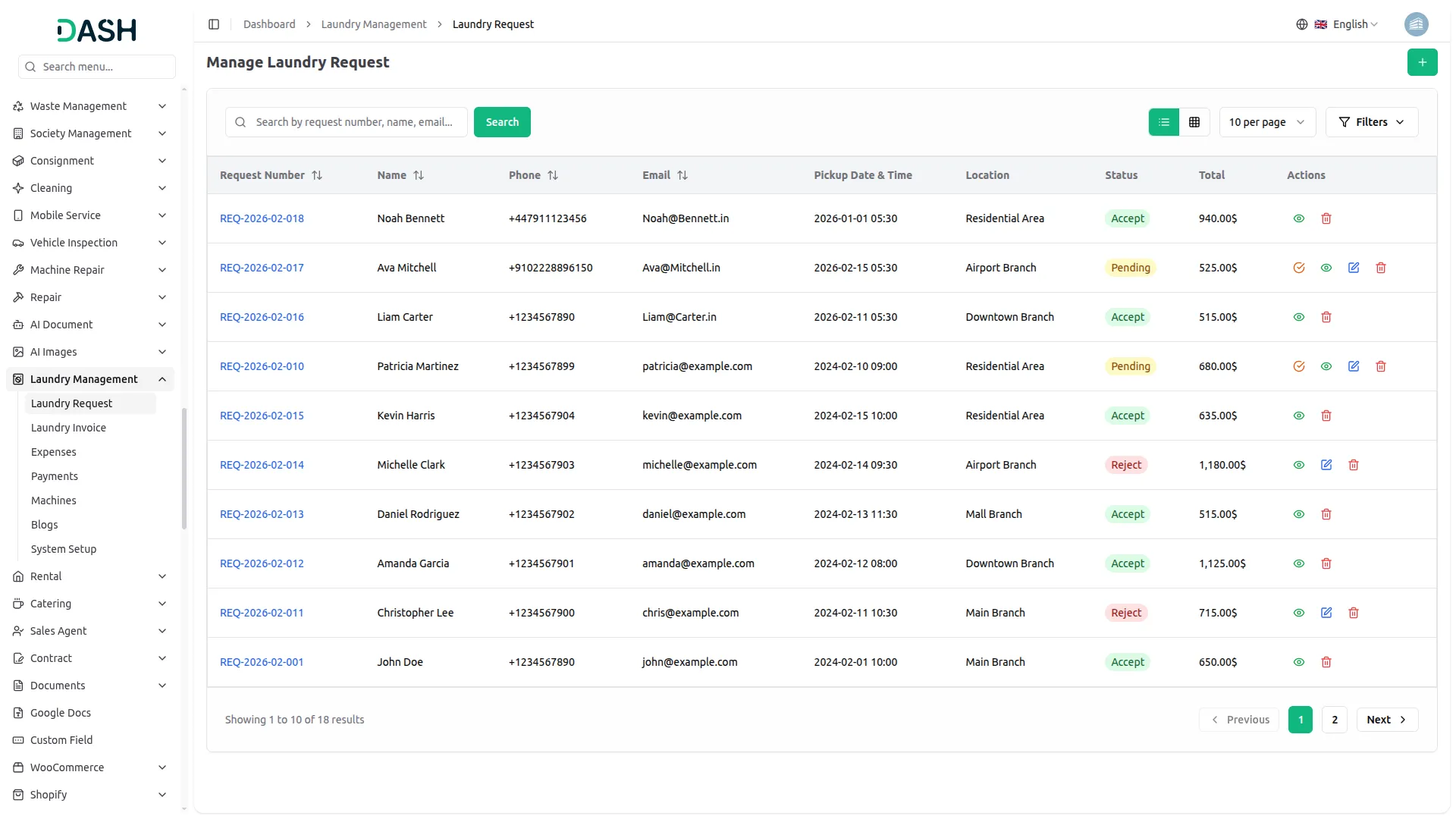
- The Laundry Request section displays all customer booking requests received through your website or created manually from the backend.
- To create a new Request manually, click the “Create” button. Enter customer details including Name, Email, Phone, and Address. Select the Pickup Date and Time when you will collect the laundry. Choose the Delivery Date and Time for returning the cleaned items. Select the Location for pickup, choose multiple Services from the available options, and specify the Number of Cloth (cloth_no).
- Add any Special Instructions from the customer and the system will automatically calculate the Total Amount based on: (selected services × number of items) + location cost.
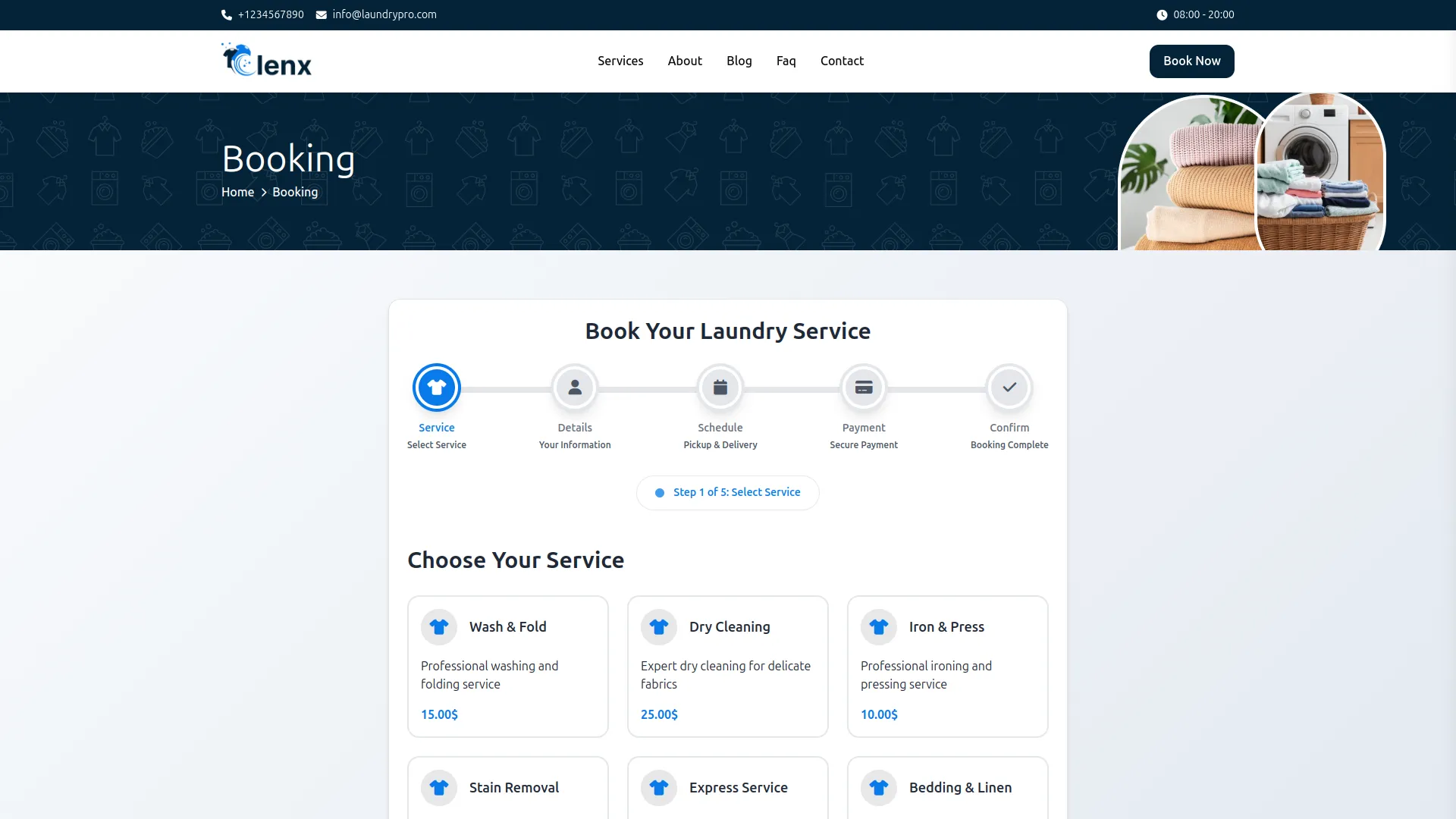
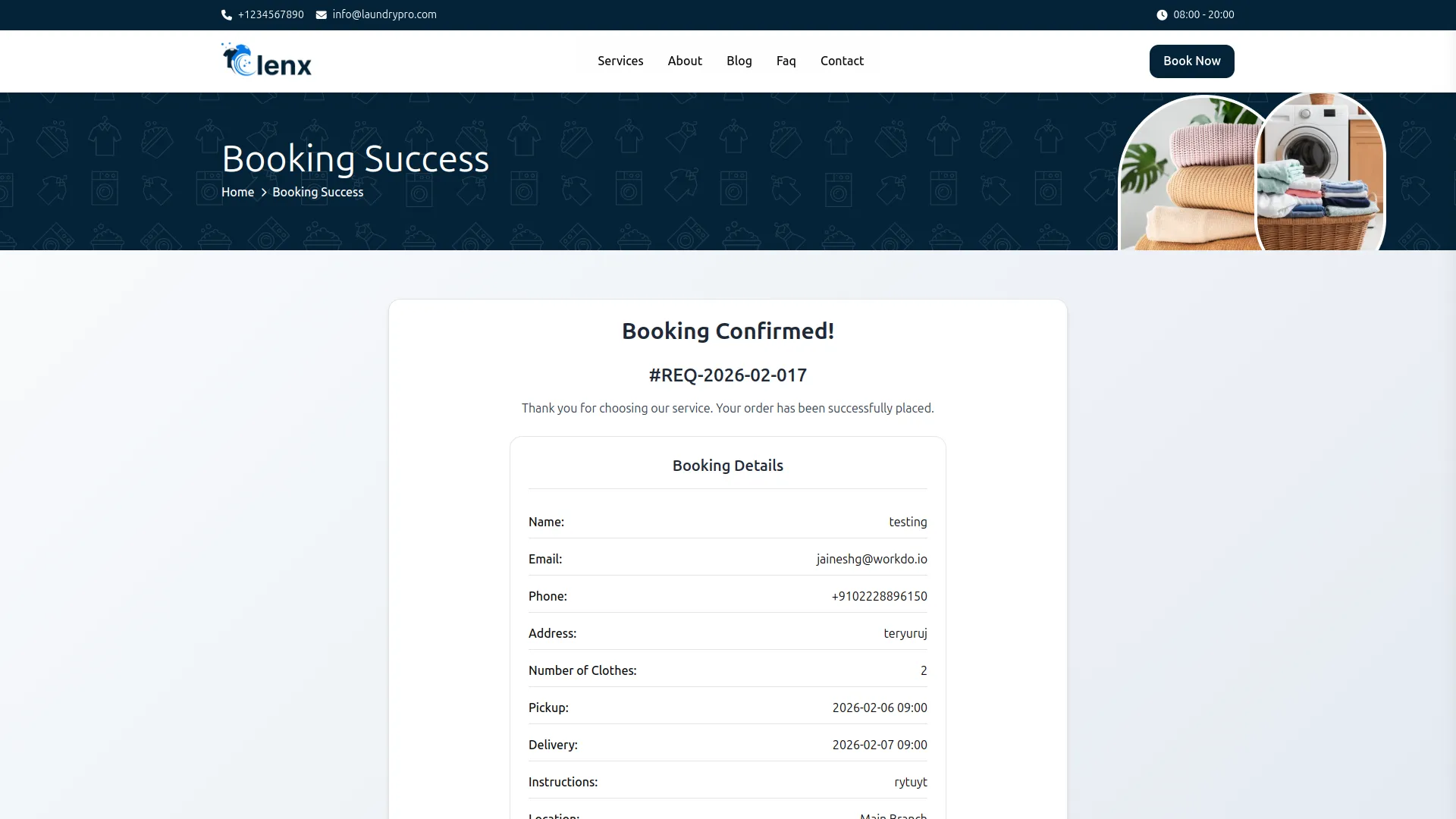
- Each request is automatically assigned a unique Request Number in the format REQ-YYYY-MM-001. Users can create bookings directly from the frontend of the website, and all submitted bookings will automatically appear on the Booking Requests page in the backend for management and processing.
- To create a booking, users first select the required service(s) on the booking page. The total amount is calculated and displayed automatically. After reviewing the amount, users click the Continue button to proceed.
- In the next step, users enter their personal details, including Full Name, Email, Phone Number, and Address. They also select the Location from the dropdown, enter the Number of Items, and add any Special Instructions if needed. Clicking Continue takes them to the Pickup & Delivery Schedule section.
- In the Pickup & Delivery Schedule step, users select the Pickup Date and Pickup Time, followed by the Delivery Date and Delivery Time. After confirming the schedule, they click Continue to move to the Payment Method section.
- On the Payment Method page, users can review the Total Amount and pay with Online Payment. For online payments, the system supports Stripe and PayPal, which are configured in the system settings. Once the payment method is selected, users click the Confirm & Book button. The booking request is then successfully created and sent to the backend for further processing.
- The list page displays all requests with columns for Request Number, Name, Email, Phone, Pickup Date & Time, Location, Status, Total, and Action. You can use Search, and Filters buttons for easy management.You can perform actions like Approve or Reject, View, Edit, and Delete on each request using the action buttons.
- When you approve a request, the system automatically creates an invoice in the Invoice section and allows you to assign the work to a staff member. The request status changes to “Accepted” and the assigned staff member receives a notification.
Laundry Invoice
- The Laundry Invoice section automatically manages invoice records for all approved laundry requests. Invoices are created automatically when you approve a request in the Laundry Request section.
- Each invoice is linked to its corresponding laundry request and contains the customer information, services provided, total amount, and payment status.
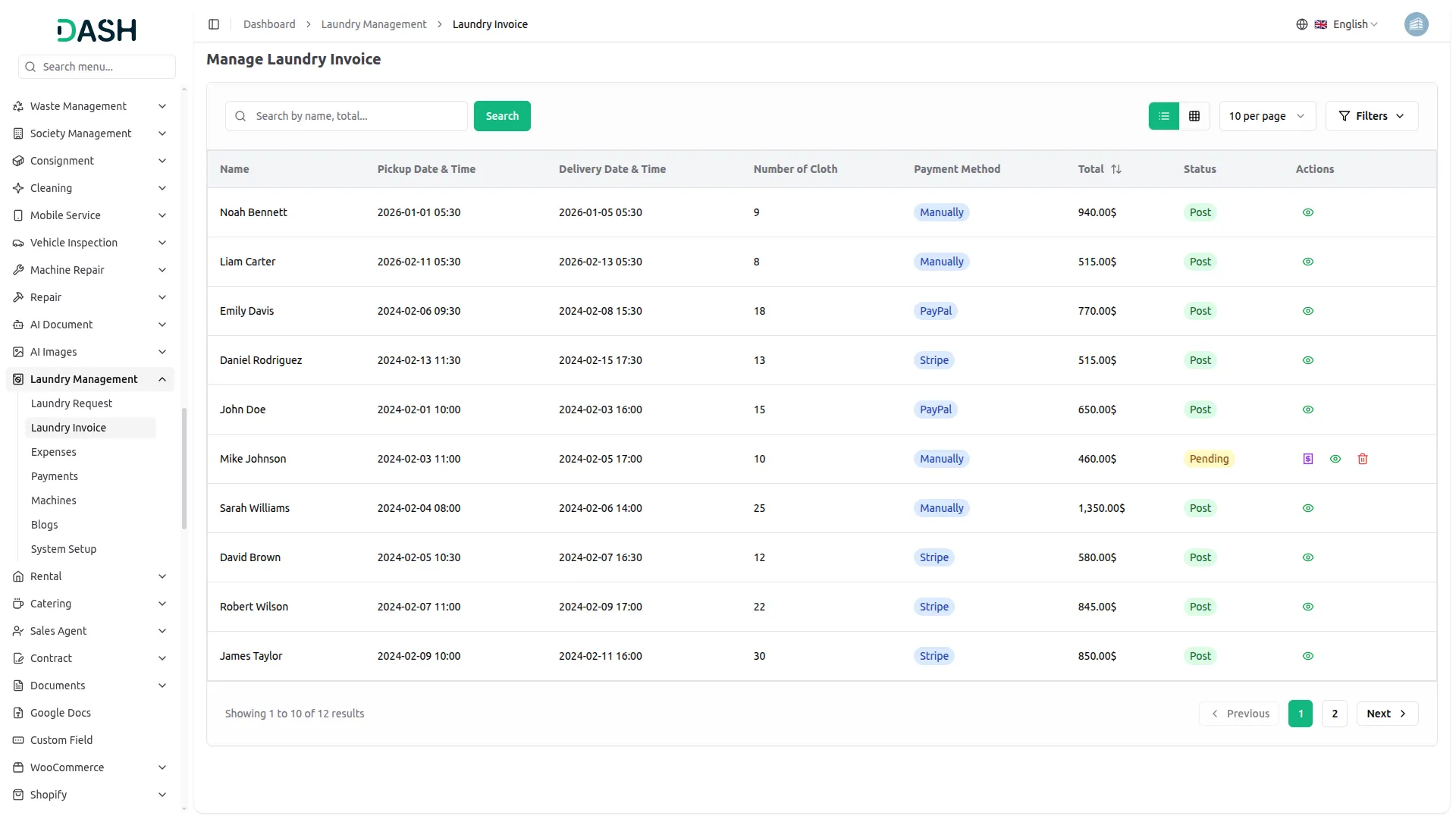
- The list page displays all invoices with columns for Name, Pickup Date & Time, Delivery Date & Time, Number of Cloth, Payment Method, Total, and Status. You can use Search, and Filters buttons for managing invoice data.
- You can perform actions such as View detailed invoice information (with linked request details), Collect Payment for unpaid invoices, and Delete invoices using the action buttons.
- The View option shows complete invoice details including customer information, itemized services, amounts, and payment history.
Expense
- The Expense section helps you track all business expenses to maintain accurate financial records and monitor profitability.
- To create a new Expense, click the “Create” button at the top of the expense page. Select the Expense Type from the dropdown (e.g., Utilities, Supplies, Maintenance) and enter the Expense Amount.
- Choose the Expense Date when the expense occurred and select the Bank Account from which the payment was made. Set the Payment Status to indicate whether the expense is pending or paid. Write a detailed Description explaining the expense purpose.
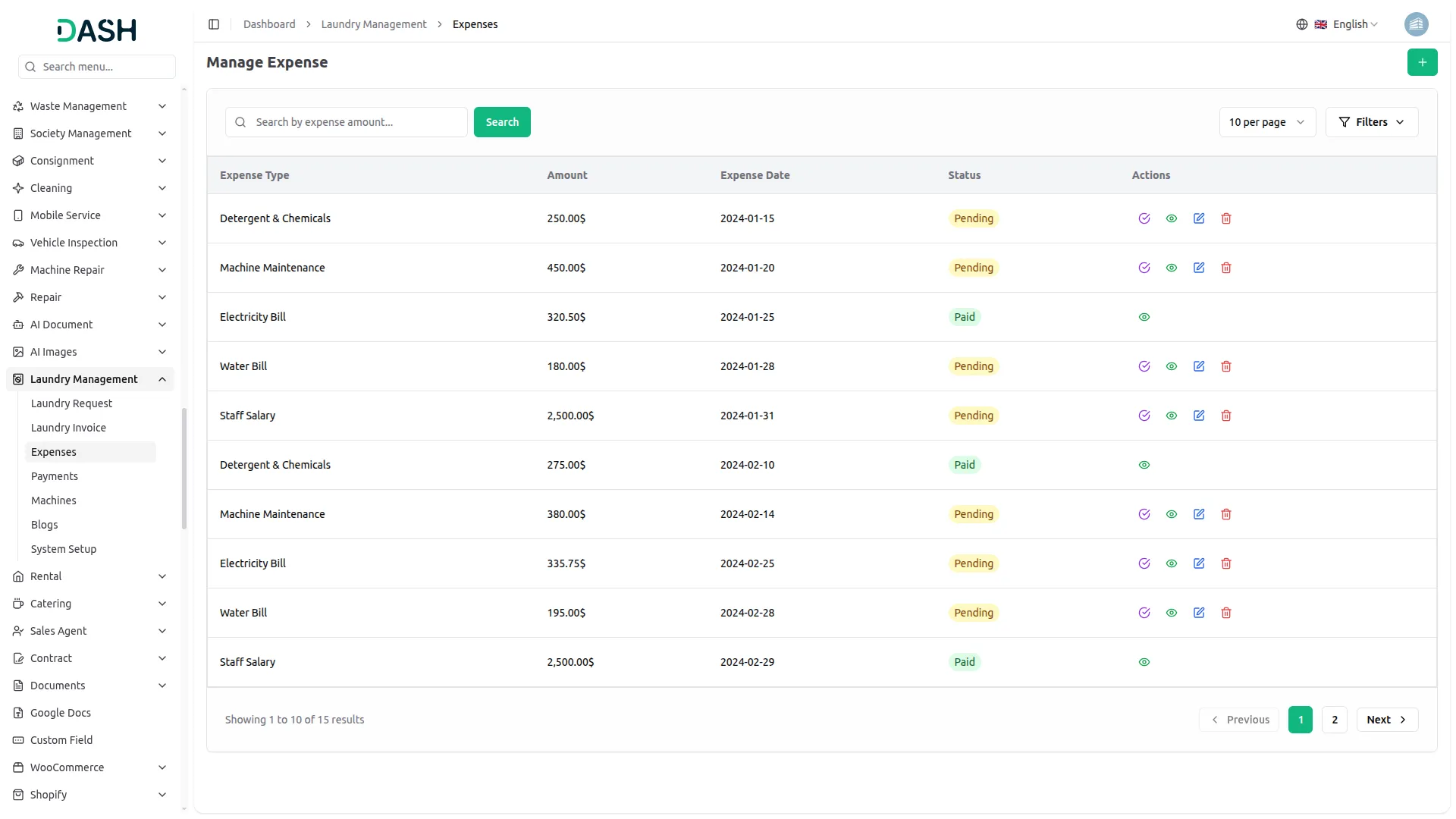
- The list page provides Search and Filter for expense management. The table displays Expense Type, Amount, Expense Date, Status, and Action columns.
- You can use the action buttons to view detailed expense information, update or make payments, edit expense details, and delete expense records when they are no longer required. Regular expense tracking helps you understand your cost structure, identify areas for savings, and maintain healthy profit margins.
Laundry Payment
The Laundry Payment section tracks all payments collected for laundry services. Payments are linked to invoices and help you manage your business revenue.
To record a new Payment, select the invoice that needs payment processing and select the Bank Account where the payment will be deposited (this connects to your system bank accounts).
Payment Status Options:
- Pending: Payment recorded but not yet confirmed or deposited
- Cleared: Payment confirmed and successfully deposited to bank account
- Cancelled: Payment cancelled, failed, or refunded
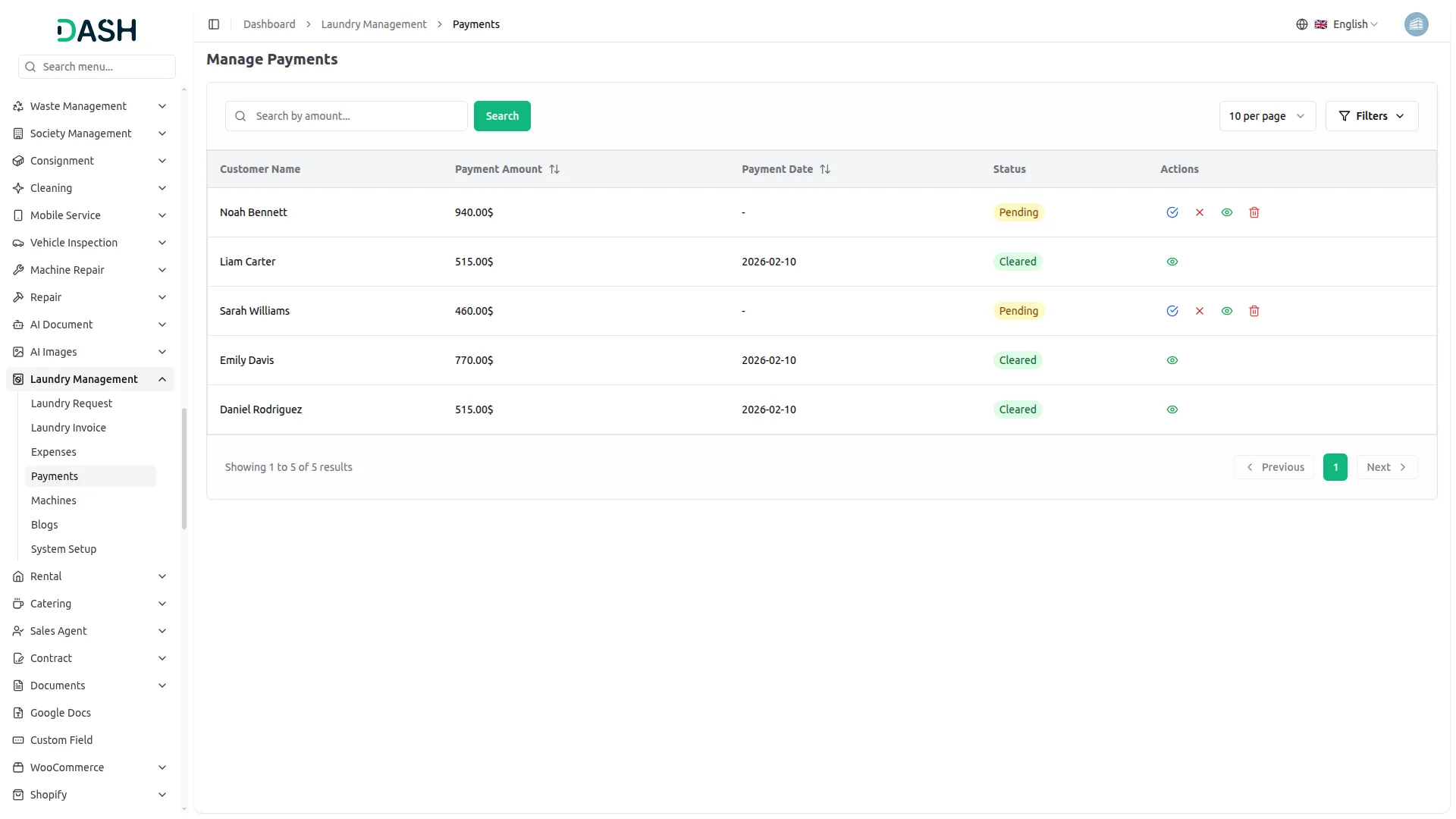
The list page displays all payments with columns for Customer Name, Payment Amount, Payment Date, Status, and Action. You can use Search and Filter for payment management. When a payment status is updated to “Cleared”, the linked invoice status automatically updates to “Paid”. This ensures accurate financial tracking and prevents double payments.
Machines
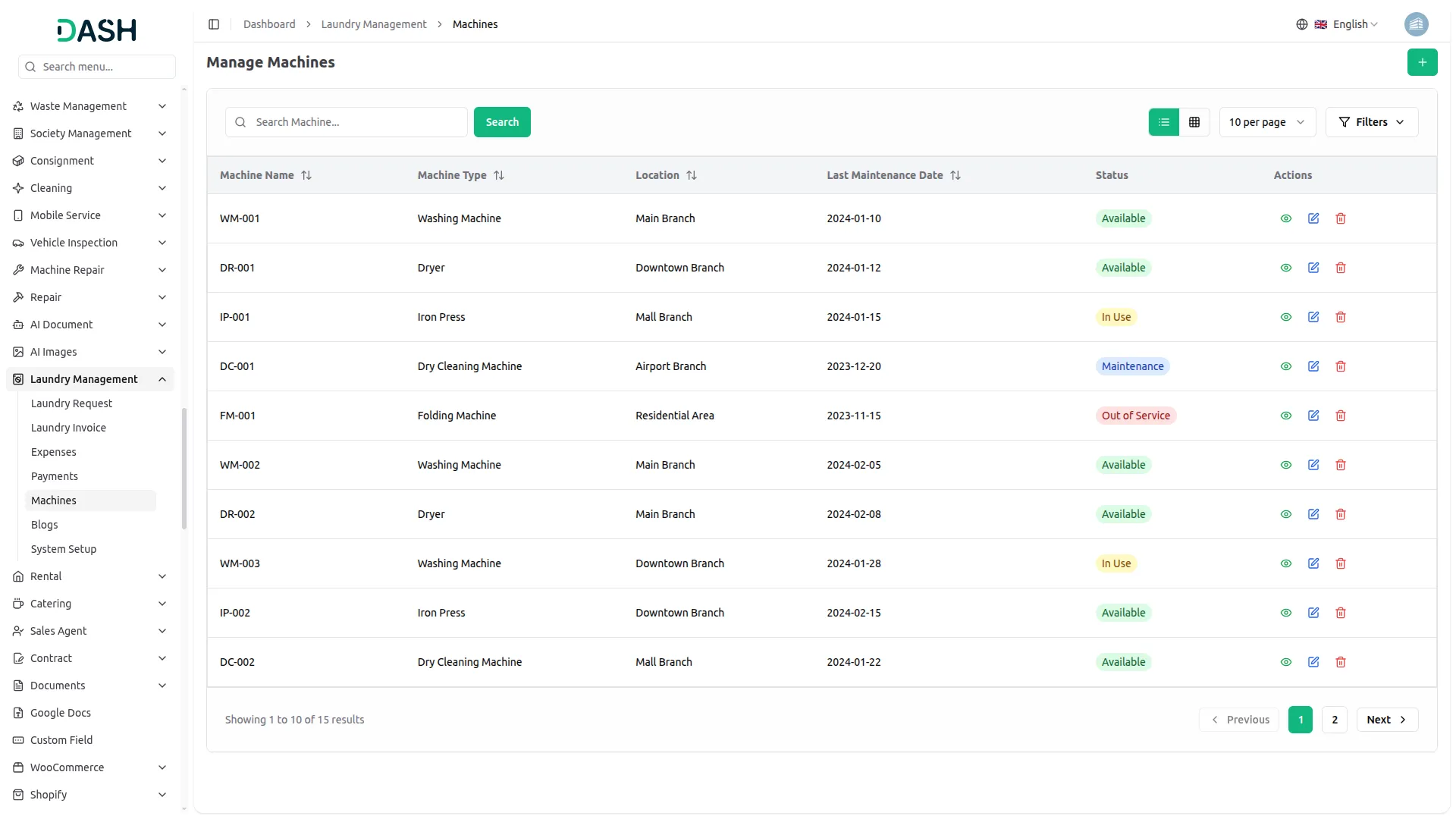
To create a new machine, click the Create button at the top of the machines page, Enter the Name, Select the Type from dropdown is fetched from system setup in Machines Types Module, choose the Status (Out of Service, Available, In Use, Maintenance), Select the Location from dropdown is fetched from system setup in Location module, add the Last Maintenance Date, and Description.
The list page shows all Machines with columns for Machine Name, Machine Type, Location, Last Maintenance Date, and Status. You can use Search and filter for Machines Manage.
Available actions include View, Edit, and Delete, allowing you to view and manage Machines, update existing Machine details, or remove Machine from the system as needed.
Blog
To create a new Blog post, click the “Create” button at the top of the blog page. Enter the Blog Title and write engaging Content for your article. Upload a Featured Image that represents your blog post topic.
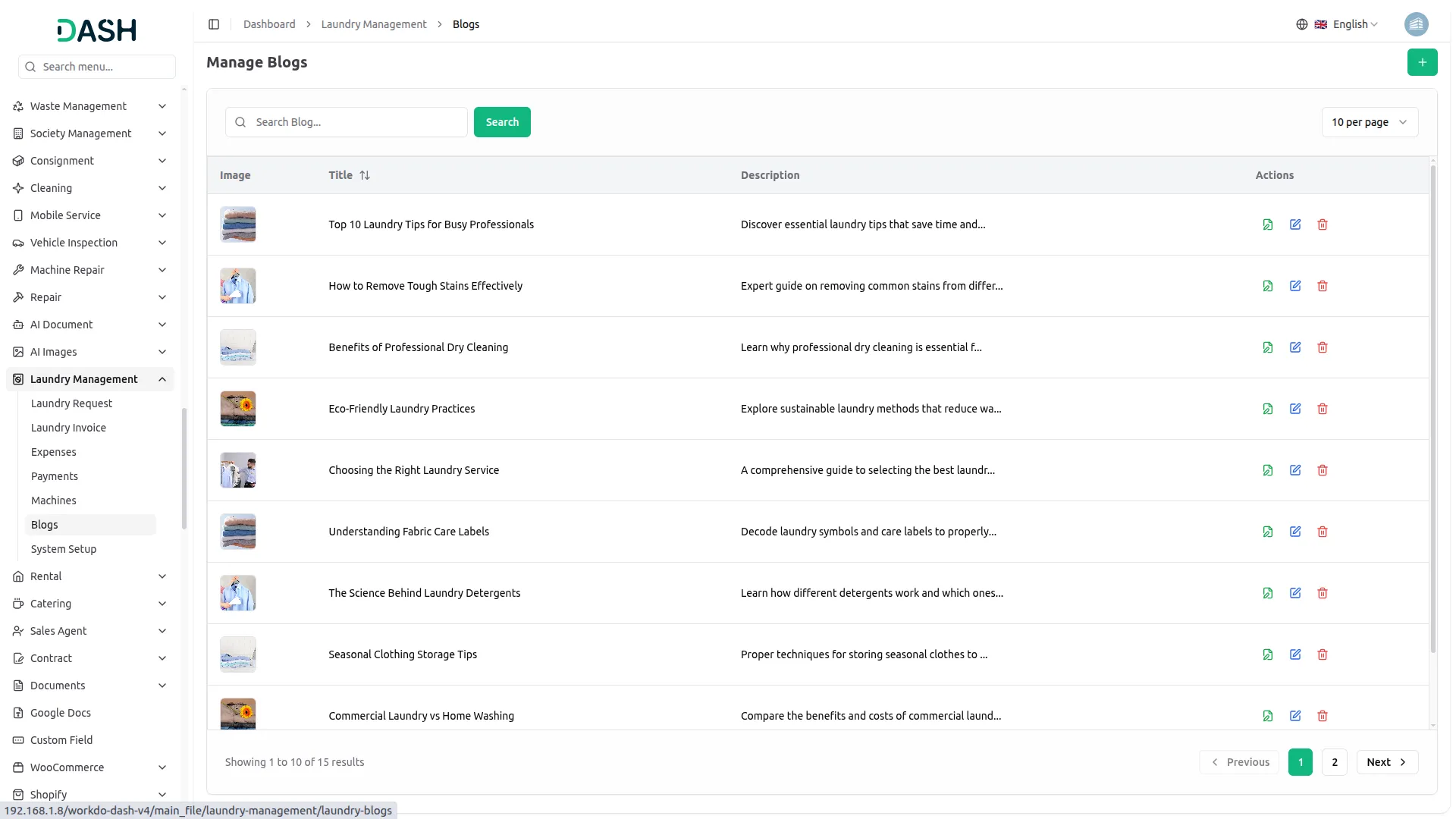
The list page shows all blog posts with columns for Title, Featured Image, Description, and Action. You can use Search and Filter for blog management.
Available actions include Article, Edit, and Delete, allowing you to view and manage blog articles, update existing article details, or remove articles from the system as needed.
Selecting Article opens the article page, where you can enter the Author Name and Author Designation, select an Author Image, upload an Article Image, add tags, and write the article content.
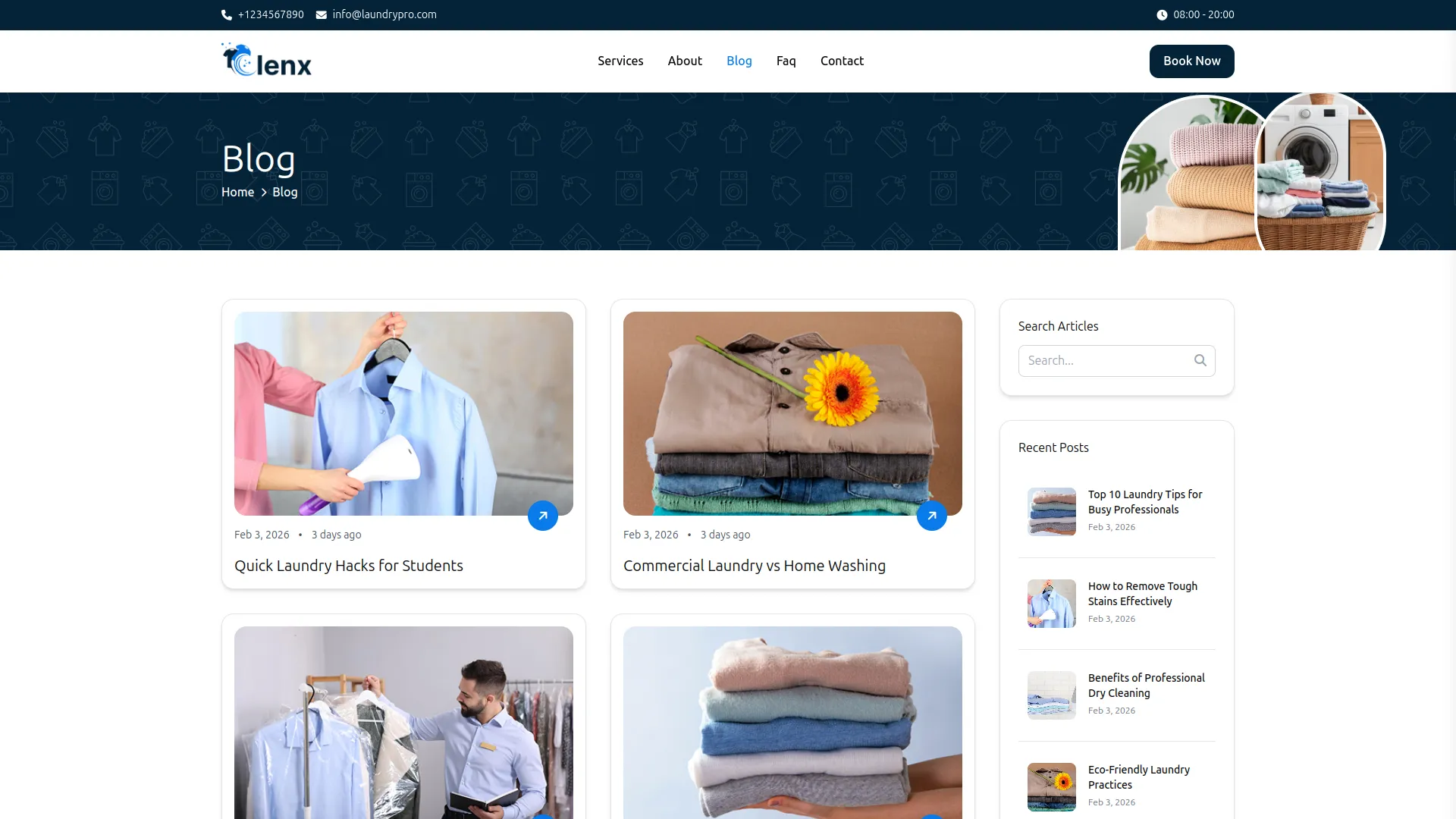
Blog posts appear on the frontend blog page and homepage (recent posts section), helping you engage customers with helpful laundry tips, company news, and industry insights.
Categories
Related articles
- User Manual – AccountGo
- Hotel & Room Management – WorkDo Dash SaaS Add-On Guide
- Social Media Analytics – WorkDo Dash SaaS Add-On Guide
- Sign in with Twitter – WorkDo Dash SaaS Add-On Guide
- Solar Hub – WorkDo Dash SaaS Add-On Guide
- WooCommerce Module Guide – eCommerceGo SaaS
- Sign in with Bitbucket – eCommerceGo SaaS Add-On Guide
- Asana Project Management – WorkDo Dash SaaS Add-On Guide
- Adyen – WorkDo Dash SaaS Add-On Guide
- Fatora – WorkDo Dash SaaS Add-On Guide
- Checkout – WorkDo Dash SaaS Add-On Guide
- Zendesk – TicketGo Add-On Guide
We're Here to Help - Let's Talk
Have questions about our solutions, customization services, or business tools? Our team is here to help you. let's talk.