
Moneris – WorkDo Dash SaaS Add-On Guide
Learn how to configure and manage Moneris integration in WorkDo Dash SaaS easily.
Supported Country: United States of America, Canada, United Kingdom, Australia, Japan, India, China.
Supported Currency: USD, EUR, GBP, AUD, CAD, JPY, INR, CNY, and more.
Benefits of Moneris Payment Gateway
Reliable Encrypted Transaction Security
Moneris protects every payment with advanced encryption and dedicated fraud prevention systems, ensuring that all transactions are conducted in a safe and secure environment that both merchants and customers can trust.
Diverse Payment Method Support
Moneris accommodates a wide variety of payment preferences, including credit and debit cards, Visa, Mastercard, and more, giving businesses the ability to serve customers with different payment needs conveniently and efficiently.
Automated Payment Reconciliation
Payment statuses are automatically updated and synced within the platform, reducing the need for manual intervention and keeping financial records consistently accurate and up to date with minimal administrative effort.
Instant Real-Time Payment Processing
Every transaction is authorized and confirmed in real time through Moneris, enabling fast payment verification and eliminating unnecessary delays in order fulfillment or service delivery for a smoother customer experience.
How to Access Moneris Add-On?
Ready to enhance your online payment capabilities with Moneris? Follow these simple steps to get started:
- Visit WorkDo Website: Head over to https://workdo.io/ and explore the extensive range of Dash SaaS Add-Ons.
- Discover Moneris:Navigate to the “Dash SaaS Add-Ons” section and locate the “Moneris Add-On”.
- Activate the Add-On: Click the “Activate” button next to the Moneris Add-On to enable it for your WorkDo Dash account.
How Does Moneris Work?
The Moneris integration provides a seamless and secure payment processing solution, enabling businesses to accept a wide range of payment methods, including credit and debit cards. It simplifies transaction management by offering real-time payment authorization, settlement, and detailed reporting features. With this integration, businesses can enhance their customer experience by ensuring fast, reliable, and convenient payment processing directly within their existing systems.
Super Admin Settings
(Plan Purchase by the Company)
The Super Admin Settings are accessible only to the highest-level administrator. These settings allow the Super Admin to manage company-level subscriptions and payment configurations.
Key Capabilities:
- Purchase or upgrade company subscription plans
- Configure Moneris API credentials for plan payments
- Enable or disable Moneris as a payment gateway
Configuration Path:
Super Admin Login → Settings → Moneris Settings
Company Settings
(Bookings, Beauty Spa, LMS & Other Payments)
Company Settings allow organizations to configure Moneris for receiving payments from customers across multiple modules.
Supported Modules Include:
Configuration Path:
Company Login → Settings → Moneris Settings
Company-Level Capabilities:
- Configure Moneris API credentials
- Enable Moneris for selected modules
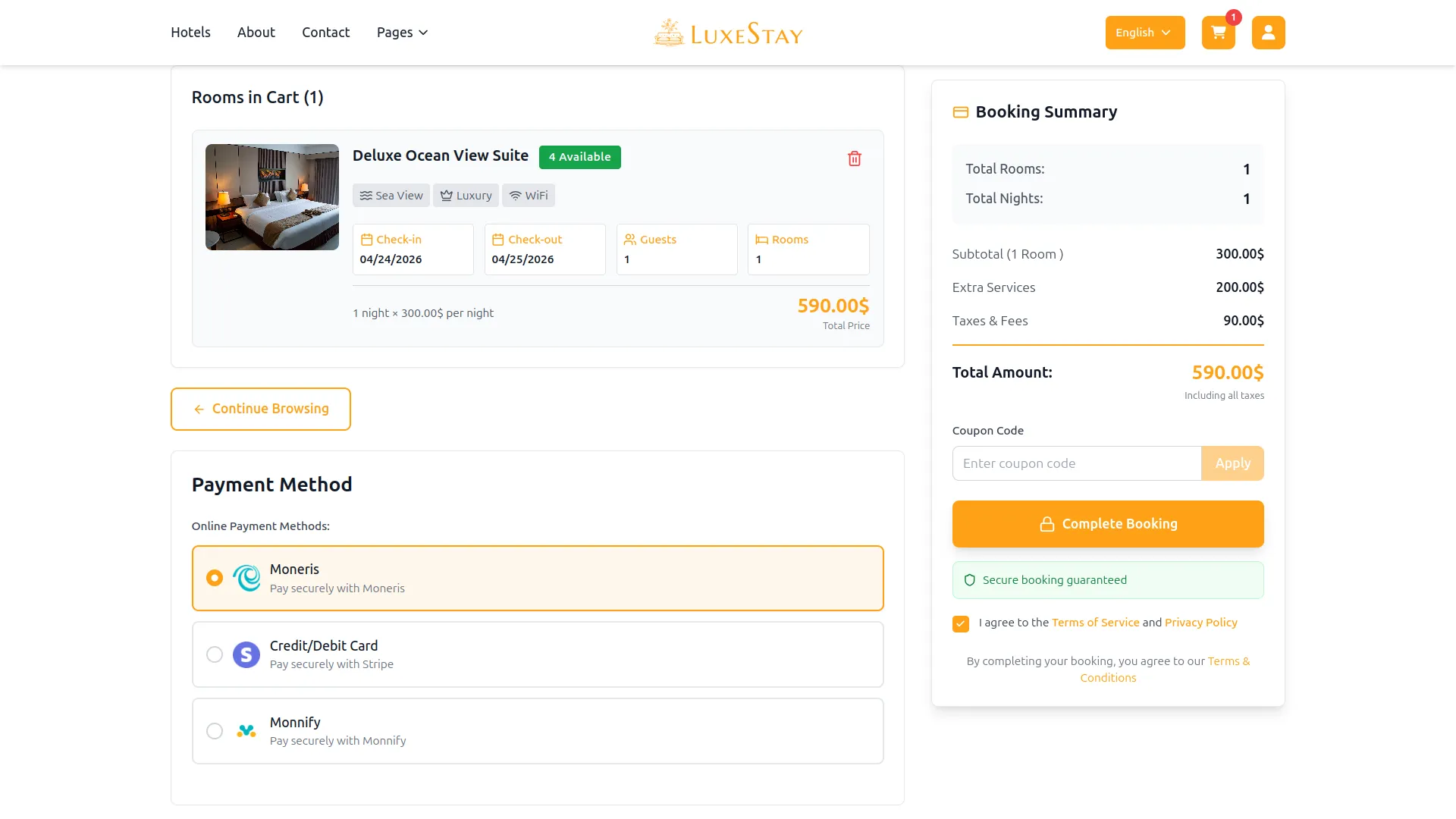
- Accept online payments from customers
- Manage Bookings, Beauty Spa, and service
- Handle tax, coupon, and discount calculations
How to Generate a Key
Generate API Key:
To integrate Moneris with WorkDo Dash, obtain API credentials from your Moneris Developer Portal:
1. Register a Developer Account
- Visit the official Moneris Developer Portal: https://api-developer.moneris.com/
- Sign up for a developer account.
2. Access Your API Credentials
- After logging in, navigate to your account settings.
- Locate the “Access & Credentials” section.
- Generate a new application to obtain your API Key, Client ID, and Client Secret.
Note: Moneris uses OAuth for secure API communication.
Configure Moneris Gateway:
- Log in to your account with administrator credentials.
- Navigate to the settings page.
Access Payment Settings:
- Within the settings page, locate and select the “Payment Settings” option.
Set Up Moneris Gateway:
- Scroll down the page until you find the Moneris Gateway option.
- Click on the Moneris Gateway to access its configuration settings.
Enter Required Details:
- In the settings, provide the following essential details: Key, Client Key, Client Secret Key
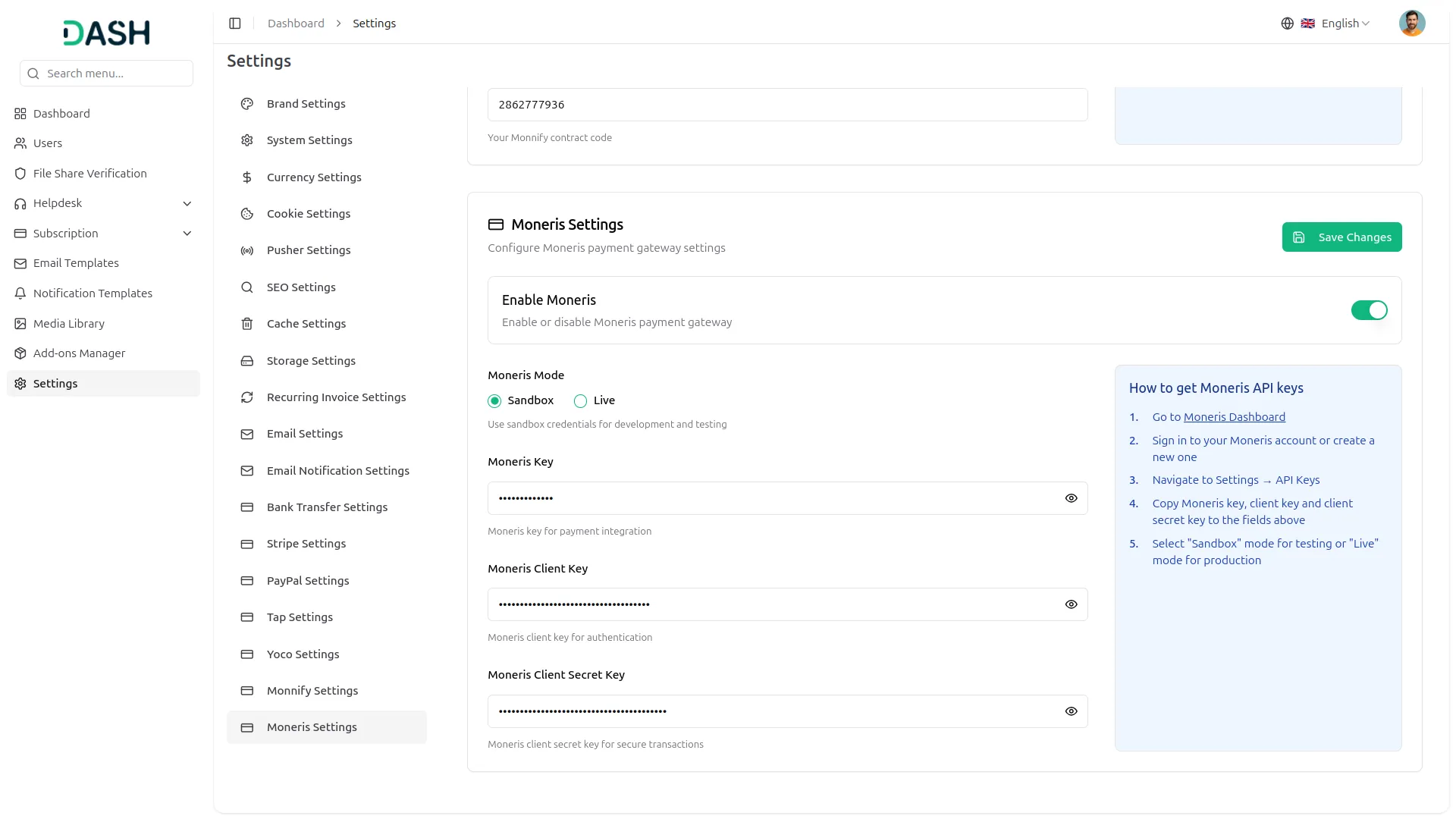
Save Your Settings:
- After entering the necessary details, save the settings to activate the Moneris Payment Gateway within your platform.
This process will enable you to seamlessly integrate Moneris as a payment gateway, allowing your users to make secure and efficient online payments in various cryptocurrencies.
Note: The Moneris Add-On is a paid feature and can be accessed by users who have purchased it. By integrating the Moneris Add-On into your Dash SaaS account, you’ll provide a reliable and user-friendly payment gateway that supports global transactions
Categories
Related articles
- Telegram – TicketGo Add-On Guide
- Procurement – WorkDo Dash SaaS Add-On Guide
- Accounting – WorkDo Dash SaaS Add-On Guide
- Twilio – TicketGo Add-On Guide
- User Manual – vCard SaaS
- Google Authentication – eCommerceGo SaaS Add-On Guide
- Slack – WorkDo Dash SaaS Add-On Guide
- Easebuzz – WorkDo Dash SaaS Add-On Guide
- eCommerceGo SaaS Add-On Setup Guide
- User Manual – Taskly
- Midtrans – BookingGo SaaS Add-On Guide
- Paiement Pro – WorkDo Dash SaaS Add-On Guide
We're Here to Help - Let's Talk
Have questions about our solutions, customization services, or business tools? Our team is here to help you. let's talk.