
Instamojo – WorkDo Dash SaaS Add-On Guide
Learn how to configure and manage Instamojo integration in WorkDo Dash SaaS easily.
Supported Countries: India
Supported Currencies: INR
Benefits of Instamojo Payment Gateway
Secure & Encrypted Transactions
Instamojo ensures every transaction is protected with advanced encryption and security protocols, giving businesses and their customers complete peace of mind during every payment.
Multiple Payment Methods
Customers can choose from a wide range of payment options, including debit/credit cards, net banking, UPI, and wallets, making it convenient for every type of user.
Quick & Easy Onboarding
Instamojo requires minimal setup to get started. Businesses can activate the gateway and begin accepting payments within minutes without any complex technical knowledge.
Centralized Payment Management
All transactions processed through Instamojo are automatically recorded and tracked within WorkDo Dash, giving businesses real-time visibility into their financial activity across modules.
Reliable Performance & Support
Instamojo offers consistent uptime and dependable customer support, ensuring uninterrupted payment operations for businesses running on the WorkDo Dash platform.
How to Access Instamojo Add-On?
- Visit the WorkDo Dash Website
Go to https://workdo.io/ to access the WorkDo Dash platform. - Navigate to Dash SaaS Add-Ons
Explore the “Dash SaaS Add-Ons” section on the website to discover available Add-Ons. - Discover Instamojo Add-On
Browse the list of available Add-Ons and find the “Instamojo Payment Gateway.” - Activate the Add-On
Click the “Activate” button next to the Instamojo Add-On to enable it for your WorkDo Dash account.
Once activated, Instamojo becomes available across supported modules based on permissions and settings.
How does Instamojo Works?
Instamojo integration in Dash SaaS enables businesses to accept online payments directly within their platform by connecting their Instamojo account through the settings panel. Once integrated, users can offer customers a variety of payment options such as cards, bank transfers, and more, all processed securely via Instamojo’s encrypted gateway. Transactions are automatically tracked and recorded within Dash SaaS, providing real-time visibility and simplifying financial management. The integration requires minimal setup and ensures a smooth, reliable, and secure payment experience for both businesses and their customers.
Super Admin Settings
(Plan Purchase by the Company)
The Super Admin Settings are accessible only to the highest-level administrator. These settings allow the Super Admin to manage company-level subscriptions and payment configurations.
Key Capabilities:
- Purchase or upgrade company subscription plans
- Configure Instamojo API credentials for plan payments
- Enable or disable Instamojo as a payment gateway
Configuration Path:
Super Admin Login → Settings → Instamojo Settings
Company Settings
(Bookings, Beauty Spa, LMS & Other Payments)
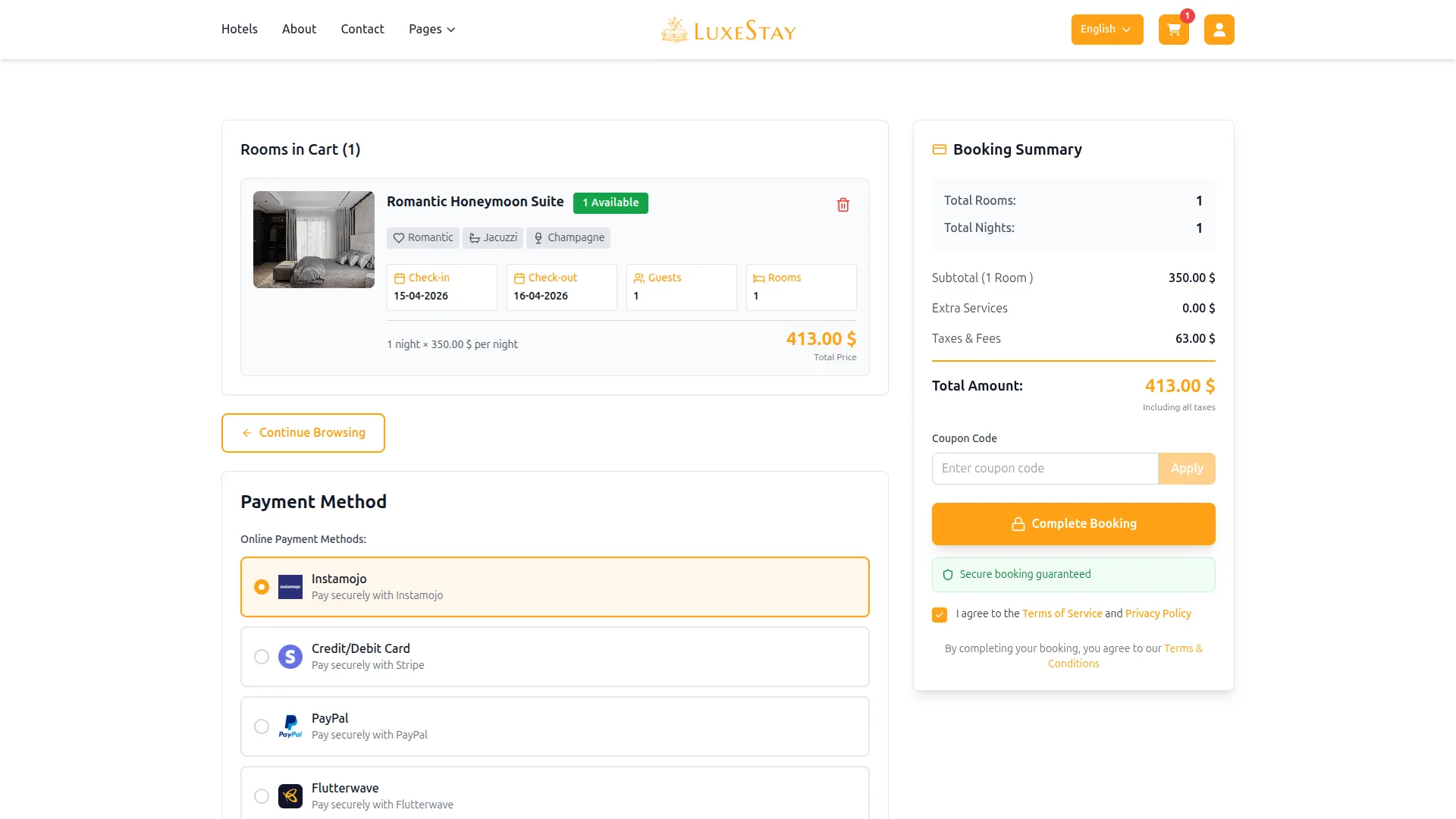
Company Settings allow organizations to configure Instamojo for receiving payments from customers across multiple modules.
Supported Modules Include:
Configuration Path:
Company Login → Settings → Instamojo Settings
Company-Level Capabilities:
- Configure Instamojo API credentials
- Enable Instamojo for selected modules
- Accept online payments from customers
- Manage Bookings, Beauty Spa, and service payments
- Handle tax, coupon, and discount calculations
How to Generate Instamojo API Credentials?
To integrate Instamojo with WorkDo Dash, obtain API credentials from your Instamojo Portal:
1. Register an Account
- Visit the official Instamojo Portal: https://www.instamojo.com/
- Sign up for an account.
2. Access Your API Credentials
- Visit the official Instamojo document to obtain credentials: https://support.instamojo.com/hc/en-us/articles/212214265-How-do-I-get-my-Client-ID-and-Client-Secret
3. Configure Instamojo Gateway in (Product Name):
- Log in to your (Product Name) account with administrator credentials.
- Navigate to the settings page.
4. Set Up Instamojo Gateway:
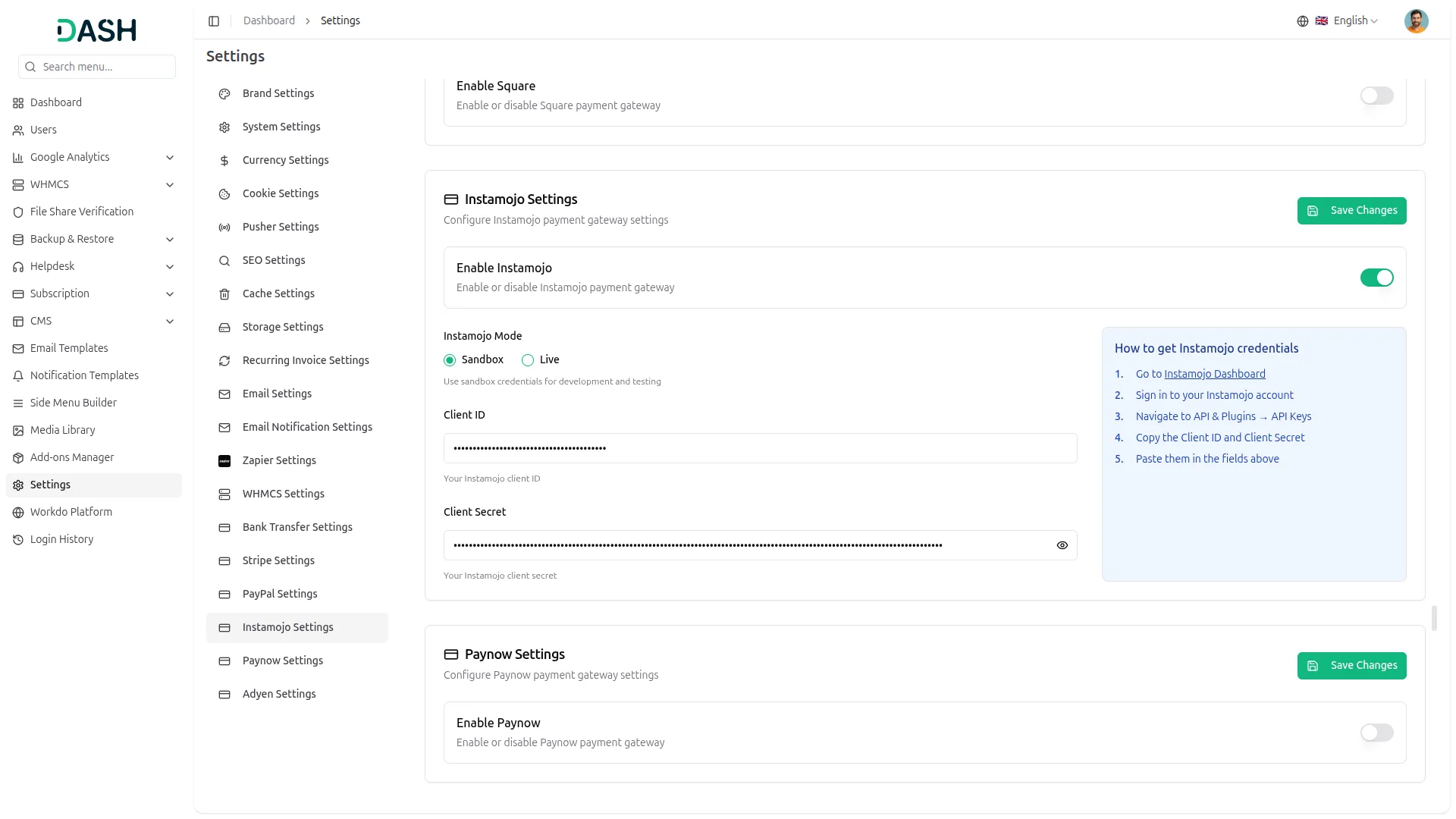
- Scroll down the page until you find the Instamojo Gateway option.
- Click on the Instamojo Gateway to access its configuration settings.
5. Enter Required Details:
- In the Instamojo settings, provide the following essential details:
- Instamojo Client ID
- Instamojo Client Secret
6. Save Your Settings
- After entering the necessary details, save the settings to activate the Instamojo Payment Gateway within your Dash SaaS platform.
This detailed documentation overviews Instamojo Payment Integration, its benefits, and the integration process. By integrating Instamojo, businesses and organizations can offer their customers a secure and flexible payment experience while streamlining their payment processes.
Note: The Instamojo Add-On is a paid feature and can be accessed by users who have purchased it. By integrating the Instamojo Add-On into your WorkDo Dash SaaS account, you’ll provide a reliable and user-friendly payment gateway that supports global transactions.
Categories
Related articles
- Facilities – WorkDo Dash SaaS Add-On Guide
- AI Image – WorkDo Dash SaaS Add-On Guide
- Service Tax – BookingGo SaaS Add-On Guide
- Peach Payment – WorkDo Dash SaaS Add-On Guide
- Stripe – WorkDo Dash SaaS Add-On Guide
- Shipping Module Guide – eCommerceGo SaaS
- PayPay – WorkDo Dash SaaS Add-On Guide
- Outlook Calendar Credentials Generation Guide
- Insurance Management – WorkDo Dash SaaS Add-On Guide
- Biometric Attendance Documentation Guide
- Security Guard Management – WorkDo Dash SaaS Add-On Guide
- eCommerceGo SaaS Theme Setup Guide
We're Here to Help - Let's Talk
Have questions about our solutions, customization services, or business tools? Our team is here to help you. let's talk.