
CCTV & Security System – WorkDo Dash SaaS Add-On Guide
Learn how to manage CCTV and security system operations in WorkDo Dash SaaS easily.
Introduction
The CCTV & Security System Add-On is a comprehensive solution designed to streamline the management of your security operations. It enables businesses to efficiently handle customers, items, categories, and orders while tracking complaints, maintenance, and installations in one centralized platform. With intuitive list views, powerful filters, and easy-to-use forms, the add-on keeps your team organized, your workflows on track, and your customers well-served.
How to Install the Add-On?
To Set Up the CCTV & Security System Add-On, you can follow this link: Setup Add-On.
How to Use the CCTV & Security System Add-On?
Manage Categories
- To create a new category, click the “Create” button on the Manage Categories page. Enter the Name of the category in the text field. Optionally, provide a Description to give additional context about the category. Toggle the Status switch to set the category as Active or Inactive, then click Create to save the category.
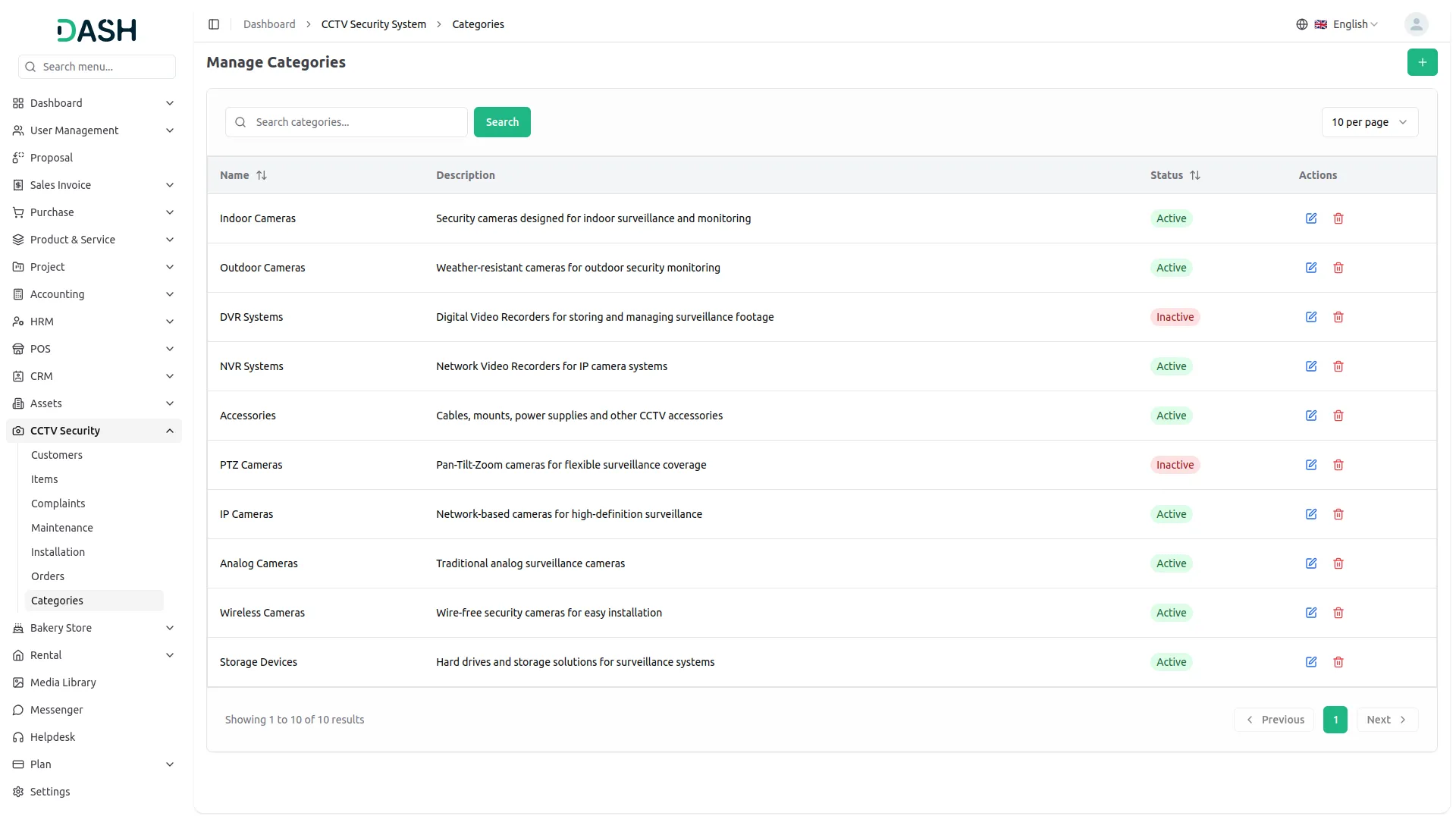
- The list page displays all categories in a table with columns for Name, Description, Status, and Actions. Each row represents a registered category along with its description and current availability status.
- Use the search bar to quickly locate a specific category by name. In the Actions column, use the Edit option to update any category information or the Delete option to permanently remove the category from the system.
Manage Customers
- To create a new customer, click the “Create” button on the Manage Customers page. Enter the customer’s Name in the text field. Provide the Mobile No. Enter the Email and Tax Number if applicable. Optionally, fill in the Contact Person Name and Contact Person Mobile for an alternate point of contact.
- Enter the required City, State, and Zip Code to define the customer’s location. Select the appropriate Type from the dropdown, such as Home, Company, Industrial, or Government, to categorize the customer. Fill in the required Address field with the full street address. Optionally, add any relevant Notes before clicking Create to save the customer.
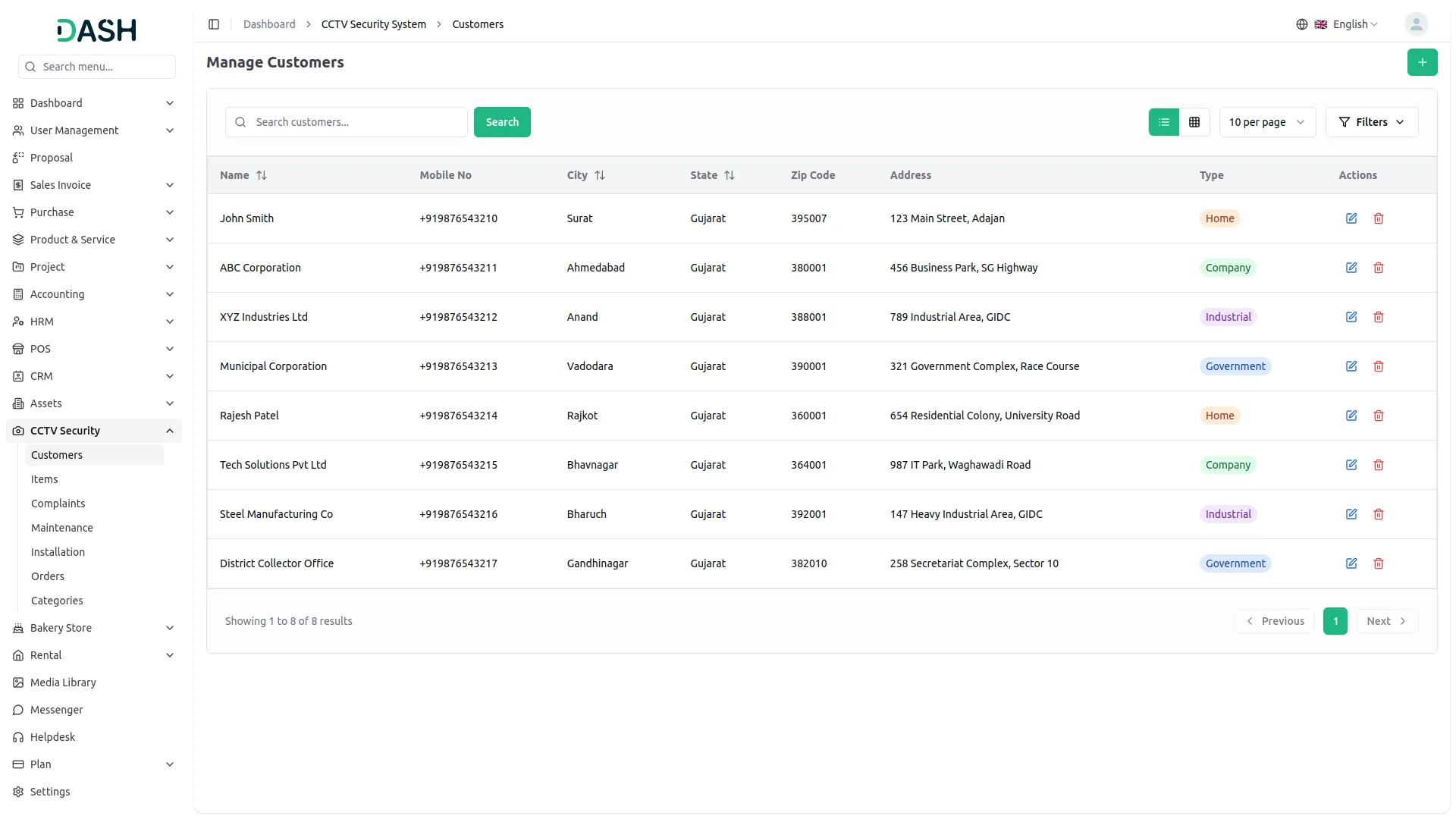
- The list page displays all customers in a table with columns for Name, Mobile No, City, State, Zip Code, Address, Type, and Actions. Use the search bar to quickly locate a specific customer by name.
- Apply the City or Type filters and click Apply to narrow down results, or click Clear to reset them. Toggle between list view and grid view using the view buttons at the top right.
- In the Actions column, use the Edit option to update any customer information or the Delete option to permanently remove the customer from the system.
Manage Items
- To create a new item, click the “Create” button on the Manage Items page. Enter the Item Name in the text field. Provide a unique SKU manually or click Generate to auto-create one.
- Select the appropriate Category from the dropdown and optionally enter a Model Number for product identification. Enter the Brand name and specify the Unit (e.g., piece, box) for the item.
- Enter the required Sale Price and Purchase Price in the provided fields. Set the Initial Stock quantity to reflect the available inventory. Optionally, enter the Warranty (Months) to indicate the product’s warranty period. Provide a Description for additional product details. Upload a product Image by clicking Browse to select an image file, then click Create to save the item.
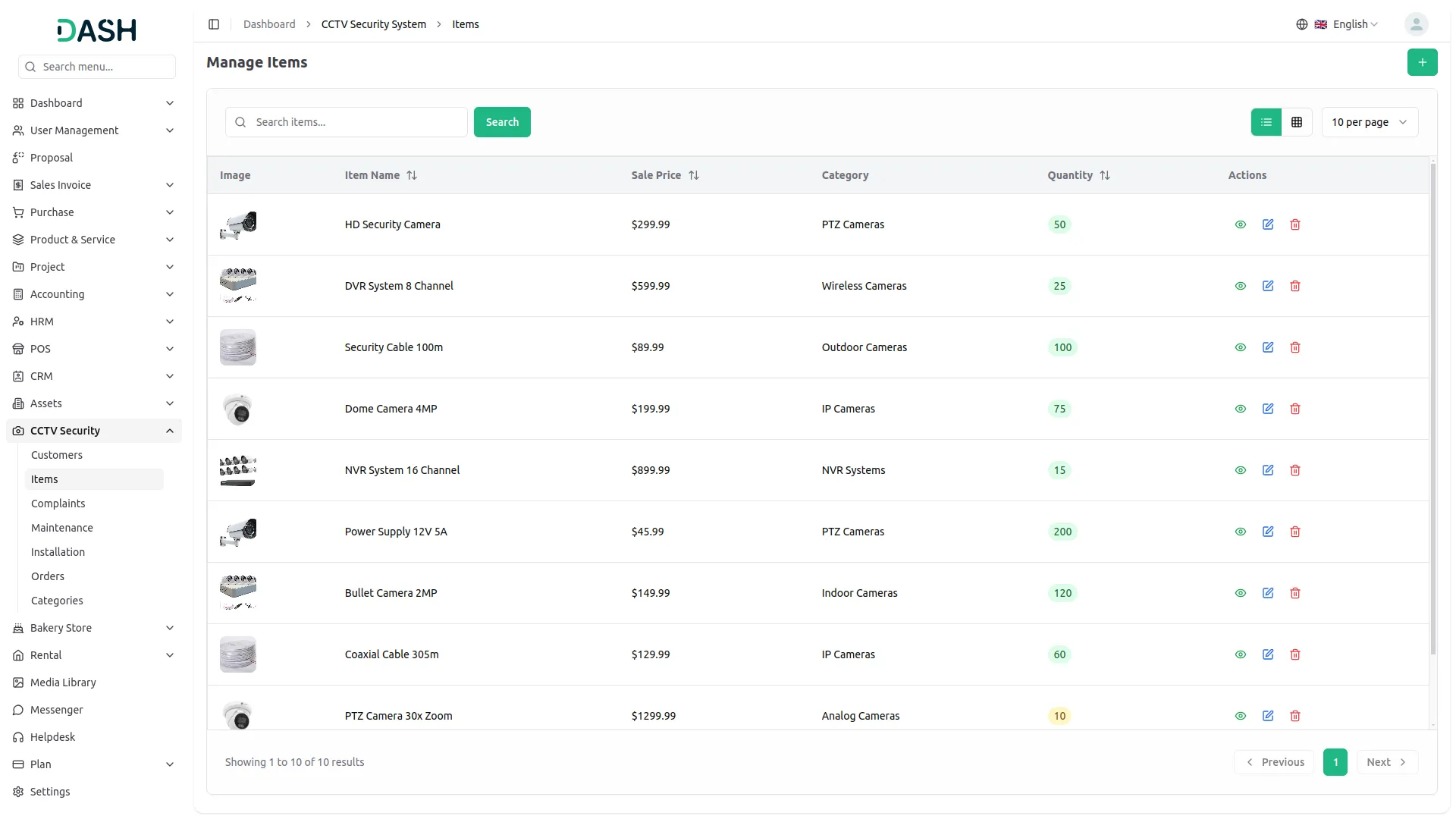
- The list page displays all items in a table with columns for Image, Item Name, SKU, Brand, Sale Price, Category, Warranty, Quantity, and Actions. Each row represents a registered item along with its key product and pricing details. Use the search bar to quickly locate a specific item by name.
- Apply the Category, Brand, or Stock Status filters and click Apply to narrow down results, or click Clear to reset them. Toggle between list view and grid view using the view buttons at the top right.
- In the Actions column, use the View option to see the full item profile, the Edit option to update any item information, or the Delete option to permanently remove the item from the system.
Manage Complaints
- To create a new complaint, click the “Create” button on the Manage Complaints page. Select the assigned Staff member from the dropdown. Choose the relevant Customer and set the Priority level ( Low, Medium, or High) to indicate the urgency of the complaint. Enter a clear Title to summarize the issue.
- Provide a detailed Description of the complaint to give full context. Toggle the Is Chargeable switch if the complaint resolution involves a billable amount, then click Create to save the complaint.
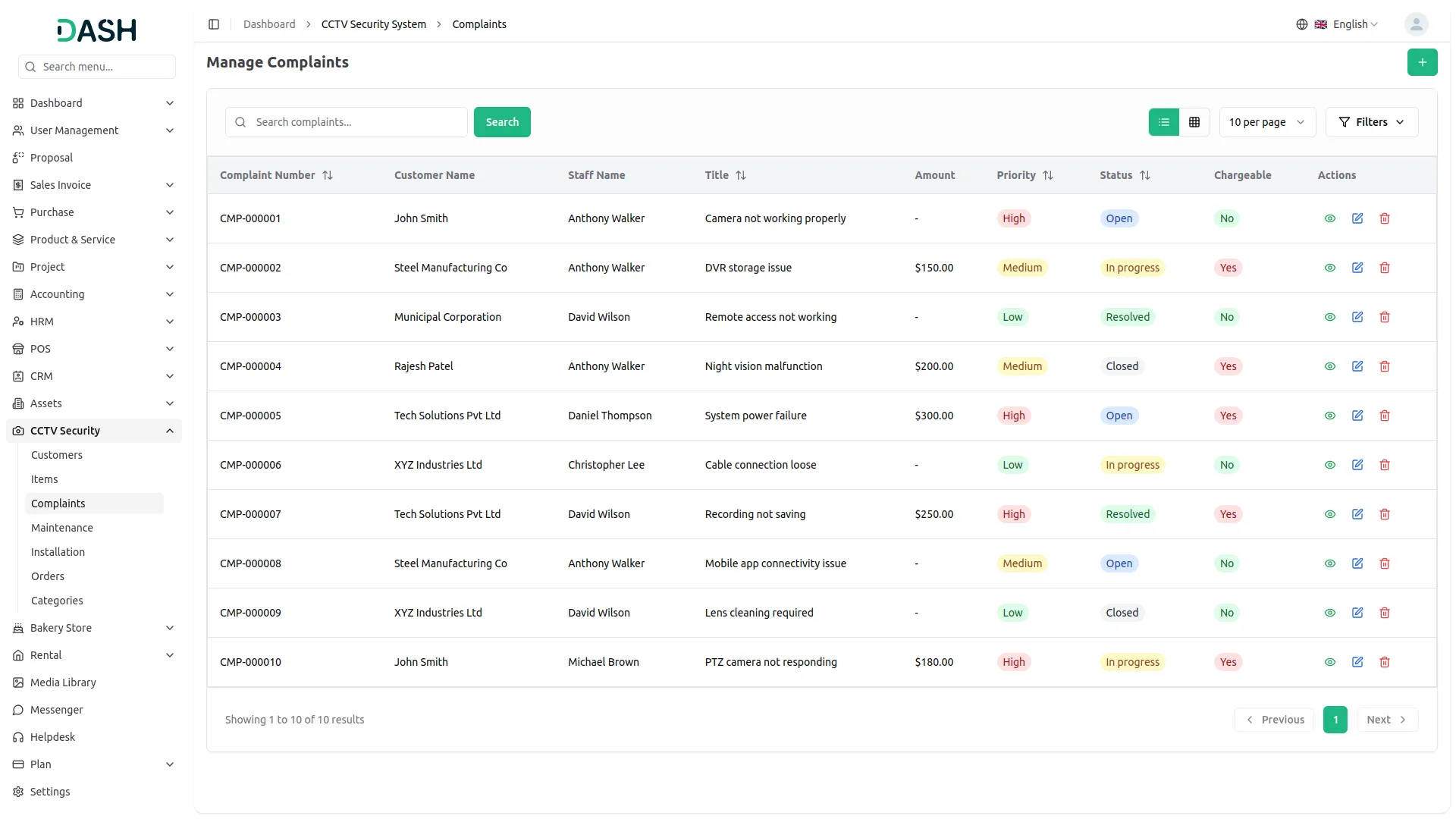
- The list page displays all complaints in a table with columns for Complaint Number, Customer Name, Staff Name, Title, Amount, Priority, Status, Chargeable, and Actions.
- Use the search bar to quickly locate a specific complaint. Apply the Customer Name, Staff Name, Priority, or Status filters and click Apply to narrow down results, or click Clear to reset them.
- Toggle between list view and grid view using the view buttons at the top right. In the Actions column, use the View option to see the full complaint details, the Edit option to update any complaint information, or the Delete option to permanently remove the complaint from the system.
Manage Maintenance
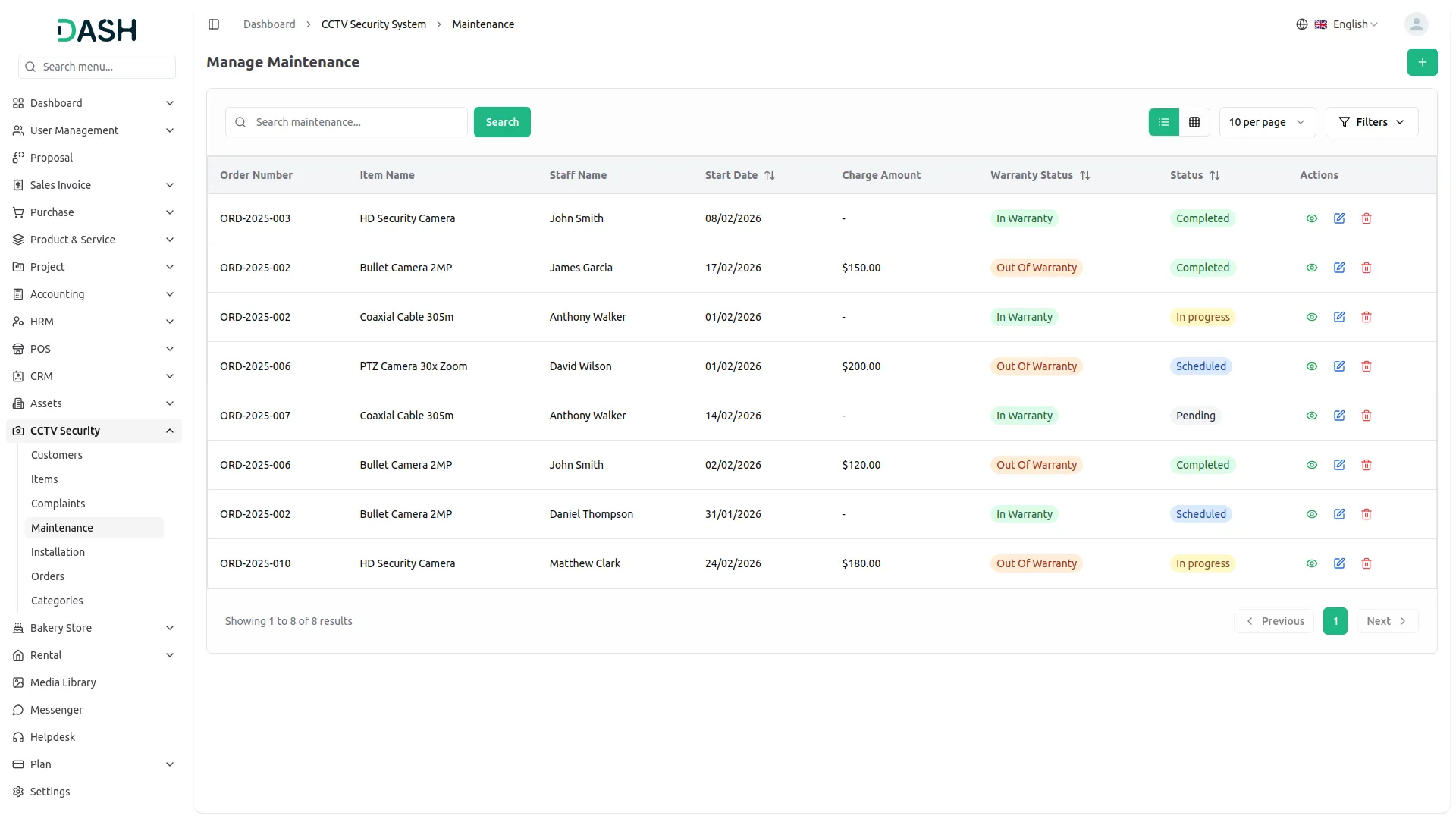
- To create a new maintenance record, click the “Create” button on the Manage Maintenance page. Select the relevant Order from the dropdown, and the associated Item will populate accordingly. Assign the responsible Staff member and set the Status (Pending, Scheduled, In Progress, or Completed) to reflect the current state of the maintenance task.
- Select the Start Date using the date picker to record when the maintenance begins. Optionally, provide an End Date to indicate the expected or actual completion date. Enter a detailed Issue Description to document the nature of the maintenance work. Select the appropriate Warranty Status, In Warranty or Out of Warranty, to indicate whether the item is covered, then click Create to save the record.
- The list page displays all maintenance records in a table with columns for Order Number, Item Name, Staff Name, Start Date, Charge Amount, Warranty Status, Status, and Actions.
- Use the search bar to quickly locate a specific maintenance record. Apply the Item Name, Staff Name, Warranty Status, or Status filters and click Apply to narrow down results, or click Clear to reset them. Toggle between list view and grid view using the view buttons.
- In the Actions column, use the View option to see the full maintenance details, the Edit option to update any information, or the Delete option to permanently remove the record from the system.
Manage Installation
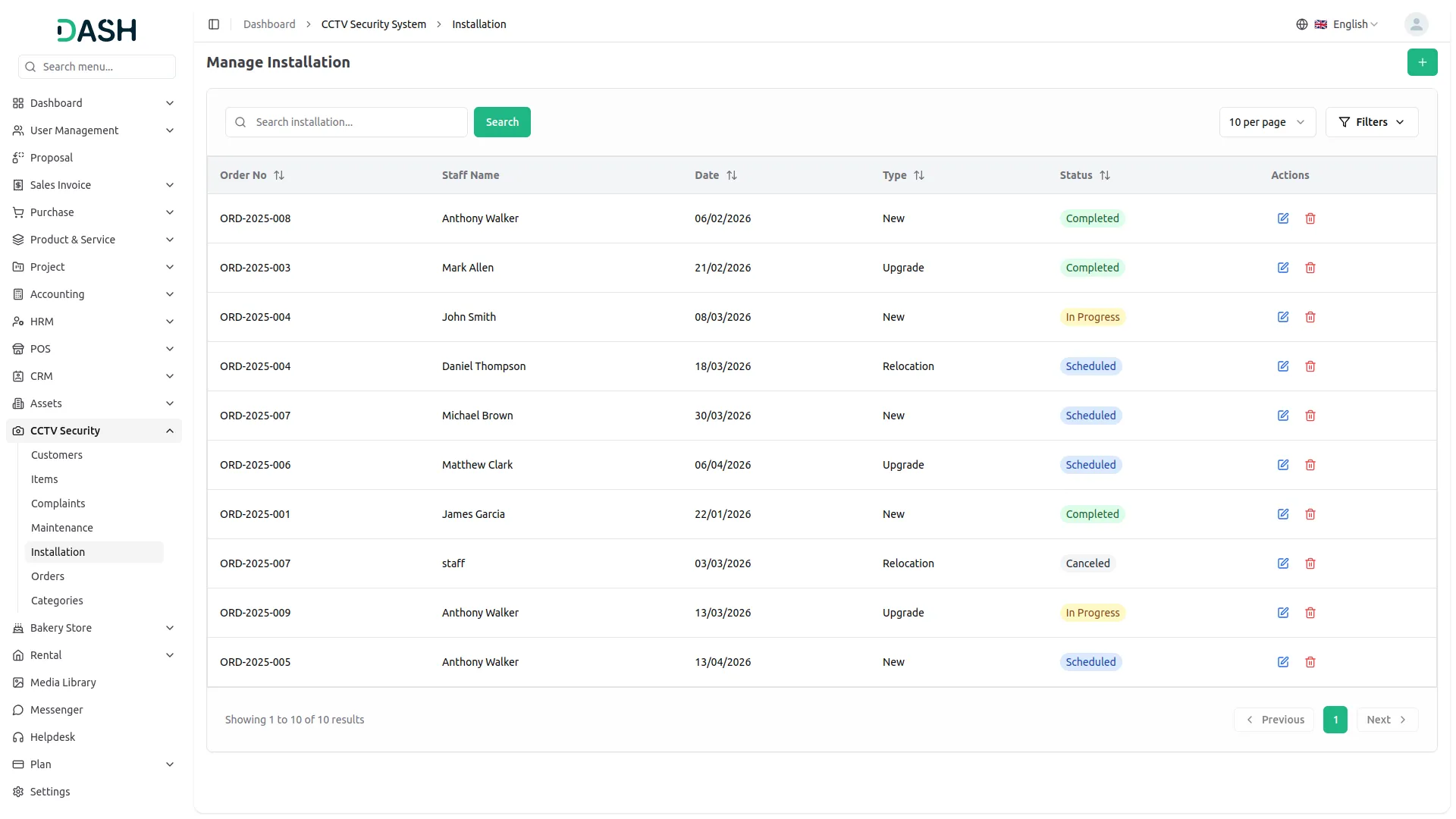
- To create a new installation record, click the “Create” button on the Manage Installation page. Select the relevant Order Number from the dropdown to link the installation to an existing order. Assign the responsible Staff member who will carry out the installation.
- Select the Date using the date picker to record the scheduled or actual installation date. Set the Status (Scheduled, In Progress, Completed, or Canceled) to reflect the current state of the installation. Choose the Type (New, Upgrade, or Relocation) to categorize the nature of the installation, then click Create to save the record.
- The list page displays all installation records in a table with columns for Order No, Staff Name, Date, Type, Status, and Actions. Each row represents a logged installation task along with its scheduling and classification details.
- Use the search bar to quickly locate a specific installation record. Apply the Date Range, Staff Name, Type, or Status filters and click Apply to narrow down results, or click Clear to reset them.
- In the Actions column, use the Edit option to update any installation information or the Delete option to permanently remove the record from the system.
Manage Orders
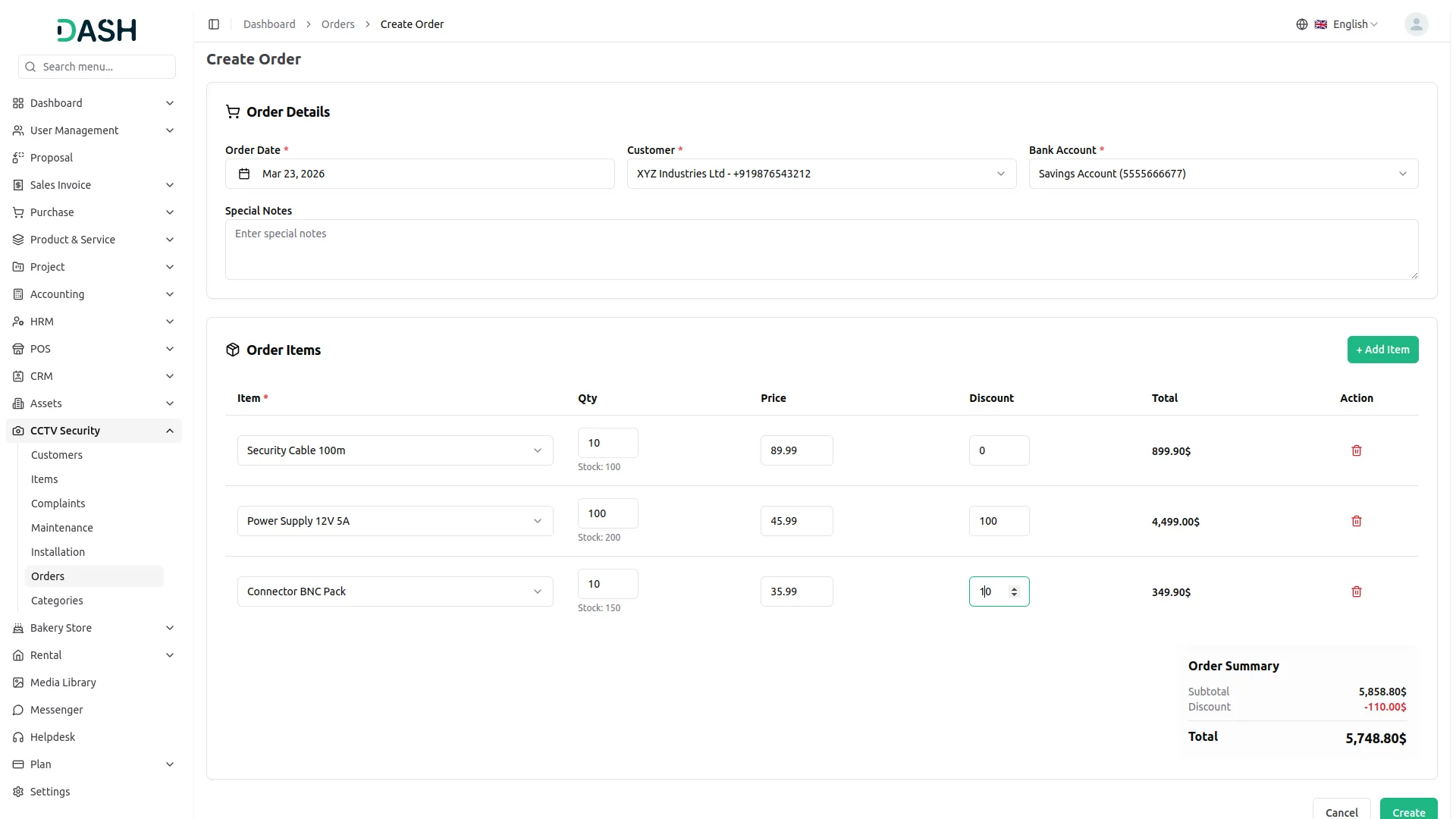
- To create a new order, click the “Create” button on the Manage Orders page. Select the Order Date using the date picker to record when the order is placed. Choose the relevant Customer from the dropdown and select the Bank Account to be associated with the order. Optionally, enter any Special Notes to provide additional context or instructions for the order.
- In the Order Items section, select the Item from the dropdown and set the Qty, Price, and Discount for each line item. The Total will calculate automatically per item. Click “Add Item” to include additional products to the order.
- The Order Summary at the bottom will display the Subtotal, total Discount, and final Total amount in real time. Click Create to save the order once all details are filled in.
- The list page displays all orders in a table with columns for Order Number, Order Date, Customer, Total Amount, Due Amount, Status, and Actions. Each row represents a placed order along with its payment and status details. Order numbers are clickable links for quick access to the full order view.
- Use the search bar to quickly locate a specific order. Apply the Status or Date Range filters and click Apply to narrow down results, or click Clear to reset them. Toggle between list view and grid view using the view buttons at the top right.
- For pending orders, use the Invoice option to generate an invoice, the View option to see full order details, the Edit option to update the order, or the Delete option to remove it. For completed orders, use Mark As Completed via the View option to finalize the order status.
Categories
Related articles
- Scholarship – WorkDo Dash SaaS Add-On Guide
- Khalti – WorkDo Dash SaaS Add-On Guide
- MyFatoorah – BookingGo SaaS Add-On Guide
- Google Drive – WorkDo Dash SaaS Add-On Guide
- Notice Board – WorkDo Dash SaaS Add-On Guide
- Google Captcha – WorkDo Dash SaaS Add-On Guide
- Zoom, Slack & Telegram Integration Guide
- Consultancy – WorkDo Dash SaaS Add-On Guide
- Marketing Plan – WorkDo Dash SaaS Add-On Guide
- Sales – WorkDo Dash SaaS Add-On Guide
- Whatsender – WorkDo Dash SaaS Add-On Guide
- Moyasar – WorkDo Dash SaaS Add-On Guide
We're Here to Help - Let's Talk
Have questions about our solutions, customization services, or business tools? Our team is here to help you. let's talk.