
Optical Eyecare Center – WorkDo Dash SaaS Add-On Guide
Learn how to manage eye exams, prescriptions, and patient records in WorkDo Dash SaaS.
Introduction
The Optical & Eyecare Management Add-On is an all-in-one solution for managing eye care clinics and optical stores. It streamlines patient and doctor records, appointments, prescriptions, eyewear inventory, and order processing through a centralized dashboard with real-time metrics and visual reports. Organizing daily operations in one system, it improves efficiency, accuracy, and overall patient care management.
How To Install the Add-On?
To Set Up the Optical & Eyecare Add-On, you can follow this link: Setup Add-On.
How to Use the Optical & Eyecare Management Add-On?
Optical & Eye Care Dashboard
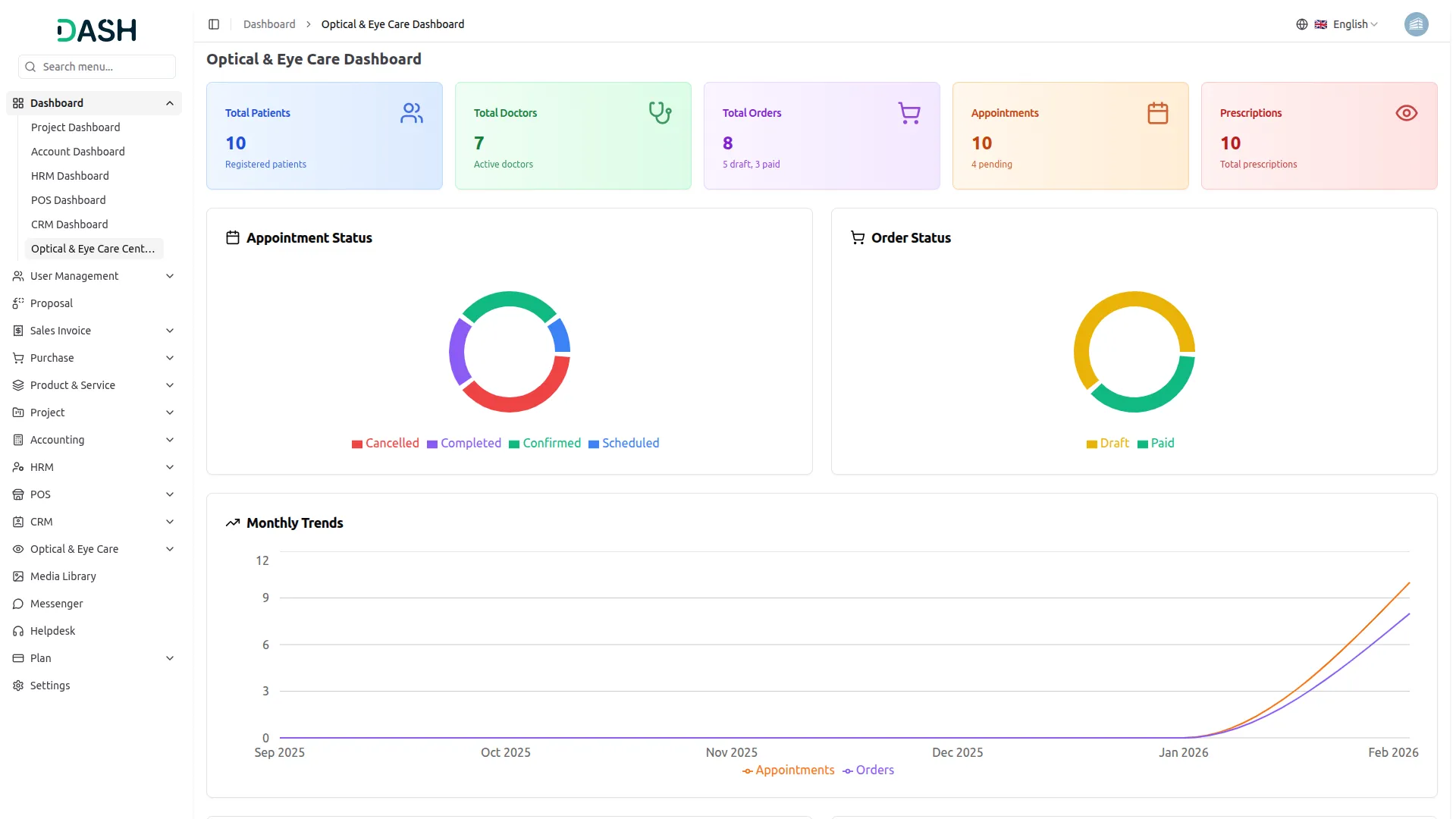
- The Optical & Eye Care Dashboard provides an overview of patient activity, appointments, orders, and prescriptions at a glance.
- The Optical & Eye Care Dashboard provides a comprehensive overview of eye care operations. At the top, five metric cards display Total Patients (registered patients count), Total Doctors (active doctors count), Total Orders (total count with draft and paid breakdown), Appointments (total count with pending appointments), and Prescriptions (total prescriptions issued).
- The Appointment Status donut chart shows the distribution of appointments by current state, visualizing and comparing the proportion of Scheduled, Confirmed, and Cancelled appointments to help staff monitor overall appointment flow at a glance.
- The Order Status donut chart shows the breakdown of eyewear orders by payment state, with segments representing Draft and Paid orders, giving management a quick snapshot of order progress and fulfillment.
- The Monthly Trends line chart tracks the growth of key operational data points over time, spanning from September 2025 to February 2026, helping management identify activity patterns and make informed decisions based on historical performance.
- The Recent Appointments section lists the latest scheduled appointments with patient name, reference number, and appointment date and time. The Recent Orders section displays the most recent eyewear orders with order number, patient name, total amount, and payment status badge (Draft or Paid).
Manage Doctors
- To register a new doctor, click the “Create” button on the Manage Doctors page. In the form that opens, start by selecting a User from the dropdown (only users with the Doctor role who are not already assigned to another doctor will appear in this list). If the user doesn’t exist yet, click the “Create user” link to add one from user management.
- Enter the License Number in the provided field. Select the doctor’s Gender using the radio buttons (Male, Female, or Other). Enter the Years of Experience and set the Consultation Fee in the designated fields.
- Fill in the Qualifications text area with the doctor’s academic and professional credentials. Set the doctor’s current Status using the radio buttons (Active, On Leave, Busy, or Inactive).
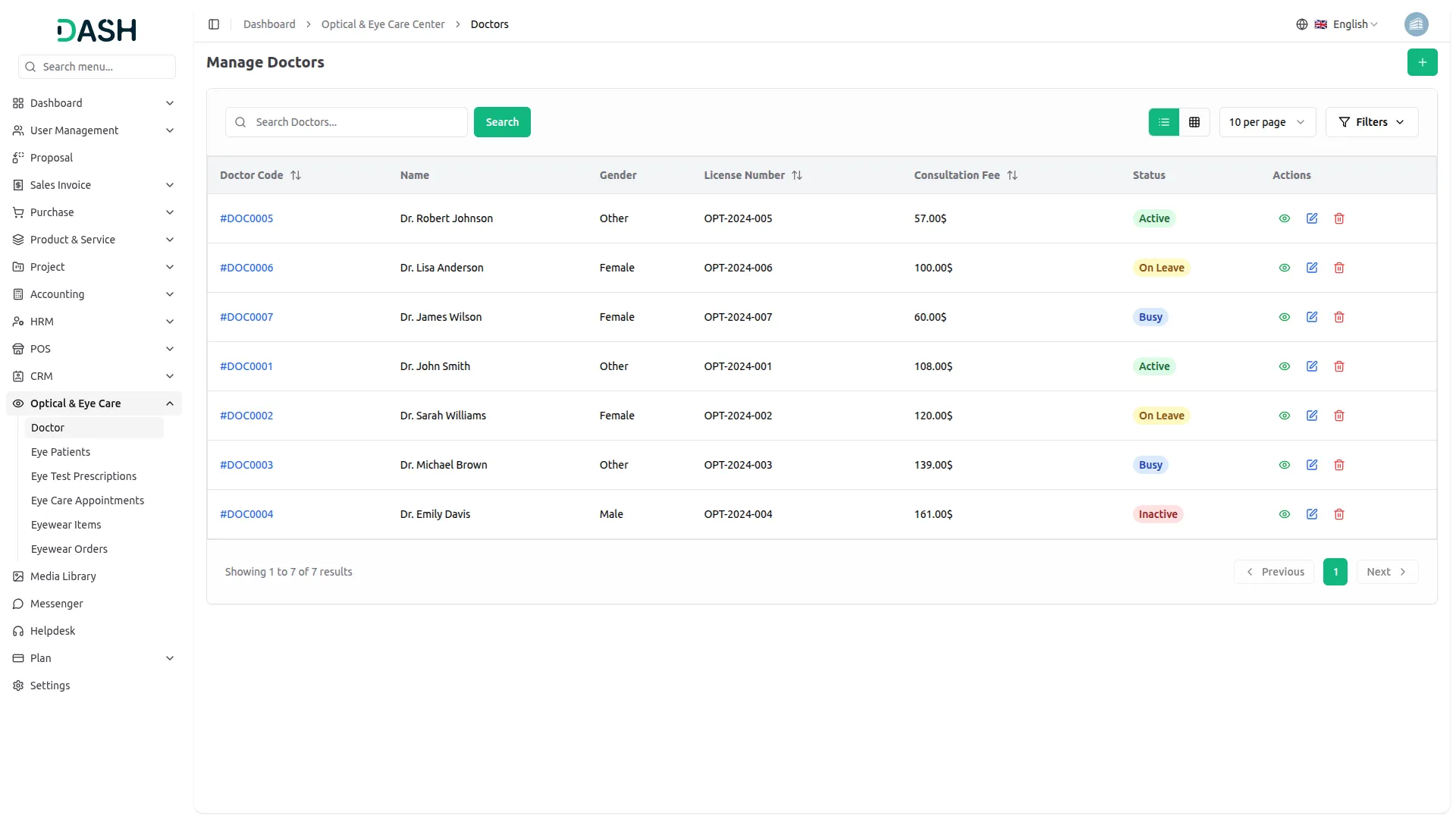
- The list page displays all registered doctors in a table with columns for Doctor Code (automatically generated by the system), Name, Gender, License Number, Consultation Fee, Status, and Actions.
- Use the search bar to quickly locate a specific doctor by name or other details. Apply filters using the Gender dropdown (Filter by Gender) and Status dropdown (Filter by Status). Click Apply to activate the filters or Clear to reset them. Toggle between list view and grid view using the view buttons at the top right.
- With the help of the Actions column, use View to see full doctor details, Edit to update or modify doctor information, and Delete to permanently remove the doctor from the system.
Eye Patients
- To register a new eye patient, click the “Create” button on the Manage Eye Patients page. Enter the Patient Name in the provided field and select the Date of Birth using the date picker.
- Select the patient’s Gender using the radio buttons (Male, Female, or Other). Enter the Contact Number. Choose the Preferred Doctor from the dropdown (which is populated from the registered doctors in the system).
- Fill in the Address text area with the patient’s location details. Enter any relevant Medical History in the designated field to keep a record of past conditions or treatments. Add any Previous Prescriptions in the provided text area for reference.
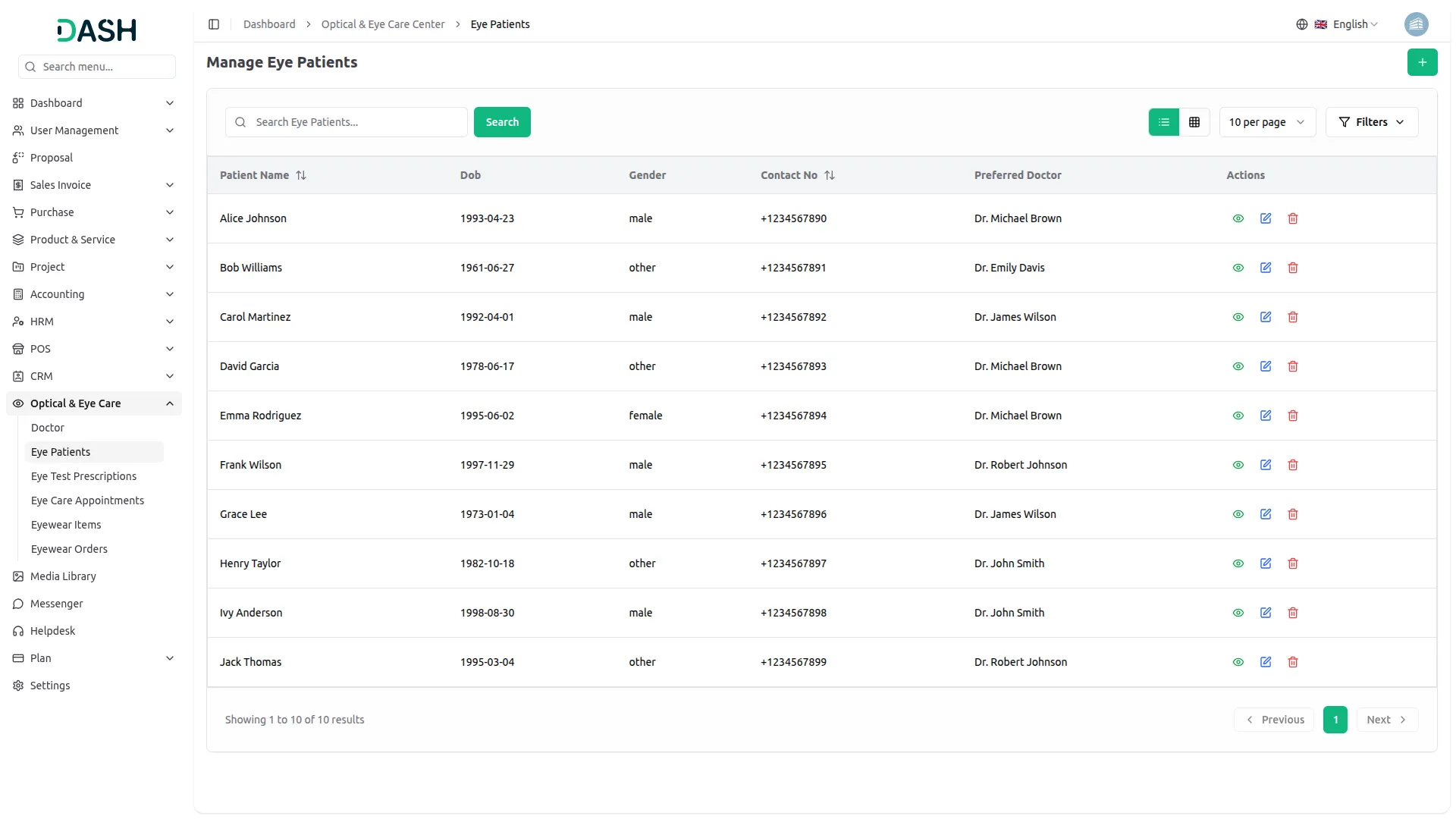
- The list page displays all registered eye patients in a table with columns for Patient Name, Date of Birth, Gender, Contact No, Preferred Doctor, and Actions.
- Use the search bar to quickly find a specific eye patient by name or other details. Apply filters using the Gender dropdown (Filter by Gender) to narrow down the list. Click Apply to activate the filter or Clear to reset it. Toggle between list view and grid view using the view buttons at the top right.
- In the actions column, use View to see full patient details, Edit to update or modify patient information, and Delete to permanently remove the patient record from the system.
Eye Test Prescriptions
- To create a new eye test prescription, click the “Create” button on the Manage Eye Test Prescriptions page. In the form that opens, select the Patient from the dropdown (which is populated from the registered eye patients section). Then choose the Doctor Name from the dropdown to assign the prescribing doctor.
- Select the Test Date using the date picker to record when the eye test was conducted. Enter the Test Results in the provided text area to document the findings from the examination. Fill in the Prescription Details field with the specific prescription information recommended by the doctor.
- Select the Prescription Expiry Date using the date picker to indicate when the prescription becomes invalid. Add any additional Notes in the provided text area for further context or follow-up instructions.
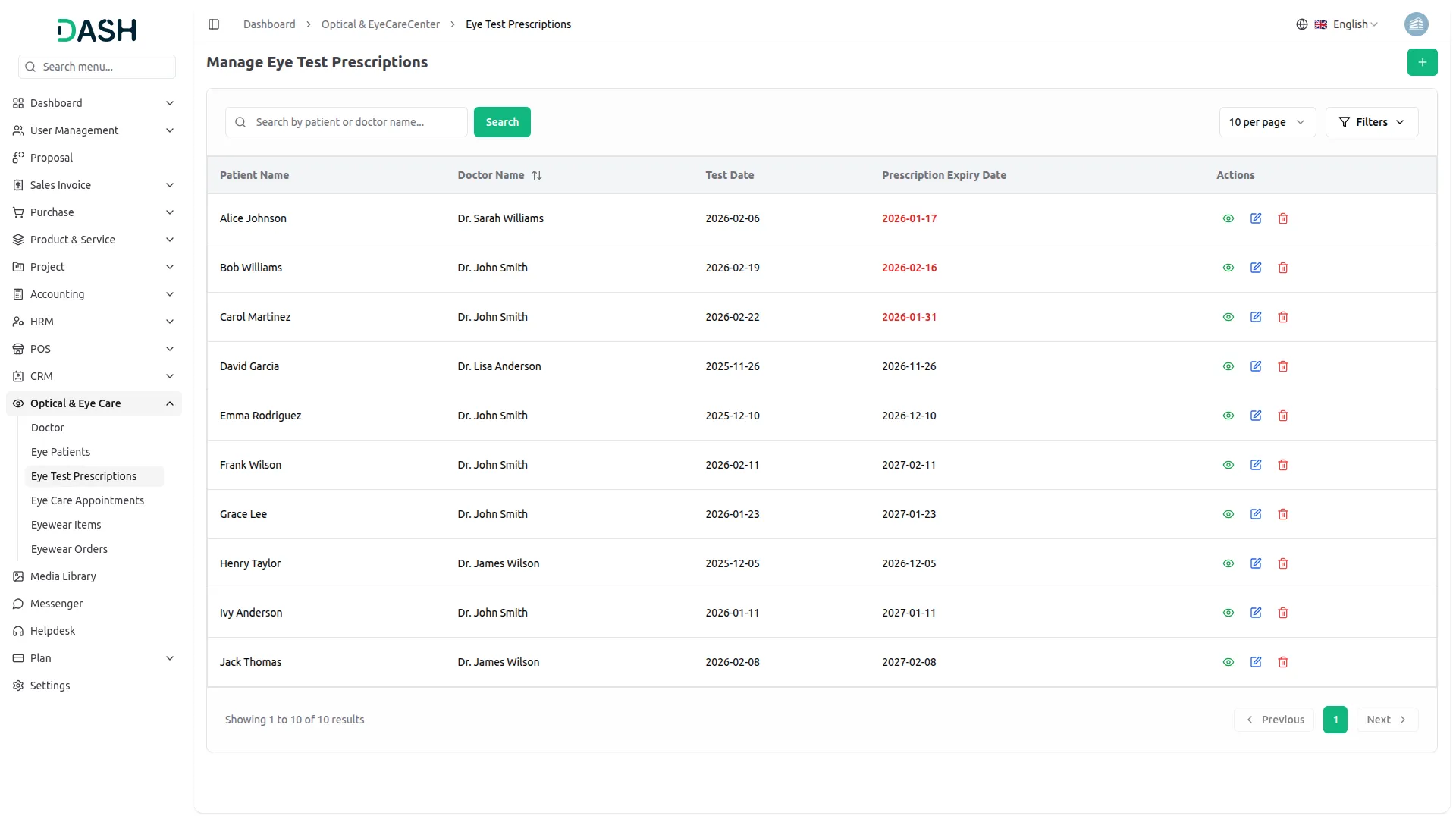
- The list page displays all eye test prescriptions in a table with columns for Patient Name, Doctor Name, Test Date, Prescription Expiry Date, and Actions. Expired prescription dates are highlighted in red to make them easy to identify at a glance.
- Use the search bar to find a specific prescription by patient or doctor name. Apply filters using the Patient dropdown (Filter by Patient), Doctor dropdown (Filter by Doctor), and the Test Date picker to narrow down results. Click Apply to activate the filters or Clear to reset them.
- Available actions: you can use View to see the full prescription details, Edit to update or modify the prescription information, and Delete to permanently remove the prescription record from the system.
Eye Care Appointments
- To create a new eye care appointment, click the “Create” button on the Manage Eye Care Appointments page. In the form that opens, select the Patient from the dropdown (which is populated from the registered eye patients section). Then choose the Doctor Name from the dropdown to assign the doctor for the appointment.
- Select the Appointment Date & Time using the date and time picker to schedule the visit. Set the appointment Status using the radio buttons (Scheduled, Confirmed, Completed, or Cancelled) to reflect the current state of the appointment.
- Choose the Appointment Type using the radio buttons (Consultation, Follow-up, or Emergency) to categorize the nature of the visit. Add any additional Notes in the provided text area for special instructions or relevant context.
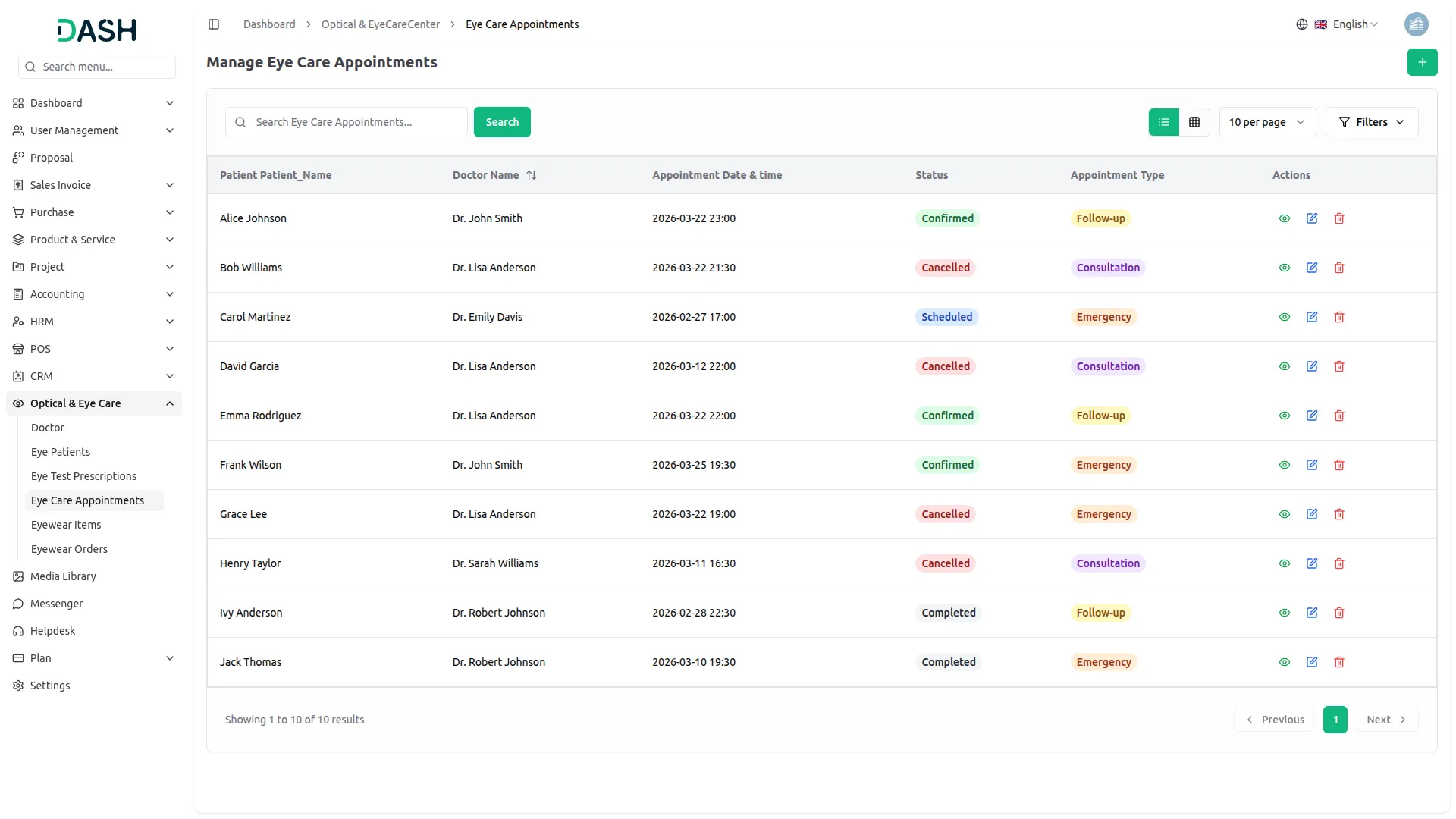
- The list page displays all eye care appointments in a table with columns for Patient Name, Doctor Name, Appointment Date & Time, Status, Appointment Type, and Actions. Each status and appointment type is displayed with a distinct color-coded badge for quick identification at a glance.
- Use the search bar to find a specific appointment by patient or doctor name. Apply filters using the Status dropdown (Filter by Status) and the Appointment Type dropdown (Filter by Appointment Type) to narrow down the list. Click Apply to activate the filters or Clear to reset them. Toggle between list view and grid view using the view buttons at the top right.
- With the help of the Actions column, use View to see the full appointment details, Edit to update or modify the appointment information, and Delete to permanently remove the appointment record from the system.
Eyewear Items
- To create a new eyewear item, click the “Create” button on the Manage Eyewear Items page. The creation process is divided into multiple steps.
- In the first step, enter the item Name and SKU (or click “Generate” to auto-generate one). Select the applicable Tax from the dropdown (GST, VAT, Service, Sales Tax) and assign a Category to the item. Enter a Short Description for a brief summary of the item. Use the rich-text Description editor to compose a more detailed product description with formatting options.
- In the second step, enter the Sale Price and Purchase Price for the item. Select the Unit from the dropdown and set the available Quantity. Click “Next” to continue or “Previous” to go back and make changes.
- In the third step, upload a primary Product Image by clicking the Browse button. You can also upload Additional Images to provide multiple views of the item. Click “Next” to proceed or “Previous” to return to the prior step.
- In the fourth and final step, select the Warehouse from the dropdown to assign the item’s storage location. Enter the Product Type and Brand Name in their respective fields. Set the Numbering Status using the radio buttons (Numbering or Non-Numbering). Fill in the Prescription Detail and Customization Details fields as needed. Click “Create” to save the eyewear item, “Cancel” to discard it, or “Previous” to go back.
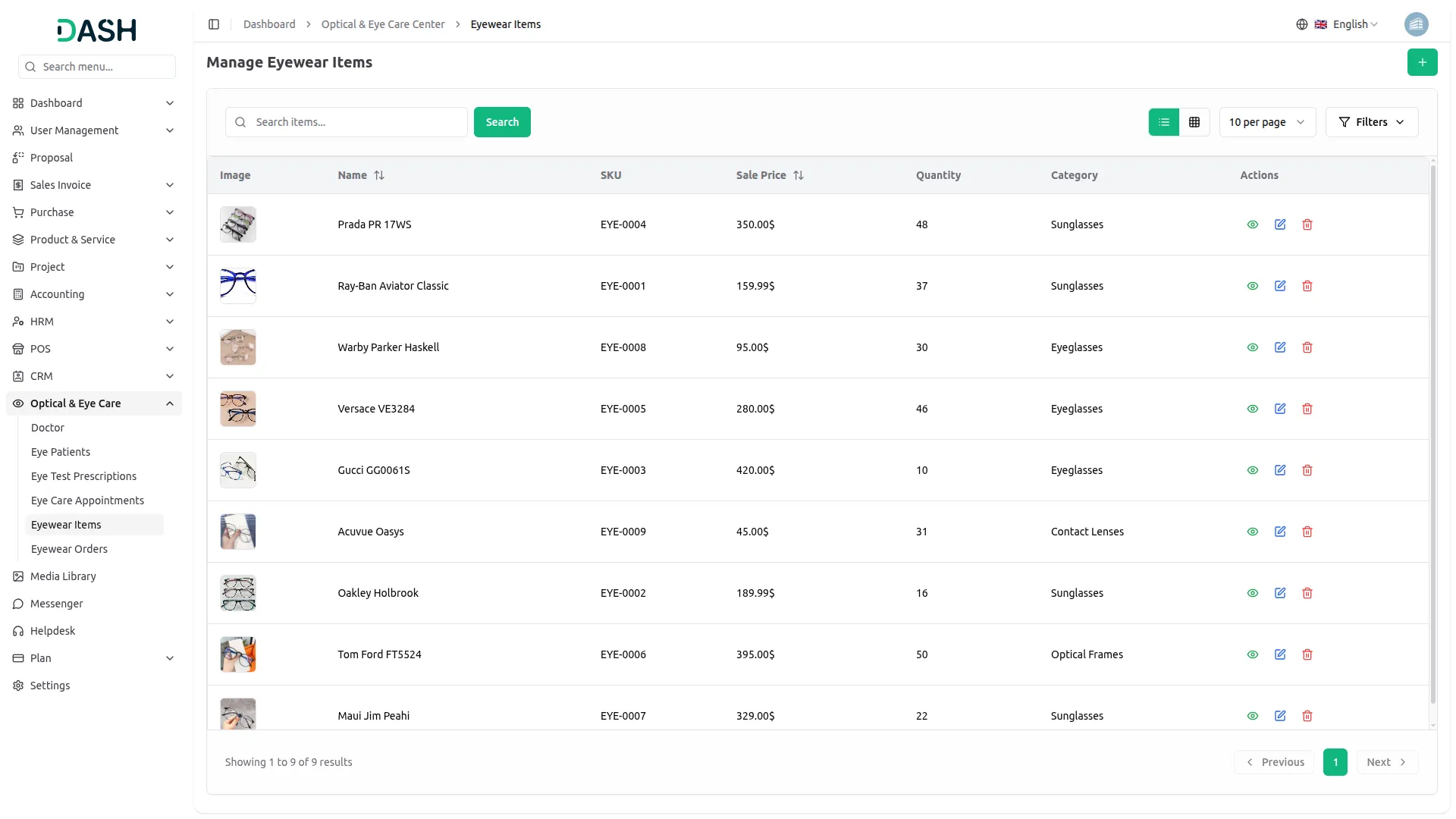
- The list page displays all eyewear items in a table with columns for Image, Name, SKU, Sale Price, Quantity, Category, and Actions. Use the Search bar to find a specific item by name.
- Apply filters using the Category dropdown (Filter by Category) to narrow down results. Click Apply to activate the filter or Clear to reset it. Toggle between list view and grid view using the view buttons at the top right.
- With the help of the Actions column, use View to see full item details, Edit to update or modify the item information, and Delete to permanently remove the eyewear item from the system.
Manage Eyewear Orders
- To create a new eyewear order, click the “Create” button on the Manage Eyewear Orders page. In the form that opens, under the Order Details section, the Order Date is automatically set to the current date but can be adjusted. Select the Patient from the dropdown (comes from the patient section), choose the Warehouse, and optionally set a Delivery Date using the date picker.
- Enter the Payment Method (e.g., Cash, Card) in the provided field and select the Bank Account from the dropdown. Enter Extra Charge, fill in the Prescription Details text area with any relevant prescription information, and add any Special Notes in the designated field for additional instructions or context.
- In the Order Items section, click ” Add Item” to add products to the order. For each item, select the Product from the dropdown, set the Qty, enter the Unit Price, and apply a Discount % if applicable. The Tax will be applied automatically based on the product, and the Total will be calculated accordingly.
- The Order Summary on the right reflects the running Subtotal, Discount, Tax, and overall Total in real time. Use the delete icon to remove any item from the order.
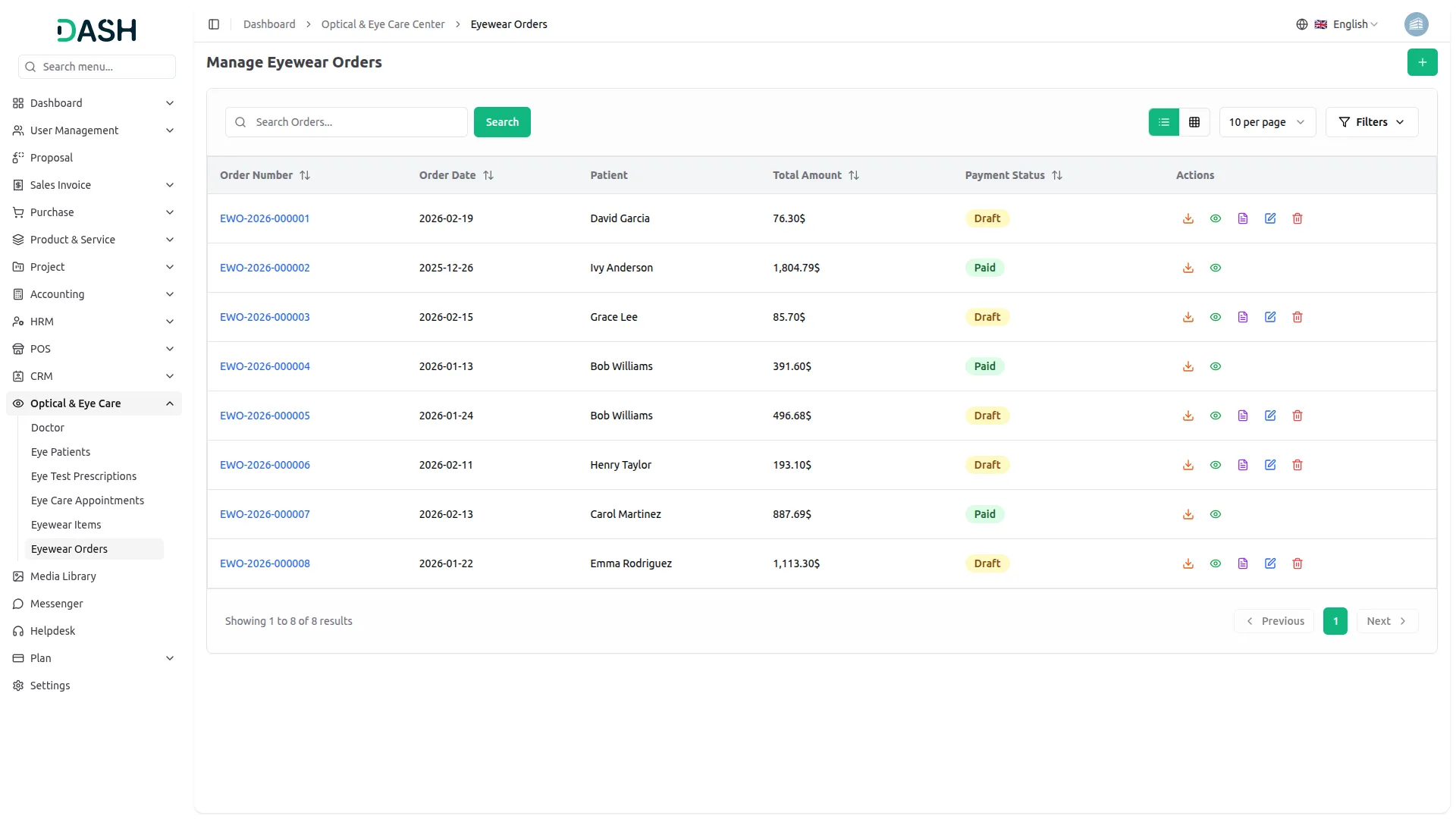
- The list page displays all eyewear orders in a table with columns for Order Number (auto-generated by the system), Order Date, Patient, Total Amount, Payment Status, and Actions. Payment statuses such as Draft and Paid.
- Use the search bar to find a specific order. Apply filters using the Patient dropdown (Filter by Patient) and Payment Status dropdown (Filter by Payment) to narrow down results. Click Apply to activate the filters or Clear to reset them. Toggle between list view and grid view using the view buttons at the top right.
- In the actions column, use the Download icon to export the order, View to see full order details, Post Order to finalize and post the order, Edit to modify order information, and Delete to permanently remove the order from the system.
- Once the Post Order action is performed, the order is automatically recorded as a General Entry in the accounting journal. After posting, the Edit and Delete options are permanently removed from the Actions column to preserve the integrity of the posted record, leaving only the Download and View options available.
Categories
Related articles
- SaveChat – TicketGo Add-On Guide
- AI Assistant – WorkDo Dash SaaS Add-On Guide
- SMS Integration – WorkDo Dash SaaS Add-On Guide
- Support Ticket – WorkDo Dash SaaS Add-On Guide
- Twilio – WorkDo Dash SaaS Add-On Guide
- Office Equipment Management – WorkDo Dash SaaS Add-On Guide
- Google Forms – WorkDo Dash SaaS Add-On Guide
- SWOT Analysis Model – WorkDo Dash SaaS Add-On Guide
- AI Assistant – BookingGo SaaS Add-On Guide
- Jira – WorkDo Dash SaaS Add-On Guide
- Bulk Appointments – BookingGo SaaS Add-On Guide
- Google Calendar – WorkDo Dash SaaS Add-On Guide
We're Here to Help - Let's Talk
Have questions about our solutions, customization services, or business tools? Our team is here to help you. let's talk.