
Rocket.Chat Credentials Generation Guide
Learn how to generate and configure Rocket.Chat credentials with easy setup instructions.
1. You can generate credentials from two types of Rocket.Chat accounts: Live and Demo. Use the following links to access each:
- Live Account: https://www.rocket.chat/
- Demo Account: https://www.rocket.chat/trial-saas
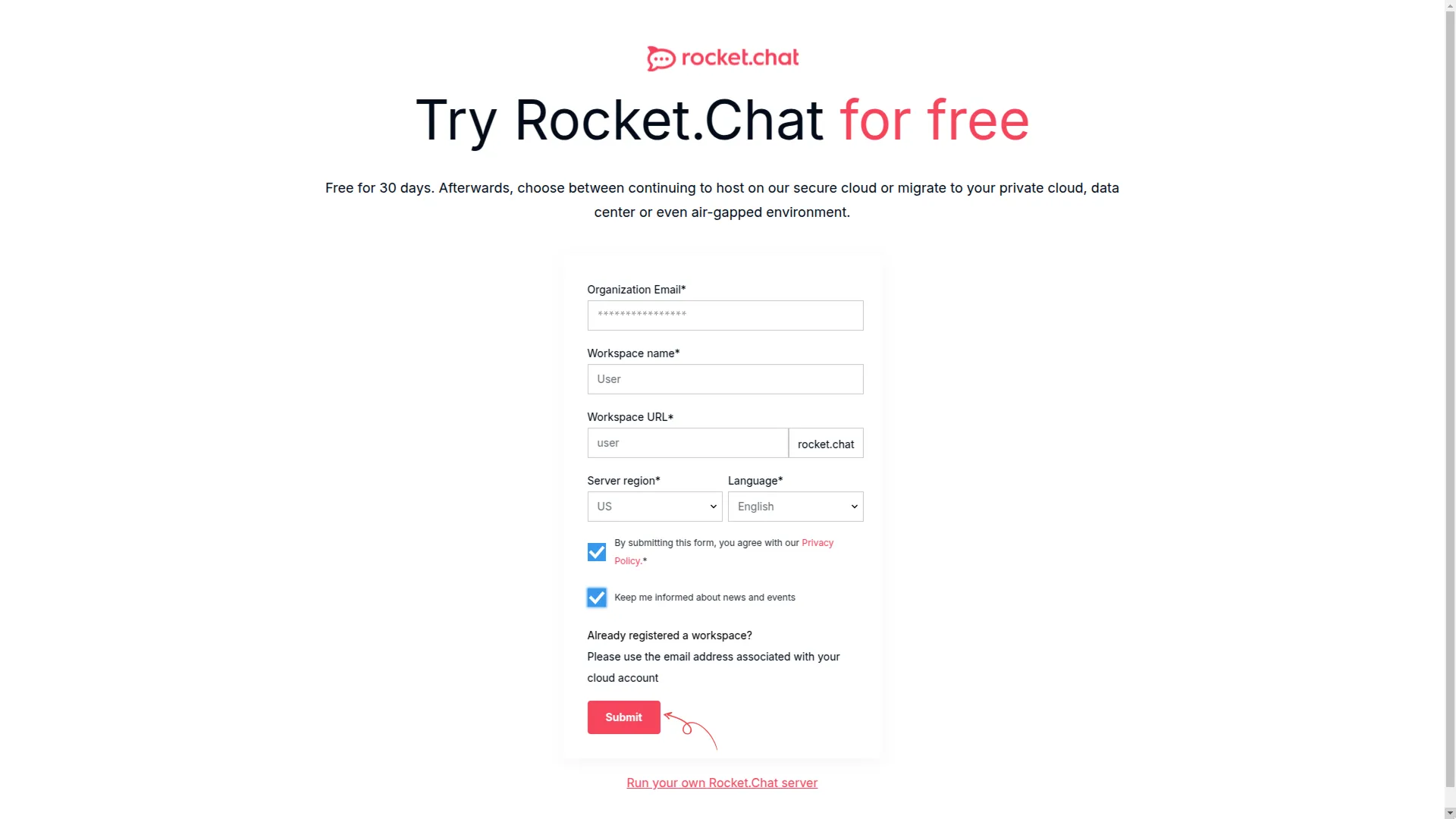
2. To create demo credentials, visit the demo link https://www.rocket.chat/trial-saas, where you’ll need to enter required details such as your “organization email”, “workspace name”, “workspace URL” then click the submit button to proceed.
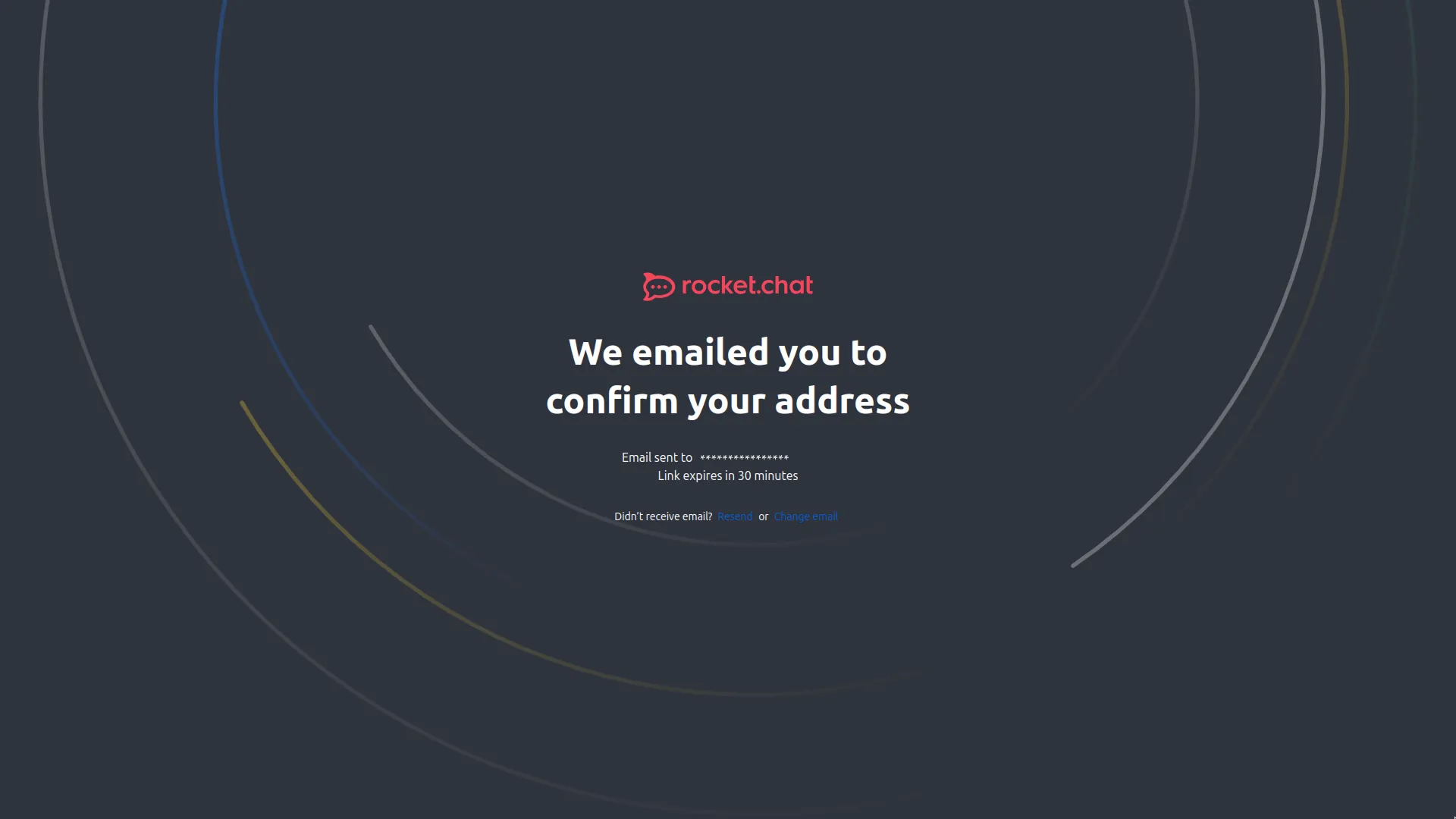
3. After clicking on that button, verify your email. A mail will be sent on your email id, you just have to verify your email address over there.
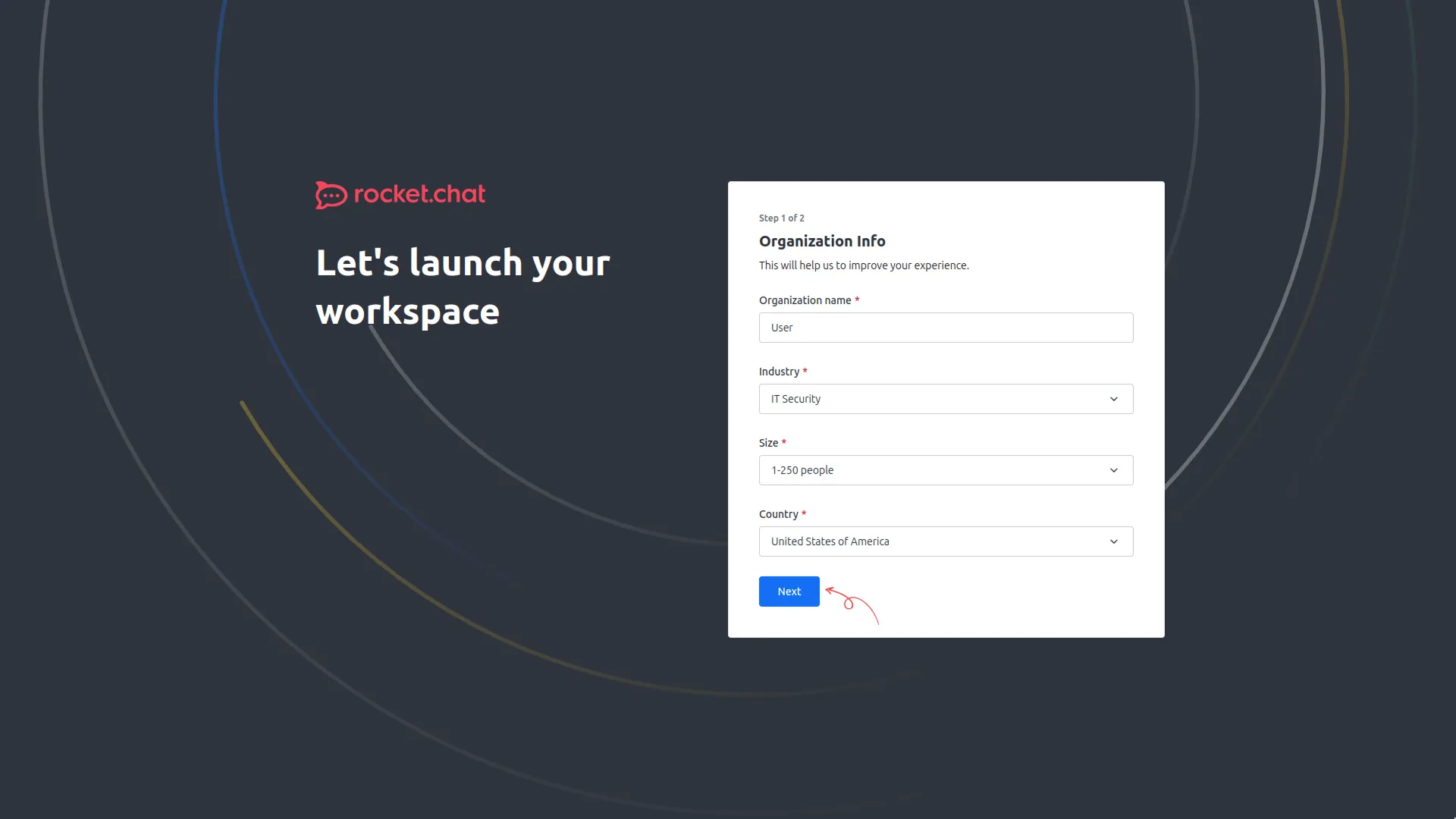
4. After the verification is done, you can launch your workspace. Just add the name of your organization, select the industry from the drop down, size of the people, and select the country.
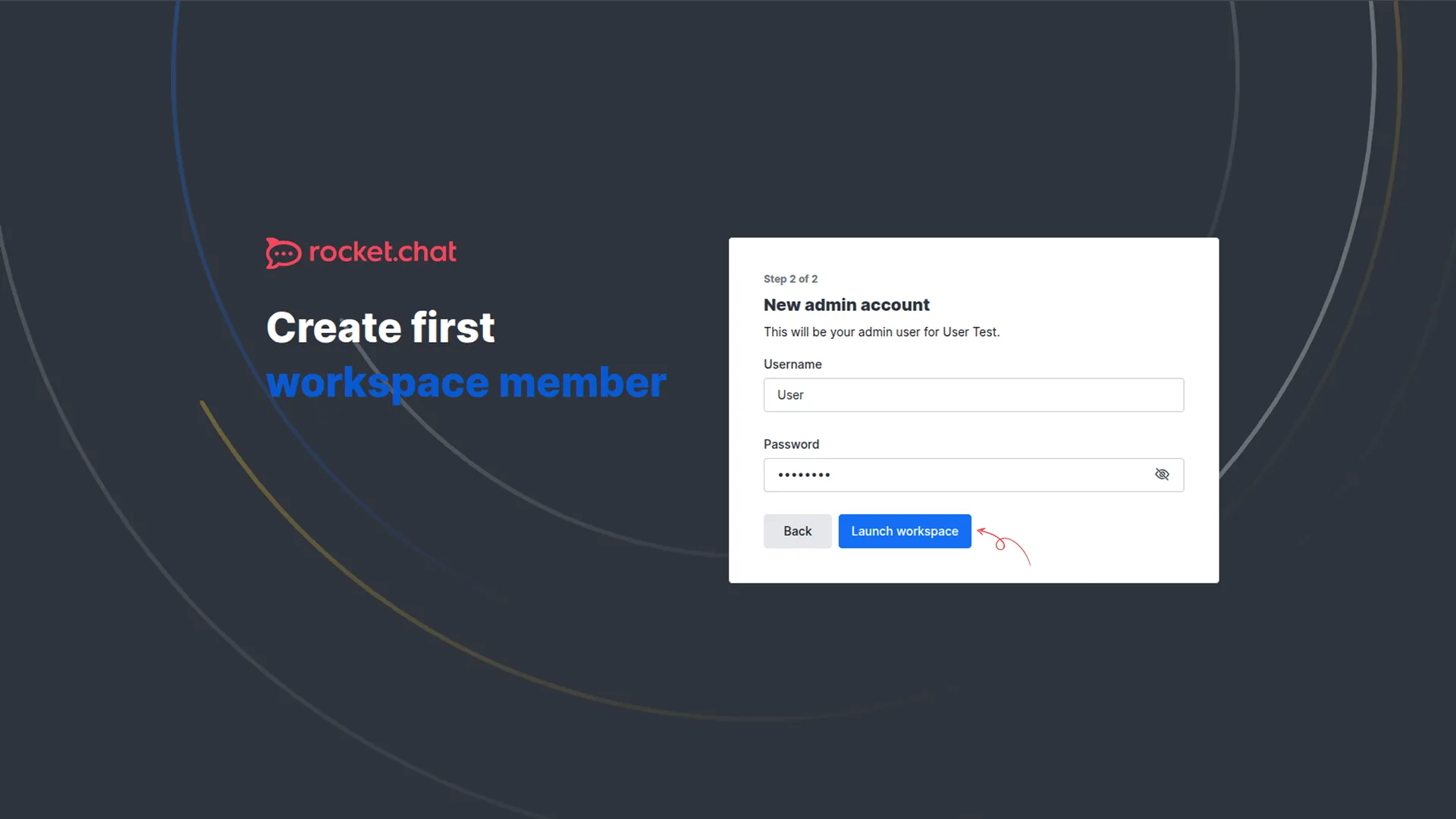
5. Set the admin user name and password, and click on the launch workspace button.
6. After you launch your workspace, you will be navigated to a homepage. Look at the sidebar of the homepage, on the top of it you will see three dots. Click there, and select the workspace option.
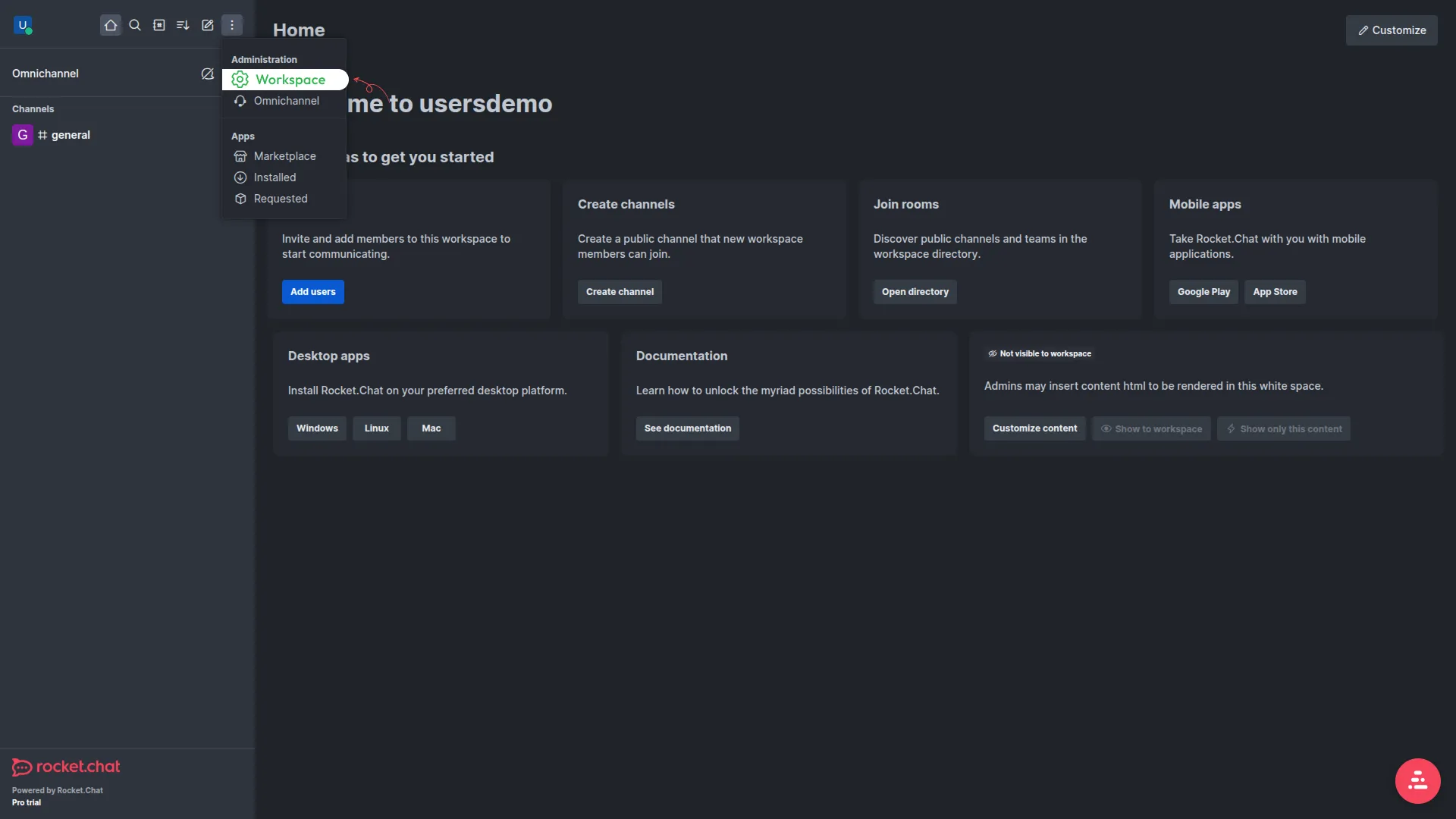
7. On the workspace page, click on the user button in the sidebar, and create a new user by adding the necessary details.
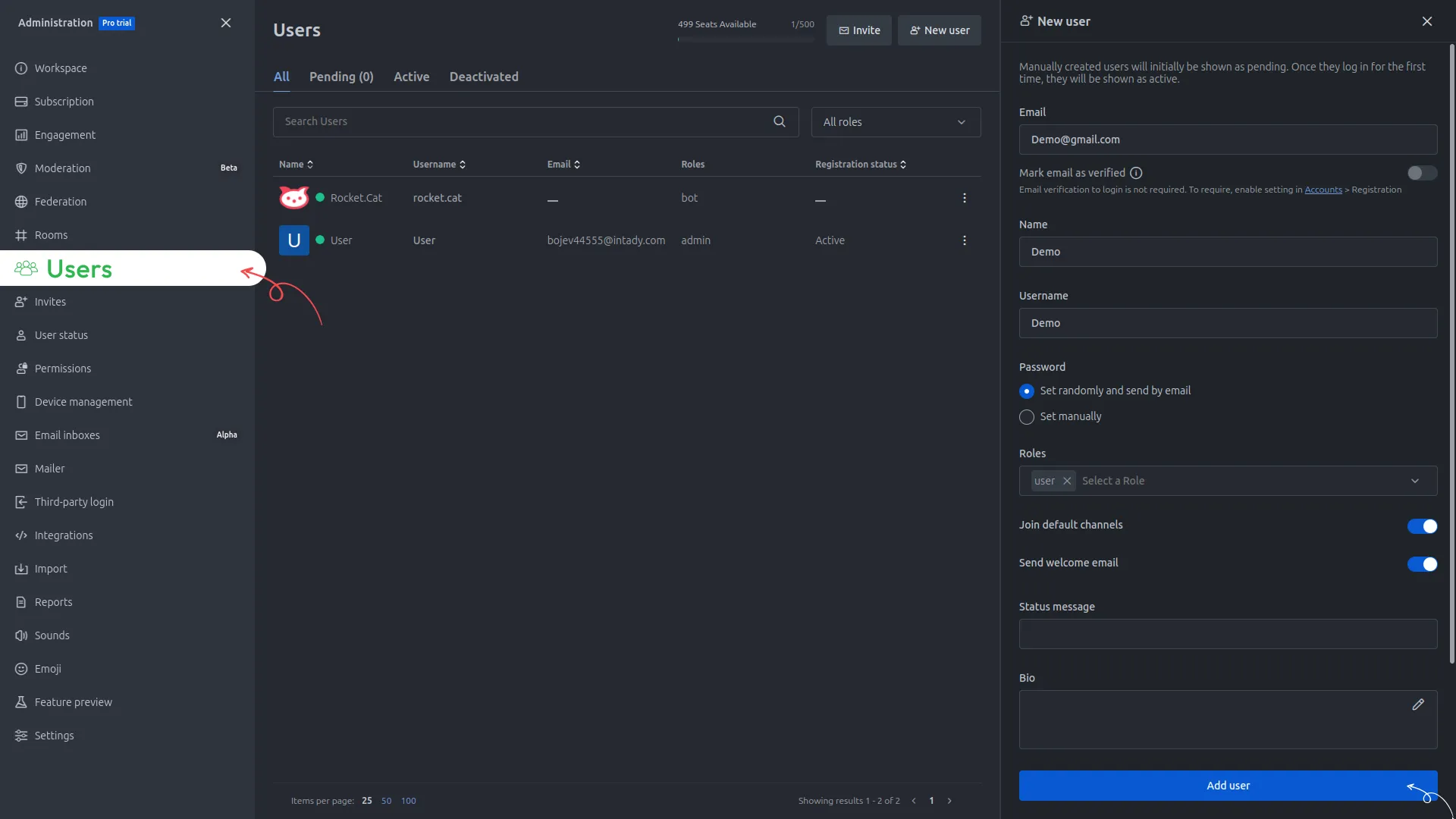
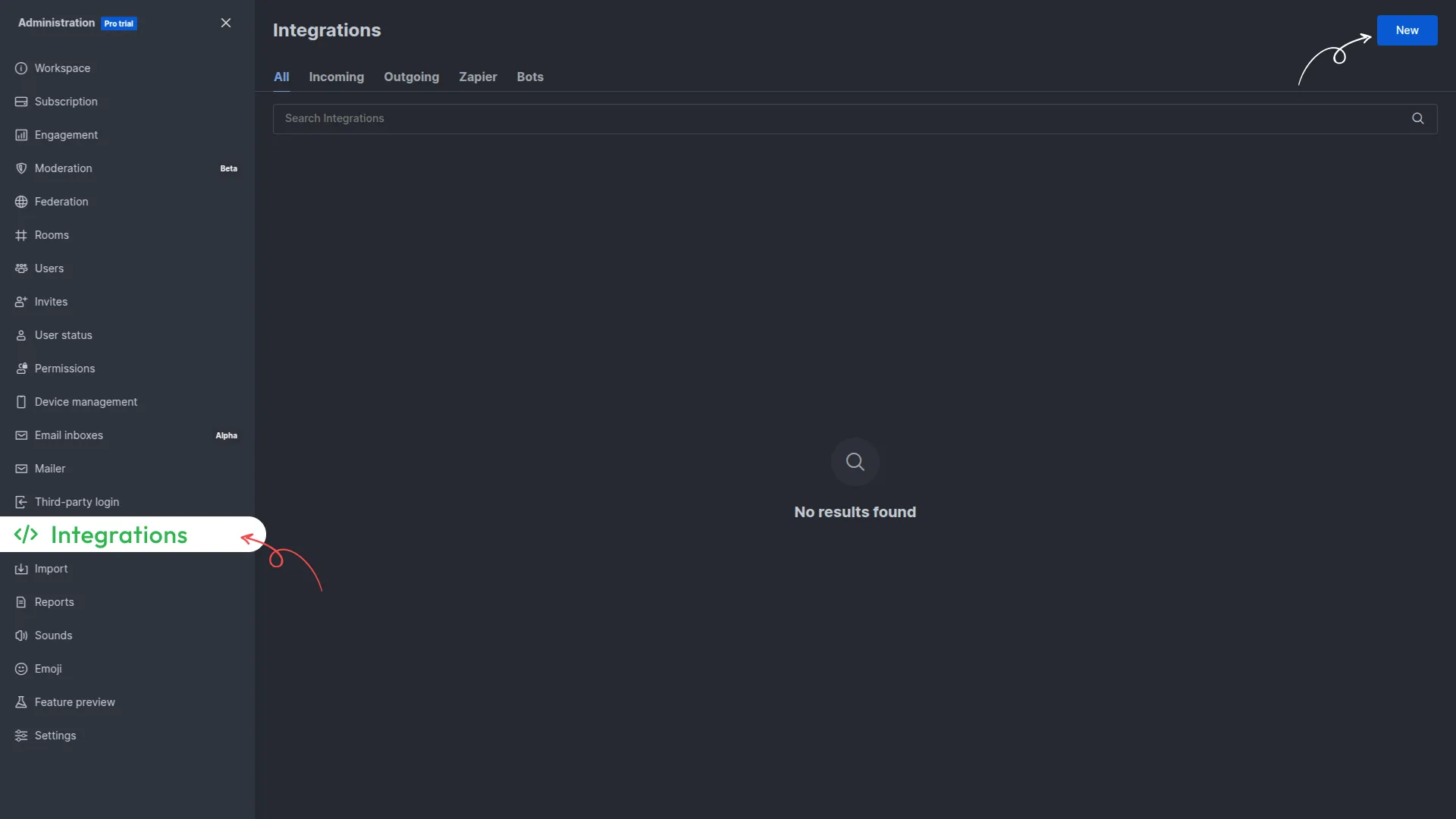
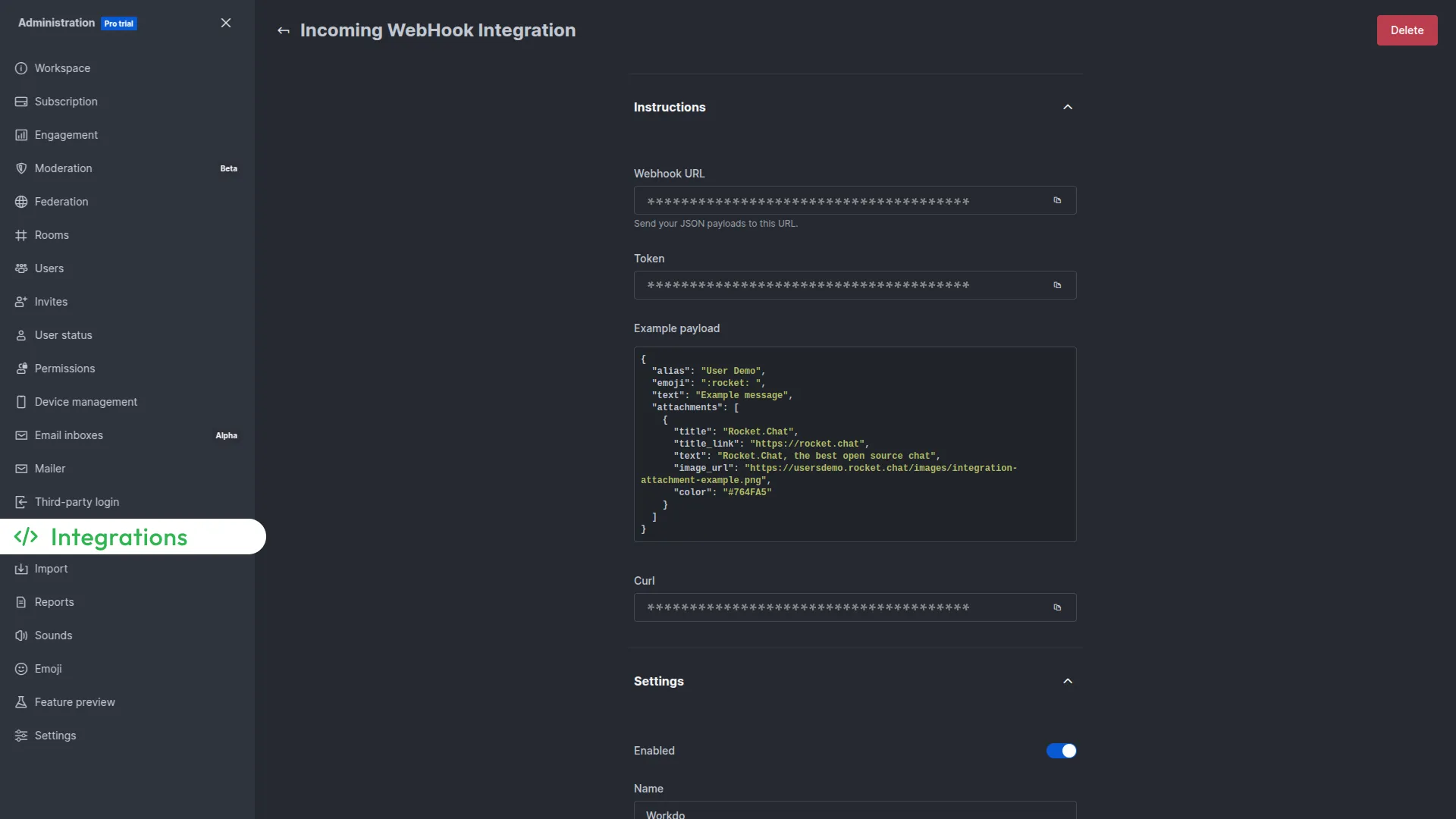
8. After creating the user, click on the integration button given in the sidebar. On the integrations page, you will see a “new” button on the top of page, create a new integration with the help of it.
9. After creating a new integration, save the incoming webhook settings. You can generate the credentials only if your incoming webhook settings are saved.
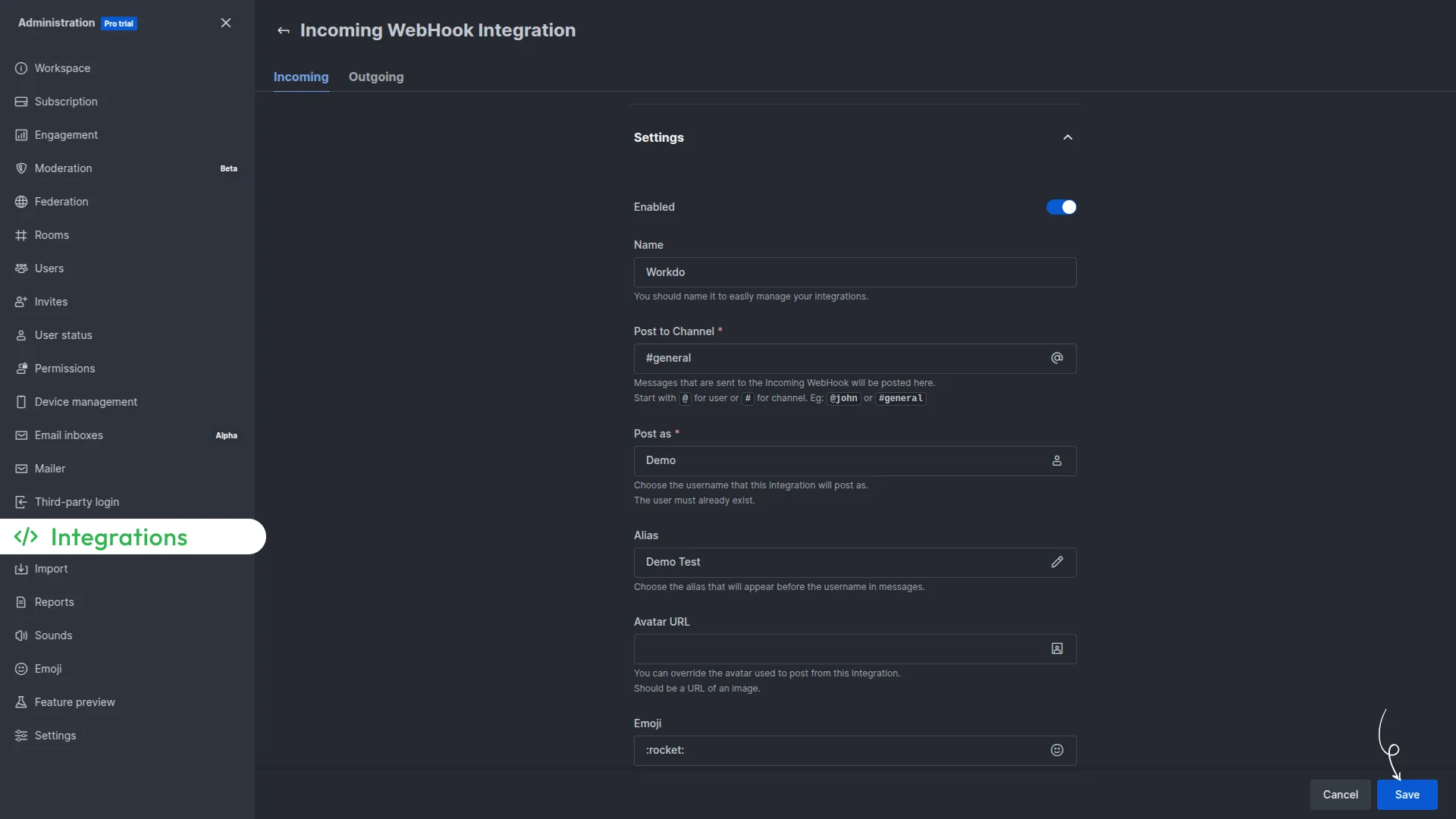
Note: You will have to add the username into the “post as” column of the integration.
10. After you save the settings, you can copy the webhook URL, and paste them on the system settings page of dash saas, to integrate it with rocket.chat.
Categories
Related articles
- Moneris – BookingGo SaaS Add-On Guide
- Product & Service – WorkDo Dash SaaS Add-On Guide
- BookingGo SaaS Add-On Setup Guide
- Elderly Care – WorkDo Dash SaaS Add-On Guide
- Coin Payment – WorkDo Dash SaaS Add-On Guide
- Product Badge Management – eCommerceGo SaaS Add-On Guide
- Marketing Module – eCommerceGo SaaS Add-On Guide
- PowerTranz – WorkDo Dash SaaS Add-On Guide
- Sports Club & Academy Management – WorkDo Dash SaaS Add-On Guide
- User Manual – Sales SaaS
- HRM – WorkDo Dash SaaS Add-On Guide
- Sign in with GitHub – eCommerceGo SaaS Add-On Guide
We're Here to Help - Let's Talk
Have questions about our solutions, customization services, or business tools? Our team is here to help you. let's talk.