
Google Docs – WorkDo Dash SaaS Add-On Guide
Learn how to configure and manage Google Docs integration in WorkDo Dash SaaS easily.
Introduction
The Google Docs Integration Add-On allows users to seamlessly connect their documents with the platform, making it easier to create, access, and manage Google Docs directly within the system. This Add-On eliminates the need to switch between platforms by providing a unified space to handle document-related tasks, whether it’s drafting proposals, sharing notes, or collaborating on content. With this integration, users can link existing documents, create new ones on the go, and ensure all project or workflow-related files are stored and organized efficiently. This documentation will guide you through the steps to set up, use, and make the most of the Google Docs Integration Add-On.
How To Install The Add-On?
To Set Up the Google Docs Add-On you can follow this link: Setup Add-On.
How To Use the Google Docs Add-On?
Settings
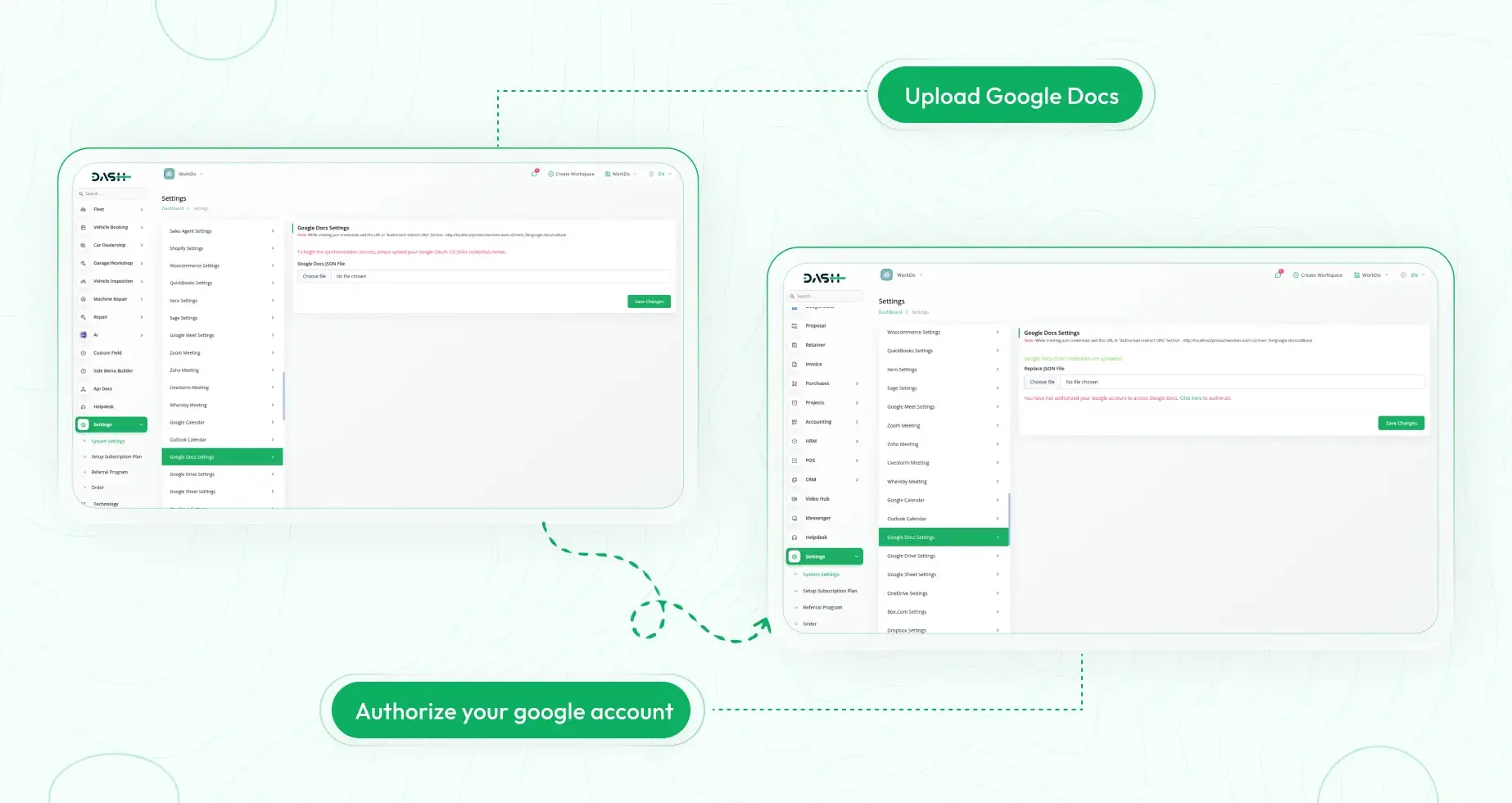
- Before using any Google Docs features, you must first configure the settings properly. Navigate to the Settings page to set up your Google integration.
- To configure Google Docs Settings, you need to enter your Google Docs Client ID and Client Secret.
- There is a toggle button given at the top of the Google Docs settings, if you enable that button the Google Docs Add-On will work, and if you click the disable button the end user will see a message that “The Add-On is disabled” when he opens the form.
- Once you complete this step, the system will display a Google Docs Authorised redirect URIs with a “Copy Link” button.
- For a smooth and quick setup, copy this Authorised redirect URIs and use it as the Callback URL in your Google Cloud Console.
- This ensures proper communication and integration between your system and Google Docs.
Generate Google Credentials
To learn how to create the required credentials, refer to this guide: Google Cloud Console
Google Docs
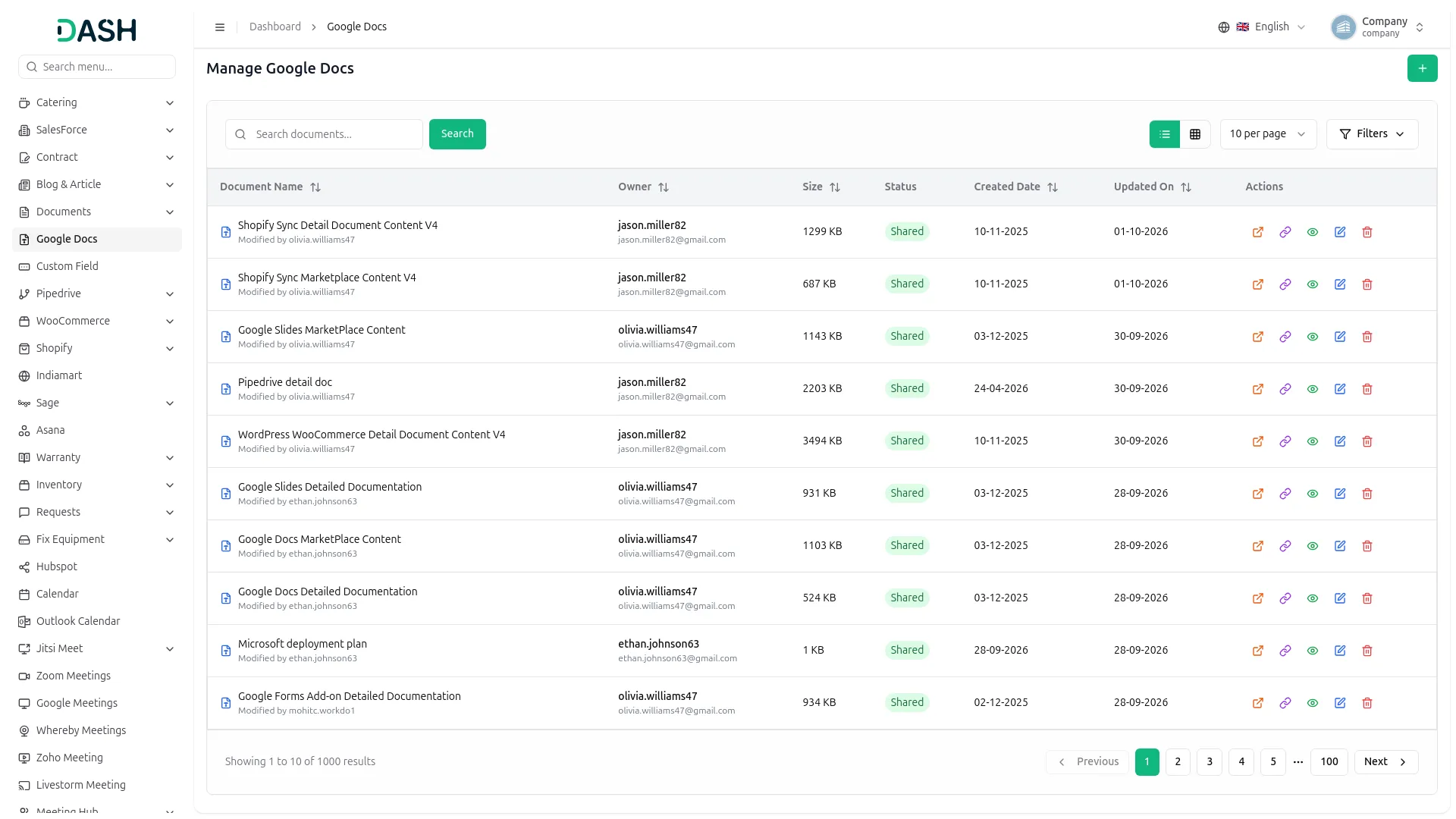
- To create a new Google Docs, click the “Create” button at the top of the Google Docs page. And you will get the message to authorize access to Google Form Settings > click the “authorization link” to proceed with the setup.
- You can also create new google documents on our platform. Just click on the create button given at the top, and enter the Document Title.
- Once you do this, you can see the document on the google docs page, you can also open, copy link, view, edit or delete it through the action column easily.
- The changes done in Google Docs will be visible on our platform, and the changes done in our platform will be visible on Google docs.
Categories
Related articles
- API – TicketGo Add-On Guide
- User Manual – WhatsStore SaaS
- Compound Service – BookingGo SaaS Add-On Guide
- Spin to Win Reward – eCommerceGo SaaS Add-On Guide
- Telegram – BookingGo SaaS Add-On Guide
- WhatsApp Twilio – TicketGo Add-On Guide
- Custom Alert – WorkDo Dash SaaS Add-On Guide
- Work Permit – WorkDo Dash SaaS Add-On Guide
- Retainer – WorkDo Dash SaaS Add-On Guide
- Paystack – BookingGo SaaS Add-On Guide
- Digital Product – eCommerceGo SaaS Add-On Guide
- Facebook Post – WorkDo Dash SaaS Add-On Guide
We're Here to Help - Let's Talk
Have questions about our solutions, customization services, or business tools? Our team is here to help you. let's talk.