

Sign in with Outlook – WorkDo Dash SaaS Add-On Guide
Learn how to configure and manage Outlook sign-in integration in Dash SaaS.
Introduction
The Sign in with Outlook Add-On offers a convenient and secure authentication method, allowing users to log in using their Outlook credentials. This integration streamlines the sign-in process, removing the need for separate passwords, and leverages Microsoft’s trusted security infrastructure to safeguard user data. By adding this Add-On, businesses can enhance accessibility for users who primarily use Outlook, thereby improving user experience and retention. This documentation provides a detailed guide for implementing and customizing the Sign-In with Outlook Add-On, ensuring a smooth and effective integration that suits your specific needs.
How To Install the Add-On?
To Set Up the Sign-In with Outlook Add-On, you can follow this link: Setup Add-On.
How To Use The Sign-In With Outlook Add-On?
After the super admin enables the Add-On, the end users can easily access and use the Add-On.
- After the purchase process, log in to your super admin account and navigate to the settings page in the sidebar.
- In the settings, find and click on the Sign-In With Outlook Settings.
- Enter the Outlook Client ID and client secret and then click on the save changes button.
- Once these credentials are entered, the end users will be able to sign in to your store using their Microsoft accounts.
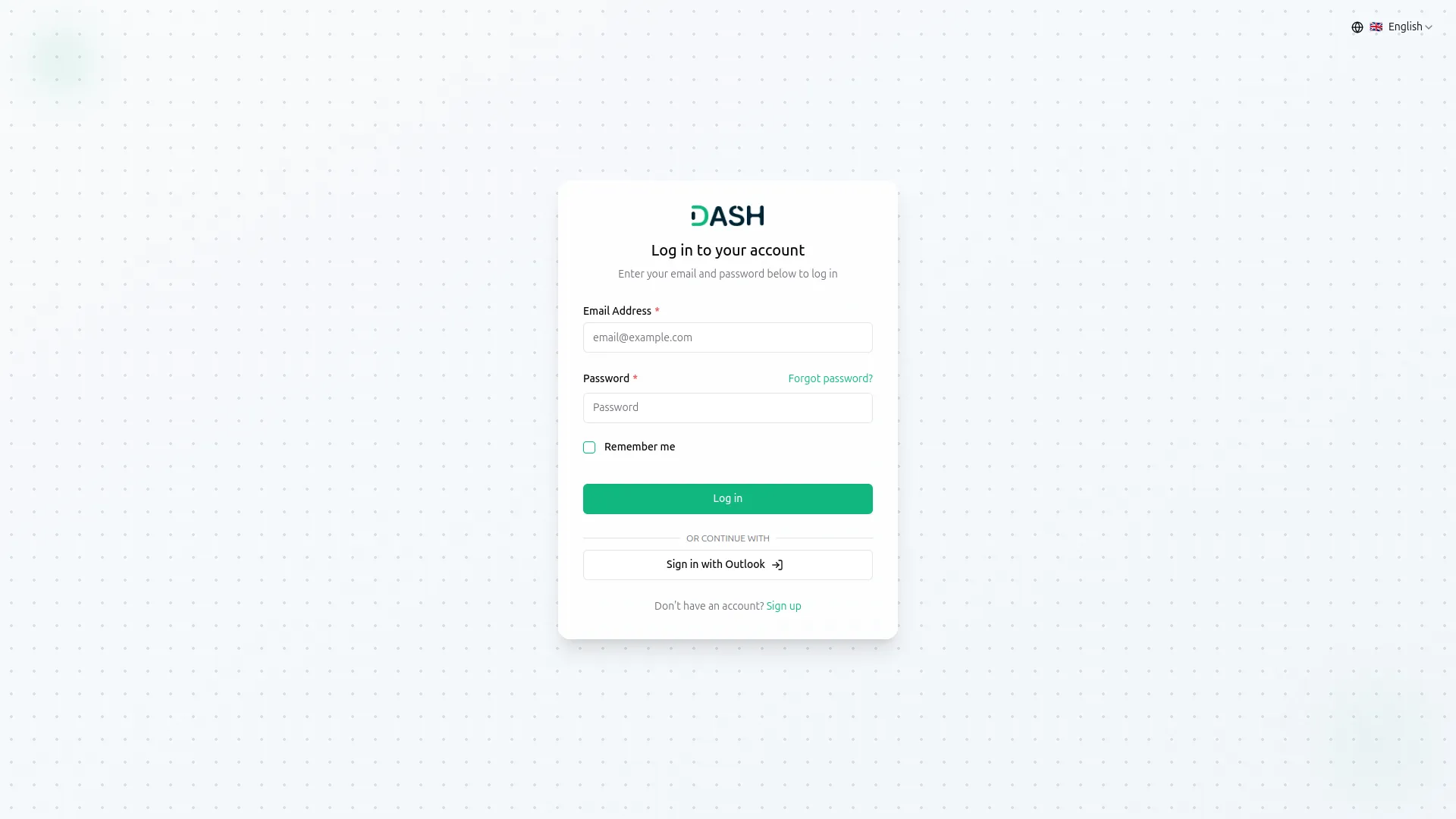
- The image that you upload on the super admin side will be visible on the login and register page in the Sign-In With Outlook button.
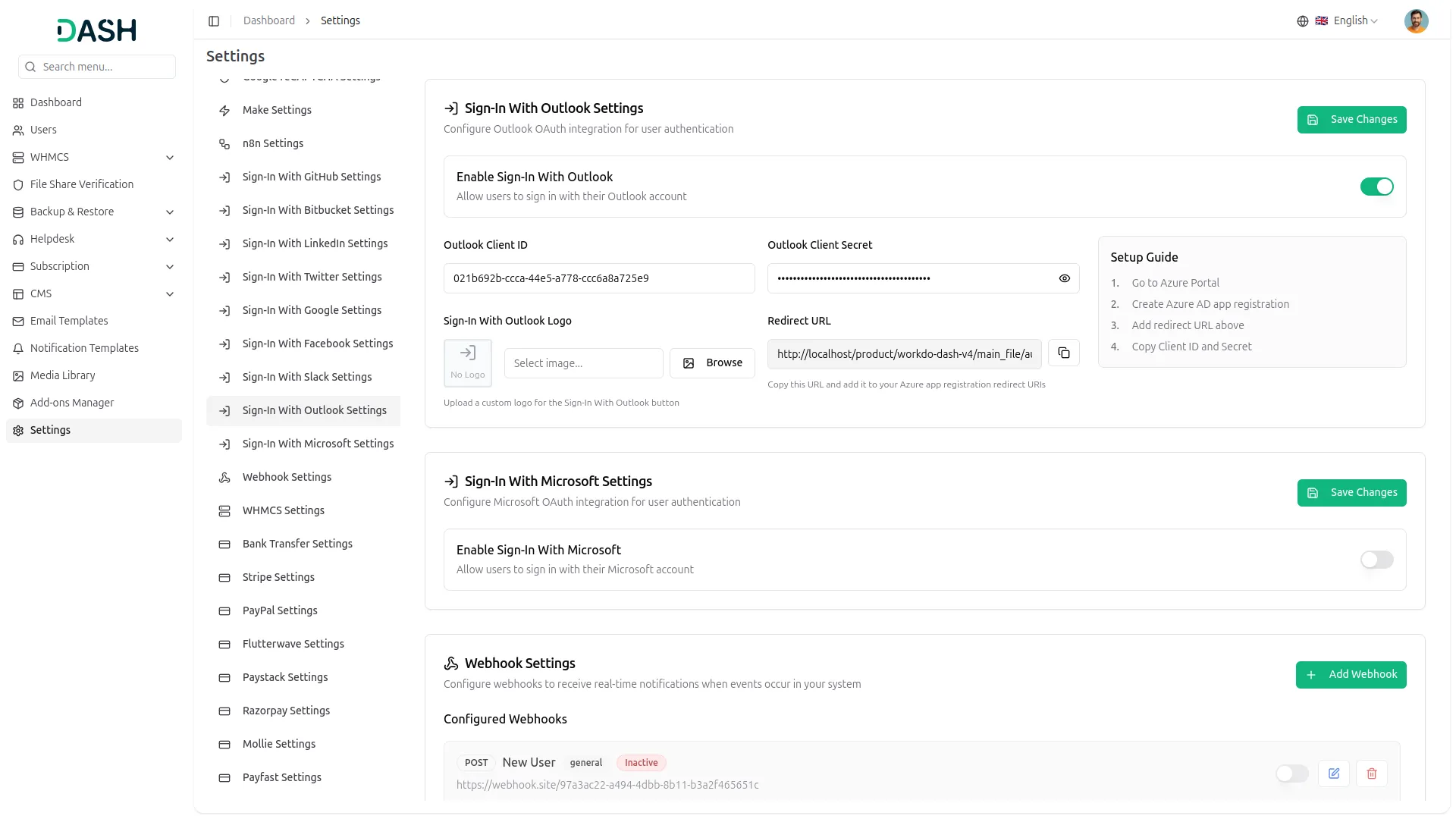
- To generate the credentials, you can follow these steps:
Steps to Generate Credentials:
1. Register your application in Microsoft Entra ID:
- Sign in to the Azure portal.
- Search for and select “Microsoft Entra ID”.
- In the Manage section, choose “App registrations”.
- Click “New registration”.
- Provide a name for your application.
- Choose the appropriate account type.
- Select the redirect URI type (e.g., Web, Native app).
- Click “Register”.
- You need to copy the callback URL from settings and paste it while setting up the credentials.
2. Get Application ID and Client Secret:
- After registration, you’ll find your Application (client) ID in the “Overview” section of your app registration.
- To generate a client secret:
- Go to “Certificates & secrets” in the Manage section of your app registration.
- Click “New client secret”.
- Provide a description and choose an expiration date.
- Copy the generated client secret value and store it securely (it will only be visible once).
- For the Outlook Client ID, use the Application (client) ID obtained from Microsoft, and for the Outlook Client Secret, use the client secret value generated during the setup process.
- To know more about this integration, you can follow this link: https://learn.microsoft.com/en-us/azure/healthcare-apis/register-application
- Once you add the credentials and activate the Sign-in with Outlook Add-On, an Outlook login button will appear on your register and login pages. By clicking it, the end users can easily log in to your store using their Outlook credentials.
Categories
Related articles
- User Manual – Taskly
- Repair Management – WorkDo Dash SaaS Add-On Guide
- Bakery Store – WorkDo Dash SaaS Add-On Guide
- Sign in with Facebook – eCommerceGo SaaS Add-On Guide
- Sign in with Twitter – eCommerceGo SaaS Add-On Guide
- CinetPay – WorkDo Dash SaaS Add-On Guide
- Plivo – TicketGo Add-On Guide
- Flexible Days – BookingGo SaaS Add-On Guide
- Rocket.Chat Credentials Generation Guide
- OneDrive – WorkDo Dash SaaS Add-On Guide
- NepalSTE – BookingGo SaaS Add-On Guide
- BookingGo SaaS Add-On Setup Guide
We're Here to Help - Let's Talk
Have questions about our solutions, customization services, or business tools? Our team is here to help you. let's talk.