
Construction Management – WorkDo Dash SaaS Add-On Guide
Learn how to manage projects, sites, and construction operations in Dash SaaS.
Introduction
This documentation provides a comprehensive guide to integrating Construction Management features, enabling efficient handling of materials, inspections, compliance, pickings, internal pickings, and scraps. It covers key functionalities such as project creation, resource allocation, task management, and reporting. Whether you are setting up the system for the first time or optimizing an existing workflow, this guide serves as a complete resource to streamline construction operations and enhance overall project efficiency.
How to Install the Add-On?
To Set Up the Construction Management Add-On, you can follow this link: Setup Add-On.
How to Use the Construction Management Add-On?
- After purchasing the Construction Management Add-On, go to the sidebar of your dashboard, where you’ll find the Construction Management page. This is where you will begin using the Add-On and managing all the construction-related tasks.
Dashboard Overview
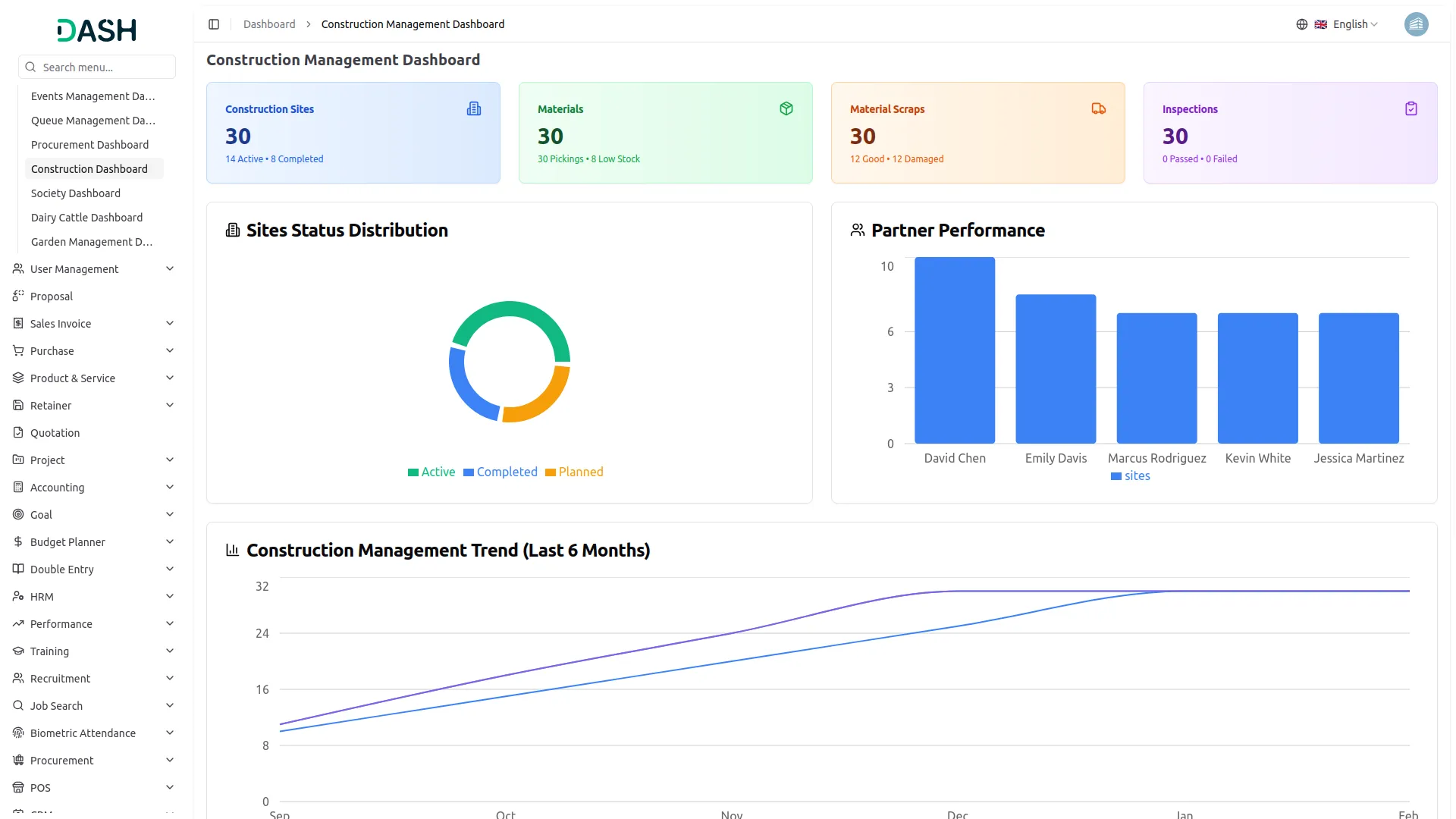
The Dashboard, which provides a complete overview of your ongoing construction activities through key metrics, charts, and recent updates.
- The Top Dashboard Summary Cards provide a quick snapshot of key construction metrics, including the total number of construction sites with counts of active and completed sites, the total materials with pickings and low-stock indicators, a breakdown of good and damaged material scraps, and the total inspections, along with passed and failed counts.
- The Sites Status Distribution chart visually displays the current status of all construction sites. It categorizes sites into Active, Completed, and Planned, helping you quickly understand project progress and workload distribution across all locations.
- The Partner Performance chart highlights the activity levels and overall performance of project partners. It provides insights into how actively each partner is contributing to ongoing tasks, helping assess efficiency, reliability, and collaboration quality.
- The Construction Trend (Last 6 Months) chart presents a month-by-month overview of key project metrics. It shows the progress of Inspections, Materials, and Sites over the past six months, allowing you to track growth trends, identify patterns, and monitor operational performance over time.
- The Recent Sites section displays the most newly created construction sites, along with their current status and creation date. It helps you quickly view the latest additions to ongoing projects, and the View All option opens the complete list of all construction sites.
- The Recent Inspections section lists the latest inspection records, showing key details such as the inspection title, associated construction site, scheduled date, and current status. This allows you to easily track recent inspection activities and follow up on pending or completed tasks.
-
System Setup
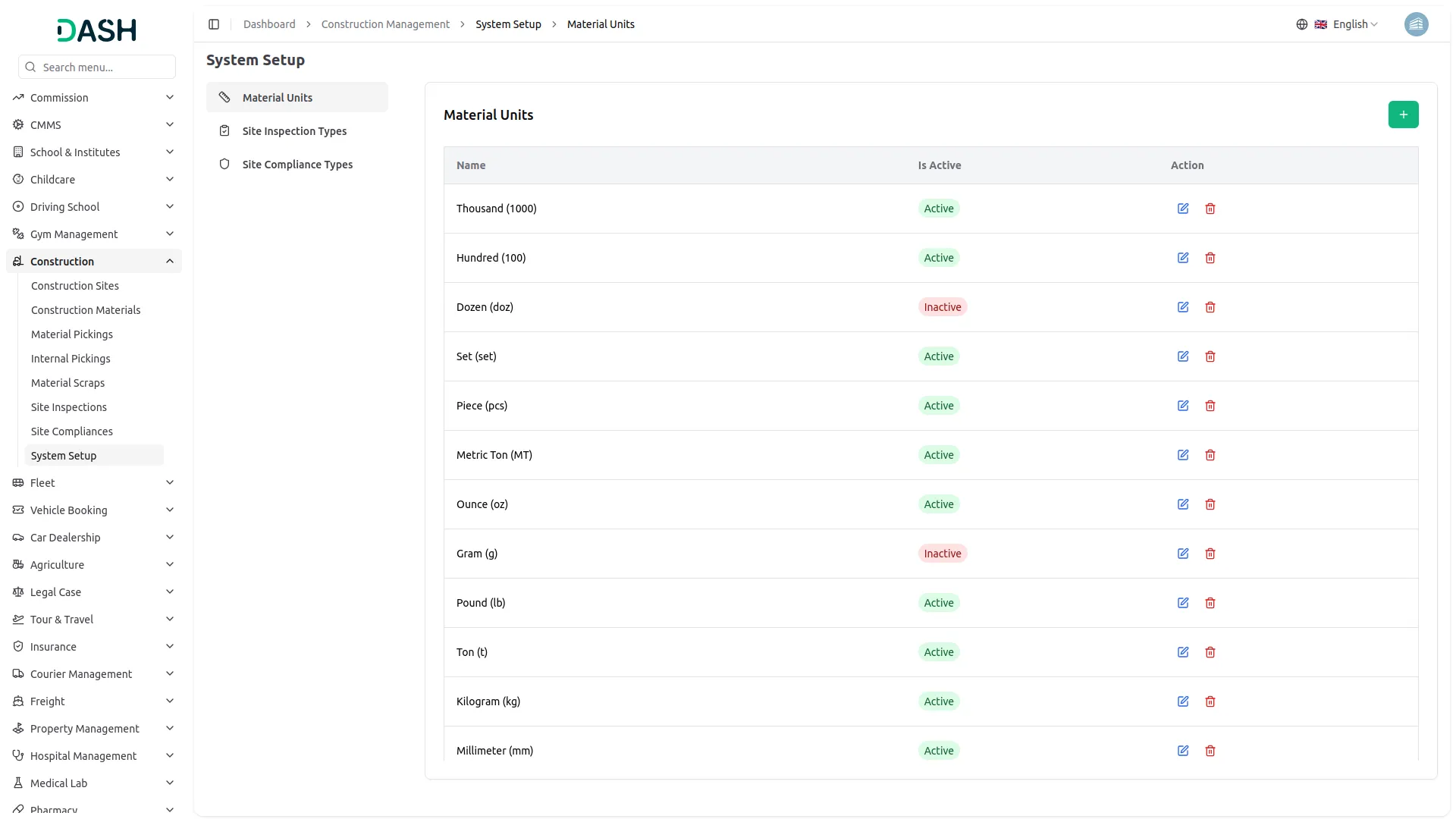
When you enter the system setup, it provides sections, which are as follows: Material Units, Site Inspection Types, and Site Compliance Types
Material Units
- To create a new material unit, click the “Create” button at the top of the page and enter the name and select the status in the dropdown “Active” or ”Inactive”.
- The list page displays material units with their name and is active.
- You can click the “Edit” button to modify an existing material unit or the “Delete” button to remove the material unit.
-
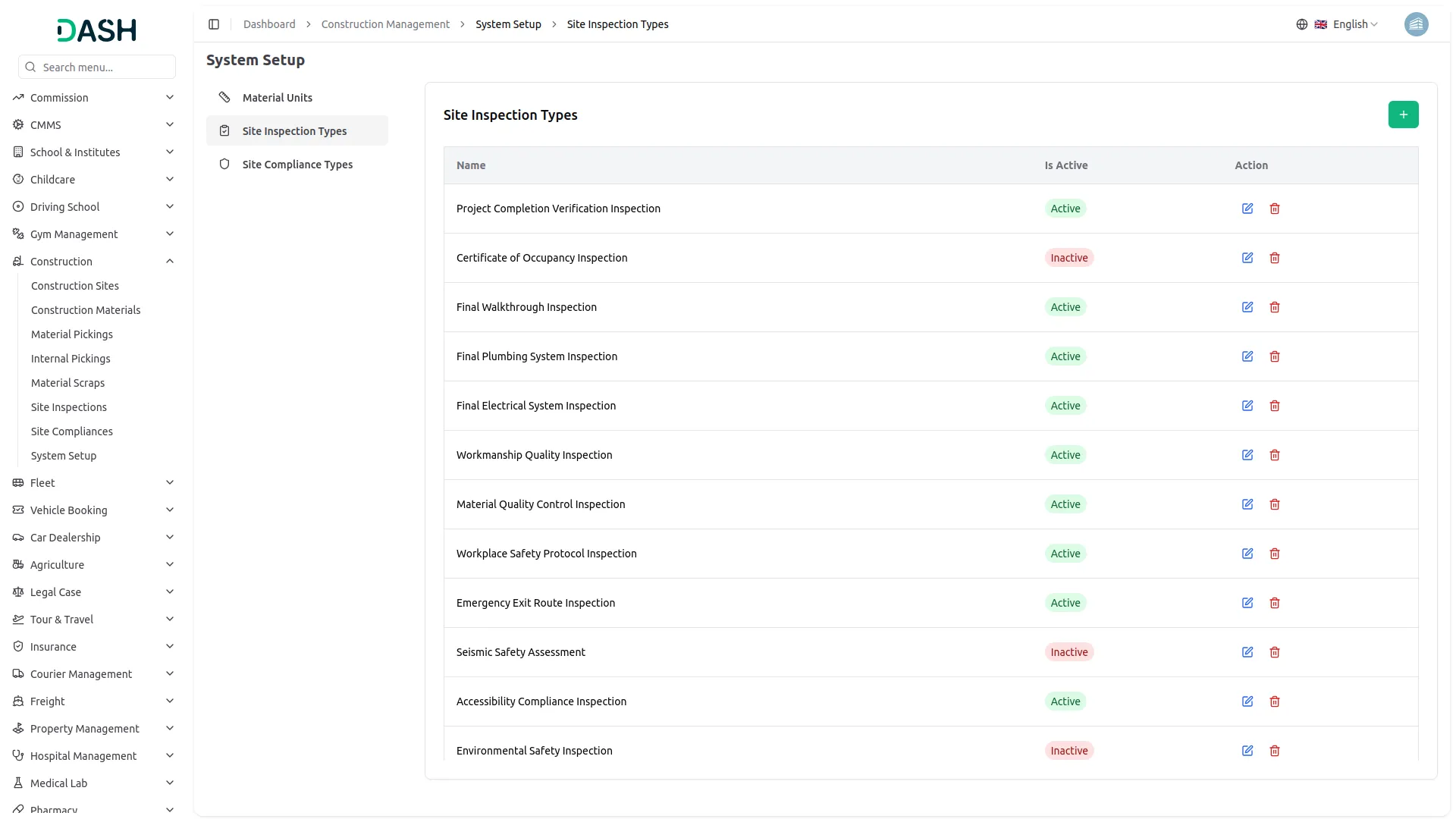
Site Inspection Types
- To create a new site inspection type, click the “Create” button at the top of the page and enter the name and select the status in the dropdown “Active” or ”Inactive”.
- The list page displays site inspection types with their name and is active.
- You can click the “Edit” button to modify an existing site inspection type or the “Delete” button to remove the site inspection type.
-
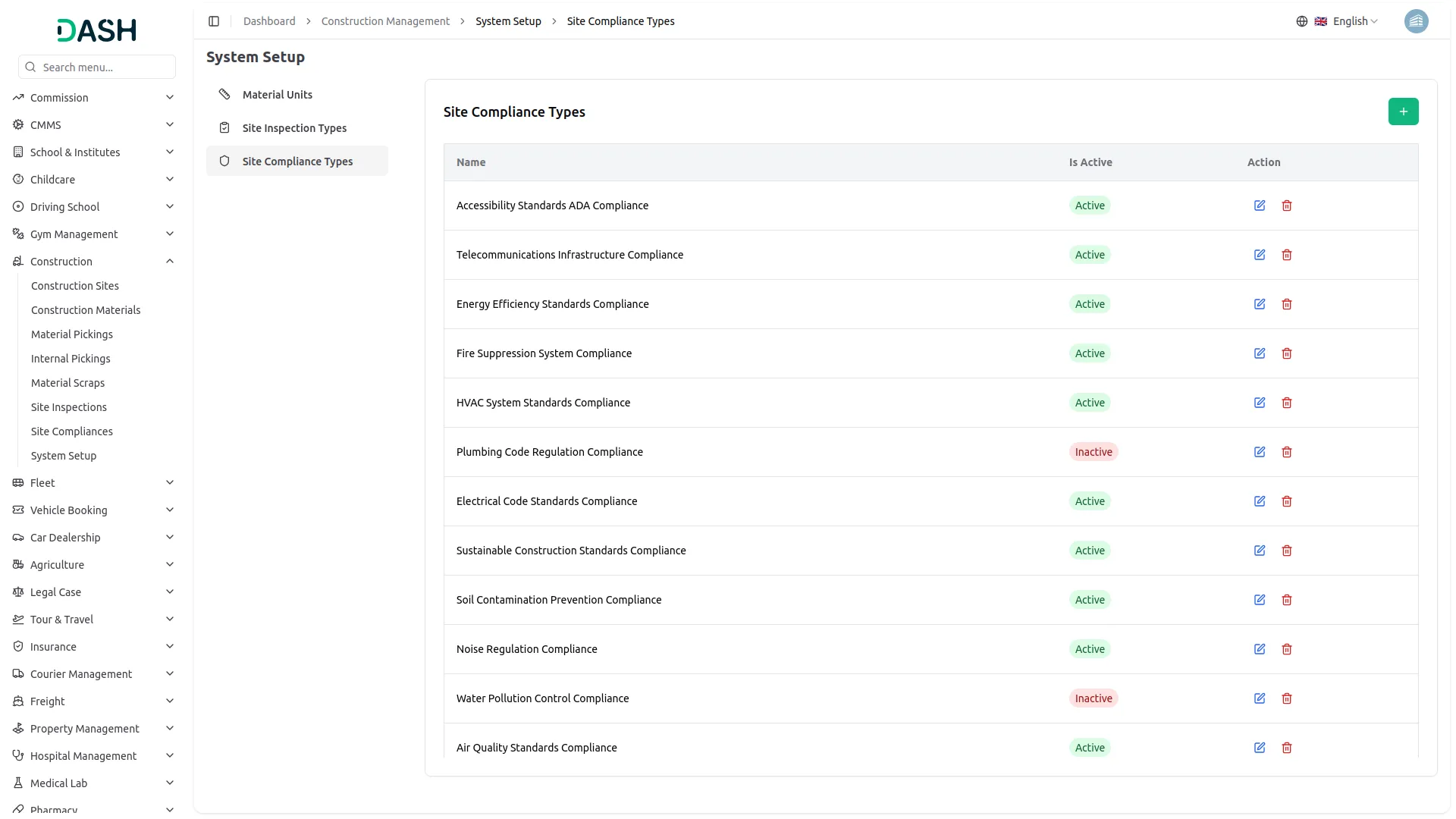
Site Compliance Types
- To create a new site compliance type, click the “Create” button at the top of the page and enter the name and select the status in the dropdown “Active” or ”Inactive”.
- The list page displays site compliance types with their name and is active.
- You can click the “Edit” button to modify an existing site compliance type or the “Delete” button to remove the site compliance type.
-
Construction Site
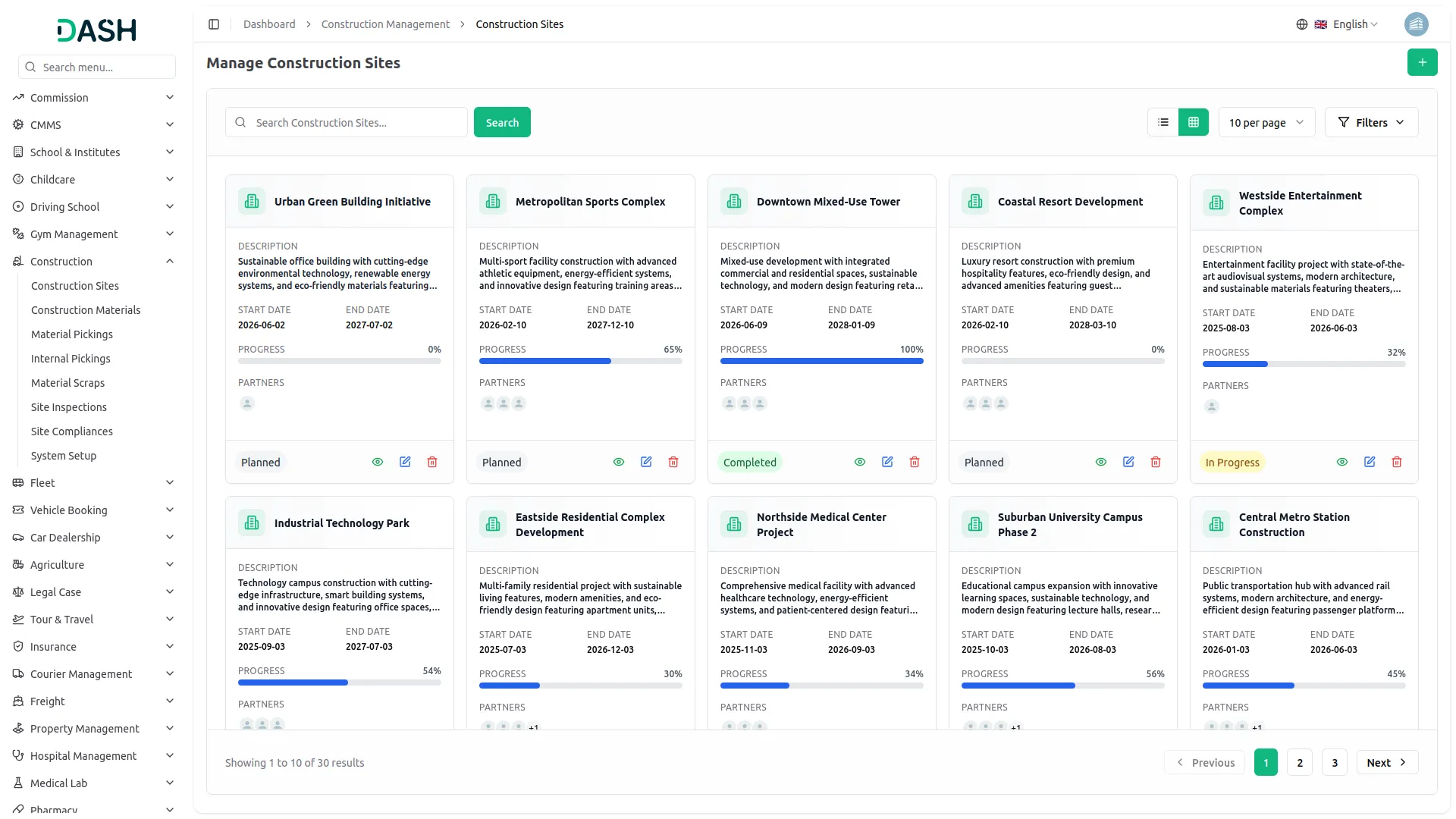
- On the Construction Management page, the first task is to create a construction site, which can be done by clicking the “Create” button at the top of the site page.
- You will need to fill in the necessary details, such as the name of the construction site, the status of the site (which can be “Planned,” “In Progress,” or “Completed”), the start and end dates for the construction, the construction partner’s name, and a description of the construction site.
- Once you’ve filled in all the details and saved the record, the construction site will be successfully added and stored for future reference on the site page.
- You can also view, edit, or delete the construction sites whenever you want.
-
View a Construction Site
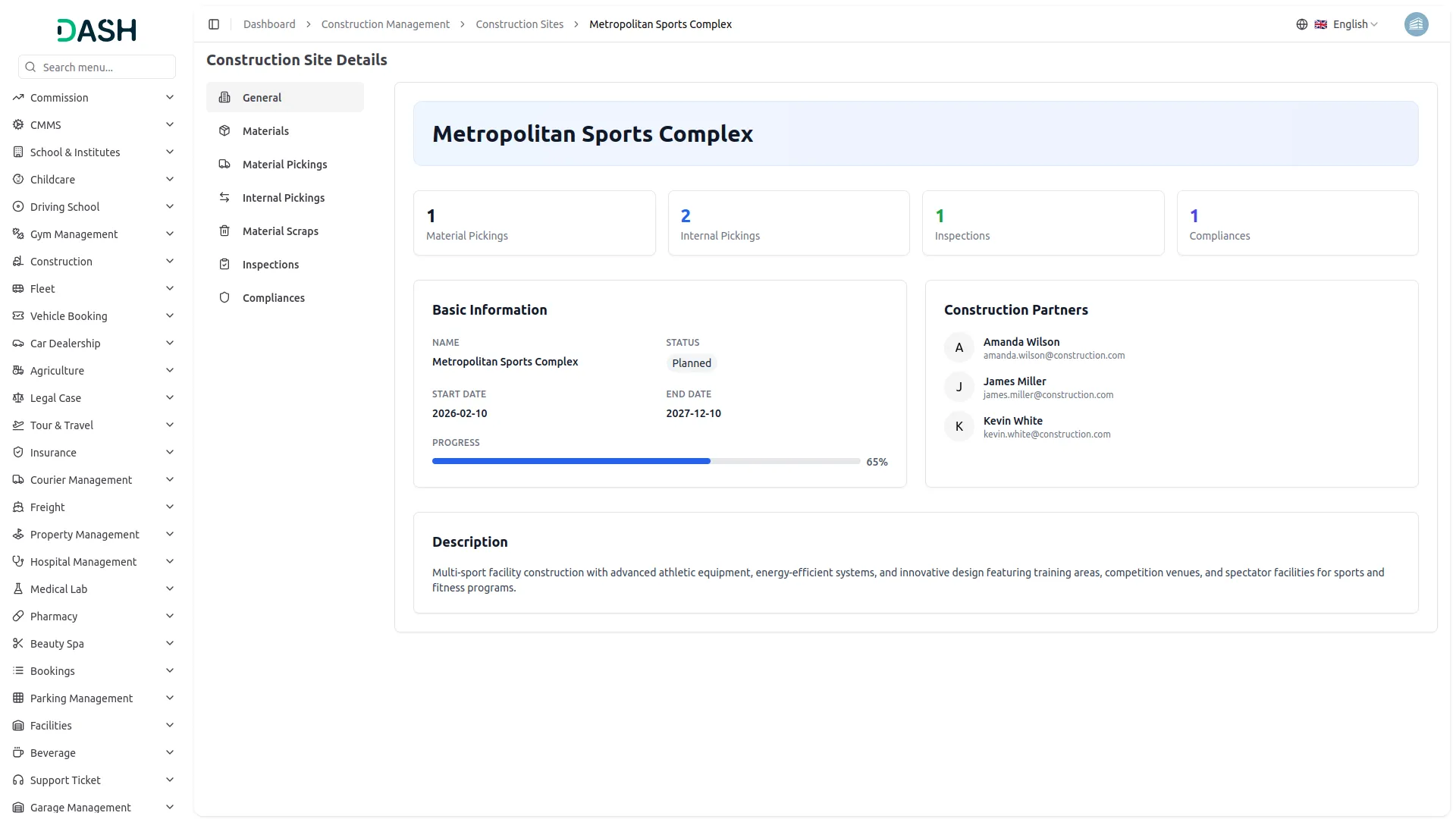
- If you click on the view button, you will see all the details regarding that construction site. First of all, you will see the
- The General section provides a comprehensive snapshot of the selected construction site. At the top, it displays the Site Name along with summary cards showing the total counts of Material Pickings, Internal Pickings, Inspections, and Compliances for quick reference. The Basic Information panel highlights essential site details, including the site name, current status, start and end dates, and a visual progress bar indicating the overall completion percentage. On the right side, the Construction Partners panel lists all associated partners along with their contact information. At the bottom of the section, the Description area provides additional notes or detailed information related to the construction site.
- Below that, there is a list of inspections. You can add new construction inspections with the help of the create button given at the top of the list, and also view, edit, and delete the inspections from the action column.
- Besides this, you will see the list of construction materials. You can easily create, edit, or delete the materials with the help of their respective buttons.
- After that, you will get to see the list of inspection compliances, at the top of which there is a create button through which you can create new inspection compliances, and you can also view, edit, or delete the inspection compliances easily.
- Below these lists, you will also see the lists of construction pickings, construction scraps, and internal pickings. You can create, view, edit, or delete these things very easily from here.
-
Construction Materials
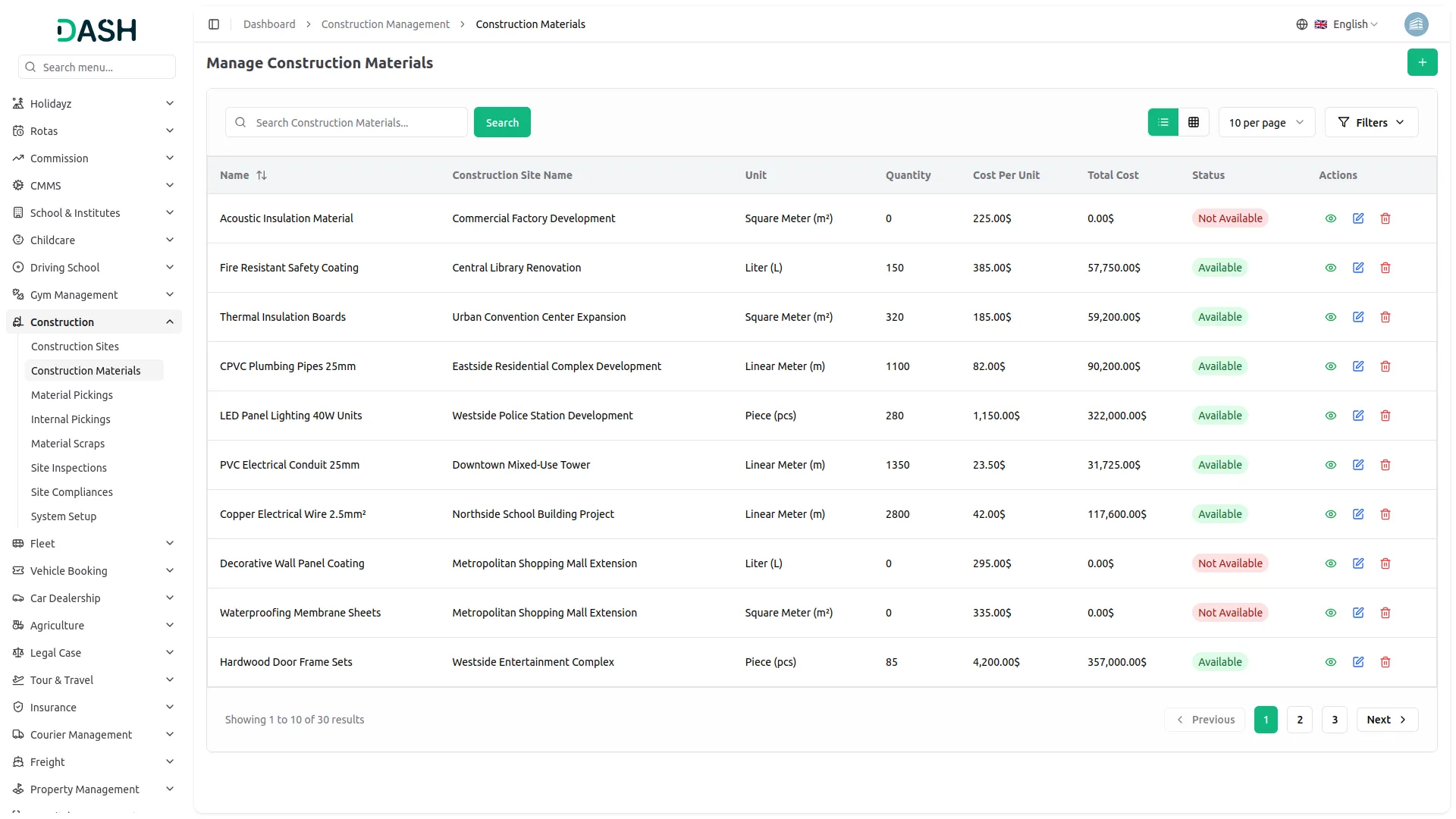
- After setting up a construction site, the next step is to build a record of the materials used for the construction, which you can do by going to the Construction Materials page.
- On the Construction Materials page, click the create button to create a new material record, and provide the necessary material details such as the material name, select the unit form, dropdown its load from the System setup in Material Units, quantity, cost per unit, select the Construction Site from dropdown its load from in Construction Site and status select in dropdown “Available”, “Not Available”.
- Once you create the construction materials, they will be visible on the materials page, and you can edit or delete them easily.
- When you create a picking with this material, the quantity of that material will decrease.
- If you edit or delete a picking and its status is not “delivered”, the quantity will increase or decrease automatically.
- Once saved, the material will be listed on the Materials page, where you can view its details, make edits, or delete it as needed.
-
Material Pickings
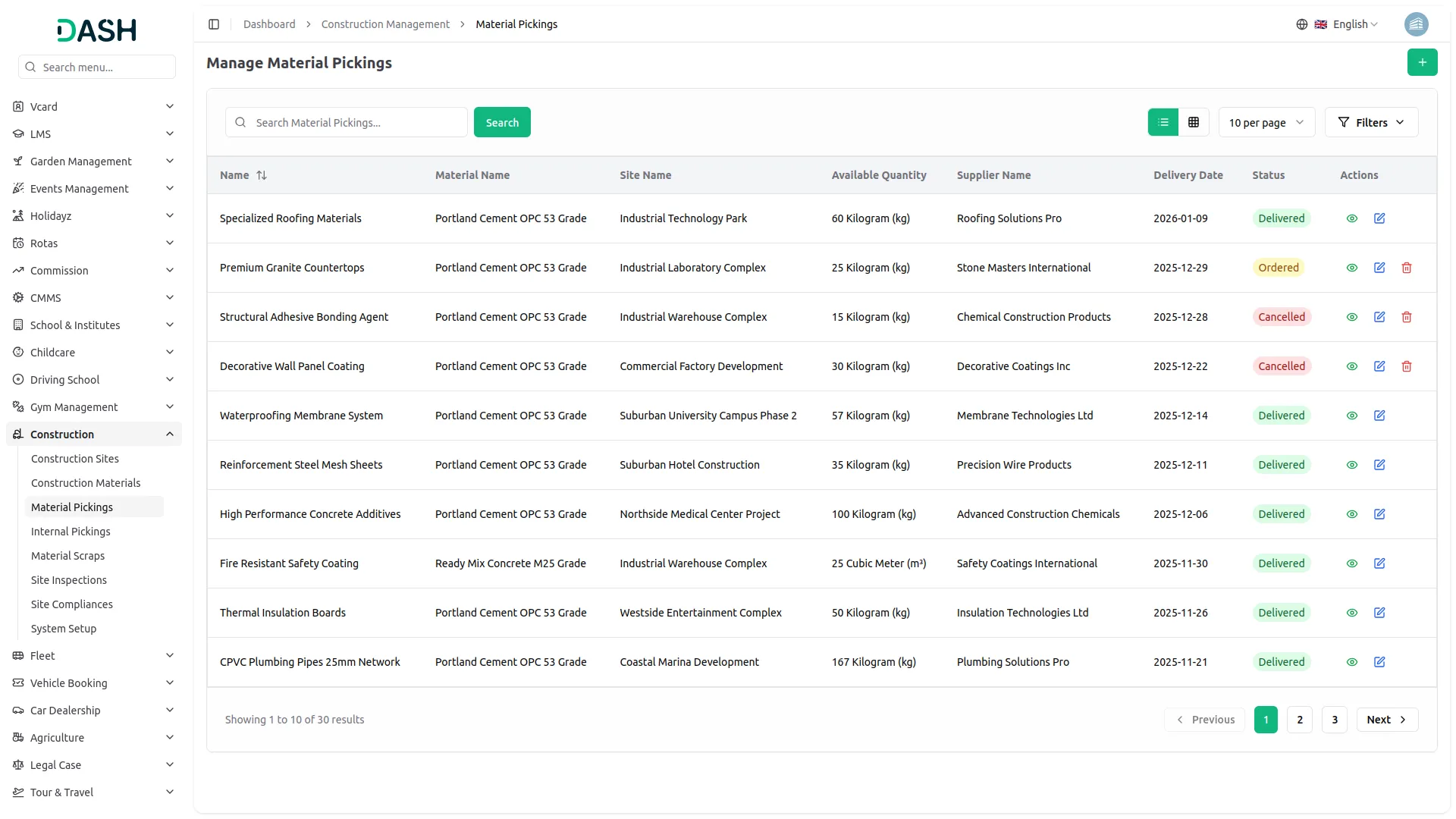
- After you’ve created the materials, you can move on to the material pickings, which involve selecting and gathering the materials or tools required for a specific task or project.
- To initiate material pickings, go to the material pickings page and click on the “Create” button to create a new picking record.
- You will need to enter details such as the picking name, the construction site where the construction material will be used, the material unit and material quantity, materials delivery date, the supplier name, the supplier email, supplier phone number, and status select in the dropdown “Ordered”, “Delivered”, “Cancelled.”
- Once you create the picking, you can view its details on the pickings page and edit or delete it whenever you want.
- The picking quantity decreases when internal picking is created using the selected picking.
- If the internal picking status is not “Delivered” and it is later edited or deleted, the picking quantity will automatically increase or decrease.
-
Internal Picking
- In addition to standard picking, you can also manage internal picking if you need to transfer materials from one construction site to another.
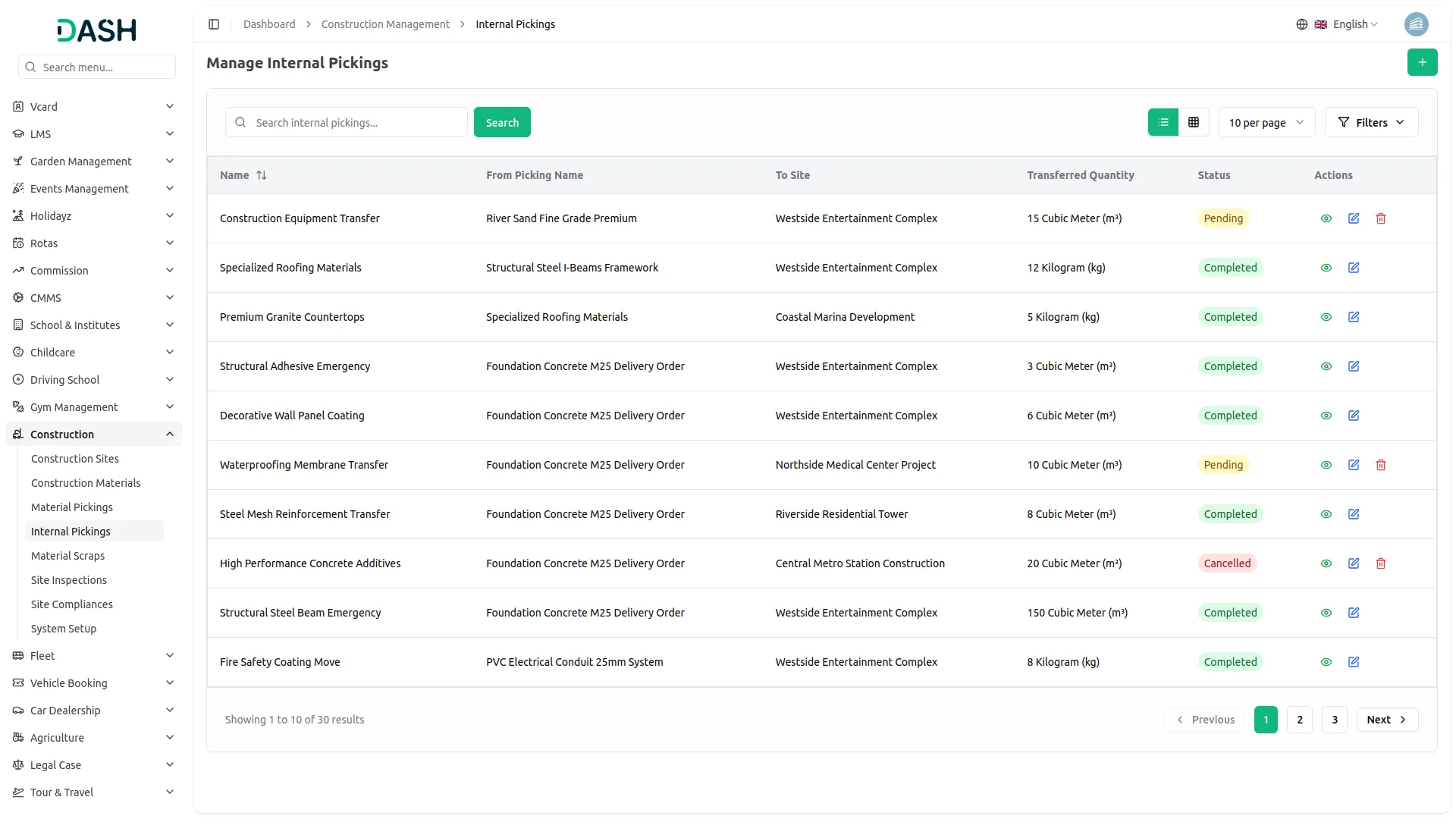
- To create an internal picking record, navigate to the Internal Picking page and click on the “Create” button. Here, you will need to enter details Internal Picking Name, Material Unit Auto-filled from picking, select the From Site form the dropdown, select the To Site from the dropdown, select the From Site Pickings from the dropdown, select the To Site Pickings from the dropdown, Material Quantity, select the status from the dropdown like “Pending”, “In Progress”, “Completed”, “Cancelled” and Description ensuring materials are correctly assigned between the two sites involved.
- After creating the internal picking, you can view its details on the internal picking page, and also view, edit, or delete it whenever you want.
- The quantity in internal picking decreases when scraps are created using a selected internal picking.
- If scraps are edited or deleted, the internal picking quantity will automatically increase or decrease.
-
Material Scraps
- The final step in the construction management process is managing scraps, which are leftover materials or items from construction, pickings, or internal pickings.
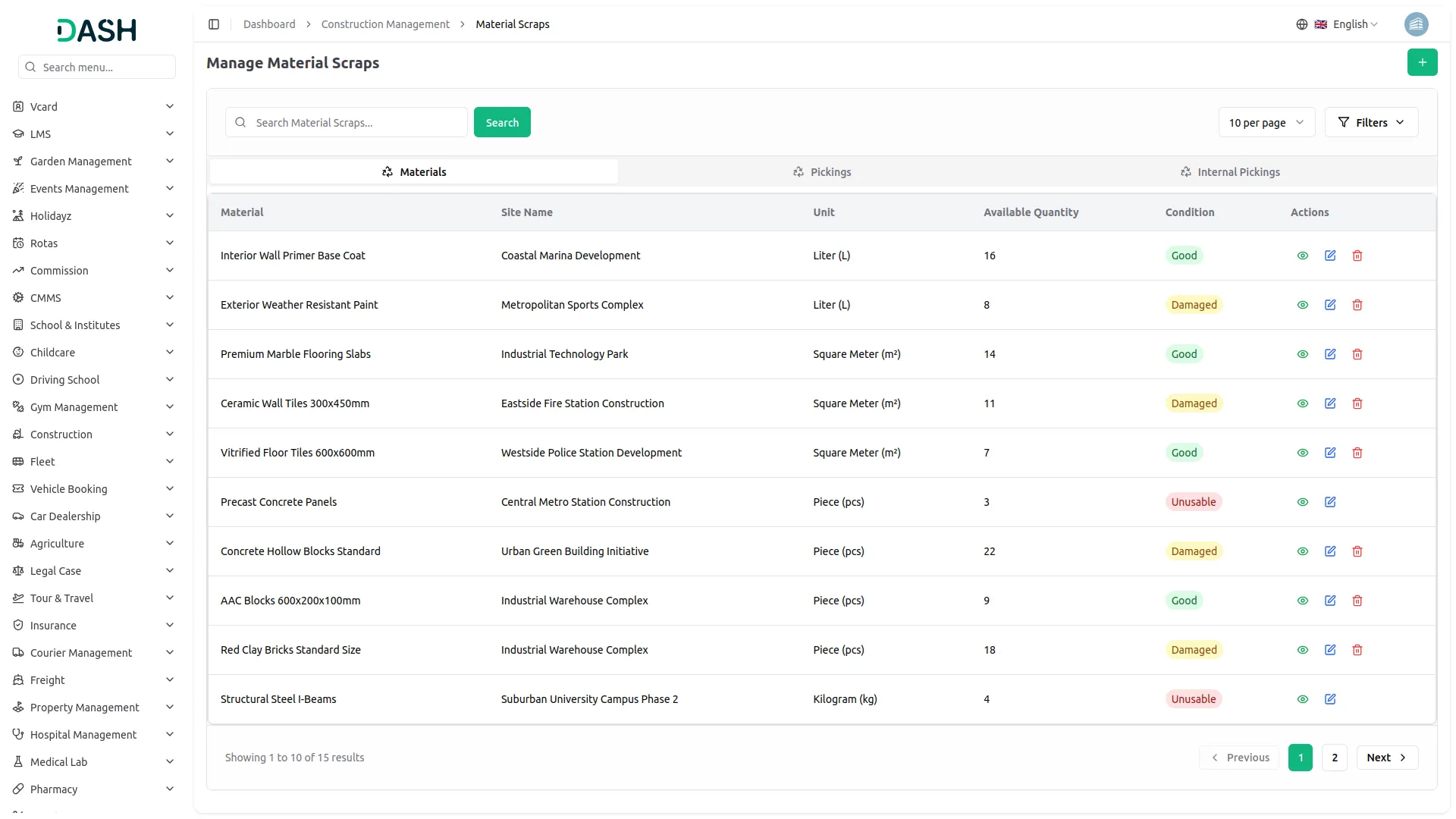
- You can create the scraps with the help of the create button given at the top. Just select the construction site from the dropdown, select the type of scrap from the dropdown, select the scrap materials from the dropdown, the material unit will be generated automatically, enter the material quantity, material condition, and add the description last.
- After creating the scraps, the entry of it will be recorded on the scraps page, including all the necessary details. You can view, edit, or delete the scraps easily.
- On the Scraps page, you will see separate columns for each category of scrap. You can add scraps to the appropriate category based on the source of the scrap; for example, if the scrap is leftover material, you will add it under the “Material” column.
- When scraps are created using selected internal picking, the internal picking quantity decreases.
- If a scrap record is edited or deleted, the quantity of both used material types will automatically adjust (increase or decrease).
-
Site Inspections
- After the picking process, you may need to conduct inspections to ensure construction quality and adherence to standards.
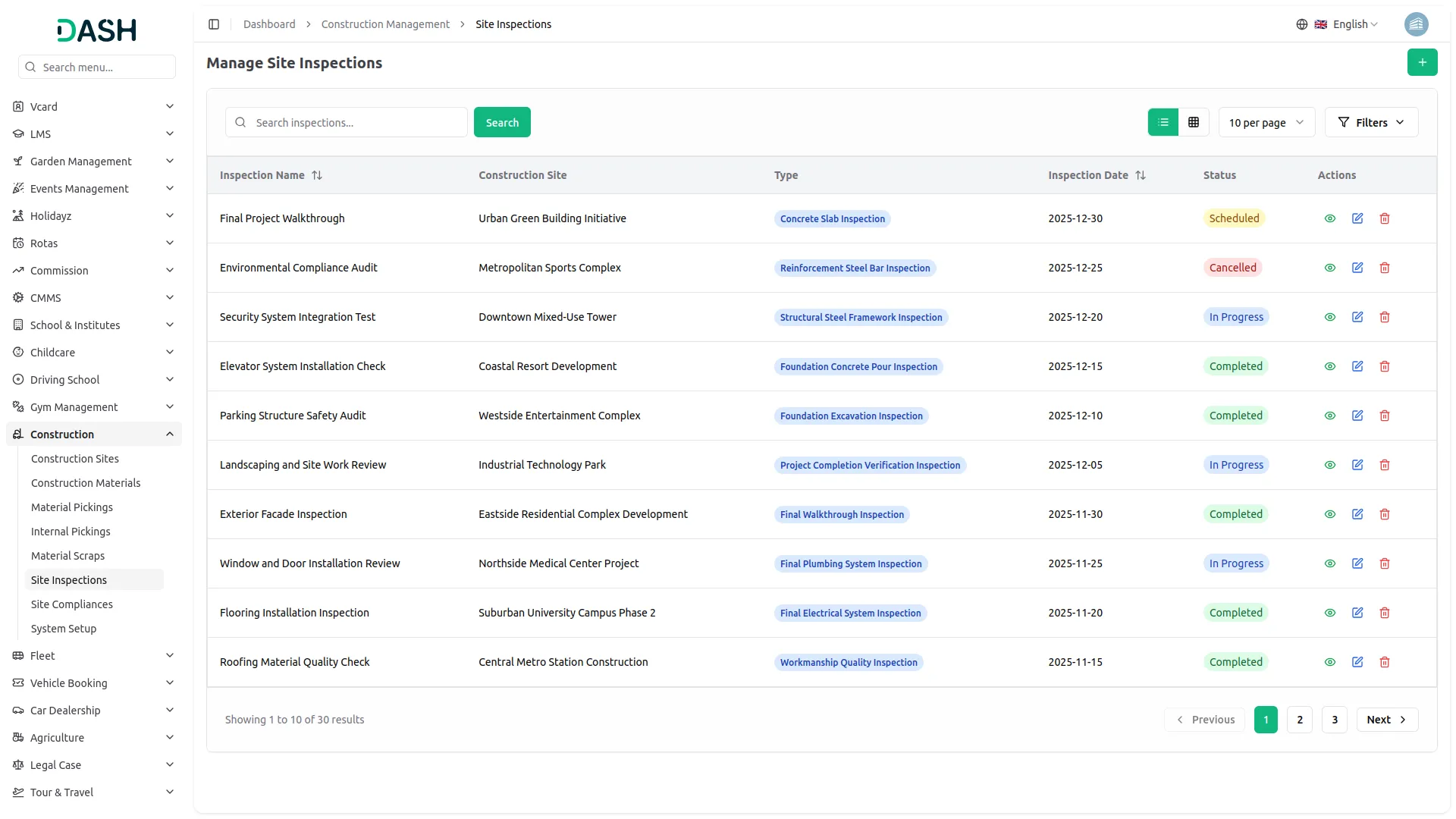
- To record an inspection, go to the Inspection page, click on the “Create” button, and enter essential inspection details, including the inspection name, the site being inspected, select inspection type from the dropdown it will comes from system setup inspection type section, select the status from the dropdown like “Scheduled”, “In Progress”, “Completed”, “Cancelled”, the inspector’s name, email, and phone, the date and time of the inspection, as well as a brief description of the inspection.
- After saving the details, the inspection will be listed on the Inspection page for easy tracking and review. You can also view, edit, or delete the inspections whenever you want.
-
Compliance
- Once inspections are completed, navigate to the Compliance page to add the necessary compliance records based on the inspector’s findings.
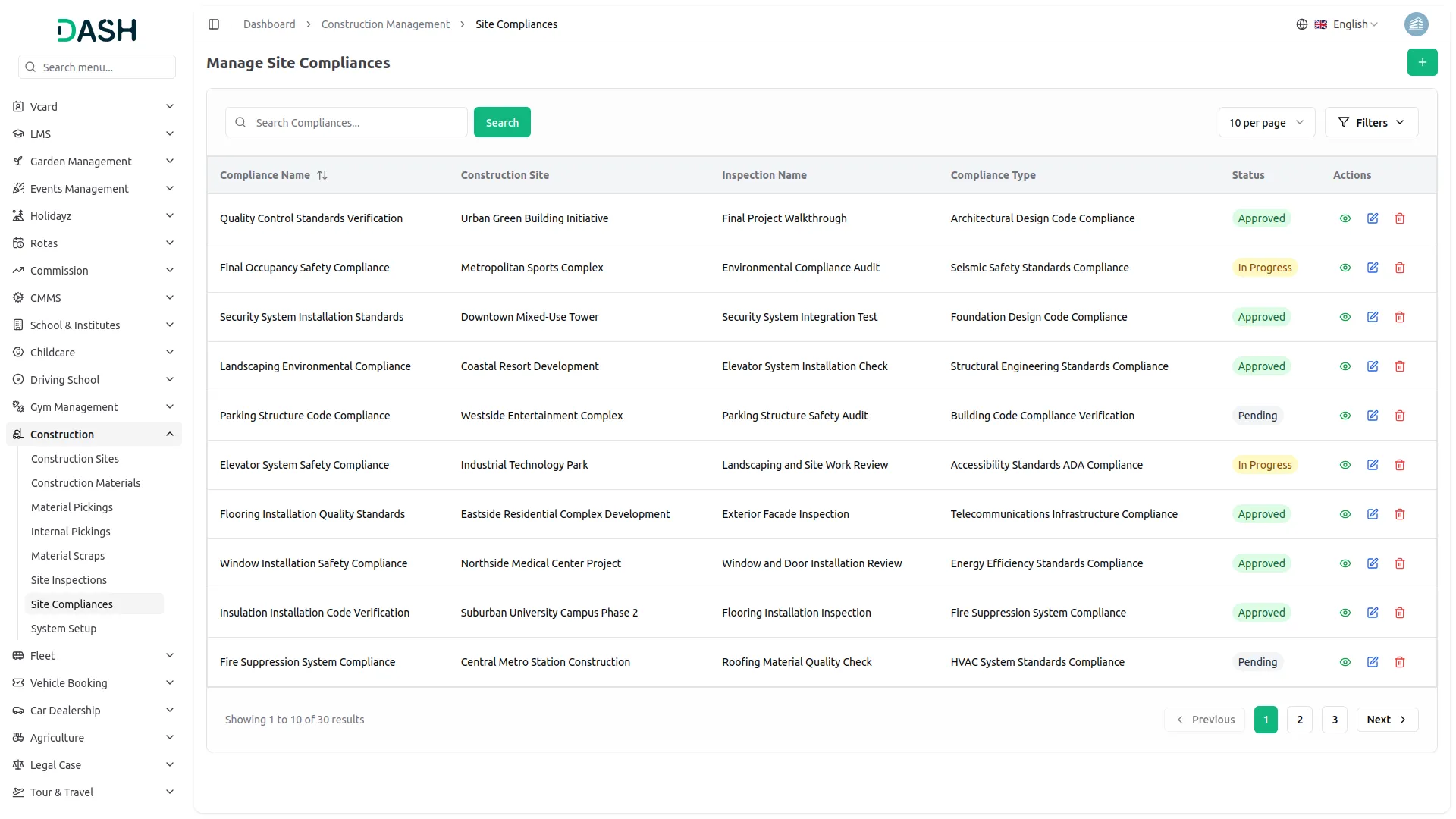
- To create a new compliance, click on the create button given at the top, add the necessary details like compliance name, compliance type, its load from the System setup in compliance type, select the construction site from the dropdown, select the construction inspections from the dropdown, its load from the inspections section, and add the compliance description last.
- Once you create the compliance, it will be visible on the compliance page including all the necessary details like construction site, inspection name, compliance type, status, and an action column from which you can view, edit or delete the compliance whenever you want. You can change the status of compliance with the help of the edit button.
- On this page, you can also monitor the current status of the compliance, which can be either “Approved,” “Pending,” or “In Progress,” depending on the stage of each compliance resolution.
-
Categories
Related articles
- Internal Knowledge – WorkDo Dash SaaS Add-On Guide
- Moyasar – WorkDo Dash SaaS Add-On Guide
- Xendit – WorkDo Dash SaaS Add-On Guide
- Paystack – WorkDo Dash SaaS Add-On Guide
- Rental Management – WorkDo Dash SaaS Add-On Guide
- Radiology Management – WorkDo Dash SaaS Add-On Guide
- Dance Academy – WorkDo Dash SaaS Add-On Guide
- Twilio – TicketGo Add-On Guide
- Investment System – WorkDo Dash SaaS Add-On Guide
- ZitaSMS – WorkDo Dash SaaS Add-On Guide
- User Manual – Sales SaaS
- Vehicle Inspection Management – WorkDo Dash SaaS Add-On Guide
We're Here to Help - Let's Talk
Have questions about our solutions, customization services, or business tools? Our team is here to help you. let's talk.