Bundle Sale - Save 72% on the Dash SaaS Complete Bundle Claim Now
Legal Case Management Software

Legal Matter Management Software That Follows Each Case From Inquiry to Fee

Legal matter management software keeps every matter in one record: the client, the court, the next hearing, the documents and the costs. This page shows each feature of our legal case management software in the order a case uses it.

In short: one login covers inquiries, cases, hearings, contracts, shared files and fees for your whole firm.

Built for: law firms, solo lawyers and advocates, and corporate legal teams. See how each one works in the legal case management use cases.

Intake

Legal Intake Software That Saves Every Inquiry

Intake starts when someone asks for help. You record the inquiry with contact details and the service the person wants, and it remains open until it is closed.

  • Required documents: list what a client must bring for each service, so the team stops chasing missing papers.

  • Follow-up: open inquiries can be followed up and converted into active clients.

  • Applications: track each application stage by stage, with its documents saved together.

  • Payments: link every payment to its application and mark it cleared or cancelled.

A Booking Link With Your Own Questions

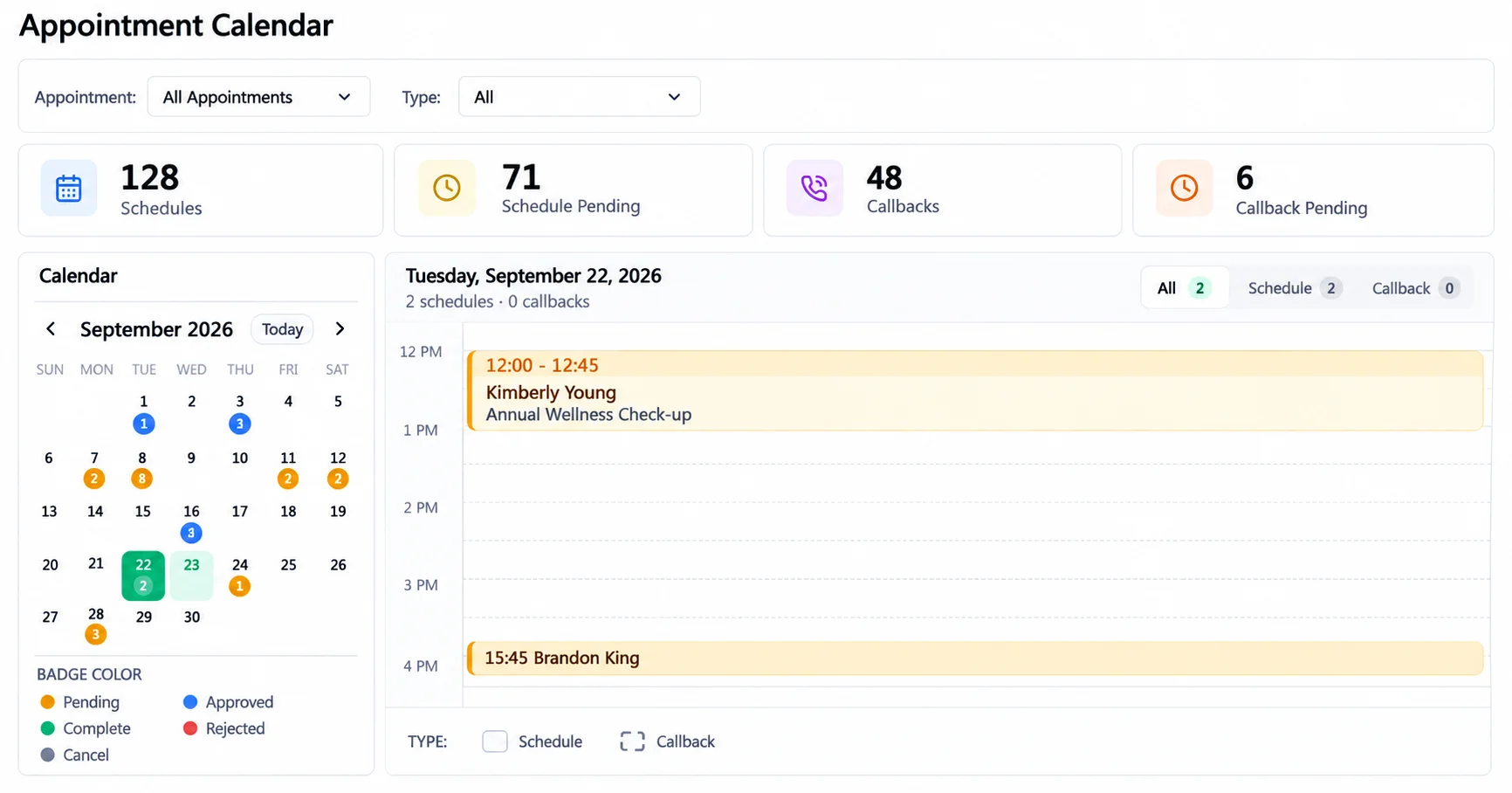
Send one link and clients book a consultation themselves. Each client picks an open time slot within the days and hours you set.

  • Your questions: radio buttons, dropdowns, checkboxes or short text, each required or optional.
  • Free or paid: run free or paid consultations and set how long each one lasts.
  • Your call: approve or reject each request. Status reads pending, approved, complete or rejected.
  • Callbacks: after an appointment is completed, a client can ask for a callback.
Appointment calendar with scheduled, pending and callback requests

Good to know: intake here means saved inquiries, required-document lists and a booking link. It does not score leads or route requests on its own.

Cases

One Record for Every Case and Matter

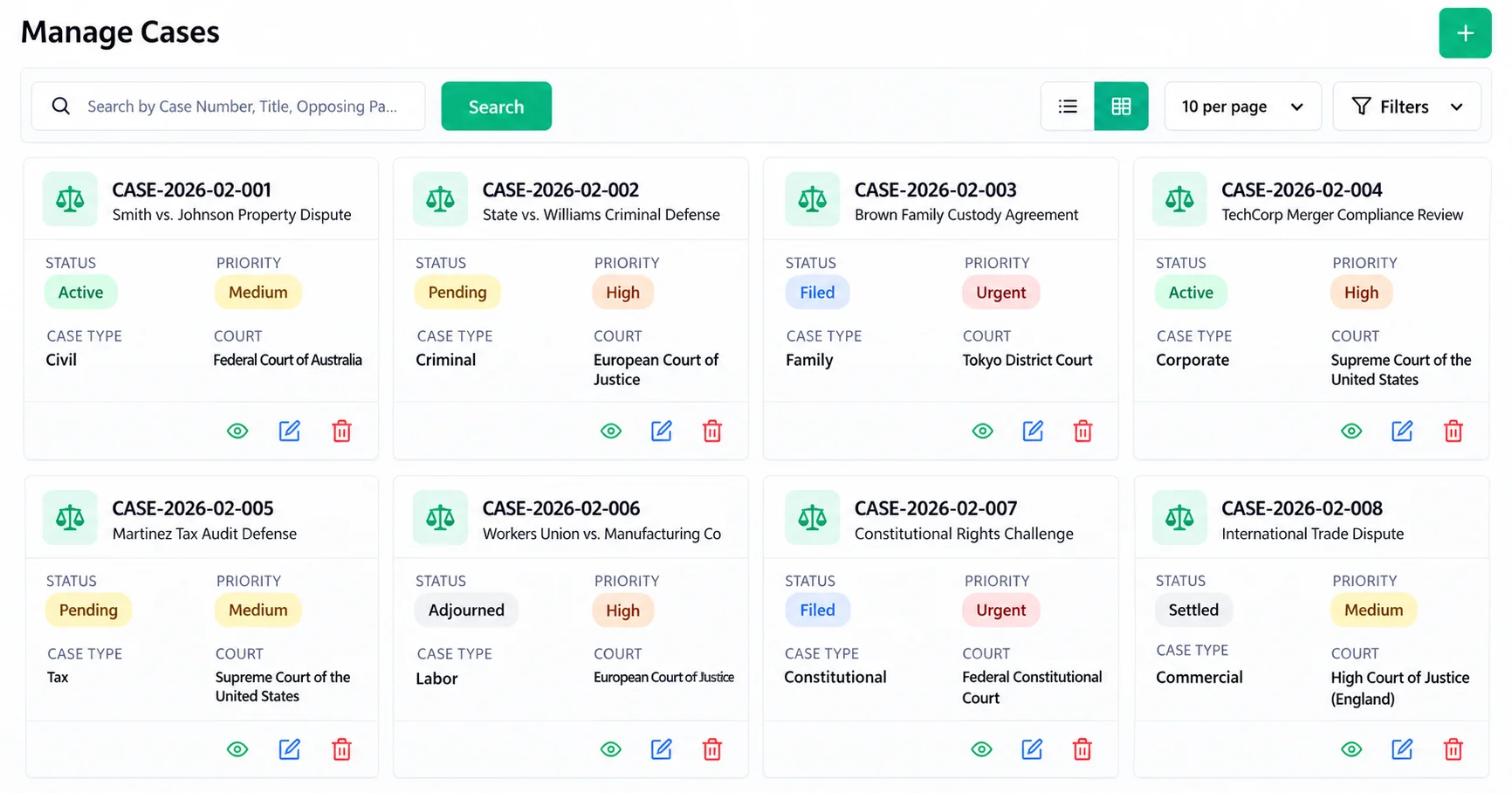
Every matter starts with one record. The whole firm can open it, so the case list works as a case tracking system for every attorney: number, court, status and priority in one view.

Manage Cases screen with case numbers, status, priority, case type and court
  • Case details: type, number, year and filing date.
  • Parties: opponent, party and advocate details, plus the legal sections involved.
  • Status: current status and completion date, so case management tracking does not depend on a side spreadsheet.
  • Everything else: case documents, notes and expenses sit on the case itself.

Client Records

Legal client management software starts with one directory. Client and petitioner details live in one place, and every case links back to its client.

Courts

Courts, Jurisdictions and Attorney Profiles

Set up your own court list once and reuse it on every case. The court is assigned automatically when a case is created.

Your court list

  • Court types and levels: for example base courts, high courts and subdivisions.
  • Court details: location, jurisdiction, contact information and official address.
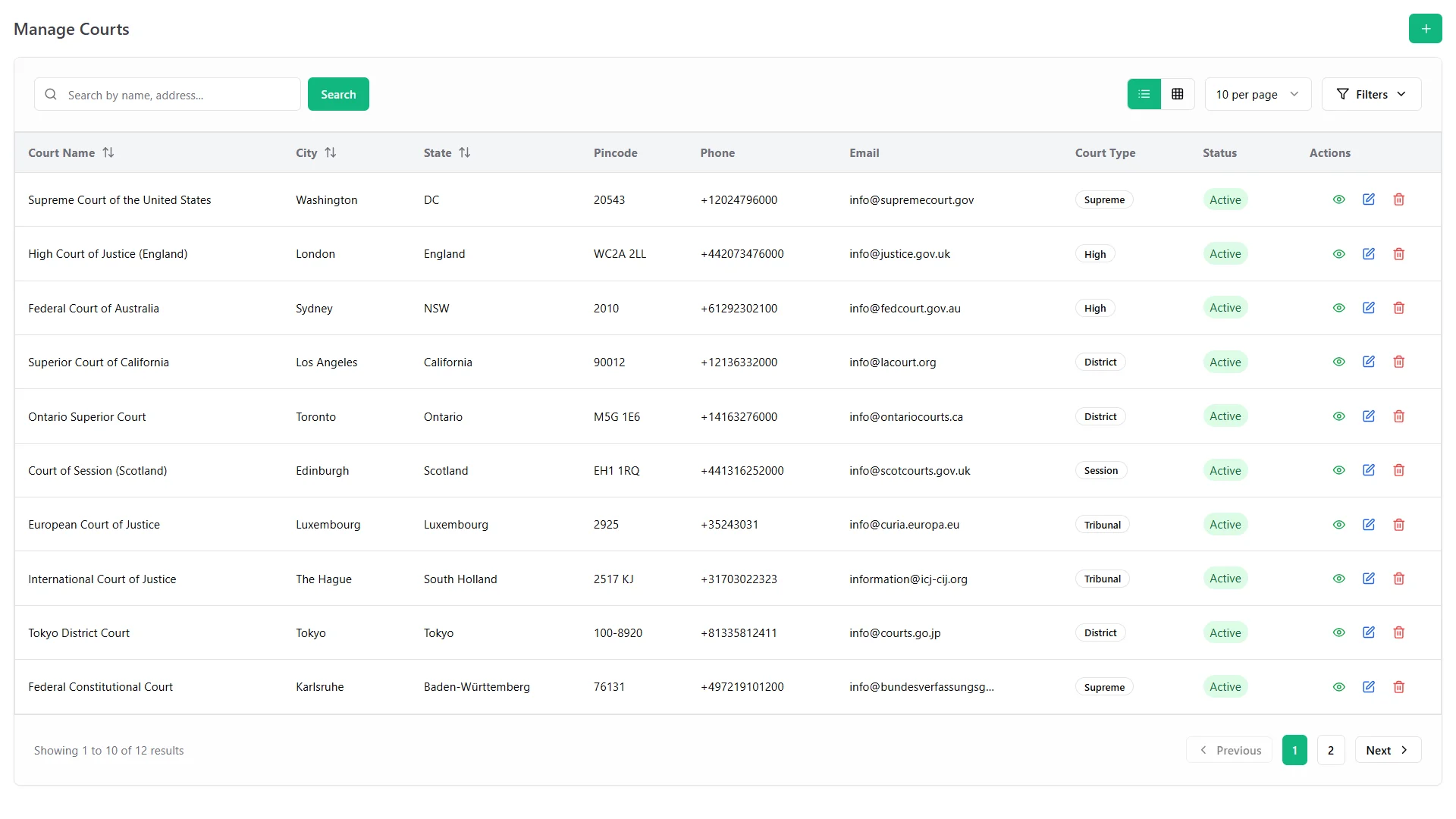
Manage Courts screen with court name, type, location, jurisdiction and contact details

Attorney profiles

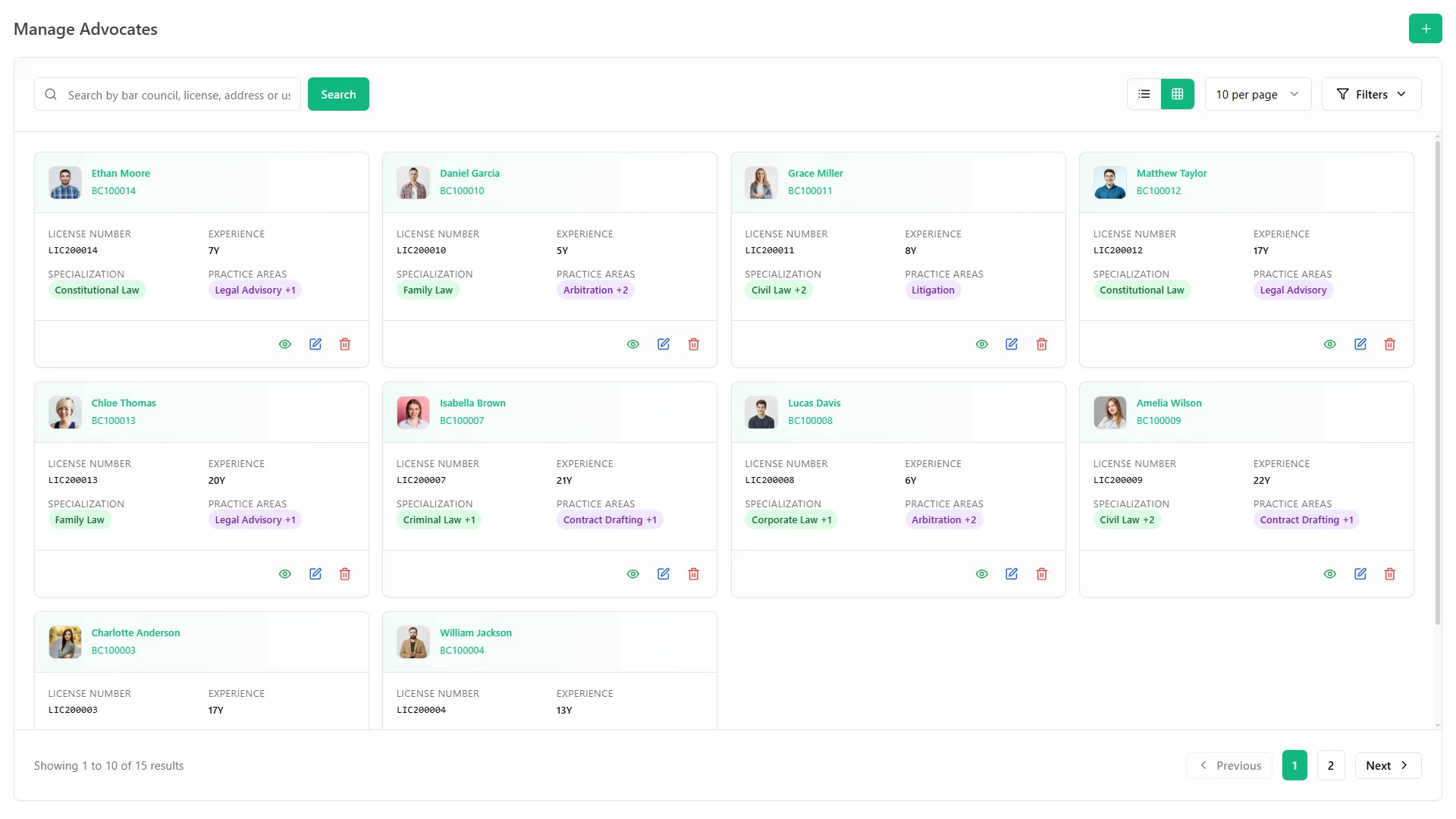
  • Attorney profiles: license details, specializations and practice areas, with each lawyer's case history and performance in view.
Manage Advocates screen with each advocate's details, practice area and status
Hearings

Hearings That Update the Case

A hearing belongs to its case, so the date, the judge and the courtroom never sit in a separate calendar.

  • Schedule: hearing date and time, judge, courtroom and hearing type.
  • Track: attendance and hearing status.
  • Record: order sheet documentation stays with the hearing.
  • Update: mark a hearing complete and the case's next hearing date updates itself.

Meetings, appointments and work dates share one firm calendar that syncs with your Google Calendar, so everyone sees the same plan.

Workflow

Legal Workflow: Six Steps, With the Routine Parts Automated

The workflow follows the path a firm already walks. Each step is recorded against the case:

  1. Inquiry: save it with contact details and the service wanted.
  2. Consultation: the client books a slot and you approve it.
  3. Case opened: link the court, the advocate and the client to a new case number.
  4. Documents and contracts: file client papers as numbered documents and send a contract from a template.
  5. Hearings and expenses: record each hearing and approve the fees and costs that come with it.
  6. Fees and closure: clear the fee receipts and close the case.

Good to know: that is the full extent of the legal automation. A custom workflow builder and document assembly are not part of the feature list.

What runs by itself

Here, legal workflow automation software means these routine steps run without anyone retyping them:

  • Dates: the next hearing date updates after a hearing is completed.
  • Contracts: a saved template becomes an active contract with one click.
  • Approvals: expenses, fees and petty cash requests go through approval before they are paid.
  • Alerts: WhatsApp messages go out for the events you enable in settings, such as updates and new assignments. Alerts can go to specific teams.
Contracts

Contracts, Templates and E-Signatures

Contracts sit beside the cases they belong to.
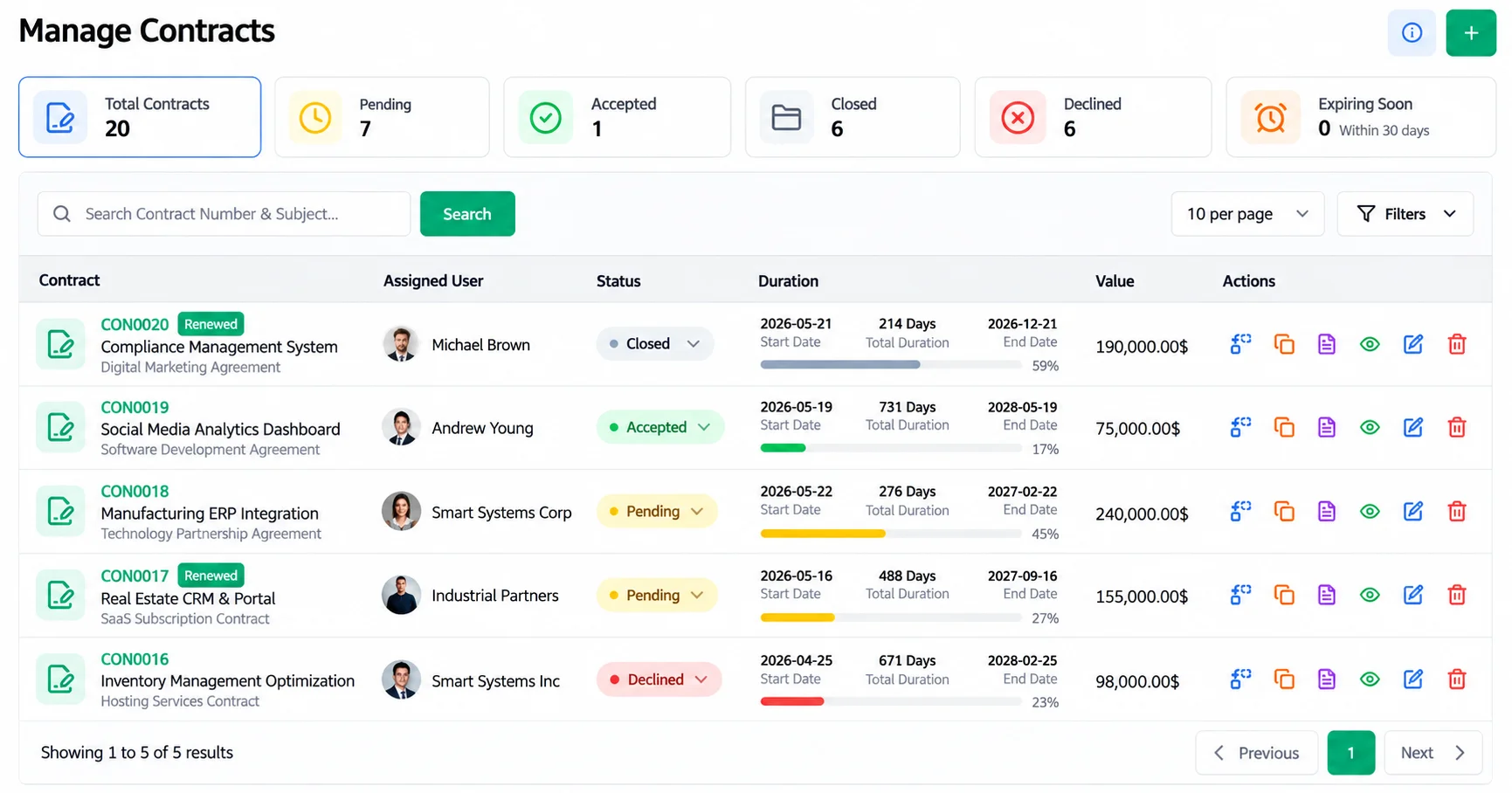
Manage Contracts screen with contract status, value, duration and expiring-soon count
  • Contract types: create your own types, attach files and add comments.
  • Signatures: both parties sign online, and each signature is stored with an audit trail.
  • Renewals: status updates and renewal logs show where each contract stands. An expiring-soon list shows what needs attention.
  • Templates: save a finished contract as a template, convert it into an active contract and adjust it before it is signed.
  • Template library: add descriptions and files, preview, download or duplicate any template.
  • Copies: duplicate an existing contract to start a similar one.
Documents

Case Documents and a Firm Knowledge Library

Every client and case document gets its own number, built from a prefix you choose.

Numbered case documents

  • Privacy: mark each document private or public.
  • Teamwork: add notes and comments, shown with the author and time, and attach several files.
  • Status: move a document through stages you define, preview it and export it as PDF.
  • Copies: duplicate a document with or without its notes and comments.

The knowledge library

The knowledge library turns what your firm knows into knowledge books that hold articles and mind maps. Court filing guides, client onboarding steps, case law notes, contract terms and firm policies sit together, with search and share links.

Mind maps break a process into connected nodes that you can rearrange by drag and drop.

Sharing

Share Case Papers by Protected Link

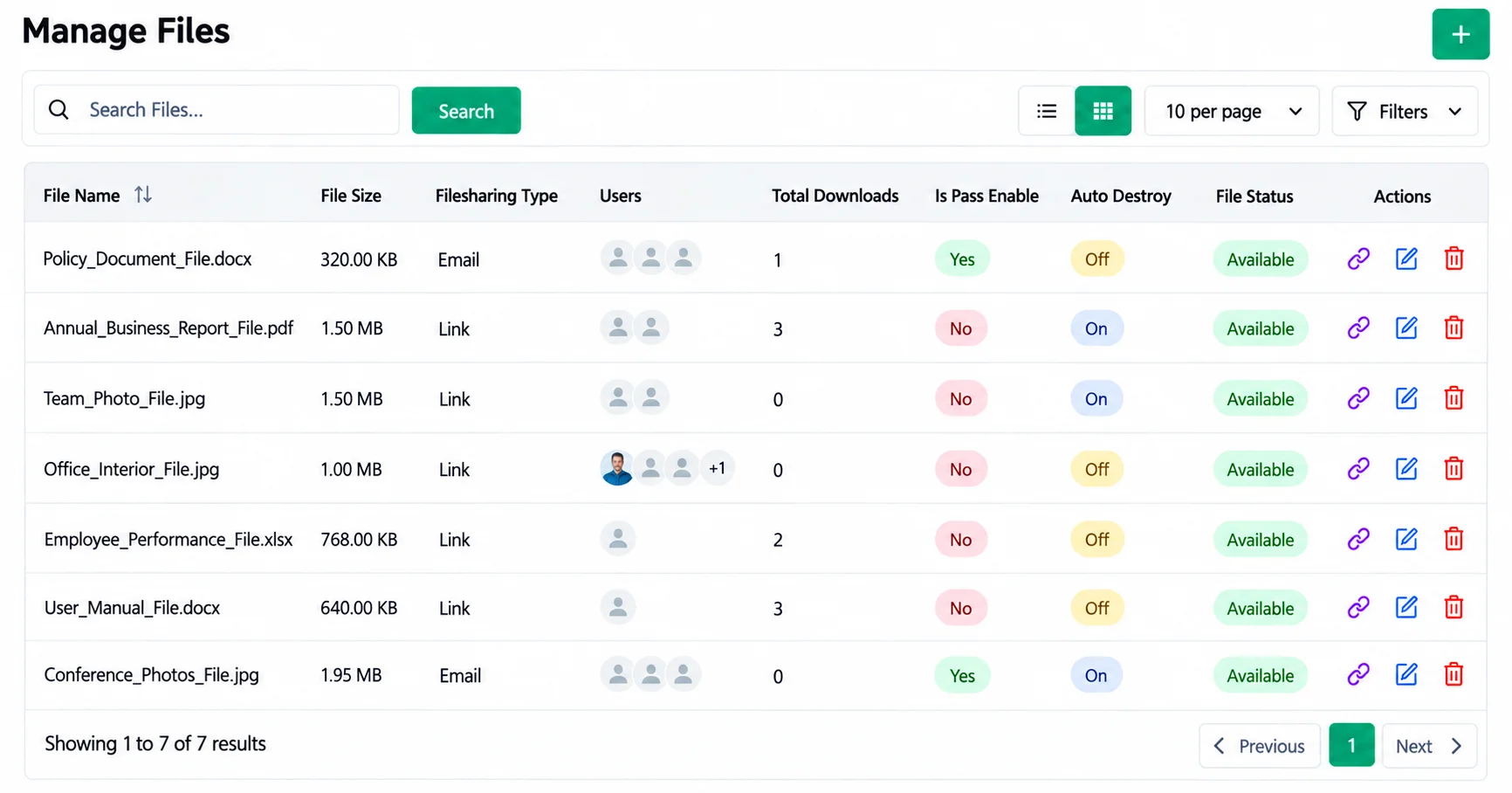
Share a file through a link, or assign it to named email recipients, instead of attaching it to an email.

  • Protection: add a password, or let a file destroy itself after its first download.

  • Visibility: each download logs the IP address, country, device, operating system and browser.

  • Control: switch between list and grid views, and filter files by status, sharing method and assigned person.

  • Recipients: assign one file to several people at once.

  • Recovery: deleted files go to trash and can be restored.

  • Your brand: your logo, favicon, footer text, button text and banner image appear on the download page.
Fees

Fees, Costs and Petty Cash

Costs attach to the case that caused them.

  • Expenses and fees: record the payment method, purpose, amount and notes, and upload the receipt.

  • Approval: approve court and filing fees first, then mark them paid.

  • Fee receipts: client fee receipts and retainers are tracked per case.

  • Petty cash: add funds, watch the balance, and send requests and reimbursements, with receipts, through approval. Categories keep spending organized.
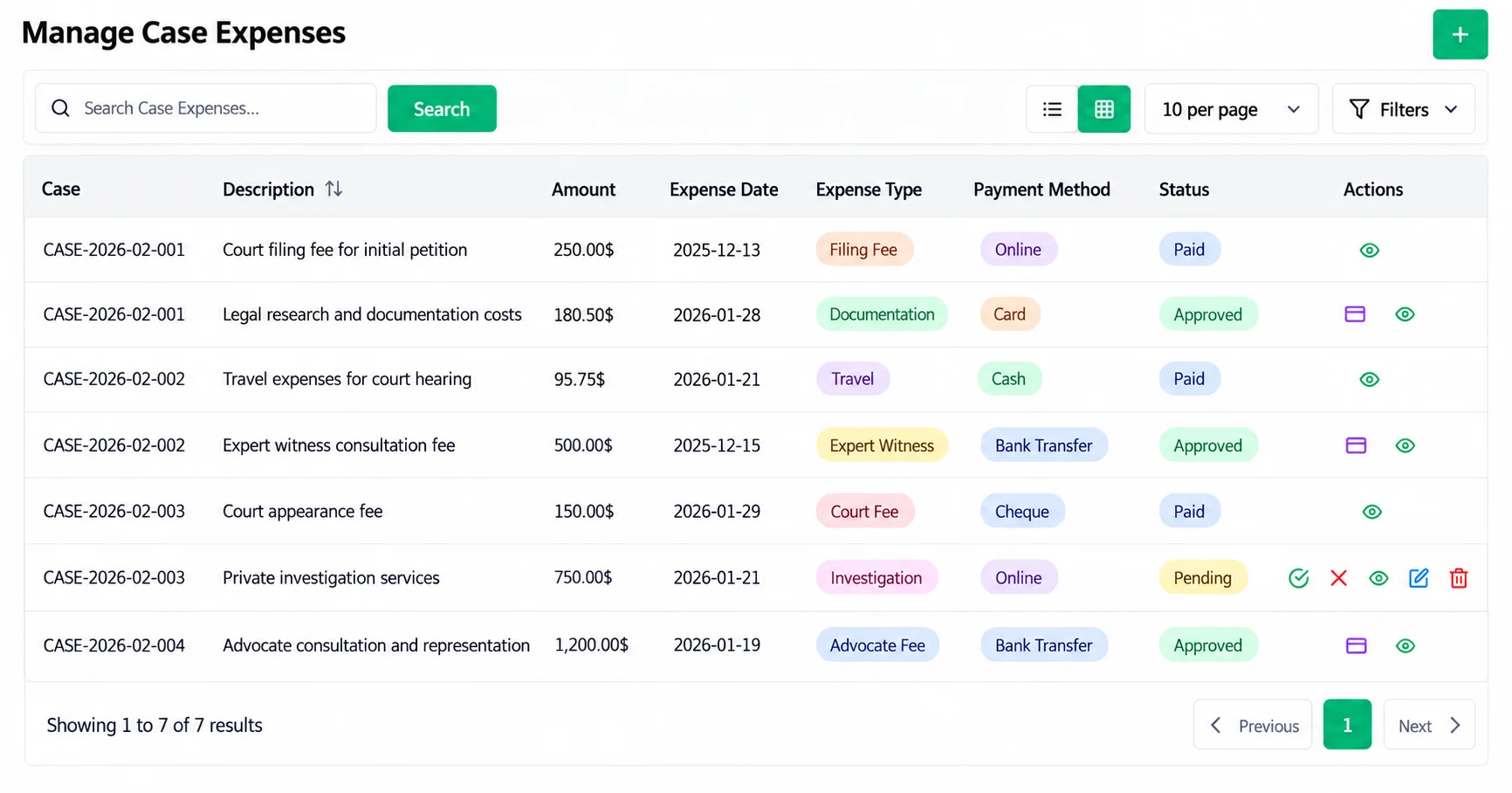
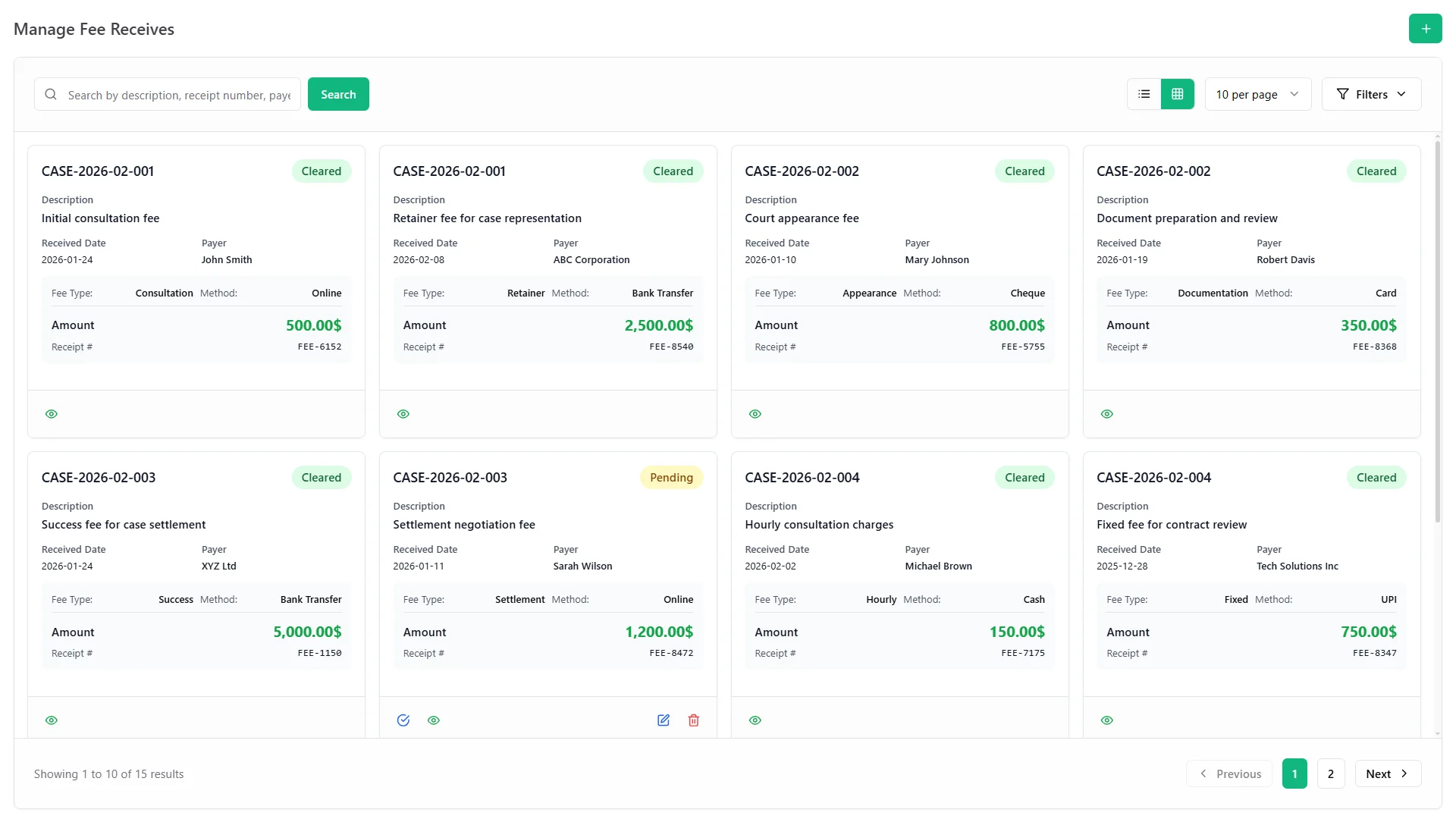
Manage Case Expenses screen with case, amount, expense type, payment method and approval status
Dashboards

Dashboards, Reports and the AI Advisor

The case management dashboard shows case status and the success rate of each advocate, so partners see the firm's workload at a glance.
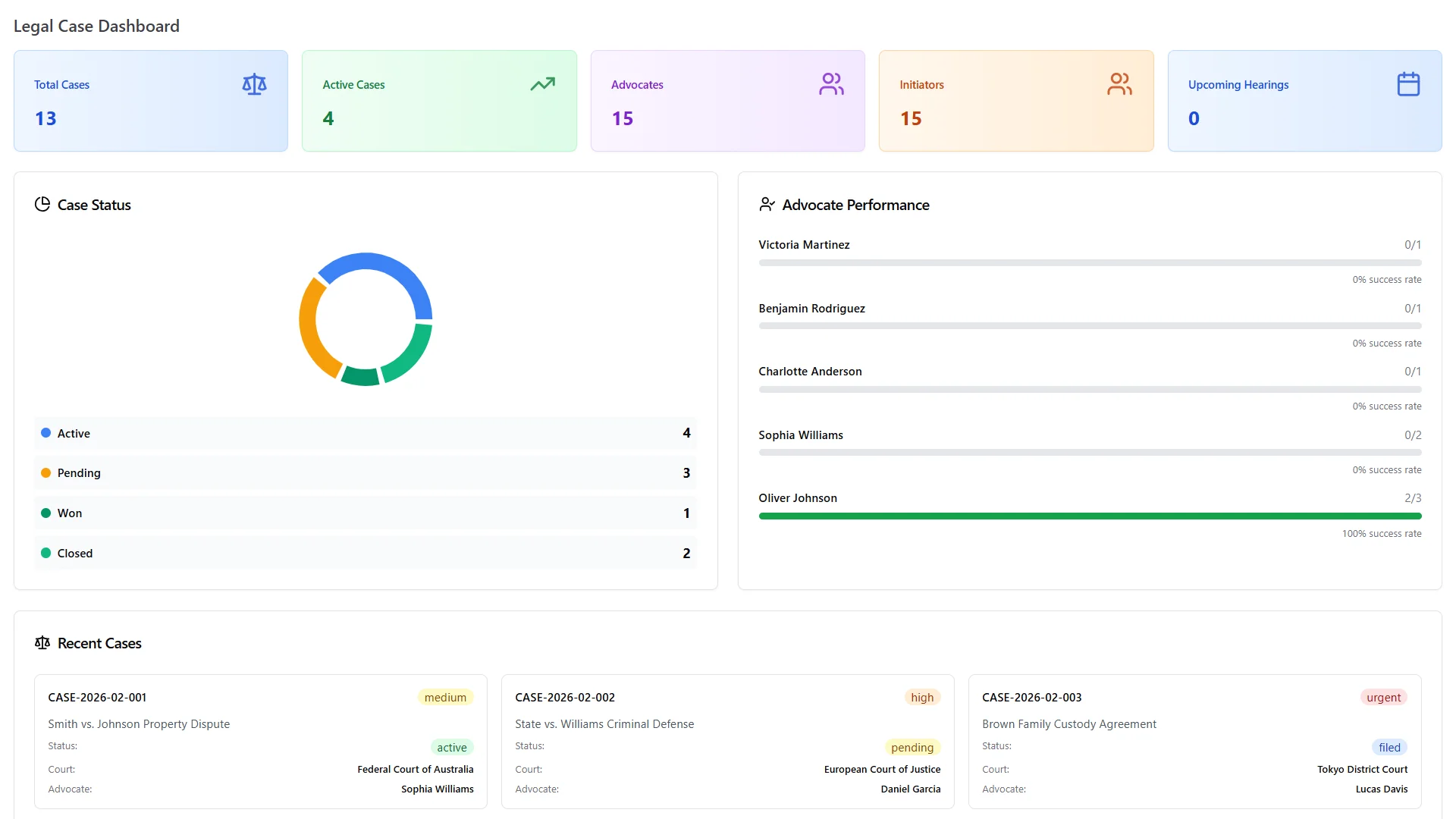
Legal case dashboard with case status and advocate performance
  • Smart dashboards: live figures for revenue, sales and firm performance.

  • Reports: reports covering revenue, expenses and day-to-day activity, exported to Excel or PDF.

  • AI advisor: actionable AI recommendations for your law firm. You connect your own AI provider (OpenAI, Claude or Gemini) with an API key.

  • Team tools: a notice board for firm announcements and an anonymous suggestion box for staff.

Problems

Match the Feature to the Problem

The problem The feature that fixes it
Inquiries get lost Saved inquiries stay open until someone closes them.
Hearing dates slip Each completed hearing updates the case's next hearing date.
Clients forget papers Every service lists the documents to bring.
Contracts start from scratch A template becomes an active contract with one click.
Evidence travels by email A protected link adds a password and a download log.
Costs go unrecorded Expenses, fees and receipts sit on the case.
Partners lack the overview The dashboard shows case status and each advocate's success rate.
Know-how lives in heads Knowledge books hold guides, precedents and policies.

For what these fixes add up to, see the benefits of legal case management software.

Live Demo

See Every Feature in the Live Demo

In the live demo all legal modules are already on, so you can open any feature above and try this legal matter management software on sample cases.

One payment of $219 covers all 16 modules, the full source code and free future updates.

  • One Payment.
  • Lifetime Access.
  • Everything Included.
Two lawyers reviewing case papers at a desk in a law library
Faq's

Frequently Asked Questions About Legal Matter Management Software

It keeps everything about a client matter in one record: parties, court, hearings, documents, contracts and costs. A firm sees where every matter stands without searching files or email.
Not always: a case usually goes to court, while a matter is any client engagement, including advice and contracts. WorkDo tracks both, with cases for courts and hearings and consultations for applications.
You record each inquiry with contact details and the service wanted, and it stays open until it is closed. A booking link with your own questions lets clients request a consultation themselves.
Yes. Each hearing links to its case with date, time, judge, courtroom and type, and when you mark a hearing complete the case's next hearing date updates itself.
It runs routine steps: next hearing dates update, templates become contracts with one click, approvals route fees and expenses, and WhatsApp alerts go out. A custom workflow builder is not part of the feature list.
Yes, for the events you enable, such as updates and new assignments. You need your own credentials from Meta’s WhatsApp Business platform.