
NGO Management – WorkDo Dash SaaS Add-On Guide
Learn how to manage NGO operations, donations, and activities in WorkDo Dash SaaS.
Introduction
The NGO Management Add-On provides a complete system to manage your NGO’s operations through a connected admin panel and public website. Using System Setup, you can configure your brand, content, and website sections all in one place. The Dashboard gives a real-time overview of campaigns, donations, volunteers, and community impact. You can manage Donors, Campaigns, Donations, Fund Utilizations, Volunteers, Beneficiaries, Blogs, and Help Requests with all sections interconnected, so data updates automatically across the system and website. Contact messages and newsletter subscriptions submitted through the website are collected automatically, requiring no manual entry from the admin.
How to Install the Add-On?
To Set Up the NGO Management Add-On, you can follow this link: Setup Add-On.
How To Use The NGO Management Add-On?
System Setup
Brand Setting
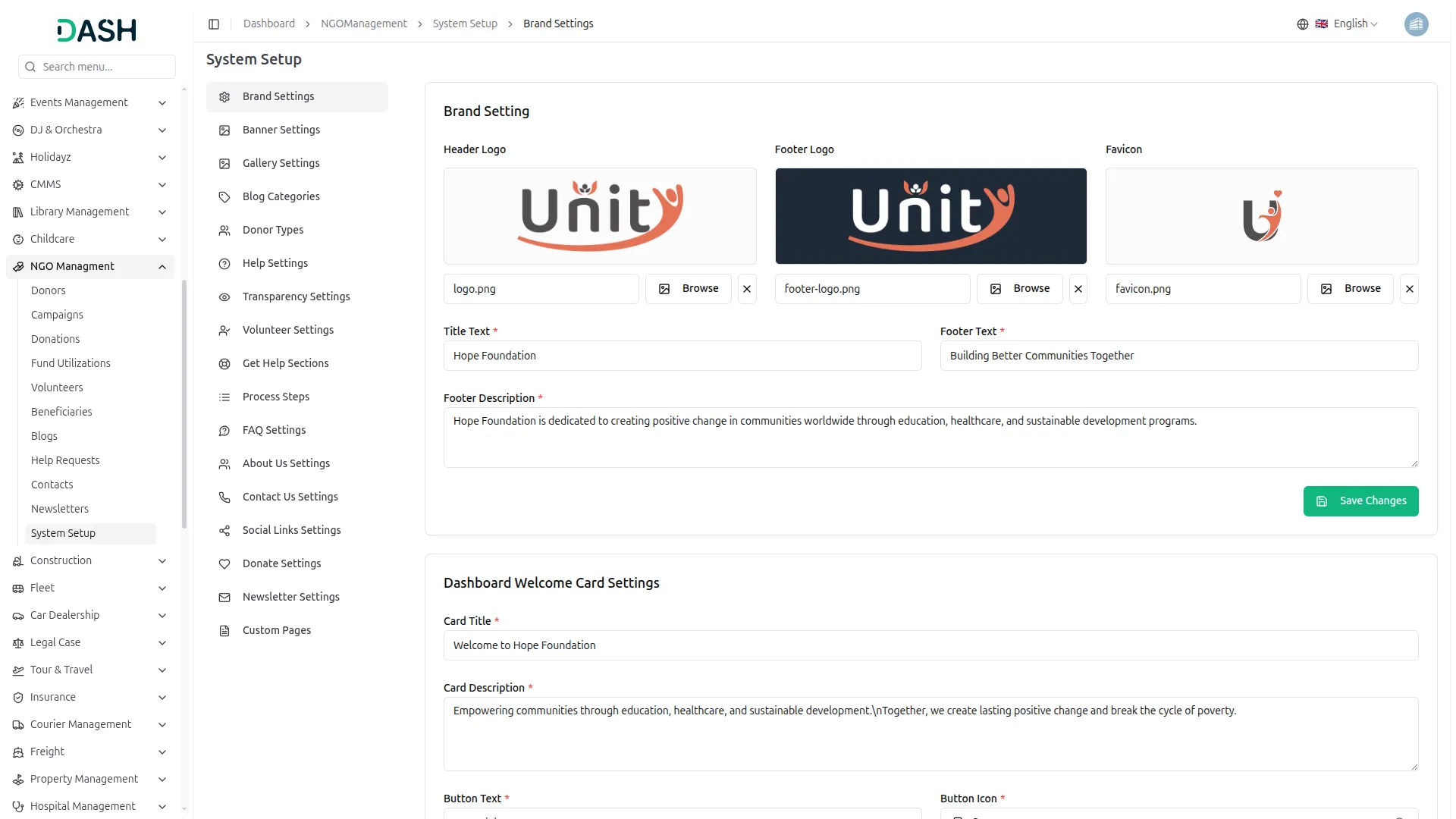
- In the Brand Setting section, you will find fields for Header Logo, Footer Logo, Favicon, Title Text, Footer Text, and Footer Description. Upload the images and enter the details, then click Save Changes.
- Once saved, your Header Logo will appear in the top navigation bar of your website, the Footer Logo and Footer Description will display at the bottom of every page, the Favicon will show as the small icon in the browser tab, and the Title Text and Footer Text will appear in their respective areas, giving your website a consistent and professional branded look throughout.
Banner Setting
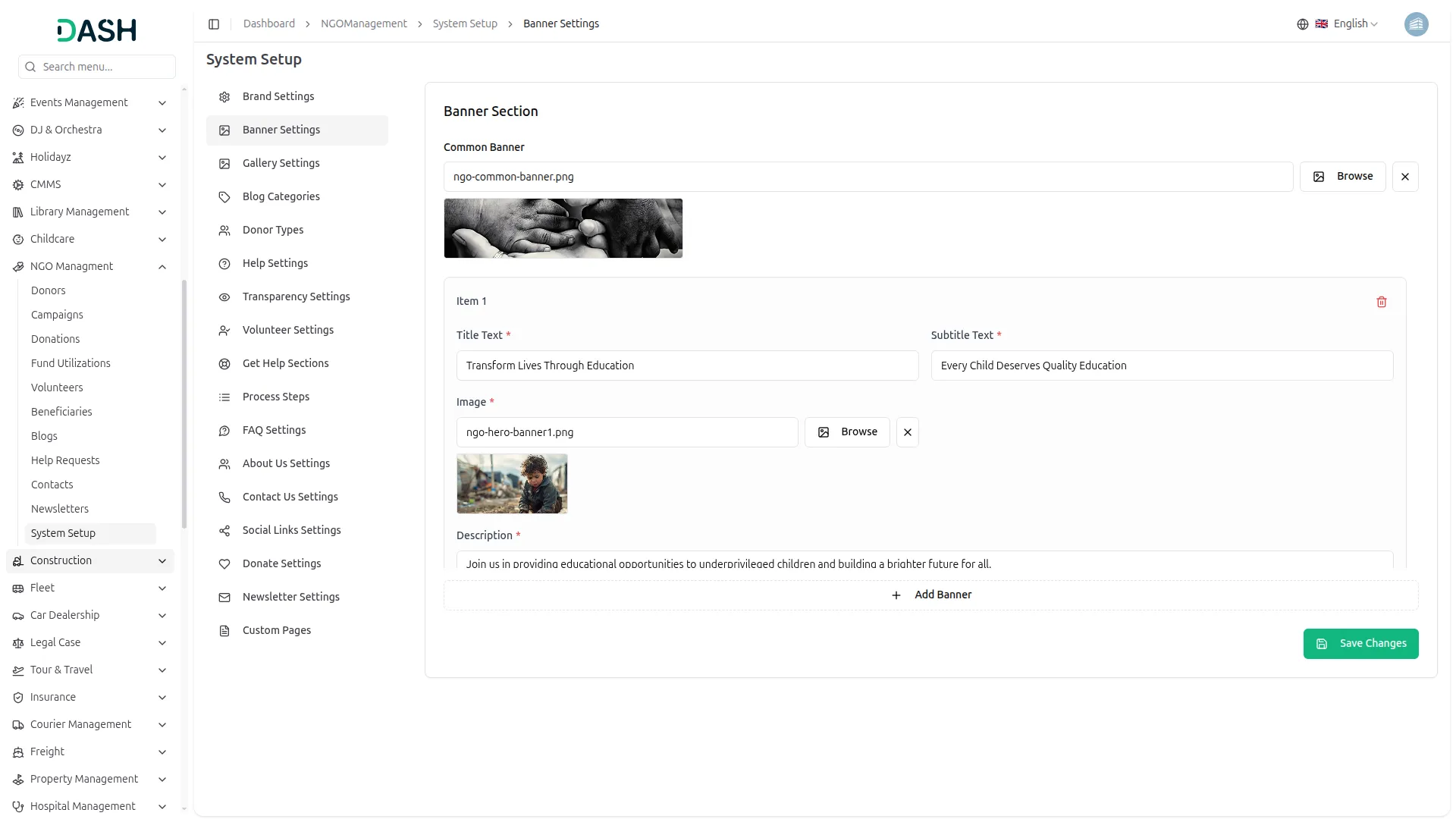
- In the Banner Setting section, you will find fields for Common Banner Image, Title Text, Subtitle Text, Banner Image, and Description. You can also add multiple banners using the Add Banner button. Enter all details and click Save Changes.
- Once saved, the Common Banner Image will appear as the background on all inner pages of your website. Each banner’s Title, Subtitle, Image, and Description will display in the homepage hero/slider section, rotating to show visitors an engaging first impression of your mission and campaigns.
Gallery Setting
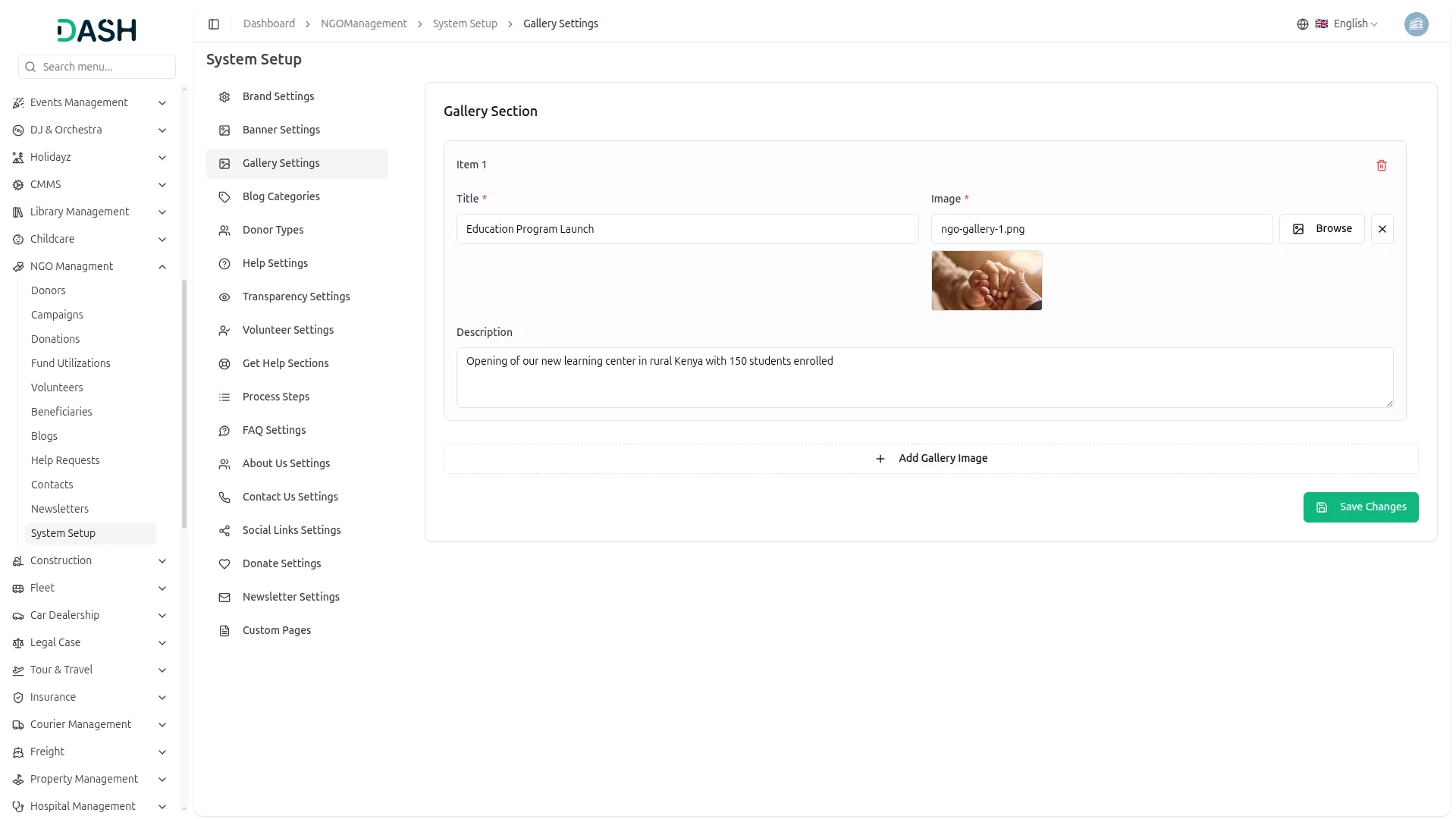
- In the Gallery Setting section, you will find fields for Title, Image, and Description for each gallery item. You can add multiple images using the Add Gallery Image button. Enter the details and click Save Changes.
- Once saved, all the uploaded gallery images will automatically appear in the “Stories in Pictures” section on your homepage, giving visitors a visual glimpse of your NGO’s work and community impact on the ground.
Blog Categories
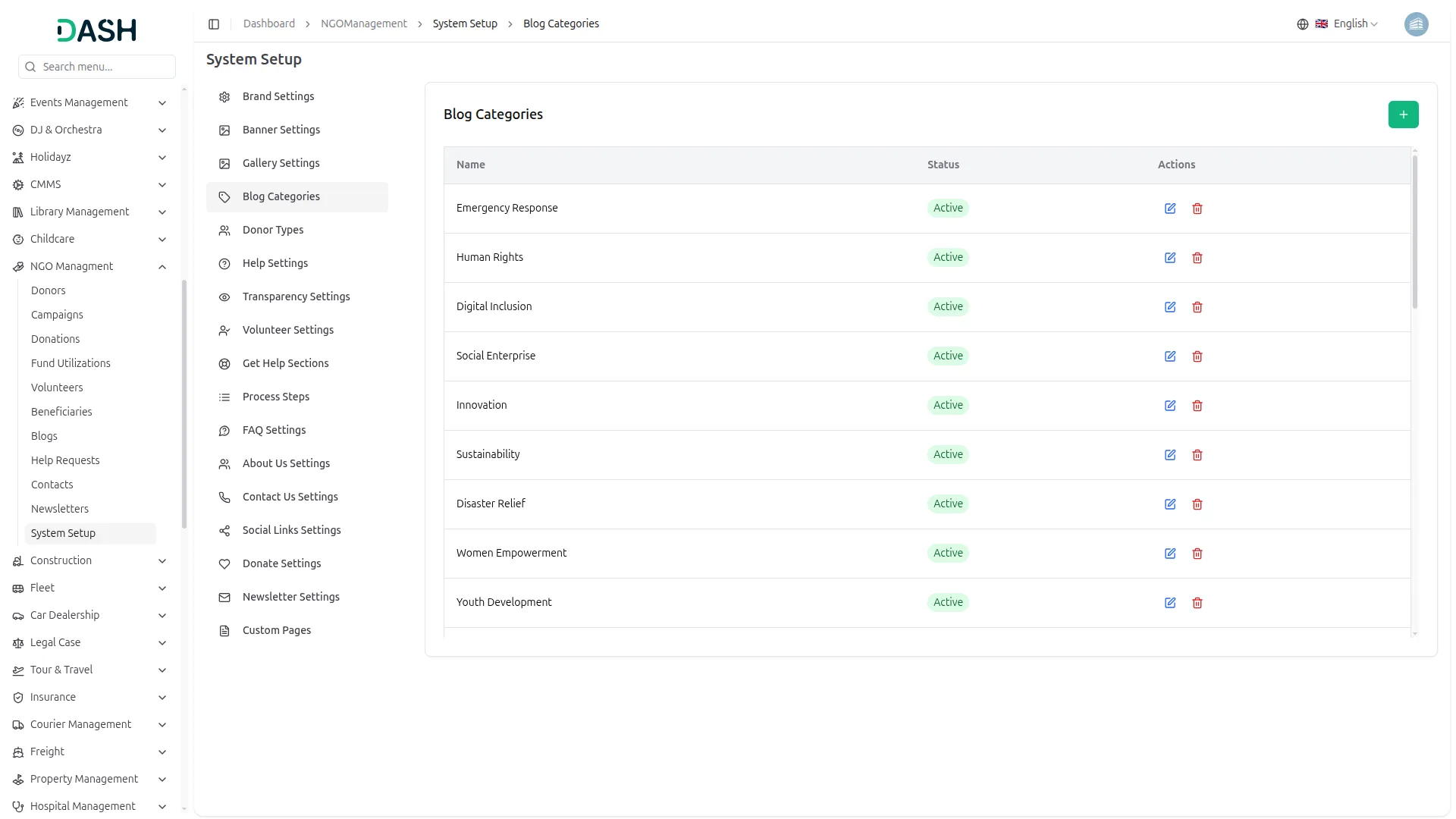
- To add a new category by clicking the “Create” button, edit any existing one using the edit icon, or remove it using the delete icon. When creating a new category, simply enter the Category Name, toggle it to Active, and click Create.
- In the Blog Categories section, you will find a list of all existing categories with their Name and Status.
- Once saved, these categories will appear as filter tags on your Impact Stories page, helping visitors easily browse and find stories by topic such as Women Empowerment, Youth Development, Emergency Response, and more.
Donor Types
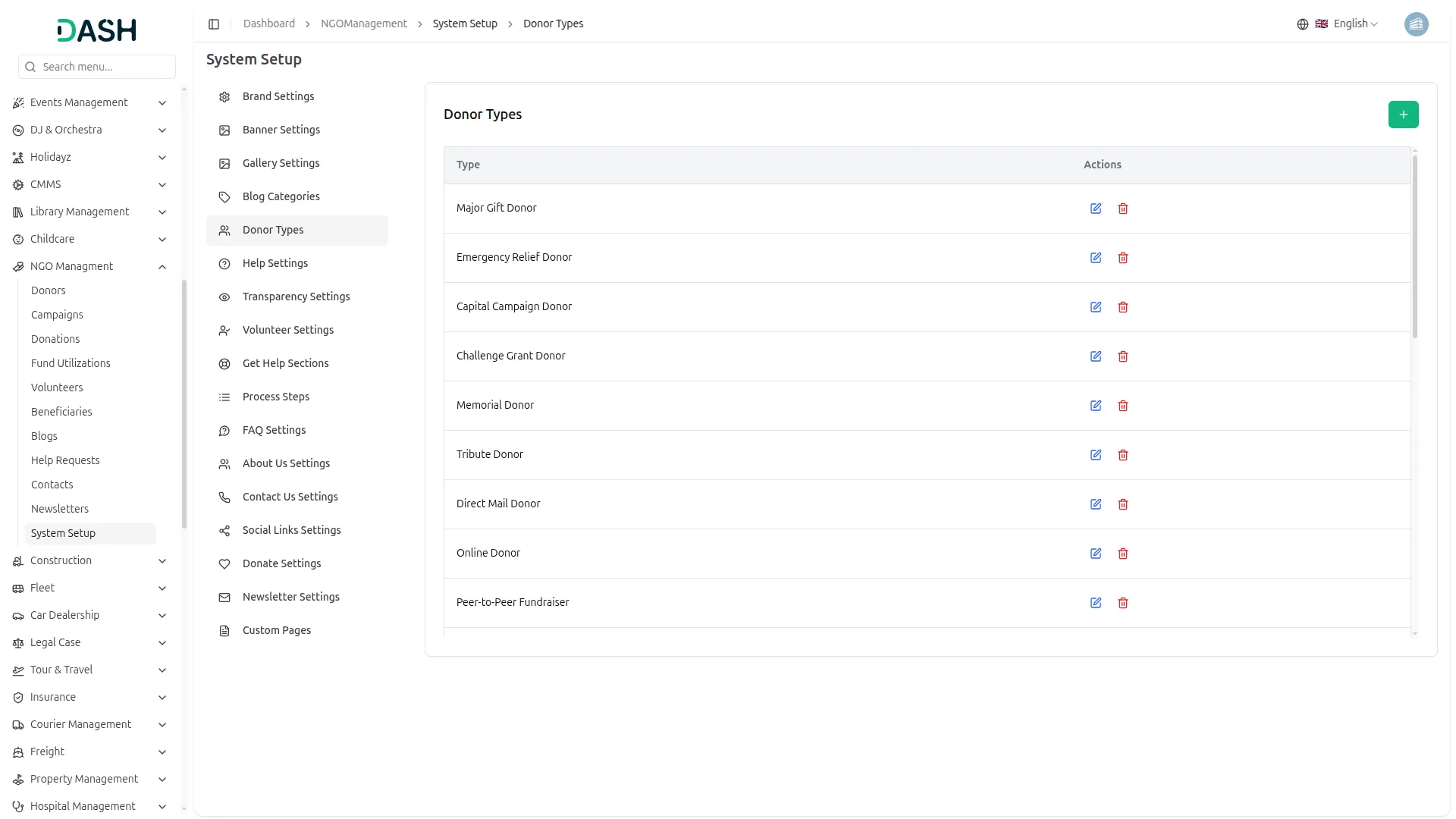
- In the Donor Types section, you will find a list of all donor classification types and actions. You can add a new type using the “Create” button, edit existing ones, or delete them as needed. When creating a new Donor Type, simply enter the Type name and click Create.
- Once saved, these donor types are used internally to classify and manage donors in the system, helping your team better track, segment, and report on your donor community.
Help Settings
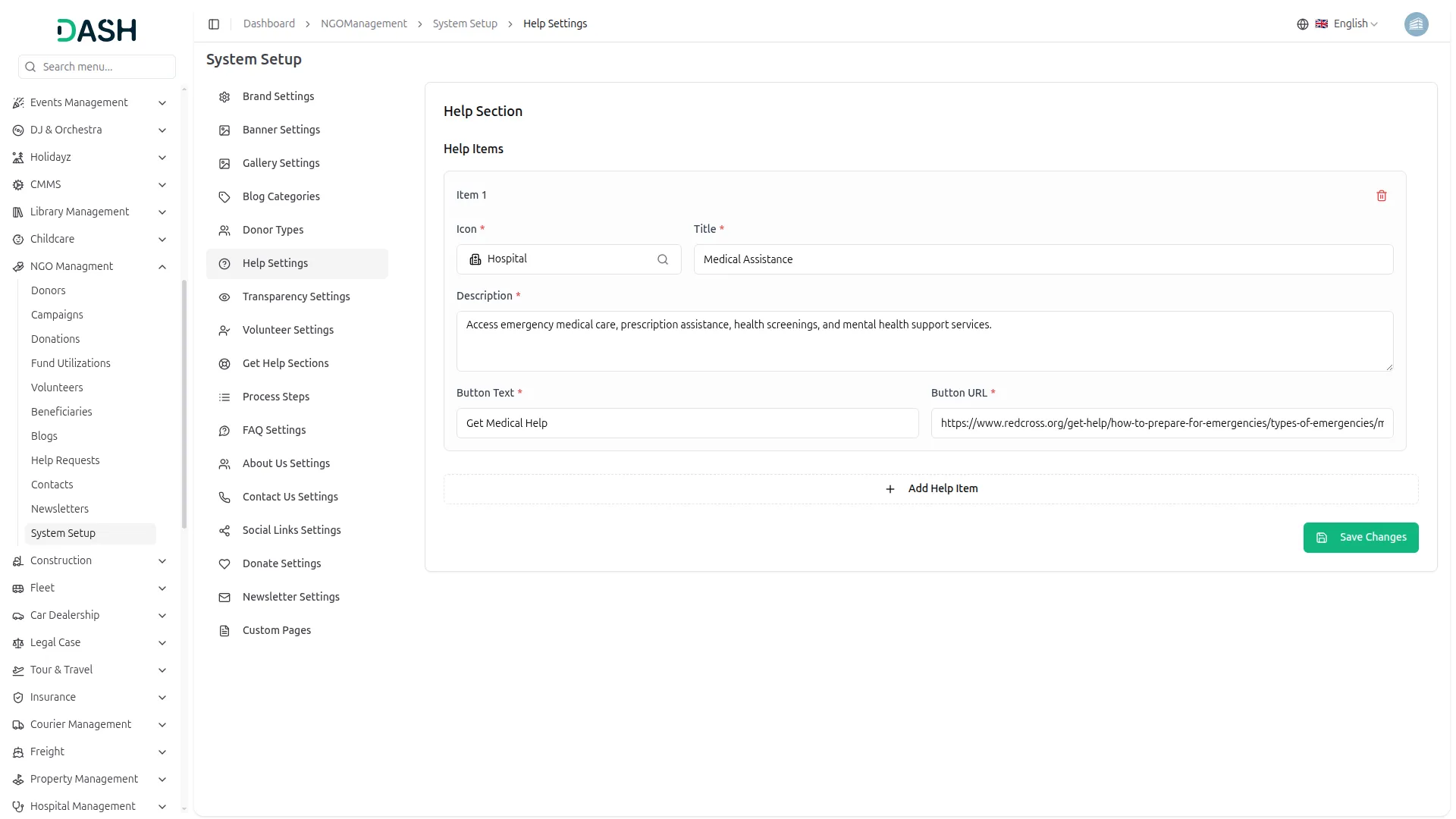
- In the Help Settings section, you will find fields for Icon, Title, Description, Button Text, and Button URL for each help item. You can add multiple help items using the Add Help Item button. Enter the details and click Save Changes.
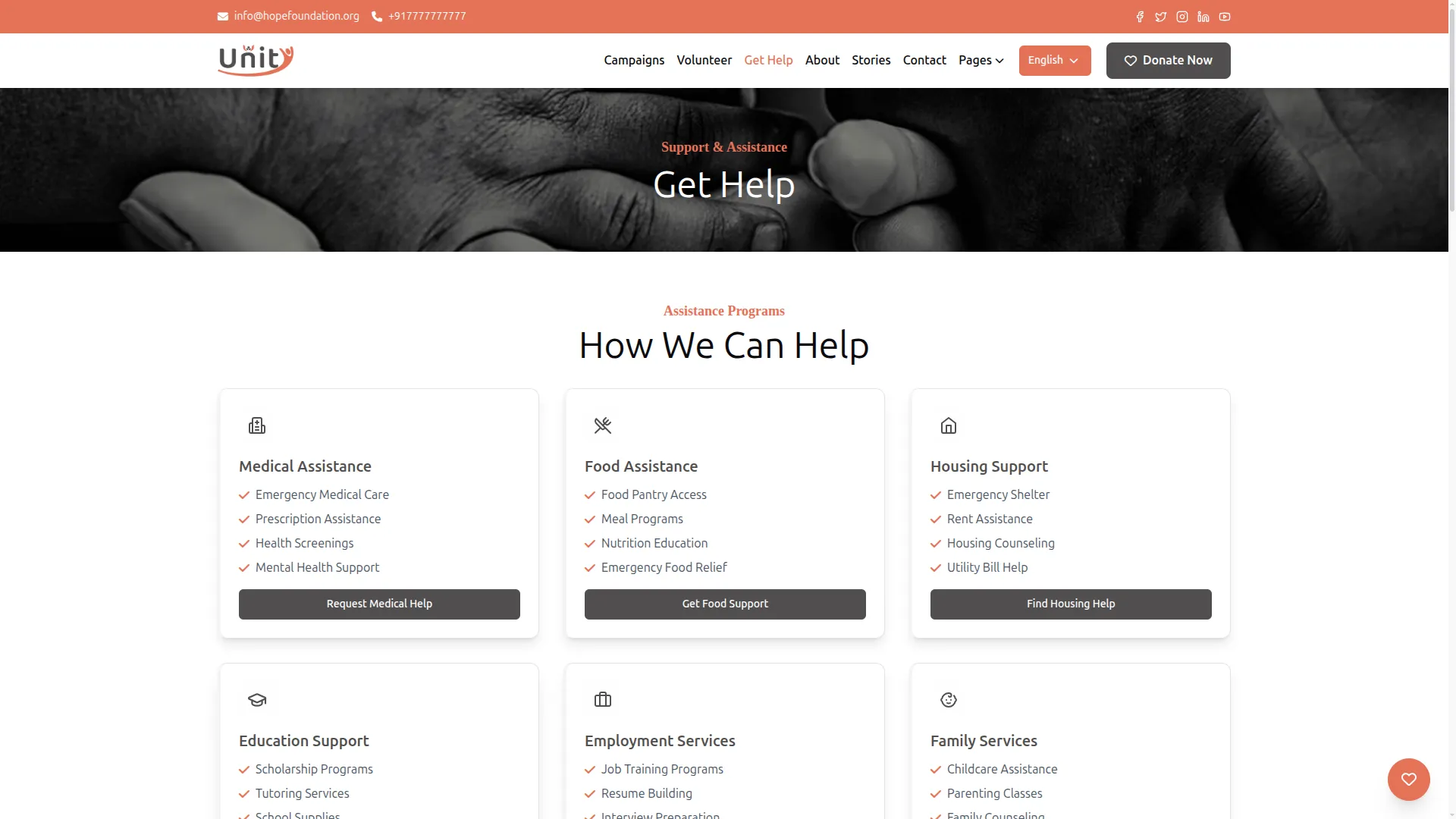
- Once saved, each help item will appear as a card in the “How We Can Help” section on the Get Help page of your website. Visitors will see the icon, title, description, and a clickable button that directs them to the relevant assistance resource or external support link.
Transparency Settings
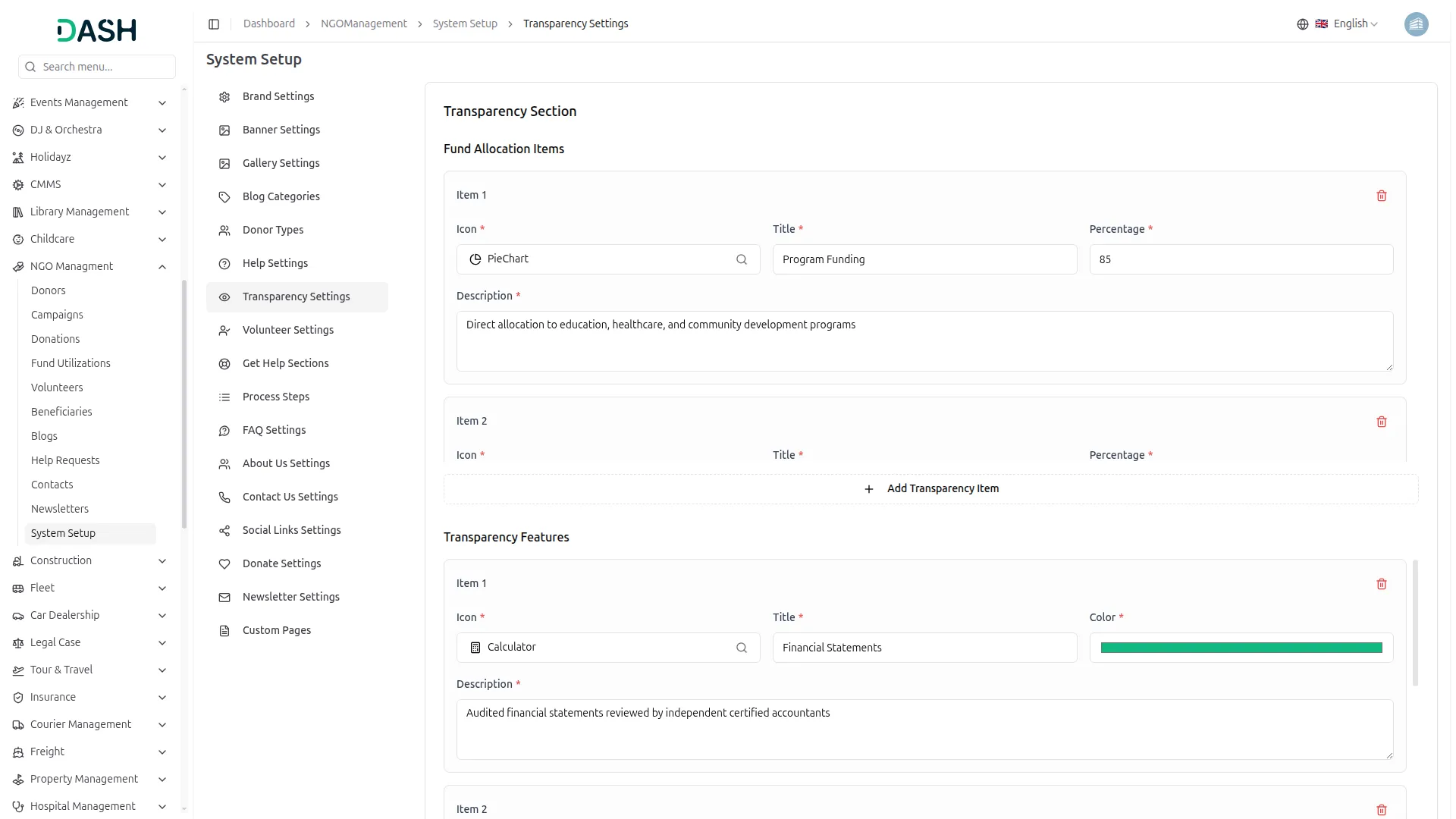
- In the Transparency Settings section, you will find two parts. The first is Fund Allocation Items, where you can add an Icon, Title, Percentage, and Description for each fund category. The second is Transparency Features, where you can add an Icon, Title, Color, and Description for each accountability feature. Use the Add buttons to include more items and click Save Changes when done.
- Once saved, the Fund Allocation Items will appear as a progress bar breakdown in the “Where Your Money Goes” section on your homepage, showing donors exactly how their contributions are being used. The Transparency Features will display as highlighted feature cards, building trust with your supporters by showcasing your financial accountability and reporting standards.
Volunteer Settings
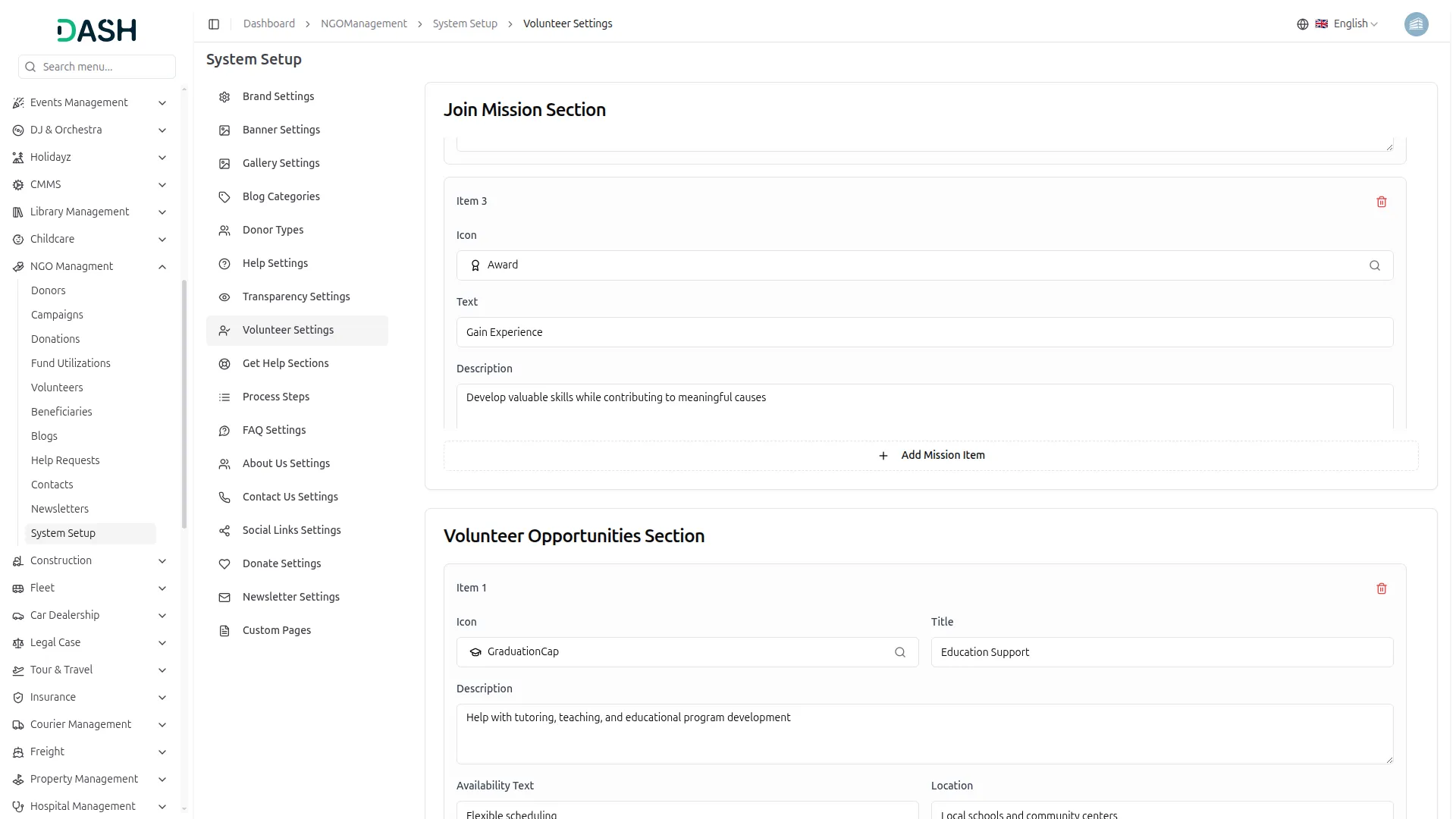
- In the Volunteer Settings section, you will find three parts. The first is the Join Mission Section, where you can add an Icon, Text, and Description for each reason to volunteer (e.g., Make a Difference, Build Community, Gain Experience).
- The second is the Volunteer Opportunities Section, where you can add Icon, Title, Description, Availability, Location, and Button Text for each opportunity.
- The third is the Volunteer Process Section, where you can add Step Title and Step Description for each step in the process. Click Save Settings when done.
- Once saved, the Join Mission items will appear as benefit cards at the top of the Volunteer page. The Volunteer Opportunities will display as individual cards showing available roles with location and timing details. The Process Steps will show as a numbered step-by-step guide, helping potential volunteers clearly understand how to get involved from start to finish.
Get Help Sections
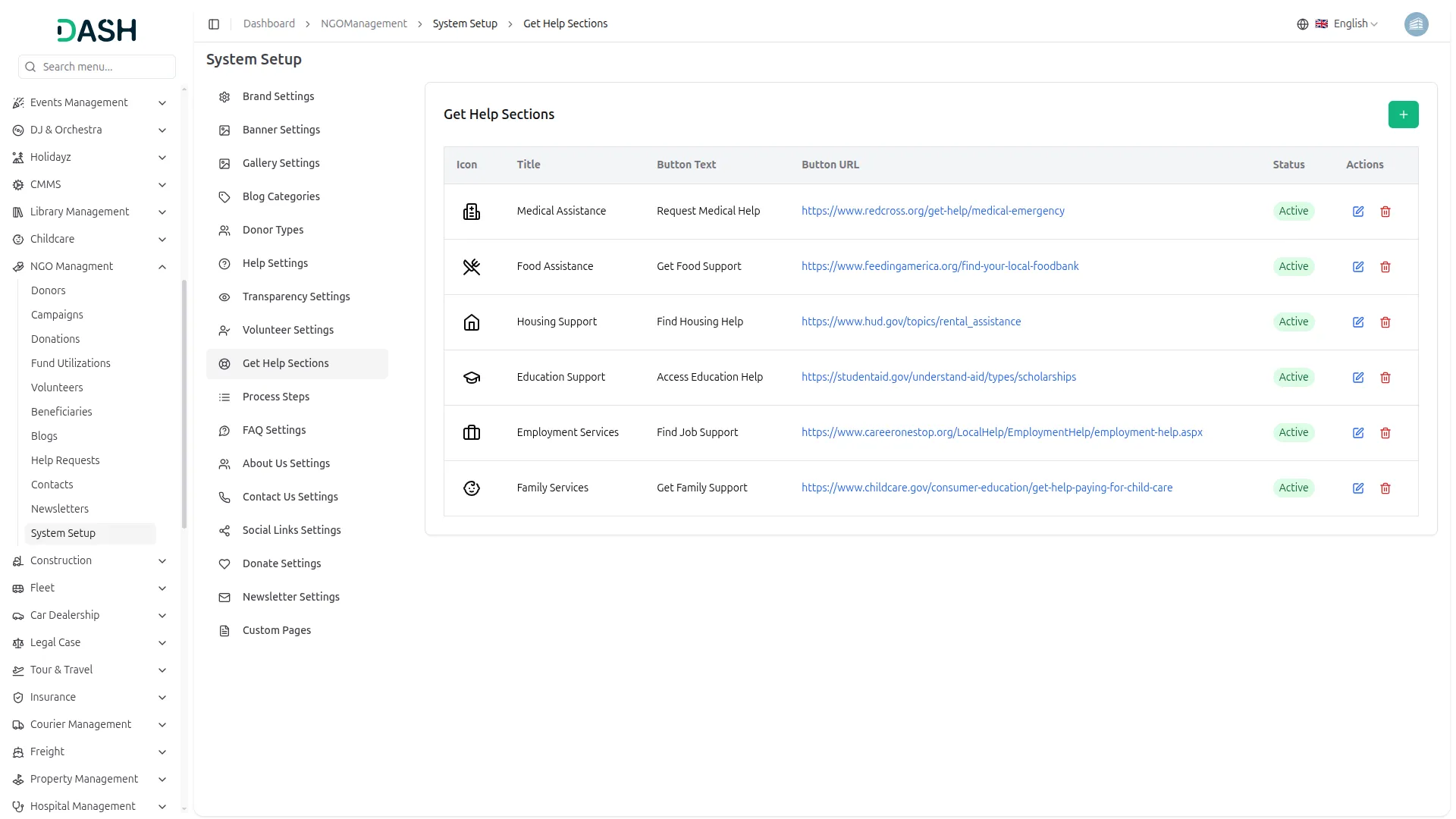
- To add a new section by clicking the “Create” button, select the Icon from the respective field. You can also search there, enter the Title, Button Text, Button URL, and add Key Titles (checklist points) using the Add Key button. Toggle it to Active and click Create.
- In the list page, you’ll see the table of the column including Icon, Title, Button Text, Button URL, and Status.
- Once saved, each section will appear as a help card on the Get Help page of your website, showing visitors exactly what type of support is available and directing them to the right resource with a single click.
Process Steps
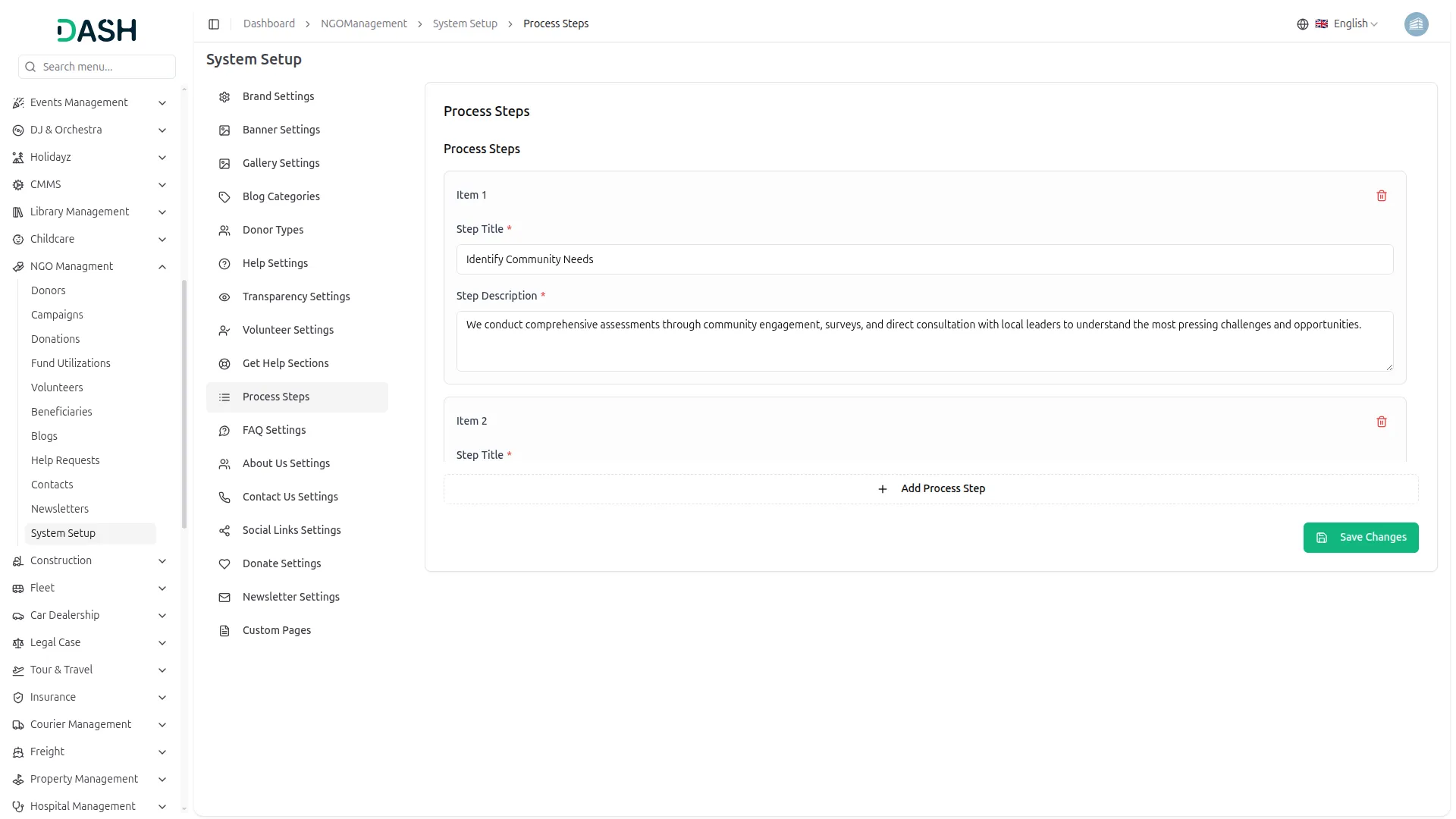
- In the Process Steps section, you will find fields for Step Title and Step Description for each step. You can add more steps using the Add Process Step button. Enter all details and click Save Changes.
- Once saved, these steps will appear as a numbered step-by-step guide in the “How Our Process Works” section on the Get Help page of your website, helping visitors clearly understand how your NGO identifies needs, designs solutions, and delivers impact in the community.
FAQ Settings
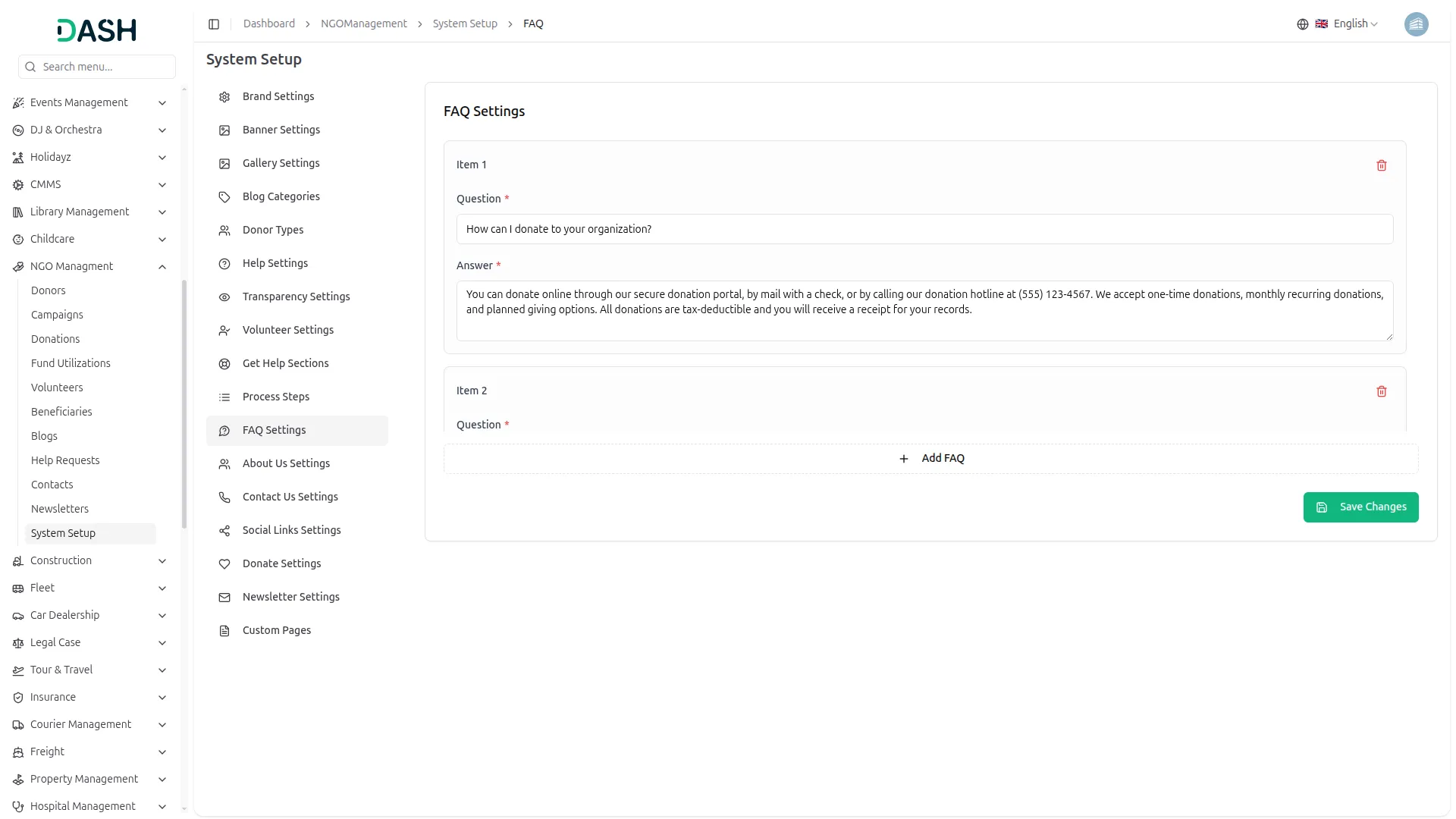
- In the FAQ Settings section, you will find fields for Question and Answer for each FAQ item. You can add more questions using the Add FAQ button. Enter all details and click Save Changes.
- Once saved, all the questions and answers will appear in the “Frequently Asked Questions” section on the Get Help page of your website. Each question can be clicked to expand and reveal the answer, making it easy for visitors to quickly find the information they need.
About Us Settings
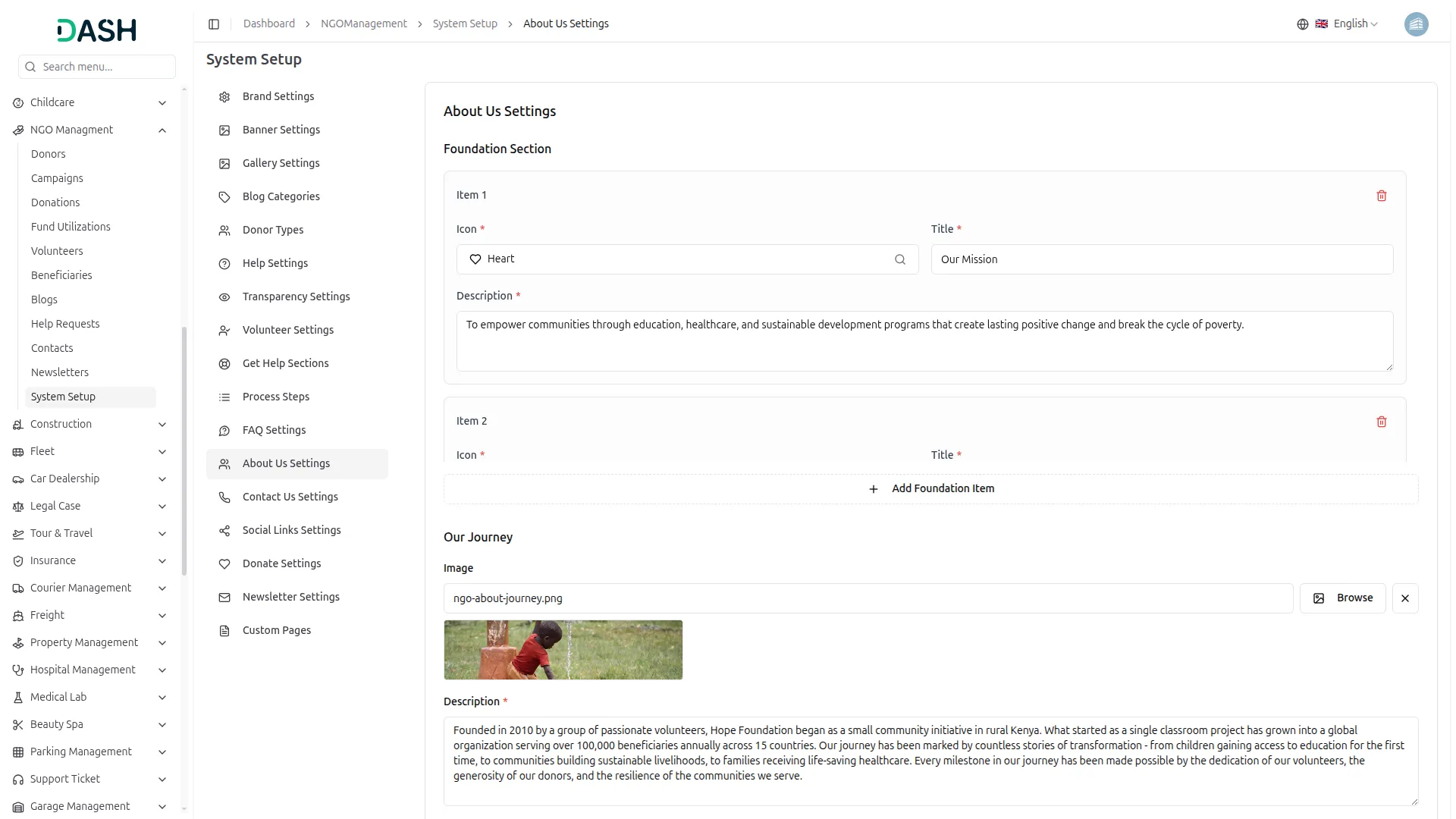
- In the About Us Settings section, you will find four parts. The first is the Foundation Section, where you can add Icon, Title, and Description for each foundation pillar, such as Our Mission, Our Vision, and Our Values.
- The second is Our Journey, where you can upload an Image and write the Description of your organization’s story.
- The third is Our Team, where you can add each team member’s Name, Designation, Image, and Description.
- The fourth is the Achievements Section, where you can add Icon, Title, Year, and Description for each milestone. Click Save Settings when done.
- Once saved, the Foundation items will appear as cards on the About page. Your Journey content will display as a two-column story section with text and a photo. The Team members will appear as profile cards in a slider. The Achievements will display as milestone cards with year highlights — together giving visitors a complete and compelling picture of your organization’s identity, people, and impact.
Contact Us Settings
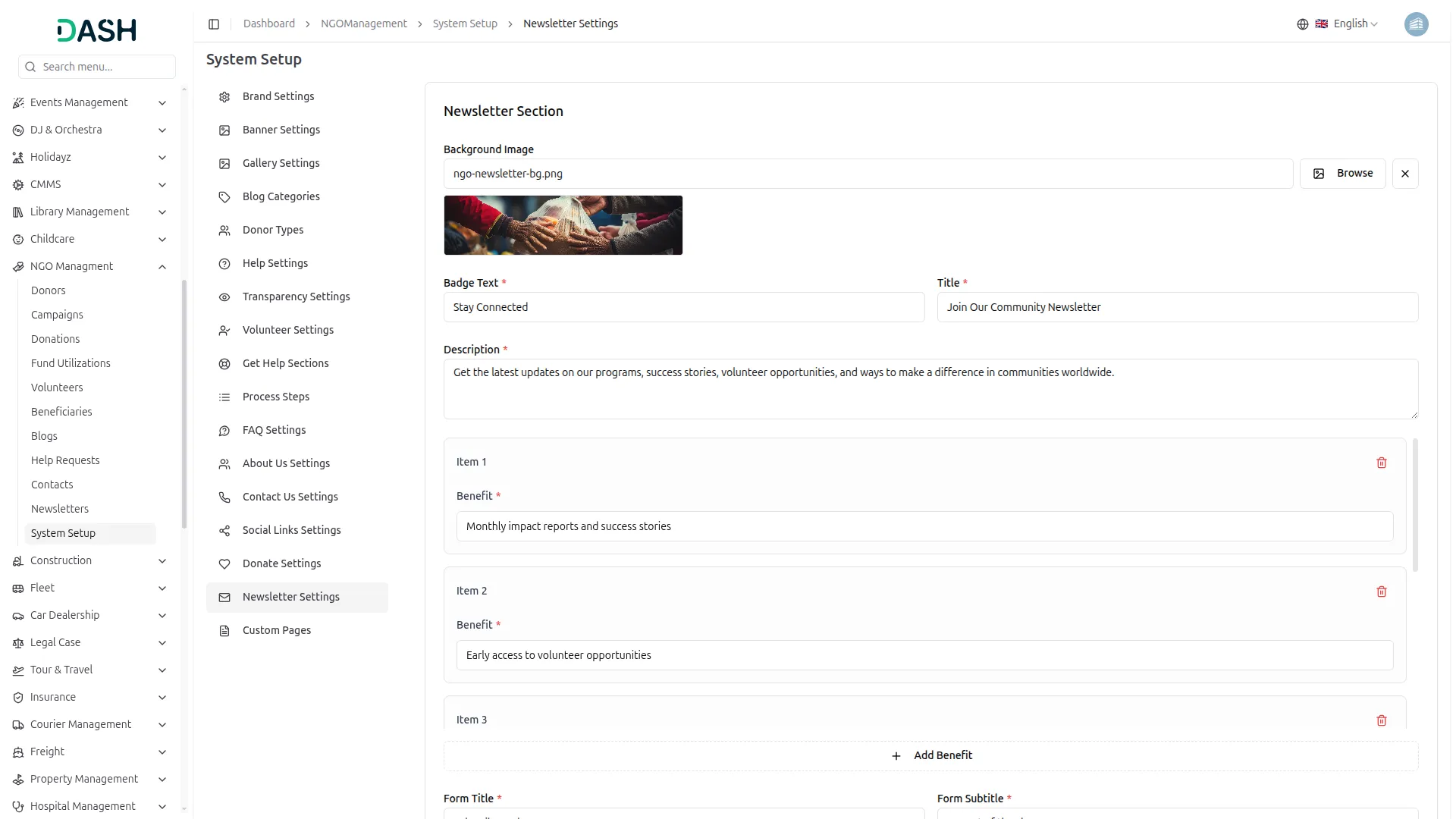
- In the Contact Us Settings section, you will find fields for the Page Title, Phone Information (Title, Icon, Phone Number, Description), Email Information (Title, Icon, Email Address, Description), Address Information (Street Address, City, Country), and a Map Iframe field for embedding your Google Map. Enter all details and click Save Changes.
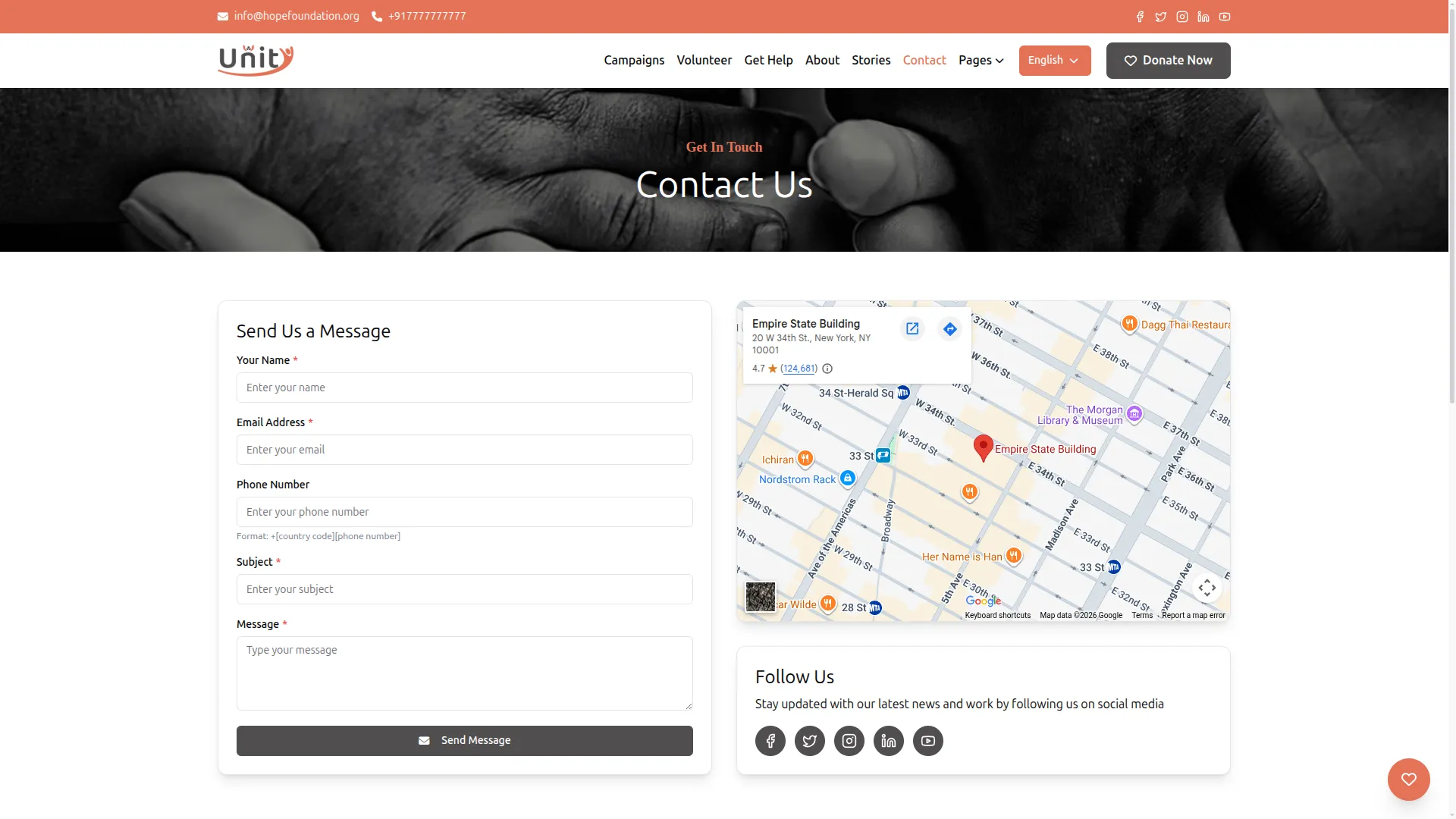
- Once saved, the phone, email, and address details will appear as information cards on the Contact Us page. The Google Map will be embedded and displayed alongside the contact form, making it easy for visitors to find your office location and reach out through their preferred channel.
Social Links Settings
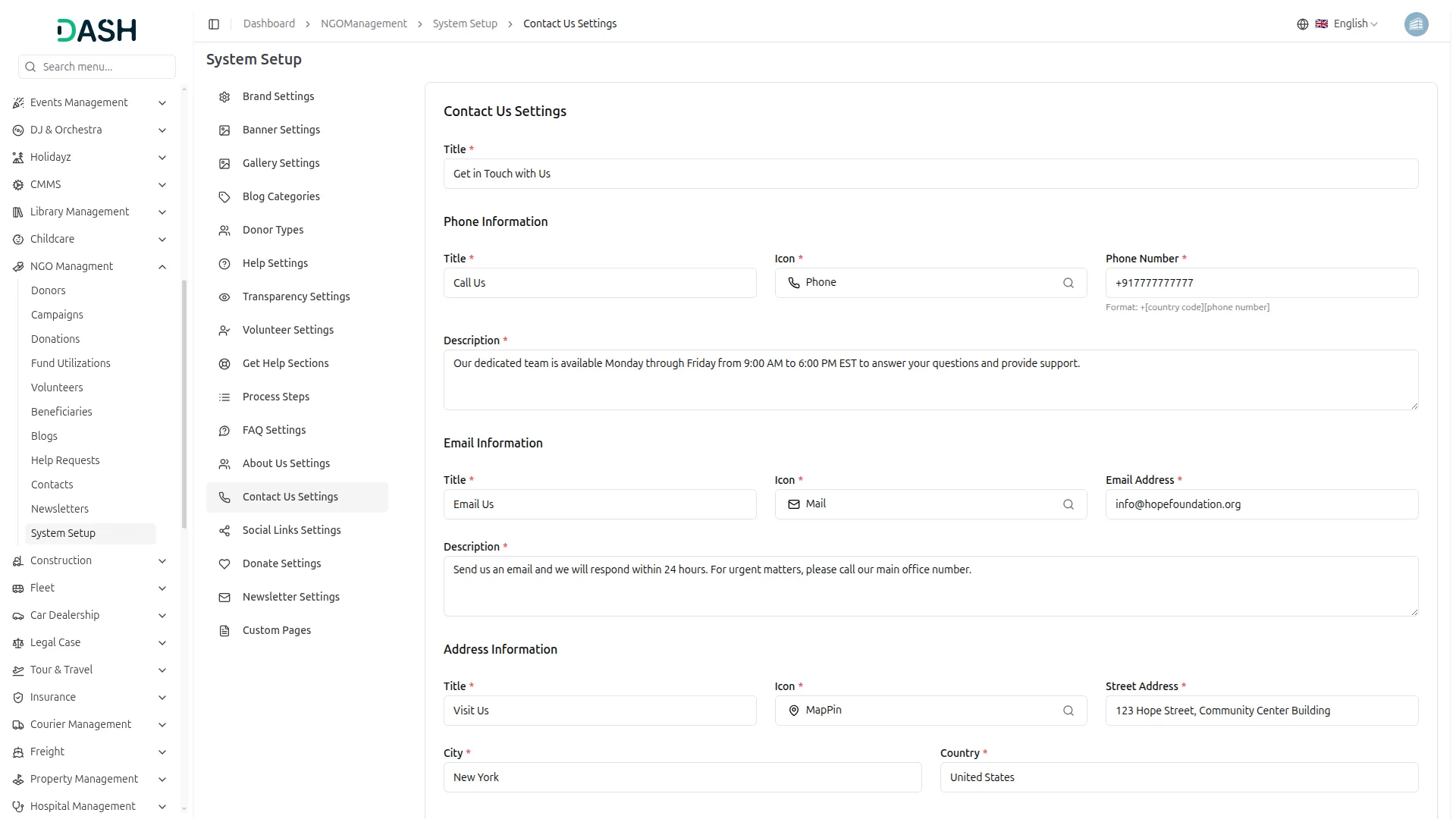
- In the Social Links Settings section, you will find fields for Social Media Name, Social Media Icon, and Social Media Link for each platform. You can add more platforms using the Add Social Link button. Enter all details and click Save Changes.
- Once saved, all your social media links will appear as clickable icons in the header, footer, and Contact Us page of your website, allowing visitors to easily follow and stay connected with your NGO across all platforms like Facebook, Twitter, Instagram, LinkedIn, and YouTube.
Donate Settings
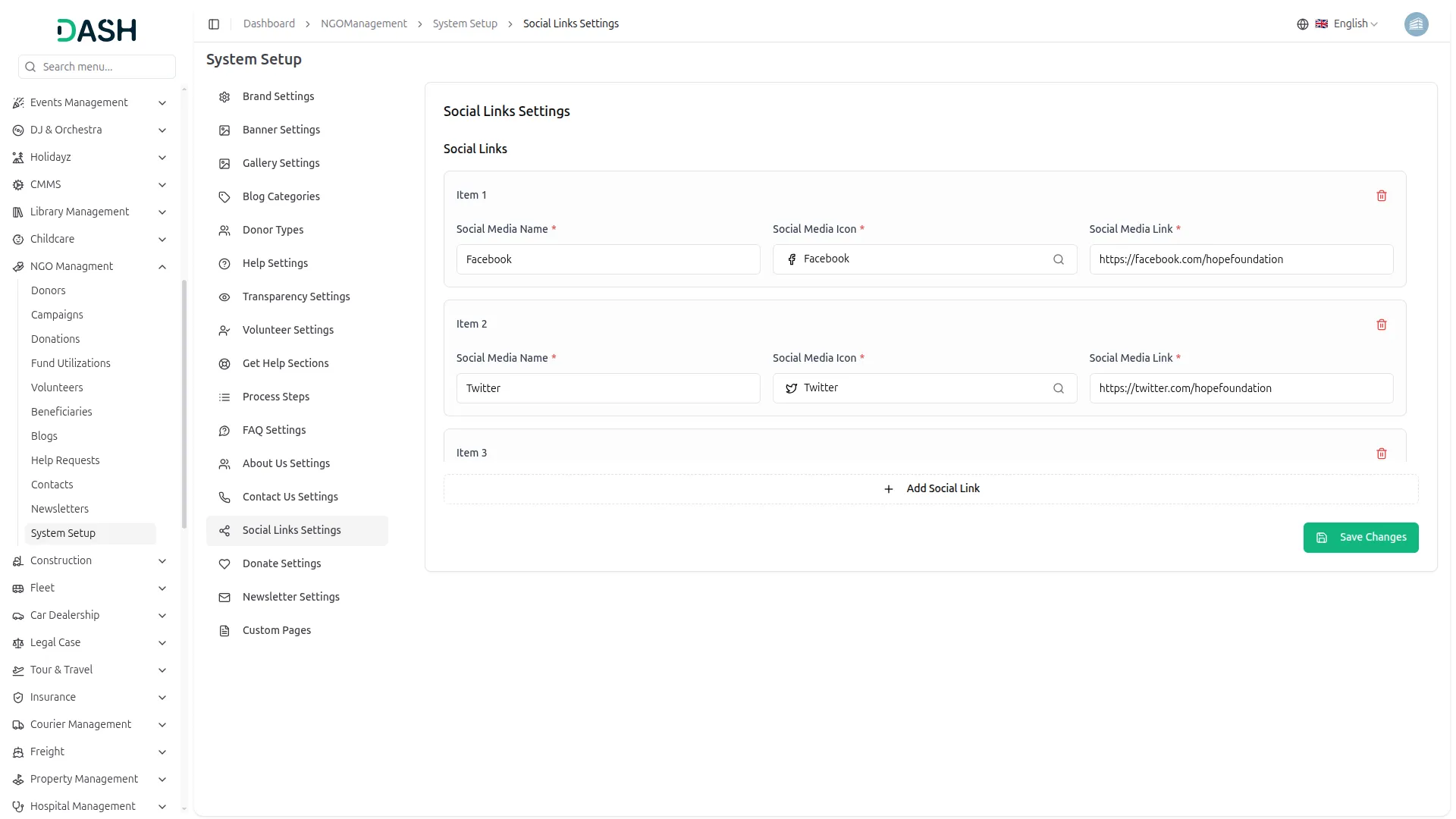
- In the Donate Settings section, you will find fields for Icon, Title, and Description for each donation cause item. You can add more items using the Add Donate Item button. Enter all details and click Save Changes.
- Once saved, these items will appear as cause cards in the “Why Donate with Us” section on the Make a Donation page of your website, clearly explaining to potential donors exactly where their money goes and what impact each donation category creates.
Newsletter Settings
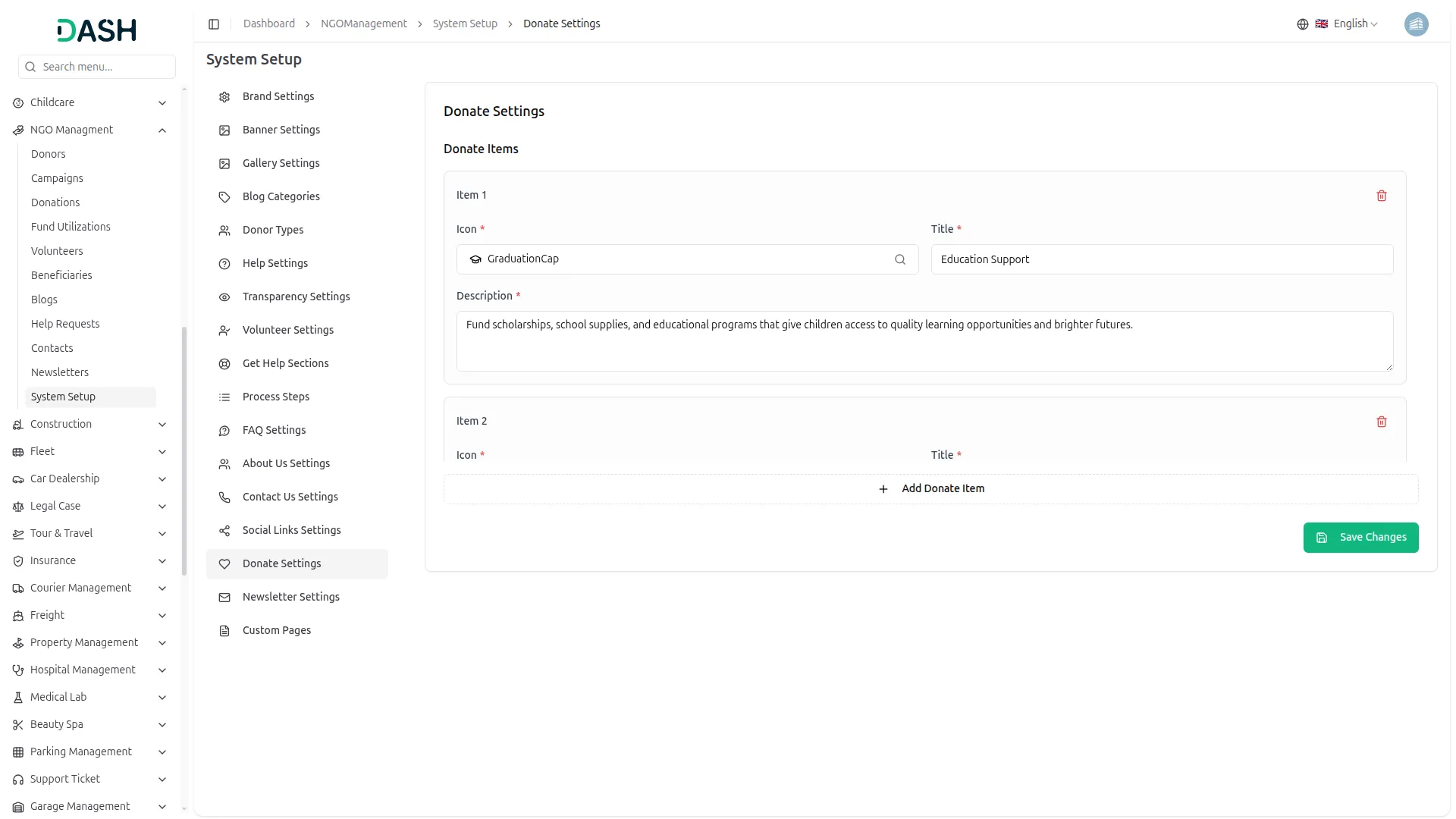
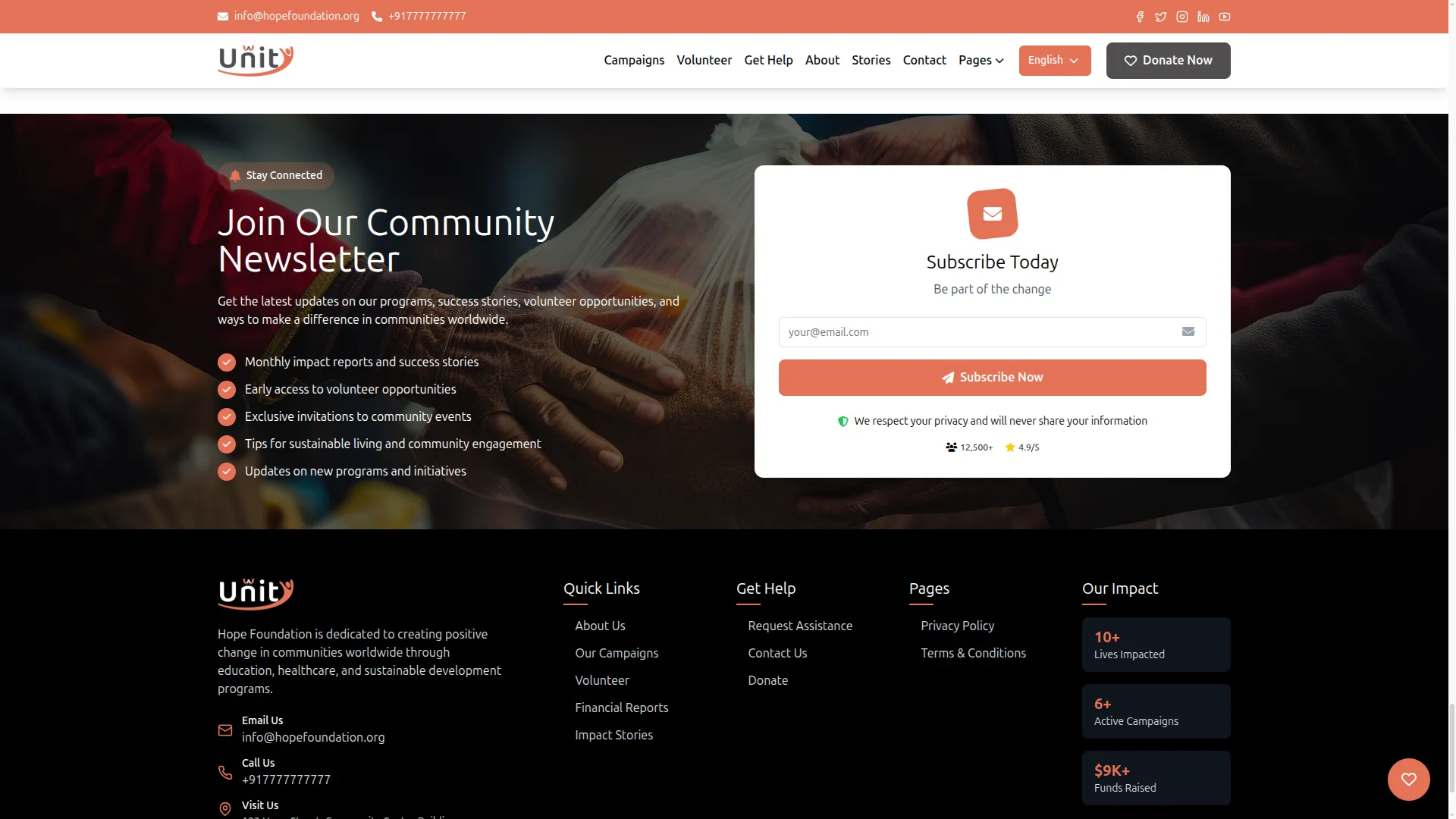
- In the Newsletter Settings section, you will find fields for Background Image, Badge Text, Title, Description, Benefit Items (what subscribers receive), Form Title, Form Subtitle, Button Text, Subscribers Count, Rating, and Security Text. You can add more benefit points using the Add Benefit button. Enter all details and click Save Changes.
- Once saved, the entire newsletter signup section will appear at the bottom of your homepage, complete with the background image, title, benefit list, subscriber count, and a subscription form, encouraging visitors to join your community and stay updated with your mission and programs.
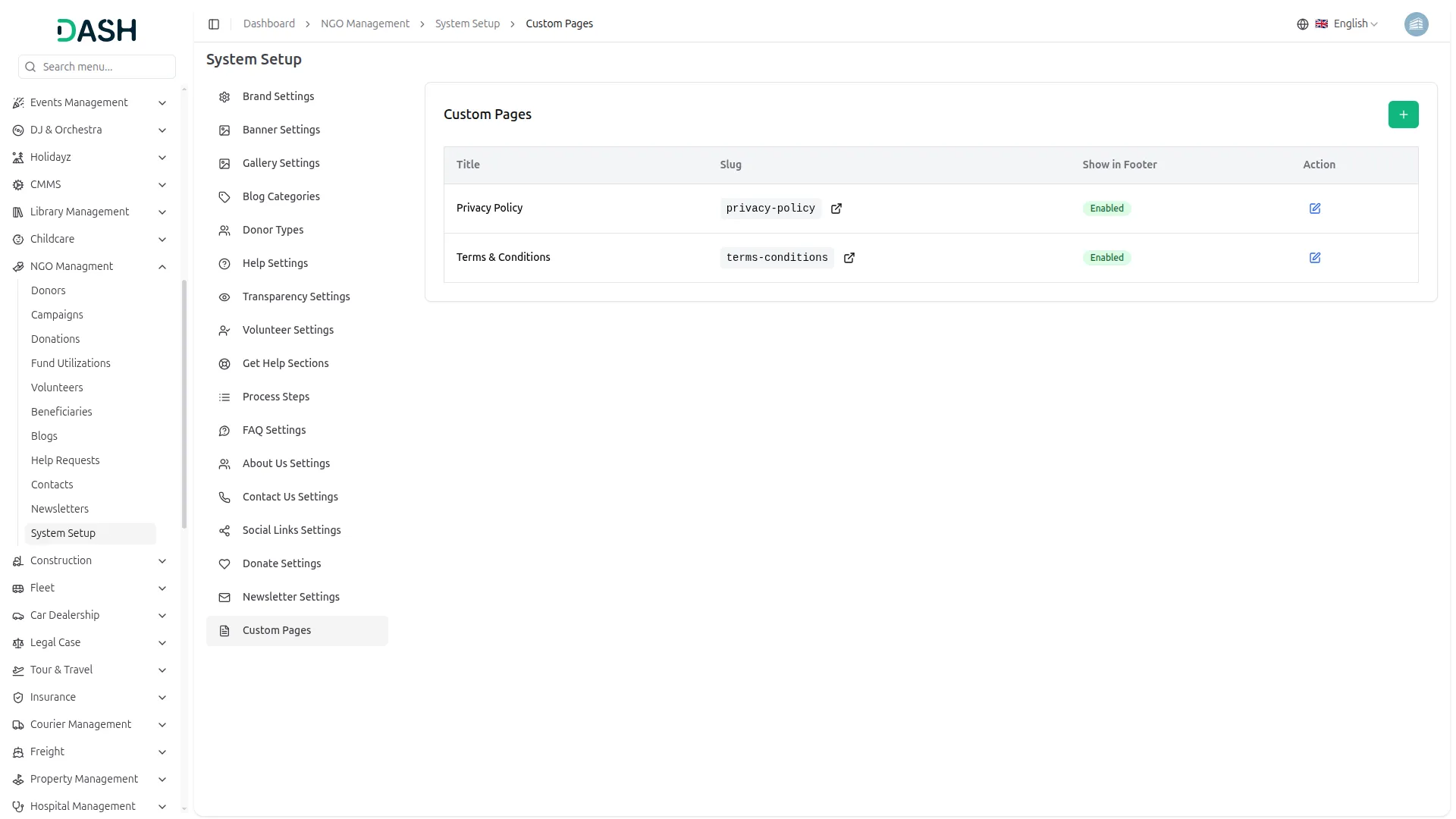
Custom Pages
- To add a brand new custom page by clicking the “Create” button. Enter the Page Title, URL Slug (a short web-friendly name like “privacy-policy”), Description, and write the full page content using the built-in text editor. Click Create when done.
- In the Custom Pages section, you will find a list of existing pages such as Privacy Policy and Terms & Conditions, along with their URL Slug and footer visibility status.
- Once saved, the page will be live on your website at its own URL and, if the footer is enabled, will appear as a link in the footer navigation, making important policy and information pages easily accessible to all visitors.
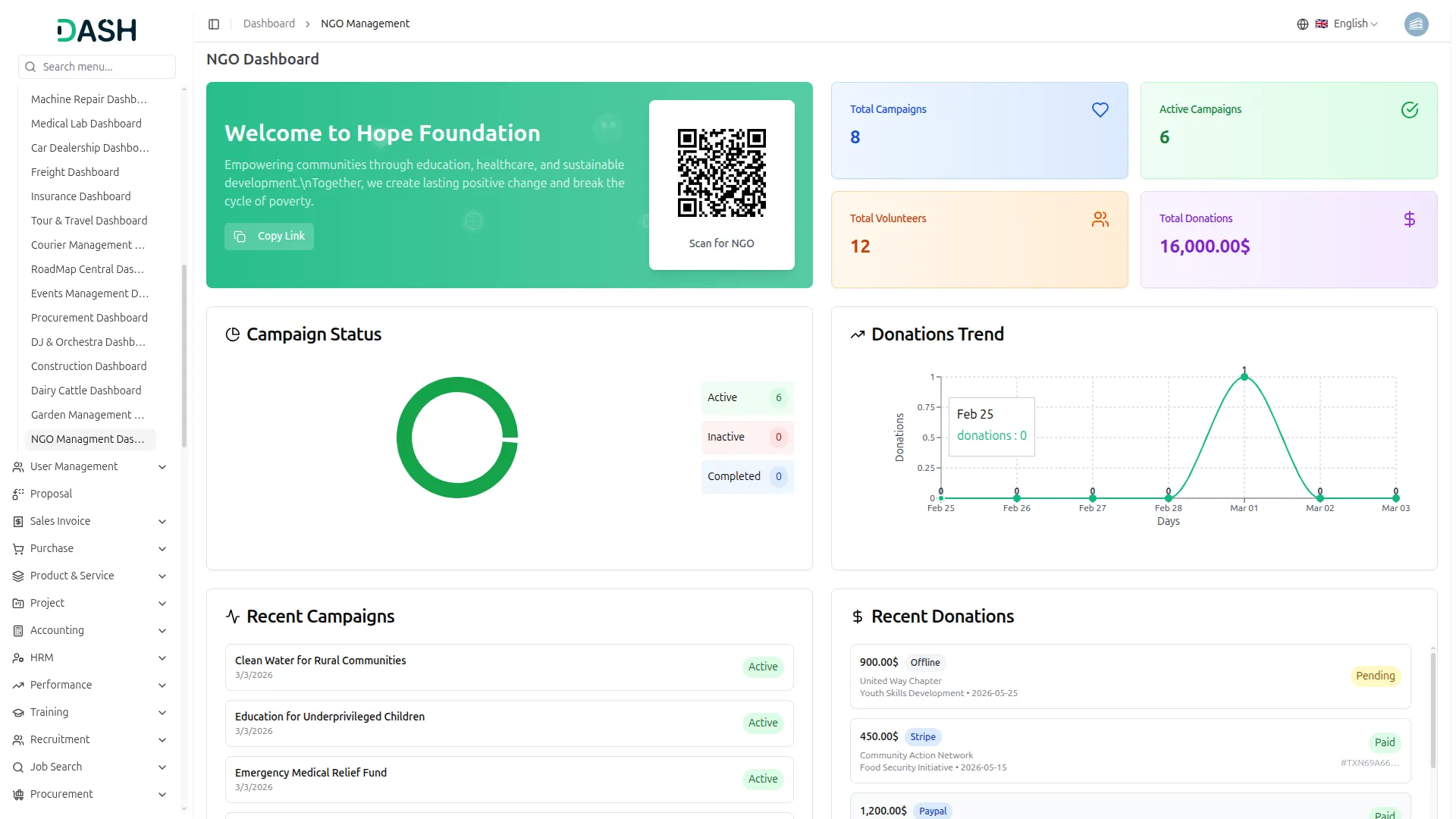
NGO Dashboard
- The dashboard provides a complete overview of your NGO management system’s performance through various visual elements and quick access features.
- At the top, you’ll find a QR code that visitors can scan to directly access your NGO’s website, along with a “Copy Link” button to easily share your NGO page link with donors, volunteers, and supporters.
- The dashboard displays important summary cards showing Total Campaigns, Active Campaigns, Total Volunteers, and Total Donations, giving you instant insights into your NGO’s overall activity and fundraising progress at a glance.
- The dashboard includes a Campaign Status chart that displays a visual breakdown of your campaigns by status (Active, Inactive, and Completed), allowing you to quickly understand how many campaigns are currently running and which ones have been closed or finished.
- The dashboard also includes a Donations Trend chart that displays the last 7 days of donation data as a line graph, allowing you to track incoming donation activity over time and identify your most active fundraising days at a glance.
- The Recent Campaigns panel on the left side shows the latest campaign records, with each entry displaying the Campaign Name, Date, and Status (Active or Completed), giving you a quick view of your most recently created and ongoing campaigns.
- The Recent Donations panel on the right side shows the latest donation records, with each entry displaying the Donation Amount, Payment Method (Stripe, PayPal, or Offline), Donor Name, Campaign Name, Date, Payment Status (Paid or Pending), and Transaction ID, giving you a quick view of your most recent incoming contributions.
- The bottom of the dashboard includes four additional summary cards showing Monthly Revenue, Total Fund Utilizations, Utilized Amount, and Paid Utilizations, helping you monitor how funds are being received and spent across all your programs.
- The Quick Actions panel provides shortcut buttons to directly navigate to Manage Campaigns, View Donations, Manage Volunteers, and Manage Beneficiaries, saving you time by giving one-click access to the most frequently used sections of your NGO management system.
- The Donation Statistics panel displays a detailed breakdown, including Total Donations, Paid Donations, Pending Donations, and Total Amount collected, allowing you to track the financial health of your fundraising efforts in one place.
- The Community Impact panel shows key figures, including Total Volunteers, Active Volunteers, Total Beneficiaries, and Published Blogs, giving you a real-time snapshot of the human reach and community engagement your NGO is creating on the ground.
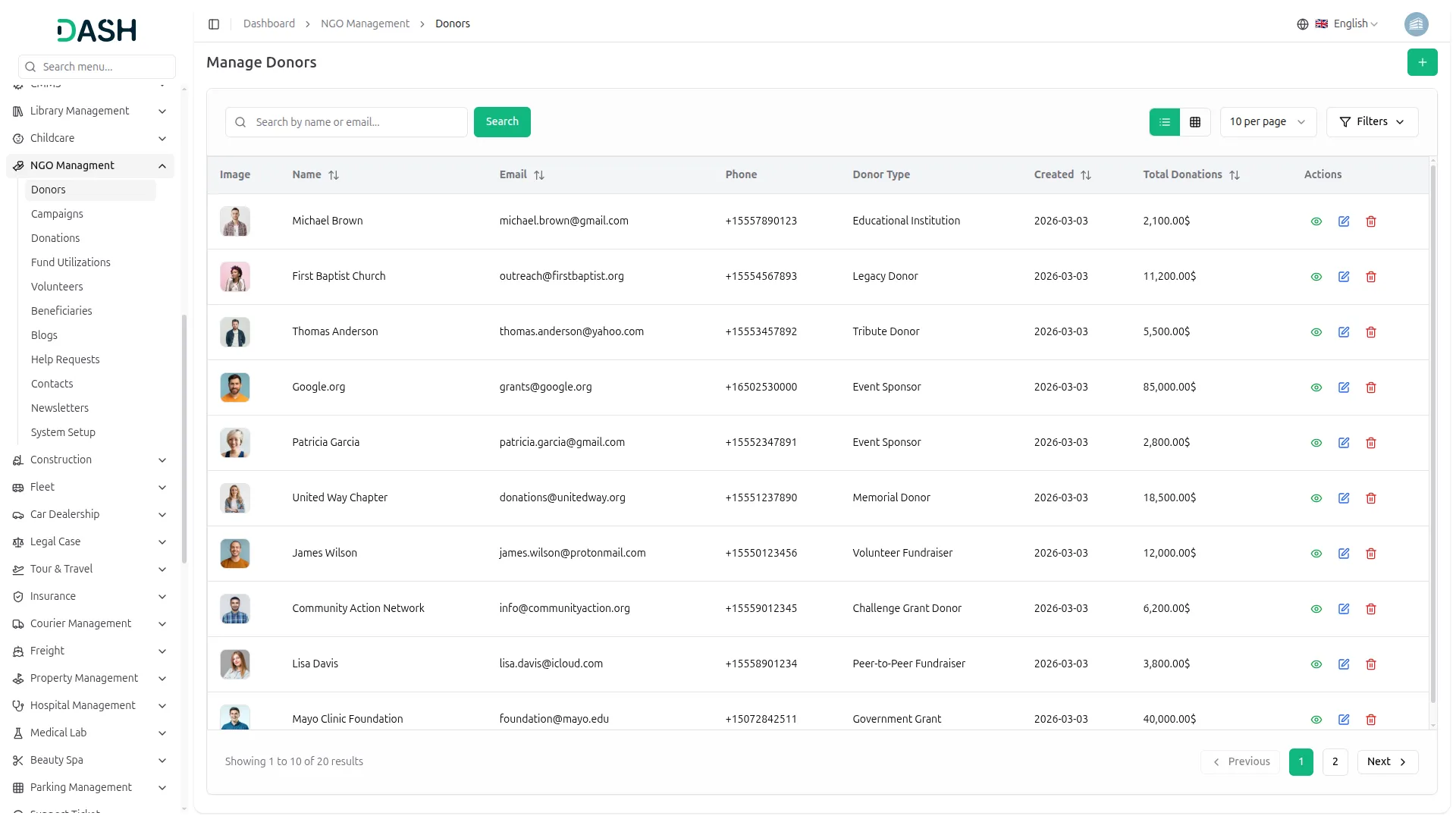
Manage Donors
- To add a new donor, click the “Create” button and fill in the form. Enter the donor’s Name and Email Address, enter the Phone number, and write the full Address. Select the Donor Type from the dropdown (created under System Setup → Donor Types), upload a Donor Image by clicking the browse button, and enter a Description to add any additional notes about the donor. Click “Create” to save the donor.
- The list page displays the table of the donor’s Image, Name, Email, Phone, Donor Type, Created Date, Total Donations, and Action columns. Use the search bar to find the specific record. You can also switch between list view and grid view using the toggle icons.
- The list page displays a table of columns, including the donor’s Image, Name, Email, Phone, Donor Type, Created Date, Total Donations, and Action. You can search for specific donor data using the search bar. The page also allows you to toggle between list view and grid view.
- Click the filter button to apply filtering data, including selecting the donor type from the dropdown (which comes from the System Setup → Donor Types), then click the Apply button to filter the data or the Clear button to reset it.
- In the Action column, you can use Edit to update the donor’s information, View to see the existing donor details, or Delete to permanently remove the donor from the system.
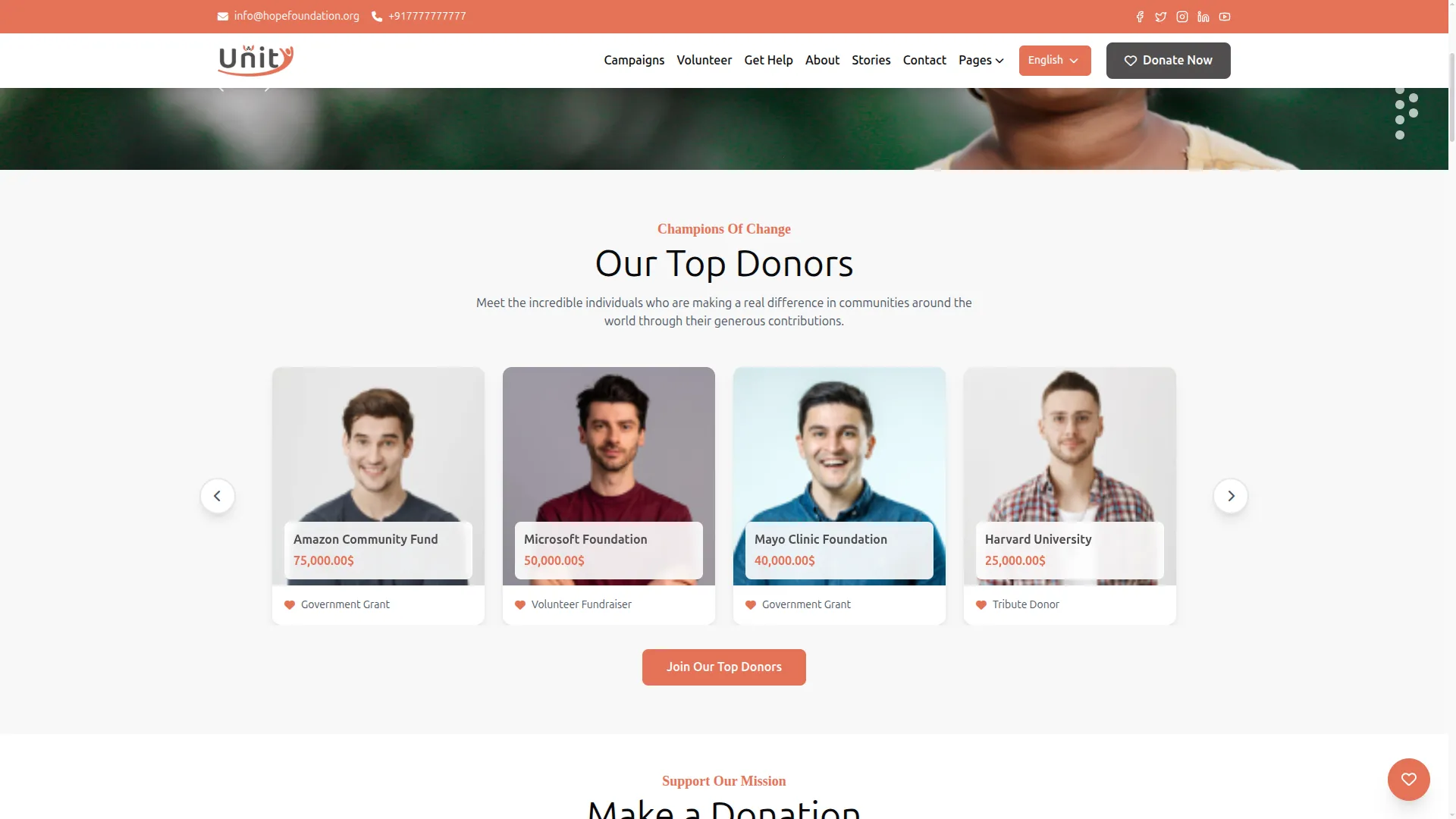
- Once a donor is created, they will appear in the donor list with their total donation amount automatically calculated and updated each time a new donation is linked to them. Donors created here can also be selected when recording a new donation, connecting each contribution directly to the right individual or organization in your system.
Manage Campaigns
- To add a new campaign, click the “Create” button and fill in the form. Enter the Campaign Name and upload a Featured Image by clicking the Browse button. Write a Description to explain the campaign’s purpose and goal.
- Enter the Target Amount, select the Status from the dropdown (Active, Inactive, or Completed), and select the Start Date and End Date using the date pickers. Click “Create” to save the campaign.
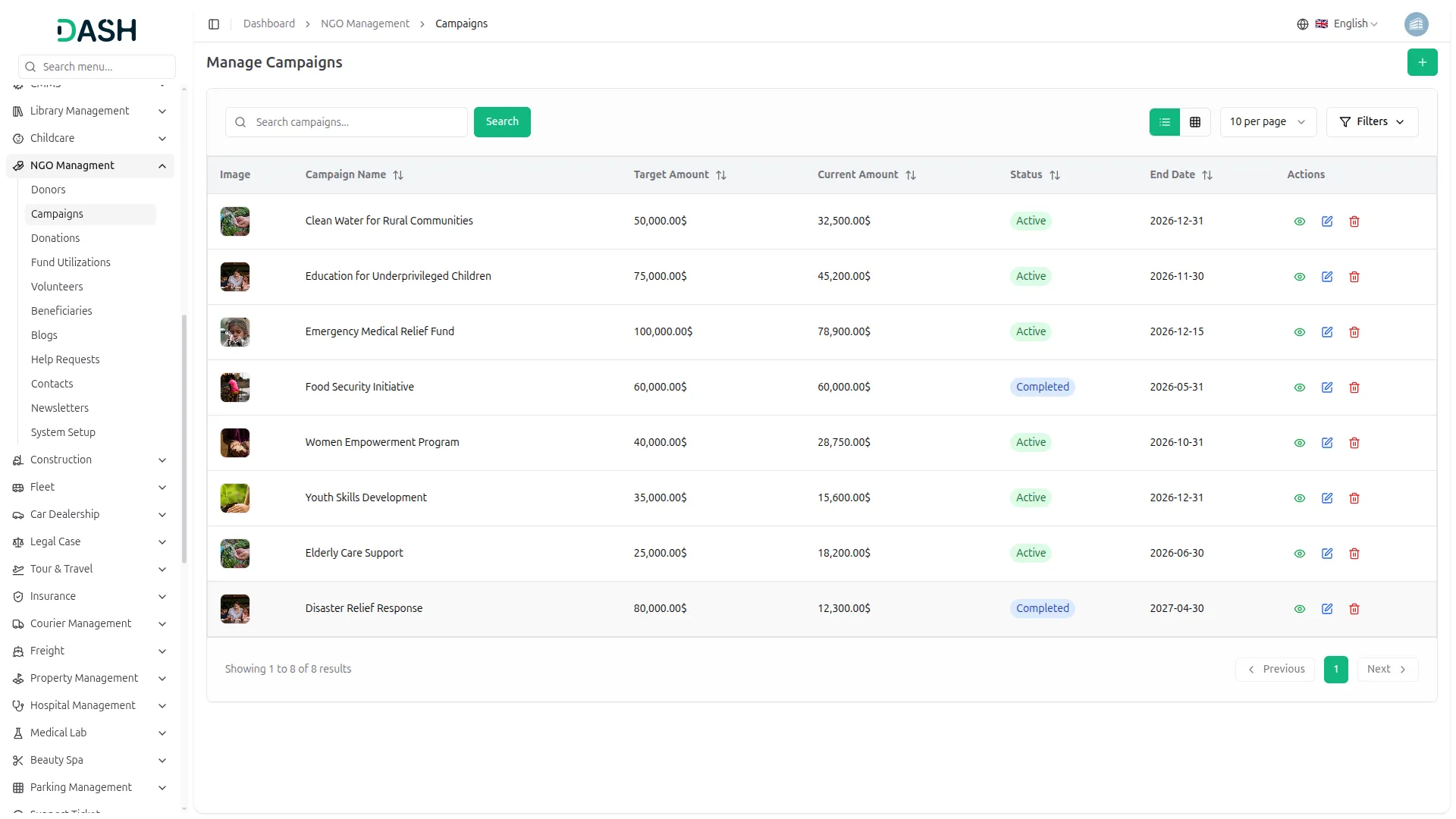
- The list page displays a table of columns, including the campaign’s Image, Campaign Name, Target Amount, Current Amount, Status, End Date, and Action. You can search for specific campaign data using the search bar. The page also allows you to toggle between list view and grid view.
- Click the Filter button to apply filtering data, including selecting the campaign Status from the dropdown (All Status, Active, or Completed), then click the Apply button to filter the data or the Clear button to reset it.
- In the Action column, you can use Edit to update the campaign’s information, View to see the existing campaign details, or Delete to permanently remove the campaign from the system.
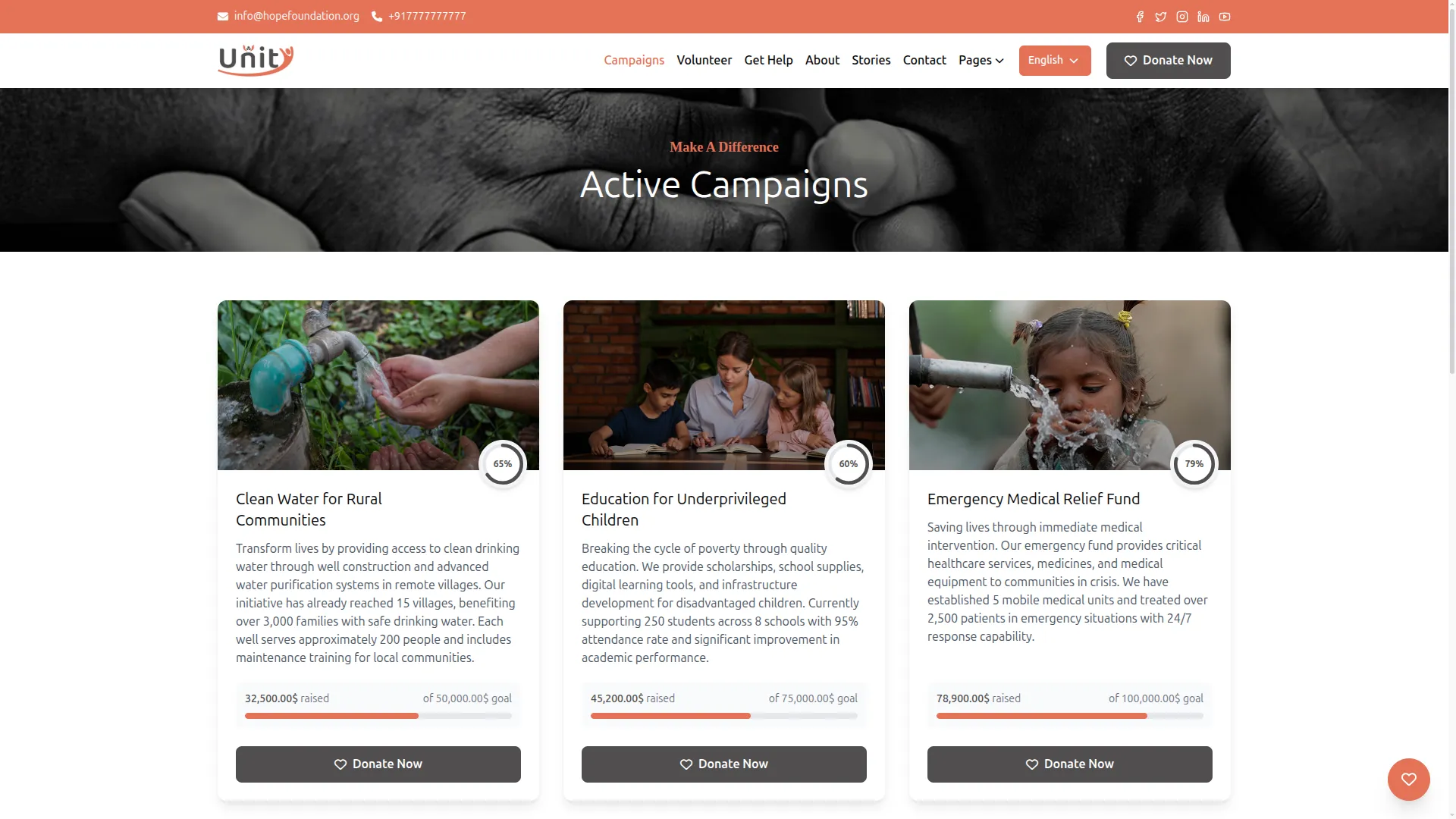
- Once a campaign is created, it will appear in the campaign list with the Current Amount automatically calculated and updated each time a new donation is linked to it. Campaigns created here can also be selected when recording a new donation, allowing each contribution to be directed to the correct campaign. Active campaigns will also appear on the website’s Campaigns page, showing visitors the fundraising goal, amount raised so far, and a progress bar reflecting real-time donation progress.
Manage Donations
- To add a new donation, click the “Create” button and fill in the form. Select the Donor from the dropdown (created under Manage Donors) and select the Campaign from the dropdown (created under Manage Campaigns).
- Enter the Amount and set the Donation Date using the date picker. Select the Bank Account from the dropdown and add any optional Notes for additional context about the donation. Click “Create” to save the donation.
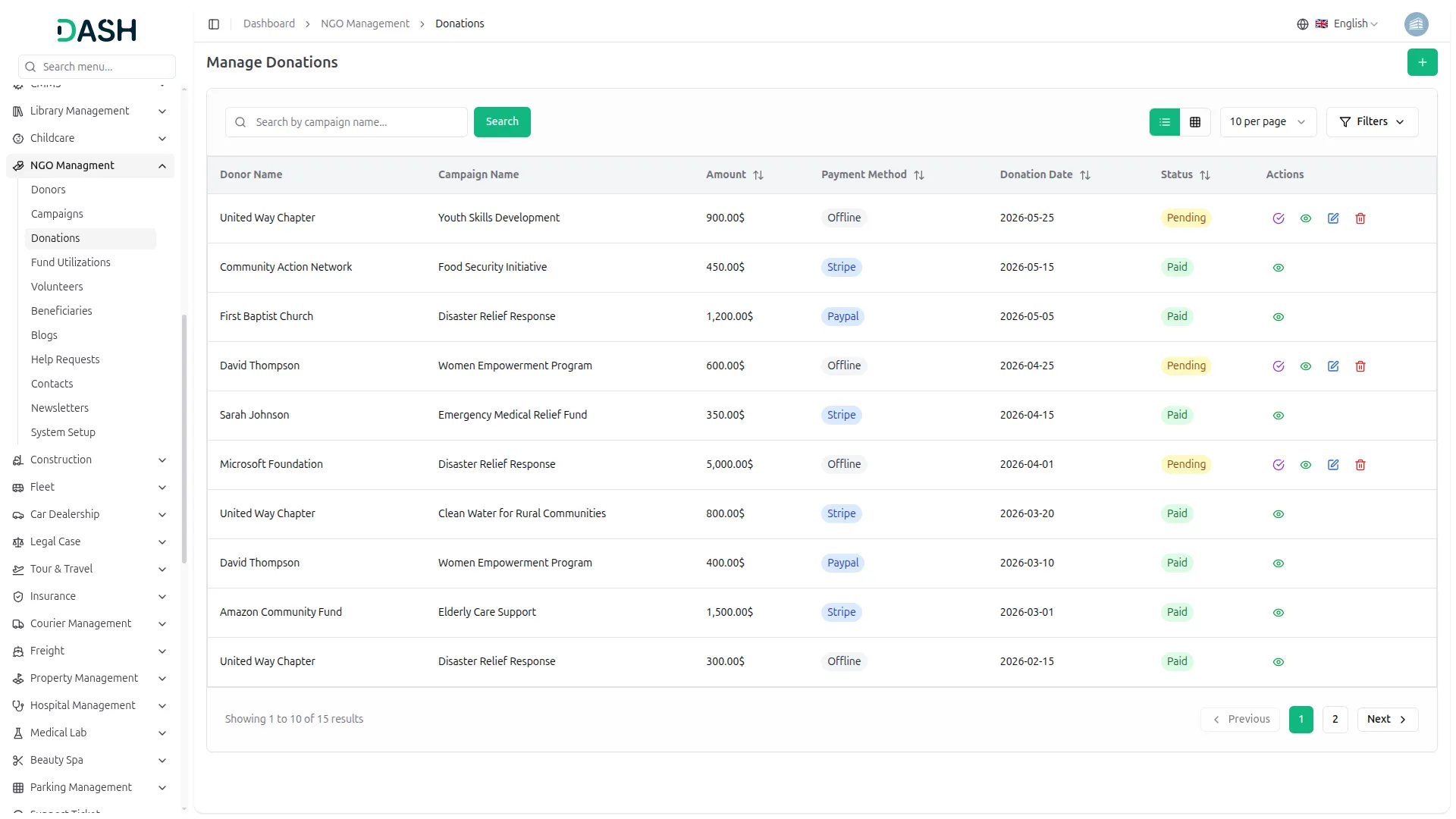
- The list page displays a table of columns, including the Donor Name, Campaign Name, Amount, Payment Method, Donation Date, Status, and Action. You can search for a specific donation using the search bar (search by campaign name). The page also allows you to toggle between list view and grid view.
- Click the Filter button to apply filtering data, including selecting the Donor from the dropdown and the Status from the dropdown (Paid, or Pending), then click the Apply button to filter the data or the Clear button to reset it.
- In the Action column, you can use Mark as Paid to change a pending donation’s status to Paid, View to see the existing donation details, Edit to update the donation’s information, or Delete to permanently remove the donation from the system.
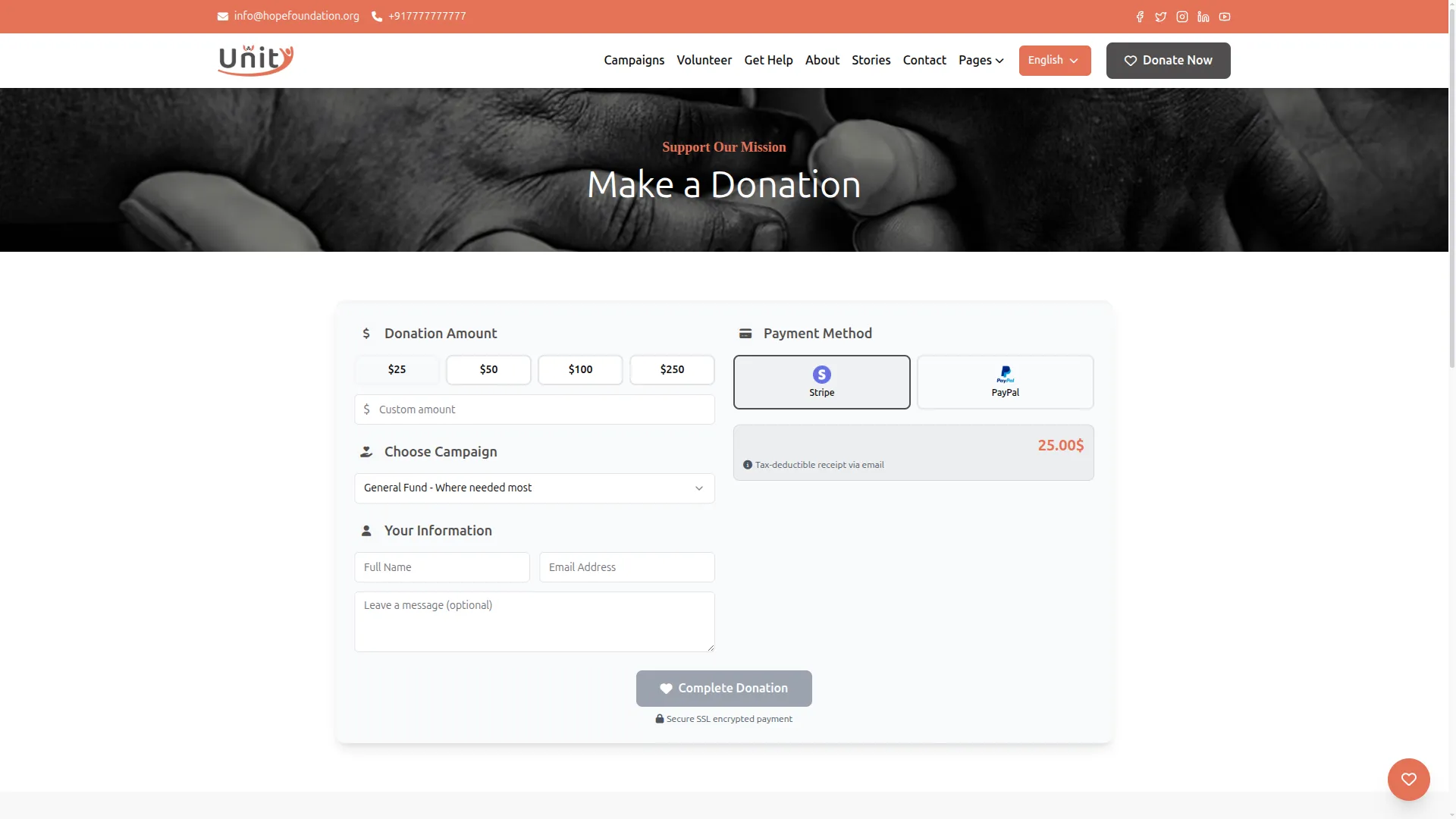
- Please note that donations made online through Stripe or PayPal are automatically marked as Paid and only show the View option, while offline donations start as Pending and show all action options until manually marked as Paid.
- Once a donation is created or received, it will automatically update the Current Amount of the linked campaign, contribute to the donor’s Total Donations figure in the Manage Donors list, and reflect in the Donation Statistics and Monthly Revenue figures shown on the NGO Dashboard.
- Donations made through the website via Stripe or PayPal are automatically recorded and marked as Paid, with only the View action available. Offline donations, such as cash or bank transfers, are added manually by the admin and start as Pending until the admin clicks Mark as Paid once payment is confirmed.
Manage Fund Utilizations
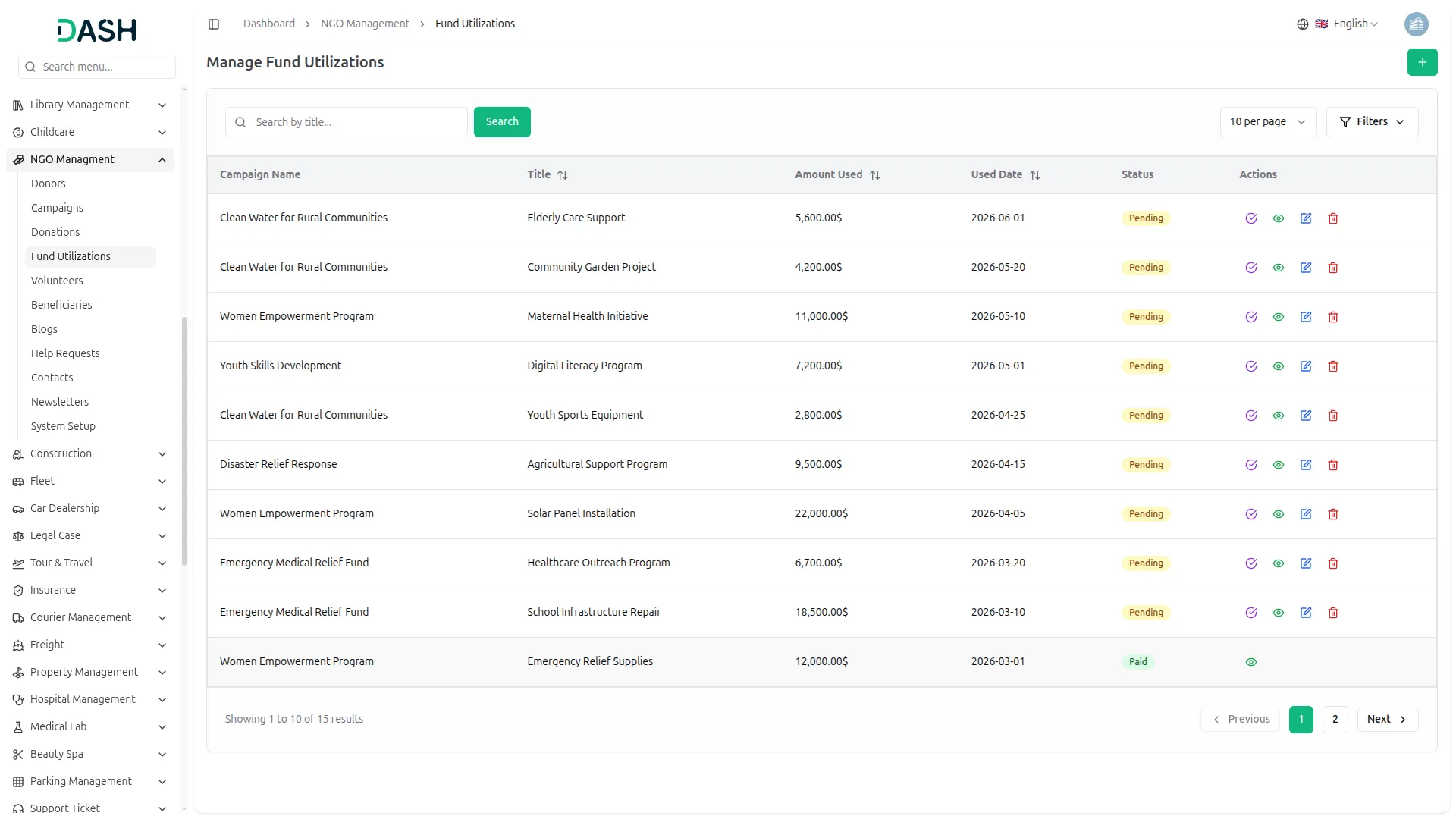
- To add a new fund utilization, click the “Create” button and fill in the form. Select the Campaign from the dropdown (created under Manage Campaigns) and enter a Title to describe what the funds were used for.
- Enter the Amount Used and select the Used Date using the date picker. Select the Bank Account from the dropdown, upload a Receipt file as proof of the expenditure, and add any optional Notes for additional context. Click “Create” to save the record.
- The list page displays a table of columns, including the Campaign Name, Title, Amount Used, Used Date, Status, and Action. You can search for a specific record using the search bar (search by title). Click the Filter button to filter by Campaign from the dropdown, then click the Apply button to filter the data or the Clear button to reset it.
- In the Action column, you can use Mark as Paid to confirm that the fund has been utilized and update the status from Pending to Paid, View to see the existing fund utilization details, Edit to update the information, or Delete to permanently remove the record from the system. Records that are already marked as Paid will only show the View option.
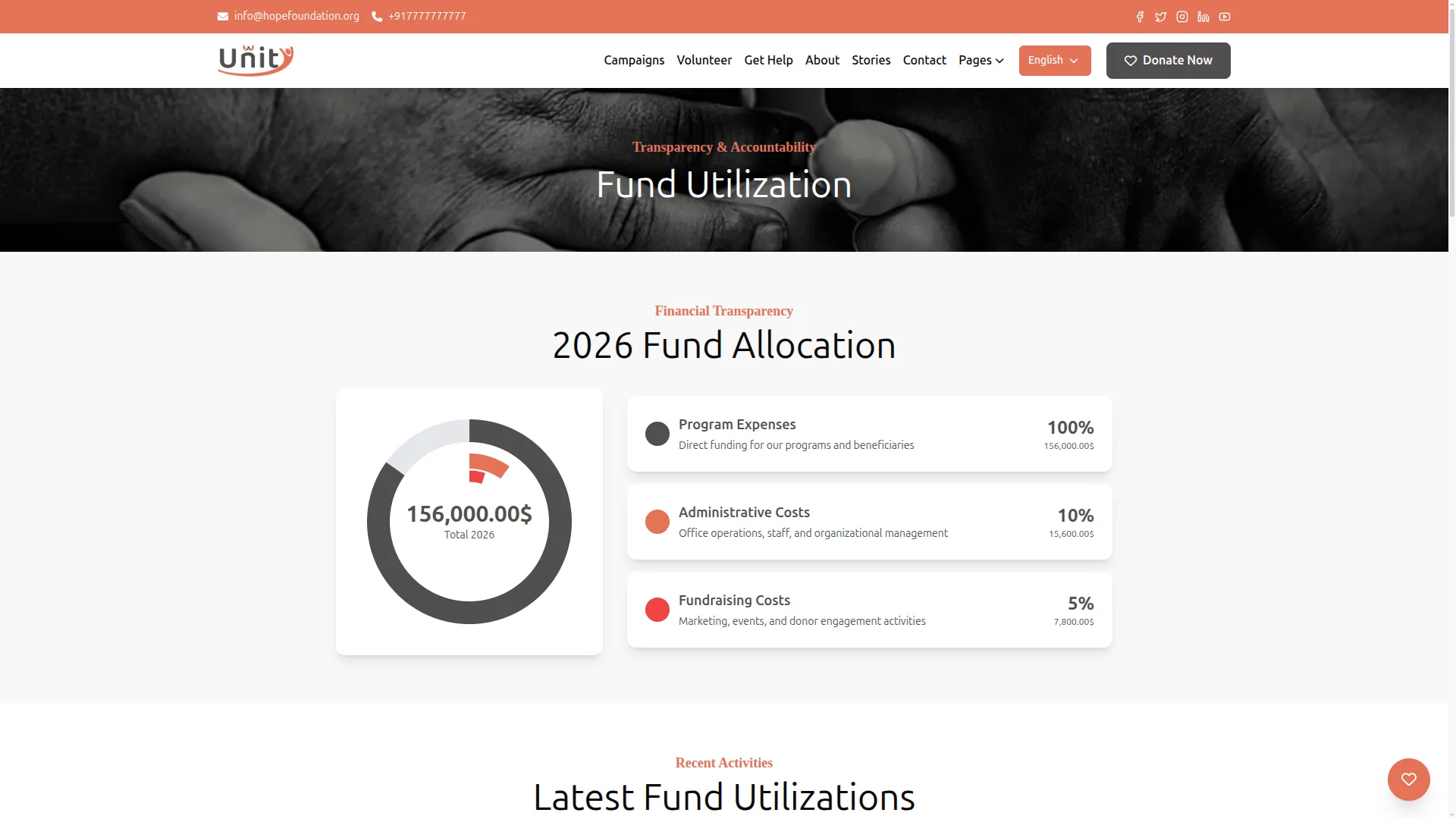
- Once a fund utilization is created, the Amount Used will be reflected in the Utilized Amount and fund utilization count shown on the NGO Dashboard, giving your team a clear and transparent record of how campaign funds are being spent across all programs.
- On the website, this data contributes to the “Where Your Money Goes” section on the homepage, which displays a visual breakdown of how donation funds are being allocated and utilized across different programs and campaigns — building trust and financial transparency with your donors and visitors.
Manage Volunteers
- To add a new volunteer, click the “Create” button and fill in the form. Enter the Volunteer Name, Email, and Phone number. Enter the Age and select the Assigned Campaign from the dropdown (created under Manage Campaigns).
- Write a Bio to describe the volunteer’s skills and motivation, enter the full Address, and upload a Volunteer Image by clicking the Browse button. Set the Status from the dropdown as either Active or Inactive. Click “Create” to save the volunteer.
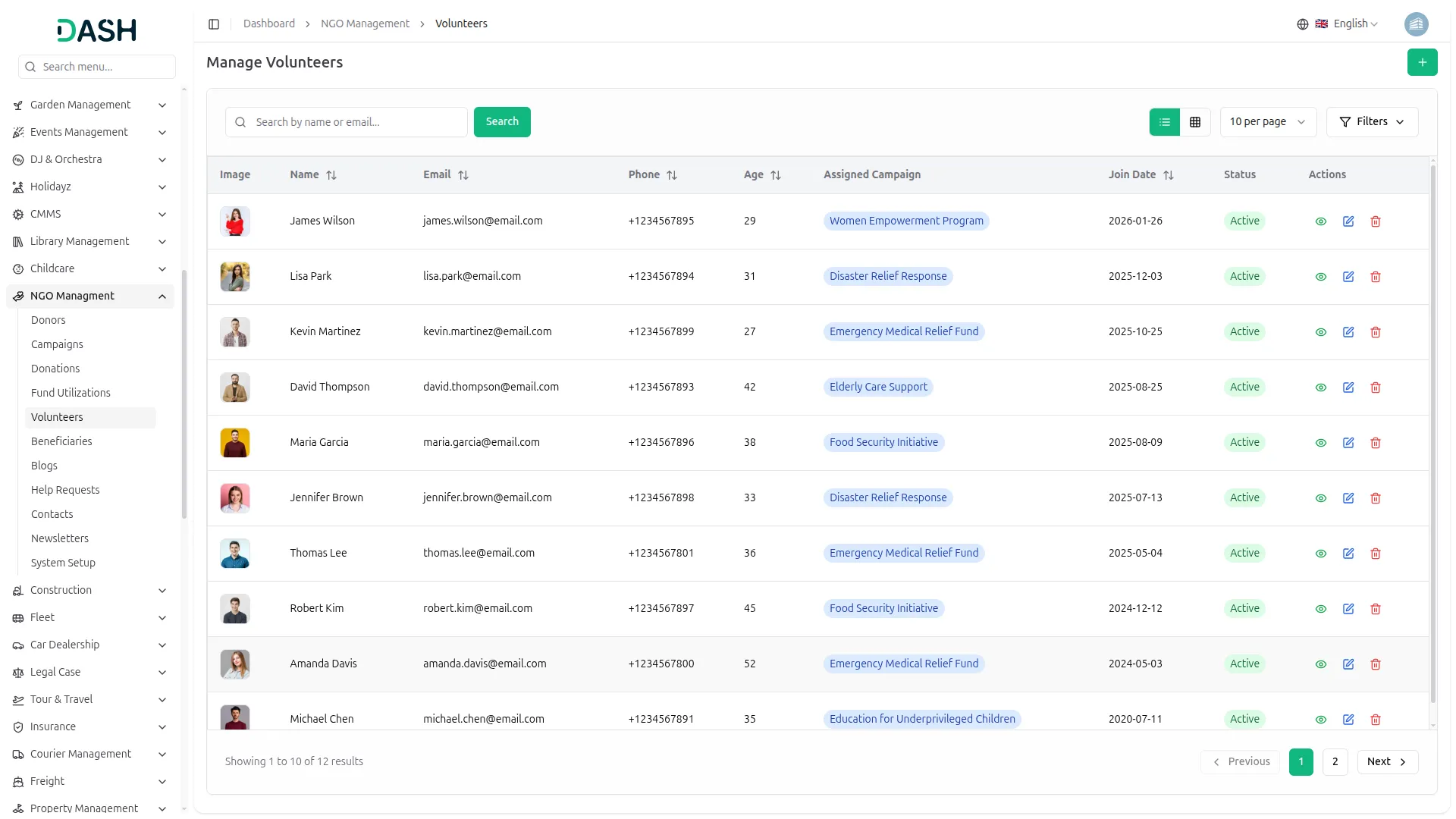
- The list page displays a table of columns, including the volunteer’s Image, Name, Email, Phone, Age, Assigned Campaign, Join Date, Status, and Action. You can search for a specific volunteer using the search bar (search by name or email). The page also allows you to toggle between list view and grid view.
- Click the Filter button to apply filtering data, including selecting the Campaign and Status from the dropdowns, then click the Apply button to filter the data or the Clear button to reset it.
- In the Action column, you can use View to see the existing volunteer details, Edit to update the volunteer’s information, or Delete to permanently remove the volunteer from the system.
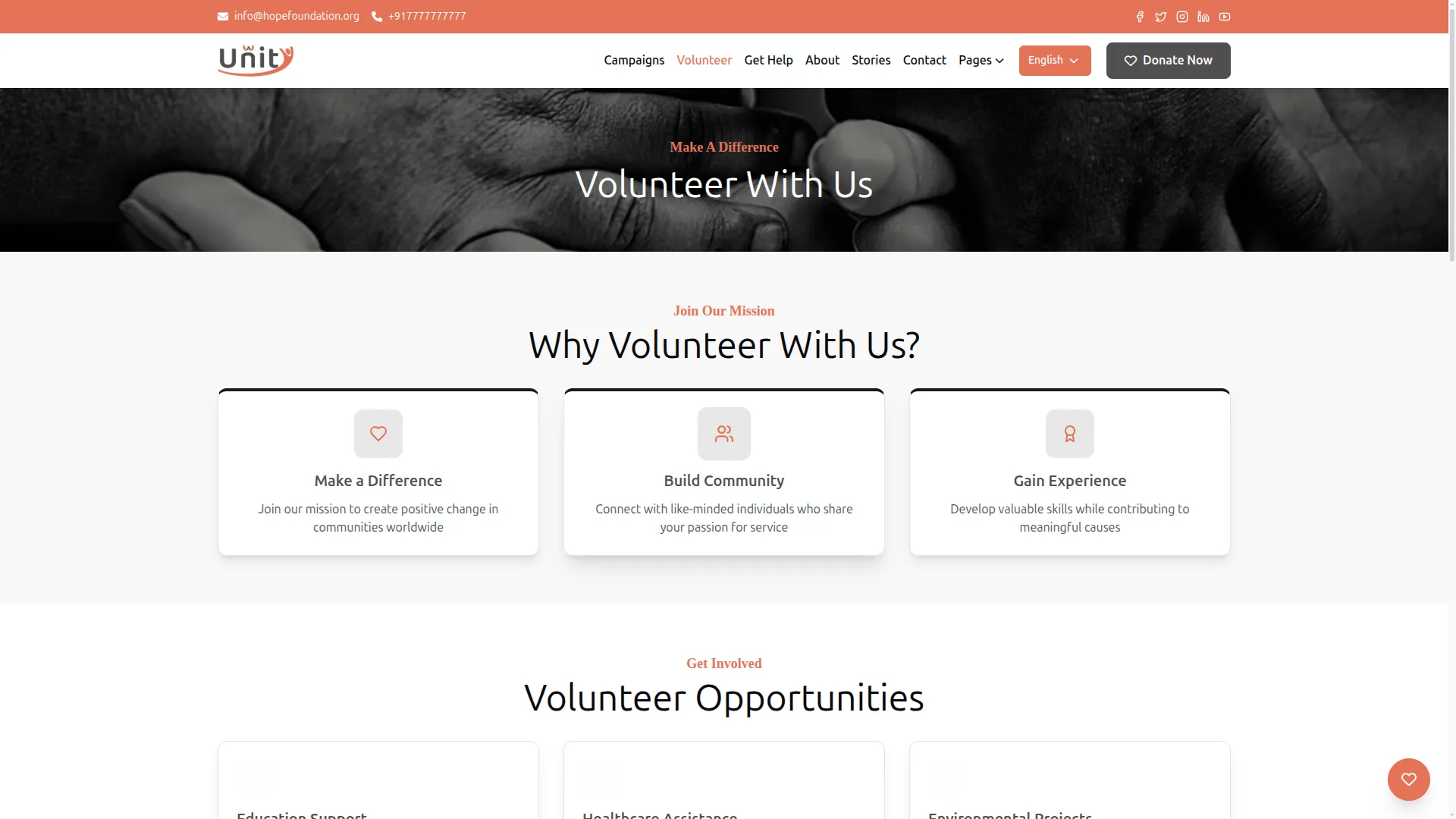
- Volunteers can also be added directly through the website’s Volunteer With Us page, where individuals fill out the Volunteer Application form with their details and select a campaign they wish to support.
- Once submitted from the website, their information is automatically recorded in the Manage Volunteers list, where the admin can review, manage, and update their status accordingly. The Total Volunteers and Active Volunteers count shown on the NGO Dashboard is automatically updated based on the records in this section.
Manage Beneficiaries
- To add a new beneficiary, click the “Create” button and fill in the form. Enter the Beneficiary Name and Age, and select the Gender from the dropdown (Male, Female, other). Select the Assigned Campaign from the dropdown (created under Manage Campaigns).
- Enter the Verified By name to record who confirmed the beneficiary’s eligibility. Enter the full Address and describe the Help Received to document what kind of support was provided to this individual. Click “Create” to save the beneficiary.
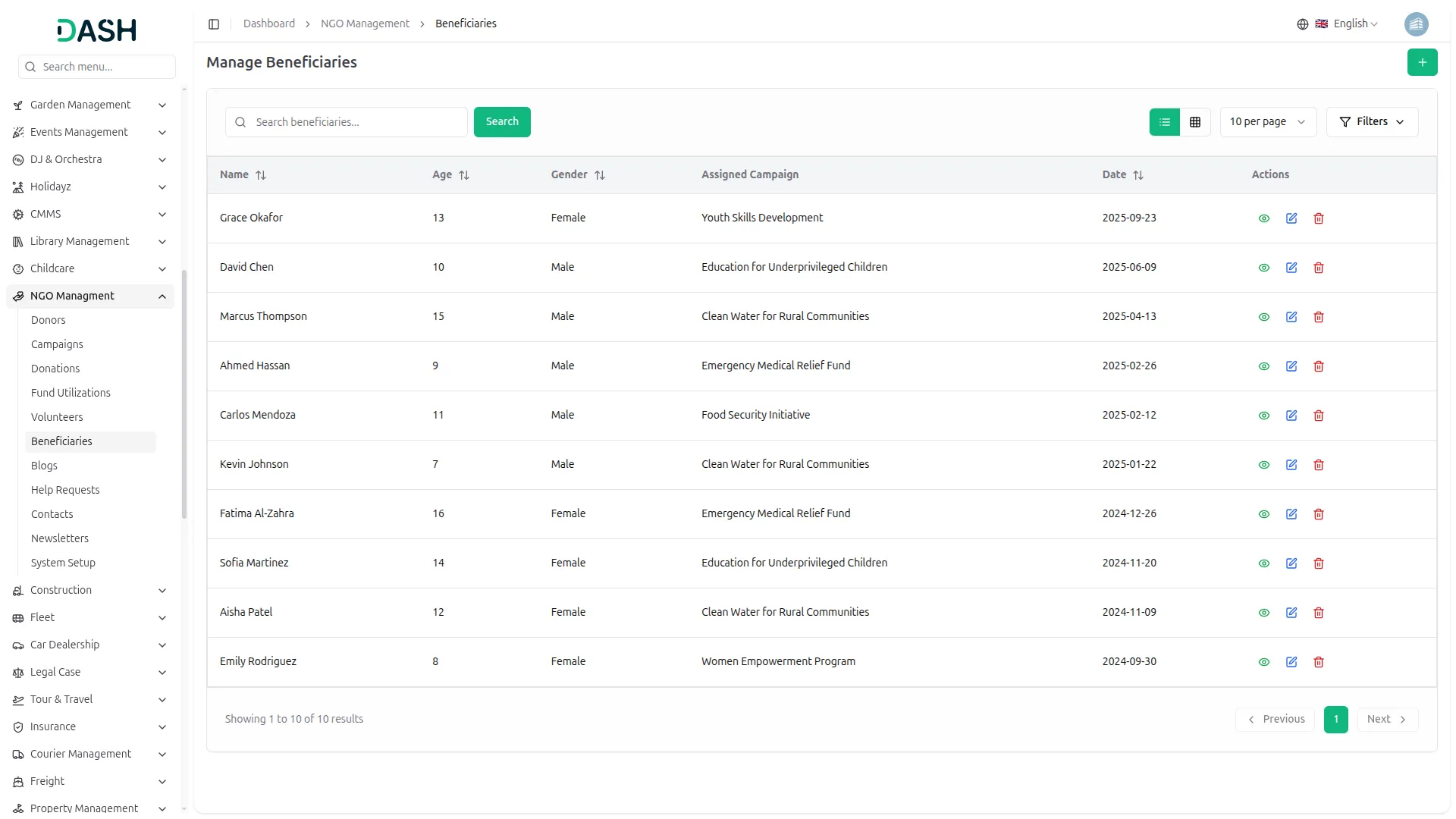
- The list page displays a table of columns, including the Name, Age, Gender, Assigned Campaign, Date, and Action. You can search for a specific beneficiary using the search bar. The page also allows you to toggle between list view and grid view.
- Click the Filter button to apply filtering data, including selecting the Gender and Campaign from the dropdowns, then click the Apply button to filter the data or the Clear button to reset it.
- In the Action column, you can use View to see the existing beneficiary details, Edit to update the beneficiary’s information, or Delete to permanently remove the beneficiary from the system.
- Once a beneficiary is created, the Total Beneficiaries count shown in the Community Impact panel on the NGO Dashboard is automatically updated, giving your team a real-time overview of how many individuals your NGO is actively supporting across all campaigns and programs.
Manage Blogs
- To add a new blog, click the “Create” button and fill in the form. Enter the blog Title and the URL Slug (a short web-friendly name using only lowercase letters and hyphens, e.g., “transforming-lives-community-outreach”).
- Write an Excerpt as a brief description of the blog post and select the Category from the dropdown (created under System Setup → Blog Categories). Enter the Meta Title and Meta Description for SEO purposes to help the blog post appear in search engine results.
- Write the full blog Content using the built-in text editor. Upload a Featured Image by clicking the Browse button. Toggle Active to make the blog visible on the website, and toggle Featured to mark it as the highlighted story that appears at the top of the Impact Stories page. Click “Create” to save the blog.
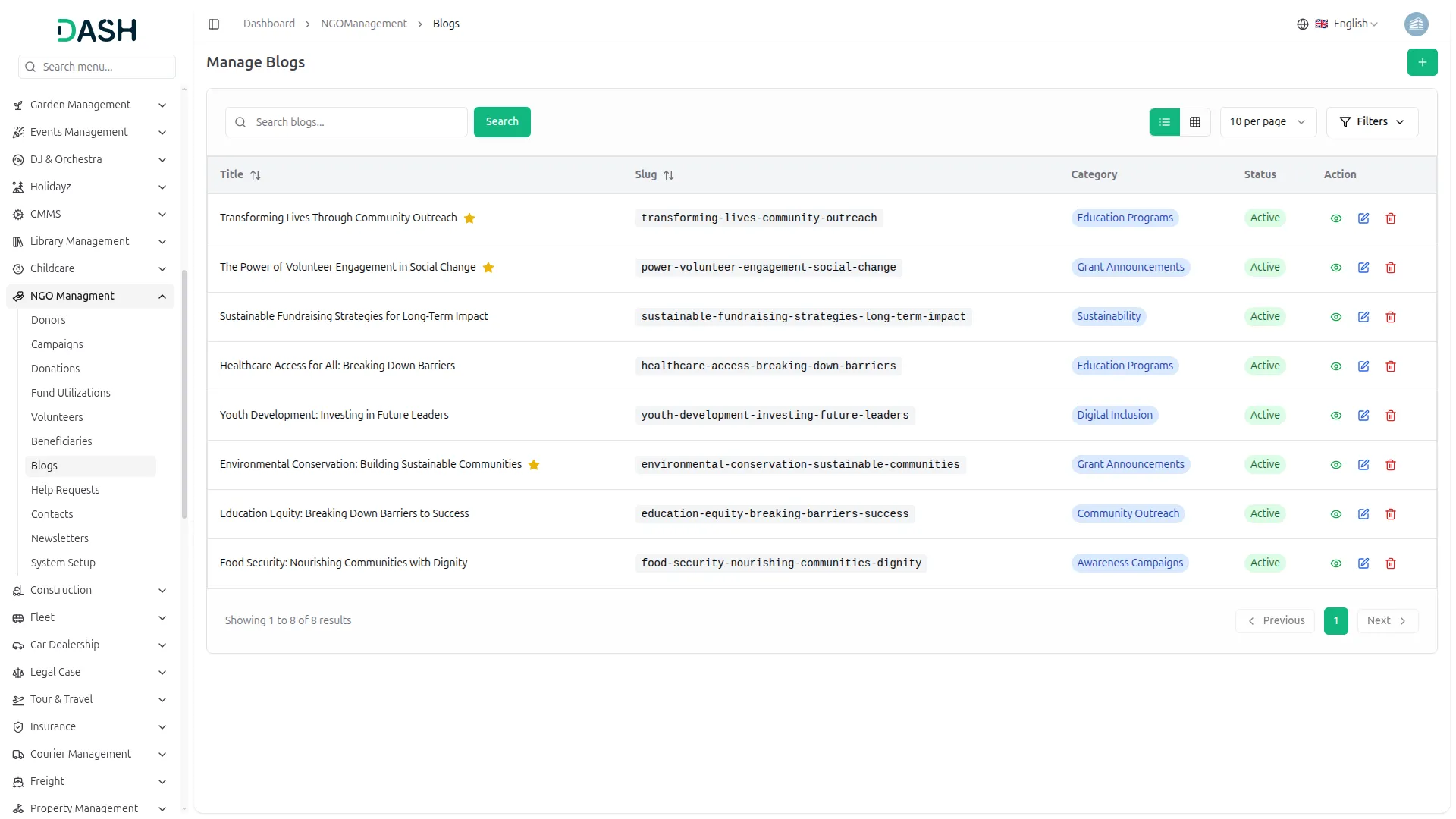
- The list page displays a table of columns, including the Title, URL Slug, Category, Status, and Action. A star icon next to the title indicates the blog is marked as Featured. You can search for a specific blog using the search bar. The page also allows you to toggle between list view and grid view.
- Click the Filter button to apply filtering data, including selecting the Status, Featured, and Category from the dropdowns, then click the Apply button to filter the data or the Clear button to reset it.
- In the Action column, you can use View to see the existing blog details, Edit to update the blog’s information, or Delete to permanently remove the blog from the system.
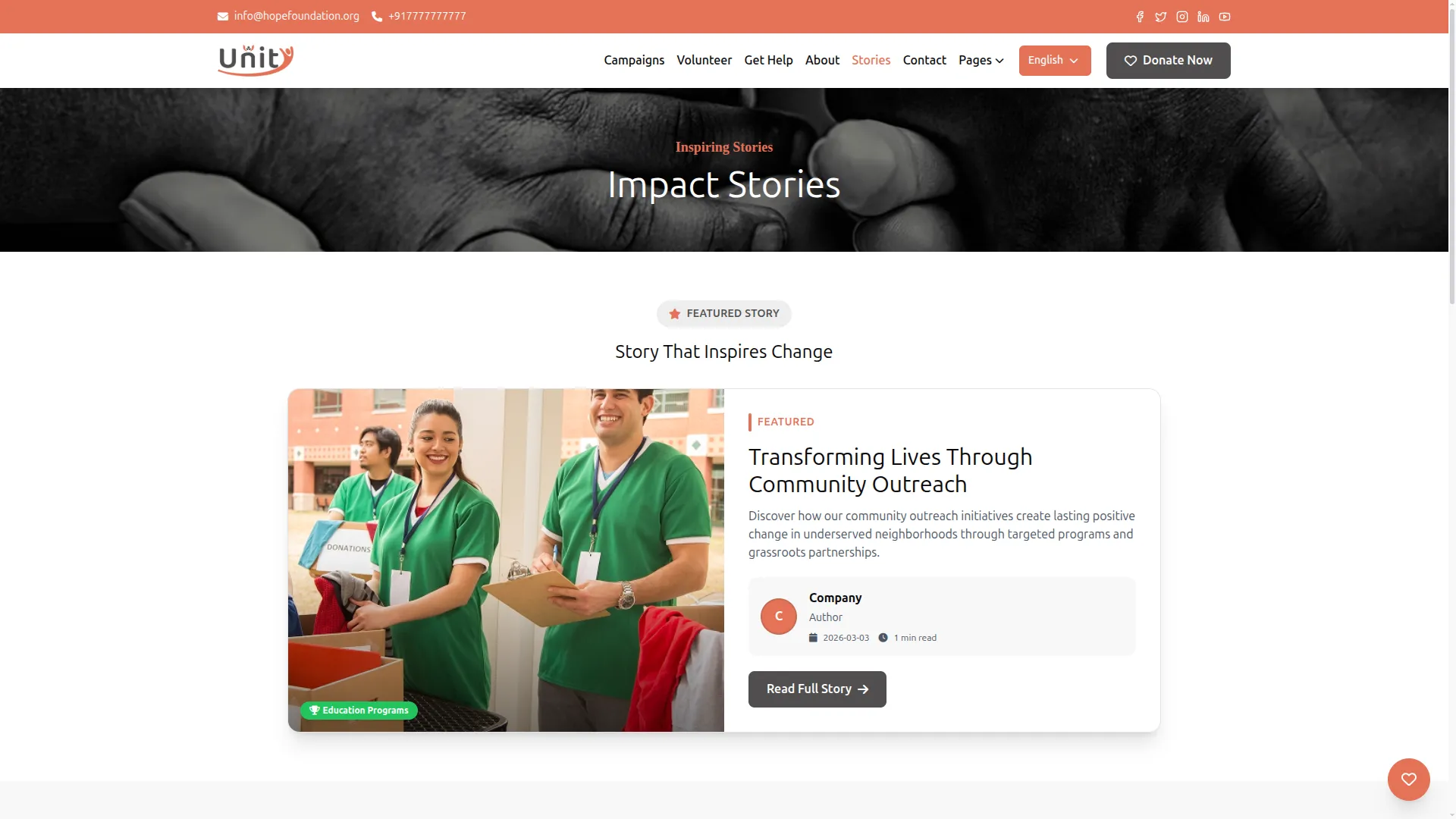
- Once a blog is created and set to Active, it will appear as a story card on the website’s Impact Stories page, showing the Featured Image, Category tag, Title, Excerpt, read time, and a “Read More” link.
- If the blog is marked as Featured, it will appear as the highlighted story at the very top of the Impact Stories page with a larger display. Clicking “Read More” opens the full blog detail page showing the complete content, author, date, category, and Related Articles at the bottom. The Published Blogs count shown in the Community Impact panel on the NGO Dashboard is also automatically updated each time a new active blog is published.
Help Requests
- The Manage Help Requests section automatically collects all assistance requests submitted by visitors through the Request Assistance form on the Get Help page of your website.
- When a visitor fills out the form by entering their Full Name, Phone Number, Email Address, Location, Campaign, Urgency Level, Situation Description, and optional Supporting Documents, and clicks the “Submit Help Request” button, their request is instantly recorded in this section without any manual entry required from the admin.
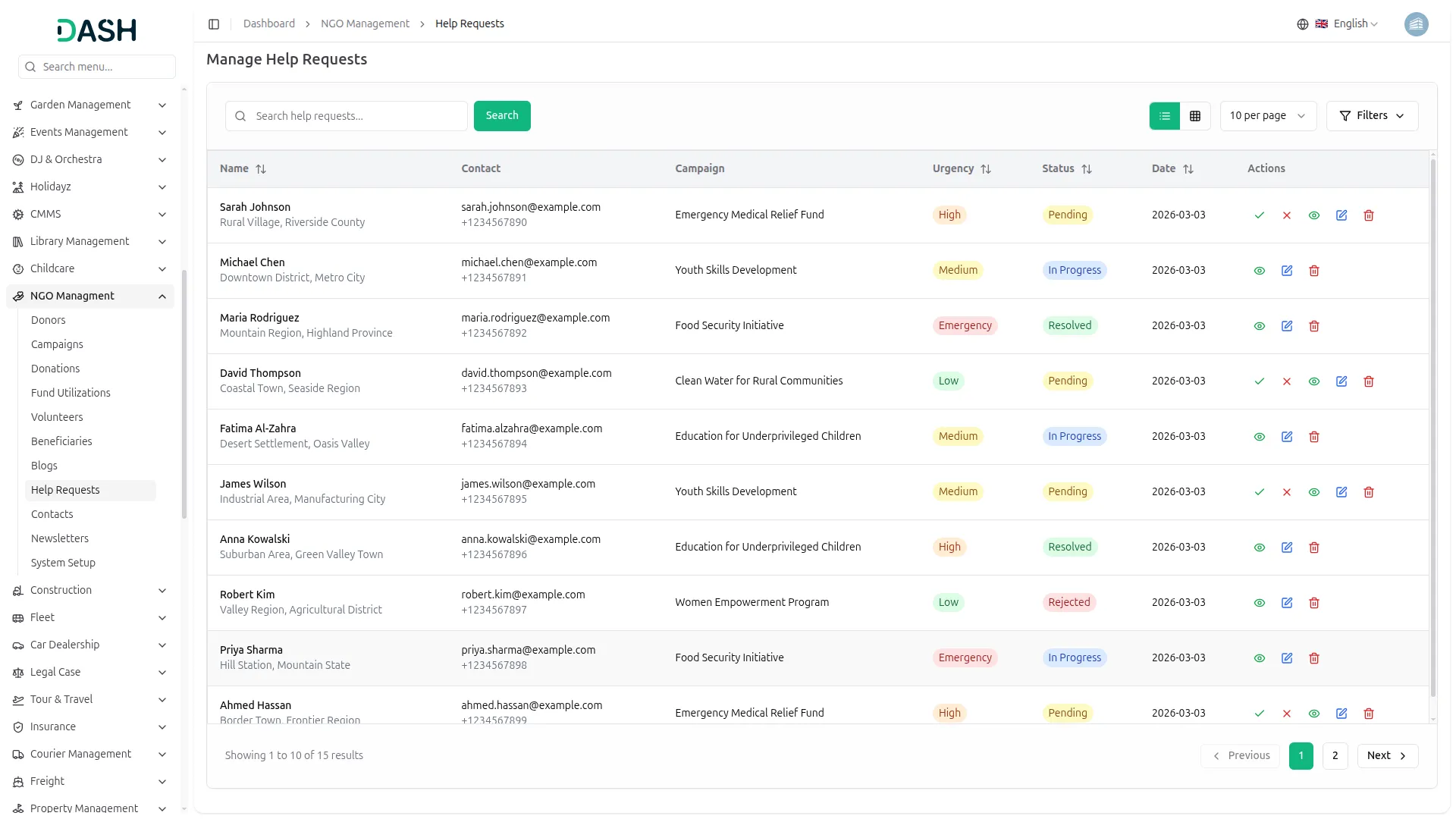
- The list page displays a table of columns, including the Name, Location, Contact, Campaign, Urgency, Status, Date, and Action. You can search for a specific help request using the search bar. The page also allows you to toggle between list view and grid view.
- Click the Filter button to apply filtering data, including selecting the Status, Urgency, and Campaign from the dropdowns, then click the Apply button to filter the data or the Clear button to reset it.
- In the Action column, you can use Approve to accept the help request and update its status to In Progress, Reject to decline the request and update its status to Rejected, View to see the full request details submitted by the visitor, Edit to update the request information, or Delete to permanently remove the record from the system.
- Requests that have already been Resolved or are In Progress will only show the View, Edit, and Delete options, as the Approve and Reject actions are only available for Pending requests.
Manage Contacts
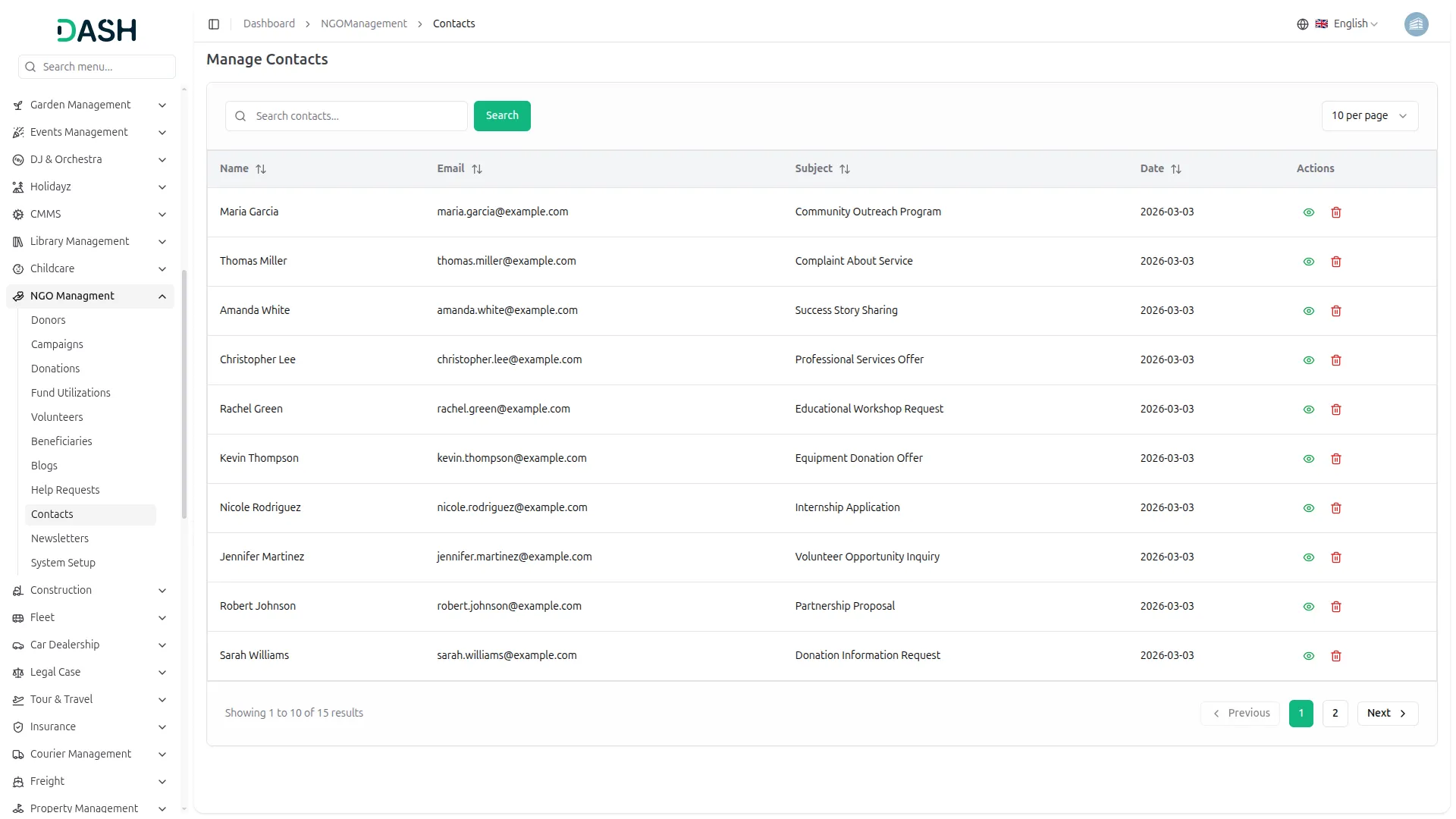
- The Manage Contacts section automatically collects all messages submitted by visitors through the Contact Us page on your website. When a visitor fills out the contact form by entering their Name, Email Address, Phone Number, Subject, and Message, and clicks the “Send Message” button, their inquiry is instantly recorded in this section without any manual entry required from the admin.
- The list page displays a table of columns, including Name, Email, Subject, Date, and Action. You can search for a specific contact message using the search bar (search by contact name).
- In the Action column, you can use View to read the full message details submitted by the visitor, or Delete to permanently remove the contact record from the system.
Manage Newsletters
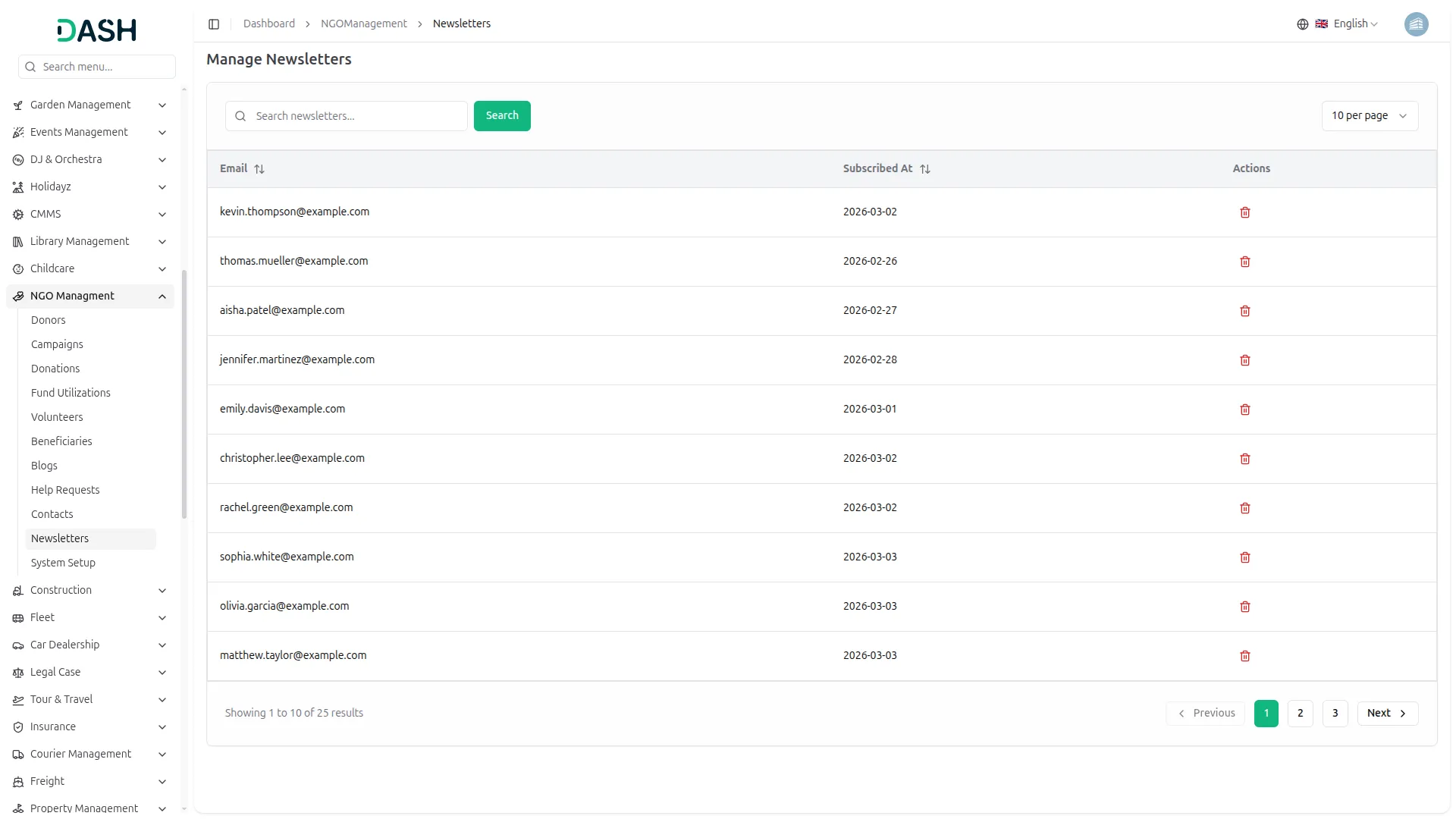
- The Manage Newsletters section automatically collects all email addresses submitted by visitors through the Newsletter signup section on your website’s homepage. When a visitor enters their email address and clicks the “Subscribe Now” button, their subscription is instantly recorded in this section without any manual entry required from the admin.
- The list page displays a table of columns, including the Email and Subscribed At date. You can search for a specific subscriber using the search bar (search by email address).
- In the Action column, you can use Delete to permanently remove a subscriber’s email from the system.
Categories
Related articles
- User Manual – Task
- HubSpot – WorkDo Dash SaaS Add-On Guide
- Size Guideline – eCommerceGo SaaS Add-On Guide
- Laundry Management – WorkDo Dash SaaS Add-On Guide
- Rocket.Chat Credentials Generation Guide
- Campaign – eCommerceGo SaaS Add-On Guide
- Service Slot Scheduler – BookingGo SaaS Add-On Guide
- Shopify Sync – WorkDo Dash SaaS Add-On Guide
- Google Map URL – vCard SaaS Add-On Guide
- Call Hub – WorkDo Dash SaaS Add-On Guide
- Flutterwave – BookingGo SaaS Add-On Guide
- Insurance Management – WorkDo Dash SaaS Add-On Guide
We're Here to Help - Let's Talk
Have questions about our solutions, customization services, or business tools? Our team is here to help you. let's talk.