
Asset Borrow & Rent – WorkDo Dash SaaS Add-On Guide
Learn how to manage asset borrowing and rental operations in WorkDo Dash SaaS easily.
Introduction
The Asset Borrow & Rent Add-On lets you manage the complete lifecycle of lending and renting company assets to staff, all in one place. Track borrow requests through their status flow, from Draft to Approved to Returned, while keeping an eye on due dates and overdue items. Manage associated payments, tracking totals received versus pending. A dedicated Report page brings it all together with visual summaries of borrowing activity, revenue, status breakdowns, most borrowed assets, and top borrowers.
How to Install the Add-On?
To Set Up the Asset Borrow & Rent Add-On, you can follow this link: Setup Add-On.
How to Use the Asset Borrow & Rent Add-On?
Manage Asset Borrow & Rent
- To create a new borrow/rent request, click the “Create” button at the top of the Manage Asset Borrow & Rent page. This opens the Create Asset Borrow & Rent form, where you’ll enter the request details.
- Select a Staff User from the dropdown; if the user you need doesn’t exist yet, click the “Create staff user” link to add one on the fly (comes from the User Management). Select an Asset from the dropdown, or click “Create asset” to add one on the fly (comes from the asset section). Enter the Start Date and End Date, set the Quantity, and optionally add a Purpose describing the request.
- The Manage Asset Borrow & Rent page opens with five summary cards: Total Assets, Total Requests, Total Pending Requests, Total Borrowed, and Total Upcoming Returns, giving you a quick snapshot of your borrow/rent activity.
- On the left, an Assets panel lists All Assets along with each individual asset, so you can filter the table by a specific asset.
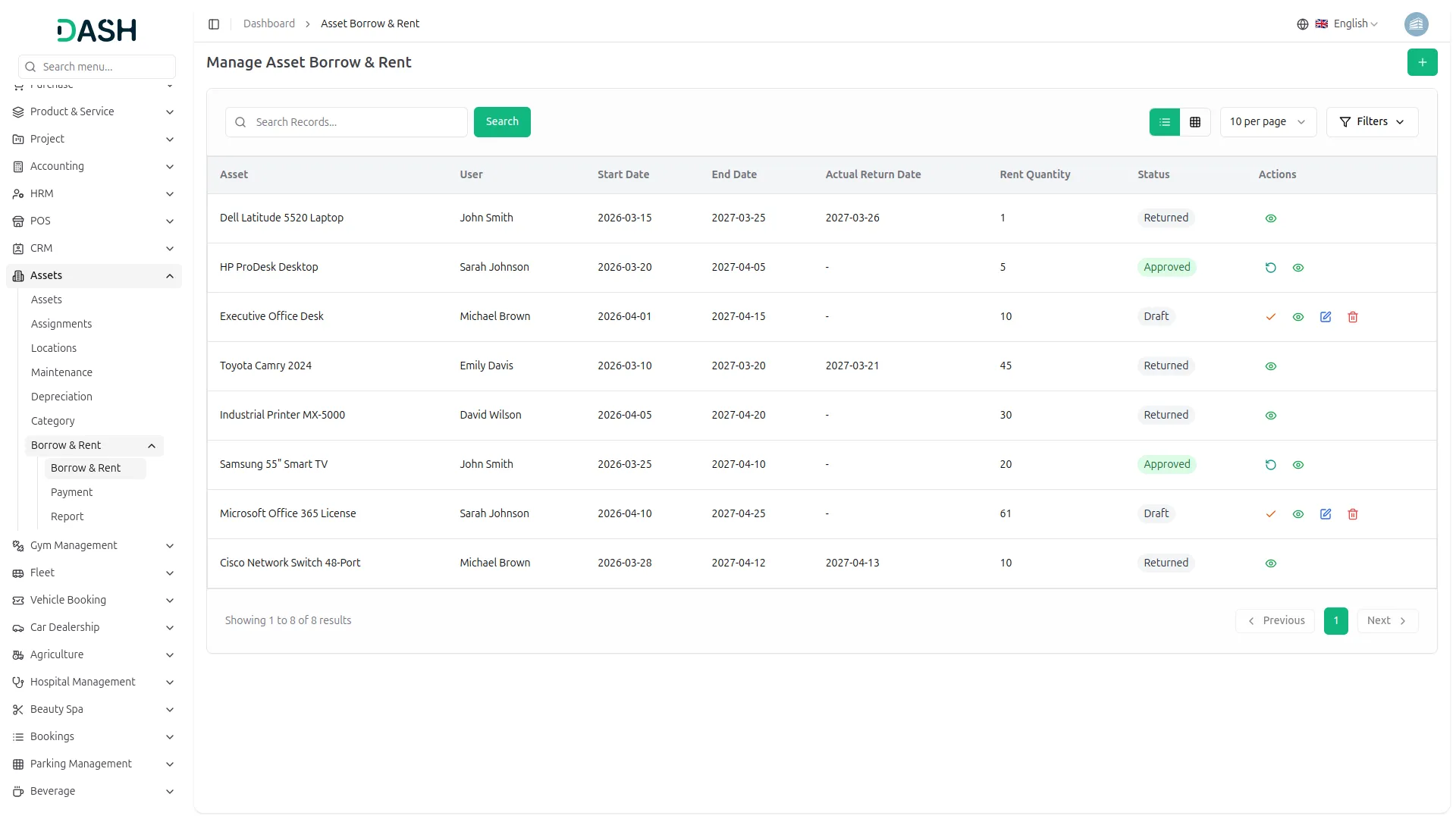
- The requests table shows Image, Asset, User, Start Date, End Date, Actual Return Date, Rent Quantity, and Status (Draft, Returned, etc.) for each request. Overdue requests are flagged in red under the End Date column.
- Use the All Users dropdown and the date range picker along with the green checkmark “Apply” button to filter results. Tabs above the table (All, Draft, Approved, Returned, Upcoming Returns) let you quickly switch between request states.
- The Actions column displays different options based on the request’s current status. For requests with a ‘Draft’ status, four actions are available: Approve the request. View the request details, Edit the request, or Delete the request.
- For requests with an ‘Approved’ status, three actions are available: Add Payment to add a payment, Return the asset, or View the request details.
- Add Payment modal: Enter Payment Amount, Payment Date, Reference Number, and Bank Account; Customer Name and Asset are pre-filled. Note: Payment can be processed only once. After successful payment, the payment button will no longer be available. Confirm with “Add Payment” or “Cancel”.
- The ‘returned’ status shows just one option: View to see details, since no further actions can be taken once an asset is returned.
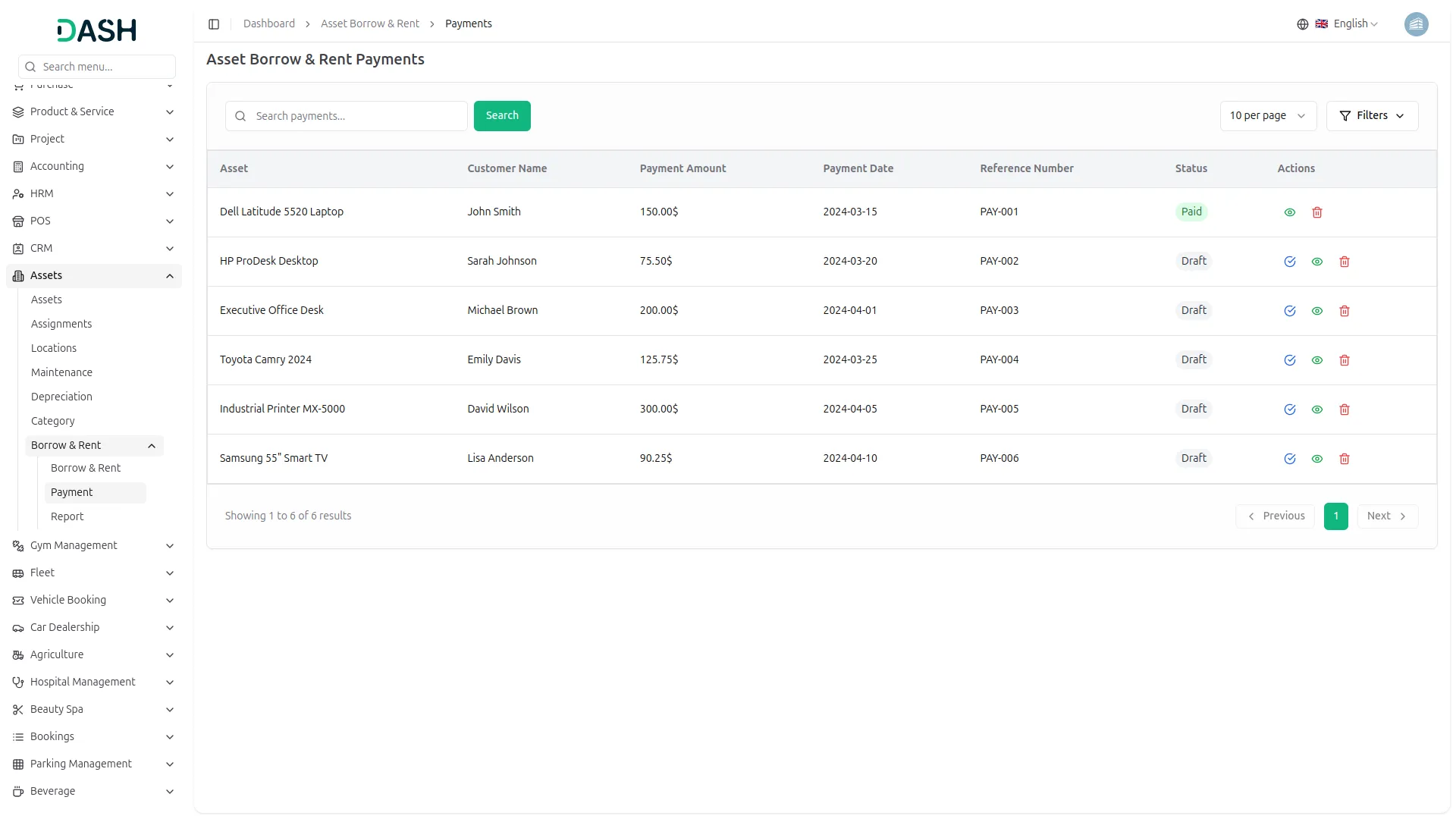
Asset Borrow & Rent Payments
- The Asset Borrow & Rent Payments page opens with three summary cards: Total Transactions, Total Payment Received, and Total Pending Payment, each showing the amount, number of payments, and percentage change for the month.
- On the right, a Transaction Report chart displays the trend over the Last 4 months, with tabs to toggle between Total, Received, and Pending views.
- Below that, a Payment Distribution donut chart breaks down the total amount into Paid and Pending segments.
- Use the All Assets, All Customers, and All Status dropdowns along with the date range picker and green checkmark “Apply” button to filter results.
- The table lists each payment with Asset, Customer Name, Reference Number, Payment Amount, Payment Date, and Status (Draft or Paid).
- The Actions column displays different options based on the payment’s current status. For payments with a ‘Draft’ status, three actions are available: Mark as Paid to confirm the payment, View the payment details, or Delete the payment.
- For payments with a ‘Paid’ status, two actions are available: View the payment details, or Delete the payment, since a paid payment can no longer be marked as paid.
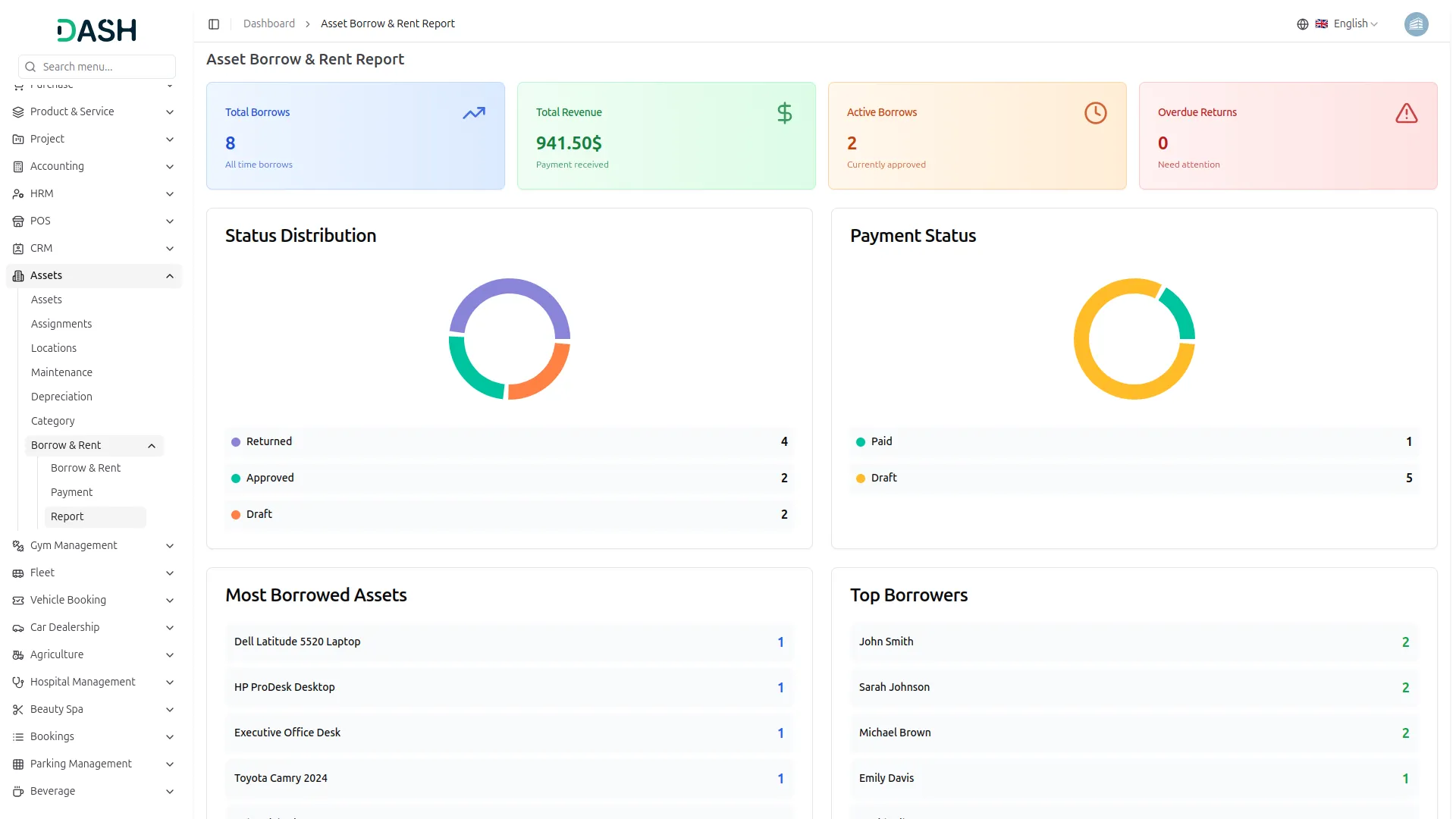
Asset Borrow & Rent Report
- The Asset Borrow & Rent Report page opens with four summary cards: Total Borrows, Total Revenue, Active Borrows, and Overdue Returns, giving a quick snapshot of all-time borrowing activity.
- The Status Distribution panel shows a donut chart breaking down all 30 requests by status (Approved, Returned, and Draft) with the count and percentage share for each.
- The Recent Activity panel lists the latest borrow requests with the asset name, current status, and date, along with a “View All” link to see the full activity log.
- The Most Borrowed Assets panel ranks the top 5 assets by number of borrows, showing each asset’s name, code, and total Borrows count, with a “View All” link for the complete list.
- The Top Borrowers panel ranks the top 5 users by number of borrows, showing each user’s name, email, and total Borrows count, with a “View All” link for the complete list.
Categories
Related articles
- Boost Sales – eCommerceGo SaaS Add-On Guide
- PayNow – BookingGo SaaS Add-On Guide
- Khalti – WorkDo Dash SaaS Add-On Guide
- Game Zone – WorkDo Dash SaaS Add-On Guide
- WizzChat Messenger – WorkDo Dash SaaS Add-On Guide
- Spreadsheet – WorkDo Dash SaaS Add-On Guide
- PayFast – BookingGo SaaS Add-On Guide
- Construction Management – WorkDo Dash SaaS Add-On Guide
- Twilio – BookingGo SaaS Add-On Guide
- 2Checkout – BookingGo SaaS Add-On Guide
- ToyyibPay – WorkDo Dash SaaS Add-On Guide
- Cashfree – BookingGo SaaS Add-On Guide
We're Here to Help - Let's Talk
Have questions about our solutions, customization services, or business tools? Our team is here to help you. let's talk.