
Sports Club & Academy Management – WorkDo Dash SaaS Add-On Guide
Learn how to manage memberships, training sessions, and player records in WorkDo Dash SaaS.
Introduction
The Sports Club & Academy Management Add On is a management system that helps administrators manage and organize a sports academy or club from a single platform. It allows admins to configure system settings, manage facilities and equipment categories, update website content, and control branding. The system also supports managing members, membership plans, ground bookings, coaches, training sessions, events, and equipment inventory. It simplifies daily operations by keeping member information, bookings, payments, and activities organized while also displaying services, membership plans, and other information on the website for visitors.
How to Install the Add-On?
To Set Up the Sports Club & Academy Management Add-On you can follow this link: Setup Add-On.
How To Use the Sports Club Management Add-On?
Sports Club Dashboard
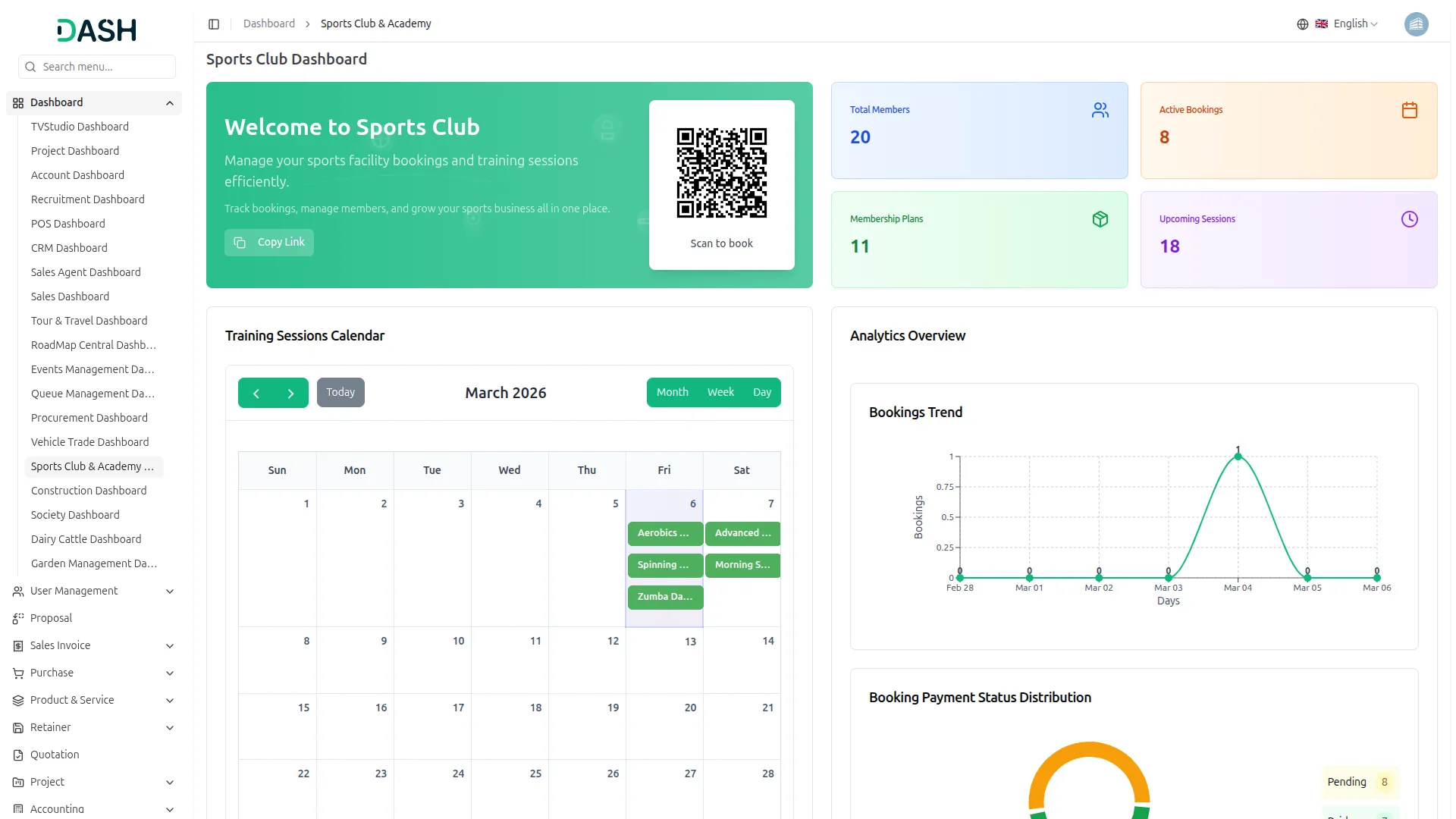
- The dashboard provides a complete overview of your sports club’s operations through various visual elements, live data panels, and quick access features, all designed to help you manage bookings, members, and sessions efficiently from a single screen.
- At the top, you’ll find a QR code that members and customers can scan to directly access the booking page, along with a Copy Link button to easily share your booking website link with anyone via message, email, or social media.
- The dashboard displays four key summary cards at the top right, Total Members, Active Bookings, Membership Plans, and Upcoming Sessions, giving you an instant snapshot of your club’s activity and current status at a glance.
- The Training Sessions Calendar in the center-left section shows all scheduled sessions for the current month. You can navigate between months using the arrow buttons, or switch between Month, Week, and Day views to get a more focused look at your upcoming schedule. Sessions are displayed directly on their respective dates for easy planning.
- The Analytics Overview panel on the right includes a Bookings Trend line chart that tracks booking activity over recent days, helping you identify your busiest periods and monitor growth over time.
- Below the trend chart, the Booking Payment Status Distribution donut chart gives you a clear breakdown of Paid vs. Pending bookings, so you can quickly assess your revenue collection status and follow up on any outstanding payments.
- The Recent Bookings panel at the bottom left shows your latest booking records, with each entry displaying the customer’s name and the ground booked, the payment status (Paid or Pending), and the booking amount, giving you a quick view of your most recent transactions at a glance.
- The Upcoming Sessions panel in the bottom center lists all scheduled training sessions, including the session name, venue, assigned trainer or coach, and scheduled date, so you can stay on top of what’s happening next across all your facilities.
- The Ground Utilization panel on the bottom right ranks your sports facilities by booking frequency, from the Multi-Purpose Hall down to the Olympic Swimming Pool, helping you identify which grounds are most in demand and plan resource allocation accordingly.
- The Recent Members section at the very bottom displays newly joined members along with their email addresses and join dates, giving you a live view of membership growth and making it easy to stay informed about who’s joining your club.
-
System Setup
Equipment Categories
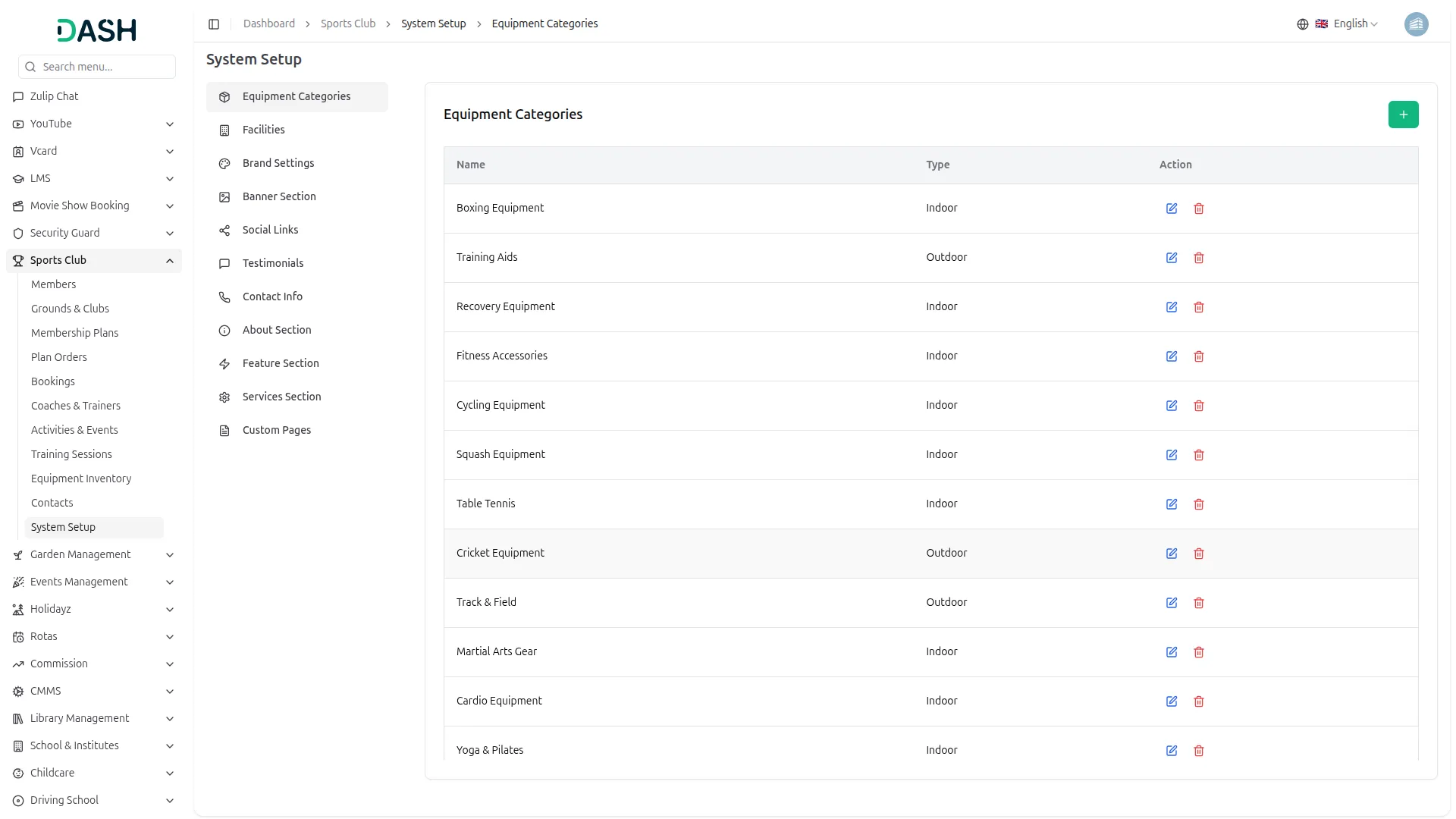
- To add a new Equipment Category, click the “Create” button and enter the category Name and select the Type as either Indoor or Outdoor. The list page displays a table with the Name, Type, and Action columns. Available actions: use ‘Edit’ to modify the category details and ‘Delete’ to remove it.
- Once an Equipment Category is created, it is available for selection when adding or managing equipment under equipment inventory, helping organize gear by sport type and environment.
Facilities
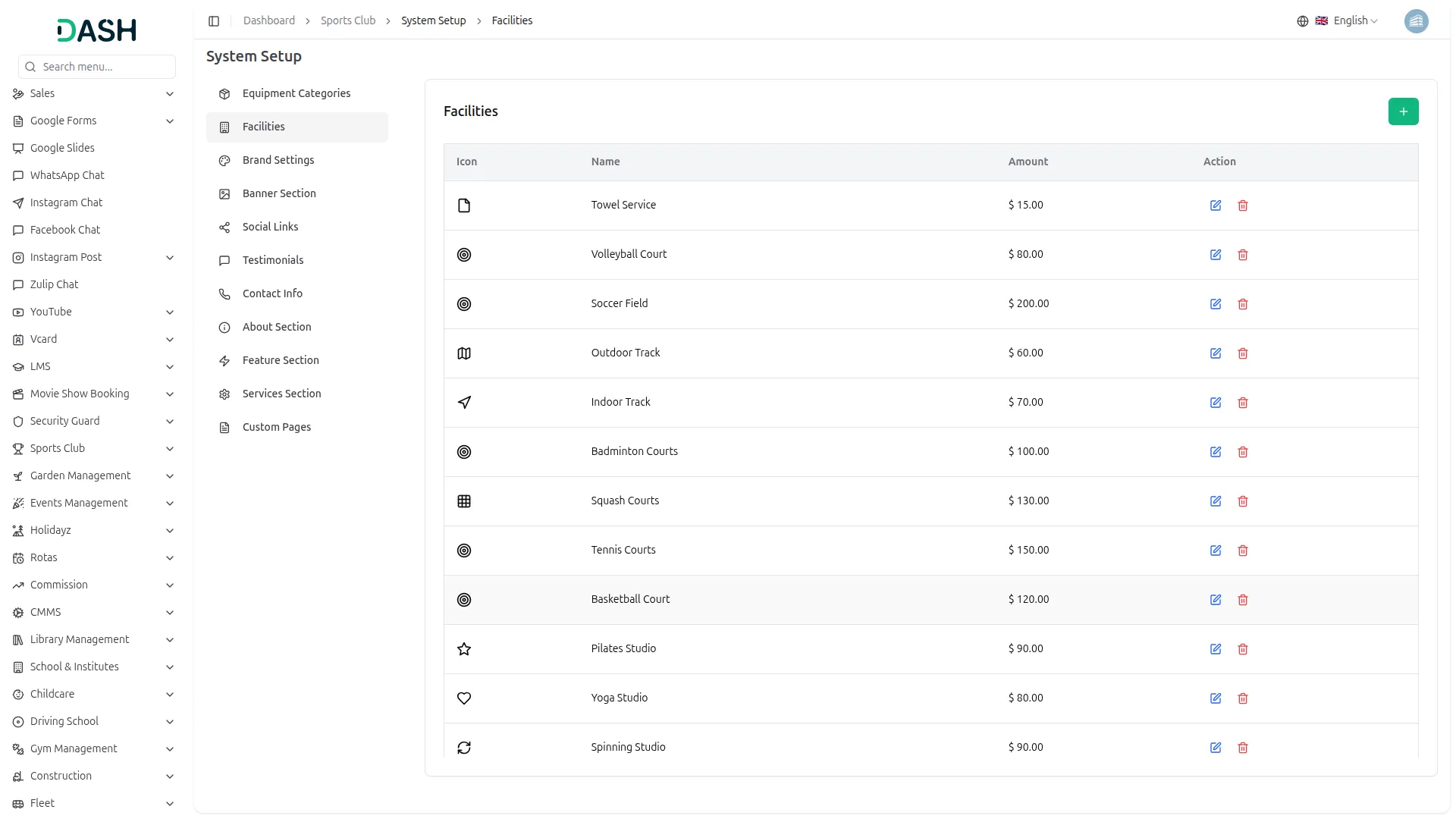
- To add a new Facility, click the “Create” button and select an Icon from the icon picker, enter the Facility Name, and set the Amount (price per use). The list page displays a table with the Icon, Name, Amount, and Action columns. Available actions: use ‘Edit’ to update facility details and ‘Delete’ to remove it.
- Once a Facility is created, it appears on the frontend Booking Step 1 page as a selectable add-on card with its icon, name, and price. When selected by the user, it gets added to the booking total and also appears inside the Booking Step 2 Details page as a summary of chosen additional facilities.
Brand Settings
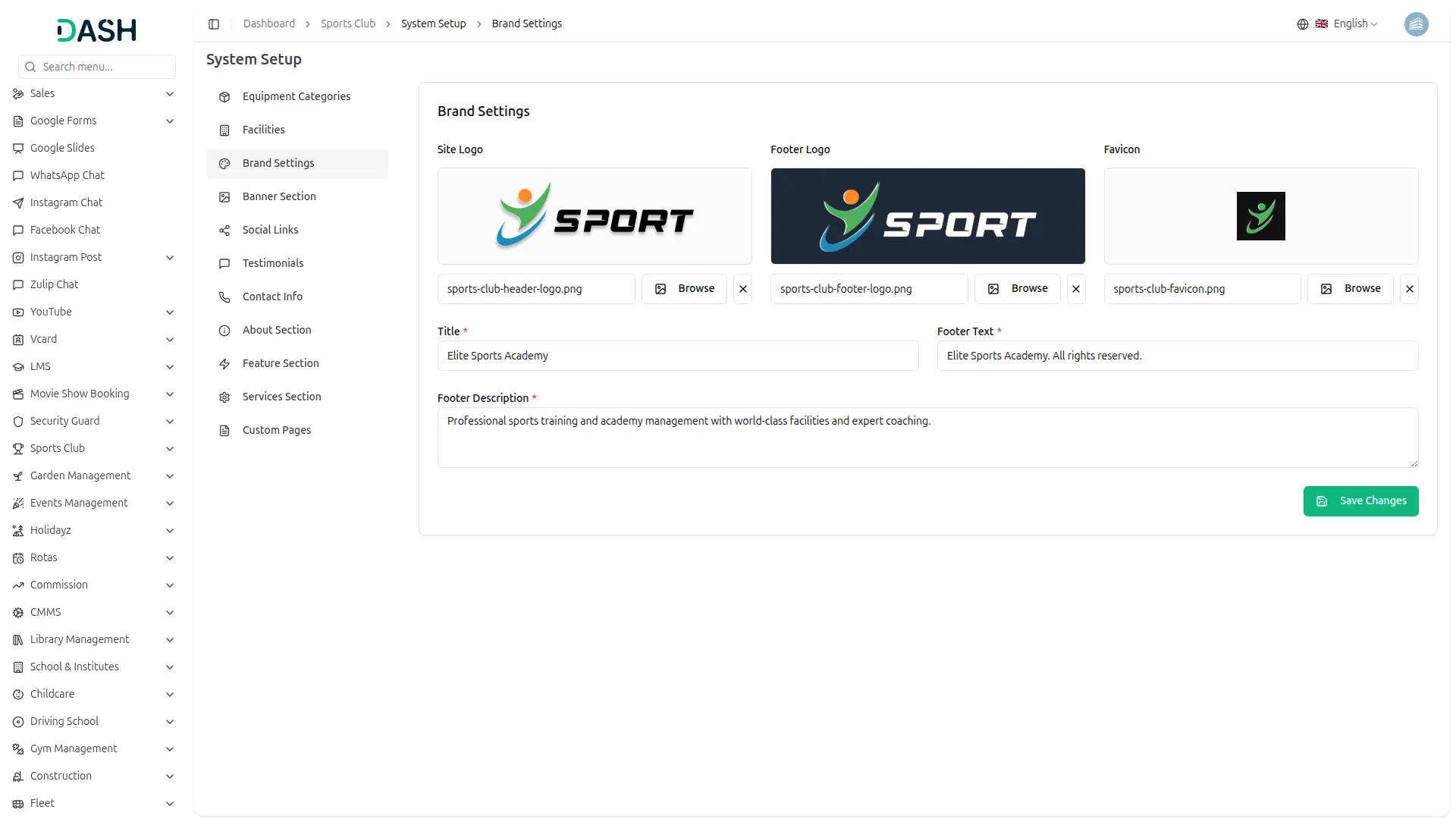
- This section manages the core visual identity of the website. Upload the Site Logo (displayed in the top navigation bar), the Footer Logo (shown in the dark footer area), and the Favicon (the small browser tab icon). Enter the Title (the academy’s brand name), Footer Text (the copyright line shown at the bottom of every page), and Footer Description (a short tagline displayed in the footer’s first column). Click “Save Changes” to apply.
- Once saved, the Site Logo appears in the header navbar across all pages, the Footer Logo and Footer Description appear in the bottom-left section of the footer, the Footer Text appears as the copyright line at the very bottom of every page, and the Favicon renders in the browser tab.
Banner Section
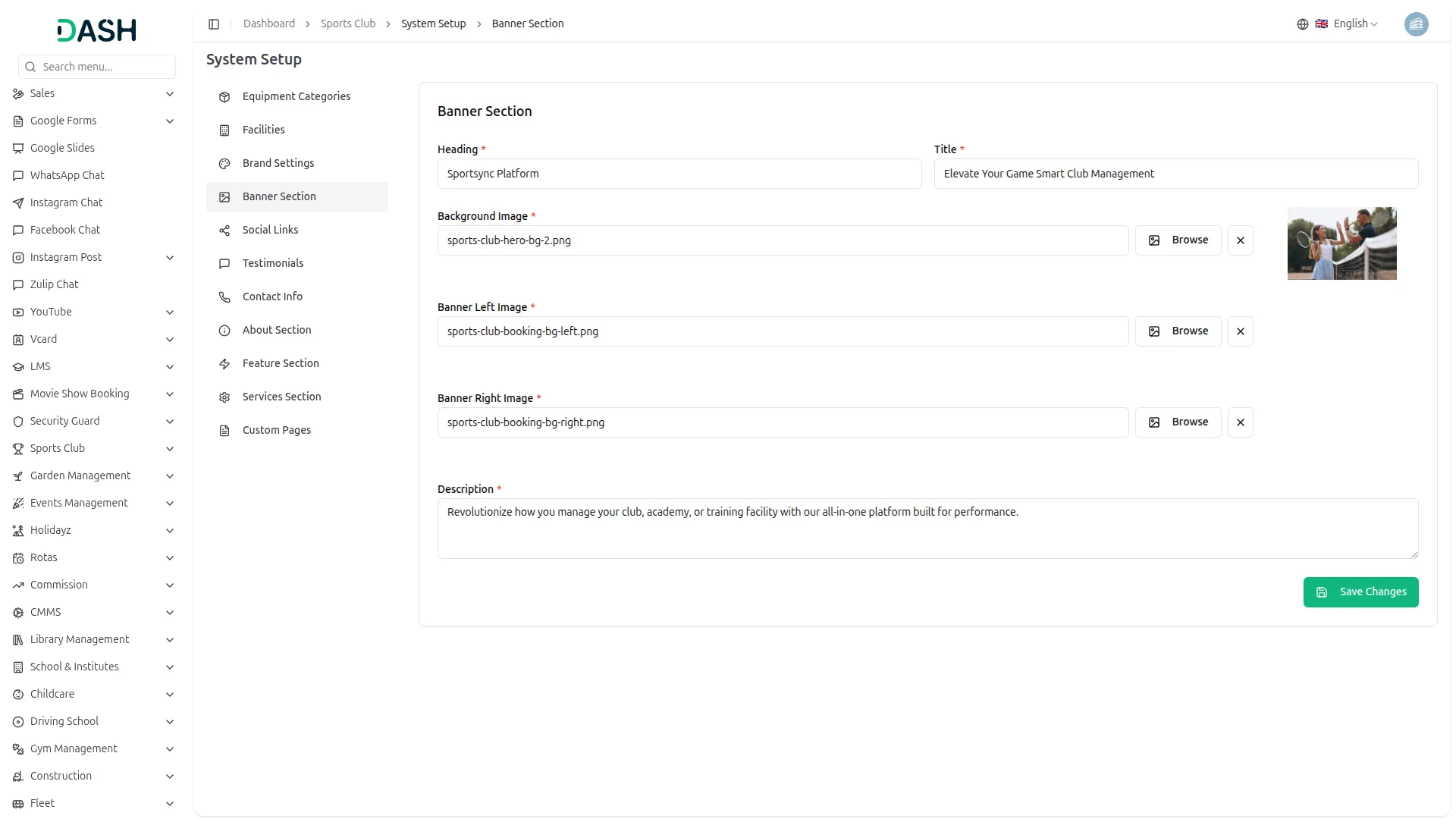
- This section controls the homepage hero banner. Enter the Heading, title, and the Description (supporting text shown below the title). Upload the Background Image (the full-width hero background), Banner Left Image (decorative image on the left side of the banner), and Banner Right Image (decorative image on the right side). Click “Save Changes” to apply.
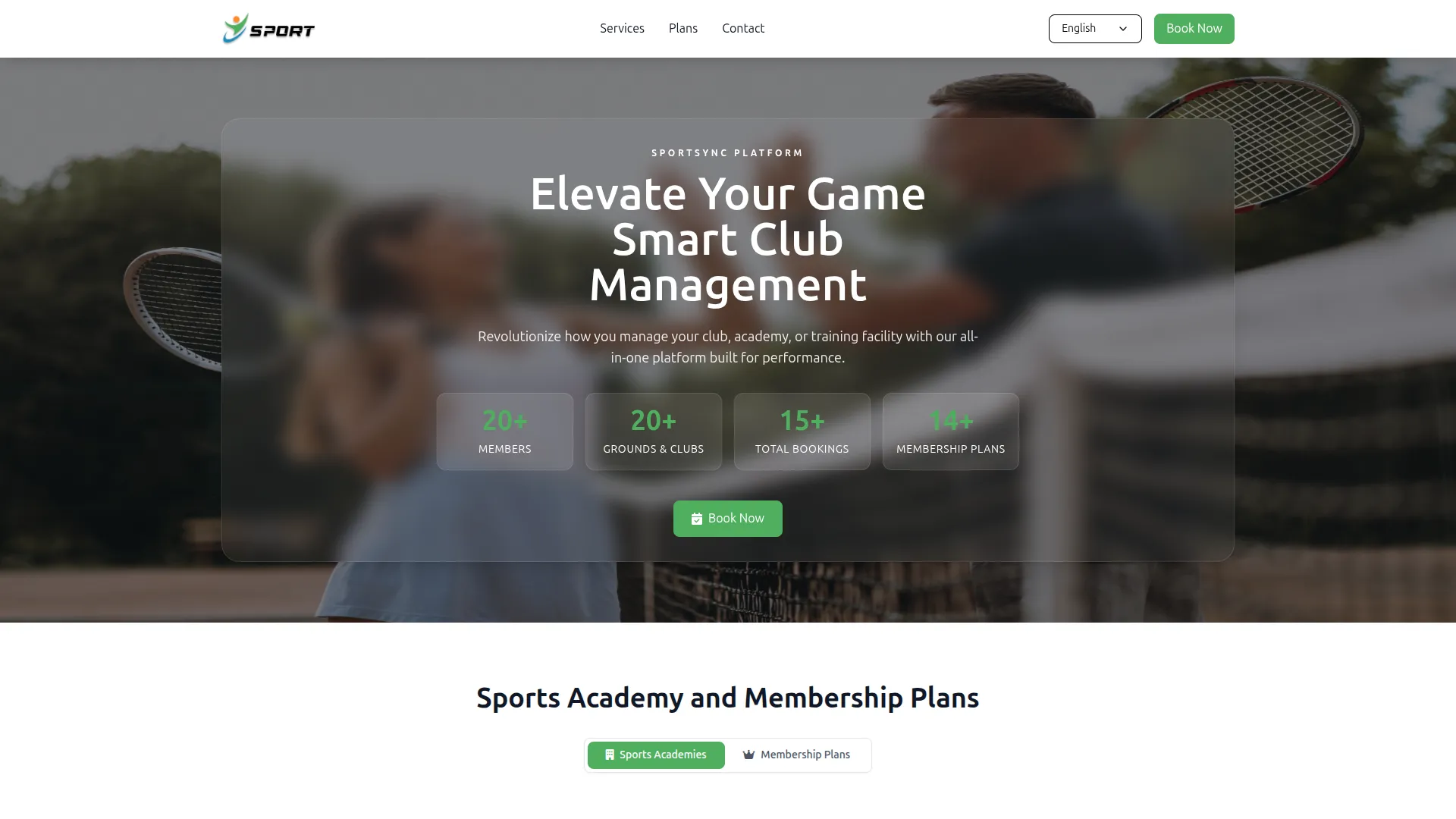
- Once saved, the Heading appears as a small tag above the main title, the Title and Description render as the hero headline and subtext, and the Background image is displayed across the full-width hero banner on the homepage.
Social Links
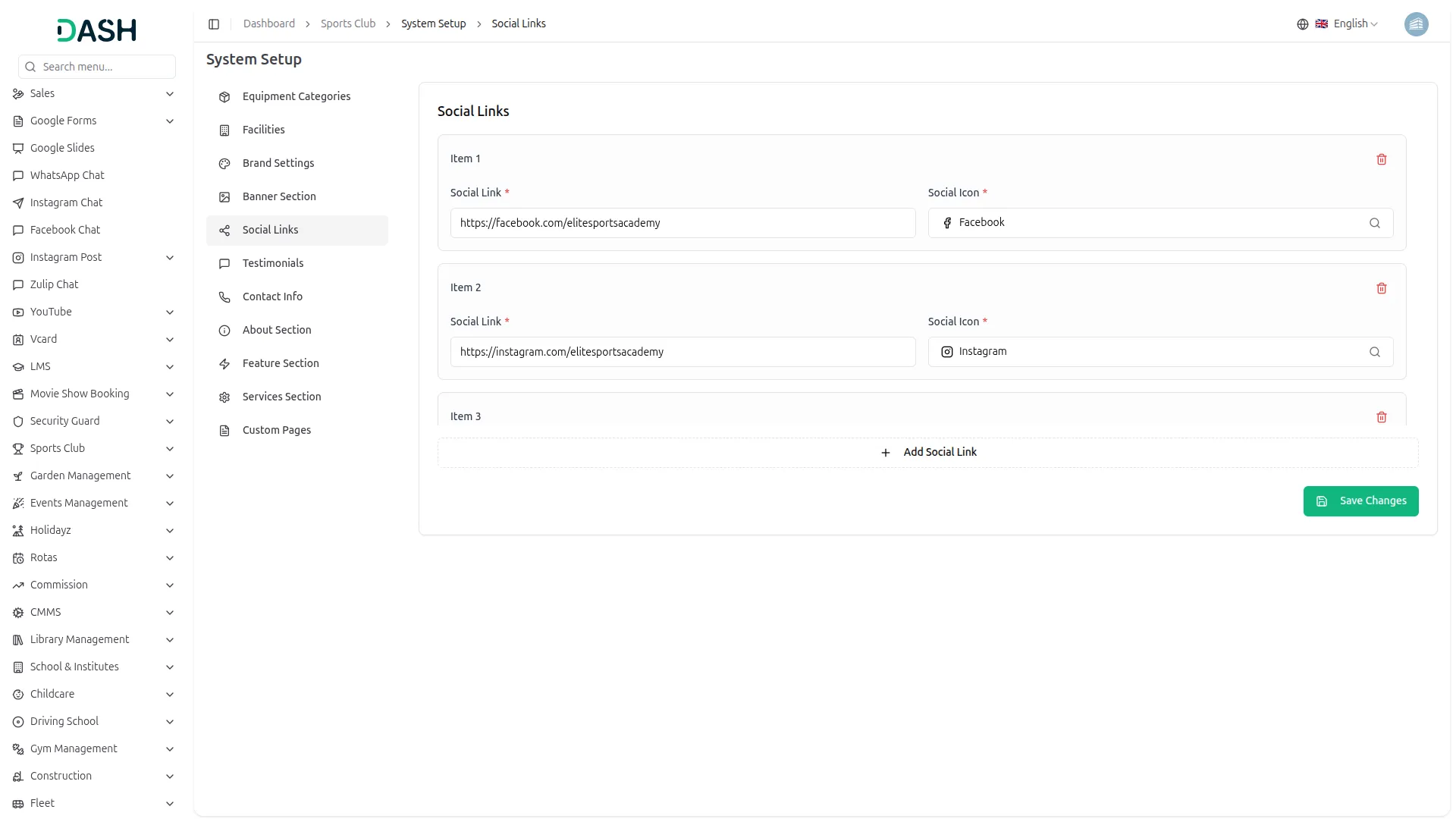
- This section manages the social media links shown in the website footer. For each item, enter the Social Link URL and select the matching Social Icon. Click ” Add Social Link” to add more platforms and click “Save Changes” to apply.
- Once saved, all social links appear as clickable icon buttons in the footer’s bottom-right area across every page of the website.
Testimonials
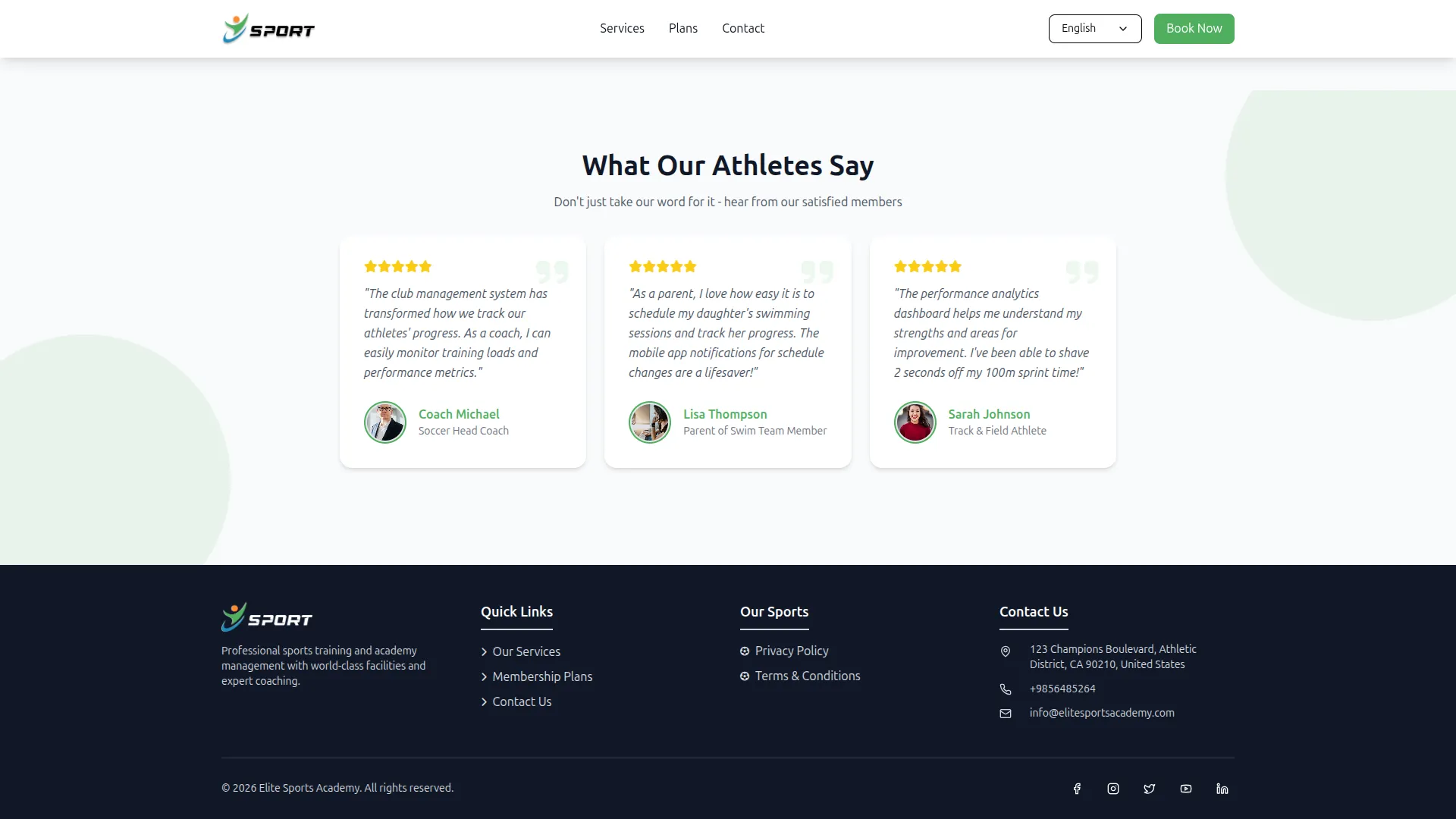
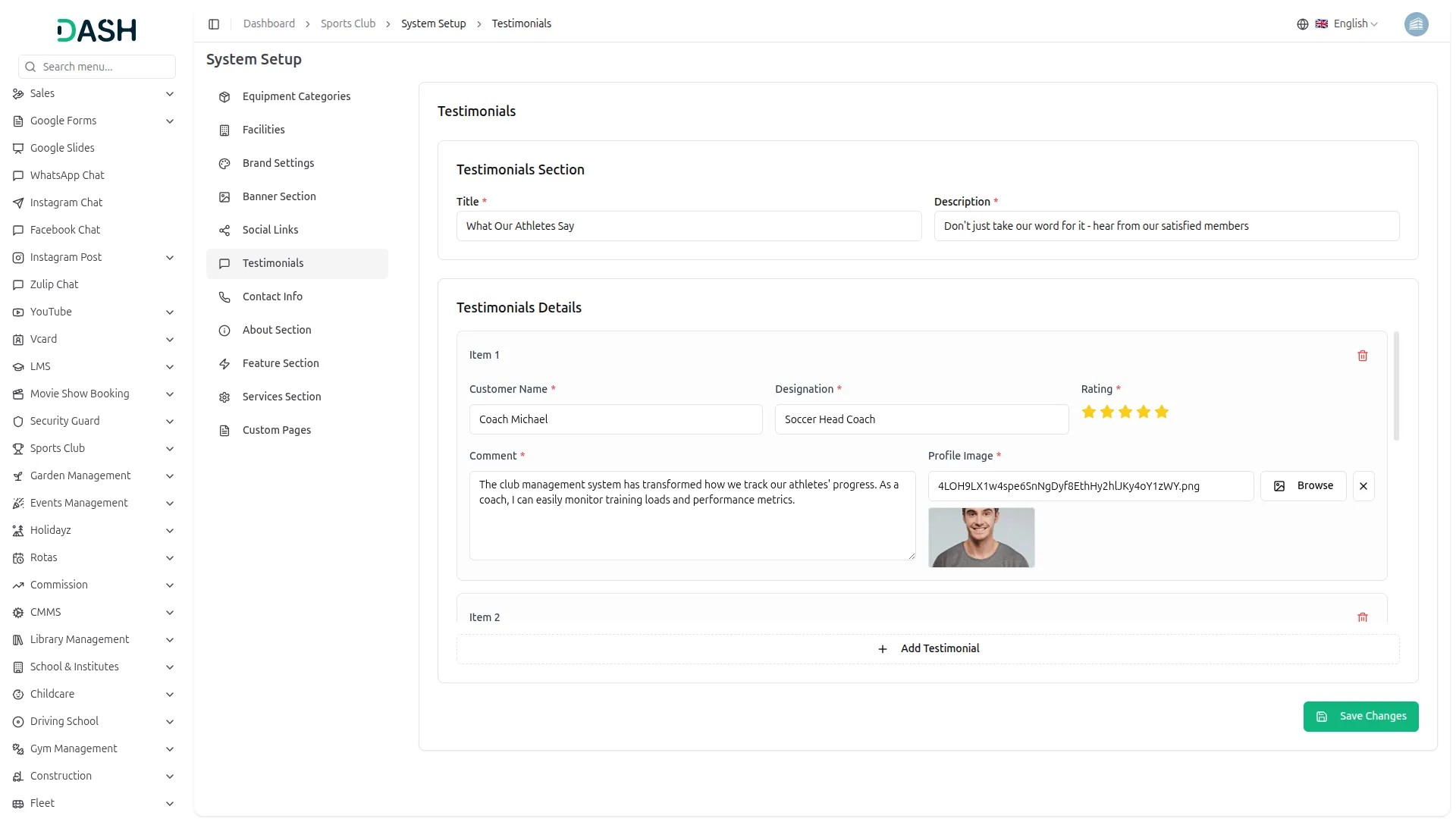
- This section manages the “What Our Athletes Say” section on the homepage. Enter the Section Title and Description (shown as the heading and subtext above the testimonials slider). Under Testimonials Details, for each item, enter the Customer Name, Designation, Star Rating, Comment, and upload a Profile Image. Click ” Add Testimonial” to add more entries and click “Save Changes” to apply.
- Once saved, the Title and Description appear as the section heading on the homepage. Each testimonial is displayed as a review card inside the slider, showing the star rating, comment text, profile image, customer name, and designation.
Contact Info
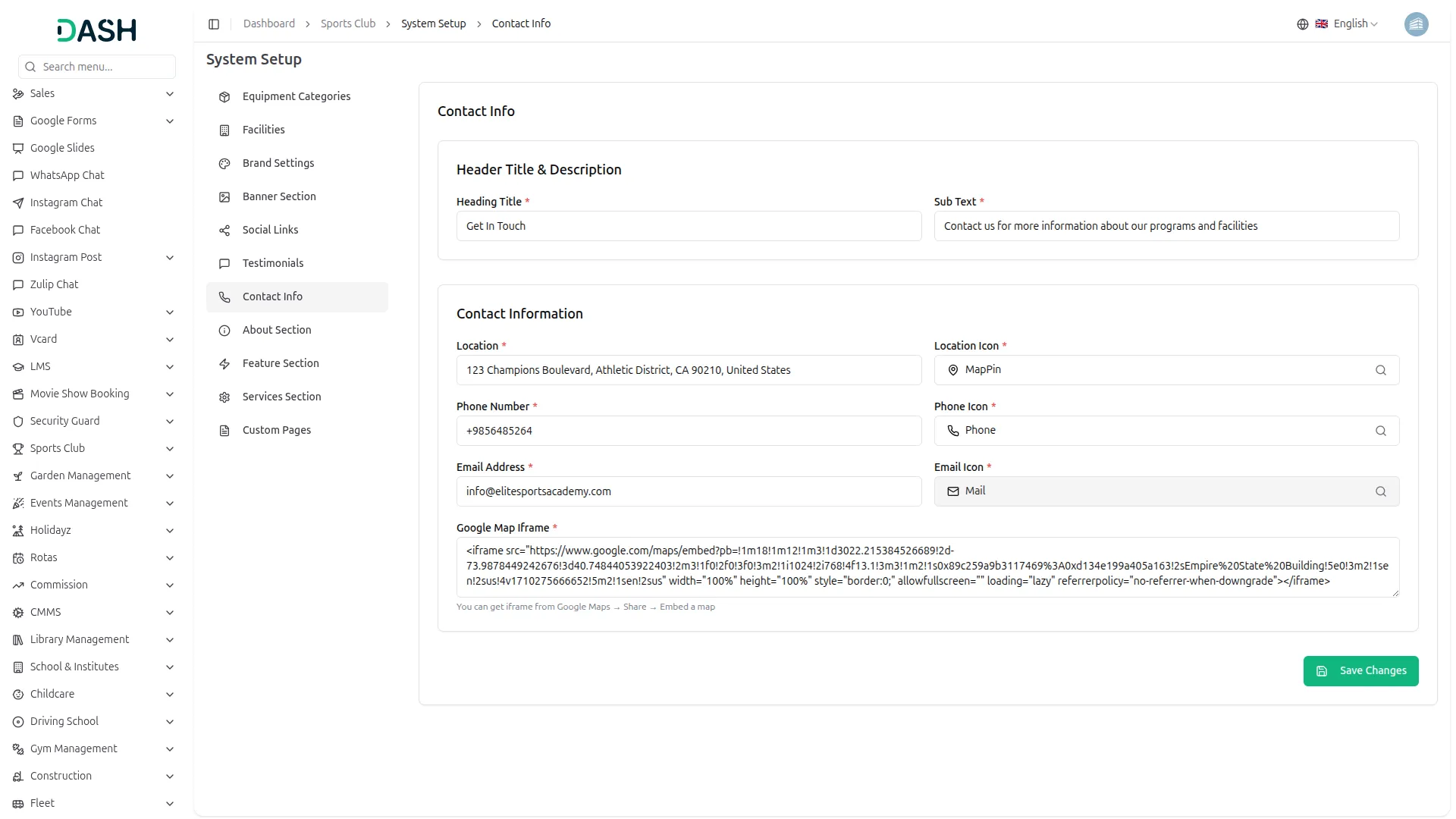
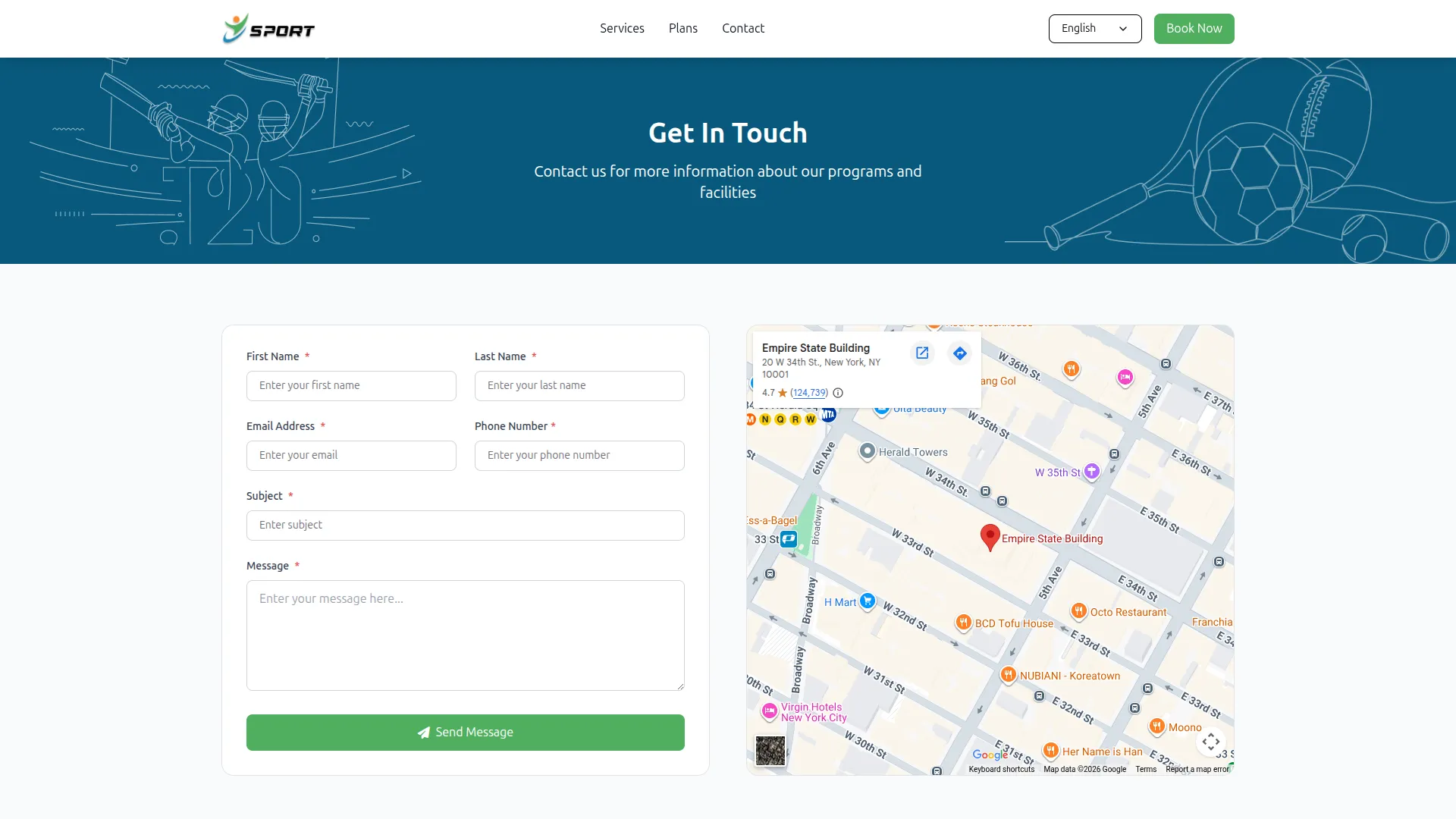
- This section manages all content on the Contact page. Under Header Title & Description, enter the Heading Title and Sub Text. Under Contact Information, fill in the Location, Phone Number, and Email Address, each paired with its respective icons (MapPin, Phone, Mail). Paste the Google Maps Iframe embed code to display the interactive map. Click “Save Changes” to apply.
- Once saved, the Heading Title and Sub Text appear at the top of the Contact page banner. The Location, Phone Number, and Email Address appear in the footer’s “Contact Us” section across all pages. The Google Maps Iframe renders as the live interactive map on the right side of the Contact page.
About Section
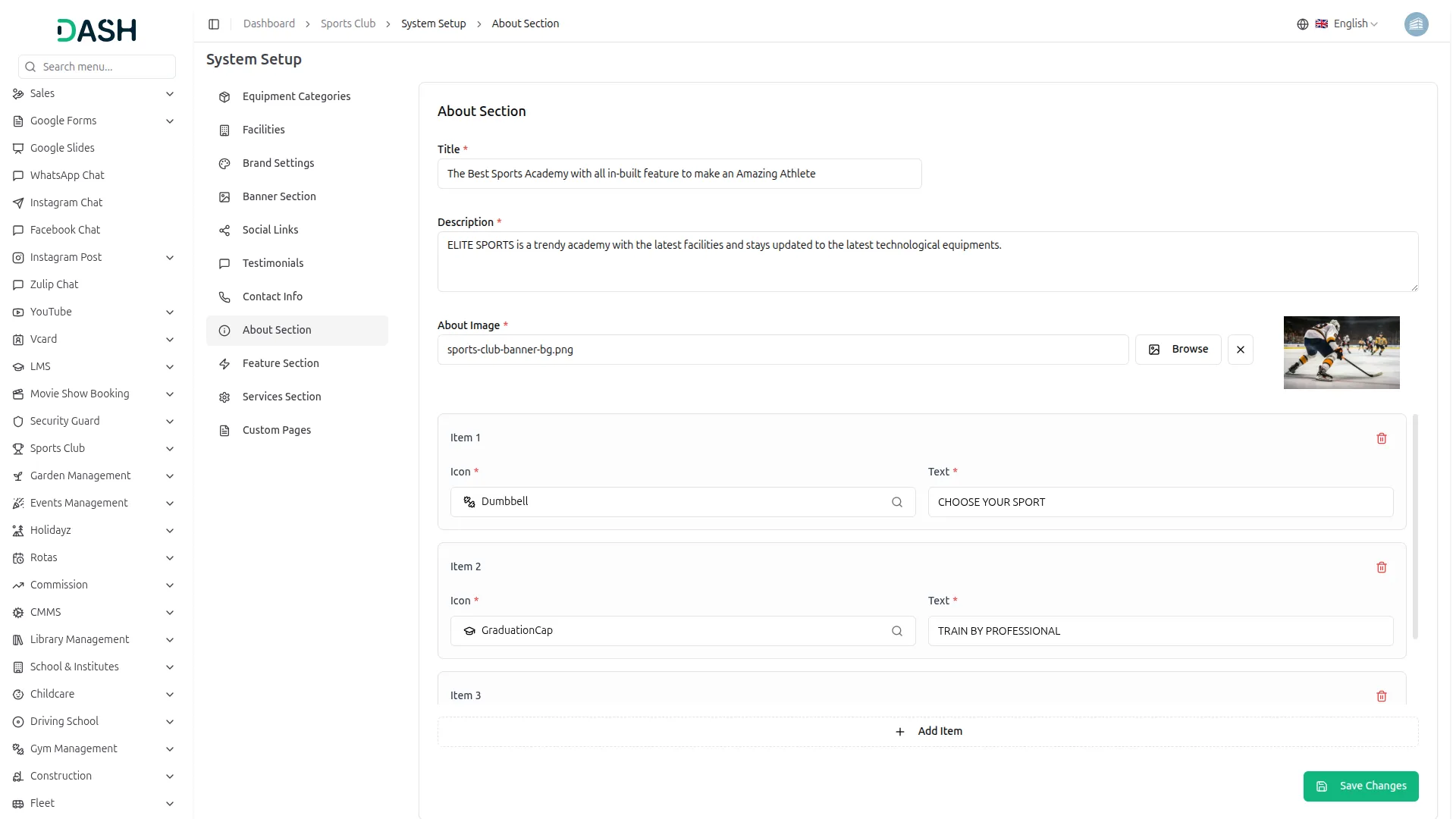
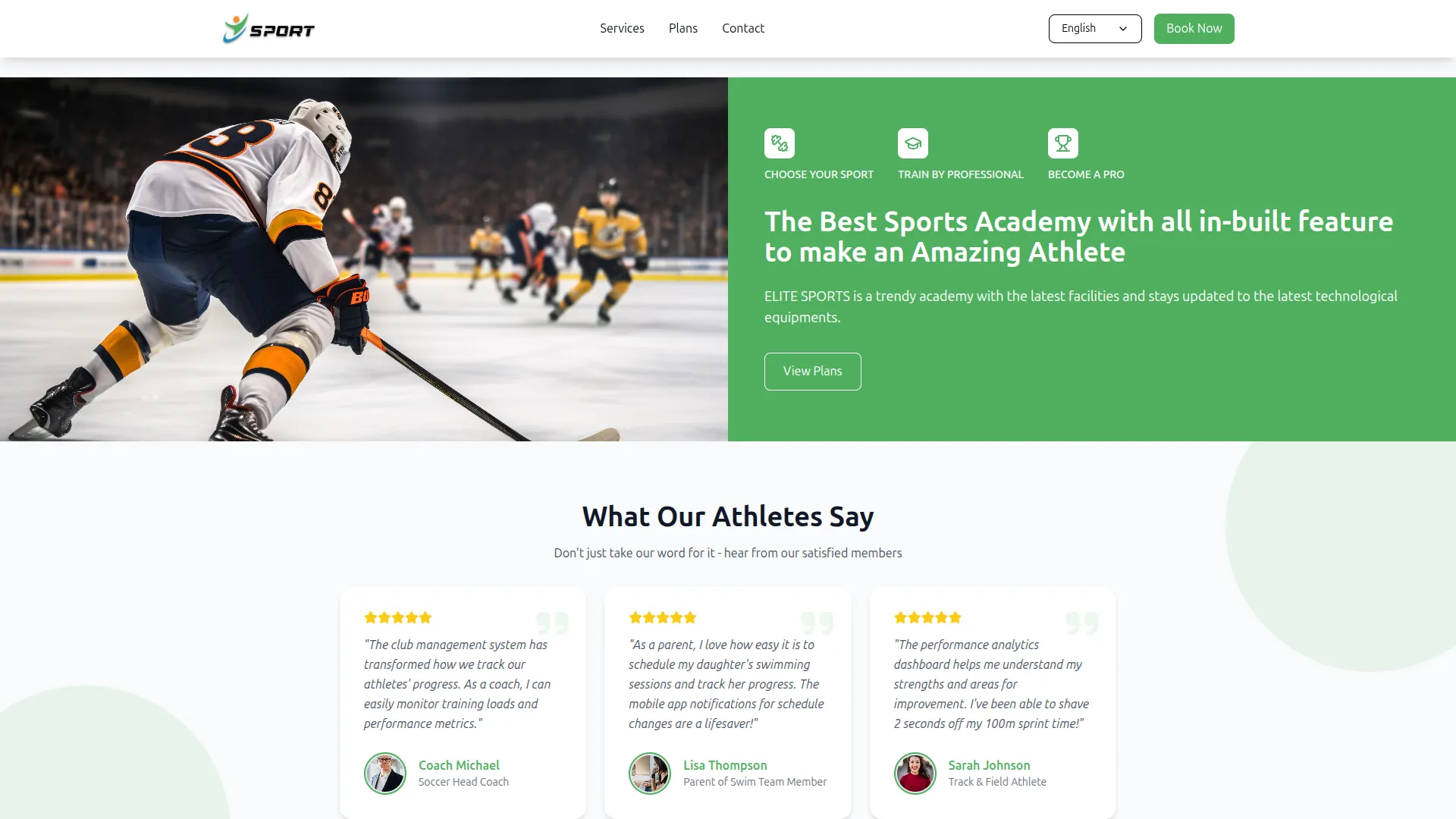
- This section controls the “Best Sports Academy” about block on the homepage. Enter the Title (main headline), Description (supporting paragraph text), and upload the About Image (displayed on the right side of the section). For each item, select an Icon and enter the label Text. Click “Add Item” to add more highlights and click “Save Changes” to apply.
- Once saved, the Title and Description appear as the heading and body text of the About section on the homepage. The About Image is displayed alongside the text, and each icon-label item appears as a small feature badge above the title.
Feature Section
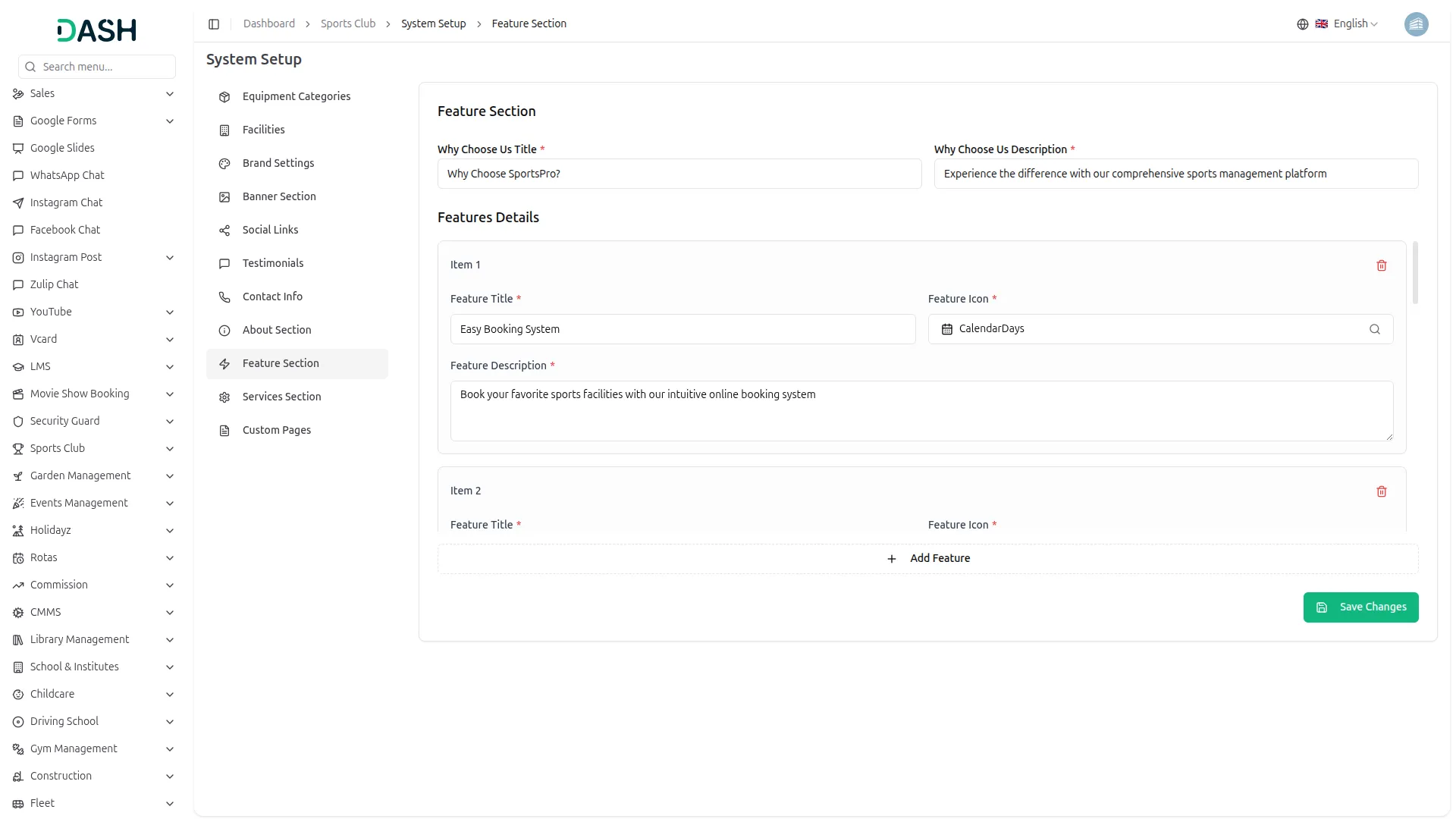
- This section manages the “Why Choose SportsPro?” block on the homepage. Enter the Why Choose Us Title and Why Choose Us Description (shown as the section heading and subtext). Under Features Details, for each item, enter the Feature Title, select a Feature Icon, and write a Feature Description. Click ” Add Feature” to add more entries and click “Save Changes” to apply.
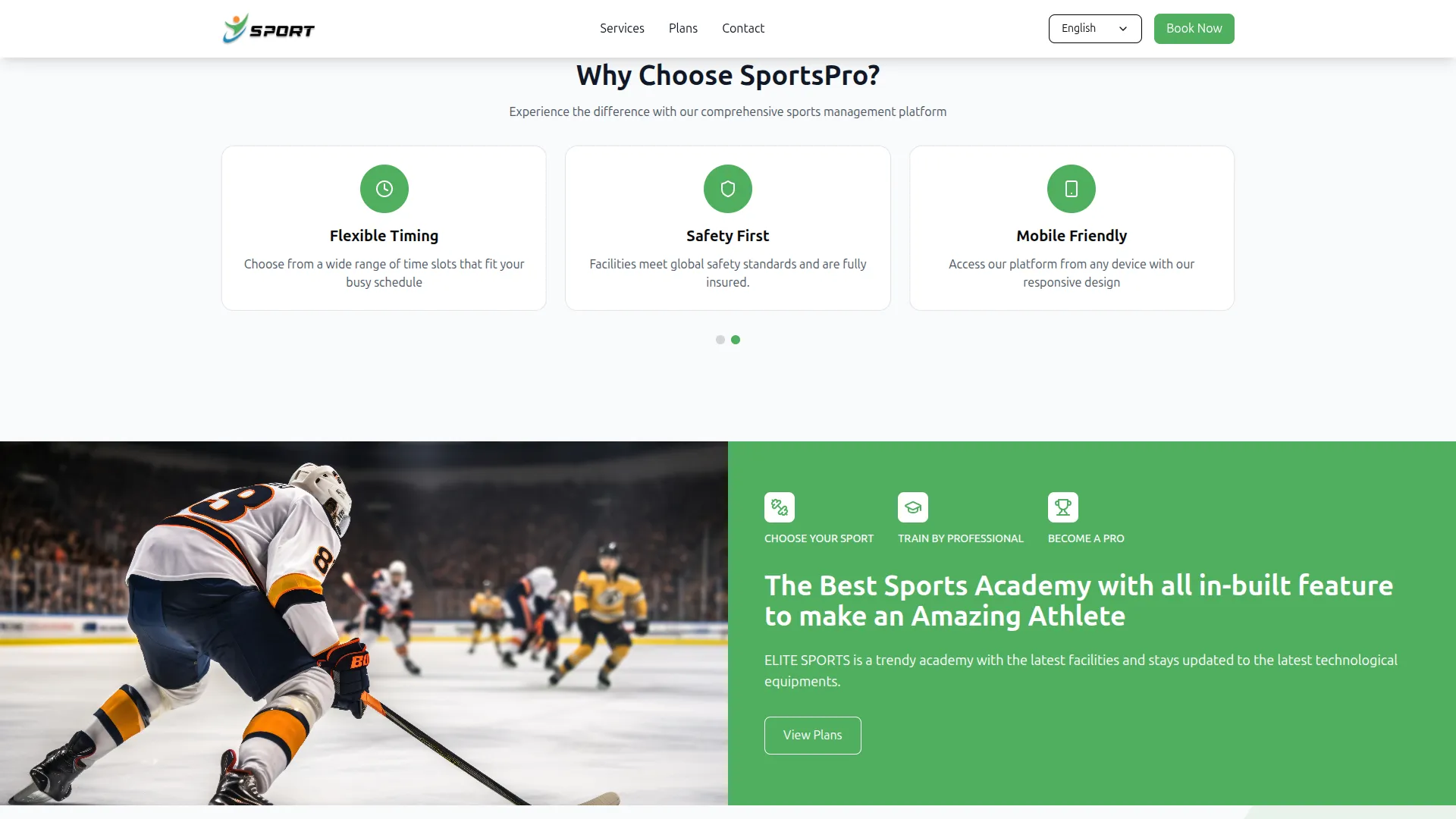
- Once saved, the section title and description appear as the heading above the features slider on the homepage. Each feature is displayed as a card with its icon, title, and description inside the sliding carousel.
Services Section
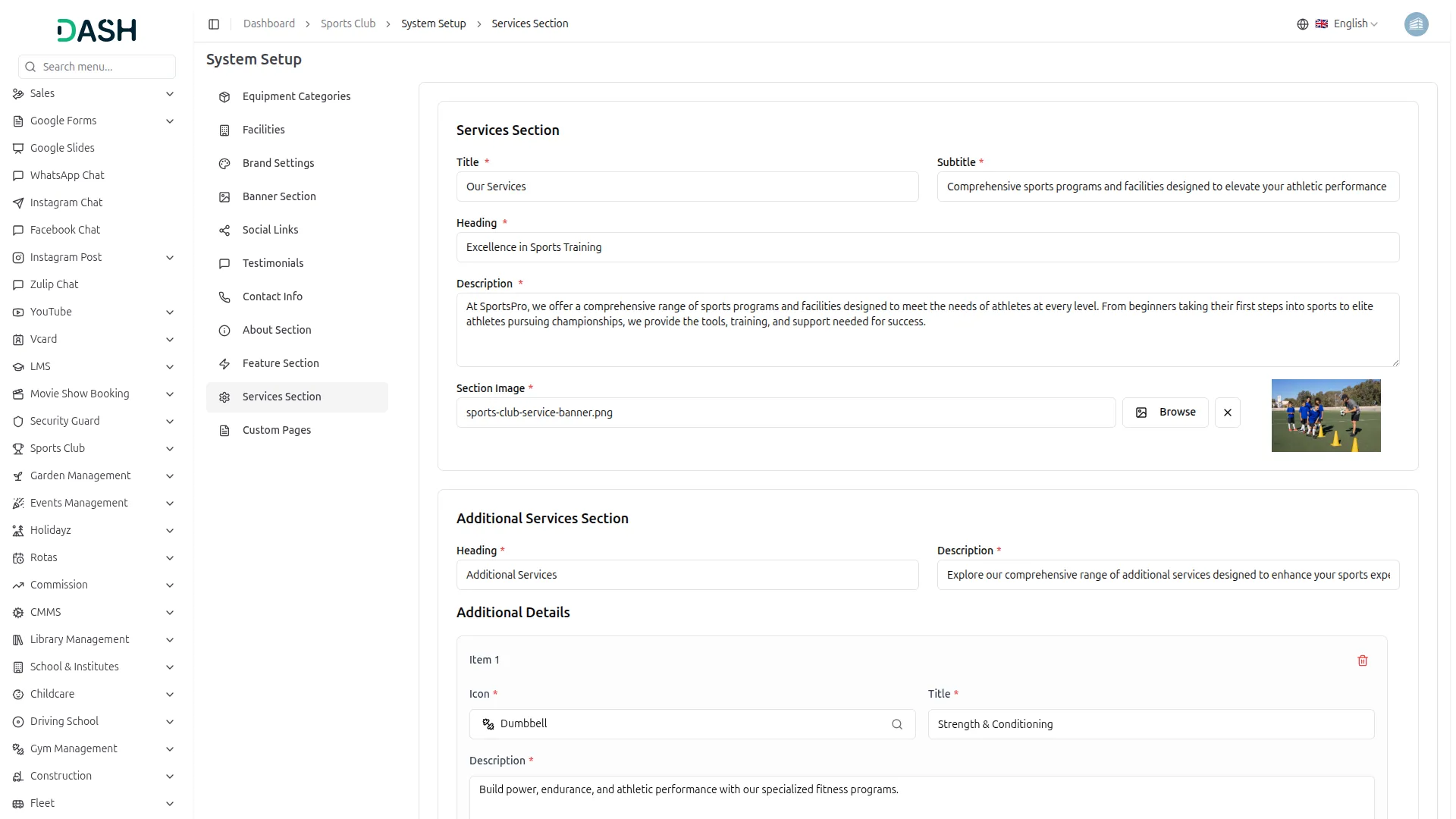
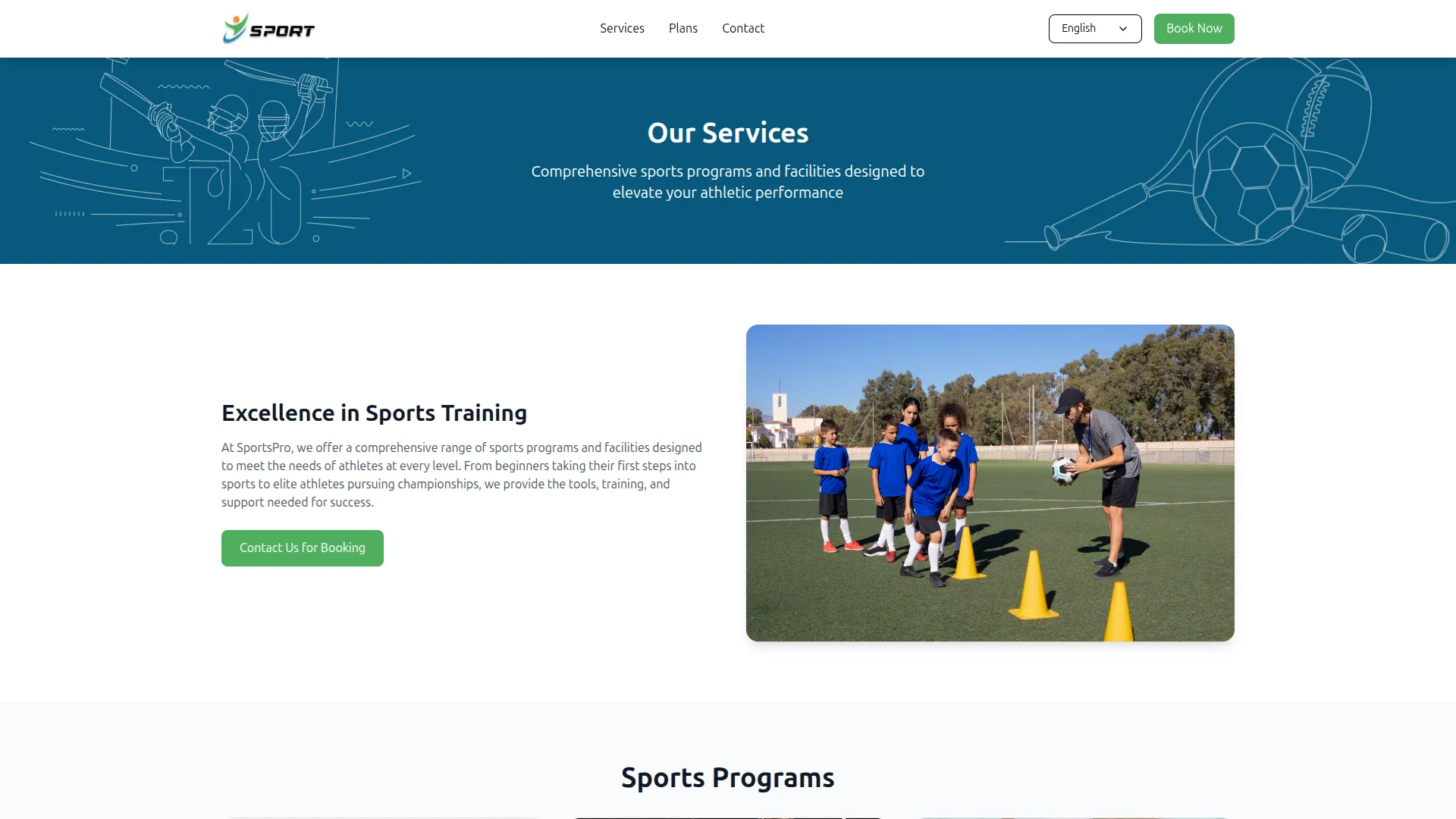
- This section manages the full Services page content. Enter the Title and Subtitle (page banner heading and subtext), the Heading and Description, and upload the Section Image shown alongside it.
- Under the Additional Services Section, enter the heading and description, and add each extra service with its Icon, Title, and Description. Under CTA Section, enter the Title and Description for the “Ready to Start Your Sports Journey?” call-to-action block at the bottom. Click “Save Changes” to apply.
- Once saved, the Title and Subtitle render as the Services page banner, the Heading, Description, and Section Image appear in the intro block, each additional service appears as an icon card in the Additional Services grid, and the CTA Title and Description render in the green call-to-action banner at the bottom of the page.
Custom Pages
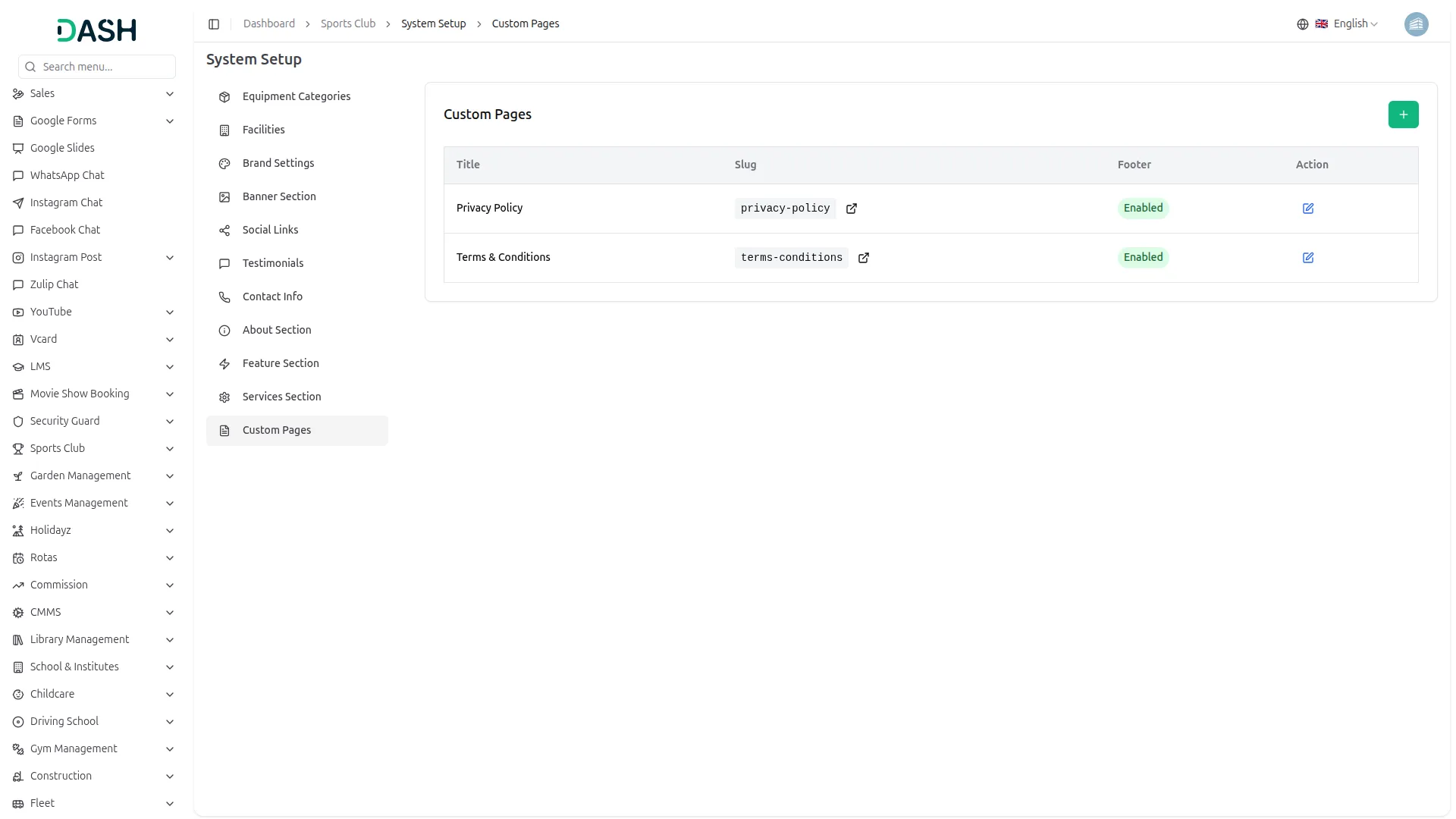
- To create a new custom page, click the “Create” button and enter the page Title, a URL Slug, an optional Description, and write the full page Contents using the rich text editor. Toggle “Enable Page Footer” to show or hide that page in the footer. Click “Create” to publish. The list page displays the Title, Slug, Footer status (Enabled/Disabled), and an Edit to update or delete to remove the page.
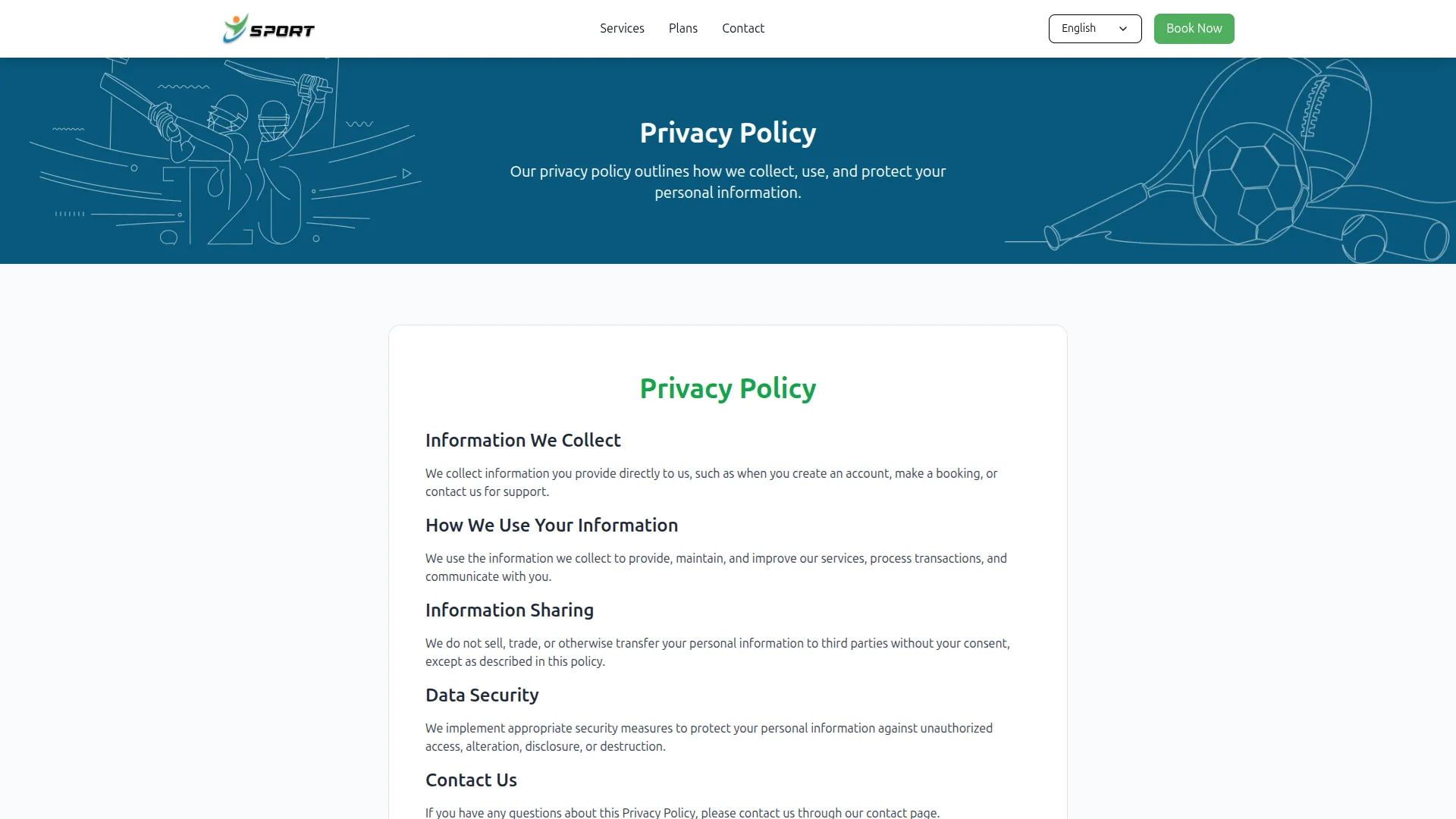
- Once created, the page is accessible via its URL slug and appears as a clickable link in the website footer under the “Our Sports” quick links section if the footer is enabled.
Manage Members
- To add a new member, click the “Create” button on the manage member page. Enter the Member Name, Email, Date of Birth, and Mobile Number. Select the Gender (Male, Female, or Other), and optionally enter an Address and Notes. Click “Create” to save the member.
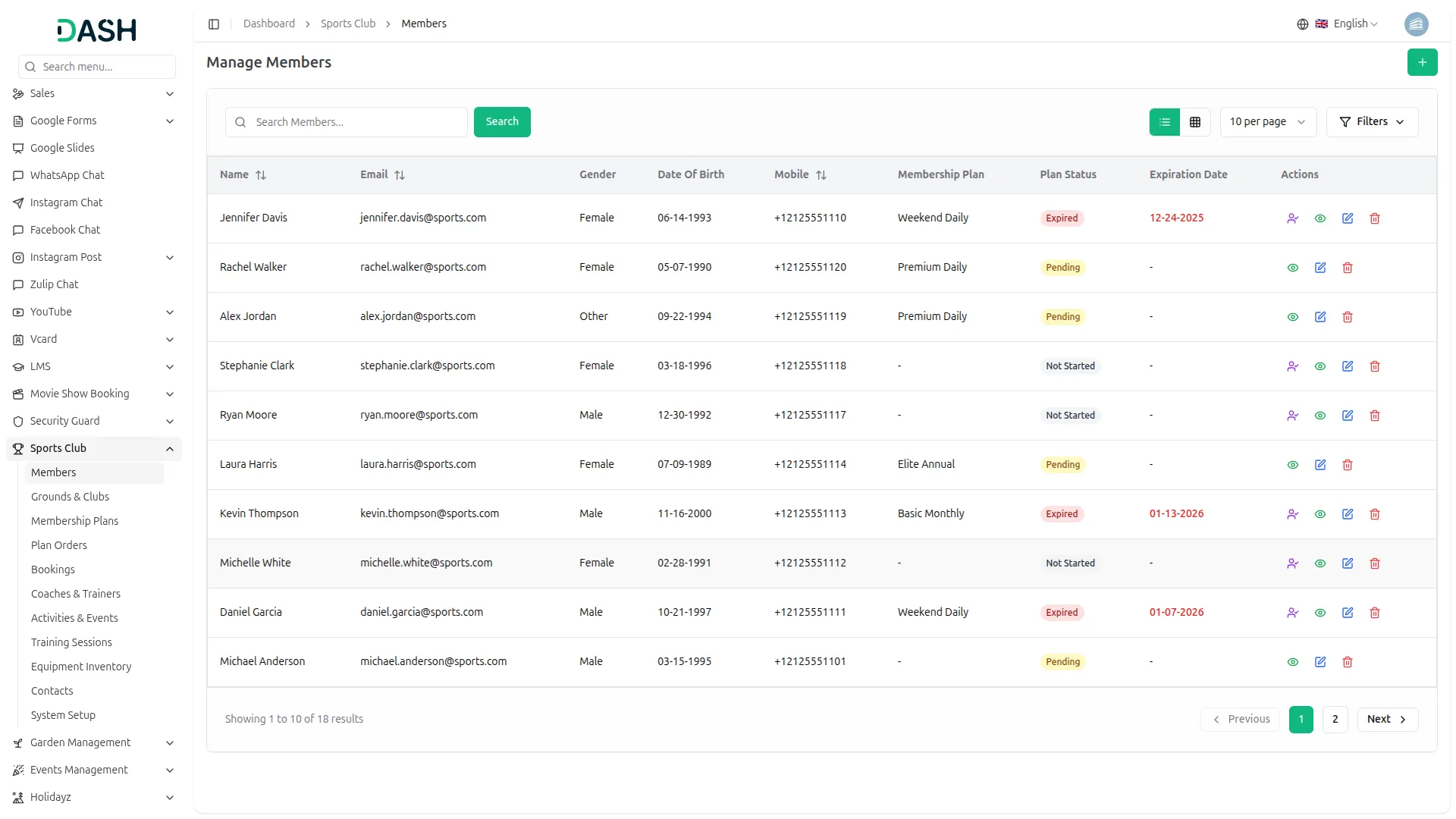
- The list page displays a table with columns including Name, Email, Gender, Date of Birth, Mobile, Membership Plan, Plan Status, Expiration Date, and Actions. You can search for a specific member using the search bar. The page also allows you to toggle between list view and grid view.
- Click the “Filters” button to filter the member list by selecting the Gender (Male, Female, or Other) and the Membership Plan from the dropdowns, then click “Apply” to filter the data or “Clear” to reset it.
- In the Action column, use “View” to see the full member profile, “Edit” to update the member’s information, and “Delete” to permanently remove the member from the system. For members whose Plan Status is “Not Started” or has no plan assigned, an additional “Assign Plan” action is available.
- To assign a membership plan, click the “Assign Plan” icon, then select the Membership Plan from the dropdown. The Amount, Duration, and Capacity fields will be auto-filled based on the selected plan. Set the Payment Date, choose the Bank Account, and enter a Reference Number. Click “Assign Plan” to confirm.
- Once a plan is assigned, the Membership Plan name appears in the member row along with the Plan Status (Active, Pending, Expired, or Not Started) and the Expiration Date, which is automatically calculated based on the plan’s duration. Expired expiration dates are highlighted in red to flag members requiring renewal.
- Members with an Active plan status are counted in the overall membership stats, giving complete visibility over active, pending, and expired members across the platform.
Grounds & Clubs
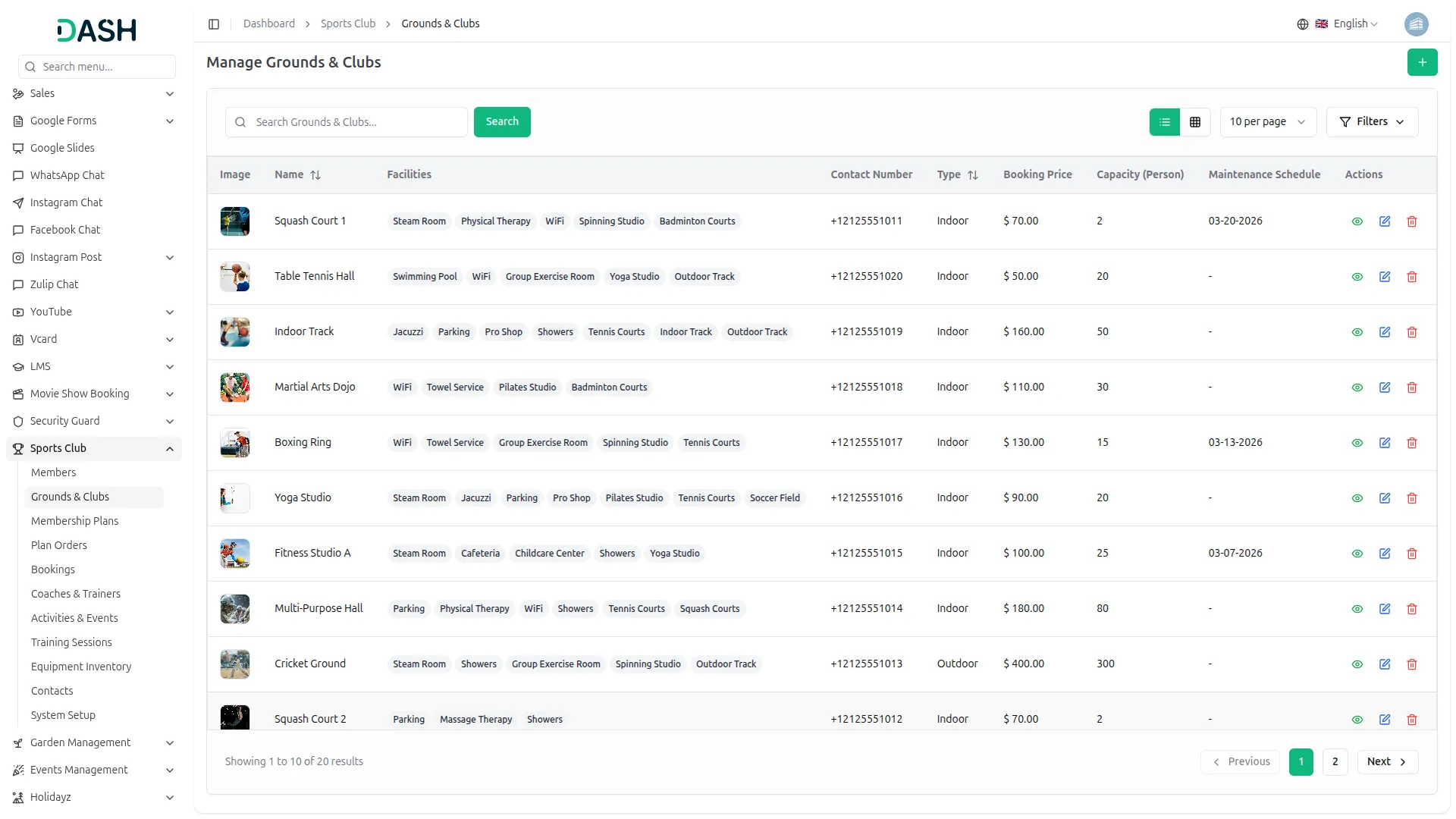
- To add a new Ground or Club, click the “Create” button on the grounds & club page. Enter the Name, select the Facilities from the dropdown (Populated from System Setup from Facilities ), choose the Type (Indoor or Outdoor), and enter the Venue name. Set the Booking Price and select the Duration (Hour or Day).
- Enter the Member Capacity, and optionally set a Maintenance Schedule date. Enter the Contact Number, upload a primary Image, paste a Google Map Iframe embed code, upload Multiple Images for the gallery, and add any Notes. Click “Create” to save the ground.
- The list page displays a table with columns including Image, Name, Facilities (shown as tags), Contact Number, Type, Booking Price, Capacity (Person), Maintenance Schedule, and Actions. You can search for a specific ground using the search bar. The page also allows toggling between list view and grid view.
- Click the “Filters” button to filter the list by selecting the Type (Indoor or Outdoor) and the Duration (Hour or Day) from the dropdowns, then click “Apply” to filter the data or “Clear” to reset it.
- In the Action column, use “View” to see the full ground detail, “Edit” to update the ground’s information, and “Delete” to permanently remove the ground from the system.
- Once a ground is created, it appears on the website’s homepage and Services page as a bookable sports program card displaying the ground name, venue, facilities list, booking price, and “Book Now” / “Quick View” buttons. It also becomes available for selection during the booking flow and can be linked to membership plans.
Membership Plans
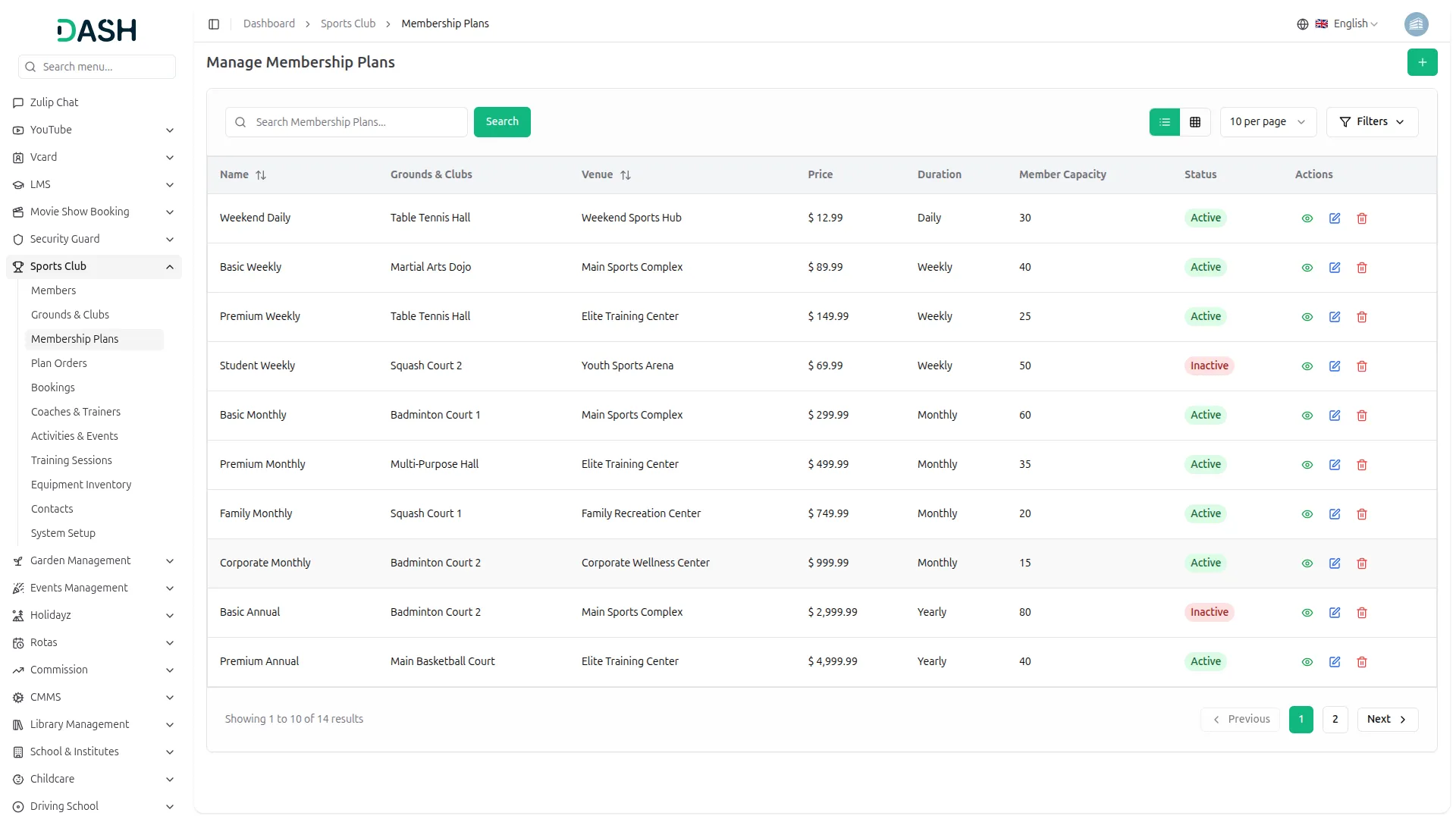
- To add a new Membership Plan, click the “Create” button on the membership plan page. Enter the Plan Name, select the Status (Active or Inactive), and enter the Venue name. Set the Price and Member Capacity.
- Select the Duration from the dropdown (Daily, Weekly, Monthly, or Yearly) and pick a Color to visually distinguish the plan card. Select the associated Grounds & Clubs from the dropdown (comes from the Grounds & Clubs section) and optionally add a Description. Click “Create” to save the plan.
- The list page displays a table with columns including Name, Grounds & Clubs, Venue, Price, Duration, Member Capacity, Status, and Actions. You can search for a specific plan using the search bar. The page also allows toggling between list view and grid view.
- Click the “Filters” button to filter the list by typing a Venue name, selecting the Status (Active or Inactive), or selecting the Duration (Daily, Weekly, Monthly, or Yearly) from the dropdowns, then click “Apply” to filter the data or “Clear” to reset it.
- In the Action column, use “View” to see the full plan details, “Edit” to update the plan’s information, and “Delete” to permanently remove the plan from the system.
- Once a Membership Plan is created with Active status, it appears on the website’s Membership Plans page as a colorful subscription card displaying the plan name, price, billing cycle badge, associated ground, member capacity, and a “Subscribe Now” button. It also becomes available for selection in the “Assign Plan” flow under Manage Members, allowing admins to directly assign it to any member.
Plan Orders
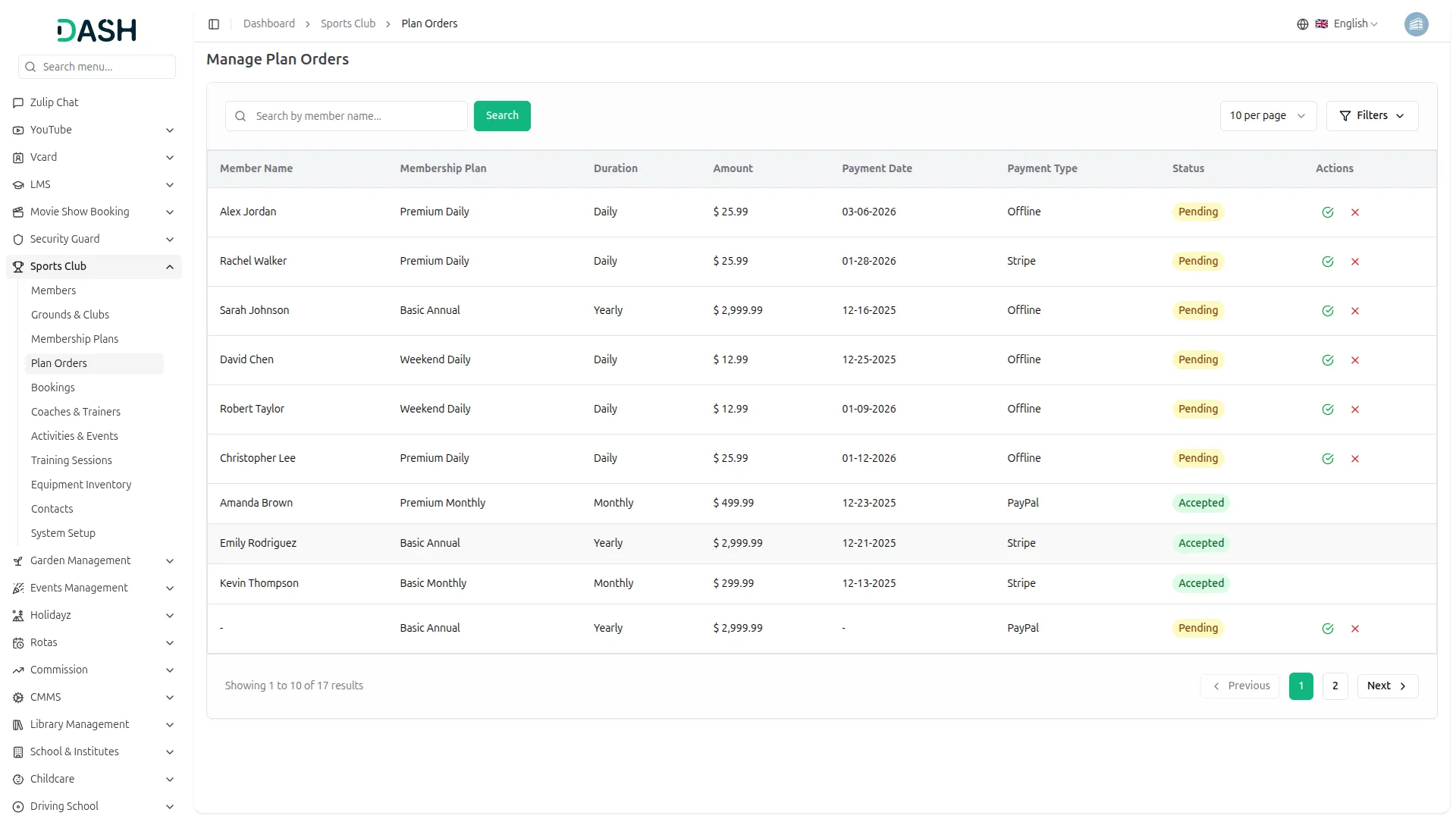
- The Plan Orders page displays all membership plan subscription requests submitted by members, either through the website or assigned manually by the admin. The list shows a table with columns including Member Name, Membership Plan, Duration, Amount, Payment Date, Payment Type (Stripe, PayPal, or Offline), Status, and Actions.
- You can search for a specific order by member name using the search bar. Click the “Filters” button to filter orders by Status (Pending or Accepted) from the dropdown, then click “Apply” to filter the data or “Clear” to reset it.
- In the Action column, orders with a Pending status show two actions: use the “Accept” to approve the order and activate the member’s plan, or use the “Reject” to decline the order. Orders that are already Accepted have no further actions available.
- Once an order is accepted, the Status updates to Accepted and the corresponding member’s Plan Status in Manage Members changes to Active, with the Expiration Date automatically calculated based on the plan’s duration. This keeps both the order records and member profiles in sync across the system.
Manage Bookings
- To add a new Booking, click the “Create” button on the manage booking page. Select the Grounds & Clubs Name from the dropdown (comes from the Grounds & Clubs section). Enter the customer’s Name, Email, and Mobile Number, and select Booked By from the dropdown (Society, Company, or Individual).
- Set the Booking Date and the Amount, Member Capacity and Ground Facilities fields auto-populate once a ground is selected. Choose the Bank Account, enter the Purpose, and optionally add Special Requirements, Notes, and upload a Receipt by clicking the browse button. Click “Create” to save the booking.
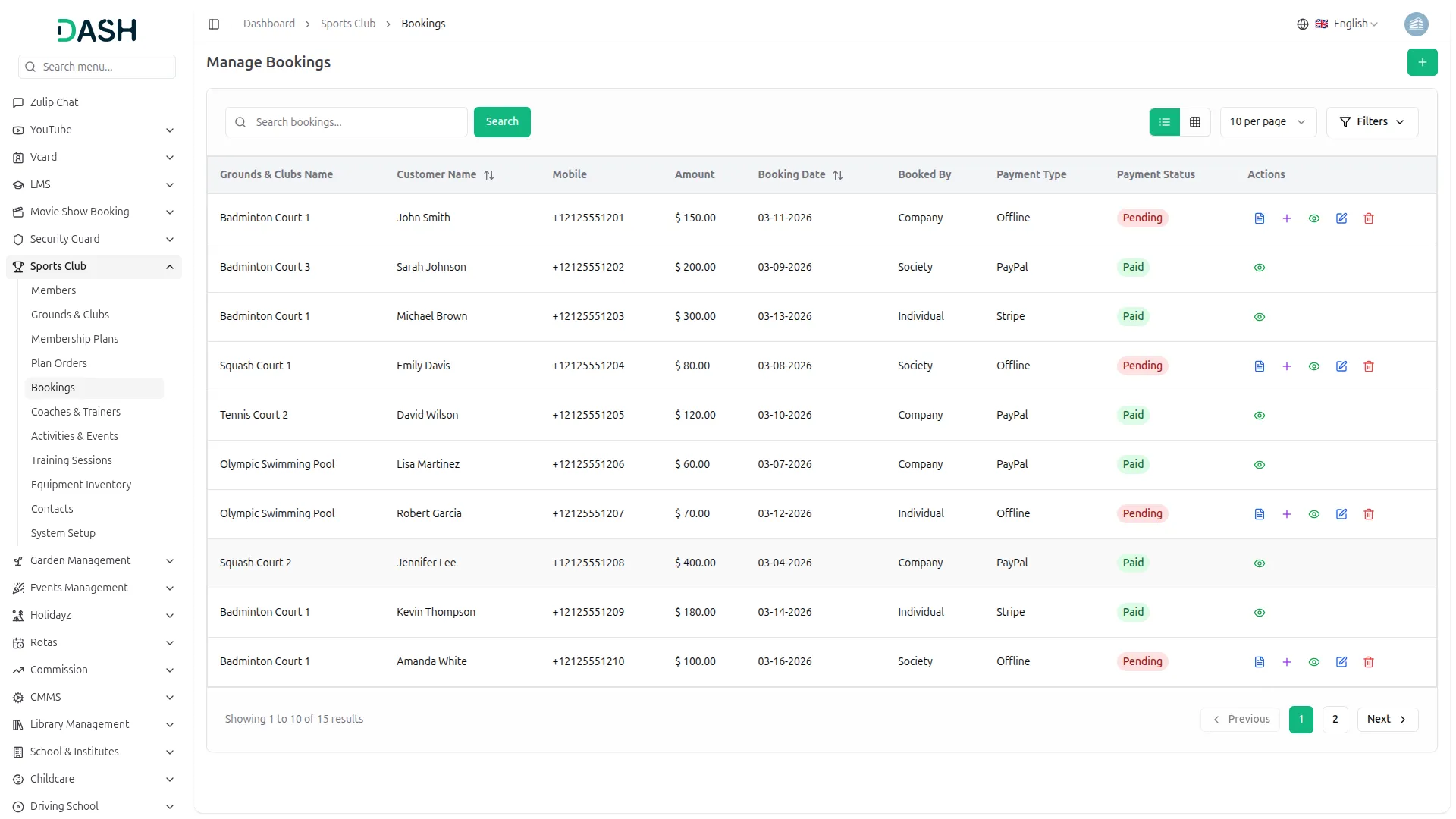
- The list page displays a table with columns including Grounds & Clubs Name, Customer Name, Mobile, Amount, Booking Date, Booked By, Payment Type, Payment Status, and Actions. You can search for a specific booking using the search bar. The page also allows toggling between list view and grid view.
- Click the “Filters” button to filter bookings by Grounds & Clubs Name or by Payment Status (Paid or Pending) from the dropdowns, then click “Apply” to filter the data or “Clear” to reset it.
- In the Action column, bookings with a Pending payment status show the following actions: Clicking “Post Order” opens a confirmation pop-up where you can confirm the action to mark the booking as paid. Use “Add Extra Facilities” to attach additional facilities to the booking after it has been created.
- Use “View” to see the full booking details, “Edit” to update the booking information, and “Delete” to permanently remove it. Bookings with a Paid status only show the “View” action.
- Once a booking is marked as Paid via Post Order, the Payment Status updates to Paid in the list, and no further edit or delete actions are available, ensuring the booking record is locked and accurate for reporting purposes.
Coaches & Trainers
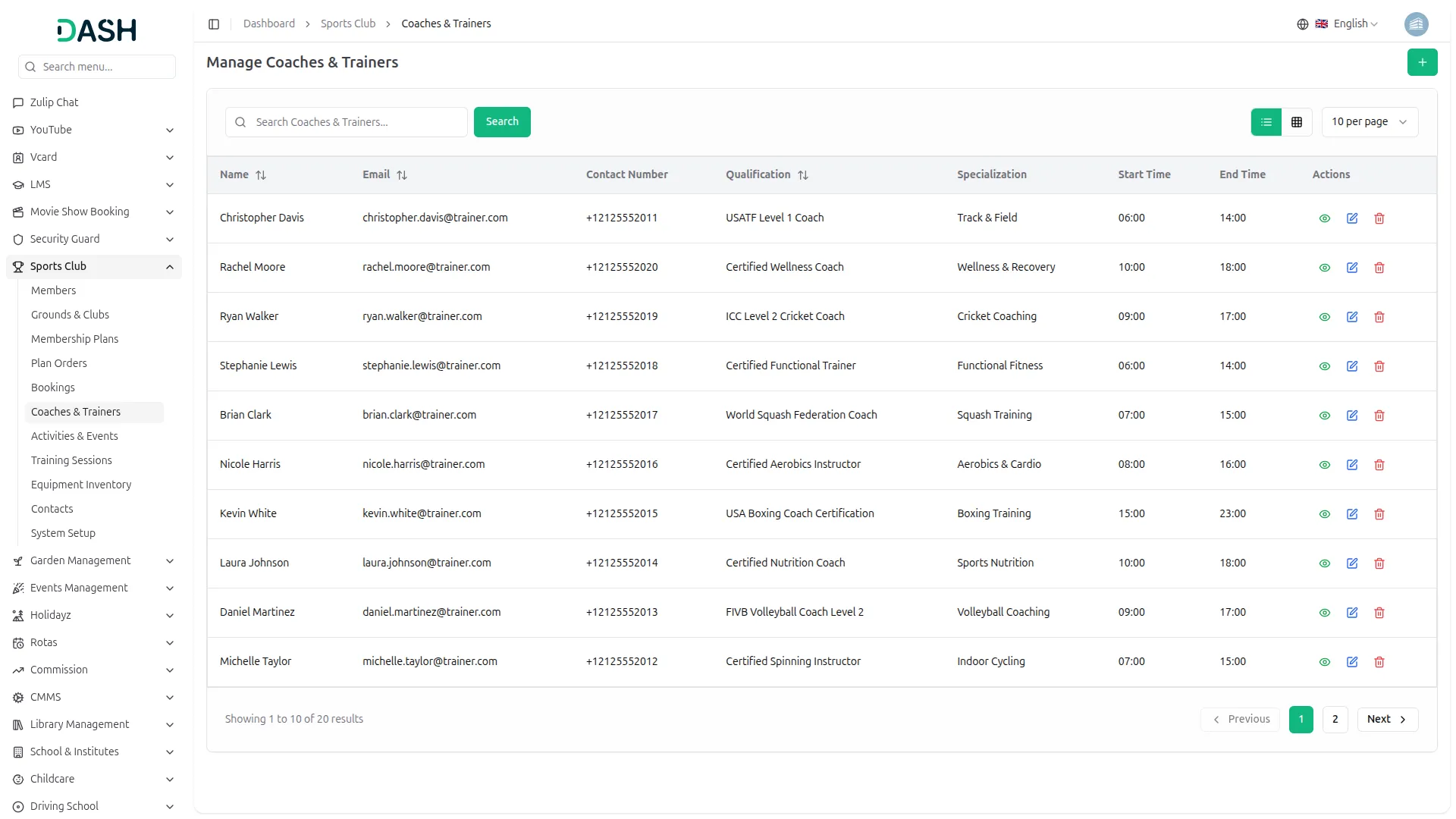
- To add a new Coach or Trainer, click the “Create” button on the coaches & trainers page. Enter the Name, Email, and Contact Number. Enter the Qualification and Specialization. Set the Start Time and End Time to define their available working hours. Click “Create” to save the record.
- The list page displays a table with columns including Name, Email, Contact Number, Qualification, Specialization, Start Time, End Time, and Actions. You can search for a specific coach or trainer using the search bar. The page also allows toggling between list view and grid view.
- In the Action column, use “View” to see the full coach or trainer profile, “Edit” to update their information, and “Delete” to permanently remove them from the system.
Activities & Events
- To add a new Activity or Event, click the “Create” button on the activities & events page. Enter the Event Name, select the Organizer Type from the dropdown (Internal or External), and enter the Organizer Name. Enter the Contact Number and select the Type from the dropdown(Indoor or Outdoor).
- Set the Start Date and End Date, enter the Maximum Participants, and select the Status from the dropdown (Upcoming, Ongoing, Completed, or Cancelled). Enter the Venue, upload an Image by clicking the Browse button, and optionally add a Description. Finally, click “Create” to save the event.
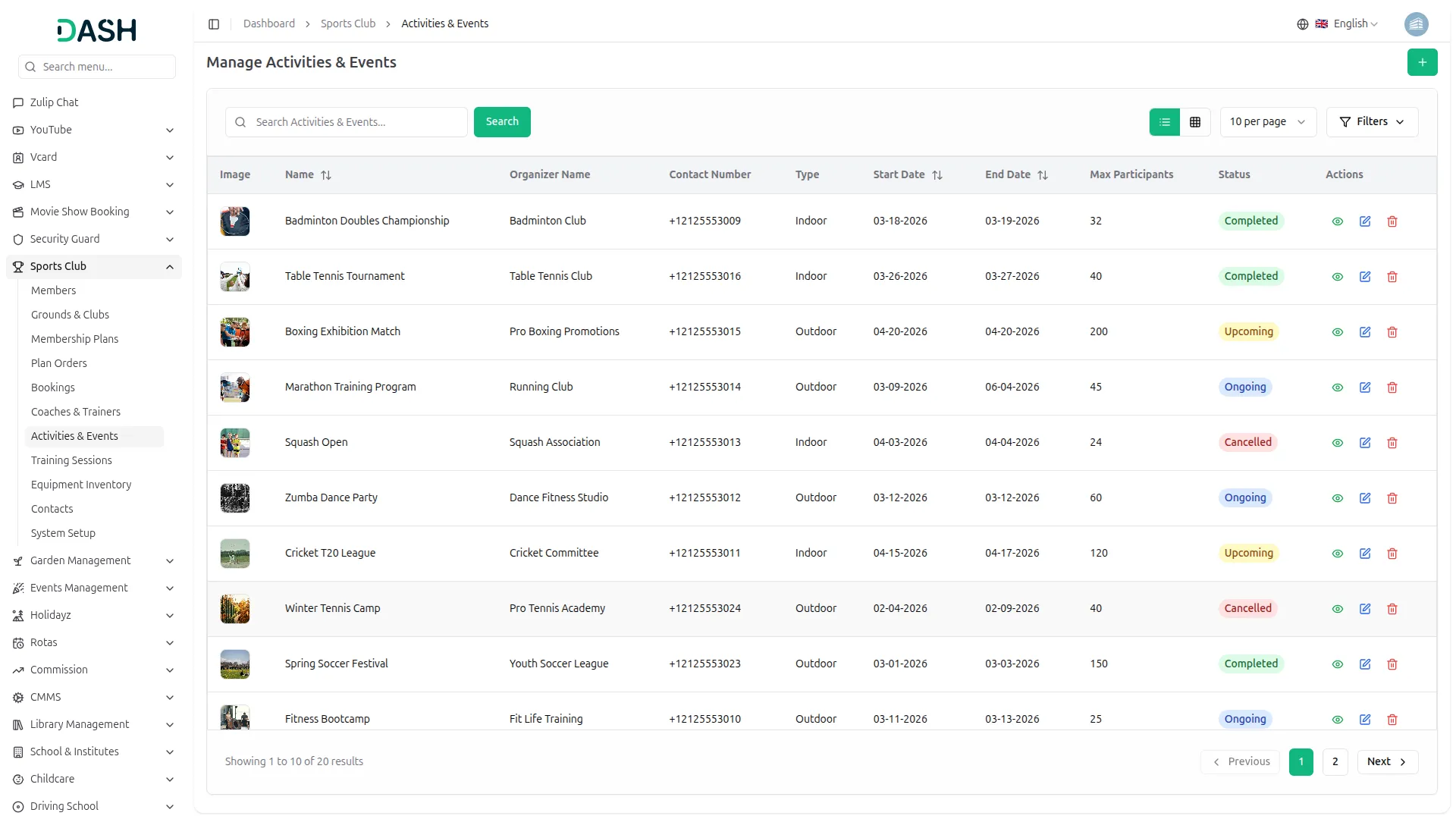
- The list page displays a table with columns including Image, Name, Organizer Name, Contact Number, Type, Start Date, End Date, Max Participants, Status, and Actions. You can search for a specific activity or event using the search bar. The page also allows toggling between list view and grid view.
- Click the “Filters” button to filter the list by Type (Indoor or Outdoor) and Status (Upcoming, Ongoing, Completed, or Cancelled) from the dropdowns, then click “Apply” to filter the data or “Clear” to reset it.
- In the Action column, use “View” to see the full event details, “Edit” to update the event information, and “Delete” to permanently remove the event from the system.
- The Status of each event is for quick visibility. Upcoming, Ongoing, Completed, and Cancelled, making it easy to monitor all active and past events at a glance.
Training Sessions
- To add a new Training Session, click the “Create” button on the training sessions page. Enter the Session Name and select the Session Type using the radio buttons, and choose Individual, Group, or Team. Set the Session Date, Max Participants, Start Time, and End Time.
- Enter the Venue and select the Status from the dropdown (Scheduled, Ongoing, Completed, or Cancelled). Select the Coach from the dropdown (populated from Manage Coaches & Trainers) and select the Members from the dropdown to assign to the session. Optionally add a Description. Click “Create” to save the session.
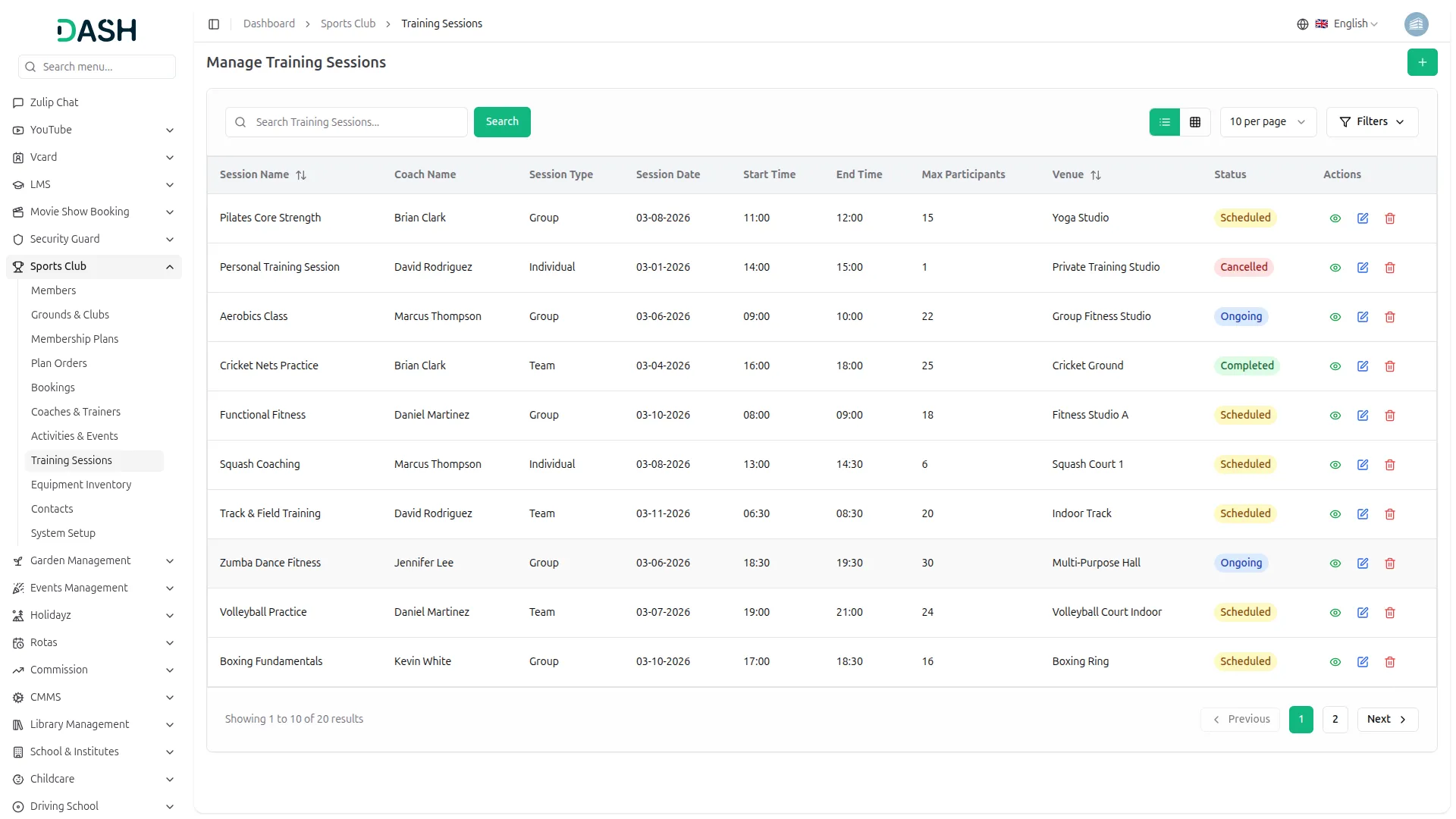
- The list page displays a table with columns including Session Name, Coach Name, Session Type, Session Date, Start Time, End Time, Max Participants, Venue, Status, and Actions. You can search for a specific session using the search bar. The page also allows toggling between list view and grid view and controlling how many records are shown per page.
- Click the “Filters” button to filter the list by Session Type (Individual, Group, or Team) and Status (Scheduled, Ongoing, Completed, or Cancelled) from the dropdowns, then click “Apply” to filter the data or “Clear” to reset it.
- In the Action column, use “View” to see the full session details, “Edit” to update the session information, and “Delete” to permanently remove the session from the system.
- The Status of each session is color-coded for quick visibility. Scheduled appears in yellow, Ongoing in blue, Completed in green, and Cancelled in red, making it easy to track all upcoming, active, and past training sessions across the platform.
Equipment Inventory
- To add a new Equipment item, click the “Create” button on the equipment inventory page. Enter the Equipment Name and select the Type (Indoor or Outdoor). Select the Condition (New, Used, or Needs Repair) and set the Purchase Date.
- Enter the Price (original purchase cost) and the Usable Cost (current usable value). Select the Category from the dropdown (populated from Equipment Categories in System Setup) and assign it to a Member from the Assigned Member dropdown. Click “Create” to save the equipment record.
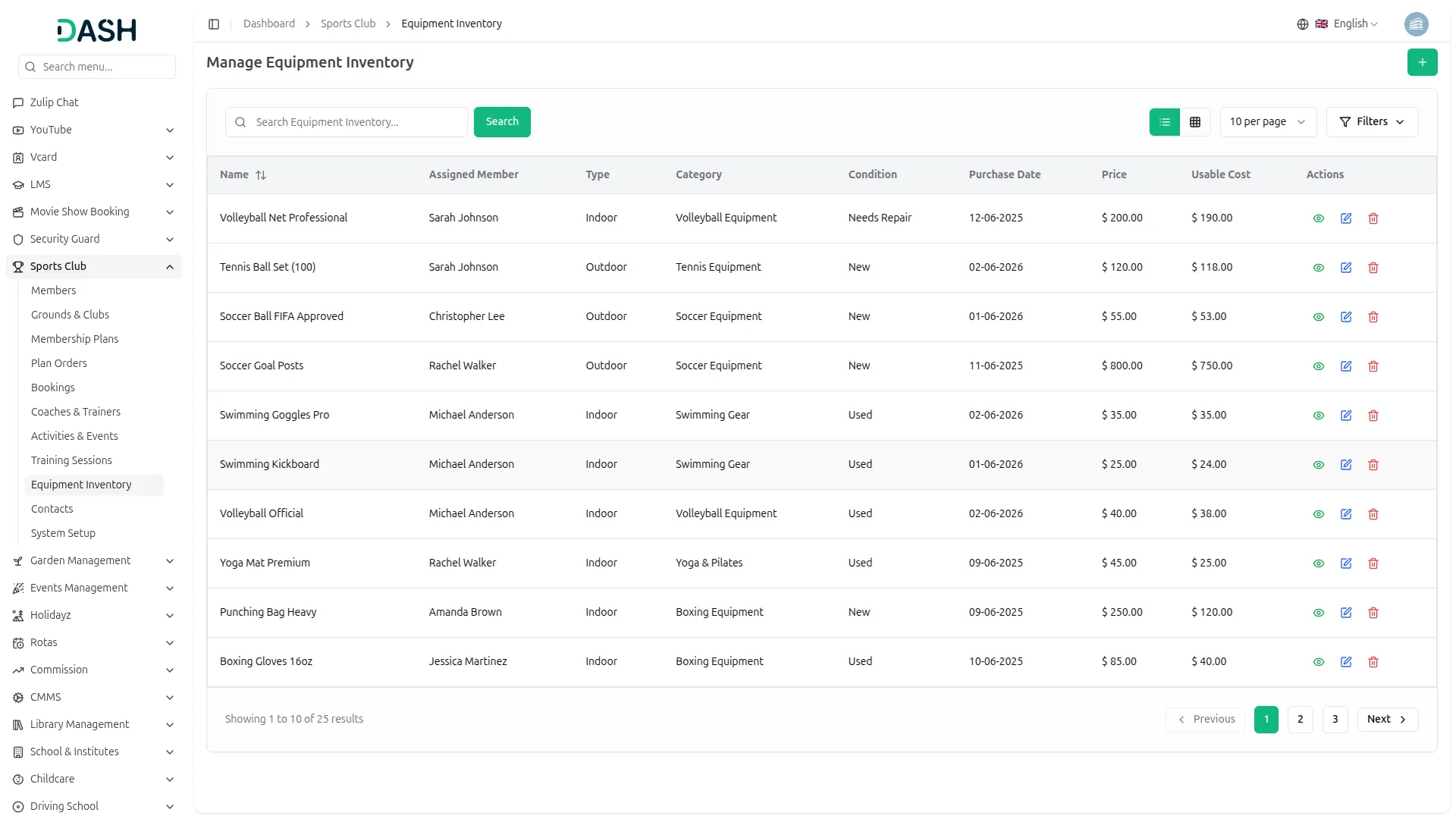
- The list page displays a table with columns including Name, Assigned Member, Type, Category, Condition, Purchase Date, Price, Usable Cost, and Actions. You can search for a specific equipment item using the search bar. The page also allows toggling between list view and grid view and controlling how many records are shown per page.
- Click the “Filters” button to filter the inventory by Type (Indoor or Outdoor), Category, and Condition (New, Used, or Needs Repair) from the dropdowns, then click “Apply” to filter the data or “Clear” to reset it.
- In the Action column, use “View” to see the full equipment details, “Edit” to update the equipment information, and “Delete” to permanently remove the equipment record from the system.
- Once an equipment item is created and assigned to a member, the admin can clearly see who is responsible for each piece of equipment, what condition it is in, and the difference between its original purchase price and current usable cost, making it easy to plan maintenance, replacements, and asset tracking across the entire inventory.
Manage Contacts
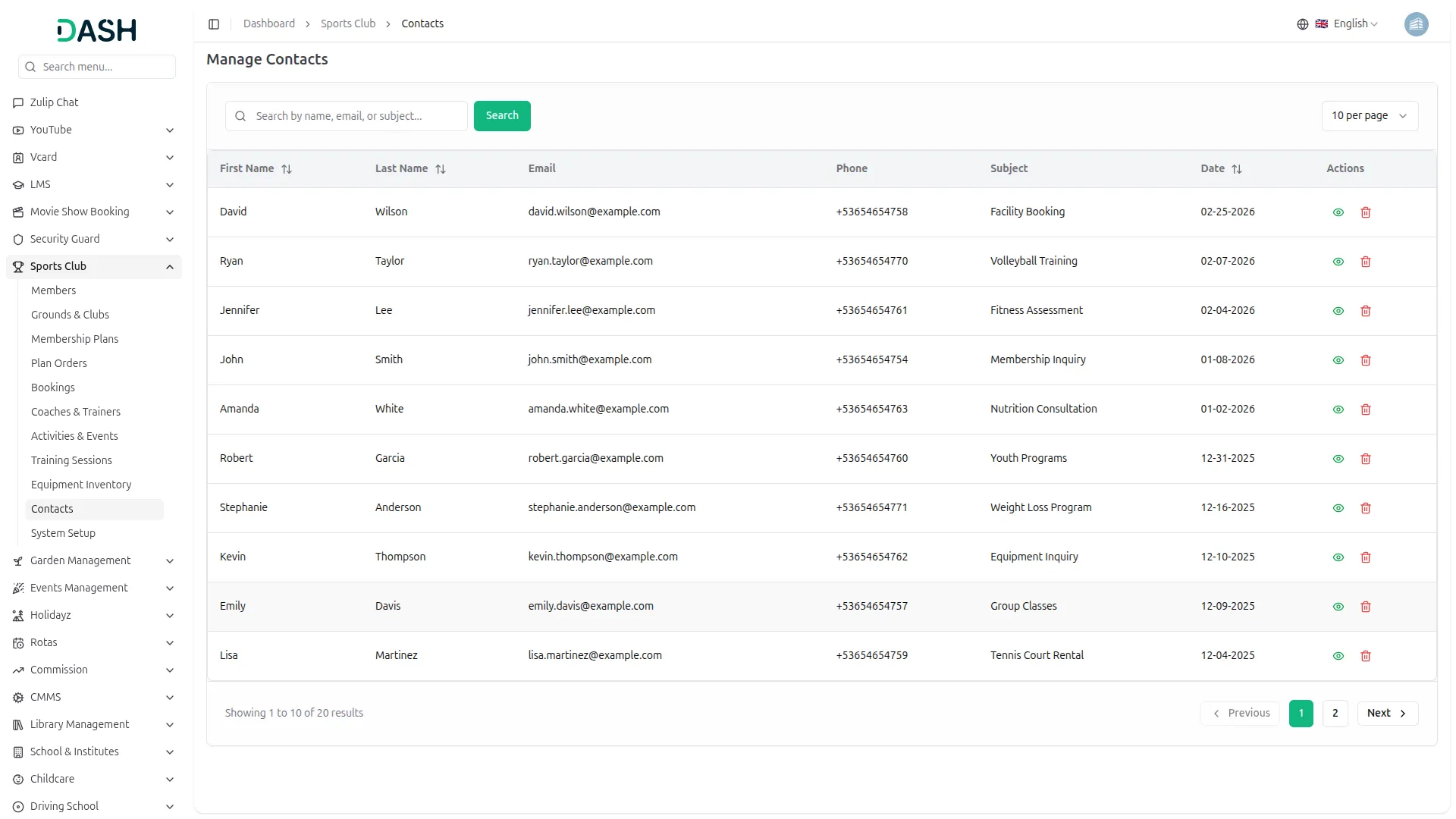
- The Contacts page displays all inquiries submitted by visitors through the Contact Us form on the website. The list shows a table with columns including First Name, Last Name, Email, Phone, Subject, Date, and Actions.
- You can search for a specific contact by name, email, or subject using the search bar and control how many records are shown per page.
- In the Action column, use “View” to read the full message and contact details submitted by the visitor, and “Delete” to permanently remove the contact record from the system.
- All entries are automatically captured when a visitor submits the contact form on the website, requiring no manual entry from the admin. The Date column reflects when the inquiry was received, helping the team prioritize and respond to messages in a timely order.
Categories
Related articles
- SMS Integration – WorkDo Dash SaaS Add-On Guide
- GoTo Credentials Generation Guide
- Coupon Module Guide – eCommerceGo SaaS
- Pet Tag – vCard SaaS Add-On Guide
- Mailchimp – WorkDo Dash SaaS Add-On Guide
- Sage – WorkDo Dash SaaS Add-On Guide
- PDF QR Code – vCard SaaS Add-On Guide
- eBook – WorkDo Dash SaaS Add-On Guide
- BitPay – WorkDo Dash SaaS Add-On Guide
- Moyasar – WorkDo Dash SaaS Add-On Guide
- Checkout Attachment – eCommerceGo SaaS Add-On Guide
- WhatsApp API – WorkDo Dash SaaS Add-On Guide
We're Here to Help - Let's Talk
Have questions about our solutions, customization services, or business tools? Our team is here to help you. let's talk.