
Pusher Configuration Guide
Learn how to configure and manage Pusher settings with easy setup instructions.
User Type: Company Profile / Owner
In this doc you’ll find out how to connect one of supported WorkDo apps to Pusher.
Editing Pusher Settings
To access the settings panel, log into your super admin AccountGo account.
Then, head over to Settings > Pusher Settings and fill in the Pusher App ID, App Key, App Secret, and App Cluster.
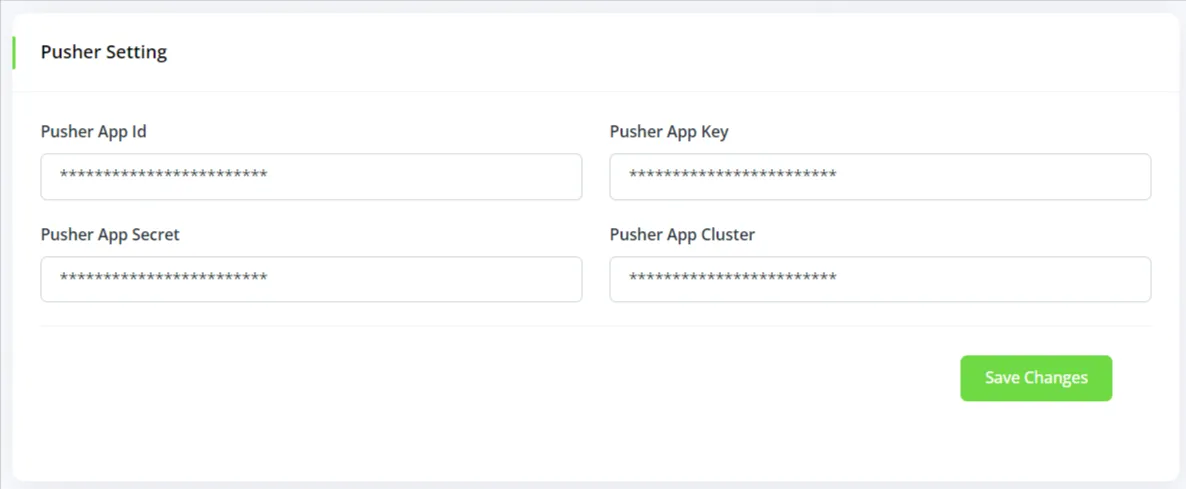
Getting Your Pusher Credentials:
- Head over to https://pusher.com/channels and log into your Pusher account.
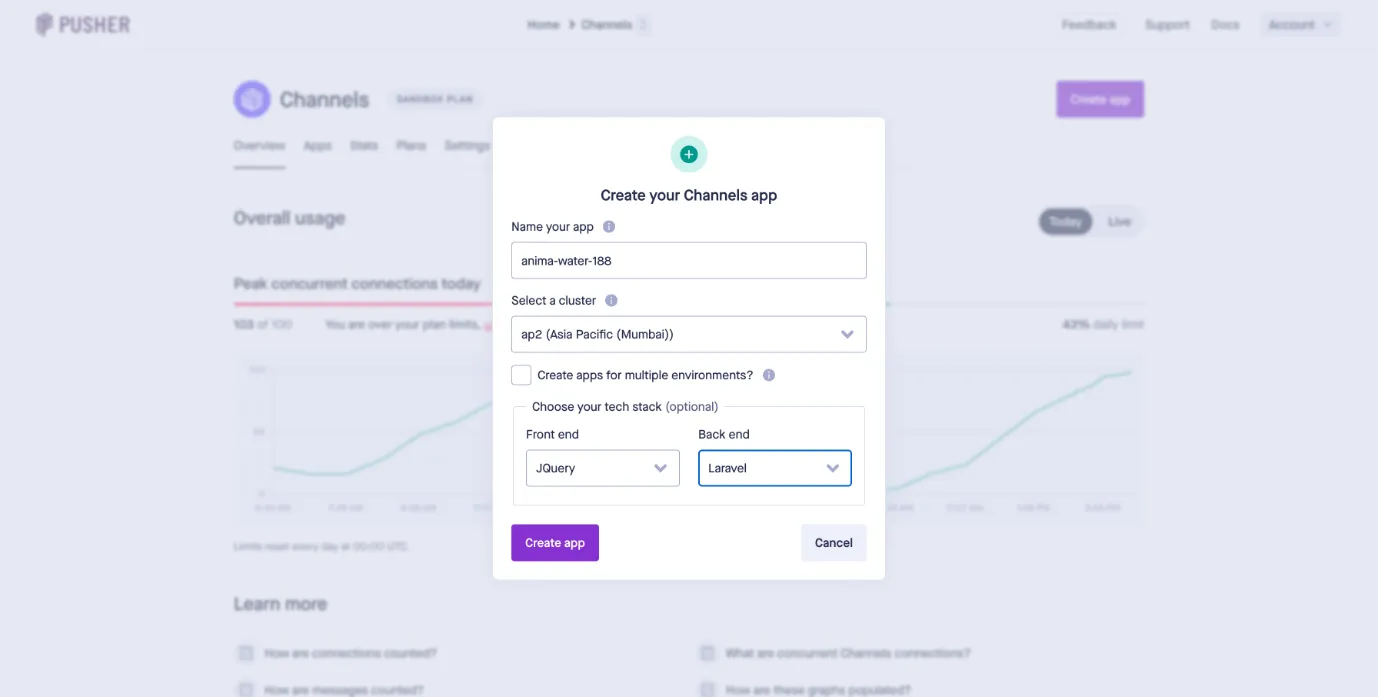
- Select “Channels” and click “Create app”. Next, enter your app’s name and select your geography in the cluster option.
- Next, select JQuery in the frontend and Laravel in the backend windows:
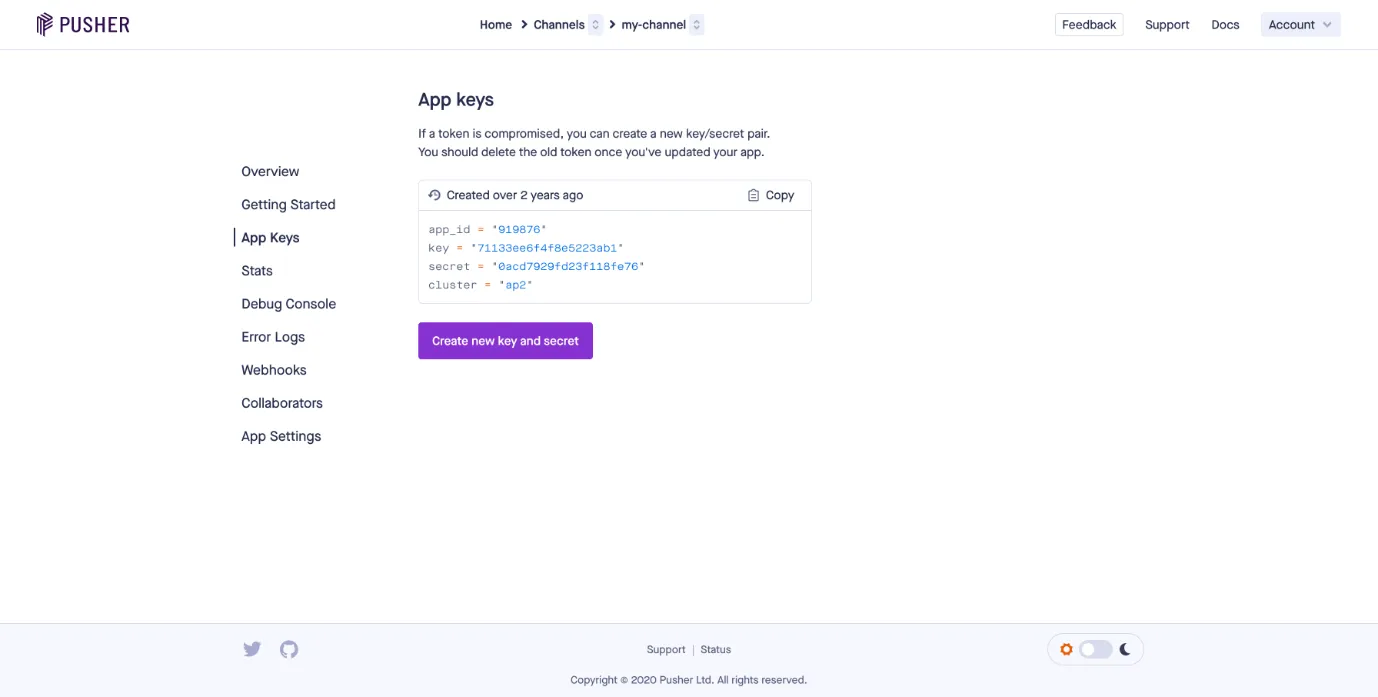
- Once the app is created, select apps > “my channels” > select “App keys”. There, you’ll find the API key and other information required for configuring the API in your platform.
Categories
Related articles
- Reports – TicketGo Add-On Guide
- Retainer – WorkDo Dash SaaS Add-On Guide
- Dairy Cattle Management – WorkDo Dash SaaS Add-On Guide
- Sign in with Facebook – WorkDo Dash SaaS Add-On Guide
- PayTabs – BookingGo SaaS Add-On Guide
- Twilio – TicketGo Add-On Guide
- Document Template – WorkDo Dash SaaS Add-On Guide
- Sendinblue – WorkDo Dash SaaS Add-On Guide
- Zendesk – BookingGo SaaS Add-On Guide
- Tags – TicketGo Add-On Guide
- Zapier – WorkDo Dash SaaS Add-On Guide
- SMS Integration – WorkDo Dash SaaS Add-On Guide
Get in Touch
We're Here to Help - Let's Talk
Have questions about our solutions, customization services, or business tools? Our team is here to help you. let's talk.